Suggested readings: App Content Optimizer, Use Cases for App Content Optimizer
Using Content Optimizer requires two steps: Variables and Variants.
Create variables
To implement Content Optimizer, your development team should create variables, name them, assign default values, and use them in your mobile app's source code. Once your development team updates the source code and defines a content element as a variable, you can change it in the panel.
A variable can be any content element in your app. Some variable examples are:
Submit, next, or exit button content,
Company logo, an article's image or emoticon,
Footer text, the company's phone number, or the date that shows when the article was published.
The variable value is what you can change. Some value examples are:
Color or size of a button,
Link(URL) of an image,
Text in the app footer, the company's phone number, or the article's date.
Every variable has a default value, and you can quickly revert to it. Any change can also be created in multiple variants.
A simple example can be changing the color of the Add to Cart button on your product pages. To do this, your development team should set a variable for the Add to Cart button color in Hex Code. Let's say it looks like as follows:
variable_{Addtocartcolor} = #fea630 (this is the default value)
In this case, you can change this variable in different variants. Variant A would be variable_{Addtocartcolor} = #2869c7 while Variant B would be variable_{Addtocartcolor} = #d51c24. Once the content is updated in the app, you can see the changes applied within 10-15 minutes. To see how to apply these changes, get started with creating variants.
Create variants
Once your development team completes creating the variables needed for your campaign, you can start creating variants.
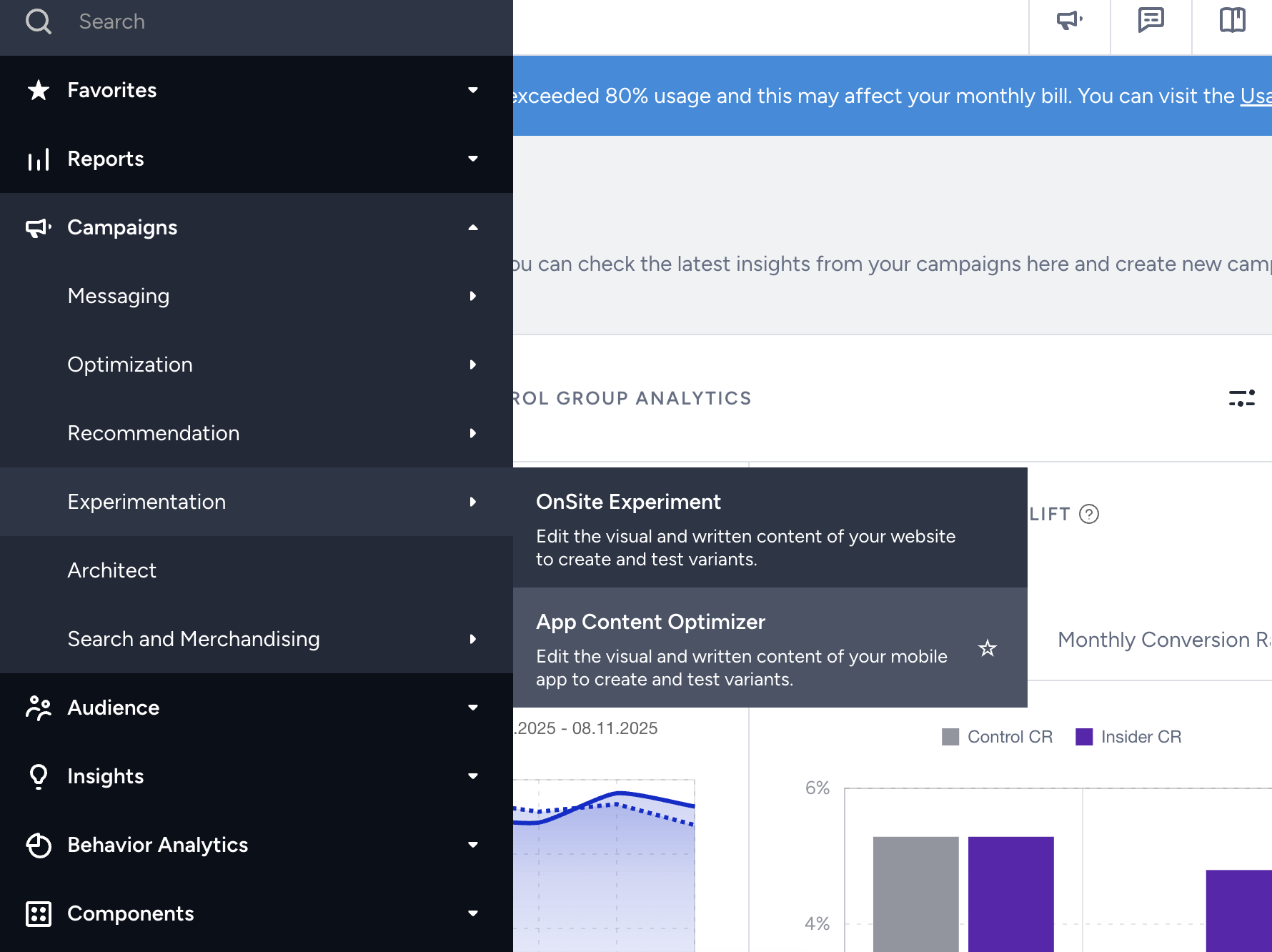
1. Navigate to Campaigns > Experimentation > App Content Optimizer.
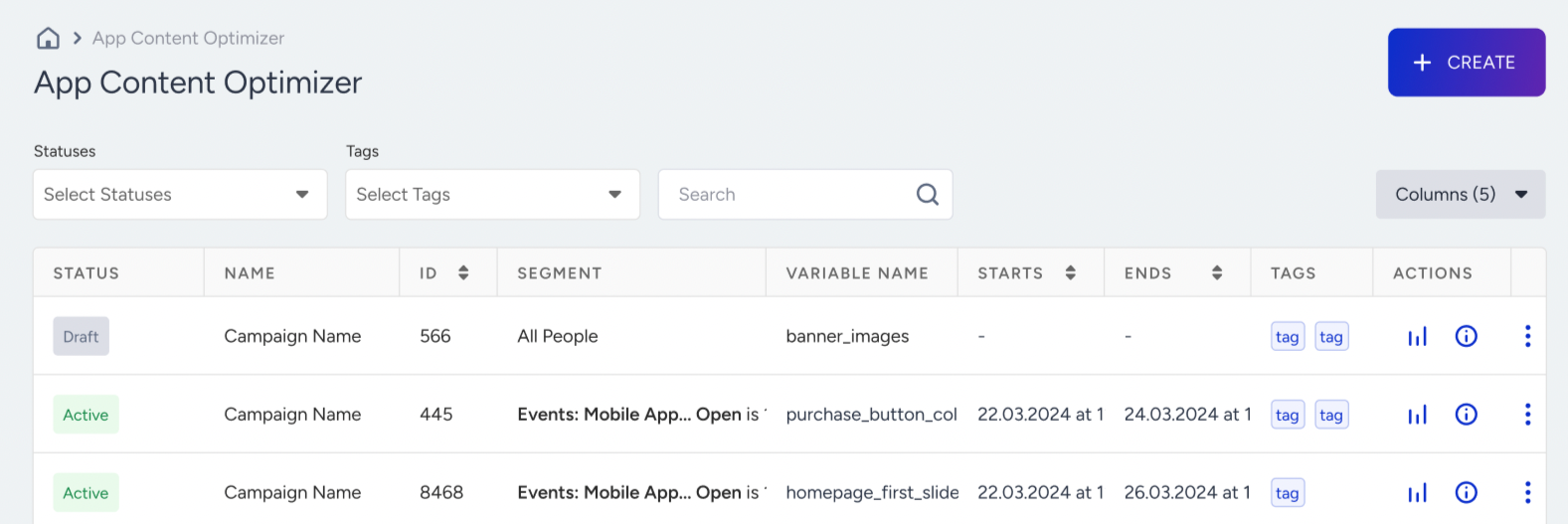
2. Click the Create button to start creating your experiment.
Design optimization
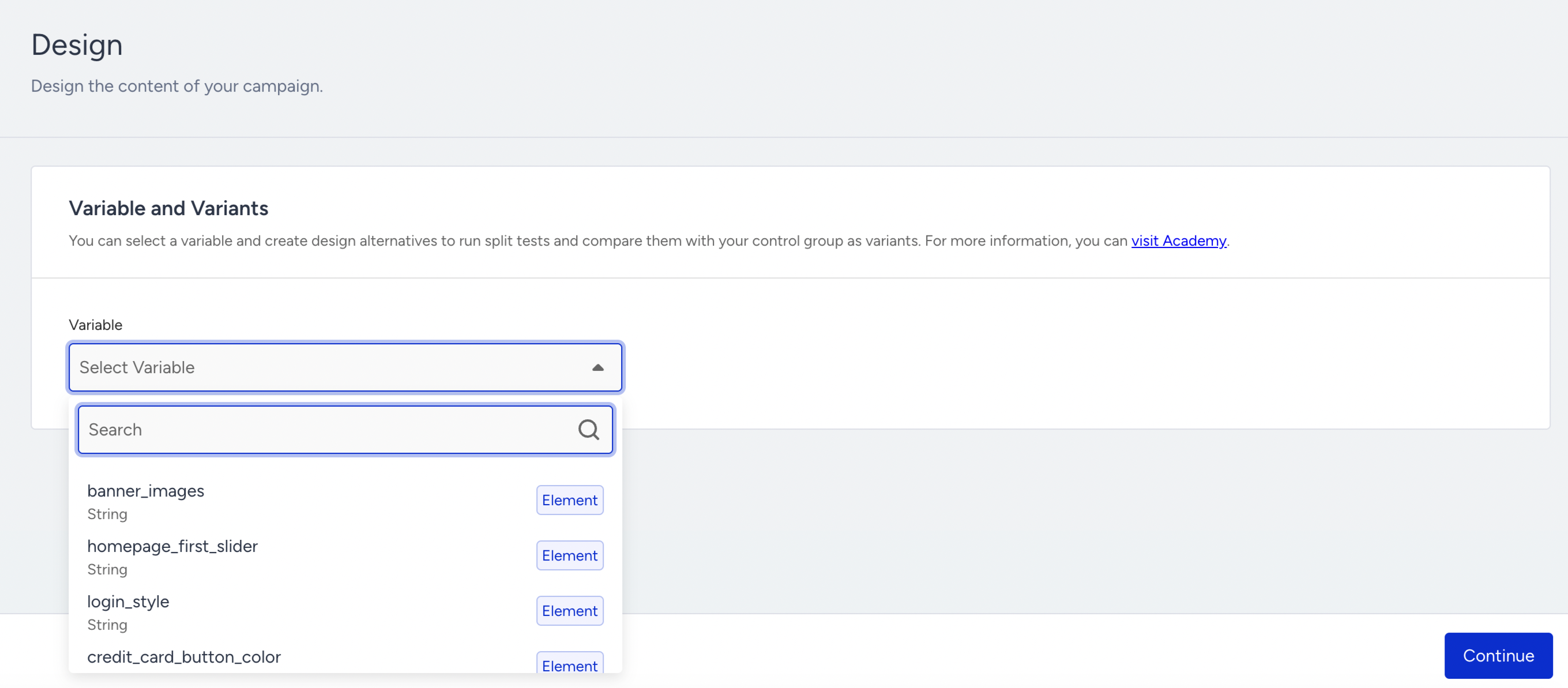
1. Choose one of the variables that your development team has created beforehand.
2. Once selected, the variable will have the default value. Add the new value for your variant. Depending on the variable, you can change text, color, image, or other content in your app. Adjust the traffic allocation as needed.
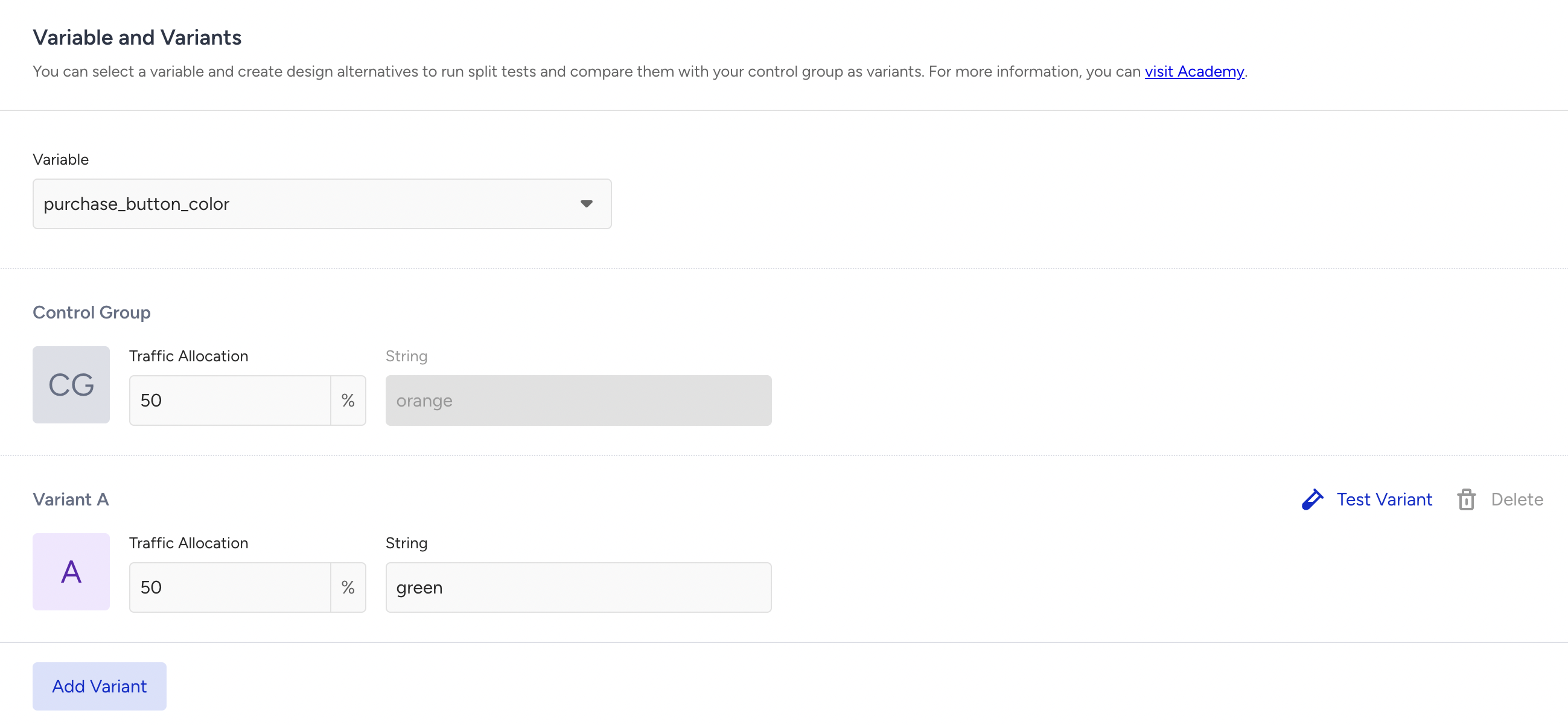
3. Click the +Add Variant button if you want to add other variants.
You can have up to three variants and one control group.
The control group's traffic allocation can be set to 0% if you want to display only the variants to your users. However, the default value remains the same.
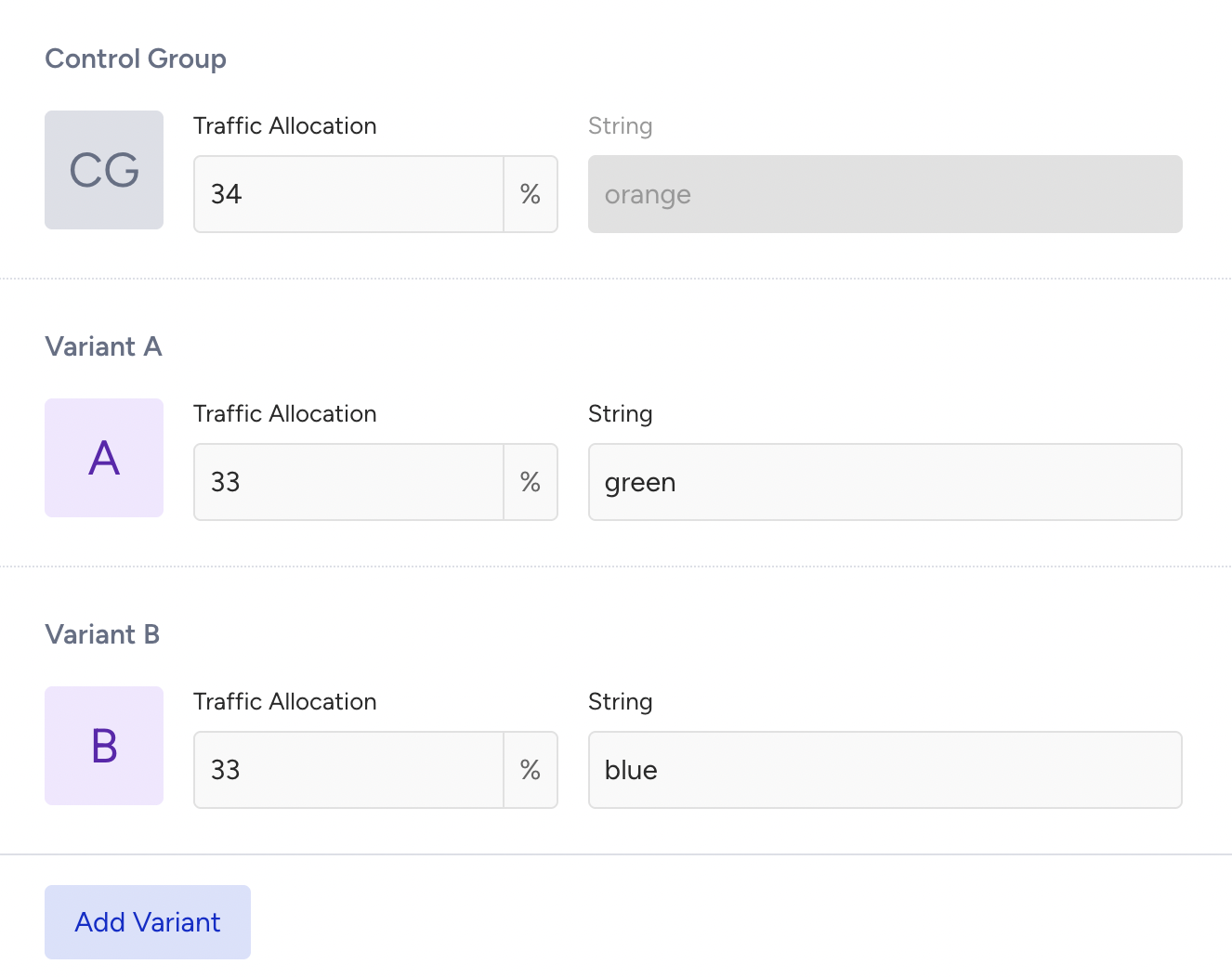
4. Click the Test Variant button to test your new variant. Once you complete your testing, click the Next button to proceed with your target segment.

Make sure that the device that you want to use for testing is added as a test device. When you click the test button, a variant test link will be sent to you, and your app will automatically start on your test device for you to see the variant test.
Segment audience
After creating your variable, you can choose a target segment to display your optimization.
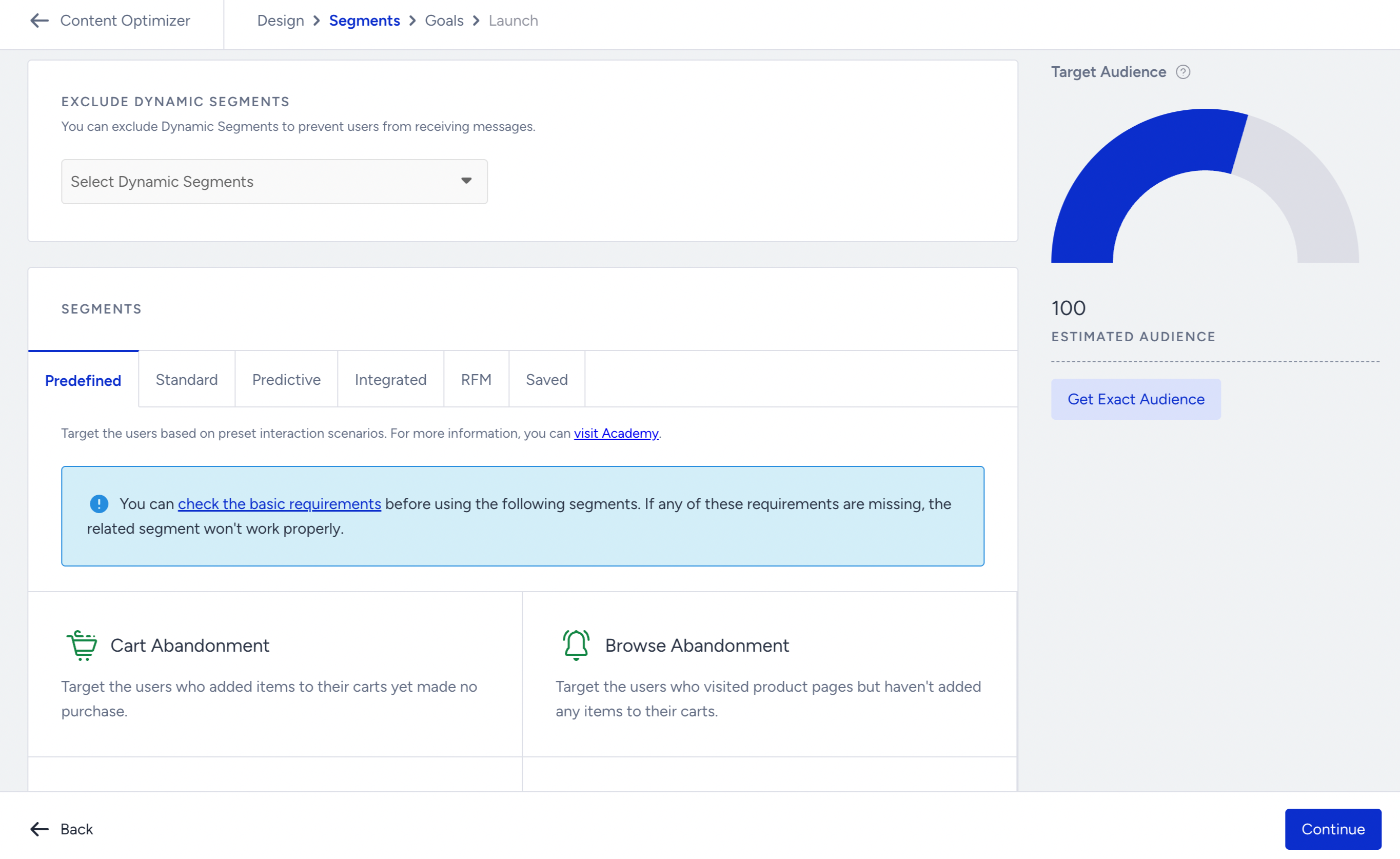
You can select dynamic segments to exclude. On the right side of the page, you can see the estimated audience. To get the exact audience after selecting the segments, click the Get Exact Audience button.
This step offers the following segmentation options:
Once you select your segments, click the Continue button to proceed to the next step.
Set goals
You can edit the existing goal or create a new one as per your campaign strategy.
Content Optimizer uses view-through attribution with a session-based window. A conversion is counted when the goal happens in the same app session as the impression. The window is not configurable.
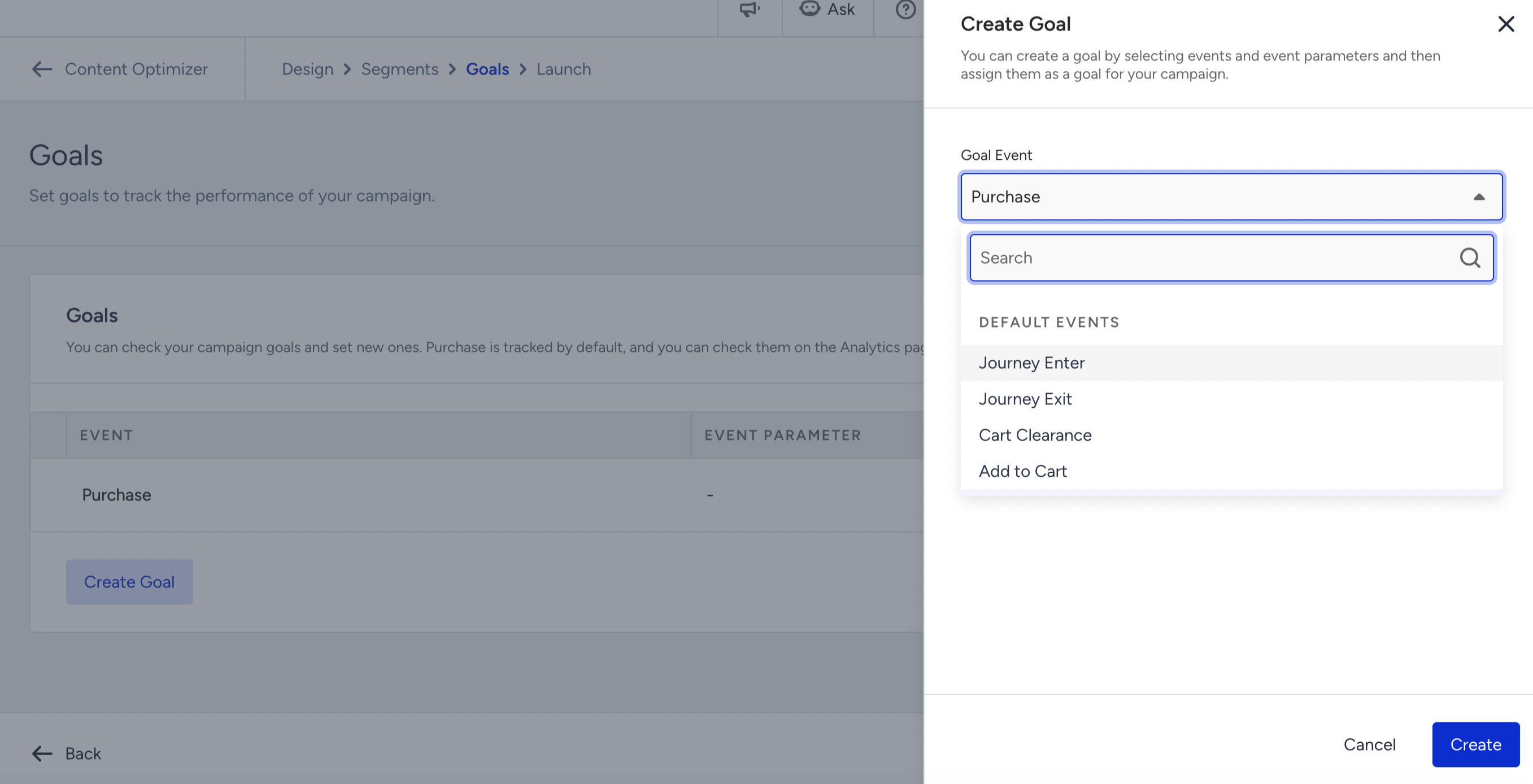
Unsupported events and event parameters in app rules and goals
What are app-related events and parameters?
App-related events and parameters are the events sent by Insider One’s Mobile SDK from within the app. These include both custom events implemented by your developers during the SDK integration and the SDK's built-in events. Since the list displayed in the panel is generated across all apps in your account, it may also include events and parameters that your application does not actually send.
Why might a campaign not work?
App Templates and Conversion Push triggers are evaluated on the device using the events collected by Insider One’s Mobile SDK during the current app session. If your application never sends the selected event, the trigger condition can never be met. Likewise, if you create a filter using a parameter that your application does not send, the condition will never be satisfied.
What happens if you select an unavailable event or parameter?
The panel does not validate these selections or display a warning. The campaign can still be saved, but it will never be triggered, and any campaign goal based on unavailable events or parameters will not collect data. For this reason, we recommend confirming that the selected events and parameters are implemented before using them in your campaign.
Launch campaign
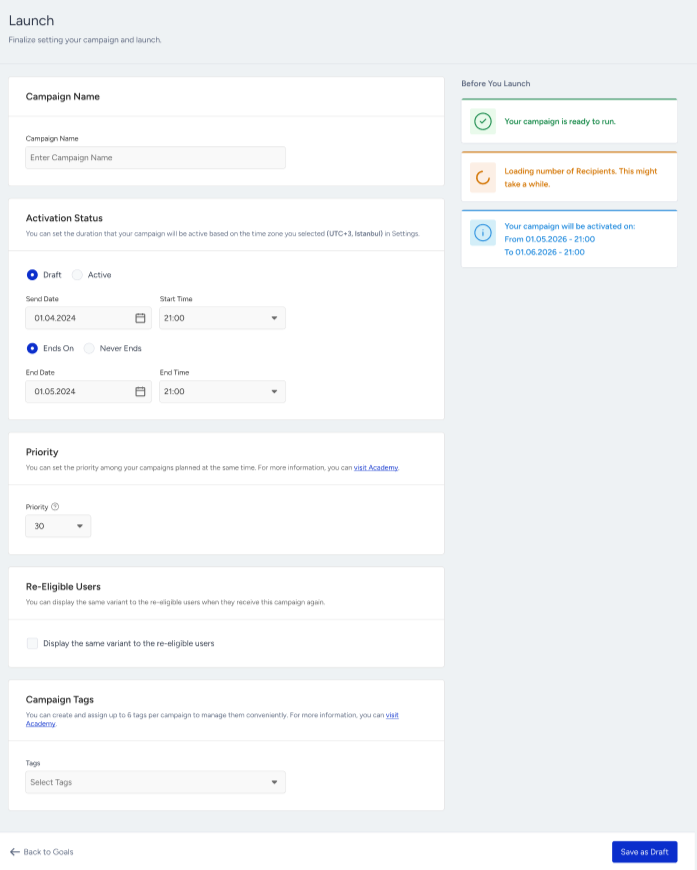
Configure the activation status, priority, re-eligible users, and campaign tags to launch your optimization.
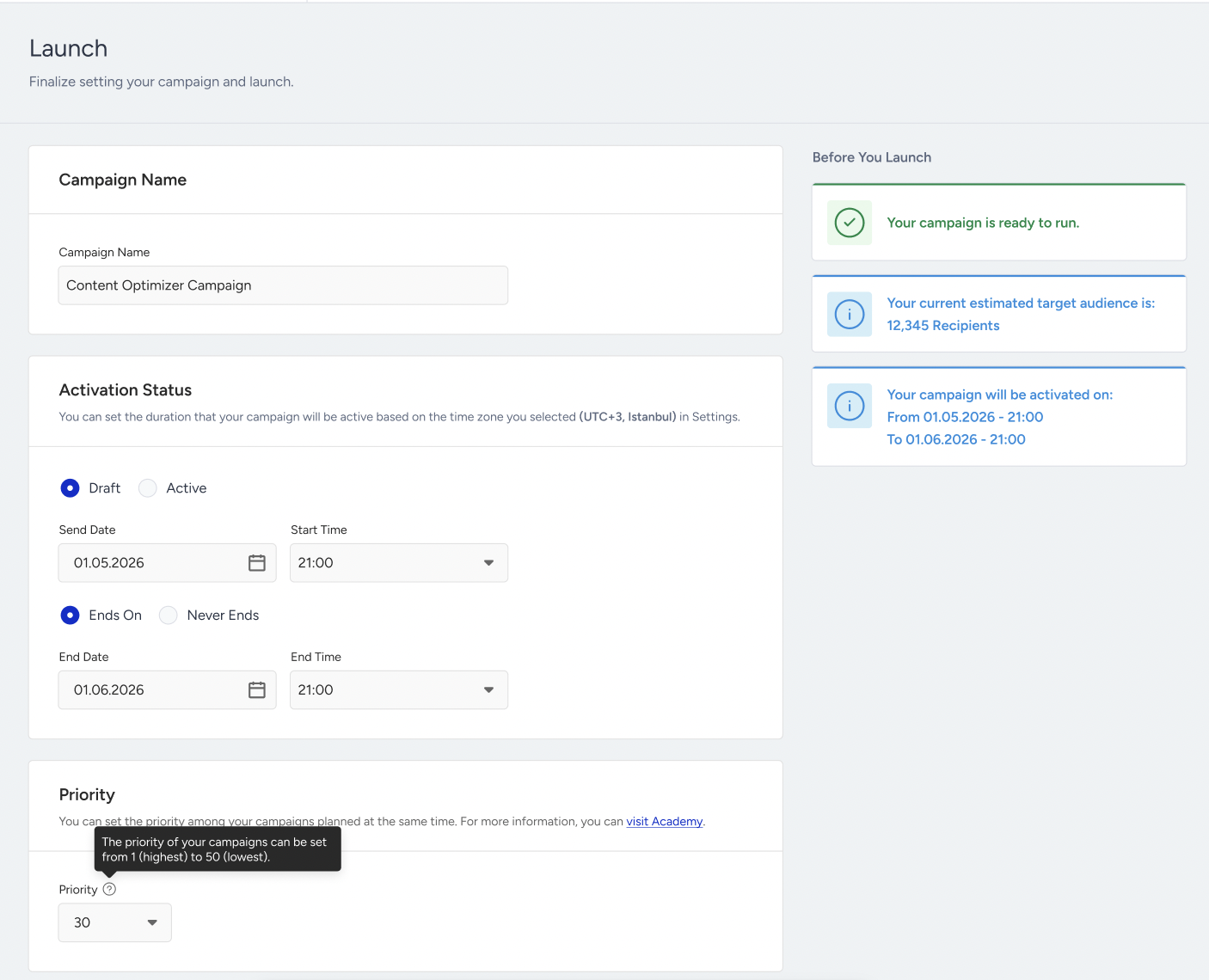
You can save it as a draft or click the Launch button to launch it to your target segment.
Even though the campaign is paused, users might see the campaign on their next visit due to device caching while the latest version of your campaigns is fetched from the backend if you have integrated the Content Optimizer with the "Retrieving Content with Stored Data" method and the users haven't visited the app after the campaign is paused.
Re-eligible users
The Re-Eligible Users card controls what a user sees when they become eligible for the same campaign again in a later session.
By default, Content Optimizer selects a variant for each user every time they're served the campaign. This means the same user can see Variant A in one session and Variant B in the next.
Check Display the same variant to the re-eligible users to keep each user on the first variant they were served. On later visits, they continue to see that same variant, and the 30-day window is refreshed on each visit. Turn this on when you want a consistent experience across sessions and cleaner A/B results, because each user then contributes to only one variant instead of several.
Good to know:
The option is off by default, and existing campaigns keep their current behavior.
You set it per campaign, so enable it only where consistency matters.
If you enable it on a campaign that's already running, users are pinned on their next session to a freshly selected variant, not necessarily the one they saw before.
The option is unavailable when the campaign has fewer than two variants receiving traffic. A tooltip links you back to the Design optimization step.
If a user's assigned variant is later deleted or set to 0% traffic, they're reassigned on their next session.