Campaign Options allow you to configure when to display your optimization to the eligible users.
You can reach the following campaign options on the Edit campaign options step in the campaign creation flow:
Display Options
Display options let you configure the priority for showing your optimization.
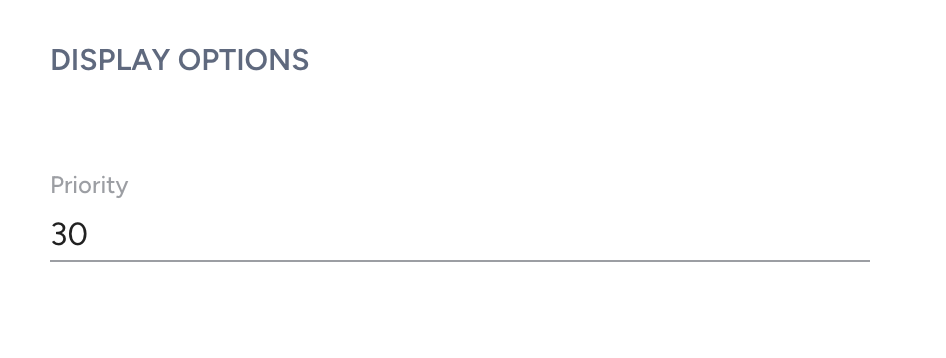
Priority allows you to prioritize campaigns with the same trigger settings, where the lower the number, the higher the priority.
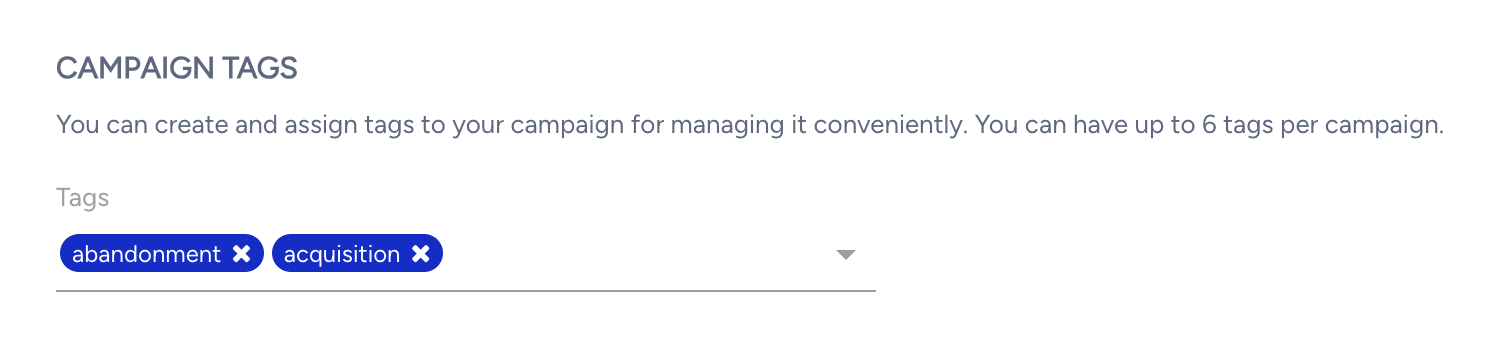
Campaign Tags
You can add tags to your campaigns.
Campaign Goals
Campaign Goals are based on events tagged during the integration. Selected goals can help you measure the success of your campaign. There are two types of goal tracking for push notifications:
- Click-through: This shows the data of the users who received the campaign, opened it, and completed the conversion action.
- View-through: This shows data for users who completed the conversion goal within 6 hours of receiving the campaign. This report type also includes click-through campaigns.
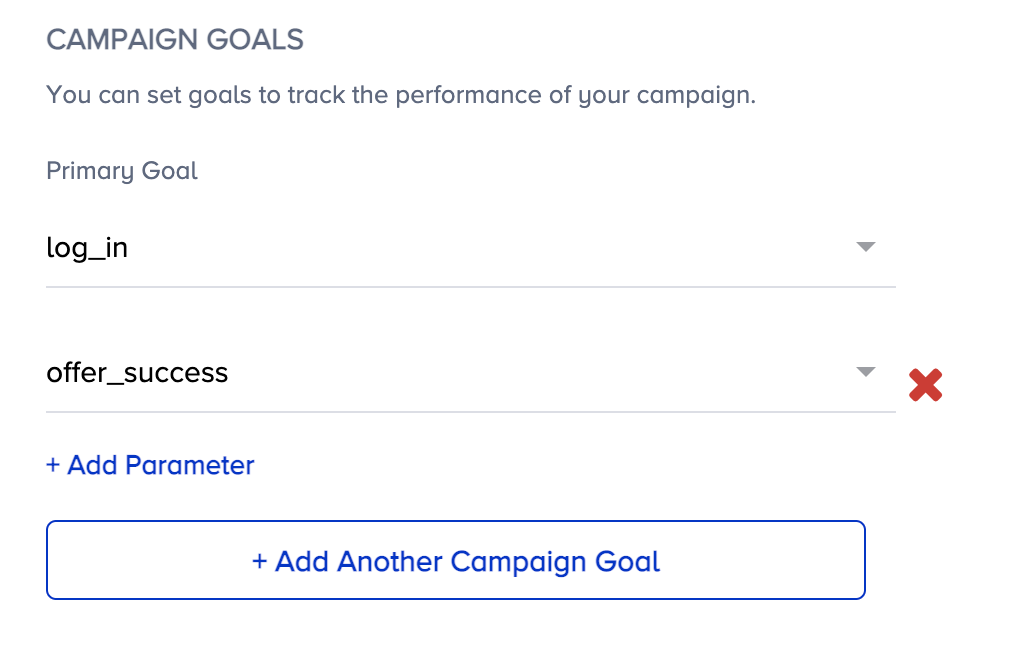
You can still select a different primary and secondary goal to track for this specific campaign.
You can also add event parameters to the selected event as the campaign goal to break it down into more focused goals. For example, you can set the Confirmation Page View as the campaign goal and add the Brand event parameter to track purchase counts for the selected brand.

Campaign Duration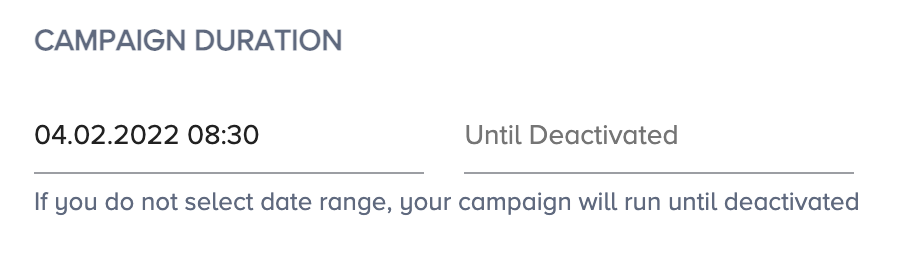
Once you select a specific date and time for the campaign to start and end, it will be live during that period. If you choose no date range, it will be live until it is deactivated.