Enhanced Mobile Templates offer a flexible, easy-to-use solution for creating consistent mobile app campaigns and strategies, with its new flow and advanced design elements.
You can use app template campaigns to create banners, display information to your users, and create urgency with countdowns to increase your conversion rate.
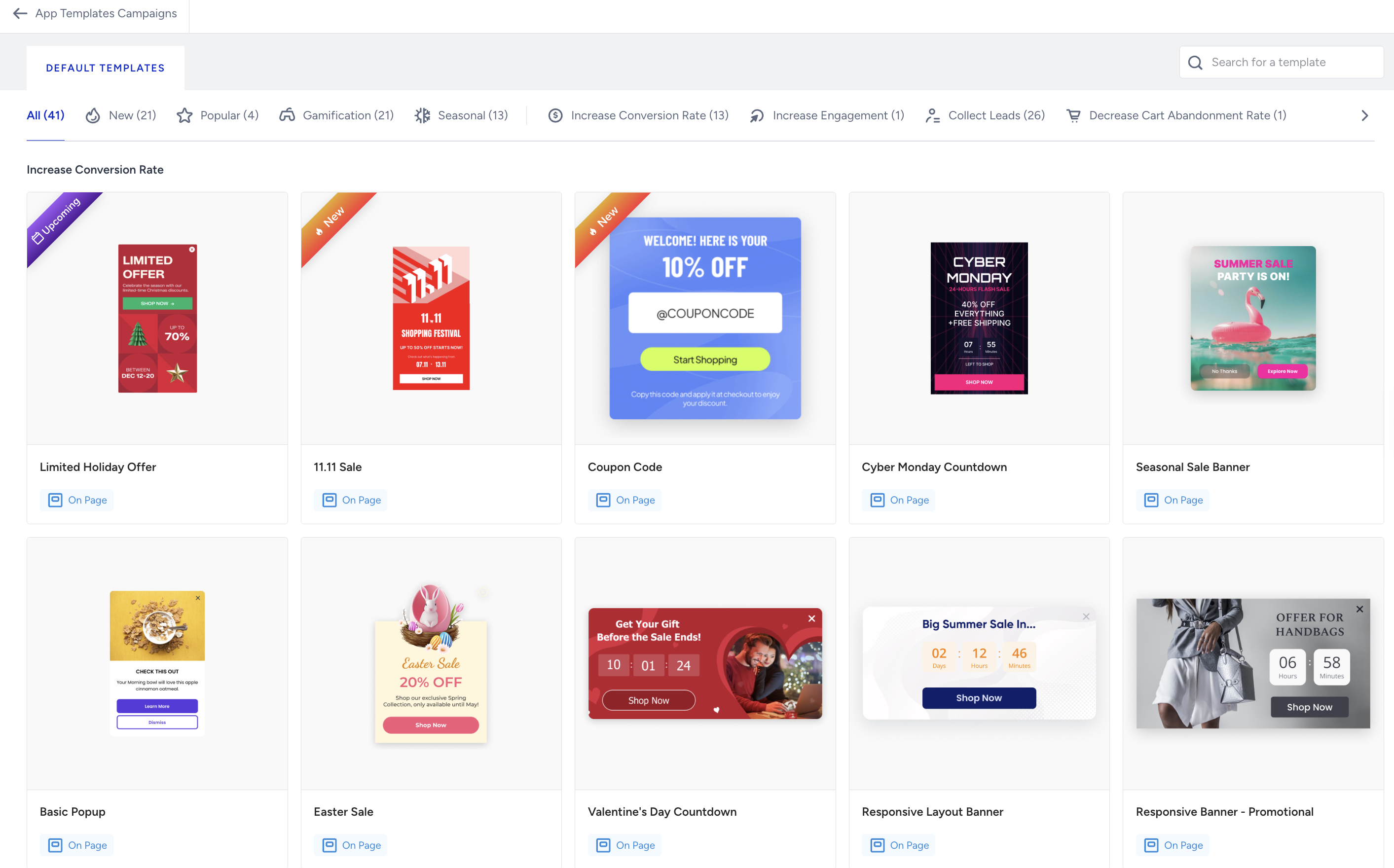
The template store has 41 templates for gamification, seasonal deals, increasing conversion rates, increasing engagement, collecting leads, and decreasing cart abandonment rates.
Requirements
The mobile SDK should be the following or higher versions for end users to see the Enhanced Mobile Template campaign:
iOS 12.6.1
Android all versions
React Native 5.5.0
Flutter 3.5.0
Cordova 1.5.0
Create an Enhanced Mobile Template Campaign
To start creating your Enhanced Mobile Template campaign:
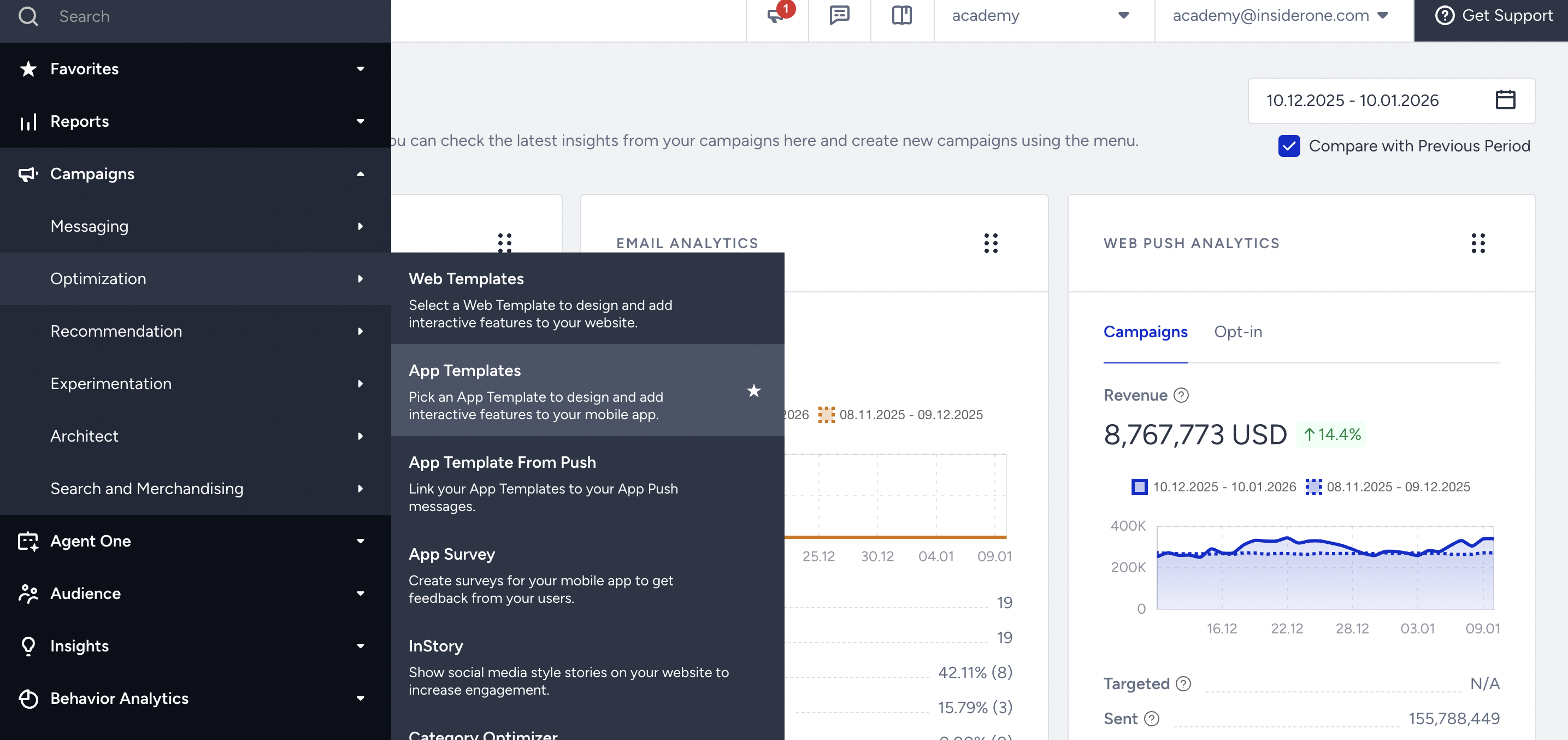
1. Go to Campaigns > Optimization > App Templates.
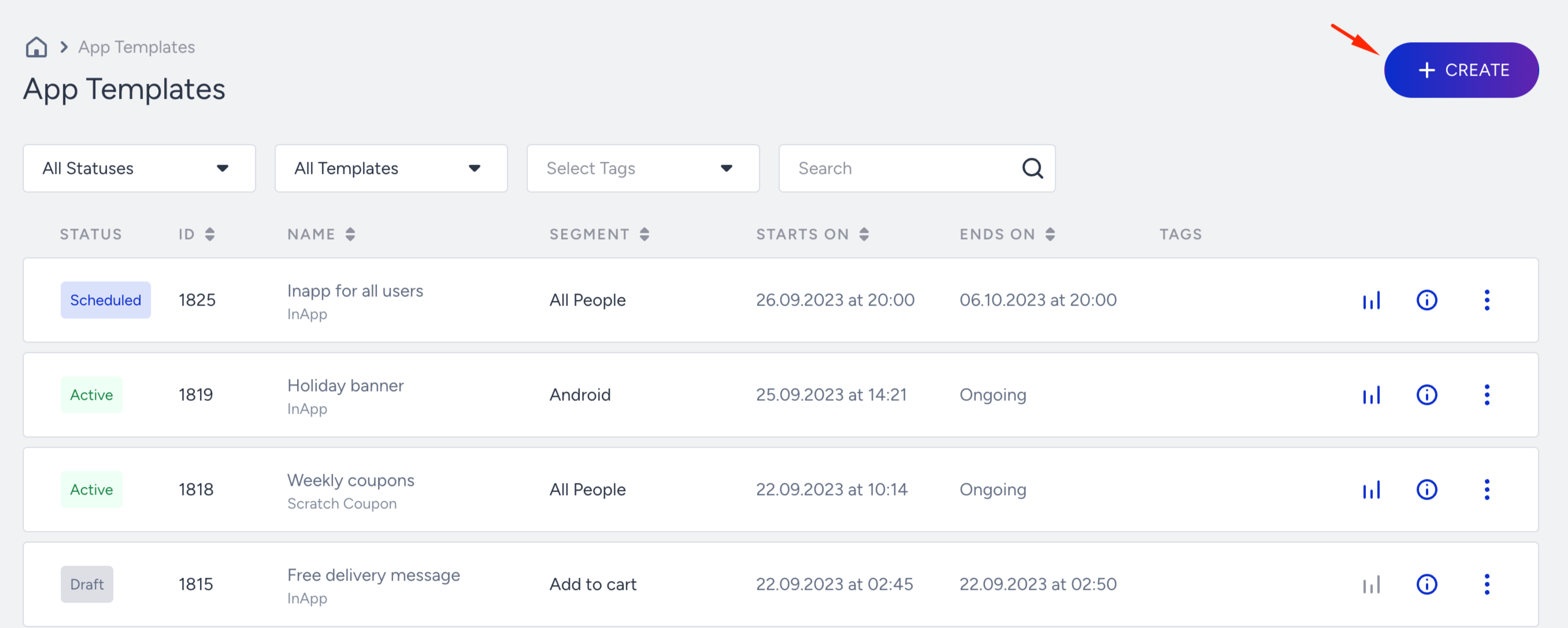
2. Click the Create button.
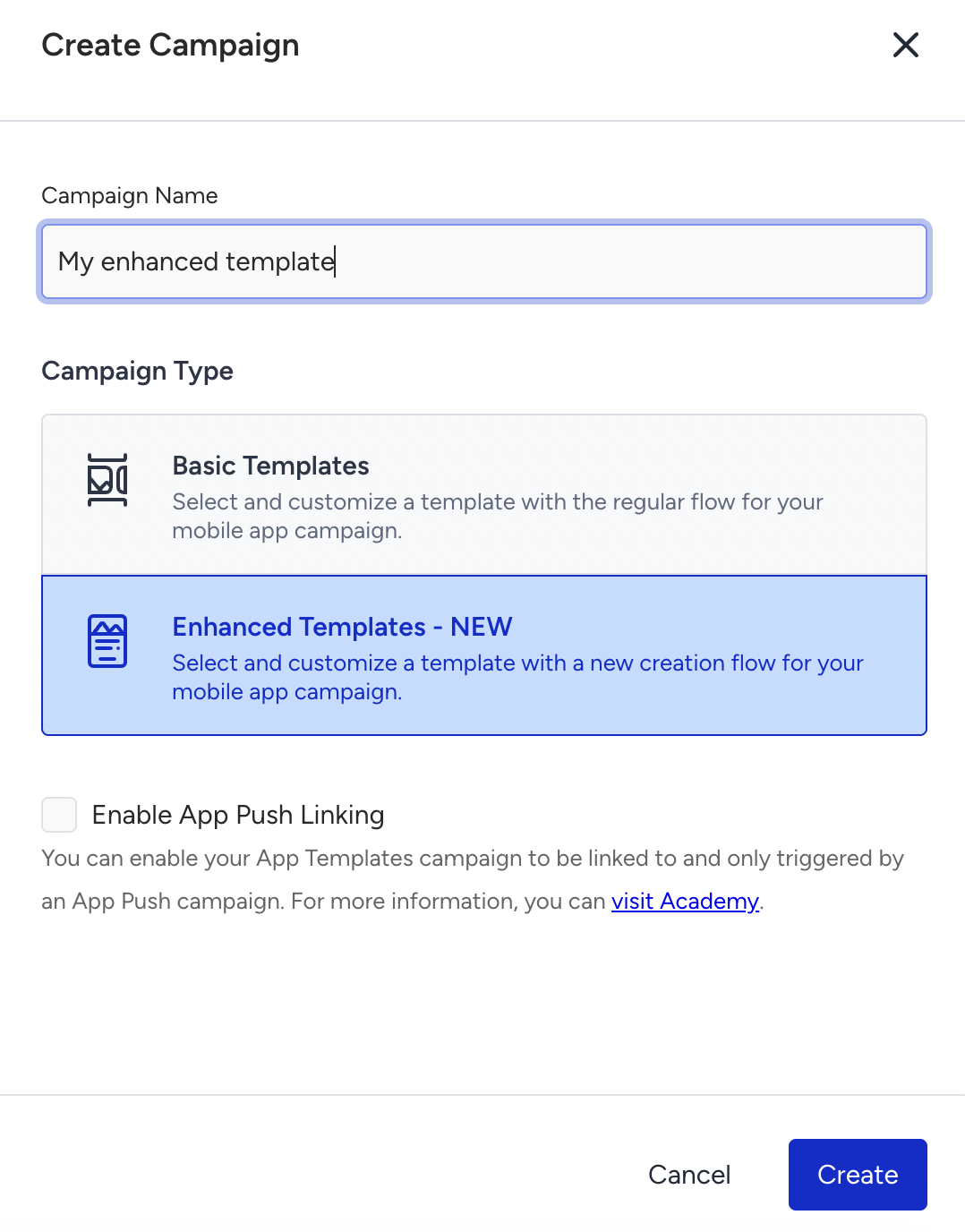
3. Select Enhanced Mobile Templates, enter a campaign name, and click the Create button.
4. Select the enhanced template you want to use.
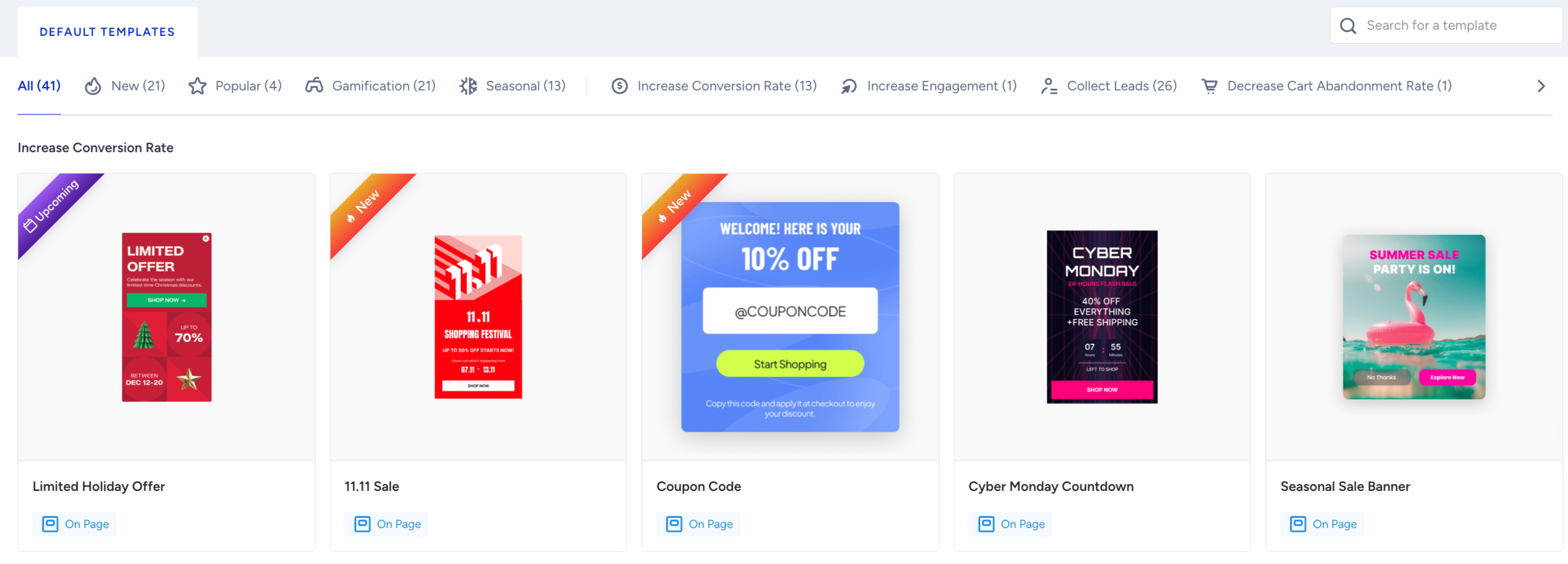
The template store has 41 templates for different strategies: increase conversion rate, increase engagement, collect leads, and decrease cart abandonment rate.
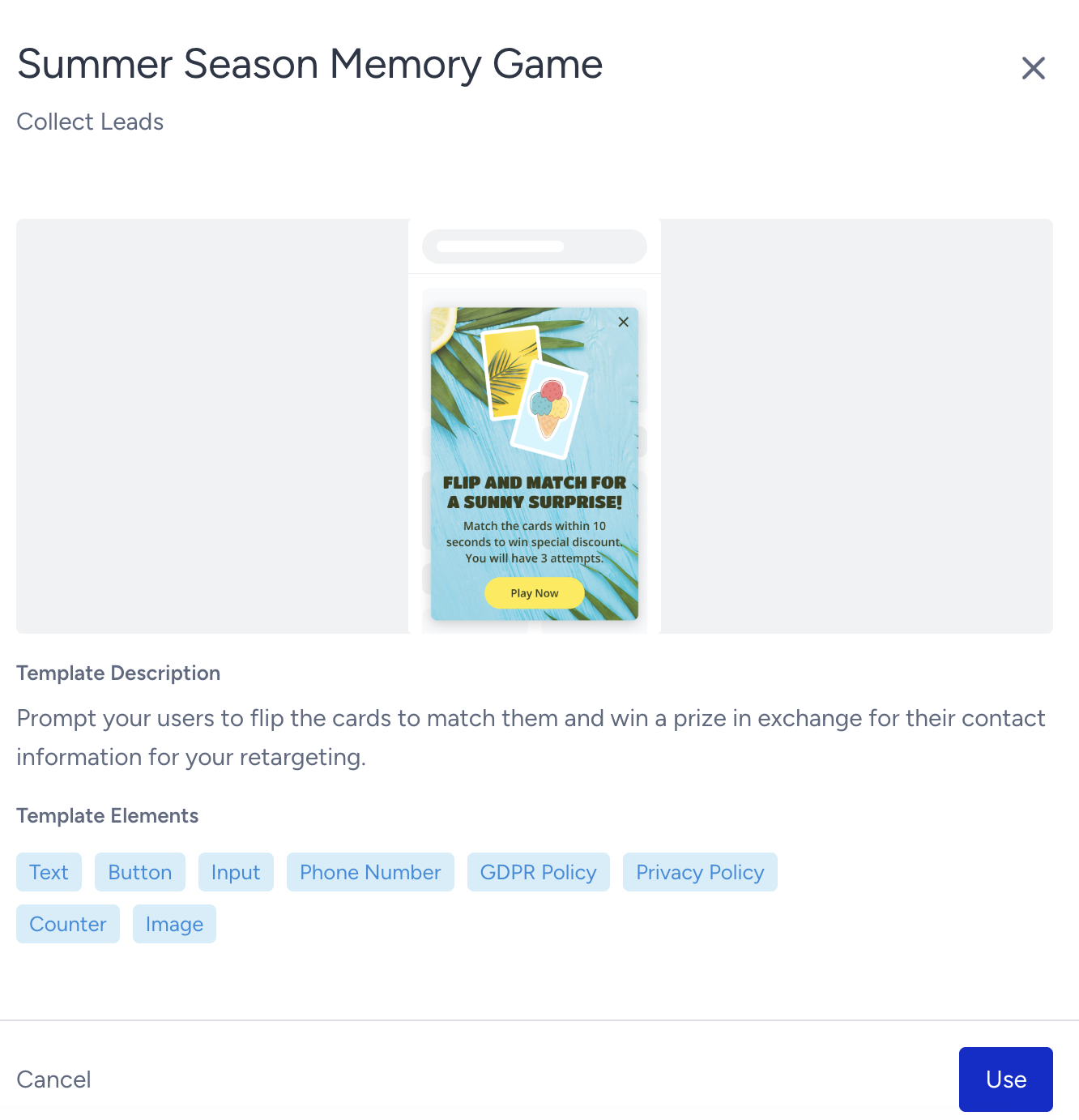
5. Once you select your template, you can see the template on a side modal along with its objectives and elements. Click the Use button to start designing your template.
You should complete the following 5 steps to create your campaign: