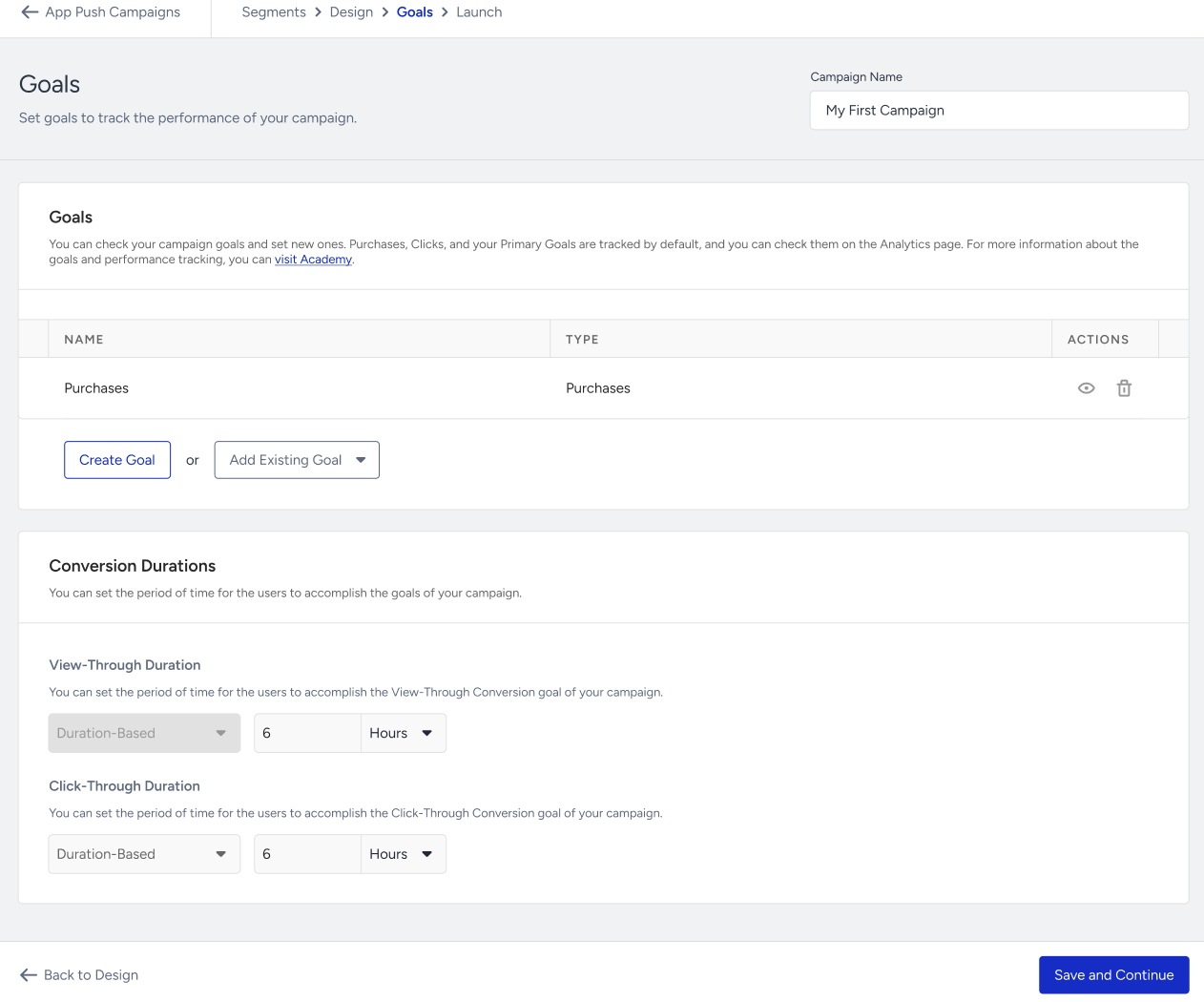
Goals help you track the performance of your campaign. On this page, you can set goals, conversion durations and the re-eligibility duration.
Goals
You can track your campaign goals, set new ones, or add the existing goals to this campaign.
To create a new goal:
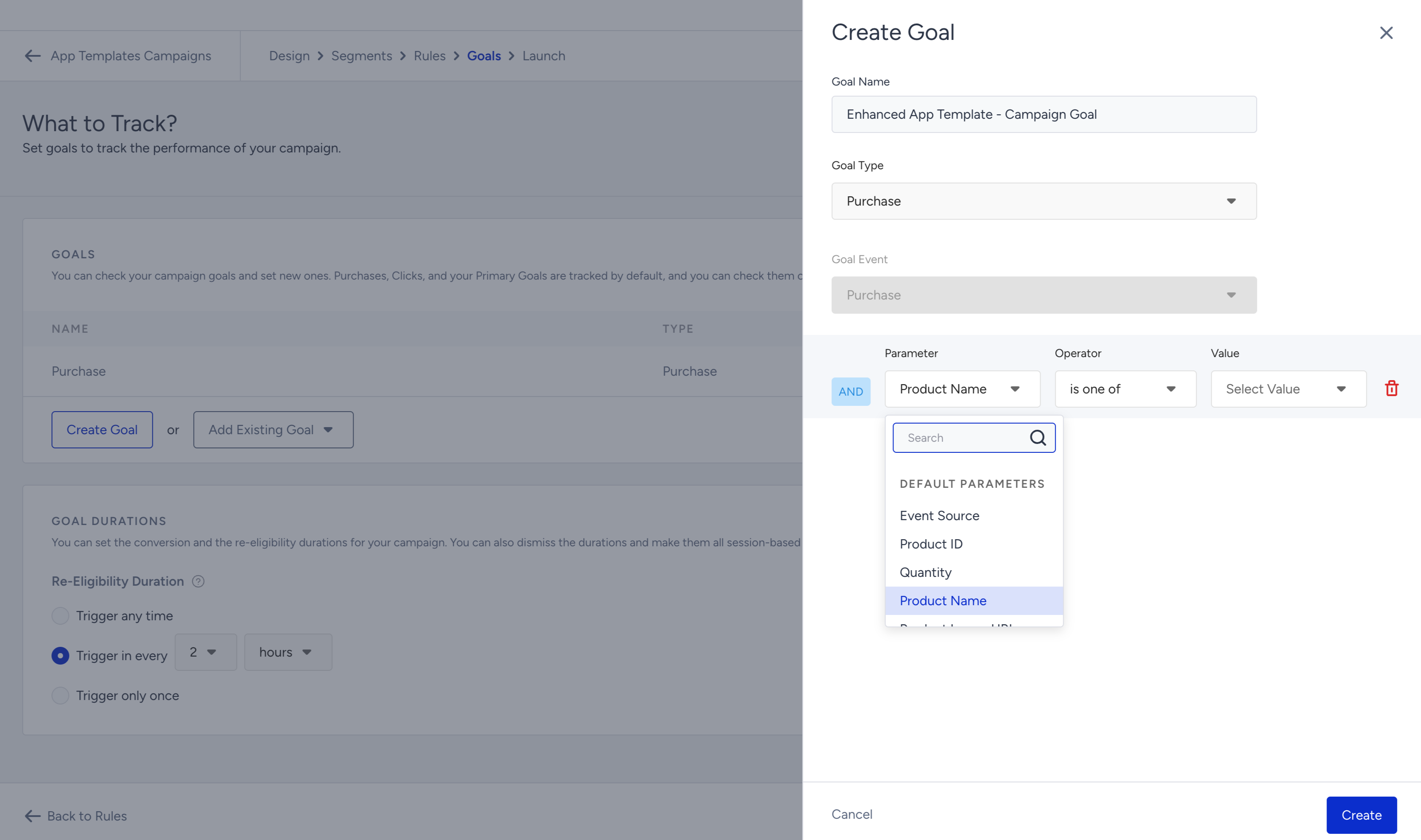
1. Click the Create Goal button, enter a goal name, and select your goal type as Purchase or Campaign.
Purchase
If the goal type is Purchase, the Goal Event is selected as Purchase by default. To specify the types of purchases you want to track, use the Purchase event's event parameters.
Campaign
If the goal type is Campaign, you can select a Goal Event for this goal. You can also specify the campaign goal with the event parameters of the selected event.
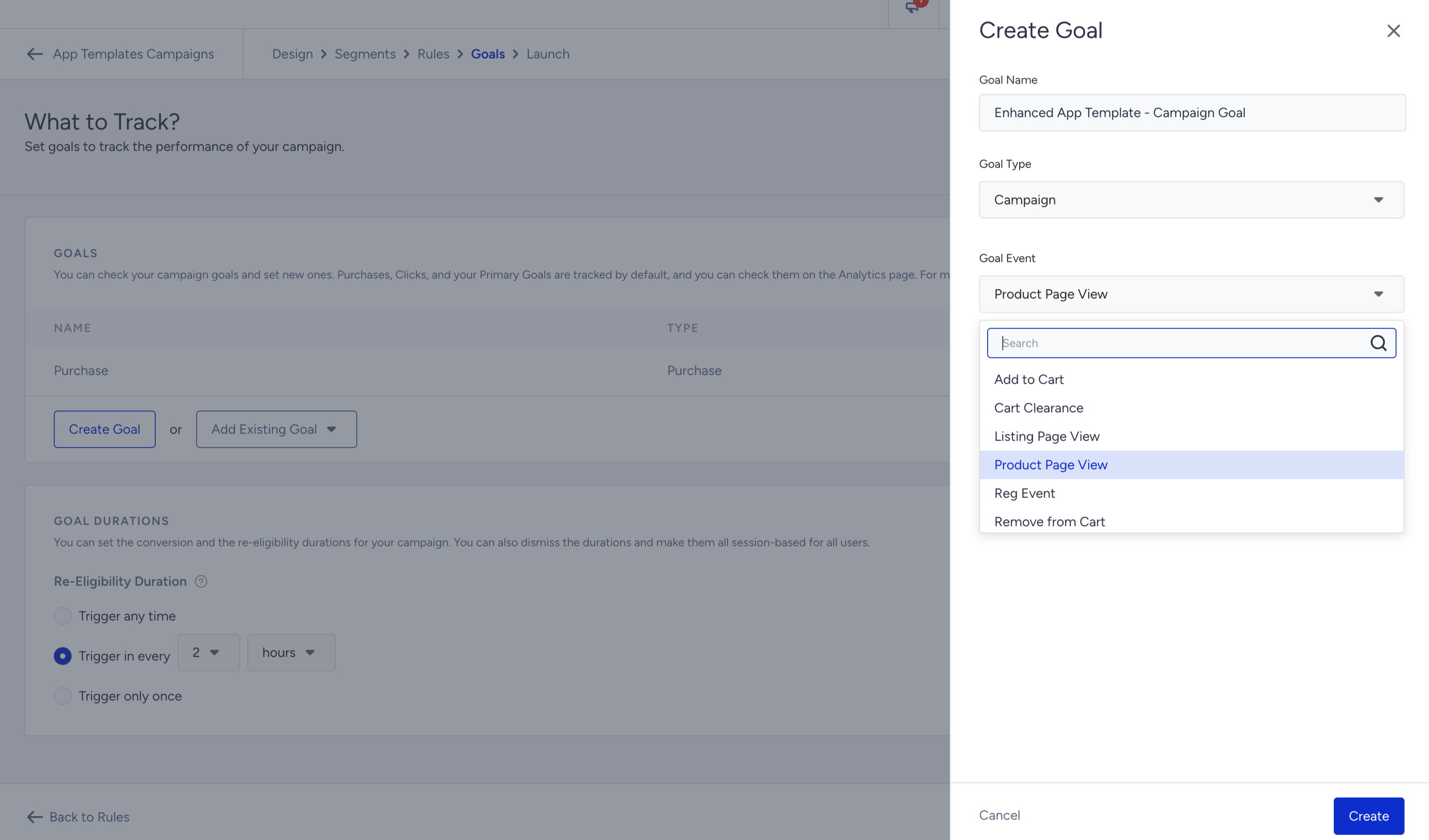
2. After selecting your goal, click the Create button to save this step.
Once you save it, your goal will appear in the Goals list.
Conversion Durations
You can set the time frame for users to achieve the goals of your campaign. You can set the view-through duration to duration-based, and both View-Through and Click-Through are Duration-Based.
(1).png)
Re-Eligibility Duration
You can set the re-eligibility duration for your campaign to decide the trigger frequency.
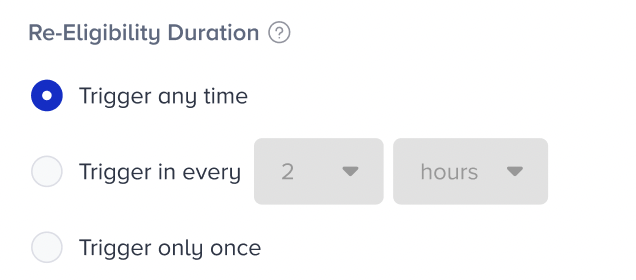
Trigger any time: Triggers the campaign whenever the campaign's segments and rules are met by the user.
Trigger in every N hours/days: Triggers the campaign once per the selected duration.
Trigger only once: Triggers the campaign only once.
See how you can configure the Launch settings of your Enhanced App Template campaign.