Launch helps you configure the Activation Status, Activation Date & Time, Display Settings, Frequency Capping, Campaign Tags, and Webhook Callback for your campaign.
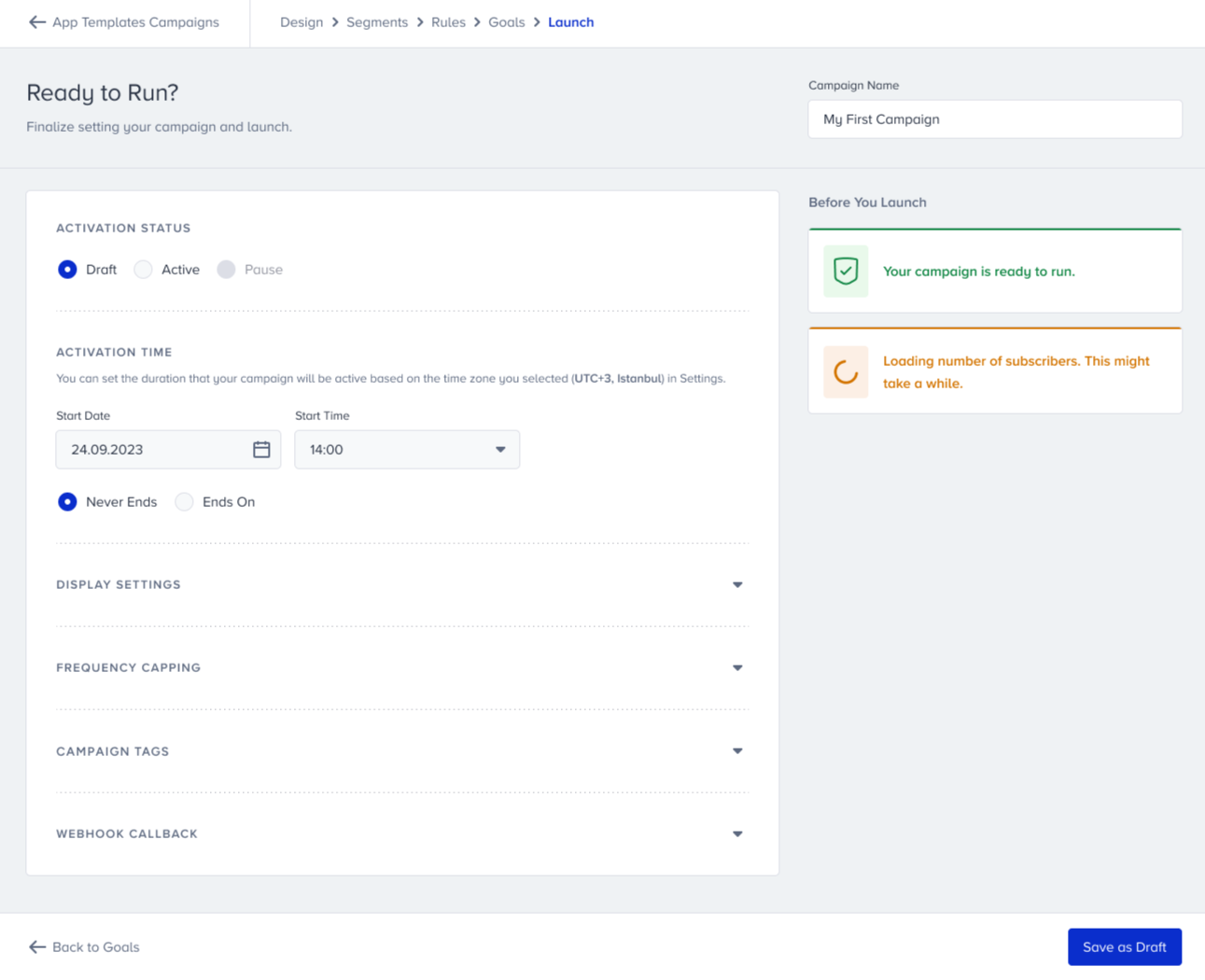
Activation Status
You can save your campaign as a Draft to edit it later or as Active to launch it. The Pause option lets you deactivate your Active campaigns.
Activation Date & Time
You can set a duration to keep your campaign active based on the time zone selected in your panel settings.
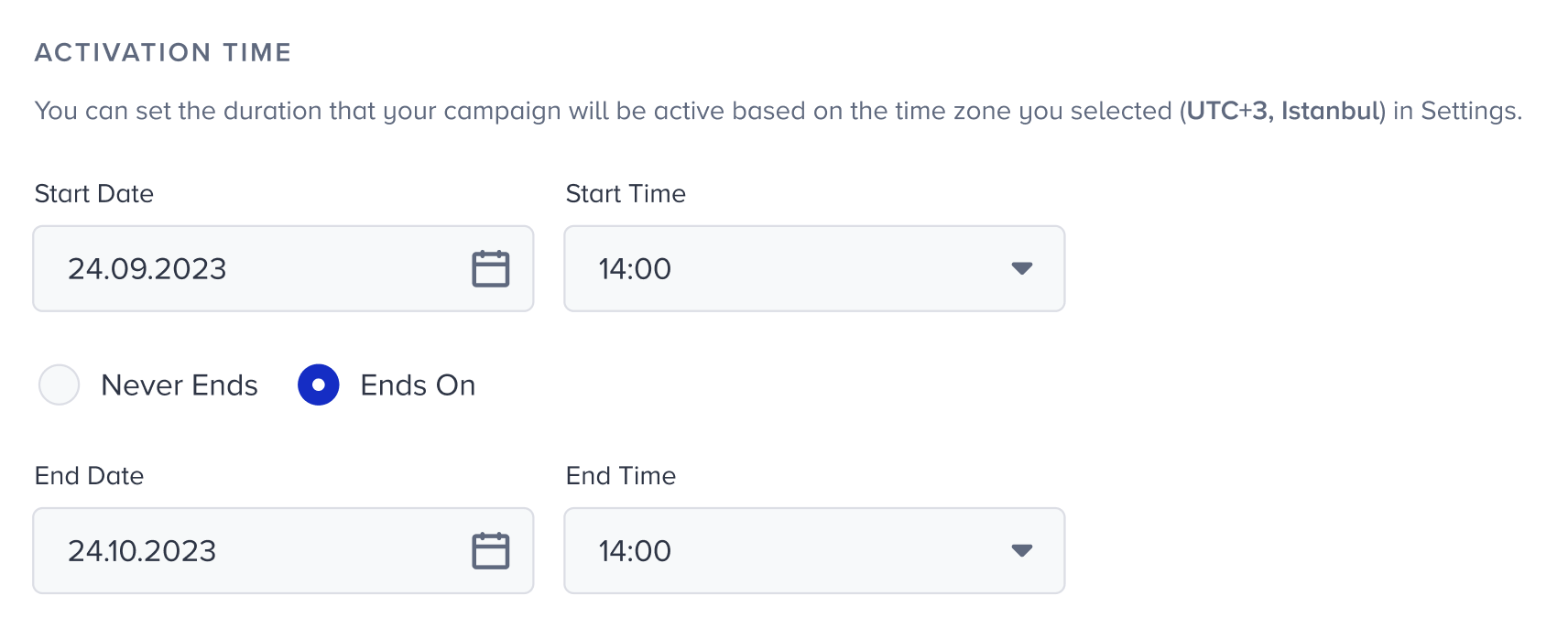
You can also specify when to end your campaign:
Never Ends: Keeps the campaign Active until it is paused or deleted manually.
Ends On: Ends the campaign on the specified date and time.
Display Settings
You can configure the Recurrence of your campaign.
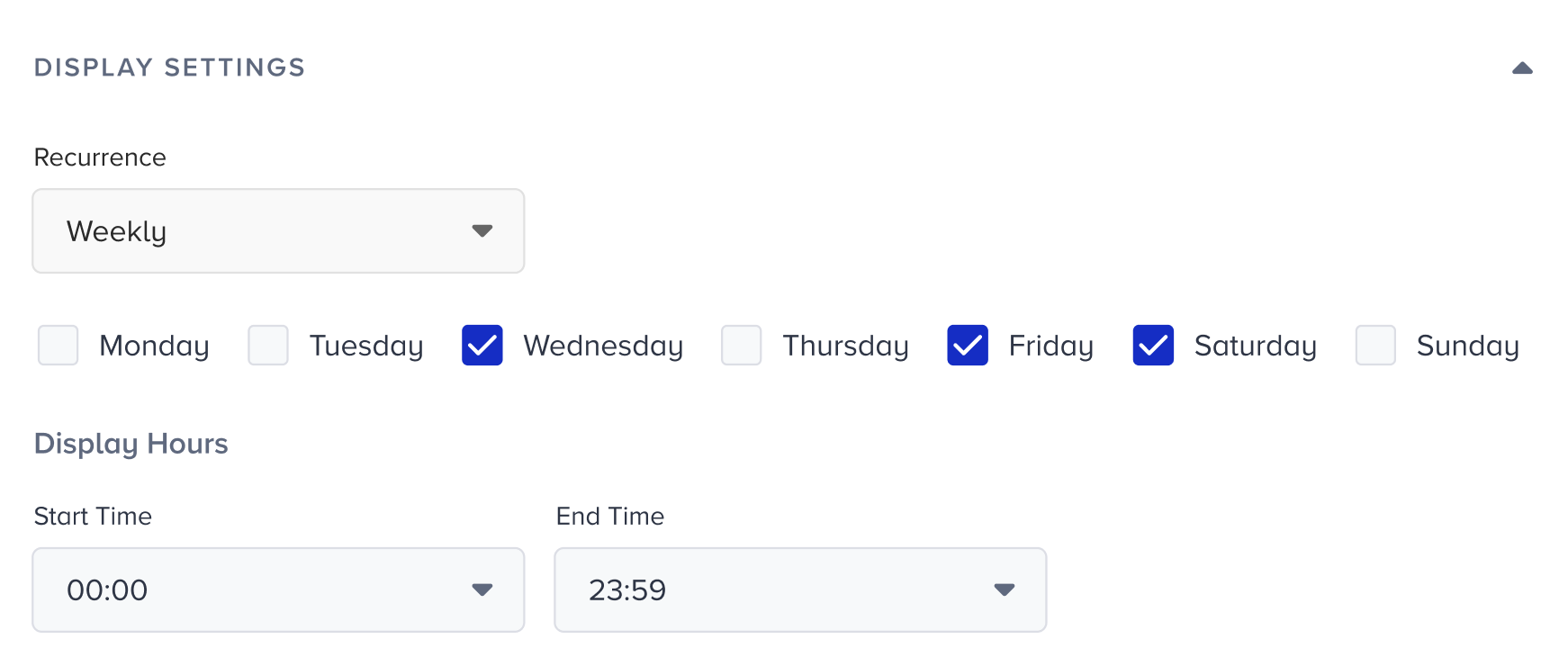
If the Recurrence is Always, the campaign is always displayed according to the selected segments and rules, regardless of any recurring durations. You can also set it to Daily, Weekly, or Monthly, and select the Display Hours accordingly.
Display Hours use 30-minute increments. You can set Display Hours on the hour or half hour, such as 08:00 or 08:30. Times such as 08:15 aren't available.
Frequency Capping
Frequency Capping allows you to bypass the Global Frequency Capping configured in Settings > Mobile App Settings > Push Notification to display your campaign regardless of the frequency capping.

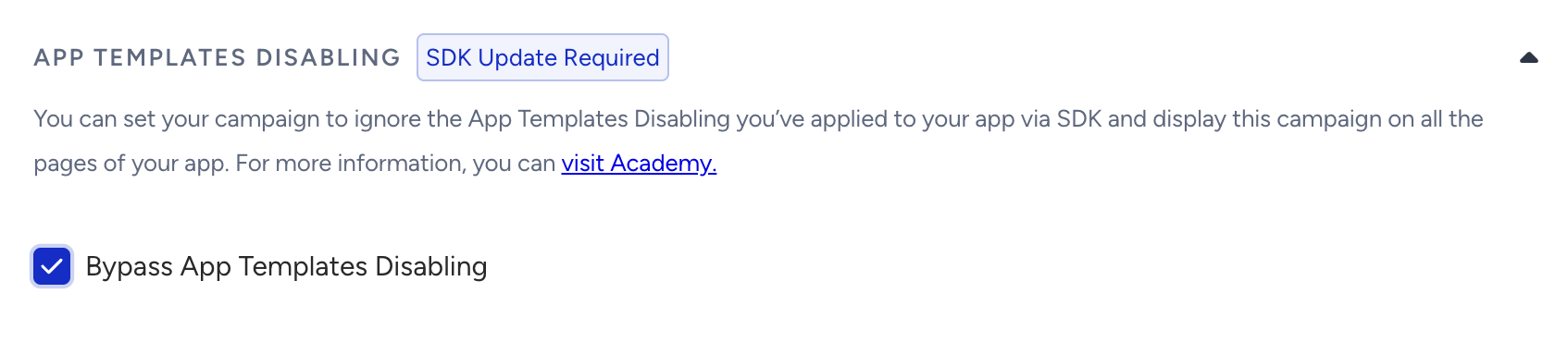
App Templates Disabling
You can check the Bypass App Templates Disabling box to override the Block Inapps method. Once this option is enabled, the inapp campaign will be visible to the users even if the method is called.
An SDK update is required to use this feature:
iOS 14.0.2
Android 15.1.0
React Native 7.0.1
Flutter 4.0.2
Cordova 3.0.0
See Block Inapps method for Android, iOS, React Native, Expo, Flutter, and Cordova/Ionic
Campaign Tags
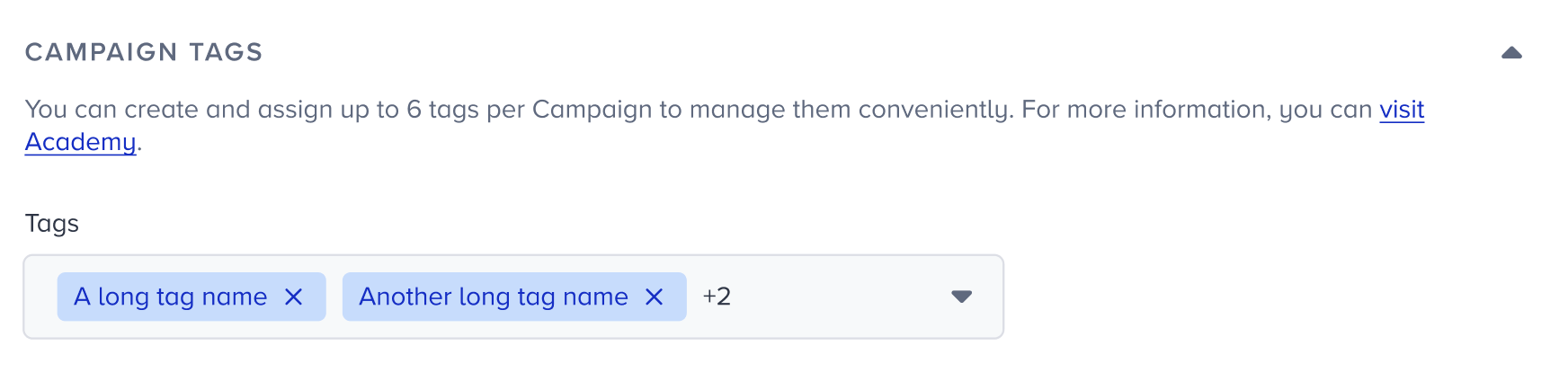
You can create and assign up to 6 tags for each campaign. Later, you can use these tags to filter your campaigns on the listing page.
Webhook Callback
If you use any coupon lists in your campaign, you can send the coupon data to a callback URL you specify. Read more on Webhook Callback.

Congratulations! You've completed designing and configuring your campaign. You can launch it.