Testing a journey requires an understanding of the following concepts:
Before testing your journey, it is essential to understand how the journey starter elements work.
If this video does not load in your region, you can watch it on our YouTube Channel.
Starter basics
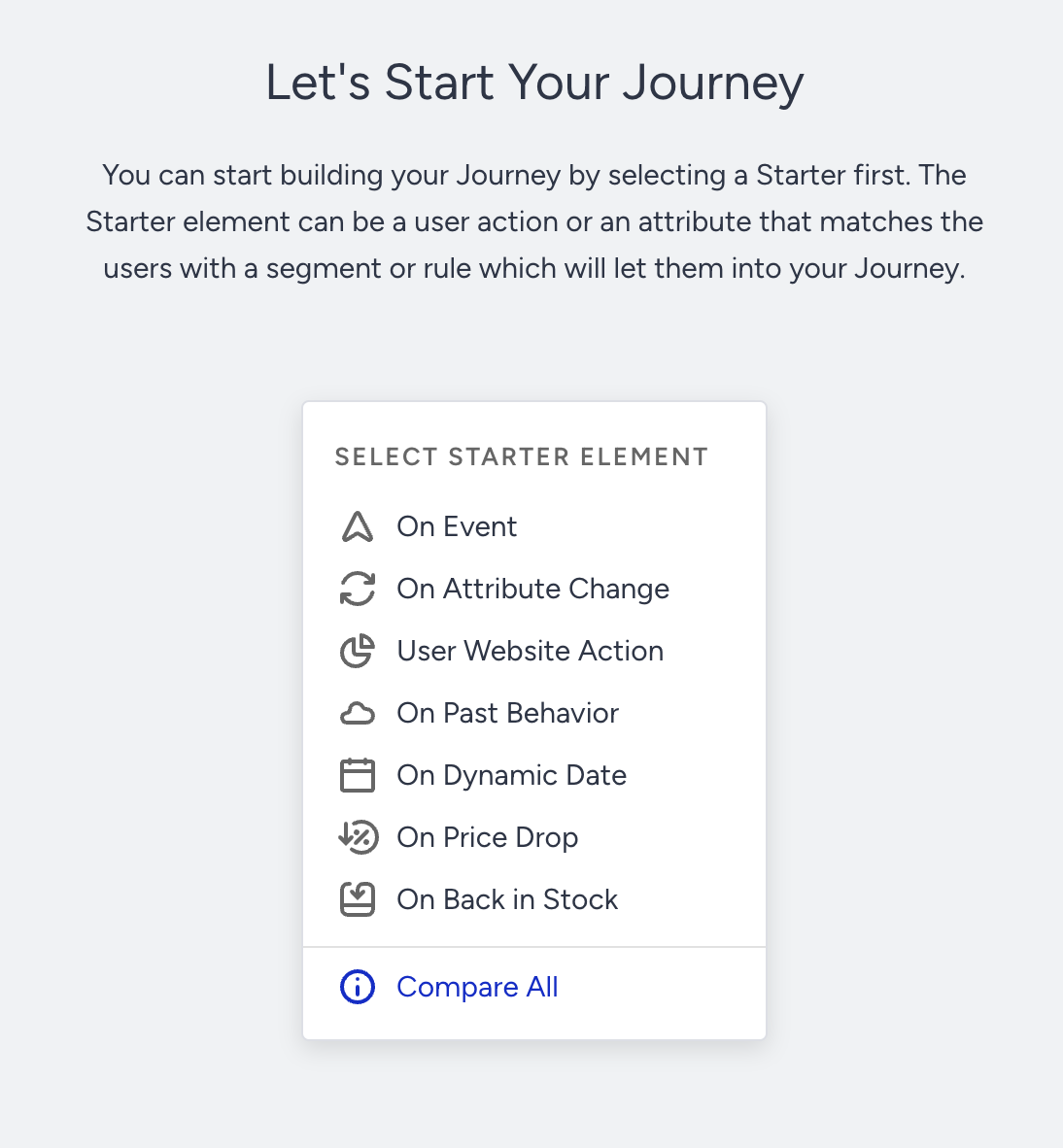
On Event
Event-based real-time starter. Users trigger journeys when they complete a specified action or have related events. This starter targets users on the unified customer database. Read more about On Event.
On Attribute Change
Attribute-based real-time starter. Users trigger journeys when the value of a specified user attribute changes, an attribute has a new value, or when they have the related attributes. This starter targets users on the unified customer database. Read more about On Attribute Change.
User Website Action
Users trigger journeys through their actions on your website. This starter is based on segments and rules only for the website users. Read more about User Website Action.
On Past Behavior
This starter allows you to target users based on multi-source user data, events, and attributes. You can use the data that comes from Upsert User Data API and your mobile app as well. This starter targets users on the unified customer database. Read more about On Past Behavior.
On Dynamic Date
Users trigger journeys based on their date type attribute or event parameter. This starter targets users on the unified customer database. Read more about On Dynamic Date.
On Price Drop
This starter triggers journeys based on a drop in a product's price on all platforms, including the website, mobile app, and offline environment, and then it segments users who have visited that product. Read more about On Price Drop.
On Back in Stock
This starter triggers journeys based on the stock update of the product on all platforms, including the website, mobile app, and offline environment, and then segments the users who have visited that product. Read more about On Back in Stock.
Testing your journey
Once you change your journey status to test, you can test it as an end user. When the journey is on test status, no user can enter it unless they use the following test options.
Test link you can use when your journey has On Website Visit as a starter.
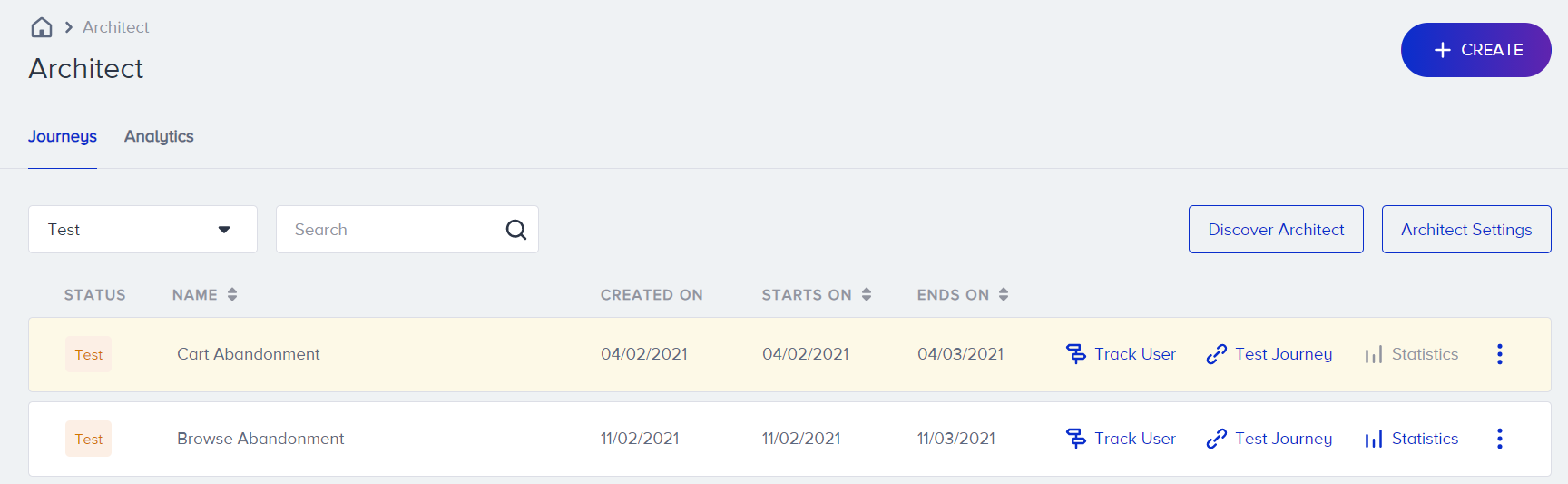
Test popup you can use when your journey has On Event, On Attribute, On Past Behavior, On Dynamic Date, On Price Drop, or On Back in Stock as a starter.
.png)
You need to go through 5 steps to test your journey to ensure it functions fully.
Launch your journey on test status.
Generate your panel.
Click the Test Journey button.
Test your journey with the test link.
Test your journey with the test popup.
Read more on testing your journey.
Testing channel messages
You can test your channel messages by entering the journey and proceeding to the channel element following the flow in Testing your journey.
You need to be reachable on a channel to receive the test message from that channel. Read Reachability on Channels to see what is required to be reachable on channels.
While designing your journey flow, you can always send a test message from the available channels by clicking the Send as Test button at the bottom of the channel pages.
When testing the respective message, you cannot see the dynamic URLs or images on test messages as you do not have a value for these attributes.
You can use the send as test function for the following channels:
Tracking users
Track User is a user-based flow visualization that shows each user's path and related user information. You can see how your user is proceeding on the journey flow and what date and time they proceed to a particular step and take actions on channels.
.png)
Read more on Track User.
Dry Run
You can test your journey when it is on dry run status as well. Read more on Activation Statuses here.
Using user profiles for testing
You can see a user's information including their events and attributes on the User Profiles (UP) page.
We recommend you visit User Profiles page to see your user's attributes, events and user ID if you pass data from your end to Insider via Upsert User Data APIand trigger your journeys based on this CRM data.
Read more on User Profiles here.