Suggested readings: Starter elements, Events and Attributes, Track User
Once you complete designing your journey and change its status to test, you can test it with the following steps as an end user to make sure it functions fully:
- Launch your journey on test status
- Test your journey with the Test Journey button
- Test your journey with the test bar
- Test your journey with the test pop-up
- Test your journey with a random user profile
When the journey is on test status, no user can enter the journey unless they have a test link or test it with a test pop-up.
See below for the steps you need to go through to test your journey.
Step 1: Launch your Journey on test status
1. After designing and completing the settings of the journey, launch your journey on test status. You can also use the skip wait element option to make a fast test.
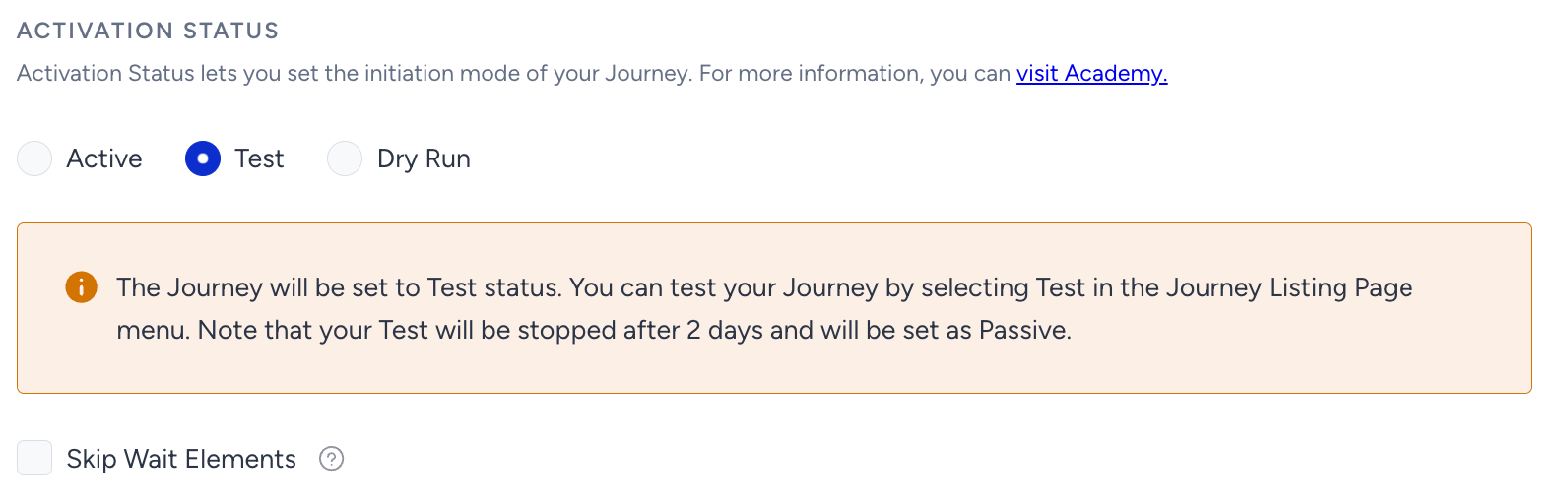
2. Generate your panel: You need to generate your panel only for the User Website Action starter as this starter works on the website.
Step 2: Test your journey
You can test your journey with different methods.
After launching your journey on test status, click the Test Journey button on the listing page.
.png)
If the starter is User Website Action, you will be redirected to your website and you will see a test bar at the bottom of the page.

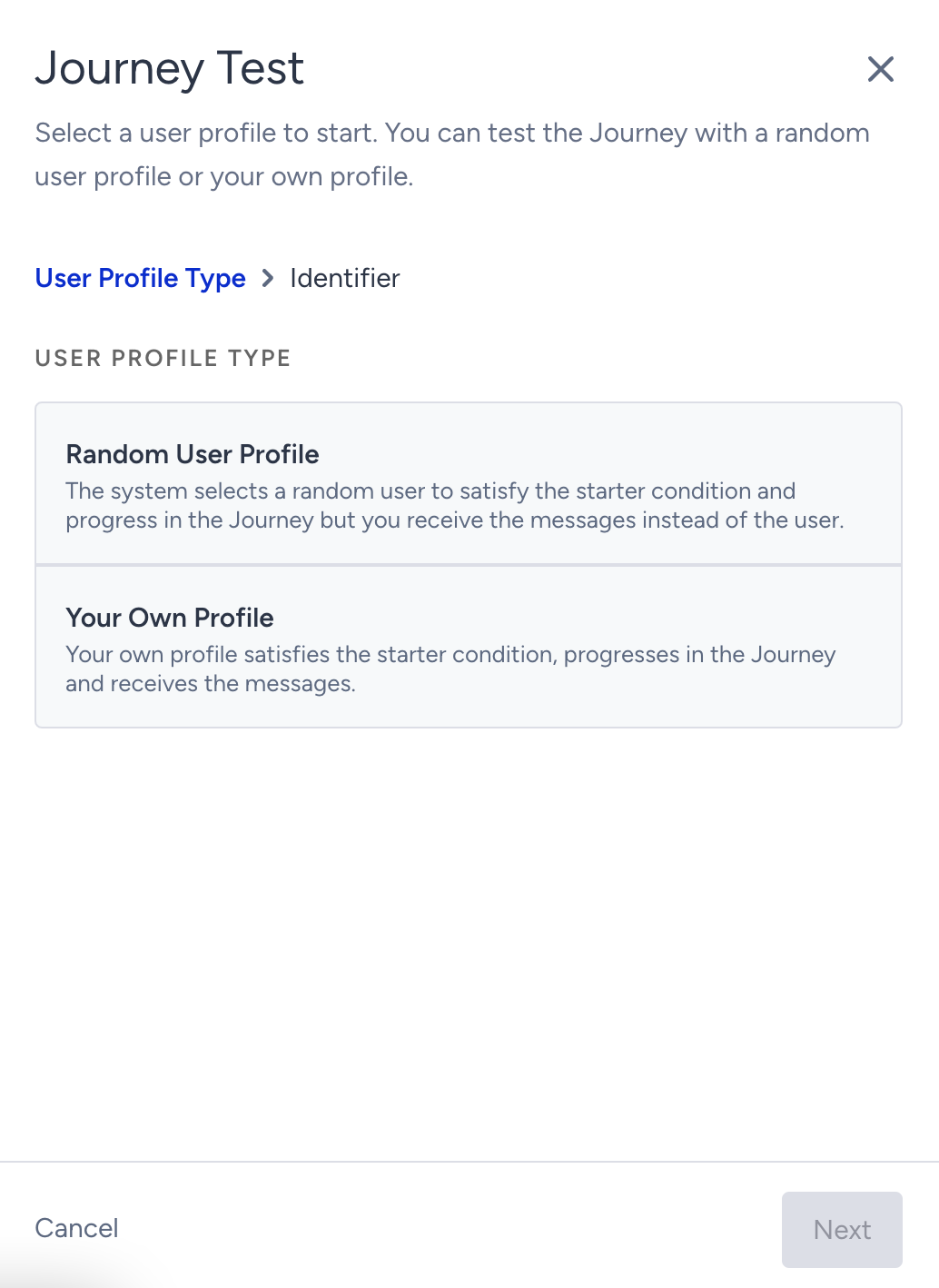
If the starter is On Event, On Attribute Change, or On Dynamic Date, you will see the test pop-up on the listing page.
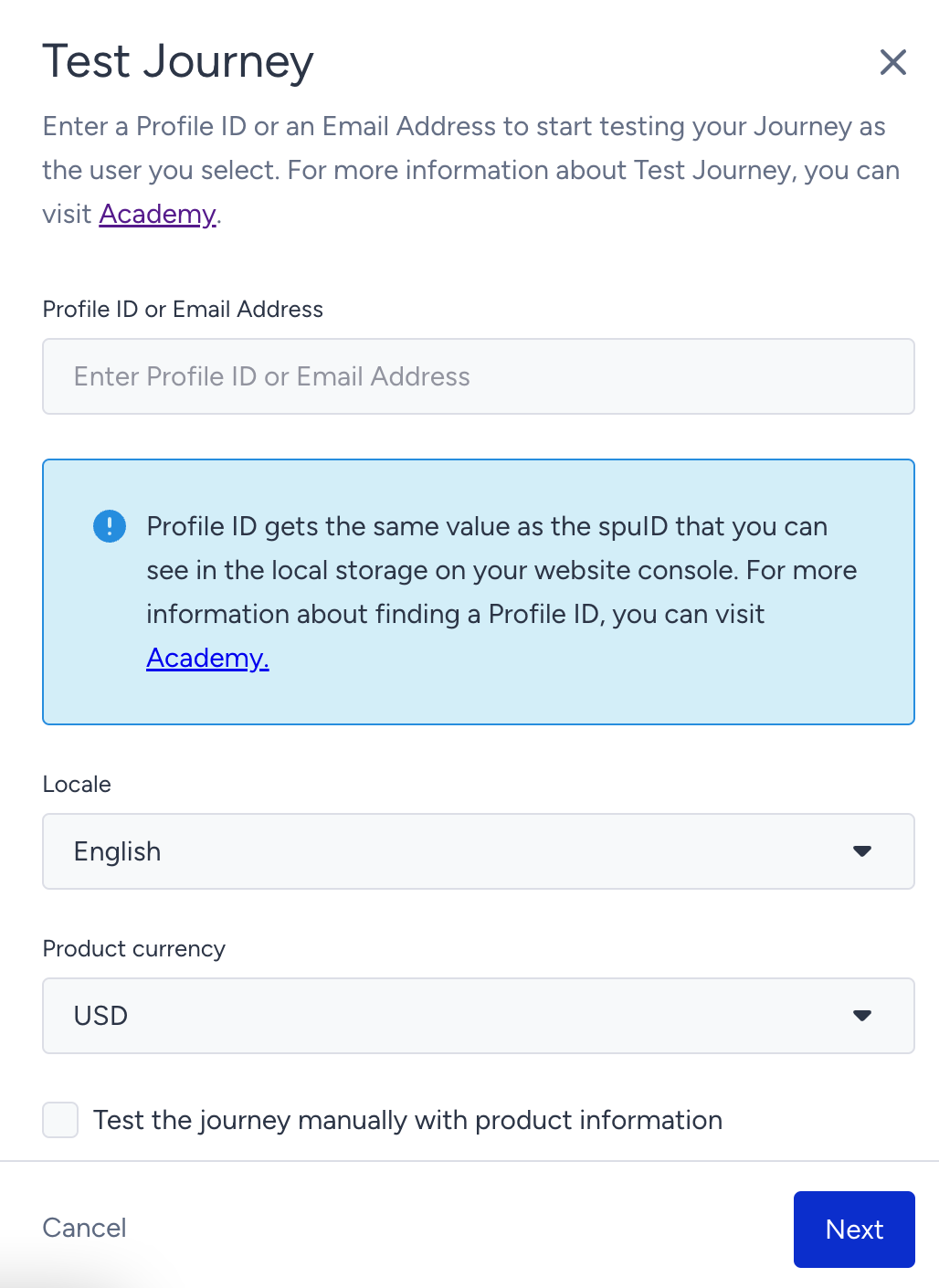
If the starter is On Price Drop or On Back in Stock, you will see this pop-up on the listing page, where you can test your journey with either user information, or both user and product information. Along with the product ID, make sure to select the locale to get the correct product.
Test bar
You need to meet the User Website Action starter segments/rules on your website to test your journey.
If you want to bypass the starter element, you can click the Enter Journey button on the test bar.
.png)
In this case, you can see the test bar status as In Progress. You can see whether you trigger the journey following the status options: Not in Journey, In Progress.

If you want to proceed to the next step in your journey, you need to meet the Check Conditions.
When you go back to your journey canvas, you can see your user enter the journey and proceed on the flow.
Test pop-up
You need to enter your user ID or email address on the pop-up to take your user on the journey. You will see information about your user on the left bar of the journey canvas until your user meets the starter conditions.
Using “Your Own Profile” as the User Profile Type on the journey test popup, enter your Profile ID or Email Address on the popup to take your user on the journey. You will be directed to the journey canvas. On the related platform (website or mobile app), fulfill the conditions of check elements or messaging channels opt-ins and provide required information to be able to proceed to the correct path on the journey flow and receive messages.
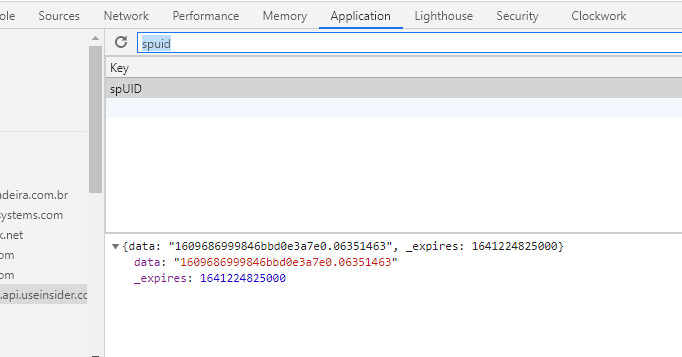
- Go to your website.
- Click right and select Inspect to open the developer console.
- Go to Application > Local Storage.
- Select api.useinsider.com under local storage.
- Type spUID in the search bar. The value of this key is your user ID.
If you are sending user attributes or events via Upsert User Data API, you can query by email address on the User Profiles page.
If you are trying to trigger a journey from your mobile app, you can take your Unique Device Identifier (UDID) which is also considered a profile ID.
If you want to bypass the starter element, you can click the Bypass the starter element option on the test pop-up.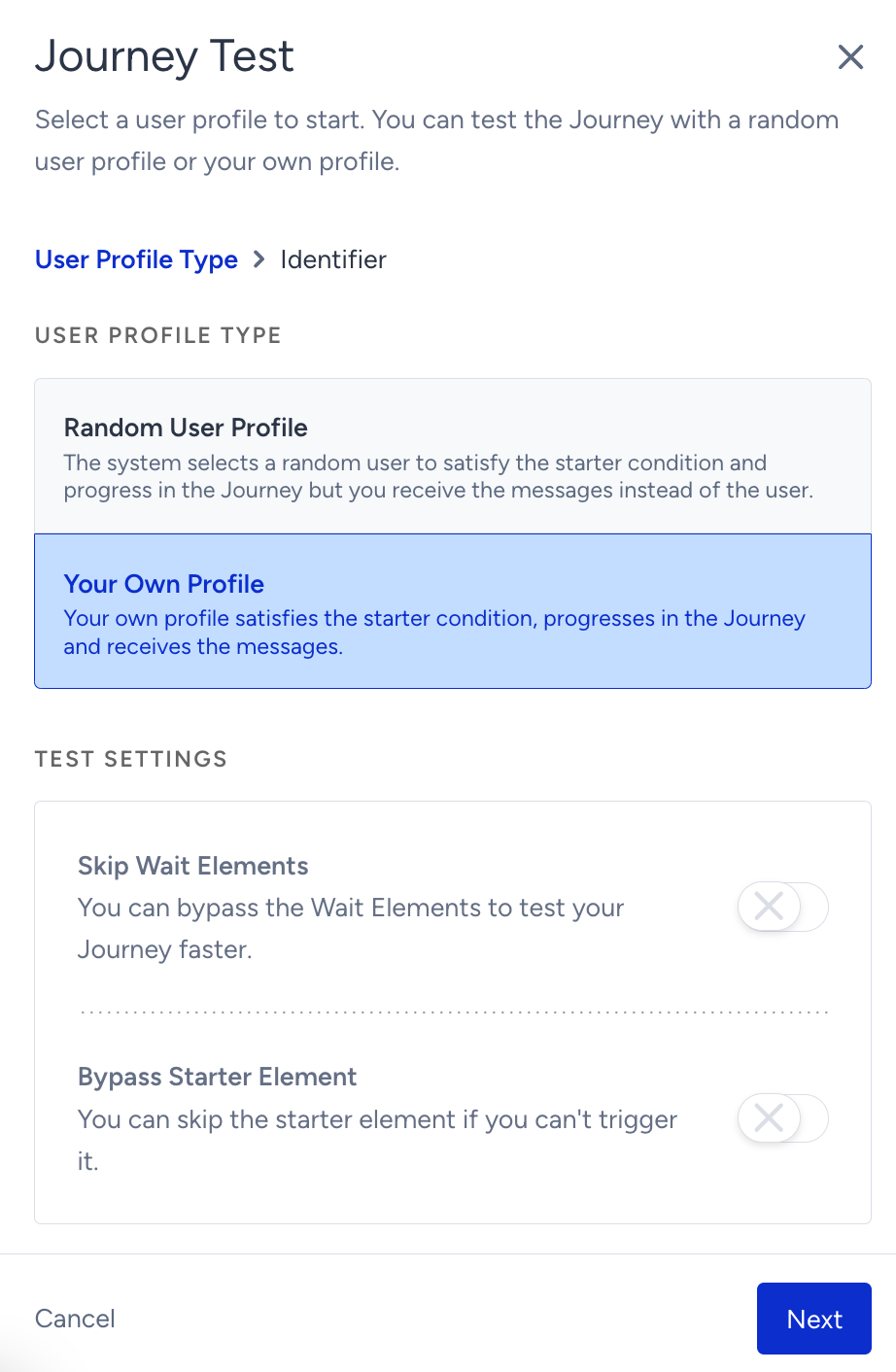
After entering the Profile ID or Email Address, and activating the “Bypass Starter Element” option, you will be directed to the journey canvas. You will see the following information to notice you were not segmented according to your starter condition but you skipped the starter.
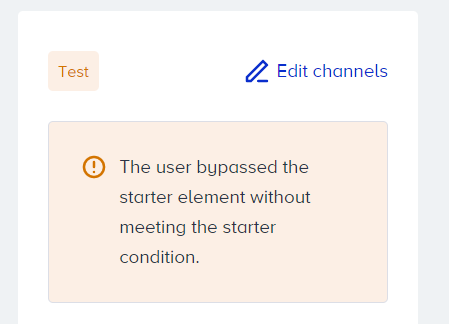
Even if you skip the starter element, you need to fulfill the conditions of the check elements or messaging channels opt-ins and provide the required information on the related platform to proceed to the correct path on the journey flow and receive messages.
For the On Price Drop and On Back in Stock starters, the first option is to enter your Profile ID or Email Address on the pop-up to take your user on the journey. You will be directed to the journey canvas. Once you meet the starter condition, you will enter the journey.
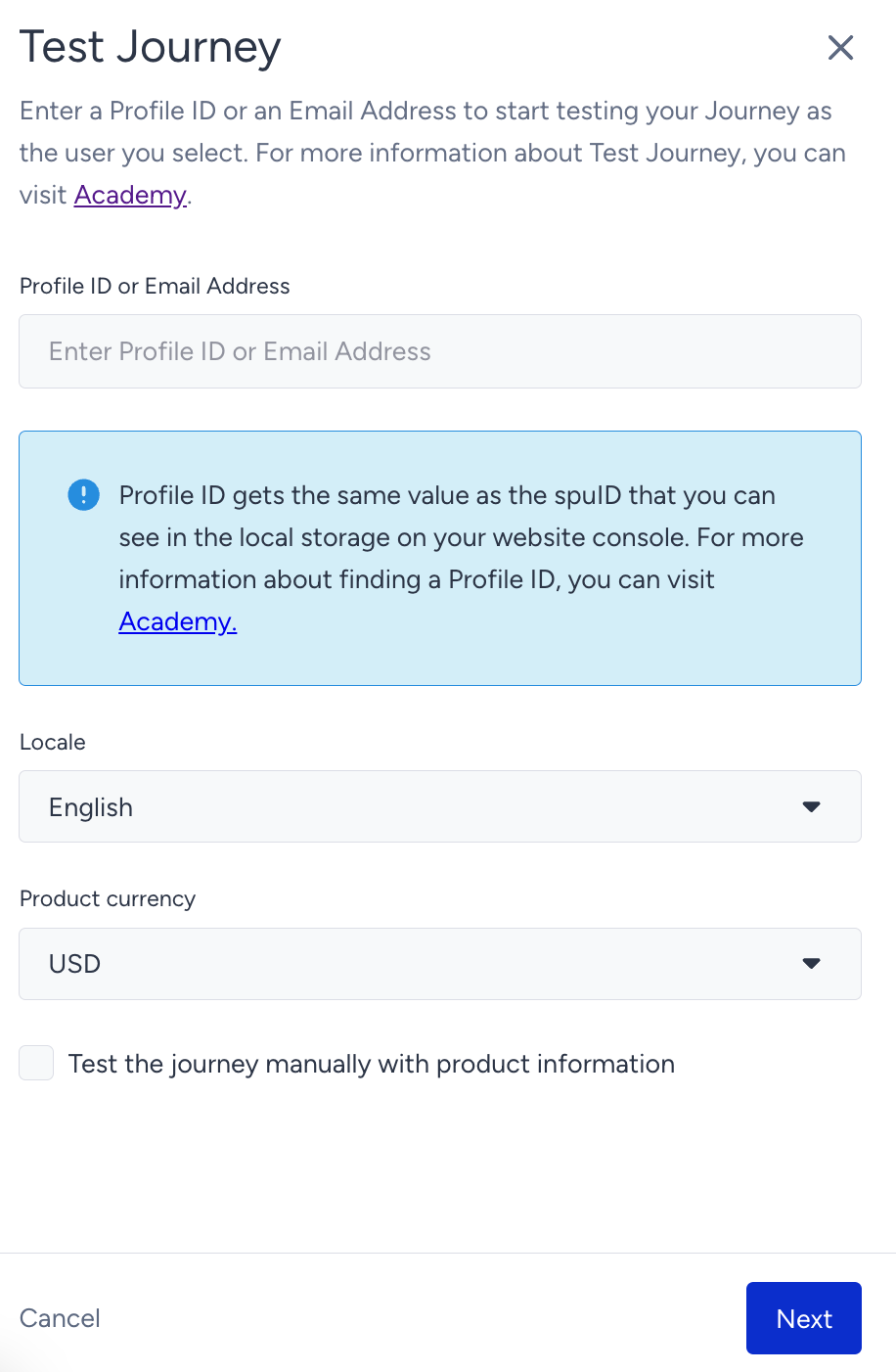
The second option is to enter the journey with your Profile ID or Email Address and Product ID on the pop-up to take your user on the journey. You will be directed to the journey canvas and enter the journey immediately. This function works as a simulation of the starter condition on the product that you have specified in the test pop-up. Even though there is no change in the product attributes, it will take you to the journey for the product that you have specified as if the actual starter condition is realized.
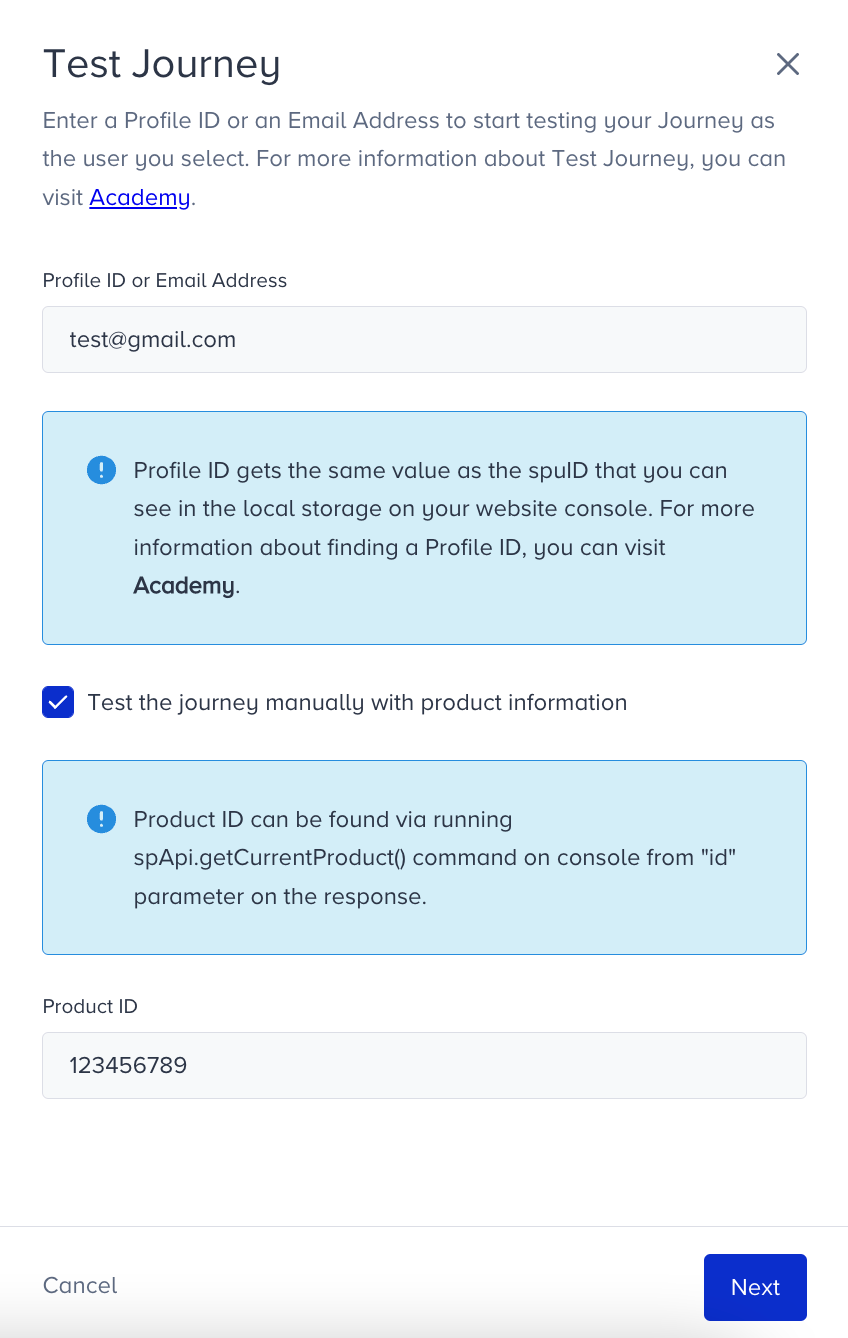
Once there is a change in the product attribute, you can test your journey for the respective product ID now.
Random user profile
On the journey test pop-up, Architect offers two options to test your journeys: Random User Profile or Your Own Profile. If you want to randomly select an end-user that is eligible to enter the journey and receive messages instead of the end user, you should select the Random User Profile option and simulate how your journey would work.
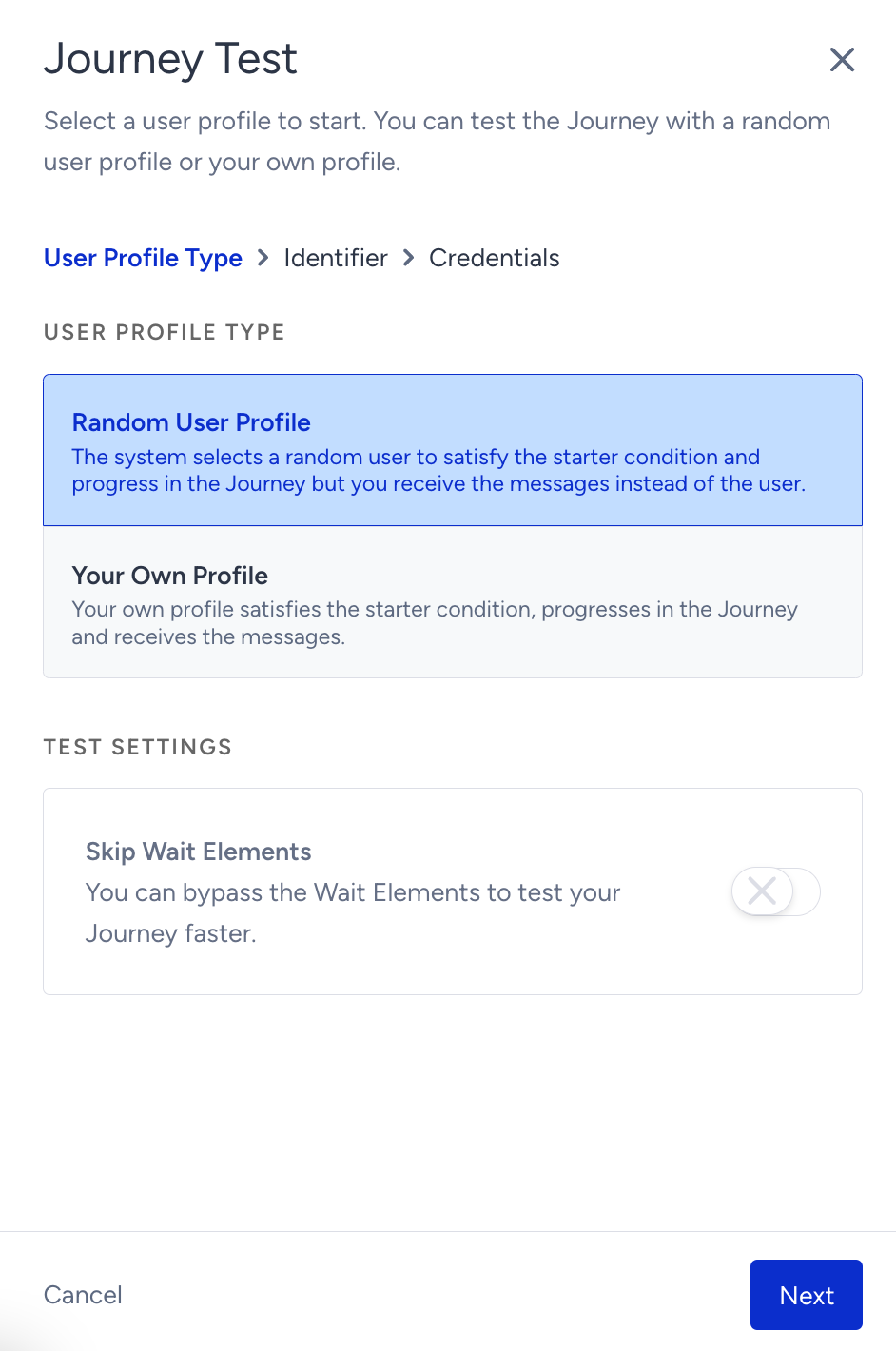
With the Random User Profile option, the end user who enters the test journey will not receive any messages from the channels in your journey. Instead, you will receive the end user's messages to ensure your journey functions correctly. If you set the live action of your channels to On Click, On Reply, On View, or On Close, you need to take the required action to allow the end user to continue the journey.
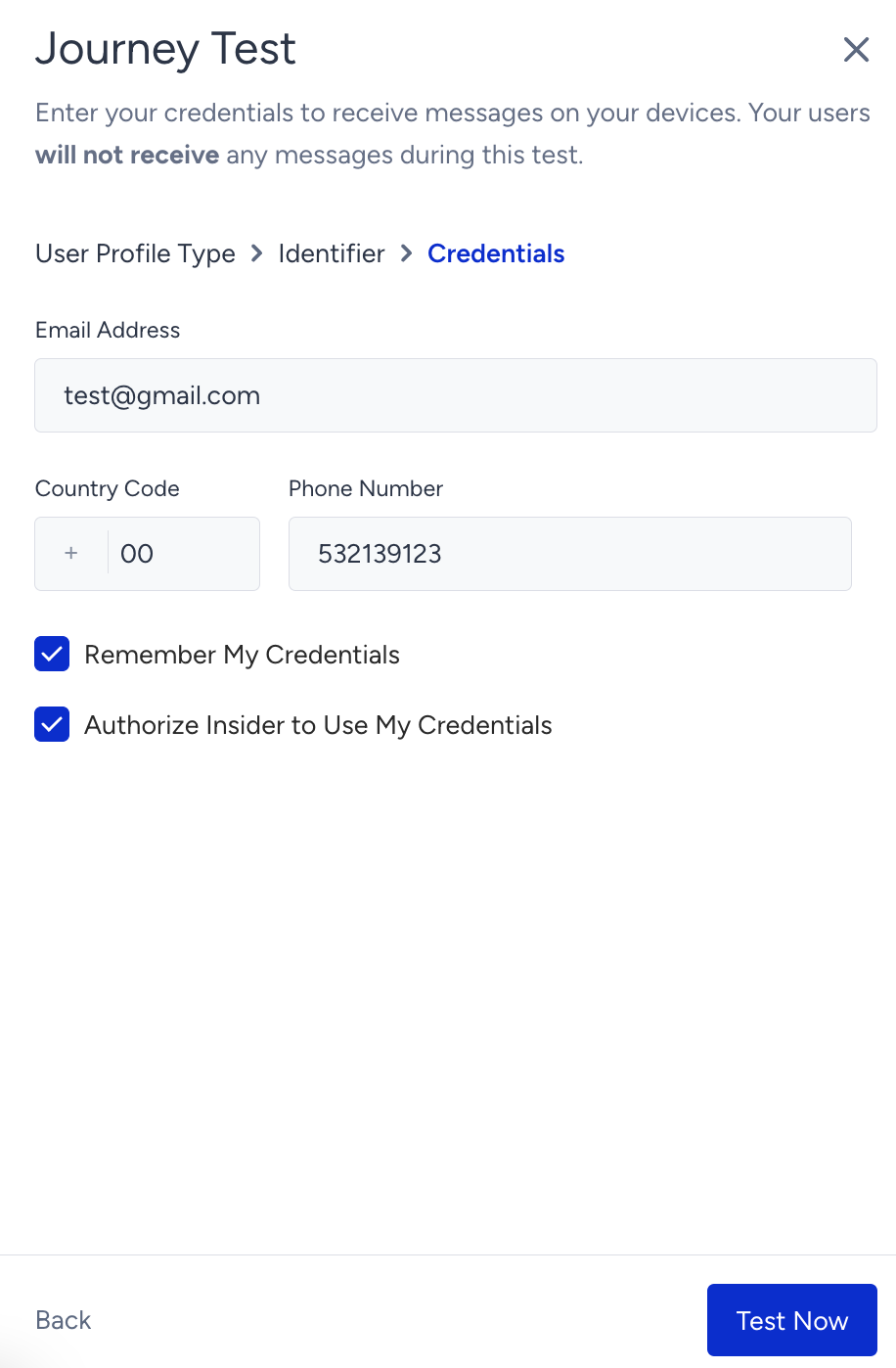
After selecting the option, enter your identifier in the next step. On the Credentials step, review your credentials and select the “Remember My Credentials” option to save your credentials for testing journeys later.
The Random User Profile List shows the test results, test details, and the user profiles of each end user you test. When an end user is eligible and enters the journey, you can view the details of the end user on the modal.
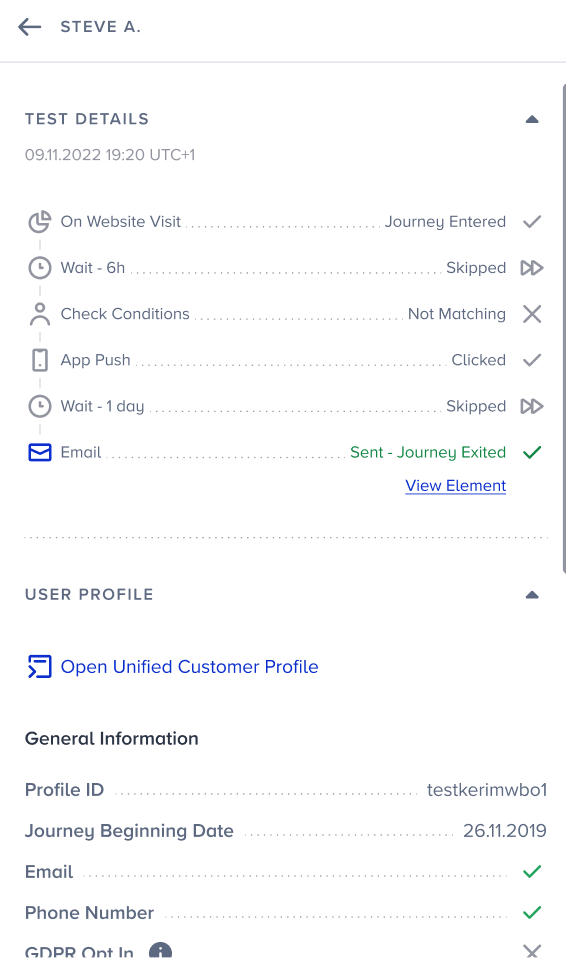
When the end user completes the test, you can see the end user listed in the Random User Profile List and click the Test Another User button to test another user. The test for the new end user begins when another end user is eligible to enter the journey.