Single Journey Analytics page gathers all the metrics of a particular journey on a single page. You can reach this page by clicking the See Analytics button for each journey on the listing page.
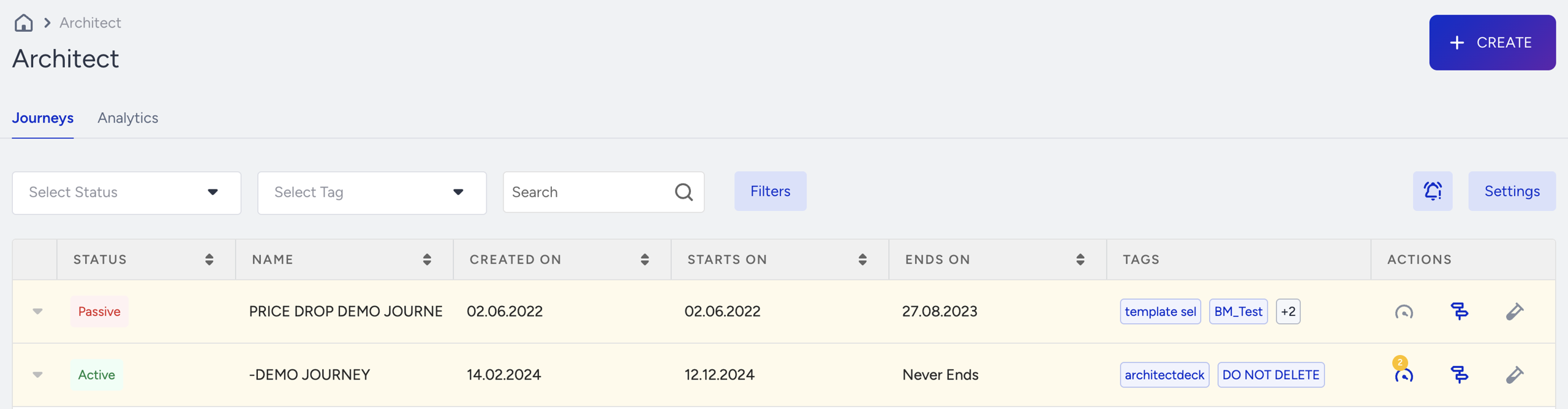
This page consists of 4 sections:
Live stats
General stats
Total channel metrics
Channels by layers
Before starting to view your campaign analytics, you can select Journey Version, which allows you to see the analytics of your campaign's old versions if you have edited them.

You can select a time range using the date picker to see the analytics for a specific period.
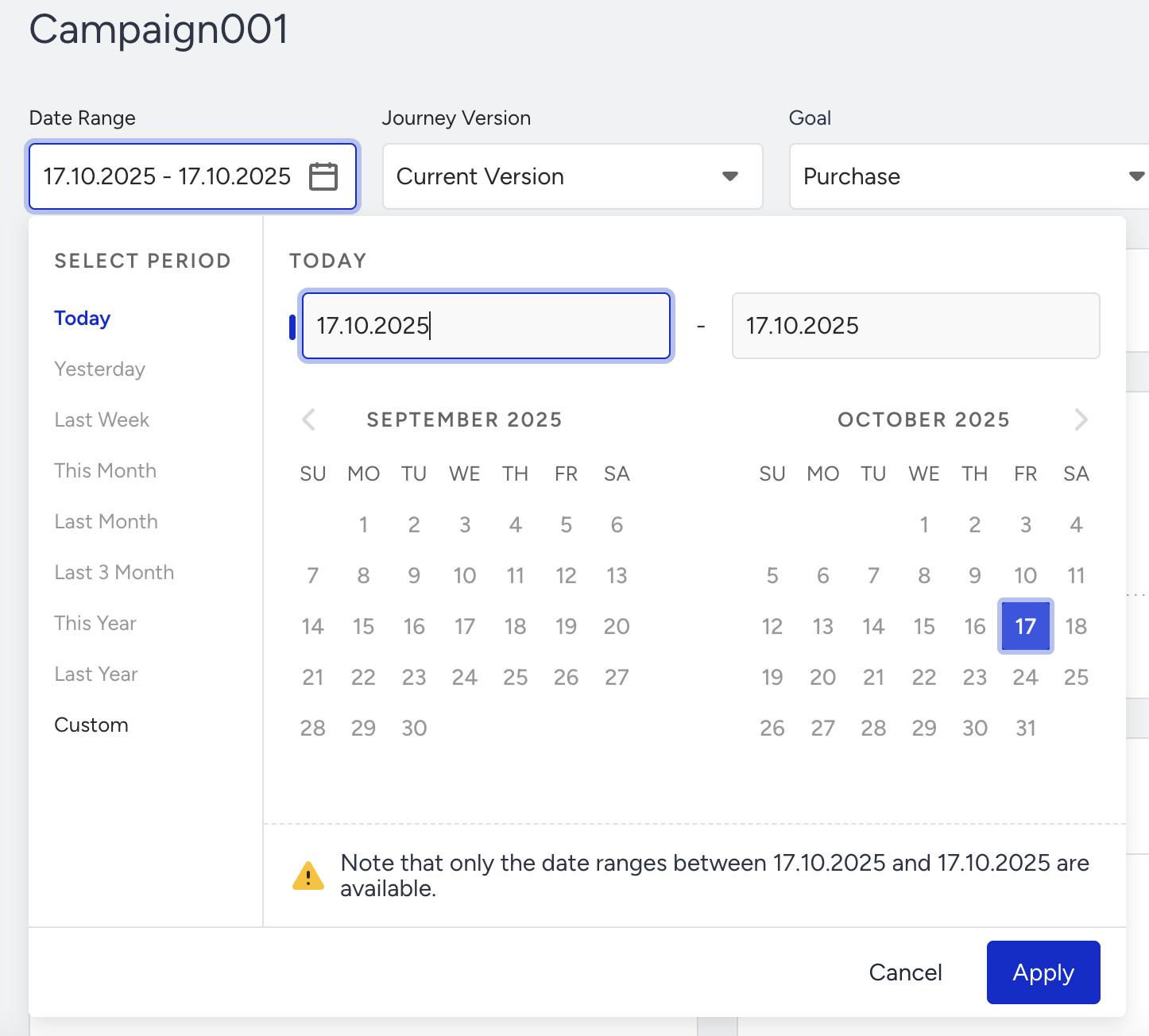
Architect counts each metric on the date its own event happens, not on the date you sent the message. On a narrow date range, a rate such as the delivery rate can exceed 100%, for example when deliveries are confirmed after the send date. Widen the date range to cover both the send and the later events.
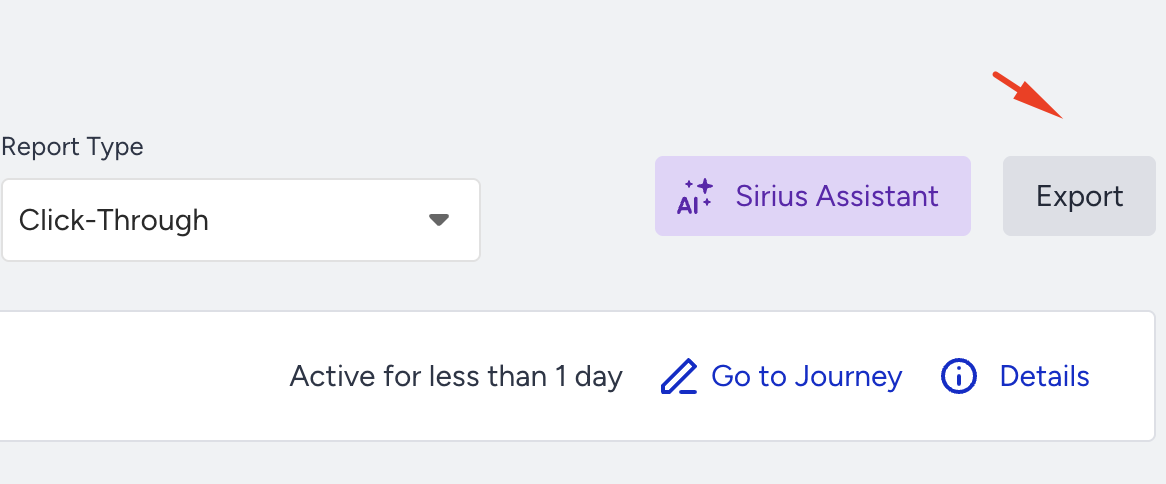
If you want to see the details of the journey, you can click the Details button below the Export button. You can click the Go to Journey button to see the journey flow.
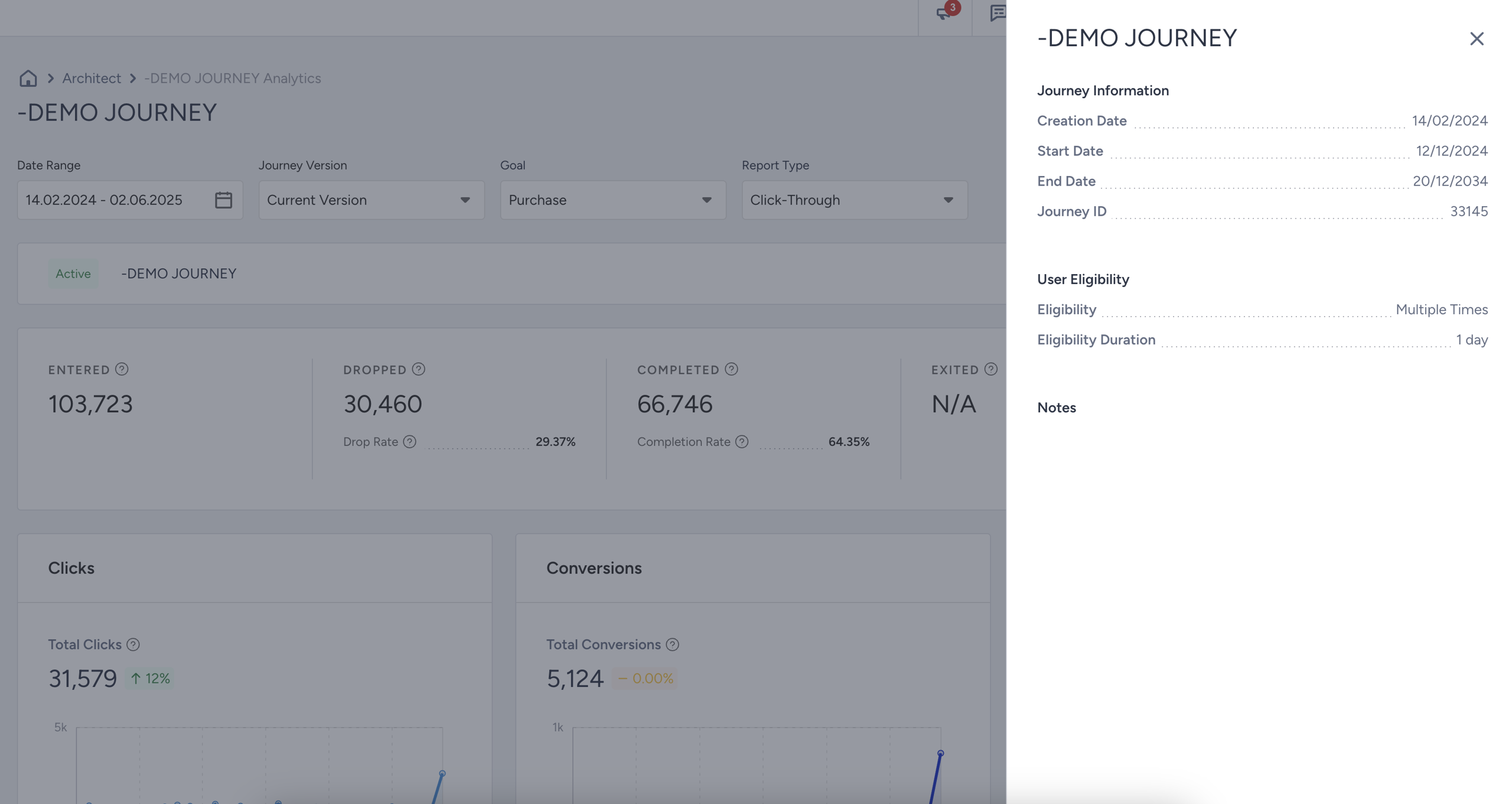
Days Active is the number of days the journey has been active.

The statDate parameter is essential for defining the time range for analytics. The start date must be earlier than the end date. You can select any time range, including those longer than one year or before the past year. However, large exports can time out, especially when the range is long or the export includes many journeys. If a timeout occurs, narrow the date range or filter the export to fewer journeys with the ids, statuses, or channels parameters, and run the export again for each part.
While the export runs, the Export button shows a loading state. If the export is too large to finish in time, InOne shows a timeout message and stays on the Analytics page, and no file downloads. Narrow the date range or filter the dashboard to fewer journeys, including archived journeys, and select Export again.
Conversion Goal
For each journey, you can define goals that represent the actions or changes you expect users to complete after engaging with a message. Event-based goals are triggered by user actions and can be based on any default or custom event. You can also add event parameters to make these goals more specific, for example, to count only when the event meets certain conditions. Alternatively, attribute-based goals track changes in user attributes, such as status, tier, or subscription level, and can be defined using any default or custom attribute.
Refer to Journey Goals to learn how to define conversion goals for your journeys and their components.
Refer to Conversions and Attribution Models in Architect to understand how conversions are attributed to the messages users engage with.
Purchase activity is always tracked by default through the journey even if you do not select purchase as your goal. You can always see the purchase activity as a conversion metric on the analytics pages.
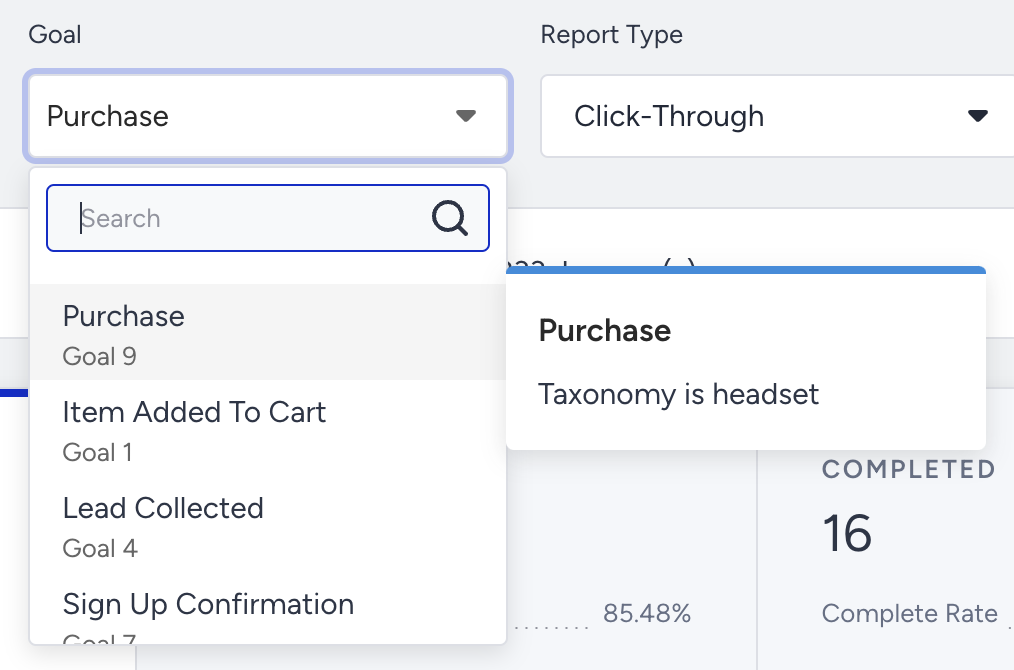
You can select the goal from the Goal dropdown to view metrics accordingly. When you hover over a goal, you can see all its details in addition to the main event or attribute name.
After selecting a goal, the conversion, conversion rate, revenue, and average order value metrics for that goal will appear across all charts and tables that are calculated based on it. This allows you to analyze conversions across different dimensions, such as conversions from a certain messaging channel, conversions per journey, or overall conversions. In addition, the Goal Metrics table on the Architect Analytics Dashboard always lists all conversion goals that match your current filters at the same time, regardless of which goal is selected in the Goal dropdown.
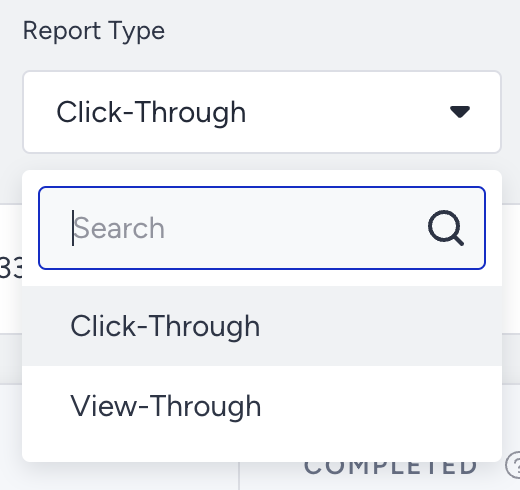
Report Type
The Report Type dropdown allows you to switch between different attribution models: Click-through (last click) and view-through (last-view). When you change the report type, only conversion and revenue numbers will change as it does not affect metrics like entered, sent, clicked, etc.
Export
You can export the results using the Export button. This will generate a file based on your selected filters. You can also use the Get Journey Analytics API to export your results.
The exported file includes five tabs: Journey Metrics, Goal Metrics (listing all conversion goals for the journey), Conversion and Revenue Metrics (for all conversion goals under the selected report type), and Formulas Used for Calculations.
Live Stats

You can see live stats on top of this page with the following metrics:
Entered: The number of users who became eligible and started the journey.
Dropped: The number of users who got dismissed from the journey due to channel reachability.
Drop rate: The percentage of the users who dropped from the channels and ‘not reachable’ path to the users who entered the journey.
Completed: The number of users who finished the journeys by reaching the last element or an empty path, excluding the not-reachable paths.
Complete rate: The total number of completed divided by the total number of entered.
Exited: The number of users who got dismissed from the Journey by matching the exit criteria.
Sent: The number of messages addressed to the users via all channels in the journey.
Delivered: The number of messages delivered to the users via a channel in all journeys. Impressions are counted as Delivered for the On-Site and In-App channels.
Delivery rate: The percentage of the Delivered to the Sent messages.
To see the daily, weekly, and monthly timeline of the Entered, Dropped, Completed, Exited, and Sent metrics, you can scroll down to the Performance By Journey Metrics chart.
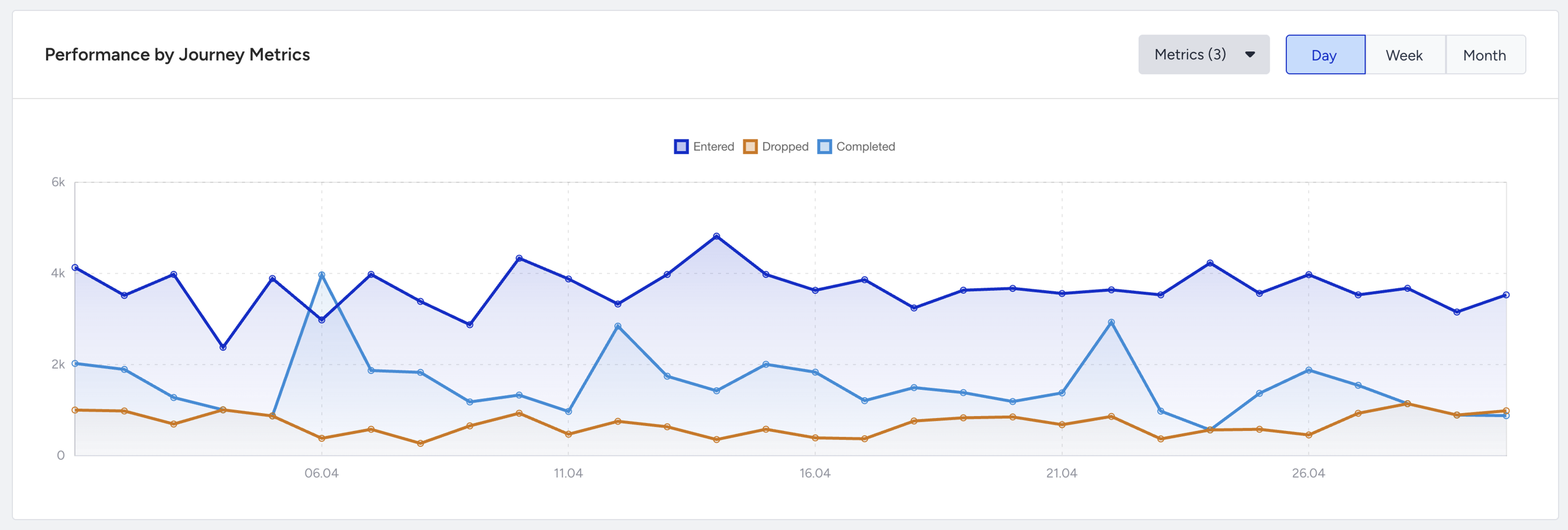
General Stats
You can see Total Clicks, Total Conversions, Total Revenue, and Average Order Value in graphics in this section.
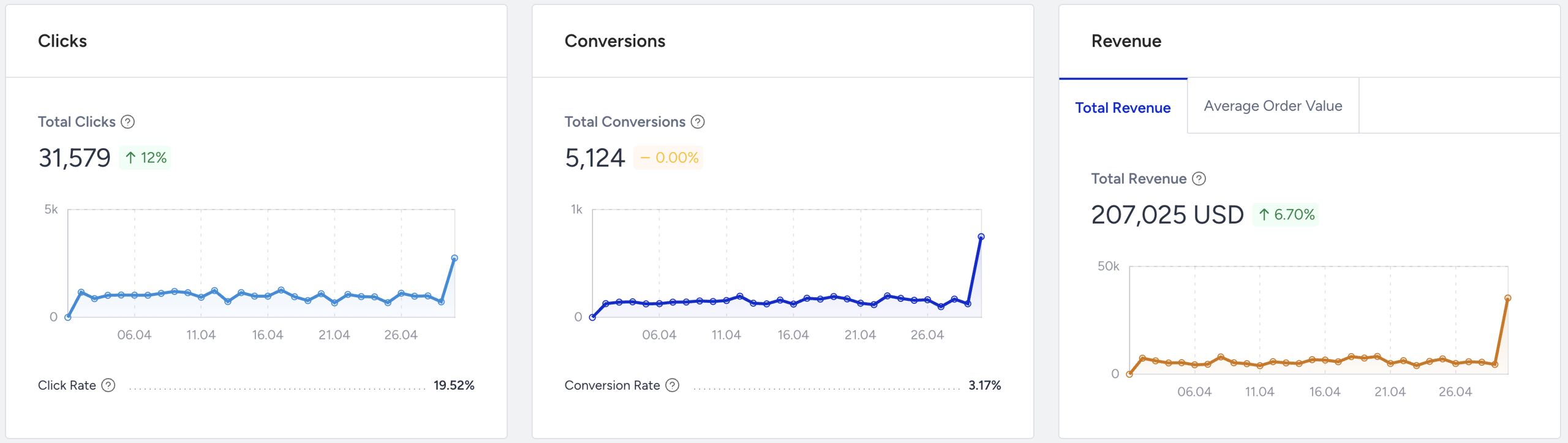
You can see the incremental or decremental changes in click, conversion, revenue, and average order value based on the selected date range. For example, when you select "last month", it will compare the last month to the previous month. When you select 7 days on the date picker, it will compare the selected 7 days to the previous 7 days.
Total Clicks: The total number of times that the users clicked the messages via all channels in the journey. On the chart, you can see how many clicks the journey received based on their dates.
Total Conversions: The total number of successful goal accomplishments via all channels in the journey. On the graph, you can see how many conversions the journey received based on their dates.
Total Revenue: The total value of purchases made via all channels in the journey. On the graph, you can see the total revenue amount of the journey by conversions.
Average Order Value: The division of Revenue by the number of purchases made via all channels in the journey.
Goal Metrics
Goal Metrics table appears below the Total Clicks, Total Conversions, Total Revenue, and Average Order Value cards. It lists all conversion goals that are defined for the journey at the same time, so that you can compare their performance side by side.
In the description area of this section, you can see the total number of conversion goals for the journey. You can also use the Metrics dropdown to choose which metrics to display as columns in the table. Only Conversions, Conversion Rate, Revenue, and Average Order Value are available in this dropdown, and they are all selected by default.
In Single Journey Analytics, the Goal Metrics table is not paginated. All goals that belong to the journey are displayed in a single table, and you can scroll to review all of them.

Total Channel Metrics
Total channel metrics enable you to compare a channel type you have in your journey with the others. For example, if you have 3 app push channels on the flow, the metrics of this channel type are collected and written here. You can select any channel in the journey to see the following metrics for that channel.
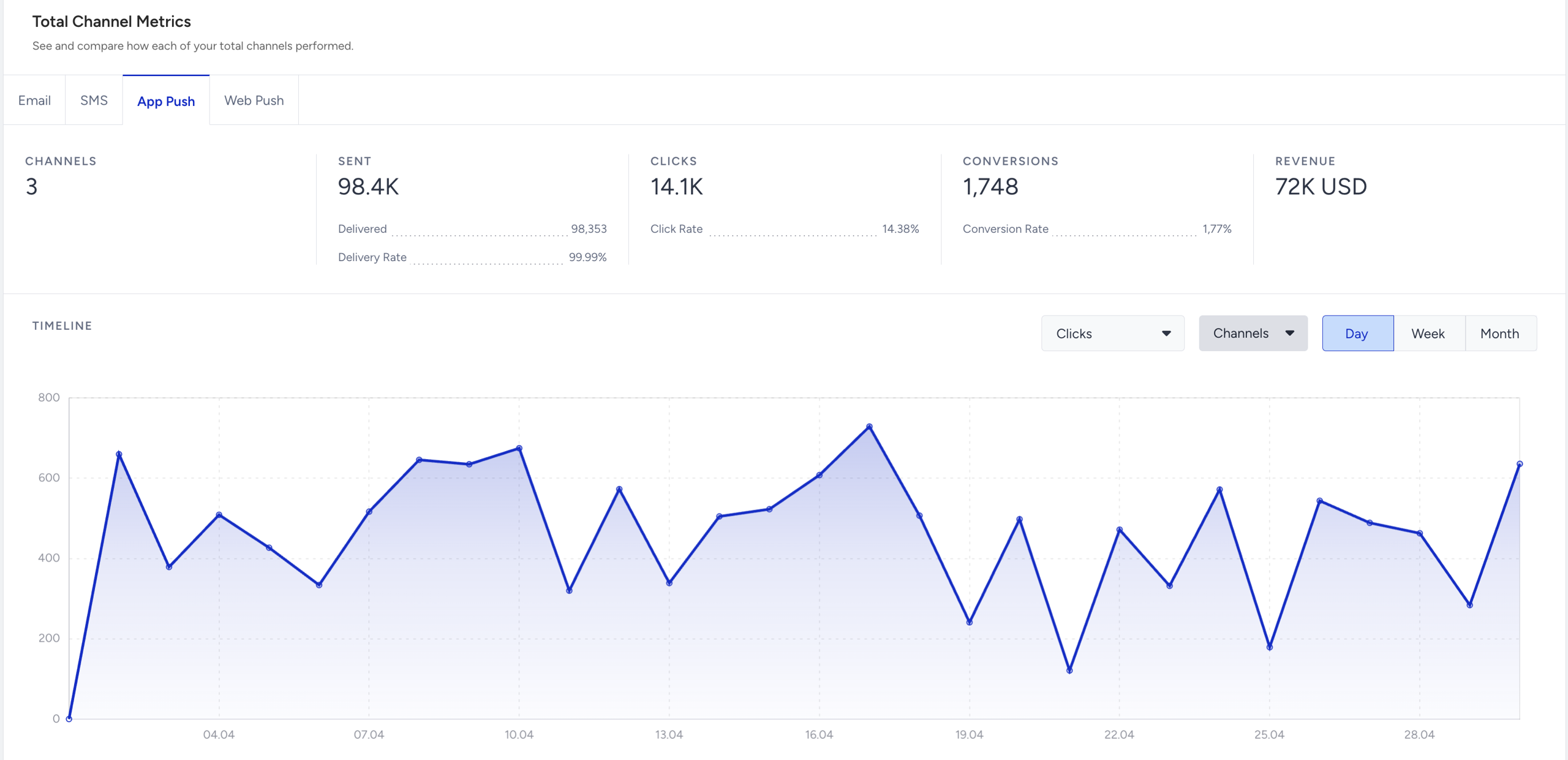
Number of Channels: The number of times the selected channel is used on the journey flow.
Sent: The number of messages addressed to the users via a selected channel.
Delivered: The number of messages delivered to the users via a selected channel. Impressions are counted as Delivered for the on-site and in-app channels.
Delivery rate: The percentage of the Delivered to the Sent messages.
Clicks: The number of times that the users clicked the messages via a selected channel.
Opens: The total number of times that the users opened the Email or WhatsApp messages in all journeys.
Conversions: The number of successful goal accomplishments via a selected channel.
Revenue: The value of purchases made via a selected channel in the journey.
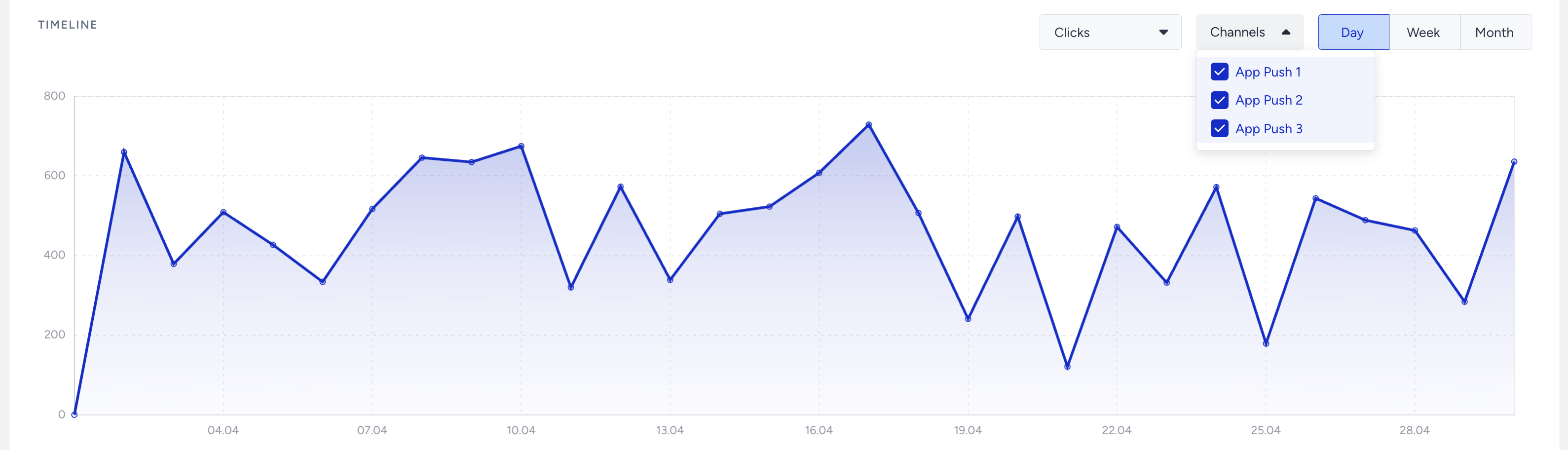
The timeline graph shows the change in a selected metric over a given time interval for a selected channel.
While you can select channel metrics such as sent, click, conversion, and revenue in the first dropdown in the top right of the first graph, you can select time units such as day, week, and month in the tabs.
You can also filter the specific channel step of the same channel category. For example, when you select the App Push channel on the Total Channel Metrics, you can filter which app push step you want to see on the timeline.
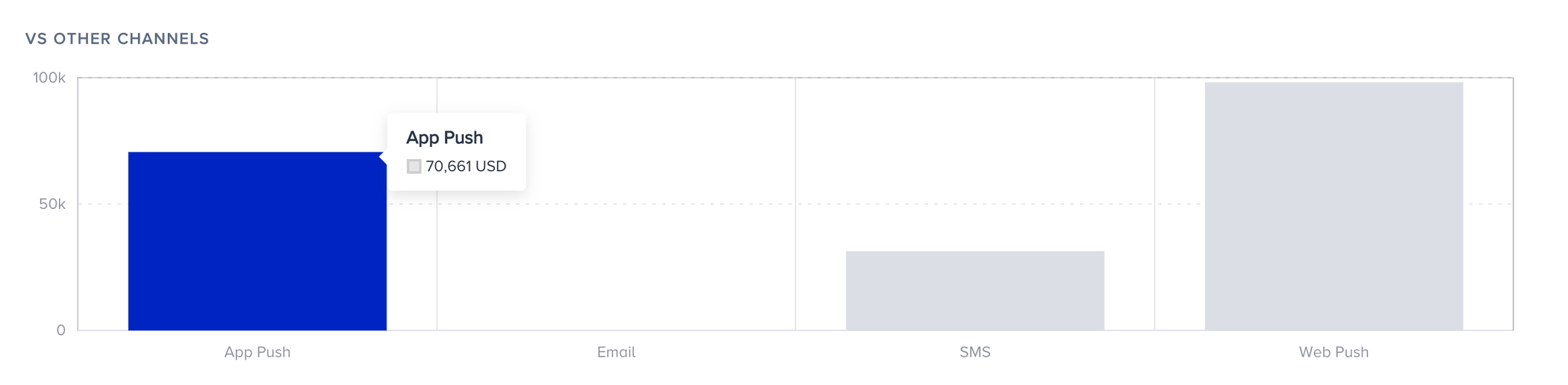
VS Other Channels graph shows the comparison of any channel you select in the Total Channel Metrics graph with other channels based on a metric you select in this section.
Channels By Layers
Channels by Layers enables you to examine the metrics of each channel individually within a layer of the journey. Layers show how many times you interact with a user within a journey, and aim to detect how metrics change when you send a second message to a user. There can be more than one channel in a layer. Layer breakdown helps you analyze and measure the metrics of your journey.
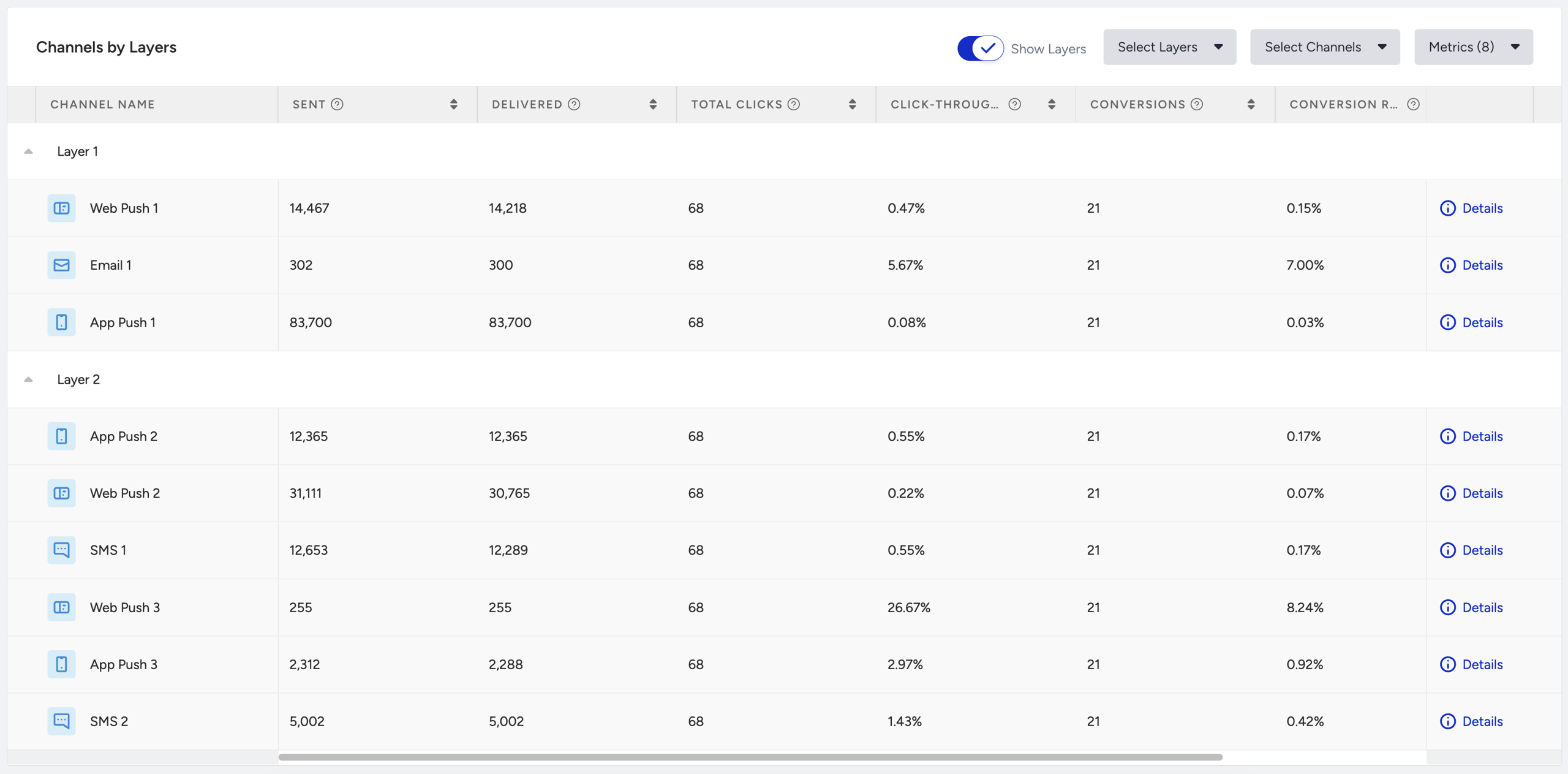
You can see the following metrics in this section based on channels, layers, and metrics you can select using the dropdowns in the top right corner. You can add more metrics to your table, or you can remove them, and scroll left and right on the table to see all metrics.
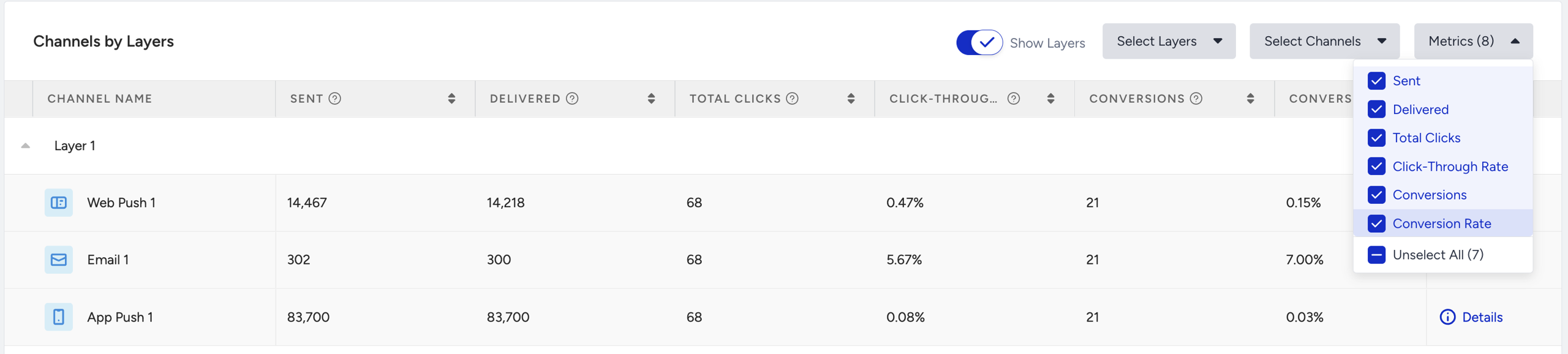
You can click on the Details button to see the respective channel details and message preview.
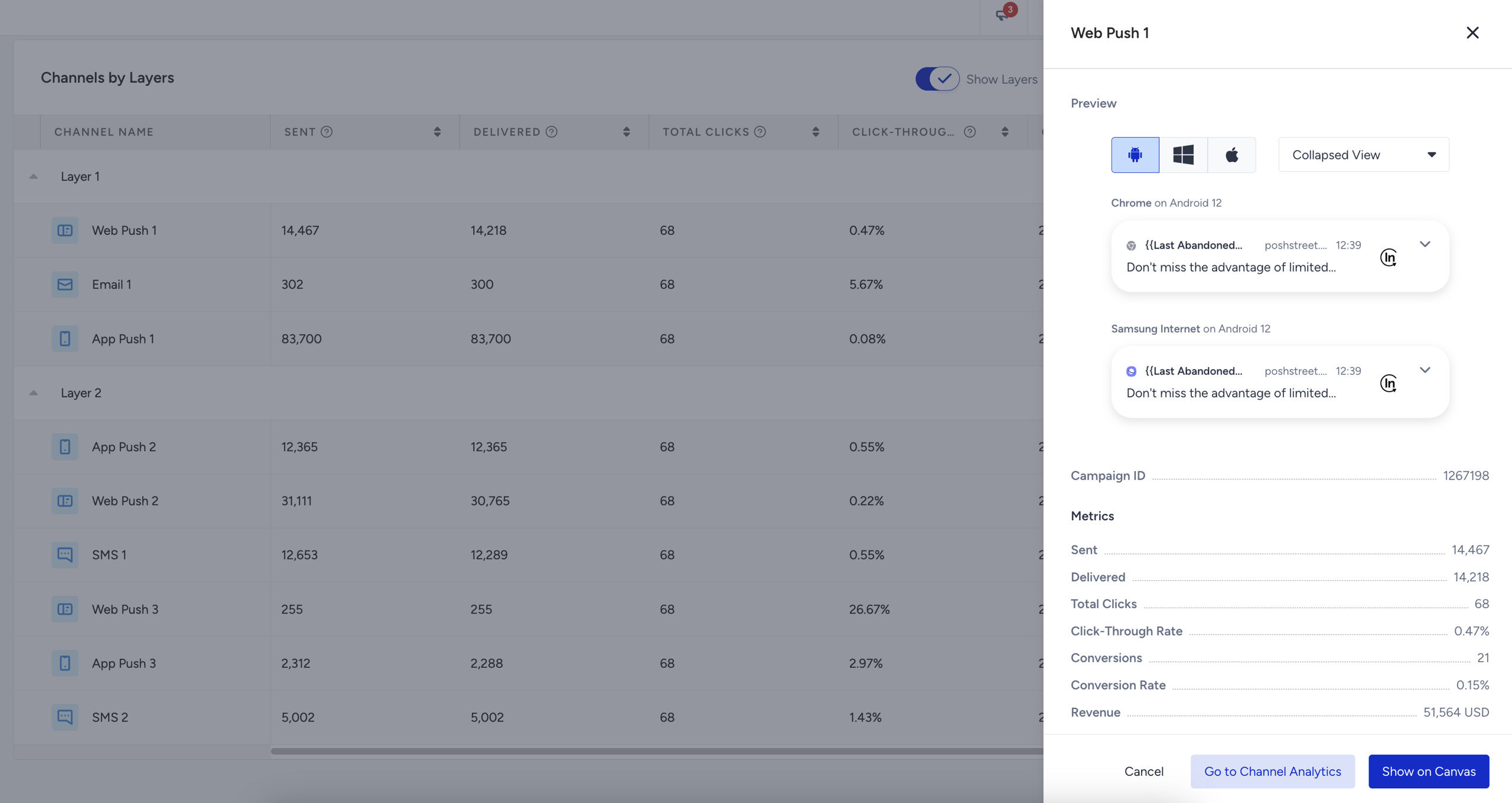
Sent: The number of messages addressed to the users via a channel.
Delivered: The number of messages delivered to the users via a channel. Impressions are counted as Delivered for the on-site and in-app channels.
Delivery Rate: The percentage of the Delivered to the Sent messages.
SMS Message Parts: The number of SMS message parts allocated for sending all the content in SMS messages.
Drops: The number of users who got dismissed from the journey due to channel reachability.
Drop Rate: The percentage of the users who dropped from the channel to the users who arrived at the channel.
Unsubscribes: The number of recipients who opted out from your messages in all Journeys in the selected period of time.
Unsubscribe Rate: The percentage of Unsubscribes to the Delivered messages.
Total Opens: The total number of times that the users opened the Email.
Unique Opens: The unique number of times that the users opened the Email.
Open Rate: The percentage of users who opened the email.
Total Clicks: The number of times that the users clicked the messages via a channel.
Unique Clicks: The unique number of times that the users clicked the Email.
Click-Through Rate: The percentage of times that the users clicked your campaign to the sent messages via a channel.
Conversions: The number of successful goal accomplishments via a channel.
Conversion Rate: The percentage of successful goal accomplishments to the delivered messages via a channel.
Revenue: The value of purchases made via a channel.
Average Order Value: The division of Revenue by the number of purchases made via a channel.
The conversion duration does not necessarily end when the journey is set to passive. You can track conversions during the journey's conversion duration, even though the journey is set to passive.
Conversion duration will be checked for each journey; after the journey is passive, it’ll continue to count.
The system will track both clicks and conversions.
If the conversion duration is set to 7 days, the system will track clicks for 7 days and conversions 7 more days.