You cannot make any changes to External Platform Integrations without having either an Administrator or an Editor with PII access in InOne. Refer to User Roles for further information.
This guide explains how to securely import user attribute and event data from your Google BigQuery (GBQ) tables, also known as connecting or syncing your Google BigQuery data with Insider One, for use in segmentation, targeting, and personalization.
Essentials before the integration
A Google Cloud project with BigQuery enabled.
An authentication with an Active status for Google BigQuery. To create one, refer to Google BigQuery Authentication.
Access to the datasets and tables containing user and event data.
A column (e.g.,
updated_at) in your table/view to track row updates for incremental sync.
Step 1: Select an Authentication
1.1. Navigate to Components > Integrations > External Integrations on Insider One’s InOne panel. 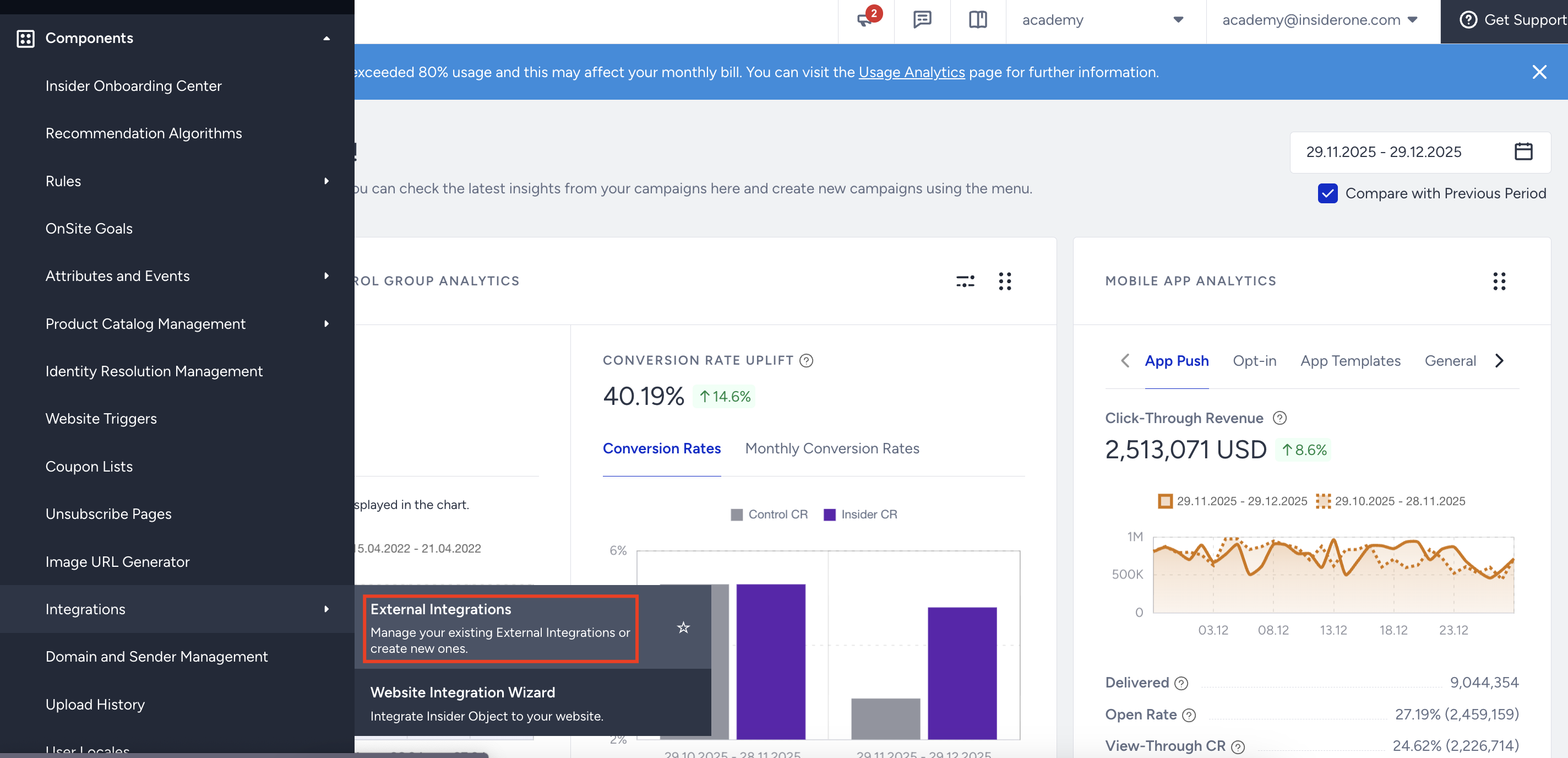
1.2. Select the Google BigQuery integration.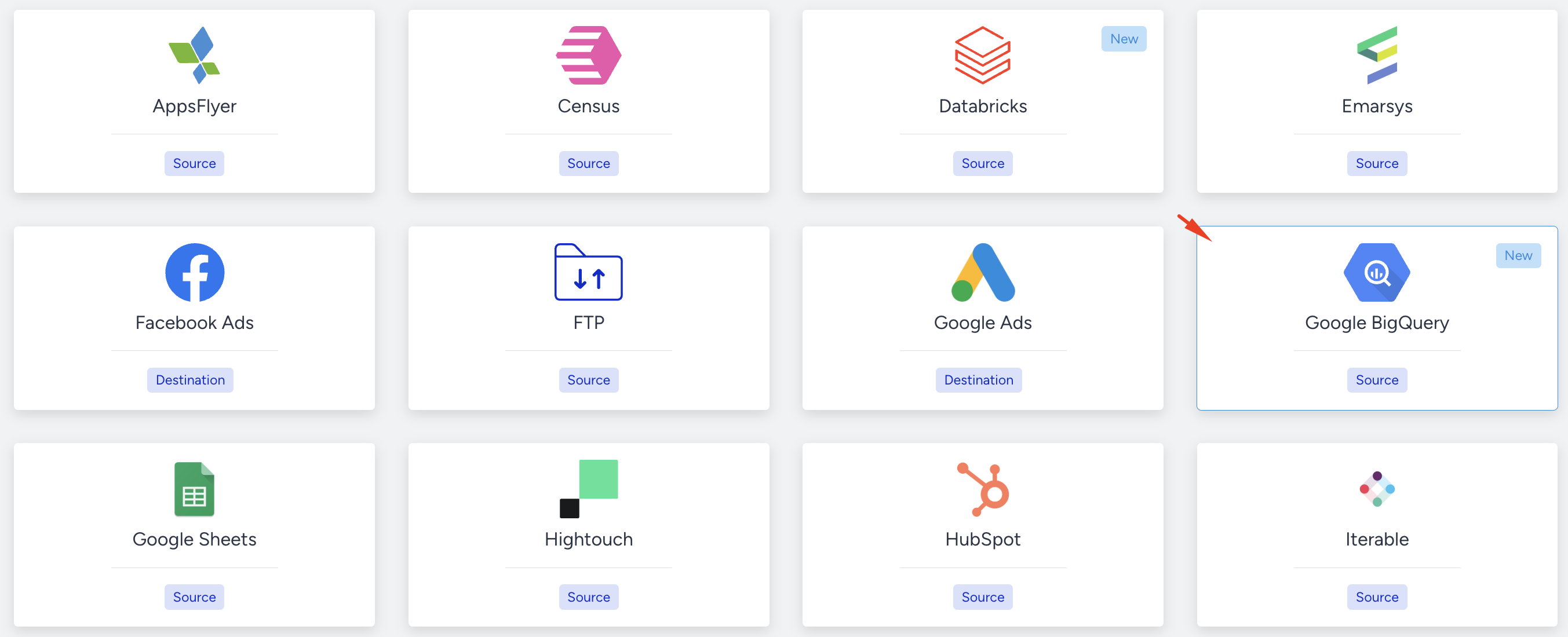
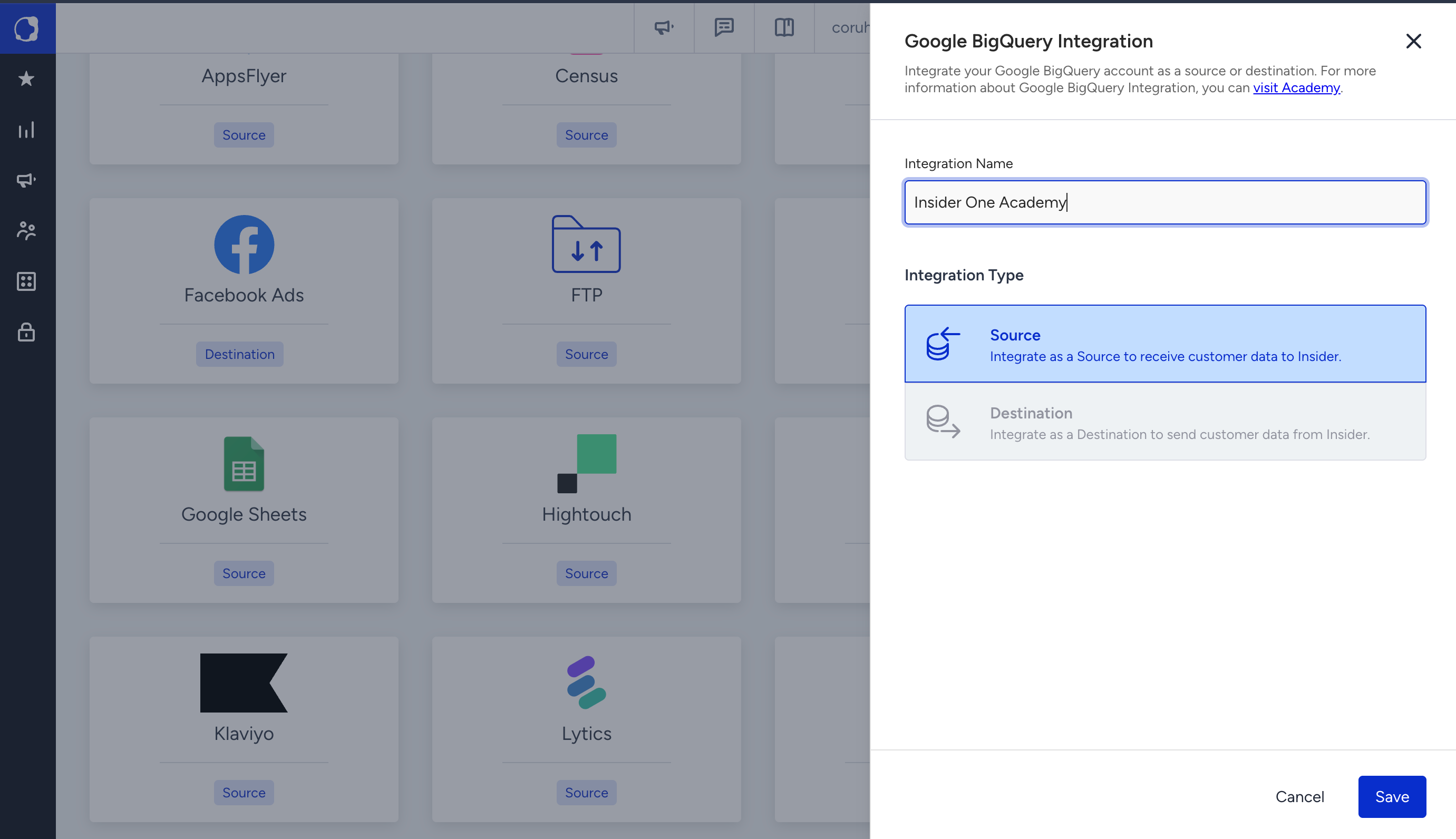
1.3. Enter a name for your integration and click Save.
1.4. In the Authentication step, select an authentication with the Active status from the Authentication dropdown, or click Create New Authentication to create one. Click Save and Continue.
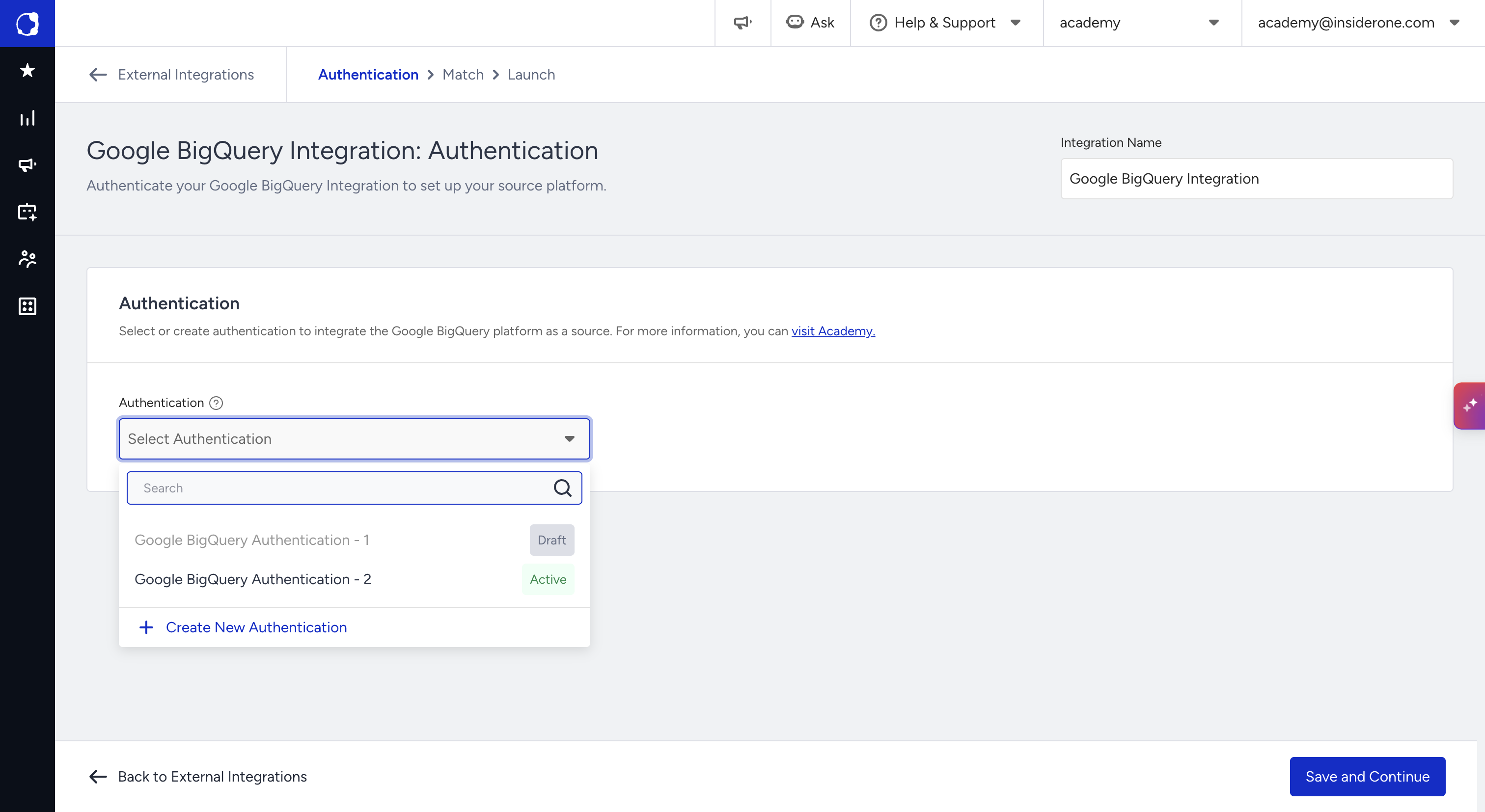
To learn how to create a Google BigQuery authentication, refer to Google BigQuery Authentication. To learn how to manage your authentications, refer to Authentications.
Step 2: Select Dataset and Table
After successful authentication, Insider One will display a list of available projects, BigQuery datasets, and tables in your project.
If you cannot find your dataset in here, you should check if your authentication has permission to that dataset or table.
2.1. Select the desired Dataset.
2.2. Choose the Table or View you want to import data from.

Partitioned tables or the tables created via Google Sheet cannot be used.
Step 3: Mapping GBQ Columns to Insider One Identifiers, Attributes, Events
Insider One identifies and unifies incoming user records according to the identifiers, priority order, and value limits configured in Identity Resolution Management. Review these settings before your first import to understand how imported records will be matched and unified.
3.1. You should map at least one identifier from GBQ to Insider One so that Insider One can understand which users you are sending data for.

Only string can be mapped to the Insider One Identifiers.
3.2. After selecting the identifier, you should select the Last Updated Column so that Insider One can understand which rows are updated in each new sync.

Only timestamp data type can be selected as Last Updated Column
You should maintain that Last Updated Column properly so that it reflects the changes in order to have proper data sync between GBQ and Insider One.
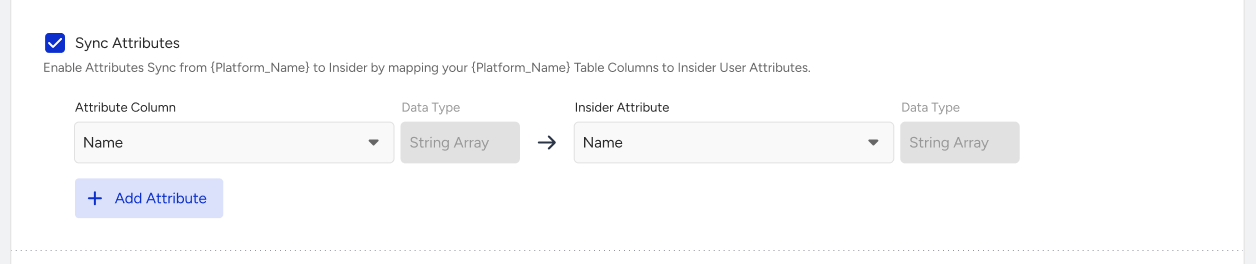
If you want to send data to Insider Attributes from GBQ, you should enable Sync Attributes and map the columns to the Insider attributes.
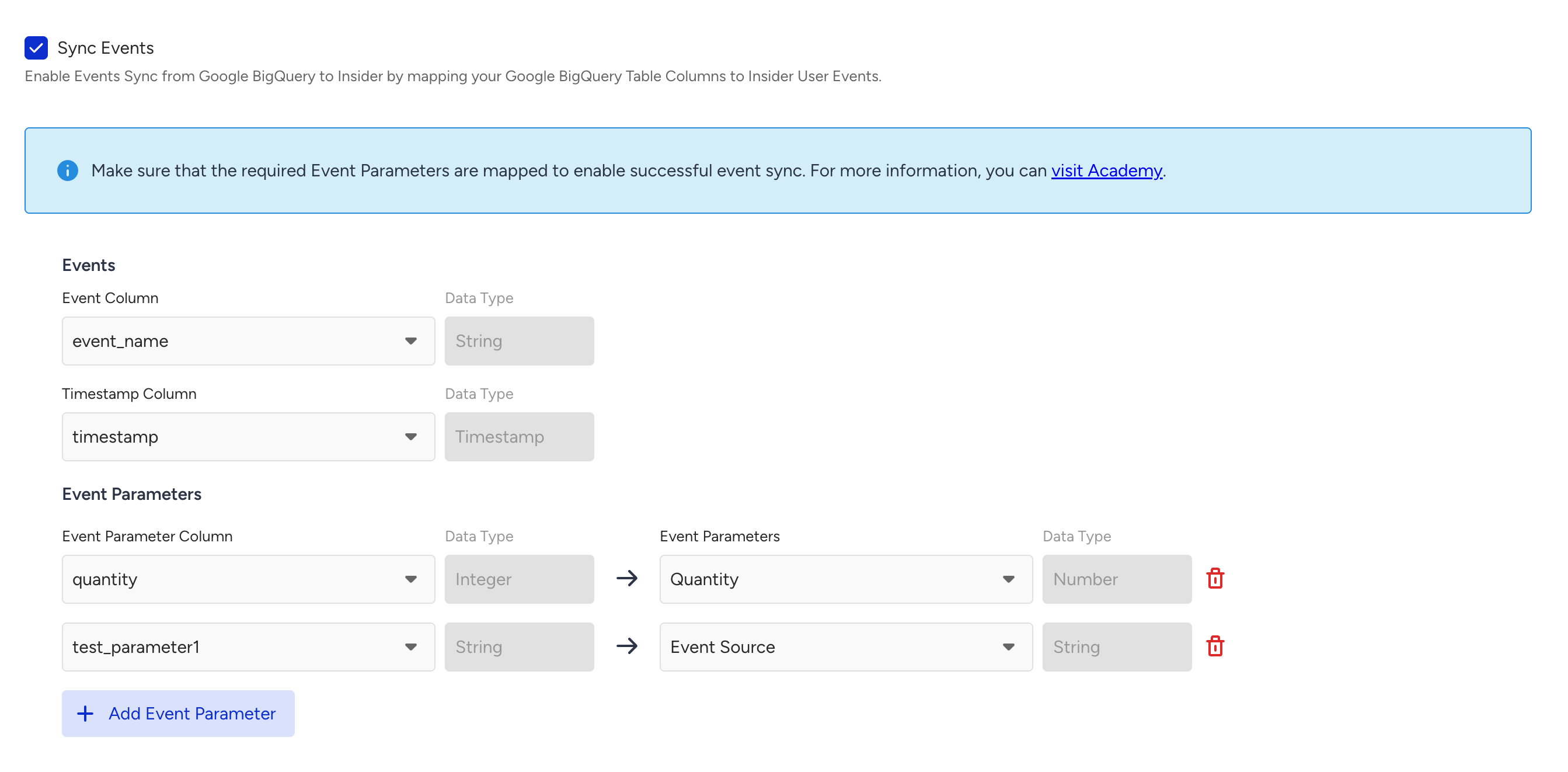
If you want to sync events, enable Sync Events.
Select the column that represents the event name in your table.
Select the column that represents the event timestamp in your table.
The column mapped as the event timestamp must use the Google BigQuery DATETIME or TIMESTAMP data type. You cannot map a DATE, STRING, or another data type as the event timestamp.
Select the column that represents event parameters in your table.
If you send events with the same name and timestamp, Insider One treats them as duplicates and ignores them. Therefore, avoid sending different events with identical names and timestamps.
Event names must follow the same naming convention as the Upsert User Data API. Event names that do not match this format will not be processed. Refer to Create a Custom Event for further information.
Refer to Default Attribute, Event & Parameter Data Mapping Table for required event parameters.
Data Type Matching
Ensure the Insider One and Google BigQuery data types match. Below is the data type matching table.
Google BigQuery Data Type | Insider Data Type | Notes |
|---|---|---|
STRING | String | Used for text attributes, identifiers, and event parameters. |
INT64, FLOAT64, NUMERIC | Number | Used for numerical attributes (e.g., age, quantity, unit_price). |
BOOL | Boolean | Used for opt-in attributes (e.g., email_optin). |
TIMESTAMP, DATETIME, DATE | DateTime | Insider One automatically converts any datetime format accepted by BigQuery. RFC3339 is recommended. However, the column mapped as the event timestamp must be TIMESTAMP or DATETIME; DATE is not accepted for this mapping. |
ARRAY | Array Strings | Used for properties such as taxonomy. Map string arrays to string arrays. |
ARRAY<NUMERIC/INT64/FLOAT64> | Array Numbers | Map number arrays to number arrays. |
RECORD / STRUCT in REPEATED mode (ARRAY<STRUCT<...>>), JSON | Array of Objects | Map nested data (order lines, subscriptions, preference objects) to a predefined Array of Objects attribute. See Mapping array-of-object (nested) columns below. |
BIGNUMERIC, BYTES, INTERVAL, RANGE, TIME, and GEOGRAPHY are not supported. A
RECORD/STRUCTcolumn inNULLABLEmode (a single object, not an array) is also not supported.RECORD/STRUCTinREPEATEDmode andJSONcolumns can be mapped only to Array of Objects attributes. You cannot map them to identifiers, event parameters, or other attribute types.
Mapping array-of-object (nested) columns
You can map a nested column to an Array of Objects attribute, such as order lines, subscriptions, or preference objects.
Eligible Google BigQuery column types:
RECORD/STRUCTinREPEATEDmode. In SQL this type isARRAY<STRUCT<...>>.JSON. Each cell must contain a JSON array of objects.
A RECORD / STRUCT column in NULLABLE mode holds a single object, not an array, so you cannot map it. Other array types, such as ARRAY<STRING> or ARRAY<INT64>, map to Array Strings or Array Numbers, not to Array of Objects.
Array of Objects columns can be mapped only to attributes. You cannot map them to identifiers or event parameters.
Before you map the column:
Create the Array of Objects attribute first. Go to InOne > Components > Attributes and Events and define each object key and its data type. Refer to Create an Array of Objects Attribute.
Supported key types are String, Number, Date, Boolean, URL, String Array, Number Array, and nested Object with up to 2 nesting levels.
Match key names and types to your source exactly. Insider One stores only the keys that are defined in the attribute. If a source key is not defined in the attribute, or its value type does not match, Insider One drops that key and stores the other keys. No error or warning is shown.
For example, if the attribute keys are
sku,priceandqty, the incoming object{"sku":"A","price":10,"qty":1,"color":"red"}is stored as{"sku":"A","price":10,"qty":1}.Make sure each cell contains an array of objects. Insider One rejects the cell, and counts it against the sync run's success rate, in these cases:
The value is not an array (for example a single object, a scalar value, or malformed JSON).
The array contains an element that is not an object, for example
[{"sku":"A"}, 7].The objects are nested deeper than 2 levels, or an object contains another array of objects.
A string value is longer than 500 characters.
The cell is larger than 1 MiB.
A rejected cell skips only that attribute. The rest of the row is still imported.
If an array contains more than 50 objects, Insider One stores the first 50 objects and drops the rest. The cell is not counted as failed and no warning is shown.
Before syncing, confirm that each key name and data type matches the source. After a test sync, review several user profiles to verify that all expected objects and keys were ingested. Mismatched keys and objects above the limit are skipped without an error or warning, so a test sync is the only way to confirm the final result.
Each attribute supports up to 50 objects, 20 keys per object, 2 nesting levels, and 500 characters per string value.
Default Attribute, Event & Parameter Data Mapping table
Parameter | Type | Description | Data Type | Required |
|---|---|---|---|---|
Attribute | Attribute. The user's email address can be used as an identifier. | String | No | |
phone_number | Attribute | Attribute. User's phone number in E.164 format (e.g., +6598765432), can be used as an identifier. | String | No |
email_optin | Attribute | Attribute. User's permission for marketing emails. | Boolean | No |
gdpr_optin | Attribute | Attribute. User's permission for Insider campaigns, data collection, and processing. | Boolean | No |
sms_optin | Attribute | Attribute. User's permission for SMS. True = SMS allowed; False = SMS not allowed. | Boolean | No |
whatsapp_optin | Attribute | Attribute. User's permission for WhatsApp Message. True = WhatsApp Message allowed; False = WhatsApp Message not allowed. | Boolean | No |
name | Attribute | Attribute. User's name. | String | No |
surname | Attribute | Attribute. User's surname. | String | No |
birthday | Attribute | Attribute. User's birthday in RFC 3339 format (e.g. 1993-03-12T00:00:00Z). | Date/Time | No |
gender | Attribute | Attribute. Gender of the user. | String | No |
age | Attribute | Attribute. Age of the user. | Number | No |
language | Attribute | Language information of the user. | String | No |
country | Attribute | Attribute. The user's country information in ISO 3166-1 alpha-2 format. | String | No |
city | Attribute | Attribute. City information of the user. | String | No |
uuid | Attribute | Attribute. The user’s UUID can be used as an identifier. | String | No |
event_name | Event | Name of the event. | String | Yes |
timestamp | Event Parameter | Event time. | Datetime | Yes |
event_group_id | Event Parameter | Event group ID. | String | No (Yes only when the event_name is purchase or cart_page_view) |
product_id | Event Parameter | Event parameter. Unique product ID. | String | No |
name | Event Parameter | Event parameter. Name of the product. | String | No |
taxonomy | Event Parameter | Event parameter. Category tree of the product. | Array | No |
currency | Event Parameter | Event parameter. Currency used for product pricing, in ISO 4217 format (e.g., USD). | String | No (Yes only when the event_name is purchase or cart_page_view) |
quantity | Event Parameter | Event parameter. Quantity of the product. | Integer | No (Yes, only when the event_name is purchase) |
unit_price | Event Parameter | Event parameter. Price of the product without any discount(s). | Float | No |
unit_sale_price | Event Parameter | Event parameter. Unit price of the product. | Float | No (Yes only when the event_name is purchase or cart_page_view) |
color | Event Parameter | Event parameter. Color of the product (selected by user). | String | No |
size | Event Parameter | Event parameter. Size of the product (selected by user). | String | No |
shipping_cost | Event Parameter | Event parameter. Shipping cost of the items in the basket. | String | No |
promotion_name | Event Parameter | Event parameter. Name of the promotion. | String | No |
promotion_discount | Event Parameter | Event parameter. Total amount of discount applied by promotions. | Float | No |
If you have purchase event in your Google BigQuery table, please make sure to;
If in a basket, there are more than single item, make sure to add those as separated rows into your Google BigQuery table.
Include
e_guid(event_group_id) parameter for each purchase event. This is needed to connect different products to single cart
Refer to Attributes and Events for further information on all default events and attributes.
If your data type in Google BigQuery is a
TIMESTAMPformat, the specific date format is not critical. Insider One automatically converts any datetime format that is accepted by Google BigQuery.
Step 4: Configure Sync Frequency and Launch
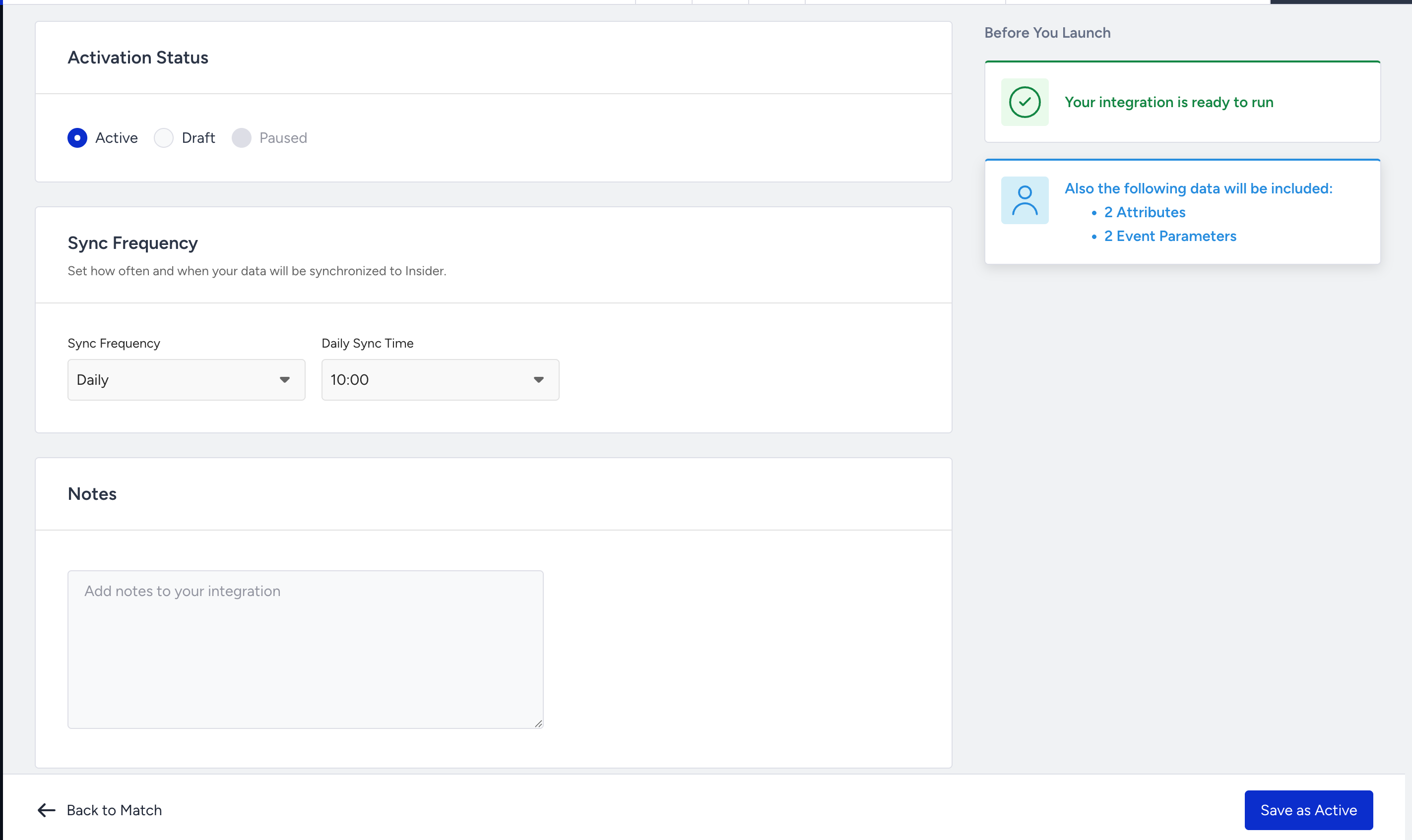
4.1. Choose how often Insider One should fetch data from GBQ. Options include 15 min, 30 min, 45 min, hourly, and daily.
When you activate the integration, Insider One initially fetches all rows from the selected table or view without filtering by the Last Updated Column. After the initial full sync, subsequent syncs use this column to fetch new or updated rows.
4.2. Review your configuration and mappings.
4.3. Select Activate and click the Save as Active button to activate the integration.
During the first full table sync, you will not be able to change the settings and configurations of your integration.
Best Practices
Always use a dedicated service account with least-privilege access.
Ensure the Last Updated Column is reliably maintained to avoid unnecessary MTU usage and get the latest data.
User profiles created or updated through the Google BigQuery integration can count toward first-party MTU usage. Each unique user is counted once per calendar month, even if multiple rows or synchronization runs update the same identified user. New or updated rows for users who have not yet been counted during the current month can increase MTU usage.
To avoid processing unchanged users, update the Last Updated Column only when a user’s data changes.
Use BigQuery views to pre-filter or transform data before syncing.
Data Import Logic
During the GBQ → Insider synchronization:
If any identifier coming from GBQ is invalid, the entire record is not sent.
If an attribute coming from GBQ is invalid, only that specific attribute is skipped.
If an event parameter coming from GBQ is invalid, the entire event is excluded from processing.
The first synchronization performs a full table sync and doesn’t trigger any webhooks, campaigns, or journeys.
If a single incremental sync exceeds the row limit set for your account, all rows are still ingested, but they do not trigger any webhooks, campaigns, or journeys.
Important: Event Deduplication & Re-Ingestion Behavior
Duplicate Detection Rule: Insider One treats events with the same event name and timestamp as duplicates.
If multiple events with identical names and timestamps are sent within the same sync, only one will be processed and the others will be ignored.Avoid Updating Previously Synced Events: Do not update rows that were already consumed by Insider One in a previous sync.
Updating these rows triggers re-ingestion, which may create duplicate events in Insider.
Recommendation: Ensure each event has a unique timestamp and avoid modifying rows which include historical event records after they have been successfully synced.
Repeatedly re-sending unchanged rows moves your integration to Action required. Deduplication protects your data, but the duplicated rows are still transferred and processed. If more than 5% of the rows in your last two syncs were re-sent with identical content, the integration is moved to Action required until you fix the source query. See DWH_DUPLICATE_DATA_THRESHOLD_EXCEEDED in the Data Warehouse and Storage Import Monitoring and Error Guide.
You can track every sync on the integration's Monitoring screen. Each run displays its status, success rate, and any errors found. For the full list of import errors, their meanings, and how to resolve them, see the Error Guide.
Limitations
Each table must include an identifier.
Custom attributes or event parameters must be predefined in Insider One (via the Attributes and Events page).
For purchase events:
Add one row per product in a basket.
Include
e_guid(event_group_id) to link multiple rows to a single cart.
The synchronization process does not support
DELETEoperations. If you delete a record from your GBQ table, the corresponding data will not be removed from Insider on the next sync.Each row (user) must be under 350KB; rows exceeding this size will not be upserted.
It is not possible to use partitioned or clustered Google BigQuery tables.
Incremental syncs above 400,000 rows are ingested with journey and data stream triggers suppressed. No data is lost and the sync still succeeds.
Array of Objects columns (
RECORD/STRUCTinREPEATEDmode, orJSON) can be mapped only to Array of Objects attributes. They cannot be used as event parameters. Each attribute stores at most 50 objects per user.
A single sync can process at most 1 billion rows. This limit applies to every sync — both the initial full sync and subsequent incremental syncs. If a sync exceeds 1 billion rows, the integration is moved to Archived and that sync is not processed. If you expect any sync to exceed this, contact Insider One team before launching.
FAQ
Q: Can I use views as a source?
A: Yes, as long as the view is accessible by the service account and contains a Last Updated column.
Q: What happens if I delete a record in BigQuery?
A: Deletions are not propagated to Insider. Only new and updated records are synced.
Q: How do I add custom attributes or events, and can I send custom attributes through the Send Google BigQuery Data to Insider One integration?
A: Custom attributes and events must be created in Insider One’s Events & Attributes page before mapping. Then, you can map BigQuery columns to the corresponding Insider One attributes. For example, a BigQuery column such as department can be mapped to a custom Insider One attribute named department with a String data type. Once the mapping is configured, the custom attribute values are synchronized to Insider One user profiles.
Q: How many different BigQuery tables can I connect to?
A: Each integration connects to one table. You can create up to 50 integrations per partner, which means you can connect to 50 different BigQuery tables.
Q: What if my table does not have a Last Updated column?
A: The integration requires a Last Updated column to run incremental syncs. Add this column to your table or view to keep the data sync active.
Q: What happens if I add a future date as updated_at?
A: Each sync reads only the rows where the Last Updated value is between the previous sync watermark and the current time. If a row has a future-dated updated_at value, it is skipped during the current sync and picked up only after the current time passes that value.
For example:
Today is February 10.
A record is inserted with
updated_at = February 18.The record is not consumed in today's sync. It is picked up on or after February 18.
To avoid sync delays, use server-time values, such as CURRENT_TIMESTAMP(), for the Last Updated column, instead of future-dated values.
Q: Can I import nested data such as order lines from Google BigQuery?
A: Yes. Create an Array of Objects attribute in Insider One, then map a RECORD / STRUCT column in REPEATED mode, or a JSON column that contains an array of objects, to that attribute. See Mapping array-of-object (nested) columns.