The Plain Text Version is a text-only copy of your email that Insider One sends alongside your HTML design. Instead of sending an HTML-only message, Insider One sends a multipart email that carries both an HTML part and a plain-text part.
Email clients automatically choose which part to display. Clients that render HTML show your normal design, and clients that cannot render HTML fall back to the plain-text version instead of showing a blank message or raw code.
You generate the plain-text version directly from your HTML design in the Design step of your campaign, review it, and optionally fine-tune it before launching.
Adding a plain-text version improves your email on three fronts:
Deliverability: Major inbox providers treat the presence of a plain-text part as a trust signal. Including one reduces the risk of being filtered as spam, which is especially valuable if your sending domain is still building reputation.
Accessibility: Plain text is the recommended fallback for screen readers and Braille displays, and supports compliance with accessibility expectations such as the European Accessibility Act (EAA).
Cross-client readability: Your message stays readable across a wider range of devices and email clients.
Links in the plain-text version are written in a clean, readable Label (URL) style rather than long raw tracking URLs, so they remain easy to follow for both people and screen readers.
With the Plain Text Version functionality, you can perform the following actions:
This feature is only available for promotional standalone emails.
Plain text cannot be edited in the Design step for transactional emails, but it is still supported in two ways:
Sent in the payload: Include the plain text content in your API request.
Auto-generated: If you reference a template from the Template Library, the plain text version is derived automatically from the template's HTML content.
Before you start
Make sure the following are in place before you begin:
You need a message design first.
Plain text is generated from existing email design within the campaign, so you must build and save an email design before you can generate a plain-text version.
Editing permissions are required.
Generating, editing, regenerating, and deleting the plain-text version require edit permissions. View-only users can see the plain-text version but cannot change it.
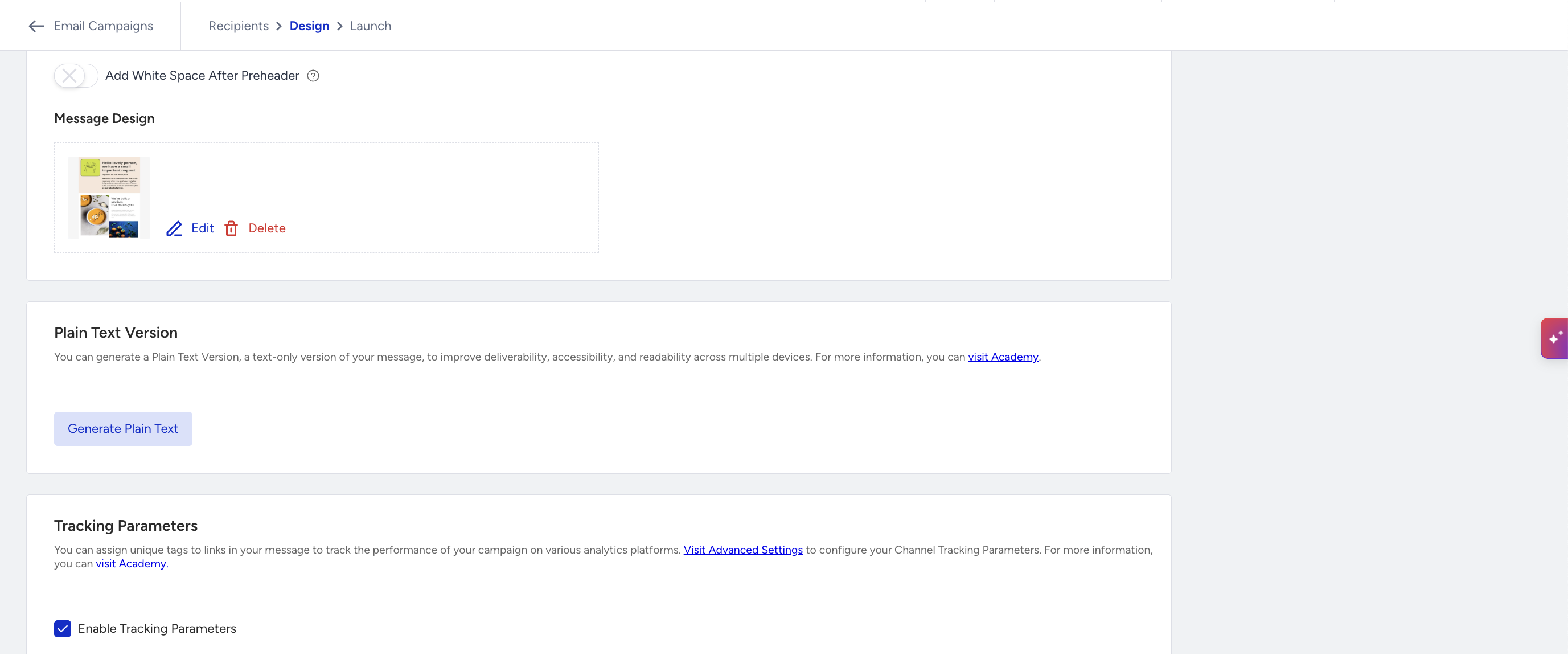
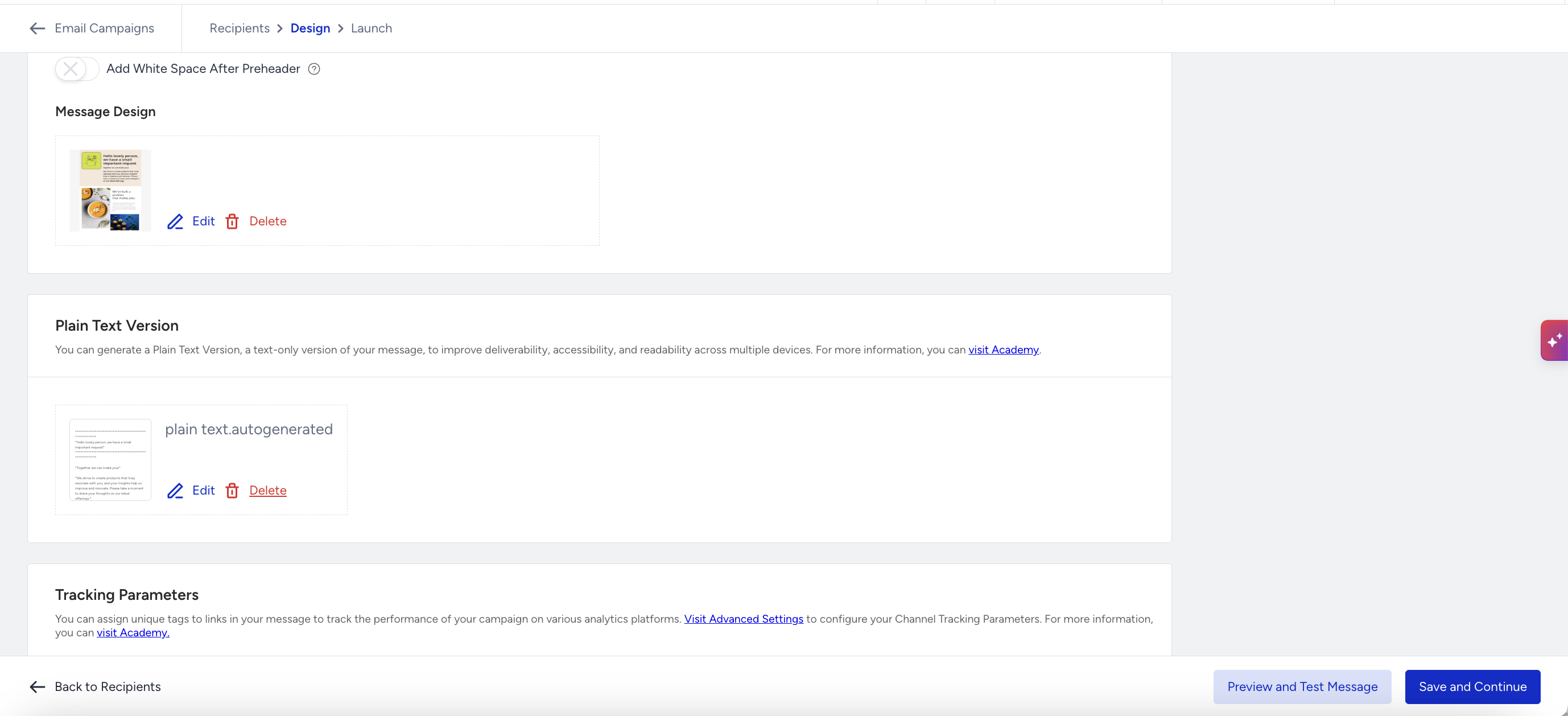
You'll find the Plain Text Version section in the Design step of your email campaign, between Message Content and Tracking Parameters.
Generate a plain-text version
1. Build and save your email message design.
2. In the Plain Text Version section, click the Generate Plain Text button. The button shows “Generating Plain Text…” while it works.
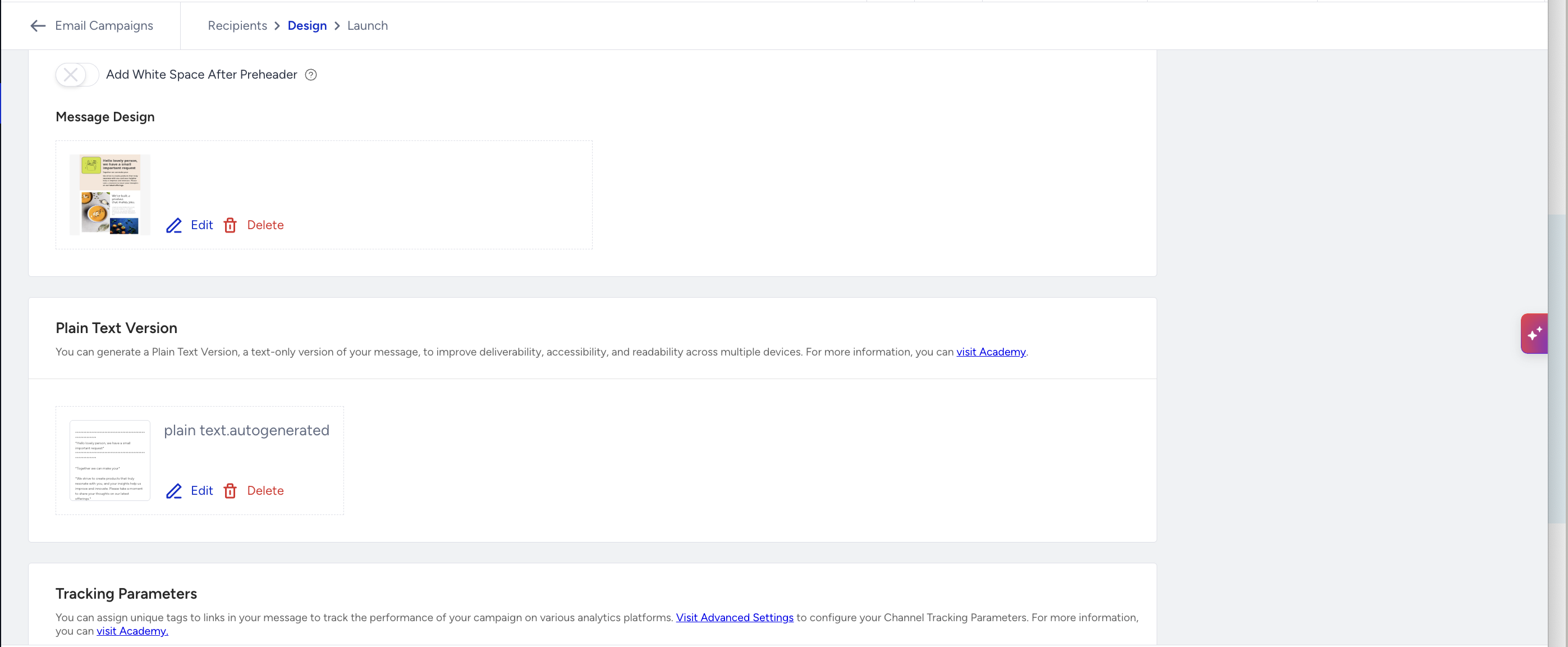
When it finishes, you see the success message "Your Plain Text Version has been generated successfully." and a card appears showing a preview of the generated text, which mirrors your design's content.
A freshly generated version is in sync with your design. It shows the auto-generated state with no Asynced with Design label.
3. If the Generate Plain Text button is disabled, hover over it. The tooltip "Create a Message Design to Generate Plain Text." means you need to build a design first.
Edit the plain-text version
The auto-generated text is usually accurate, but you can adjust the wording if the automatic conversion didn't capture something the way you want.
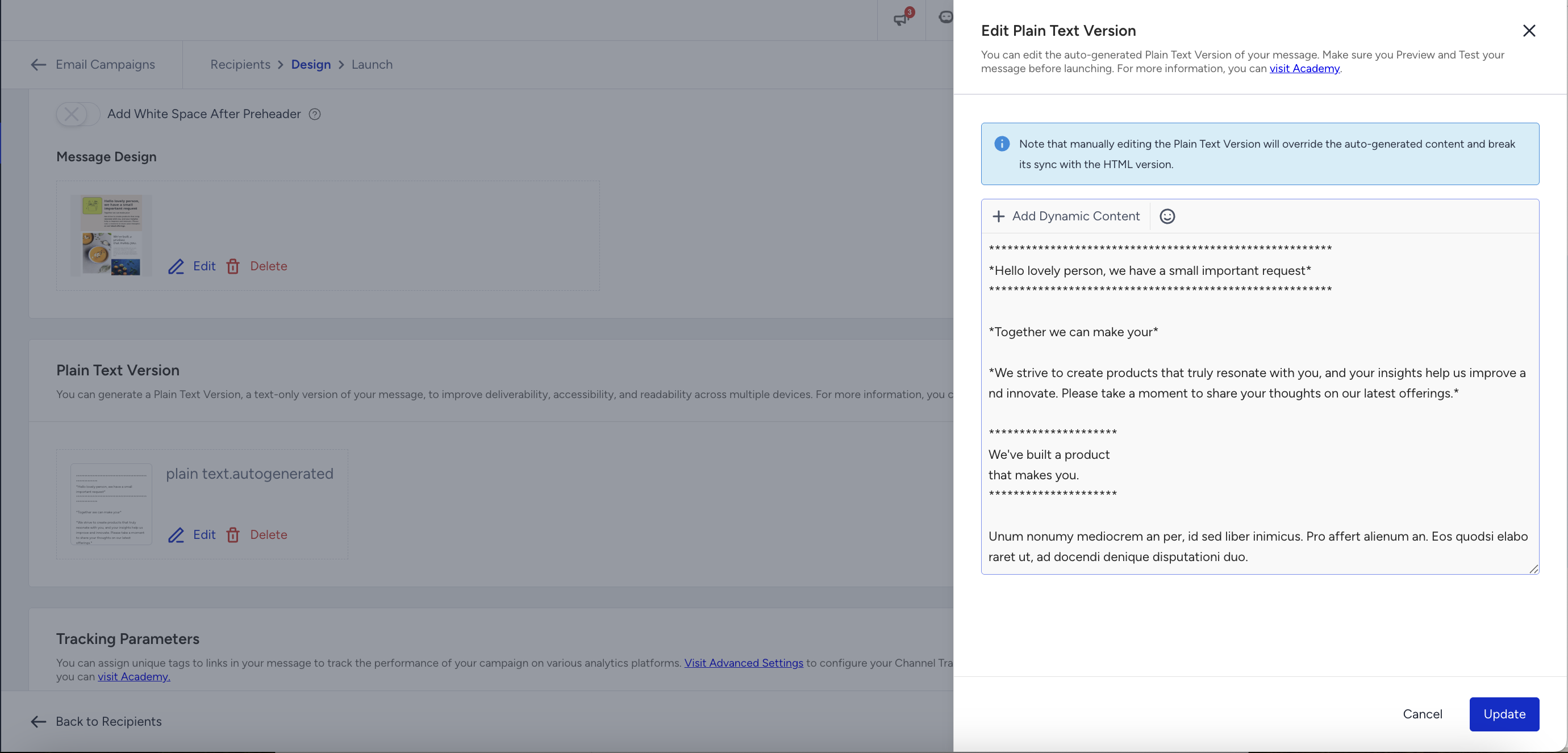
1. Click the Edit button on the plain-text card to open the Edit Plain Text Version drawer.
2. Make your changes and click the Update button. You see the message "Your Plain Text Version has been updated successfully."
Keep the plain text and HTML versions consistent
Spam filters compare the plain text and HTML parts of the same email. If the two versions differ significantly, the message is more likely to be flagged, which can hurt deliverability and inbox placement.
As a rule of thumb, don't include any information in the plain text version that doesn't exist in your HTML content, and don't leave out key content that your HTML version communicates.
Acceptable differences
Some differences are expected and won't cause problems, as long as the message and the offer stay the same:
Formatting and structure: HTML styling, layout, columns, buttons, and spacing have no plain text equivalent. Writing a link as a full URL (e.g., https://example.com/sale) instead of a styled button is fine.
Text inside images: If a key message (e.g., a discount or a headline) only appears inside an image in your HTML, write that same text out in the plain text version. This is a match, not a difference. The information exists in both versions.
Decorative elements: Logos, spacer images, background graphics, and icons don't need a plain text equivalent.
Avoid the following:
A different offer, discount, or price in one version (e.g. "30% off" in HTML, "50% off" in plain text).
Links or destinations that appear in only one of the versions.
A near-empty plain-text version (e.g., only "View this email in your browser") while the HTML version is a full campaign.
Understand sync status
Your plain-text version has two states:
Synced (auto-generated): The plain text was generated from your current design and has not been manually edited. It reflects your latest design.
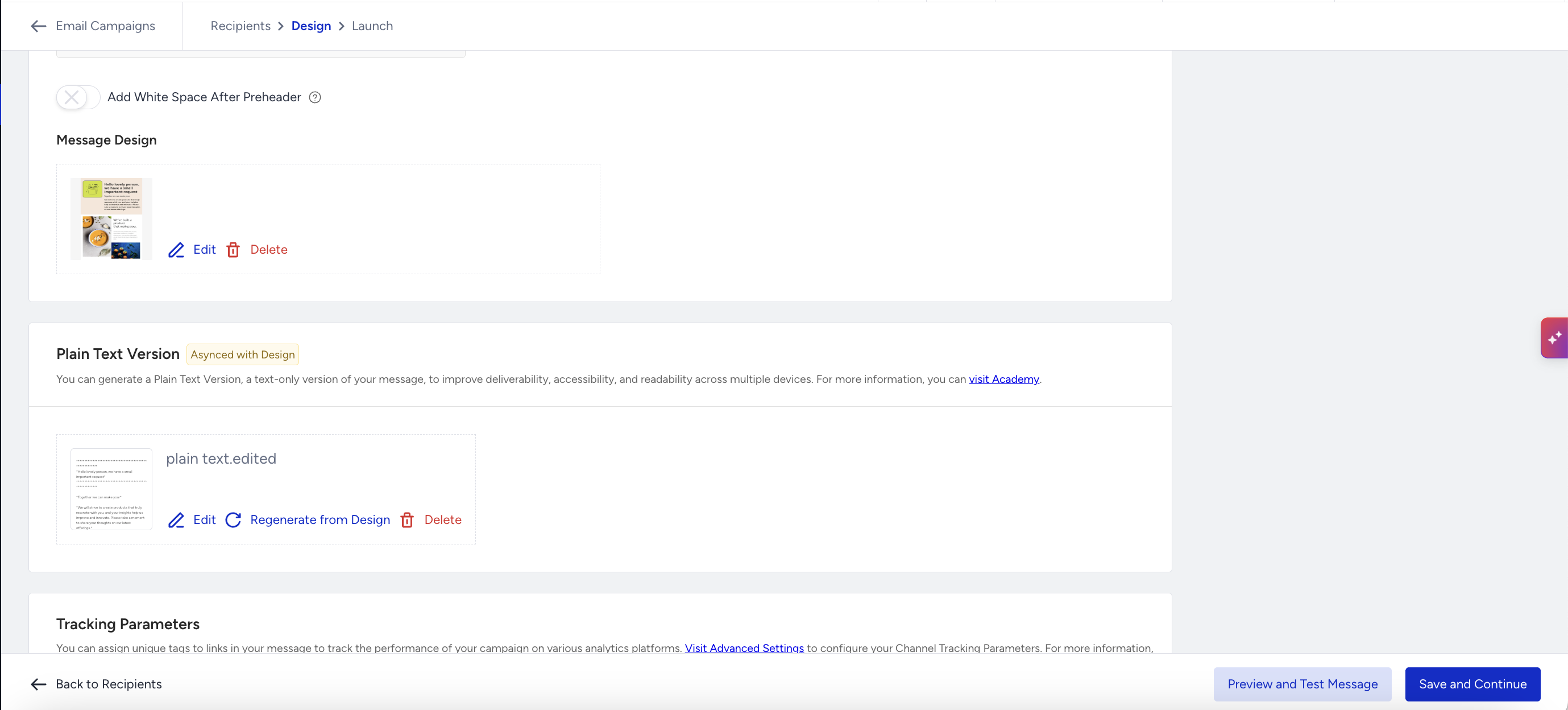
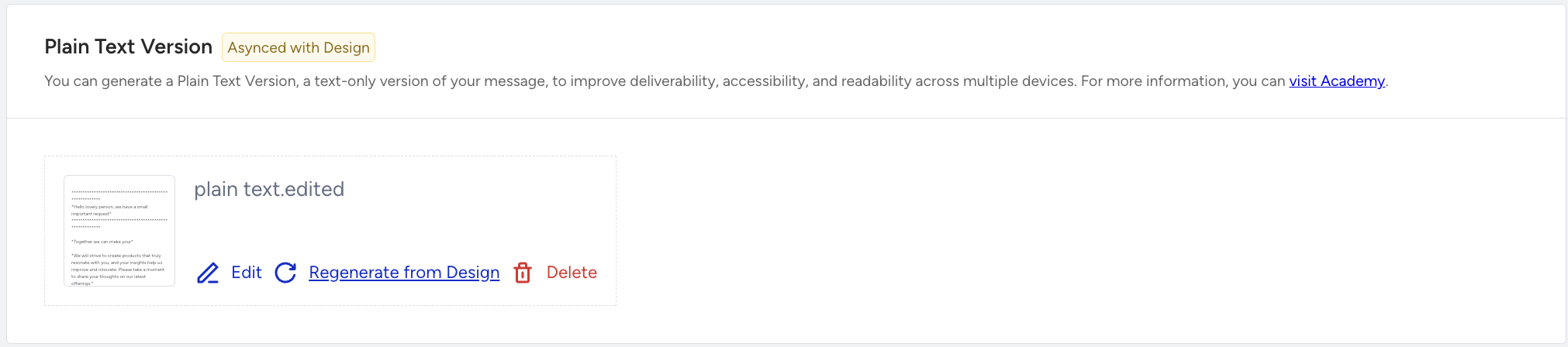
Asynced with Design: Either you edited the text manually, or you changed the HTML design after generating. The plain text may no longer match your design.
When the version is out of sync, an Asynced with Design chip appears on the card. Hover over it to see an info box (Asynced Plain Text Version) explaining why it's out of sync and how to resolve it.
When you change your design after generating, Insider One does not silently overwrite your plain text; it simply flags it as out of sync, so you stay in control of the final wording.
Regenerate from your design
To discard manual edits and bring the plain text back in line with your current design:
Click the Regenerate from Design button. The plain text is rebuilt from your latest HTML design, your manual edits are discarded, and the version returns to the synced state.
You see the message "Your Plain Text Version has been regenerated successfully."
Delete the plain-text version
1. Click the Delete button on the plain-text card.
2. Confirm in the Delete Plain Text Version? dialog.
The version is removed, and the section returns to its Generate Plain Text state. If you delete the Email Design itself, the Plain Text Version is removed automatically.
Preview and test
You can review the plain-text version the same way you review your HTML, before you launch.
Preview panel
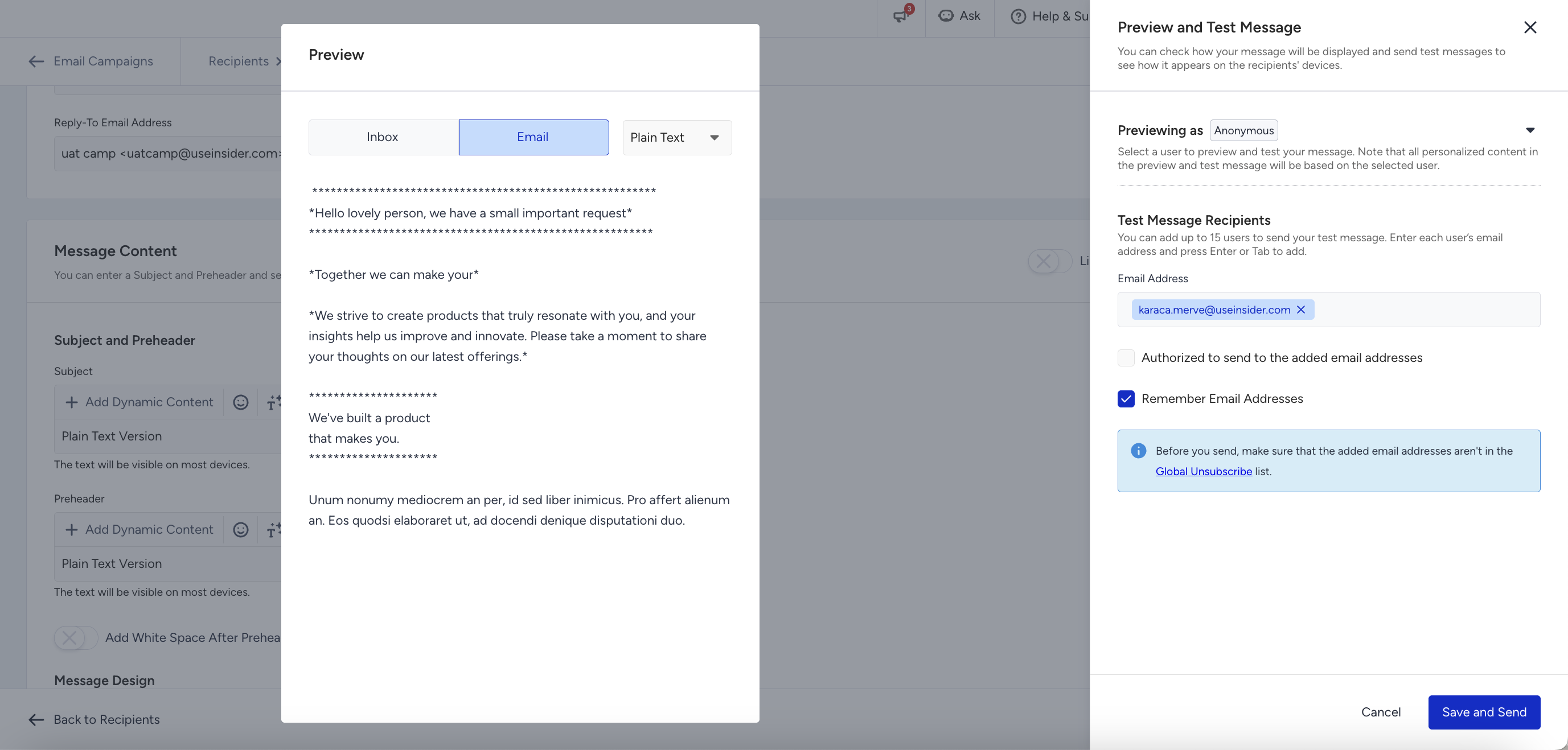
Open the preview panel and select the Plain Text option shown next to the Inbox/Email toggle to see how your plain text will render.
If you haven't generated a plain-text version yet, the option is disabled with the tooltip "Generate a Plain Text Version to preview it."
If no design exists, the option is disabled with the tooltip "Create a Message Design to Generate Plain Text."
The preview area displays the exact text and is view-only. It is intentionally not selectable, since the plain text is shown as an image.
The Plain Text option only affects the Email segment. It stays visible while Inbox is selected but has no effect there.
Preview and Test Message drawer
For experiment and localization campaigns, the plain-text version renders in the Preview & Test Message drawer for the selected variation or locale, so you can validate it just like the HTML version.
When you select a preview user on a campaign with dynamic content, the personalized plain text is rendered after a short loading indicator.
Completed campaigns
On a completed or launched campaign, the plain-text version that was sent is shown in a read-only state, and the generate, edit, regenerate, and delete actions are disabled.
Behavior with duplication, permissions, and localization
Duplicating a campaign carries the plain-text content and its sync state over to the new copy. The source campaign is unchanged.
View-only users can see the plain-text version but cannot generate, edit, regenerate, or delete it. Attempting an action shows a notification that the action isn't permitted.
Localization and experiment campaigns support previewing the plain text per variation and locale.
FAQ
Q: Do we have to create the plain text manually?
A: No. Insider One generates it automatically from your HTML design. Editing is optional; only use it to fine-tune wording.
Q: Will our edits stay if we change the design later?
A: Your manual edits are kept, but the version is marked Asynced with Design. If you want it to match the new design, click Regenerate from Design (this discards your manual edits).
Q: What happens if we don't add a plain-text version?
A: Your email will still send, but only as HTML. You'll miss the deliverability, accessibility, and fallback benefits described above.
Q: Are our links preserved in the plain text?
A: Yes. Links appear in a readable Label (URL) format so recipients and screen readers can follow them.