Important: Migration to the new editor
Once you switch to the new editor, all active email campaigns and journeys that use templates containing a recommendation block will continue to be delivered without issue. However, if you want to re-edit the same template, keep the following in mind to ensure a smooth experience with the new editor:
Once you open the template, the recommended products may not be directly visible. To display them, first interact with the Recommendation block (e.g., by clicking it); after that, the recommended products will appear. Even if you do not click the block and save the email, the existing recommendation settings will be preserved.
The Purchased Together and Viewed Together algorithms are unavailable for the Email channel. These algorithms need a product reference that the email context does not carry. If a block built before Recommendation Strategies returns empty results while other algorithms appear in its dropdown, it might be because one of these two algorithms was selected.
By default, the mobile layout option is disabled, so the same layout is displayed on mobile devices. If you want to use the mobile layout (one product per row), you can enable it manually from the settings.
If you need Outlook-specific rendering support, remember to enable the Support for Outlook toggle in the editor settings.
Recommendation Strategies are currently available in Email campaigns only. Recommendation blocks in Architect journey emails keep their own Recommendation Algorithm, Filters, Shuffle, and Number of Products settings.
You can use this module to enrich your emails with product recommendations or to create recommendation-only emails. You can create new email templates using this module or add it to your existing recurring emails.
The Recommendation block runs on a Recommendation Strategy. A Recommendation Strategy, also known as your product recommendation rules or logic, is a reusable configuration that defines how personalized product recommendations appear in your marketing campaigns. You create and manage strategies under Recommendation > Recommendation Strategies, and you assign one to each Recommendation block in your email. Because a strategy is shared, a change you make to it applies to every campaign that uses it.
Strategies also give your emails recommendation capabilities that were not available in the Email channel before. For example, you can hide products that are already in the user's cart or that the user recently viewed or purchased. You can also use Attribute Affinity to show first the products whose attributes, such as brand, color, or category, match the user's interests.
For the functionality definitions, strategy types, and their configuration options, see Smart Recommender Recommendation Strategies.
This article covers how to use Recommendation Strategies in the Email channel:
Using more than one Recommendation module within the same email template might affect the delivery speed and cause delays in emails reaching the end users.
If Send Time Optimization, A/B Testing, or Throttling is enabled in your campaign along with the Recommendation module, your email campaigns may not be delivered at the exact send time, as these features adjust the timing when users will receive the emails.
Add the Recommendation block
To add the recommendation module:
1. Go to the Design step of your email campaign.
2. Select the Drag & Drop Editor.
3. Choose the Recommendation block in the editor.
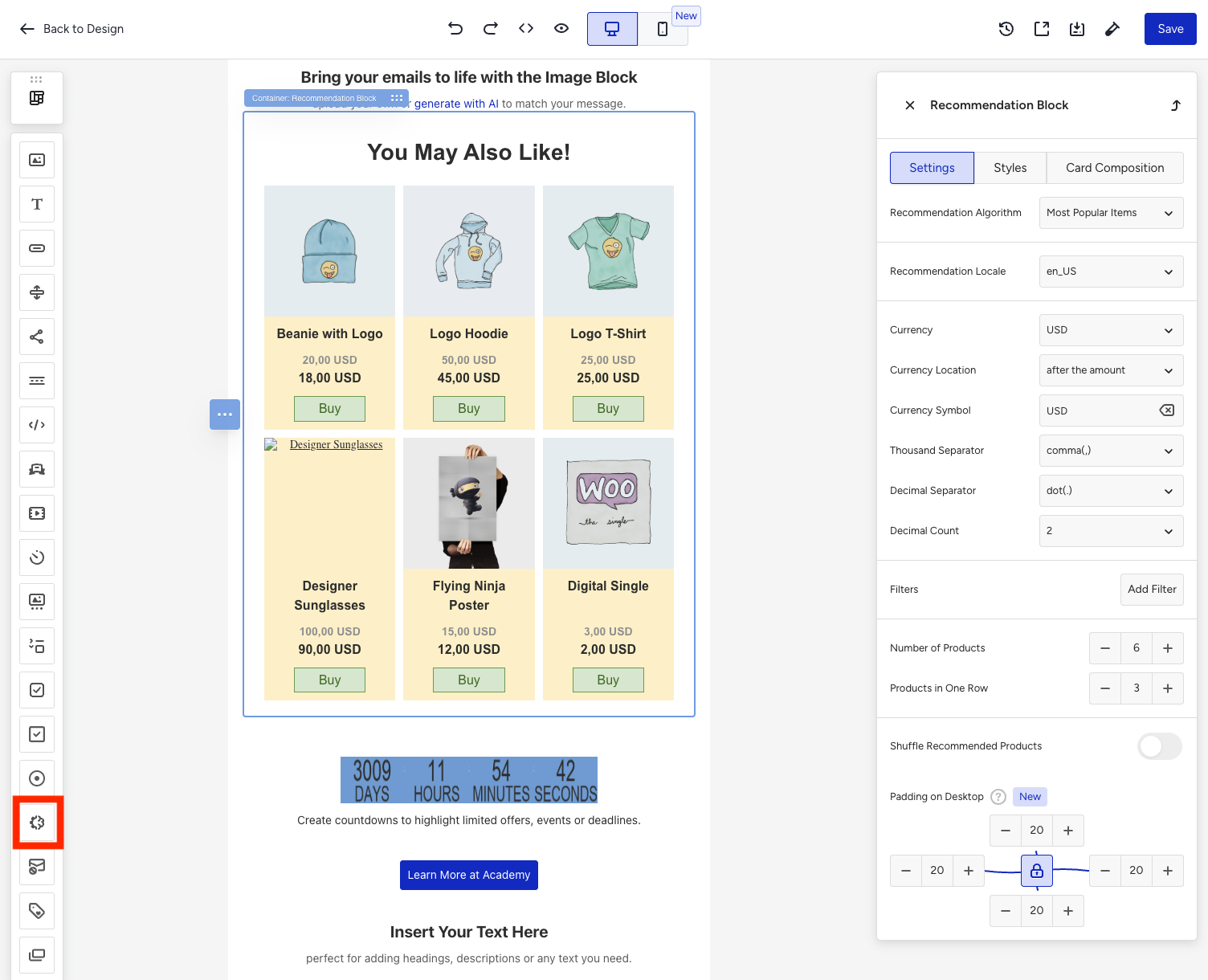
Once you add the block, you can configure it under three tabs:
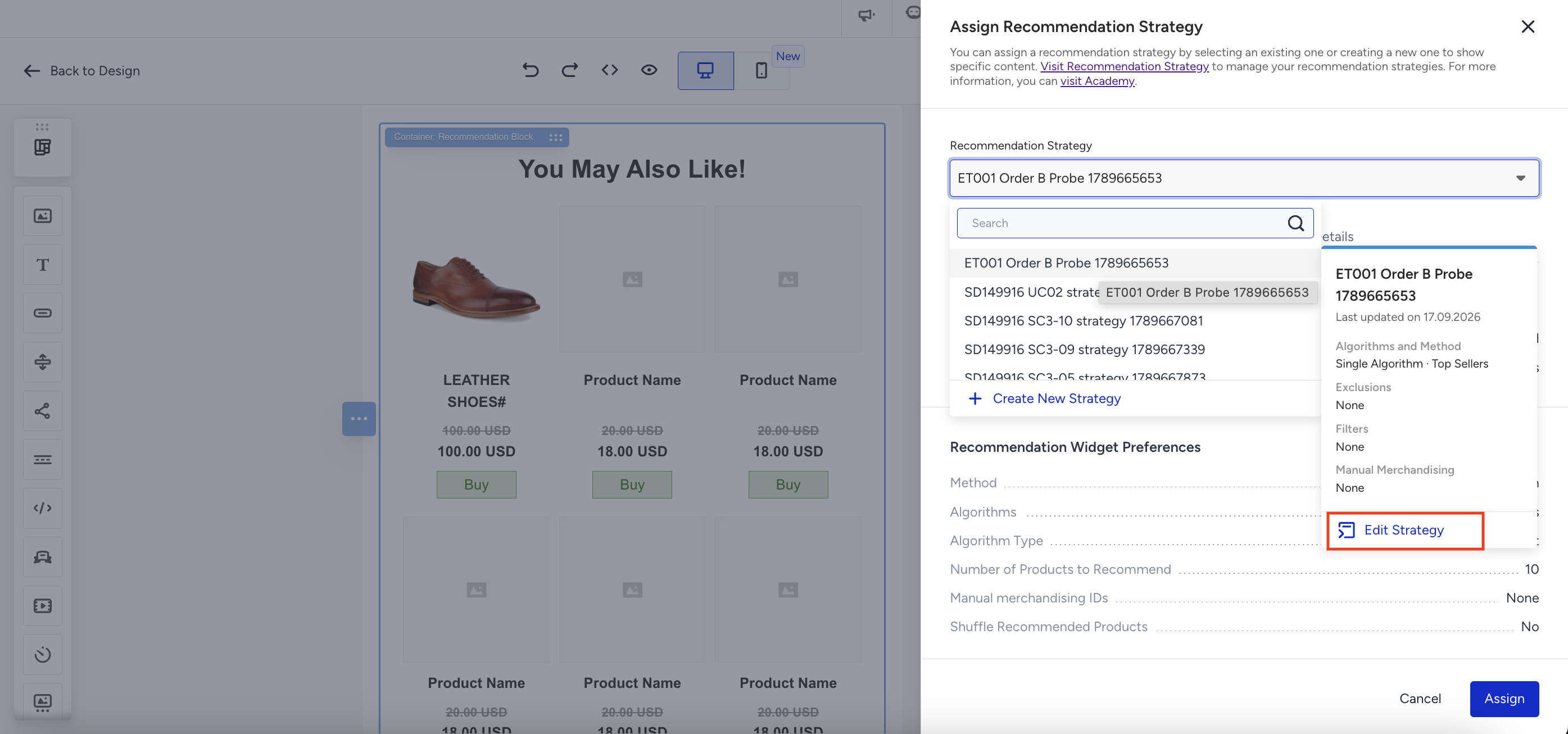
Assign a Recommendation Strategy
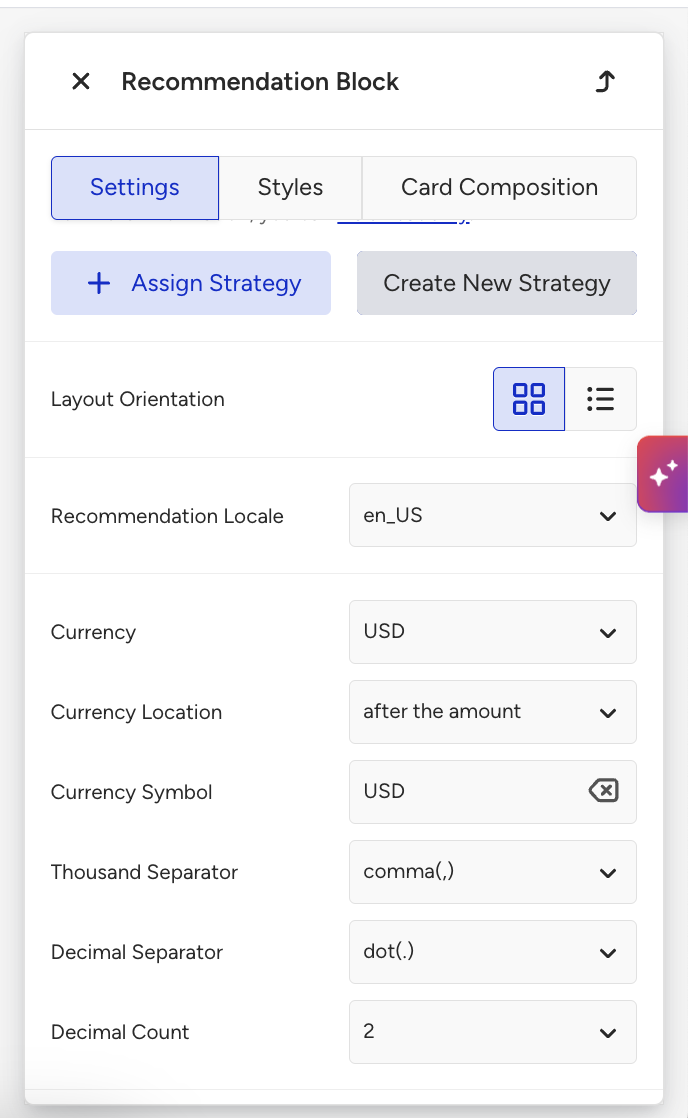
A Recommendation block displays products after you assign a Recommendation Strategy to it. A block with no strategy shows the Add Recommendation Strategy button in its Recommendation Strategy row.
Assign an existing strategy
Select the Recommendation block in your design.
In the Recommendation Strategy row, click Add Recommendation Strategy.
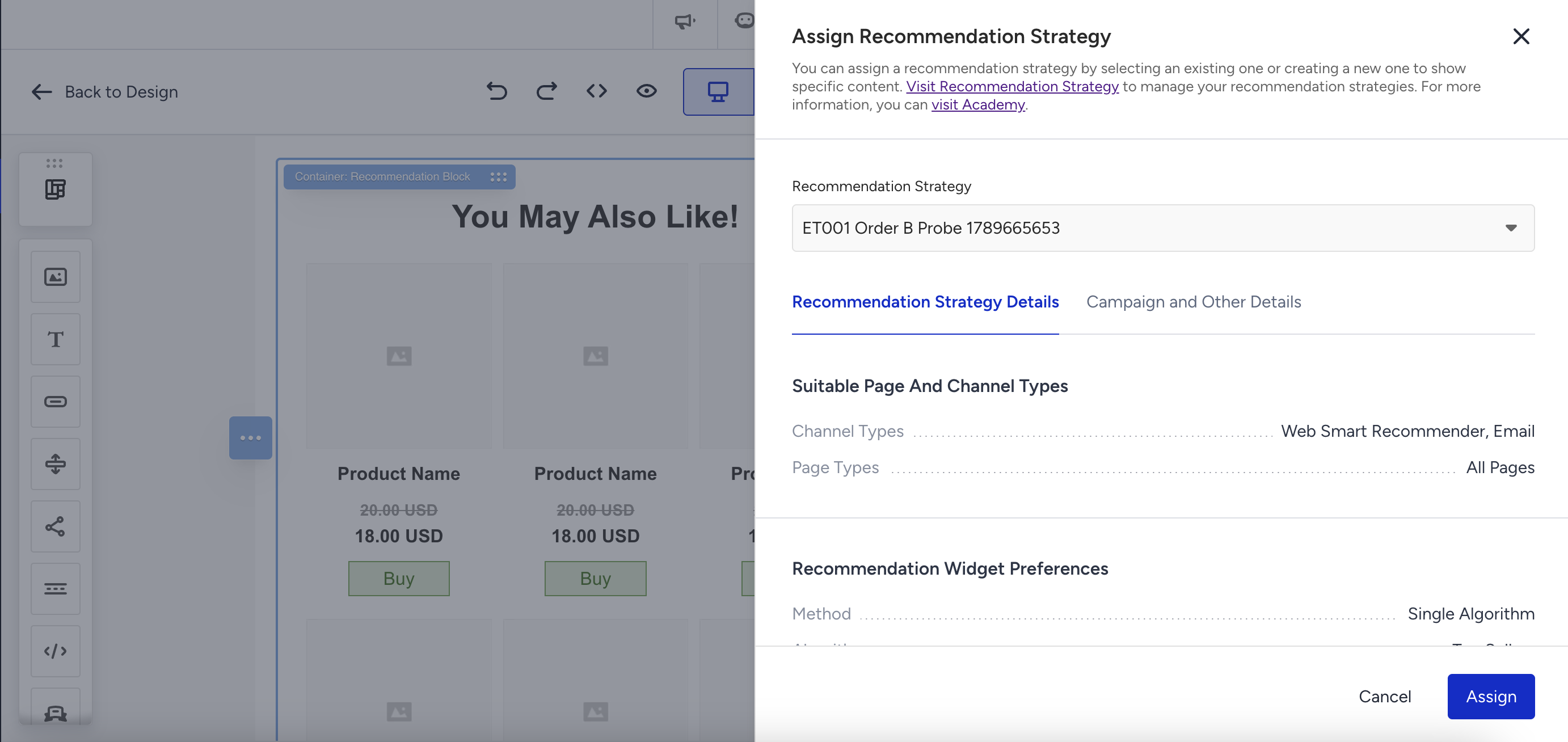
In the Assign Recommendation Strategy drawer, search the list and select the strategy you want to use. The list shows the active strategies in your Insider One account that are suitable for the Email channel. To manage them, see Smart Recommender Recommendation Strategies.
Save your email design.
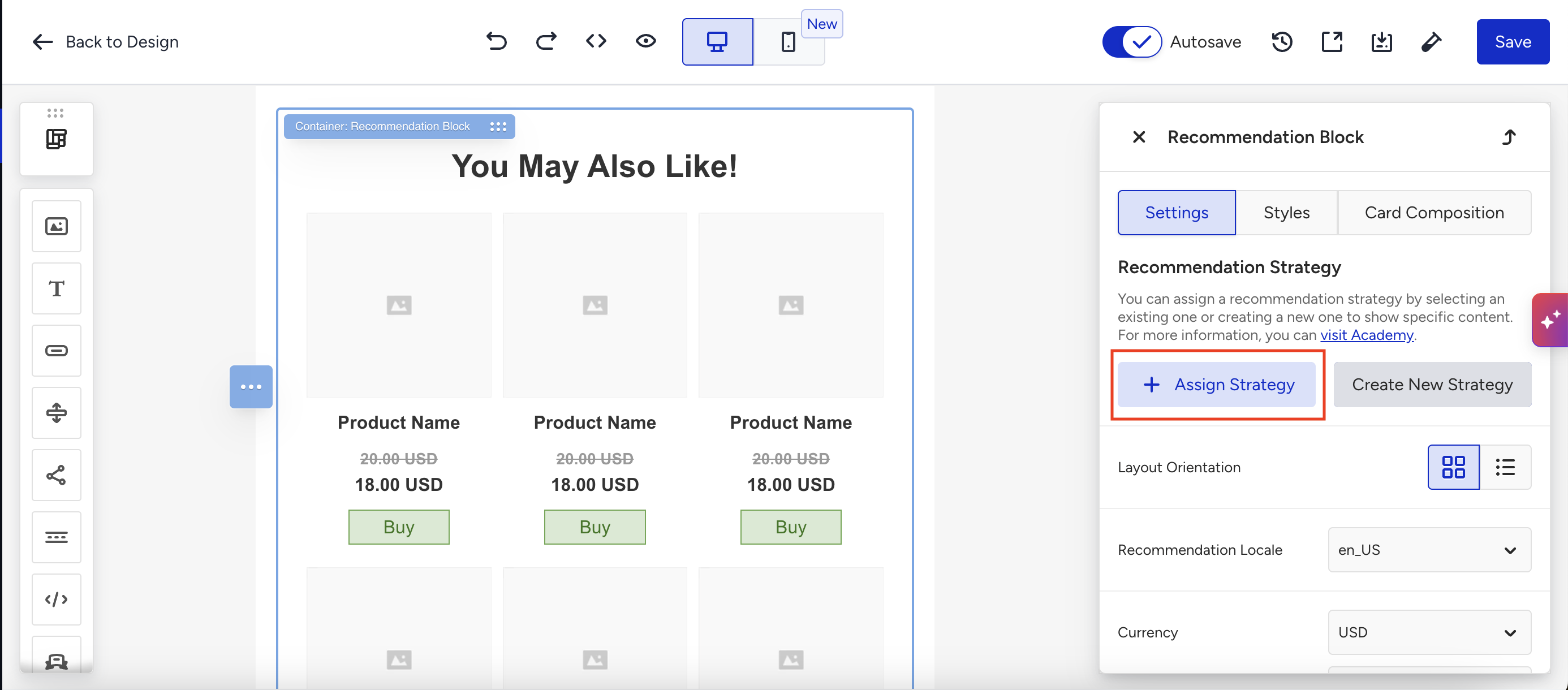
The strategy determines which products the block recommends. Settings such as Recommendation Locale and Currency belong to each block, so you set them per email even when other emails use the same strategy.
Review a strategy's details
Each strategy in the list has an information card that summarizes it: its name, the date it was last updated, its algorithms and method, its exclusions, its filters, and its manual merchandising selection. Use the card to confirm you are assigning the strategy you intend to.
Create a new strategy without leaving your campaign
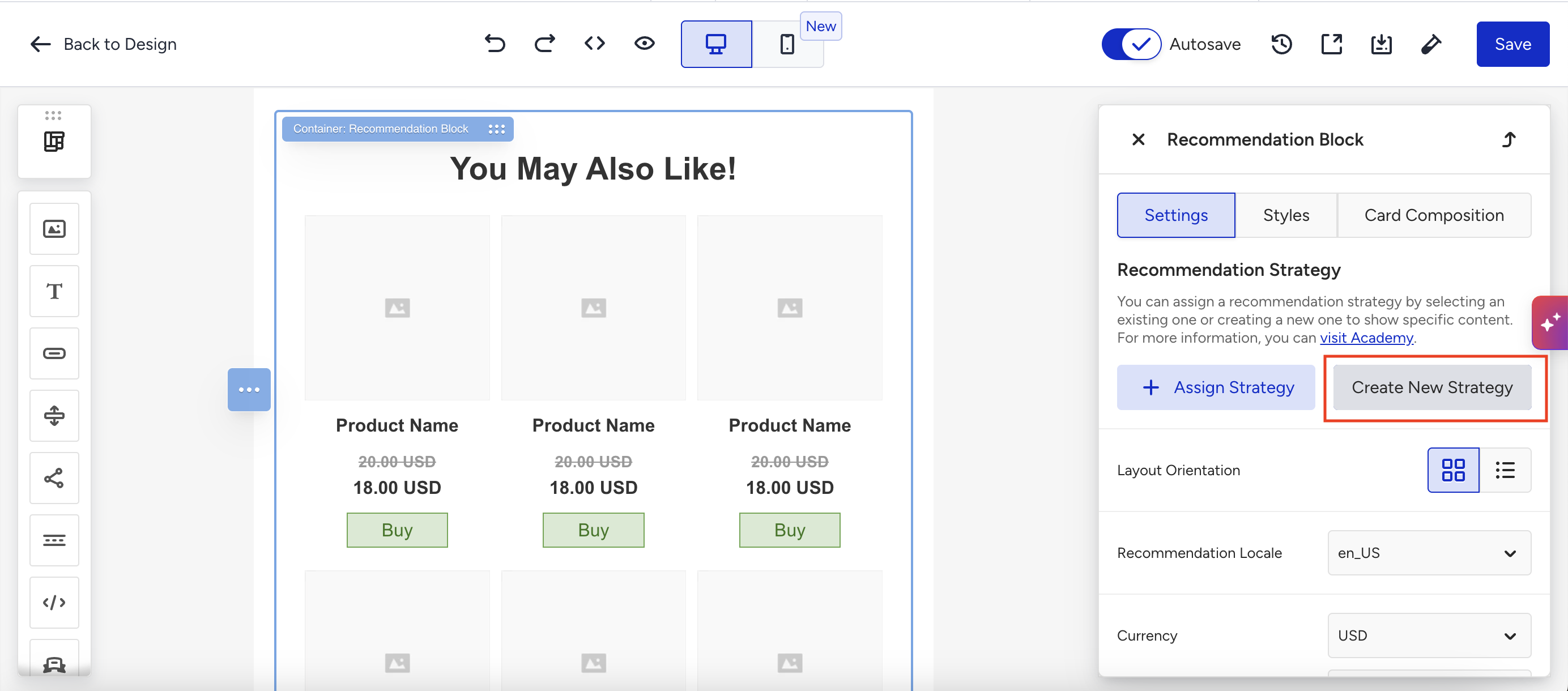
In the Assign Recommendation Strategy drawer, click Create New Strategy. Insider One opens the Recommendation Strategies page.
Configure the strategy on the Recommendation Strategies page that opens.
Save the strategy. You return to your campaign, and the strategy is available for the block you were editing.
The rest of your design stays as you left it. If you leave without saving the strategy, the block keeps the configuration it had.
If your account does not have the recommendation capability, creating a strategy is not offered, and the block states the reason.
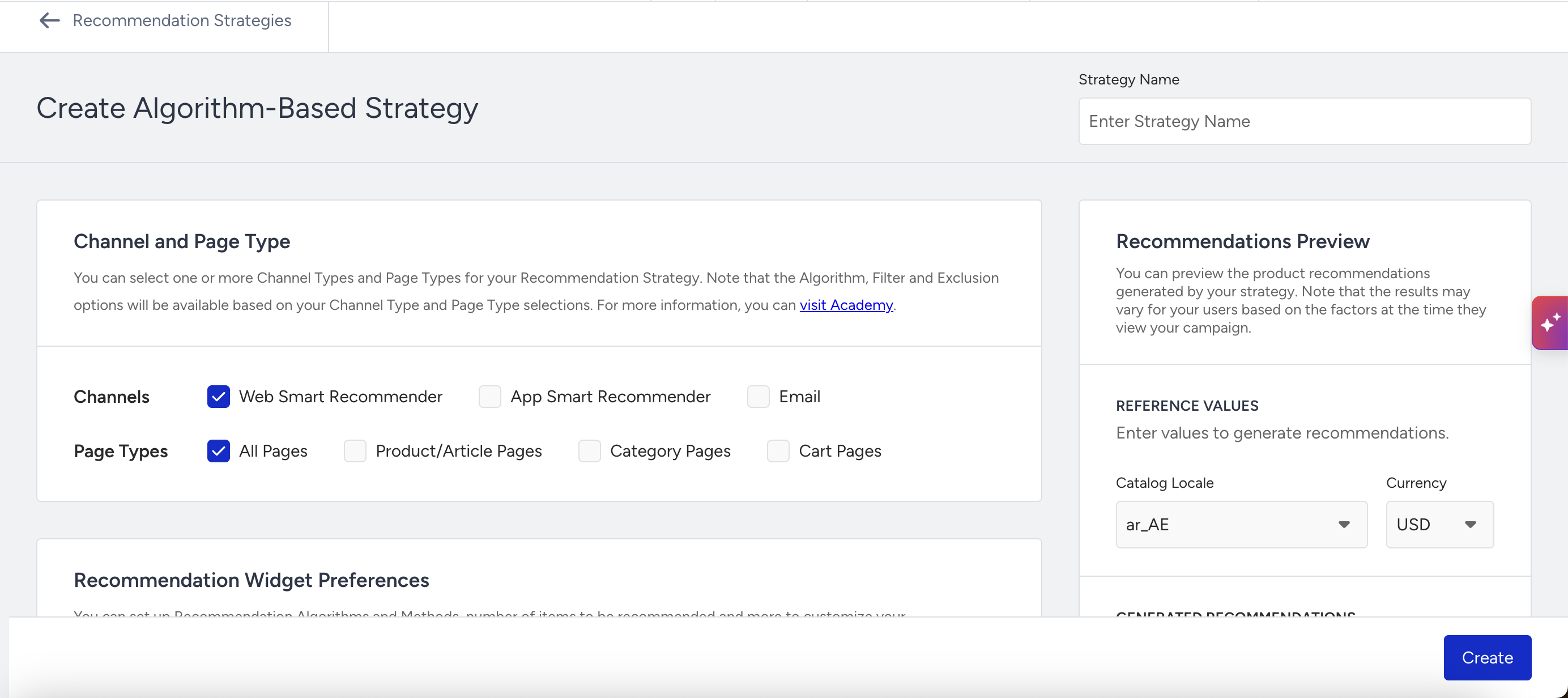
Edit the assigned strategy
The information card for the assigned strategy offers Edit Strategy, which opens that strategy on the Recommendation Strategies page in a new tab with its current configuration filled in. Your campaign, template, or module stays open and unchanged in its own tab.
In the strategy's Channel and Page Type section, you see the message "Note that changing the Channel Type and Page Type selections might affect the Passive campaigns associated with this Recommendation Strategy." with a View All Connected Campaigns link.
Because the strategy is shared, saving it applies to every campaign, template, and module that uses it. Before the change is saved, Insider One tells you which campaigns it affects:
If no campaign uses the strategy, it saves without a warning.
If one passive campaign uses it, the Save Changes? modal names that campaign and its channel, and offers Cancel, Discard Changes, and Save Changes.
If more than three campaigns use it, the same modal lists the first three with their status, name, and channel, and a Review All N Campaigns link opens the full paginated list of impacted campaigns.
If a campaign using the strategy changes state while you are editing, the Can't Save Changes modal explains which campaign, channel, and state blocked the save, and offers Cancel, Discard Changes, and Save as New Strategy.
After a successful save, you return to the Recommendation Strategies library and see the confirmation "Your {strategy} strategy has been updated successfully."
Change or remove the assigned strategy
The Recommendation Strategy row offers Change and Remove. Change replaces the assigned strategy with another strategy available to your account. Remove clears the assignment and returns the block to its unassigned state. Neither action changes the rest of your design.
Update a block that uses a legacy strategy
A Recommendation block created before Recommendation Strategies keeps its own recommendation configuration. Its Recommendation Strategy row shows Legacy Strategy with a note that it uses an older version, and an Update action. This applies to a block in a campaign, in a template, and in a module alike.
A legacy block keeps working as it is. Converting it is per block and optional.
Update from the block panel
Select the Recommendation block.
In the Recommendation Strategy row, click the Update button next to Legacy Strategy.
Wait for the conversion to finish. The strategy select shows a loading placeholder while it runs.
In the Legacy Strategy Updated modal, note the strategy that was applied, then click the OK button.
The row then shows the strategy's name, the older-version notice is gone, and Change and Remove behave as they do for any strategy.
You can start the same conversion from the Update action on the Legacy Strategy option's information card inside the Assign Recommendation Strategy drawer.
The converted strategy produces the same recommendations the block produced before the conversion, and its name is generated for you. If you convert two blocks that carry identical configuration, both end up on the same strategy instead of two duplicates.
If the conversion does not complete, the block stays on Legacy Strategy and you see "Your Legacy Strategy couldn't be updated right now. You can wait for a while and try again."
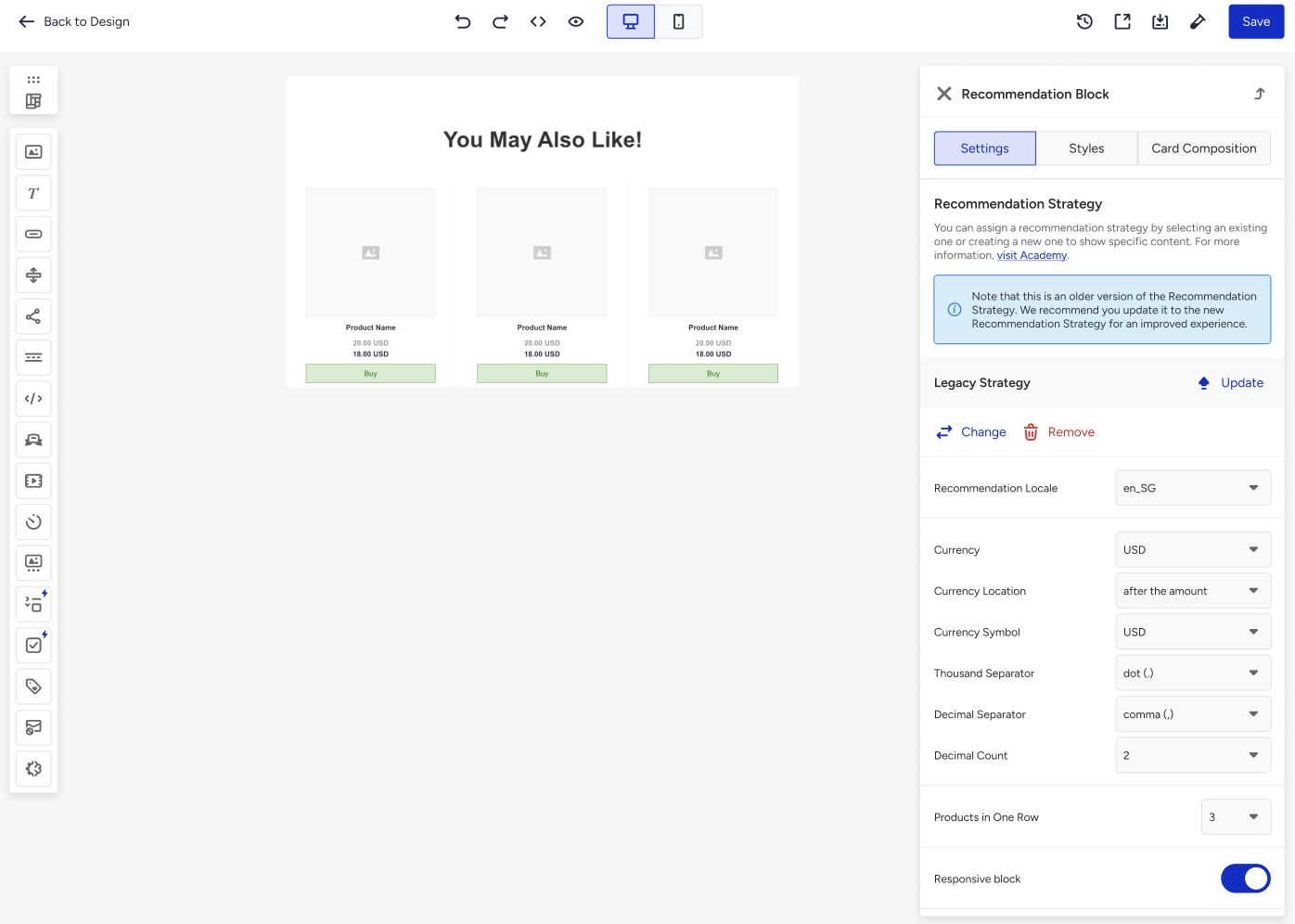
Recommendation rules set up for your account
Some accounts have recommendation rules that the Insider team set up for them on every email recommendation block, such as excluding products the user purchased in the last 30 days, ordering products by attribute affinity, or keeping out-of-stock products in Manual Merchandising blocks. These rules apply to blocks that use a legacy strategy.
If you update a legacy block, the rule is carried into the converted strategy, and the block keeps recommending the same products.
If you assign a strategy to a block, whether it is a new block or you use Change on a legacy block, the rule is not added. Turn on the matching option in the strategy instead, e.g., Exclude Recently Purchased Products with a 30-day look-back period. For the available options, see Smart Recommender Strategy Settings.
If you are not sure whether your account has such rules, contact your Insider team.
Update a saved template
A saved template whose recommendation setup predates strategies offers the same conversion in the template editor. Save the template first: a template that has never been saved cannot be converted. A campaign you start from a converted template carries that strategy on its block. Templates that already use a strategy are left as they are and offer no conversion.
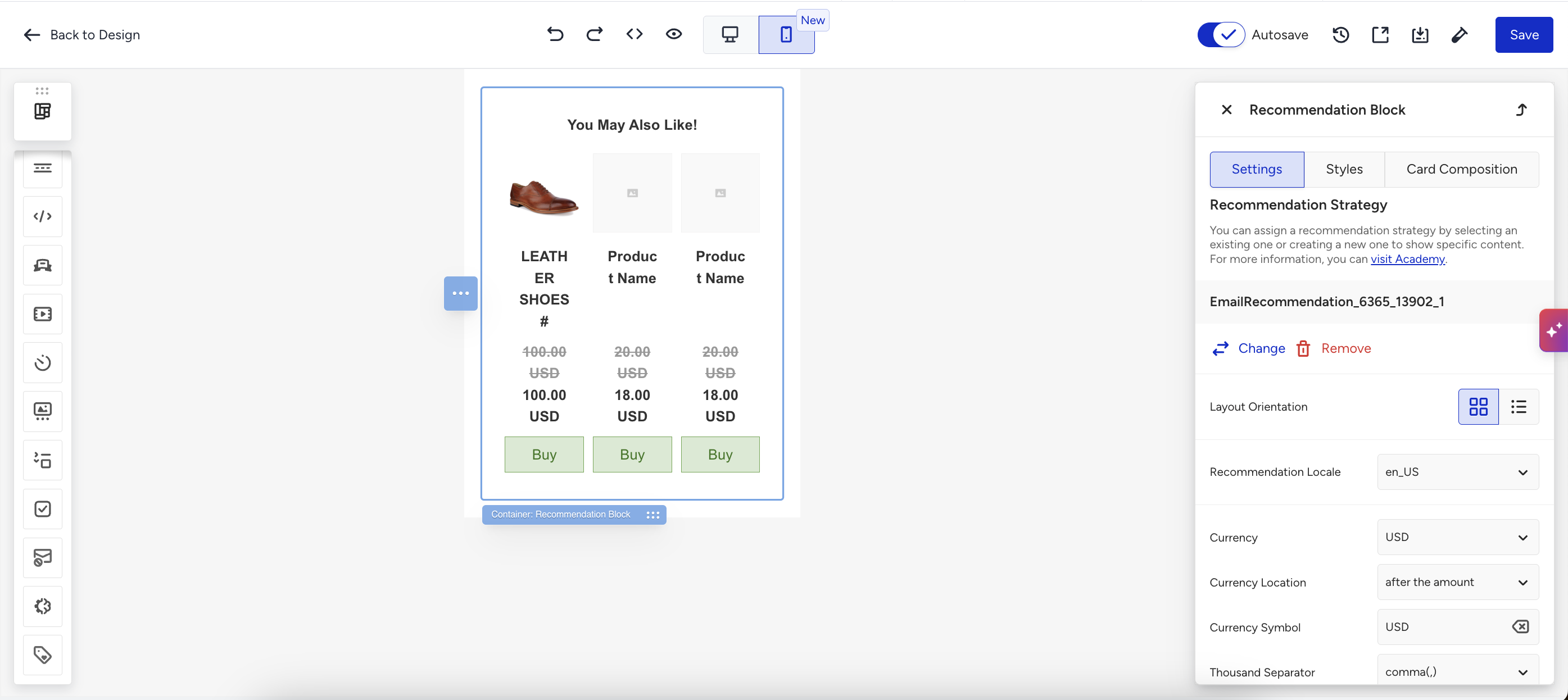
Configure the Recommendation block
In this section, you configure the block settings that control how the recommended products are displayed.
The Recommendation block includes different configuration tabs that let you manage its settings, styling, and product card composition.
Settings that come from the strategy
When a strategy is assigned to the block, these settings belong to the strategy and are not shown in the block:
Setting | Where the value comes from |
|---|---|
Recommendation algorithm | The assigned strategy |
Filters | The assigned strategy, applied when the recommendation is generated |
Shuffle recommended products | The assigned strategy |
Number of products | The assigned strategy |
To change any of them, edit the strategy or assign a different one. A block that still uses a legacy strategy continues to show these four settings in its Settings tab.
The number of products also governs how many product cards the block draws. Editing a strategy's number of products reshapes every block that uses that strategy.
Settings tab
You manage the block's own settings from the Settings tab.
Configure the currency settings for the Recommendation block
You can configure the currency-related settings of the Recommendation block to control how product prices appear in your emails.
Recommendation locale
The Recommendation Locale defines the language and localization of the recommended product data shown in the email. You set it on the block, so two emails can use the same strategy with different locales.
Currency settings
You can configure how price values are displayed in the recommendation cards.
Available currency-related options are:
Currency
Currency Location
Currency Symbol
Thousand Separator
Decimal Separator
Decimal Count
These settings control the formatting of product prices in the block. For example, you can choose whether the currency appears before or after the amount and define which separators to use.
You can configure your currency settings through your Account Preferences. The currency location determines whether the currency symbol appears before or after the amount. You can also personalize the currency name with a text or symbol.
Products in one row on desktop
This setting defines how many products appear in each row in the desktop view.
Padding on desktop
The Padding on Desktop setting lets you adjust the spacing around the entire Recommendation block. You can set padding values for top, right, bottom, and left.
If the lock icon is enabled, it applies the same value to all sides. If it is disabled, you can configure each side separately.
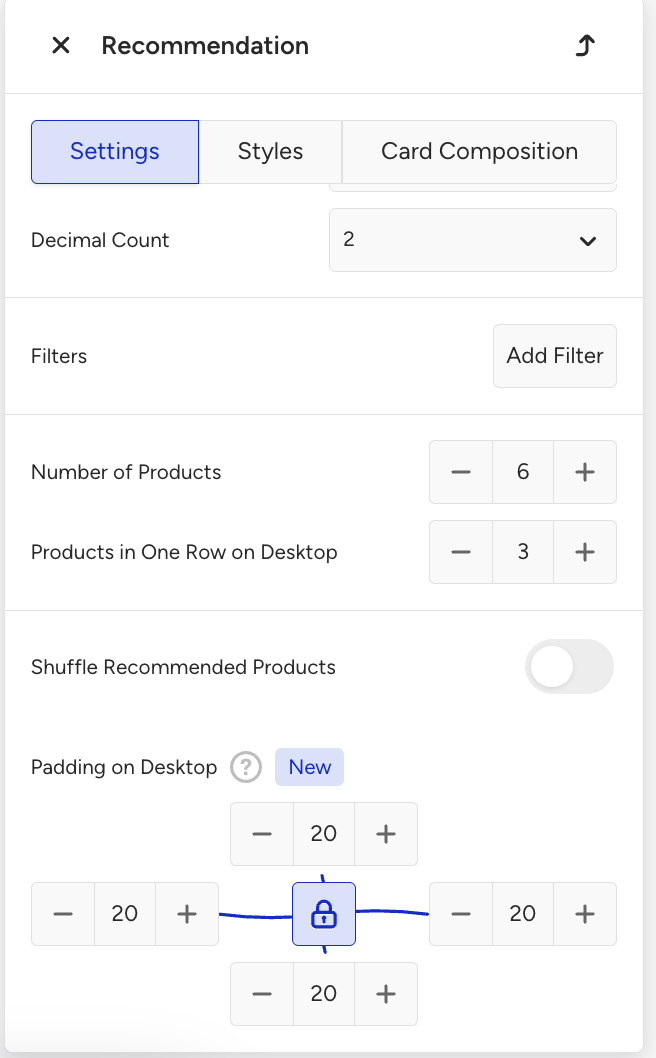
Mobile layout optimization
By default, the Recommendation block shows the same layout on mobile as on desktop. For example, a block with 3 products in one row shows 3 products in one row on mobile too.
To change this, turn on the Mobile Layout Optimization toggle in the Settings tab. When it's on:
A separate mobile layout is used on screens 480px wide or smaller.
You can set how many products appear in one row on mobile with Products in One Row on Mobile. The default is 1, and the maximum is 2.
The desktop layout stays the same.
The email design size increases because the block includes both a desktop and a mobile version of the products.
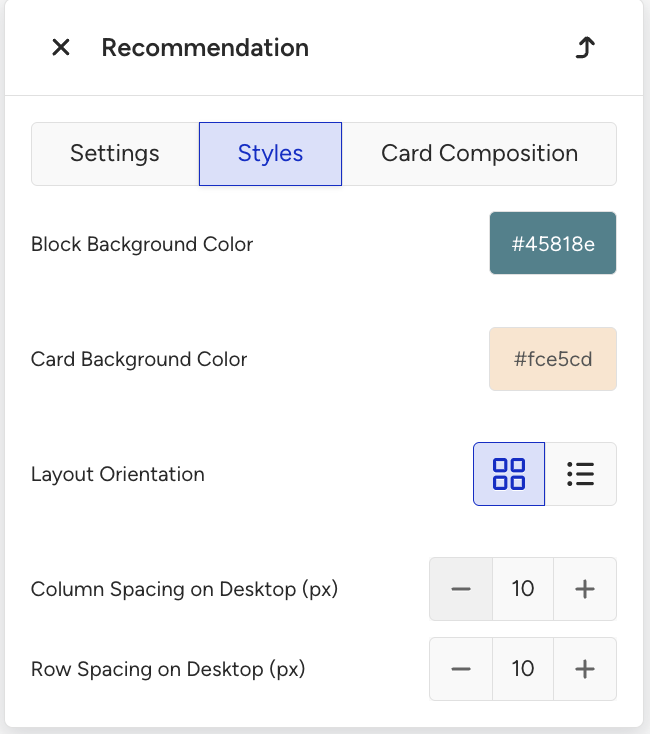
Styles tab
You can configure the visual design of the Recommendation block from the Styles tab.
Block background color defines the background color of the whole Recommendation block. The block container can inherit the background color from the content background color.
Card background color defines the background color of each product card.
Layout orientation controls how products are displayed inside the block. Available layout orientations are Grid and List.
Column spacing on desktop defines the horizontal spacing between product cards on desktop.
Row spacing on desktop defines the vertical spacing between rows of product cards.
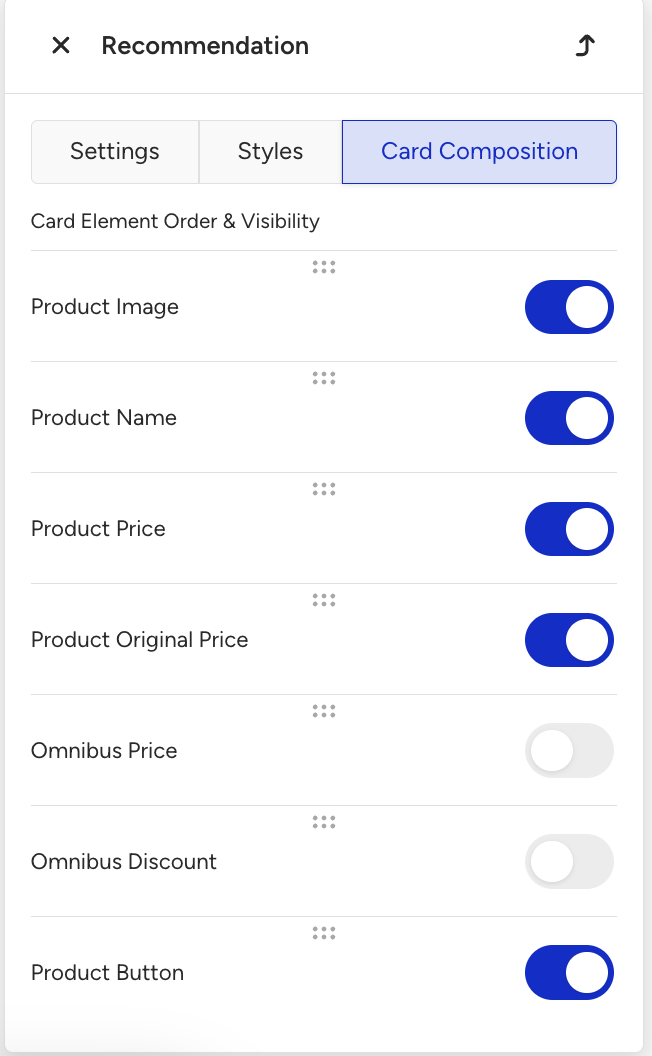
Card composition tab
You can configure which product elements are shown in each card from the Card Composition tab.
This tab allows you to control both visibility and order of product card elements.
Available elements include:
Product Image
Product Name
Product Price
Product Original Price
Omnibus Price
Omnibus Discount
Product Button
You can enable or disable each element using its toggle. You can also drag the elements to reorder them.
This allows you to customize how product information appears inside each recommendation card.
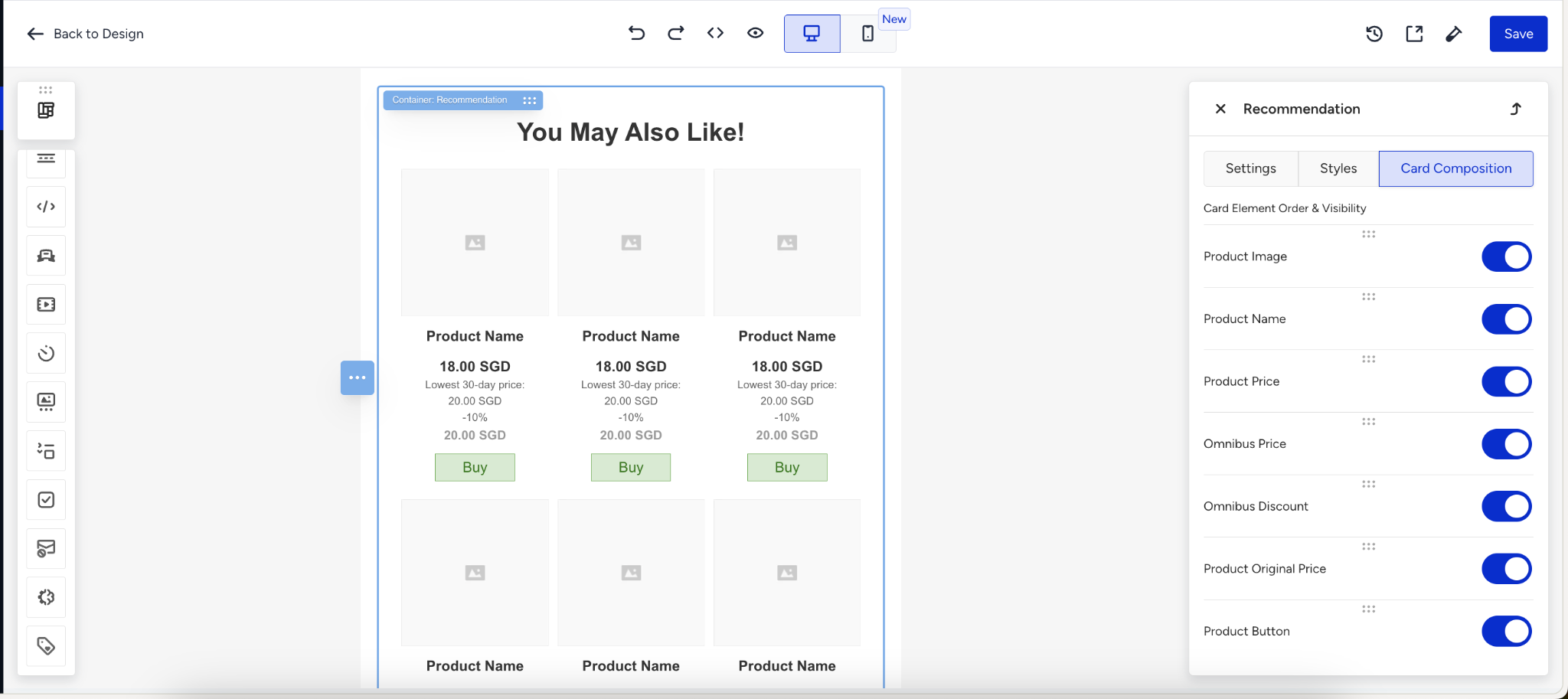
The Text Trimming option in Card Composition > Name is toggled on by default. This option shortens the product names and ends them with "..." on a single line. If you do not want shortened product names, you can toggle this option off in your recommendation block.
The text trimming feature is only supported in the new Outlook application for Microsoft 365. Older versions of Outlook (2019, 2016, standard 365) do not render this feature correctly. While these versions can understand the template code, they fail to render the trimming properly.
We recommend avoiding this feature for targets using these versions. If the product name does not meet the required length to trigger trimming, this feature will not render on certain ISP providers either, regardless of the Outlook version.
If your catalog already has a custom product attribute with the same name as a default attribute, the Email Recommendation block labels the two choices Default and Custom. Select the one that contains the value you want to show. Save the design and send a test email to check the rendered card. For new attributes, use the existing default attribute when it represents the same product information.
p.s. To keep your catalog structure consistent and help Insider One interpret your data accurately, always use a default attribute if one already exists for the information you want to include instead of creating a new custom attribute for the same purpose.
Configure the omnibus price for the products
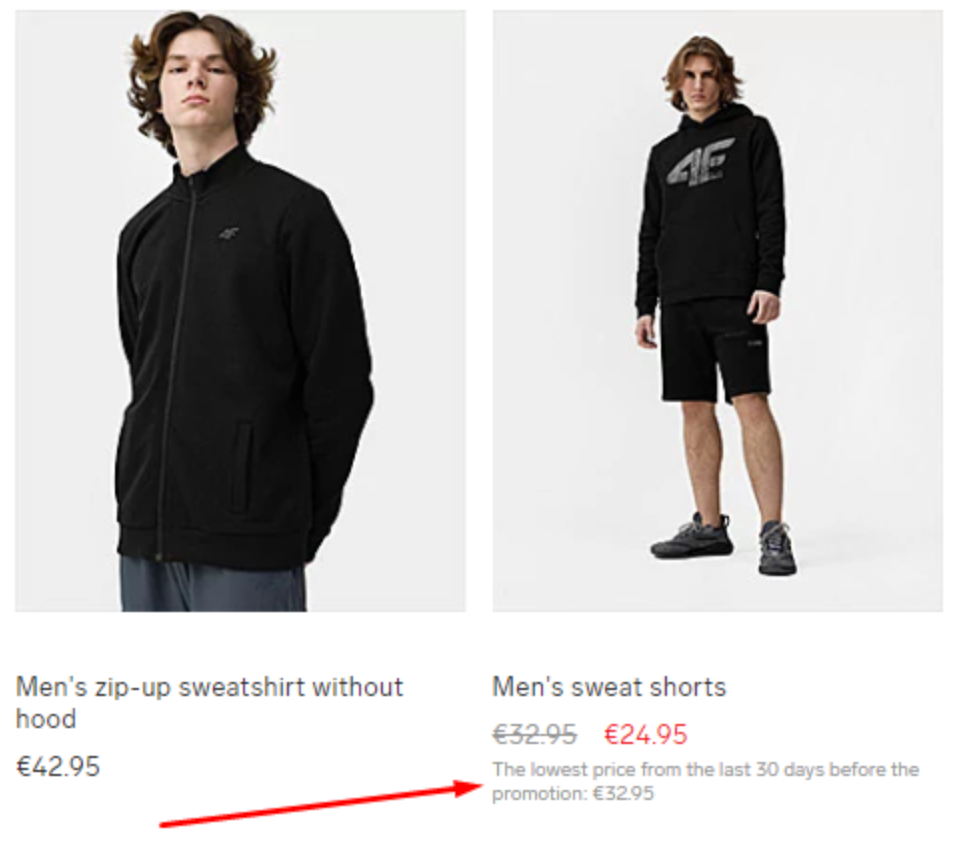
Omnibus price indicates the lowest price a product has been sold for in a specific period (often 30 days). It's used in marketing and pricing regulations to show consumers a reference price, helping them understand discounts and ensure transparent pricing.
When a discount or promotion is advertised, the seller must display the lowest price the product has been sold for in the last 30 days (the omnibus price) alongside the new discounted price. This regulation ensures customers see a clear reference price and aren't deceived by the inflated pre-sale prices.
The regulation typically applies to price reductions in consumer goods, both online and offline, and covers a 30-day window before the discount. New products introduced within the last 30 days or short-term price reductions like flash sales may have exceptions depending on local regulations.
This regulation aims to enhance price transparency and protect consumers from deceptive pricing practices.
About the regulation
According to the EU Directive 2019/2161, also known as the "Omnibus Directive", the omnibus price regulation is primarily required in the European Union (EU) countries. This regulation applies to all EU Member States, plus Norway and Iceland, which follow similar rules as part of the European Economic Area (EEA). Outside the EU, other countries may have their own price transparency or consumer protection regulations, but the omnibus price regulation is specific to the EU and EEA.
How does the omnibus price work?
The omnibus price is a product attribute displayed only for products with discounts. You should create the omnibus price as a product attribute in the product catalog.
How can you use the omnibus price in the block?
The configuration settings for the omnibus price and omnibus discount are available in the Recommendation block only if the "omnibus price" and "omnibus discount" attributes are defined in the product catalog. Otherwise, the respective toggles are not visible.
The Omnibus Price and Omnibus Discount toggles are disabled by default. You should toggle them on if you want to add them to your email.
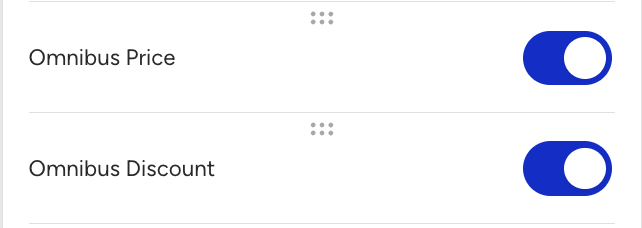
Omnibus Price and Omnibus Discount also have all the necessary settings to adjust the text styles, font size, and alignments, and add custom text before and after the omnibus price and discount values.
When the assigned strategy is not available
You can't delete or deactivate a strategy used by an active campaign. On the Recommendation Strategies page, the Delete and Deactivate actions are unavailable for it, and a tooltip explains why: "You can't delete this strategy since it's being used in one or more Active campaigns." and "You can't deactivate this strategy since it's being used in one or more Active campaigns." Edit, Duplicate, and Duplicate to Other Account stay available. You can still delete or deactivate a strategy used only by draft or paused campaigns.
If the strategy assigned to a block is deleted or deactivated, the block's Recommendation Strategy section shows "The recommendation strategy used in the recommendation block is no longer available. You can assign a different strategy to it." Assign Strategy and Create New Strategy stay available directly below it, and Recommendation Locale, Currency, and the rest of the block settings stay editable.
On the campaign's Ready to Go Live? step, the Before You Launch panel shows the same failure as a blocking error with an Update Design link back to the editor. While the error is present, you can only Preview and Test Message or Save as Draft. The message names the affected variants or locales, e.g., "The strategy used in the recommendation block used in Variant A is no longer available. Assign a different strategy to continue."
Duplicate a campaign or template to another account
When you duplicate a campaign or a template to another account, the Recommendation block travels with its layout, styling, and position in the design, and arrives unconfigured. The assigned strategy and the attribute types are cleared, because both belong to the account you copied from. Recommendation Locale and Currency are kept.
Assign a strategy and pick the attribute types from the target account's own lists before you launch. A strategy in the target account that shares the source strategy's name is not assigned for you.
Duplicating inside the same account is not affected: the strategy and the attribute types travel with the copy. For a localization campaign, every locale's block is cleared, and for an A/B campaign, every variant's block is cleared. A block that still uses a legacy strategy arrives unconfigured too. The campaign you copied from keeps its configuration.
Finalize and test the Recommendation block
After you complete your configuration:
Review the block in the desktop and mobile preview.
Save your email design.
Send a test email to verify the recommendation output.
Recommendation content, such as product image, product name, prices, and availability, is generated when the email is sent, not when the email is opened.
You can save the full email design as a template and reuse it in future campaigns. However, you can't currently save the Recommendation block as a standalone module.
Things to know
The Recommendation block and Recommendation Strategies are available in the Drag & Drop Editor only. The HTML editor does not support them.
Dynamic filtering is unavailable for email recommendations.
The Viewed Together, Purchased Together, Substitute Products, and Complementary Products algorithms are unavailable for the Email channel because they need a product reference that the email context does not carry.
Location-based Top Sellers, Checkout Recommendation, and Chef algorithms are not supported for the Email channel.
Editing a strategy applies to every campaign, template, and module that uses it, across channels.
A campaign cannot be sent while a block's assigned strategy does not resolve.
Converting a block that uses a legacy strategy is per block and optional. Insider One offers no bulk conversion.