A Recommendation Strategy, also known as your product recommendation rules or logic, is a reusable configuration that defines how personalized product recommendations appear in your marketing campaigns.
Strategy types
Two Recommendation Strategy types are available:
Algorithm-Based: A single recommendation logic fills the entire recommendation set, such as Best Sellers or Trending. Use this type when you want one algorithm to determine all recommended products. For setup instructions, refer to Create an Algorithm-Based Strategy.
Bundle: Each slot is filled independently using an algorithm, manually selected products, or products retrieved directly from your product catalog with a filter. You can also apply filters to algorithm-based slots. Use this type when you want to combine fixed product selections with dynamic recommendations in the same widget. For setup instructions, refer to Create a Bundle Strategy.
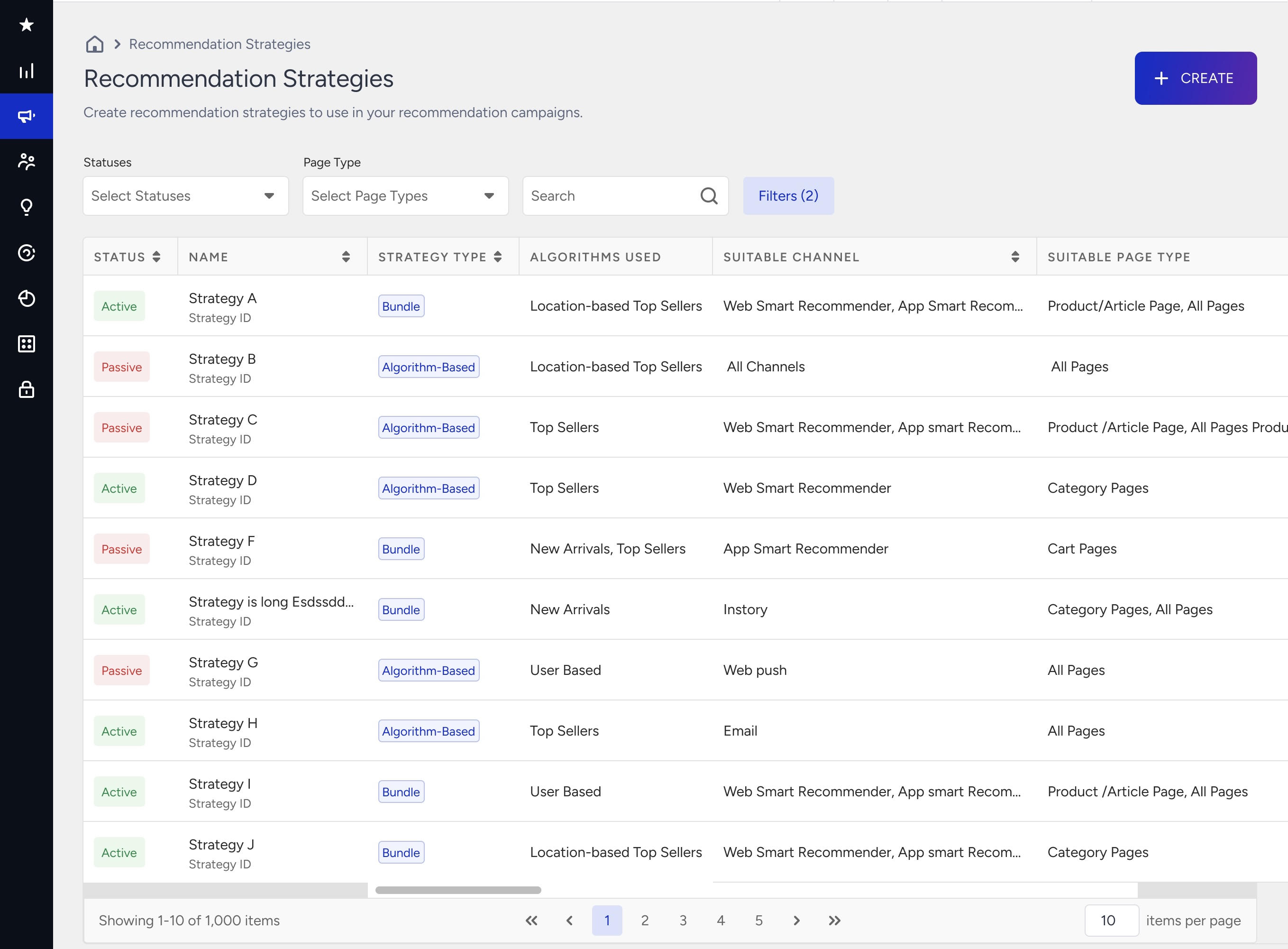
Both strategy types support filters, exclusions, attribute affinity, and other personalization options. Refer to the related strategy article for configuration details. The strategy list displays each strategy type so you can easily distinguish between them.
Instead of configuring recommendations from scratch for each Smart Recommender campaign, you can create a strategy once and use it across multiple campaigns. This approach:
Helps maintain consistent recommendation logic across campaigns.
Reduces the time required to configure recommendations for individual campaigns.
Enables you to update strategies centrally without modifying individual campaigns.
Before you configure recommendations
Recommendations depend on the same product ID reaching Insider One from every source. For each product or variant, the catalog’s item_id must match the ID your integration sends on the product page, in the cart, and on purchase:
Web SDK: the id in the type: 'product', type: 'add_to_cart', type: 'cart' and type: 'purchase' pushes.
Legacy integrations: the IDs returned by the getCurrentProduct and getPaidProducts System Rules, and the matching product IDs in insider_object.
Each ID is used differently:
Product page and purchase IDs feed most algorithms, such as Most Popular, Top Sellers, Trending, Viewed Together, and Purchased Together. If they don’t match catalog items, these algorithms can return no products without showing an error.
Cart and wishlist IDs (sent when an item is added to or removed from the cart or wishlist) are used when a strategy’s Recommend Based On setting uses one of these events. If they don’t match a catalog item, that strategy can’t find the product.
For products with variants, keep each variant’s unique item_id and use a shared groupcode to group them.
Verify before launch
Pick a product or variant and compare its catalog item_id with the ID sent on its product page.
Add it to the cart and confirm the add_to_cart push sends the same ID.
Open the cart page and confirm the cart items carry the same ID. An ID can be correct on the product page and change once the item is in the cart.
Complete a test purchase and confirm the purchase sends the same ID.
Preview the strategy with the relevant product, category, or user. Confirm it returns enough products and that filters give the results you expect.
For purchase-based algorithms such as Top Sellers, check that the locale has enough purchase activity.
To manage your strategies, navigate to Recommendation > Recommendation Strategies. From this page, you can create new strategies or edit existing ones.
Why are Recommendation Strategies important?
Recommendation Strategies streamline your campaign management and improve the relevance of product recommendations. Instead of configuring rules separately for every campaign, strategies act as a central hub: you set them up once and reuse them across multiple channels and campaigns.
Recommendation Strategies help you:
Boost Conversions: Deliver personalized recommendations tailored to user behavior and preferences.
Enhance Engagement: Keep users interested by showing relevant products based on their browsing and purchase history.
Save Time with Centralized Control: Build strategies once and easily reuse them across campaigns, instead of recreating rules every time.
Optimize Performance at Scale: Update or fine-tune a strategy in one place and instantly apply changes everywhere it’s used.
Best Practices for Recommendation Strategies
Choose the right algorithm
Algorithm Selection: Visit the Smart Recommender Algorithms page to review all available options and choose the algorithm that best aligns with your campaign goals.
Algorithm Health: Each algorithm has specific prerequisites to deliver effective recommendations. To monitor this, go to the Recommendation Algorithms and Settings.
A green icon indicates that prerequisites are met and the algorithm is ready to run.
A red icon indicates that prerequisites are not met, meaning the algorithm may use a fallback or fail to generate recommendations.

Preview your strategy results
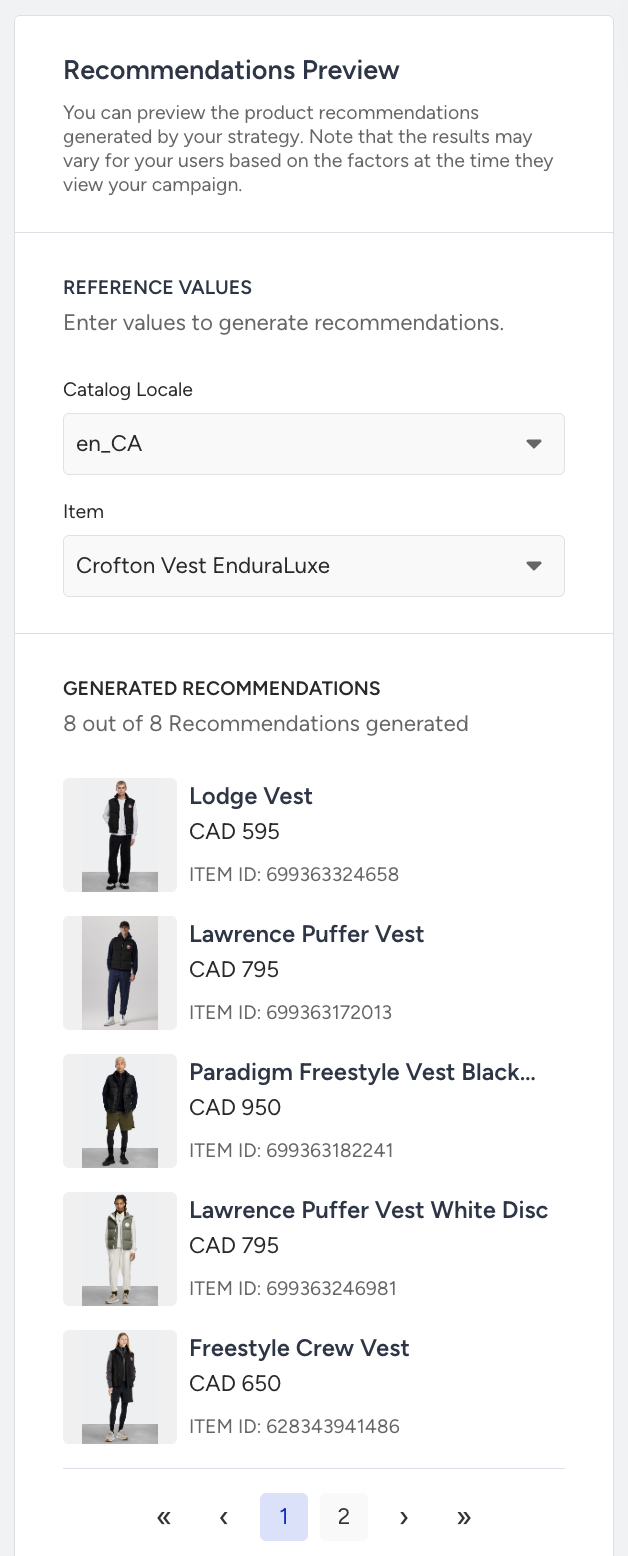
Before you publish or reuse a strategy, preview its performance to ensure the results match your expectations. The Preview feature helps you validate filtering rules, confirm algorithm behavior, and check whether the strategy returns enough items for your campaigns.
When you open a strategy, use the Preview section to:
Check Recommended Items: See a sample of products your strategy will recommend based on the configured algorithm and filters.
Validate Filters: Confirm that filters such as price ranges, categories, stock status, and exclusions work as intended. If the preview returns too few items, adjust your filters or algorithm choice.
Evaluate Personalization: For strategies that rely on user behavior, select a test user to see how the recommendations change. This helps verify that personalized algorithms, such as User-Based or Recently Viewed, align with real user journeys.
Use the Preview feature to refine your strategy before using it in live campaigns.
Optimize recommendation results
Balance Filters and Exclusions: Avoid over-filtering, which may reduce the number of available recommendations.
Leverage Attribute Affinity: For highly relevant results, consider using the Attribute Affinity algorithm to tailor recommendations based on user preferences. Boost personalization by prioritizing user-preferred attributes like brand, color, or category.
Use Shuffling: Prevent static recommendation patterns by randomizing product order.
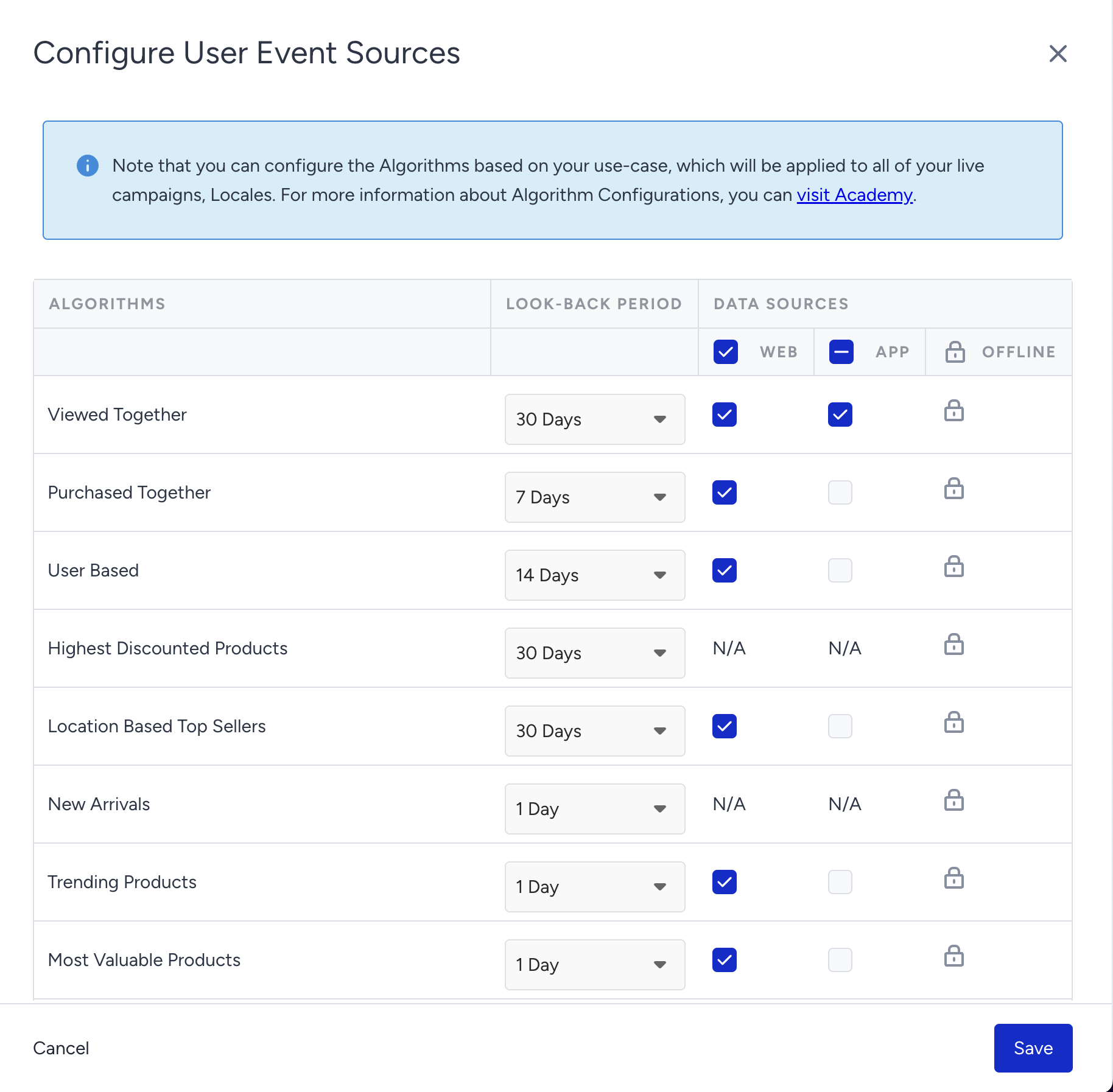
Configure Your Algorithms: Customize your algorithms' event sources and look-back periods to obtain the best results. To configure, navigate to the Recommendation Algorithms and click the Configure button on the top right.
Look-Back Period: The look-back period defines how many days of user event data an algorithm uses. Adjusting it helps capture trends or seasonality, such as setting 7 days for a “Hottest of the Week” campaign. You can increase the period (e.g., 14–30 days) during low-traffic times to improve accuracy. Different algorithms need different amounts of data, so choosing the correct look-back period is key for effective recommendations.
Data Sources: Different users interact with your brand in different ways, such as some visit your website, others use your app, or shop in-store. Each of these users has unique behaviors that the recommendation engine takes into account. You can control which data sources are used for each algorithm by selecting from the “Web,” “App,” and “Offline” options to ensure your recommendations are tailored to the specific behaviors of each audience, leading to more relevant results.
Troubleshoot common issues
Recommendations not appearing
Check if the assigned strategy has enough recommended products.
Verify that the filters and exclusions aren’t too restrictive.
Check your selected algorithm’s health from the Recommendation Algorithms page to make sure it’s healthy.
Make sure that item IDs in your user event data match the item IDs in your Product Catalog.
Strategy not updating across campaigns
Confirm that the strategy is active.
Refresh the campaign or wait a few minutes for updates to reflect.
Attribute Affinity not working
Ensure the Attribute Affinity feature is enabled in Smart Recommender settings.
Check the Product Attributes to ensure the attribute toggles are enabled for Attribute Affinity.
Check if the selected attributes align with the user event data and the Product Catalog.