ISP-based throttling allows you to limit the total email volume delivered to each ISP (internet service provider).
Let’s say you have a subscriber base of over 1 million users and you send them an email. If all recipients click the links in that email simultaneously, they will all land on your website simultaneously. This sudden surge in traffic could overload your system, slow down your servers, or even cause outages. To mitigate these risks, you can use ISP-based throttling.
The limits are applied to the total promotional bulk email volume sent from your Inone account at that moment, but not on a per-campaign basis.
Enabling throttling for your account
Navigate to Settings > Inone Settings > Email Settings.
Enable email throttling and choose the option that you want to proceed with. The option you choose is applied to every email campaign except for recurring emails. Enable email throttling and select your preferred option. The option you choose will apply to the total email volume sent from your account, excluding recurring, transactional, and Architect emails.
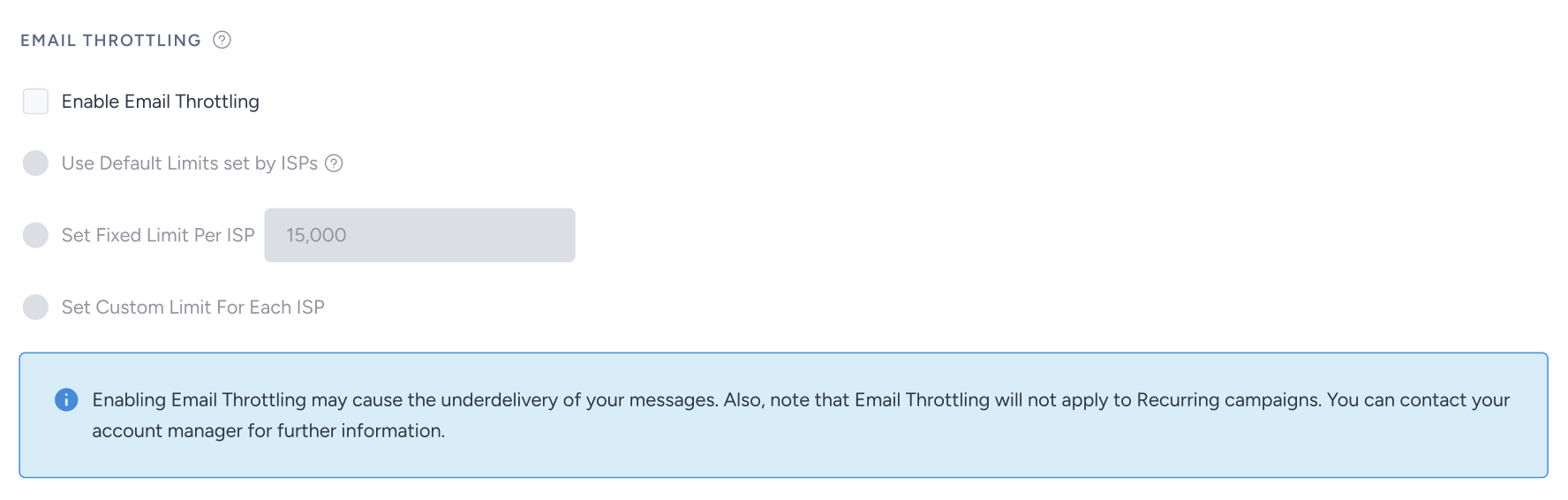
Use ISP Default Limits: Limits the total sent email volume from your account per hour based on the defined default throttling settings.
Set Fixed Limit Per ISP: Manages the total sent email volume from your account based on the throttling limit you set. The same throttling number is applied per ISP.
Set Custom Limit For Each ISP: Enables throttling for the total email volume from your account based on the custom limit you set per ISP. Each ISP has its minimum and maximum limits. If you set a limit lower than the minimum or higher than the maximum, you will be prompted with a validation error.
When Email Throttling is enabled, your total email volume from all simultaneously launched campaigns is distributed evenly to meet the hourly limits you've set. Let's say you set a fixed hourly limit of 15,000 emails. If you launch three separate campaigns at the same time, each to 10,000 recipients, the system will consider the total volume of 30,000 emails. It will then send 15,000 emails in the first hour and the remaining 15,000 in the second hour. The entire send will be completed within 2 hours.
Using throttling in email campaigns
Once you enable email throttling for your account, you can see the Throttling section on the Launch step of your email campaign as follows:
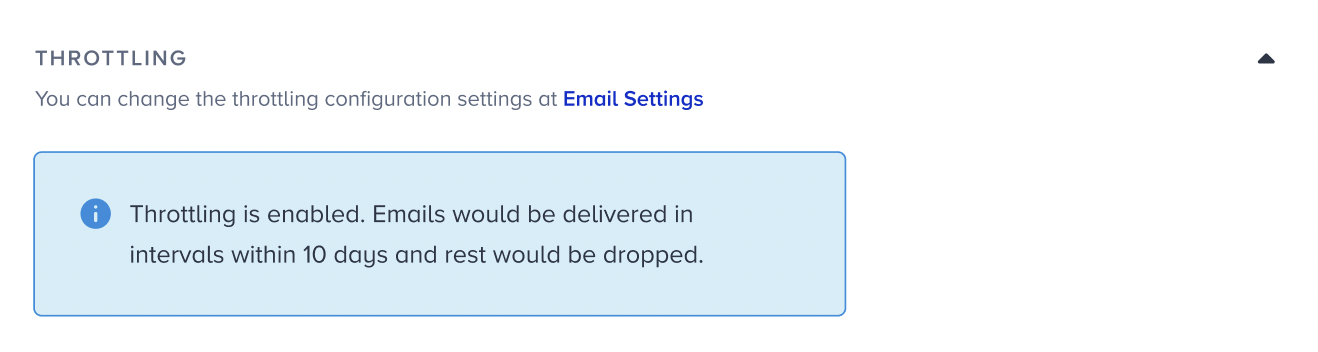
Once you disable email throttling for your account, you can see the Throttling section on the Launch step of your email campaign as follows:
.png)
Once you launch an email campaign with throttling, the remaining emails will be sent to the recipients within 10 days after the launch date. The rest of the emails will be dropped if they are not delivered.
Analytics of throttled emails
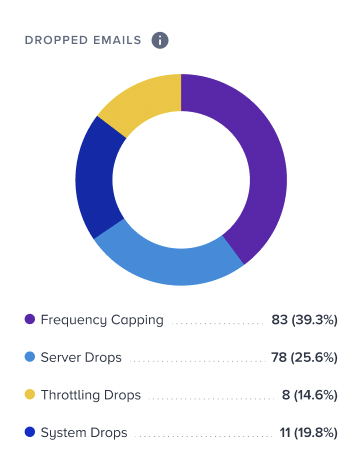
If your throttled emails are not being delivered within 10 days after you launch your email campaign, you can see them in the Dropped Emails metric in your campaign and email analytics.