Important: Migration to the new editor
Once you switch to the new editor, all active email campaigns and journeys that use templates containing a recommendation block will continue to be delivered without issue. However, if you want to re-edit the same template, keep the following in mind to ensure a smooth experience with the new editor:
Once you open the template, the recommended products may not be directly visible. To display them, first interact with the Recommendation block (e.g., by clicking it); after that, the recommended products will appear. Even if you do not click the block and simply save the email, the existing recommendation settings will be preserved.
The Purchase Together and View Together algorithms are currently unavailable in the new editor. In the old editor, these algorithms already had fallback logic, since they ran counter to the nature of the email product. If your recommendation algorithm returns empty results while other algorithms appear in the dropdown, it may be because one of these two algorithms was previously selected. These algorithms will be reconsidered soon through the reusable recommendation strategies.
By default, the mobile layout option is disabled, so the same layout is displayed on mobile devices. If you want to use the mobile layout (one product per row), you can enable it manually from the settings.
If you need Outlook-specific rendering support, remember to enable the Support for Outlook toggle in the editor settings.
With the latest version, you can expect a more flexible mobile layout and better-aligned product cards. If you encounter any unexpected behavior, please contact the Insider One team.
Drag & Drop Editor lets you use a recommendation module in all email types, including those you have in Architect. This module brings product recommendations to your emails and has the same features as Email Recommendation.
You can use this module to enrich your emails with product recommendations or to create recommendation-only emails. You can create new email templates using this module or add it to your existing recurring emails.
In this article, you can find the following concepts:
Using more than one Recommendation module within the same email template might affect the delivery speed and cause delays in emails reaching the end users.
If Send Time Optimization, A/B Testing, or Throttling is enabled in your campaign along with the Recommendation module, your email campaigns may not be delivered at the exact send time, as these features adjust the timing when users will receive the emails.
Add the Recommendation block
To add the recommendation module:
1. Go to the Design step of your email campaign.
2. Select the Drag & Drop Editor.
3. Choose the Recommendation block in the editor.
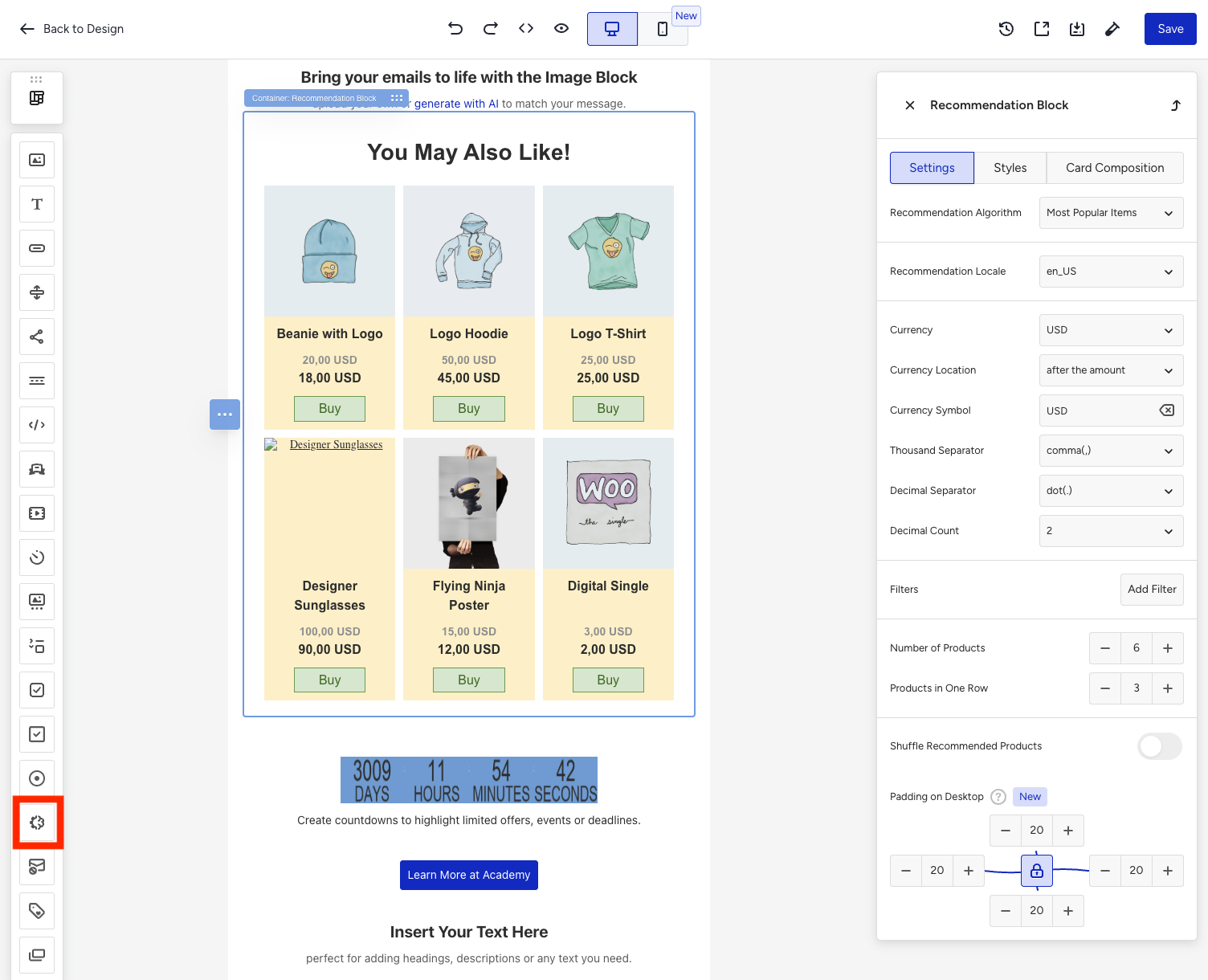
Once you add the block, you can configure it under three tabs:
Configure the Recommendation block
In this section, you will configure the recommendation logic and block settings to control which products are shown and how they are displayed.
The Recommendation block includes different configuration tabs that let you manage its settings, styling, and product card composition.
Settings tab
You can manage the main recommendation logic and layout settings from the Settings tab.
Recommendation algorithm
The Recommendation Algorithm defines which products will be recommended to recipients.
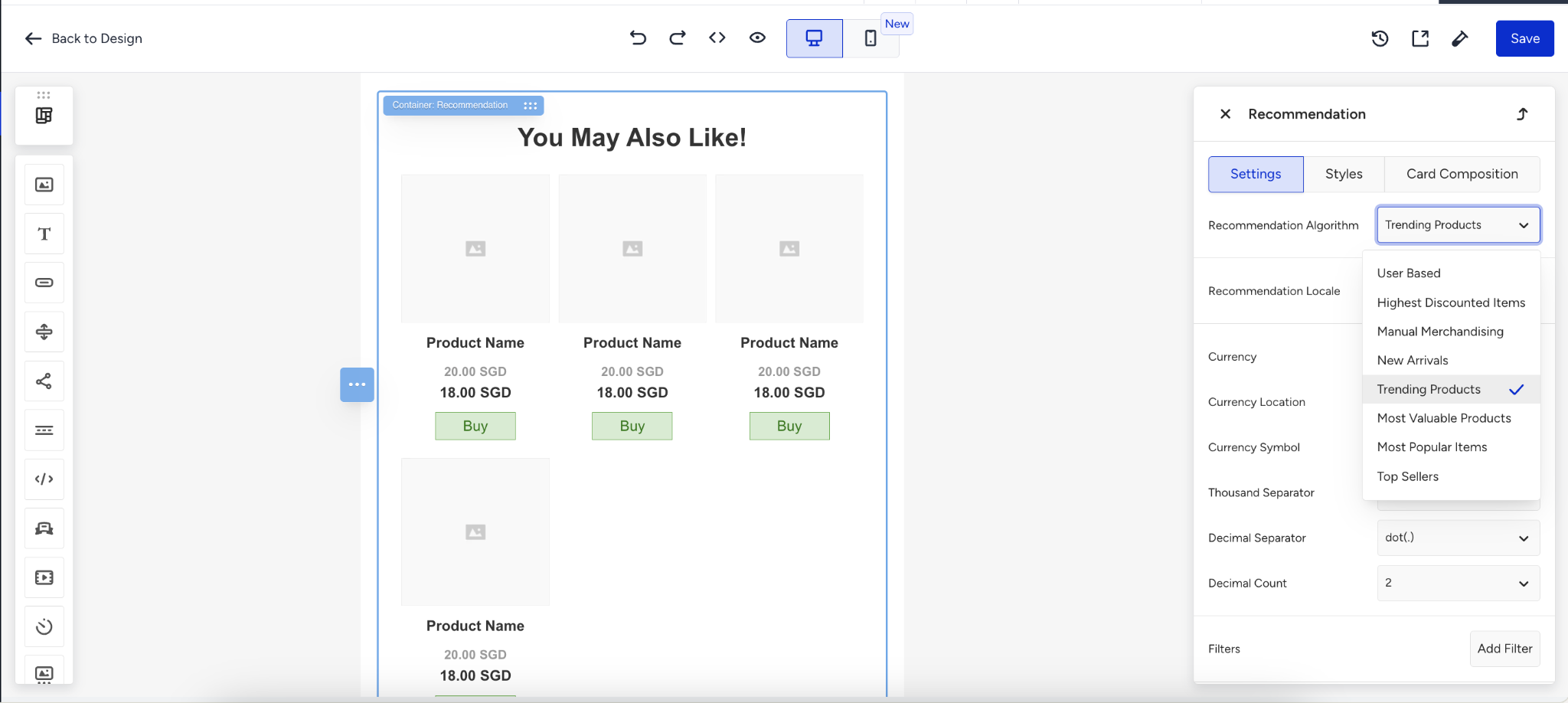
The recommendation Strategy defines which products will be recommended to the recipients. You can select from the following strategies for your email: User Based, Most Popular Items, Top Sellers, Highest Discounted Products, Trending Products, Most Valuable Products, Manual Merchandising, and New Arrivals.
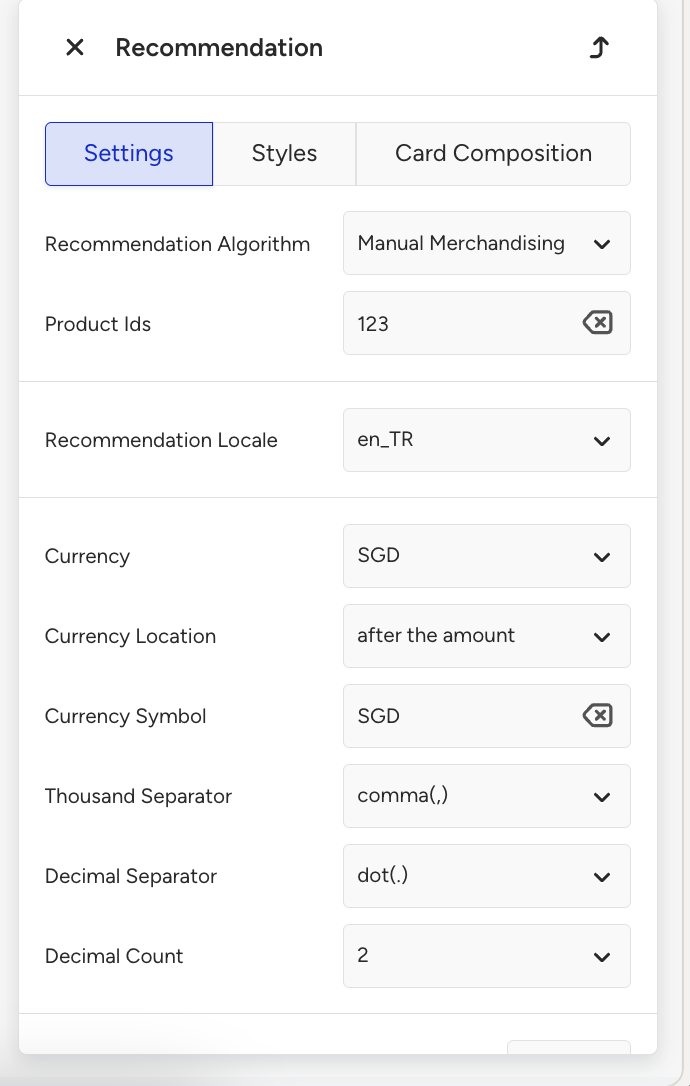
In the Manual Merchandising strategy, you can select the products by their unique product IDs separated by commas. With this strategy, you can create recommendations that target the same specific products for all recipients.
Recommendation Language defines the language of the recommended products displayed in the email.
Configure the currency settings for the Recommendation block
You can configure the currency-related settings of the Recommendation block to control how product prices appear in your emails.
Recommendation locale
The Recommendation Locale defines the language and localization of the recommended product data shown in the email.
Currency settings
You can configure how price values are displayed in the recommendation cards.
Available currency-related options are:
Currency
Currency Location
Currency Symbol
Thousand Separator
Decimal Separator
Decimal Count
These settings control the formatting of product prices in the block. For example, you can choose whether the currency appears before or after the amount and define which separators to use.
You can configure your currency settings through your Account Preferences. The currency location determines whether the currency symbol appears before or after the amount. You can also personalize the currency name with a text or symbol.
Filters
Click Add Filter to filter out recommended products in real time.
You can create filter rules based on product attributes and use logical conditions to control which products are shown in the block.
You can create up to 3 filter groups and up to 10 filters in each group.
When filter conditions are evaluated, AND has higher priority than OR.
If you create a filter condition, the value field cannot be left empty.
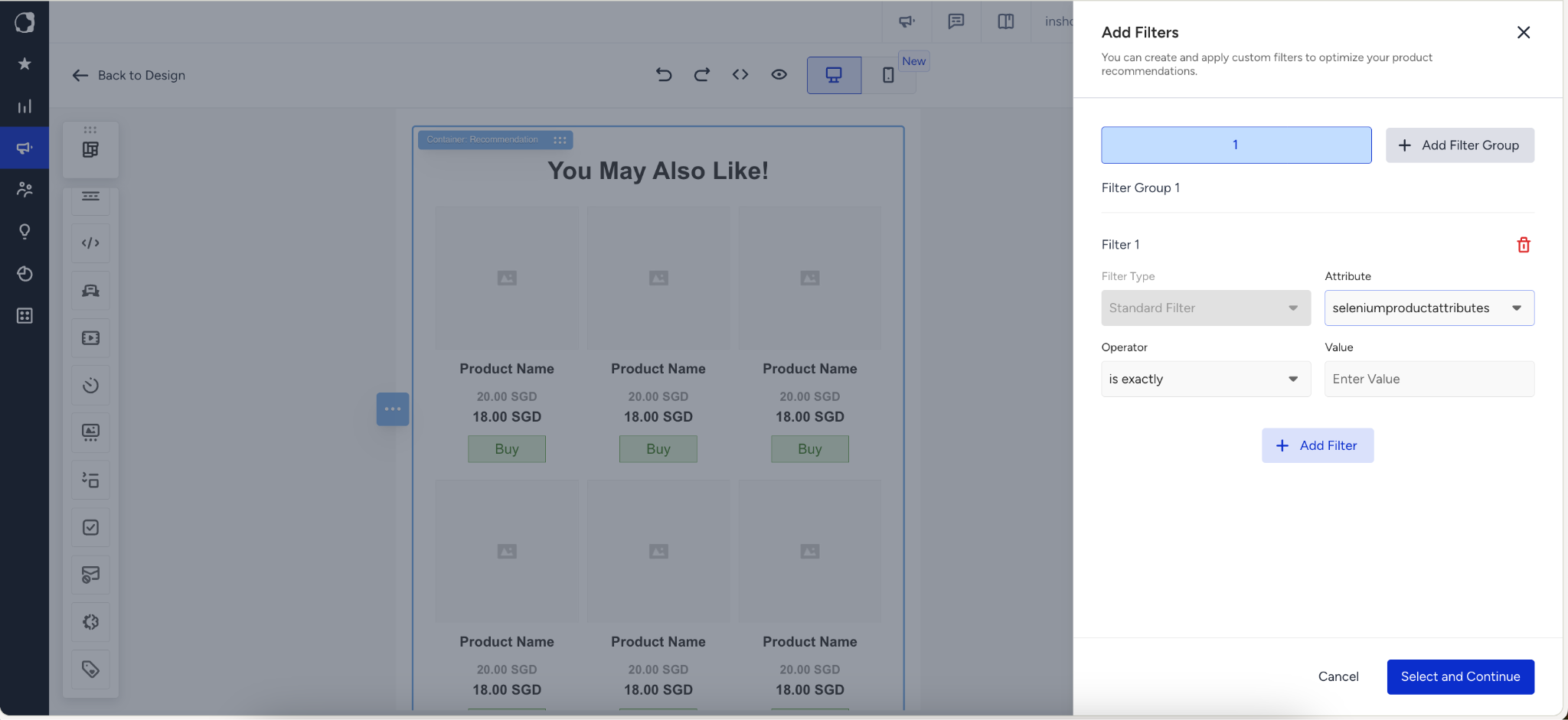
There is no limitation on combining filters with AND and OR filters. You can select different operators within a single filter and filter groups. While reading the operators, the operators will be prioritized as AND first, and OR second.
If your catalog already has a custom product attribute with the same name as a default attribute, the Email Recommendation block labels the two choices Default and Custom. Select the one that contains the value you want to show. Save the design and send a test email to check the rendered card. For new attributes, use the existing default attribute when it represents the same product information.
p.s. To keep your catalog structure consistent and help Insider One interpret your data accurately, always use a default attribute if one already exists for the information you want to include instead of creating a new custom attribute for the same purpose.
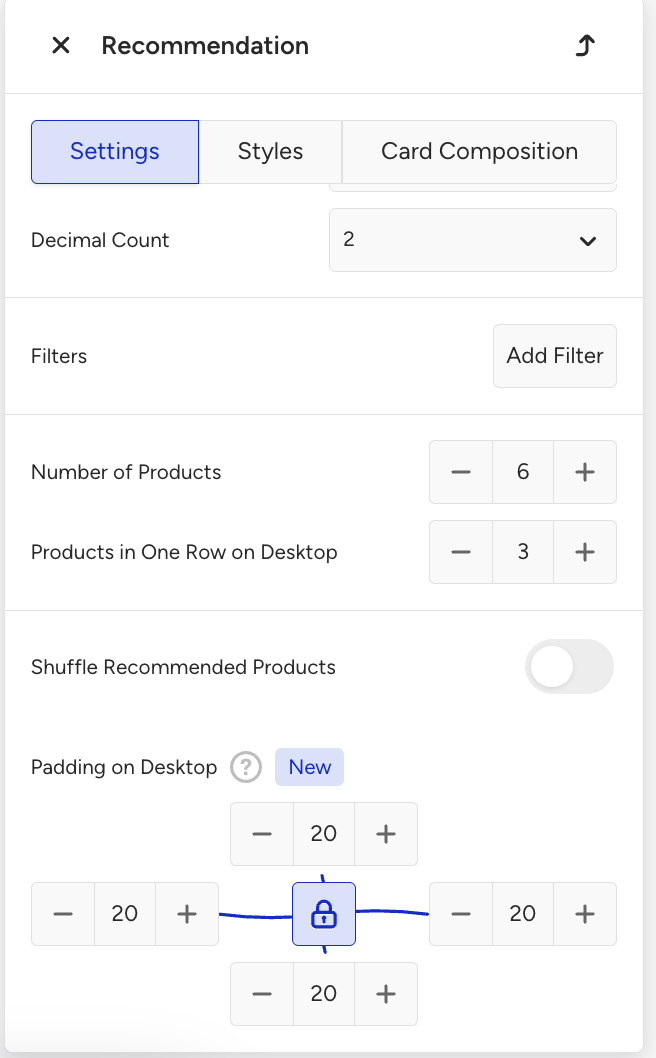
Number of products
The Number of Products setting defines how many recommended products the block displays.
Products in one row on desktop
This setting defines how many products appear in each row in the desktop view.
Shuffle recommended products
When enabled, Shuffle Recommended Products changes the order of recommended items in the block.
This helps vary product orders instead of always showing them in the same sequence.
Padding on desktop
The Padding on Desktop setting lets you adjust the spacing around the entire Recommendation block.
You can set padding values for:
top
right
bottom
left
If the lock icon is enabled, it applies the same value to all sides. If it is disabled, you can configure each side separately.
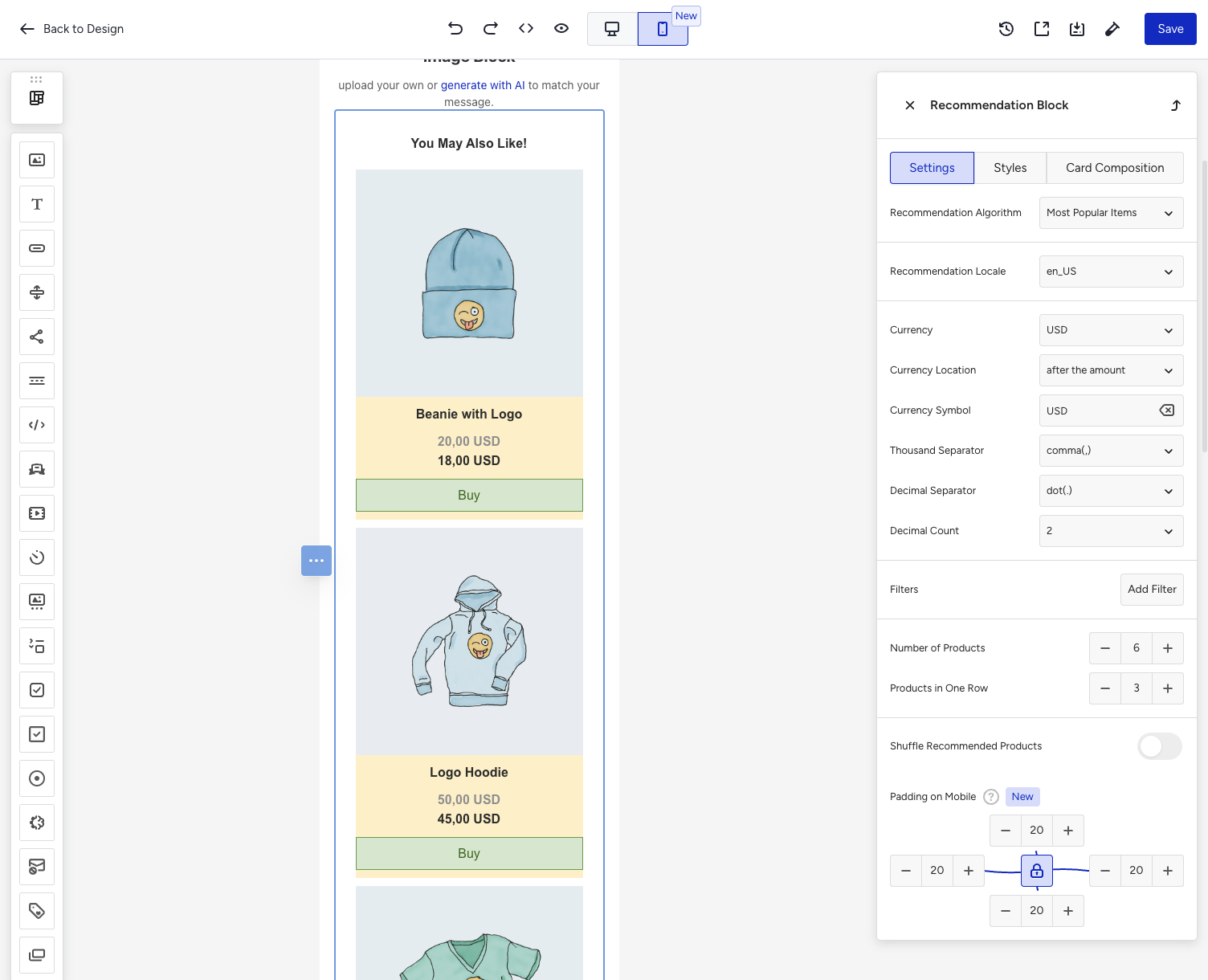
Adaptive mobile layout
The Recommendation block also supports an Adaptive mobile layout option.
When enabled:
Products are displayed one by one on mobile
The desktop layout stays unchanged
The email design size increases, since the recommendation block becomes larger in the generated design
This option improves readability on mobile devices by showing recommendation cards in a more suitable mobile layout.
Enabling this option increases design size.
Styles tab
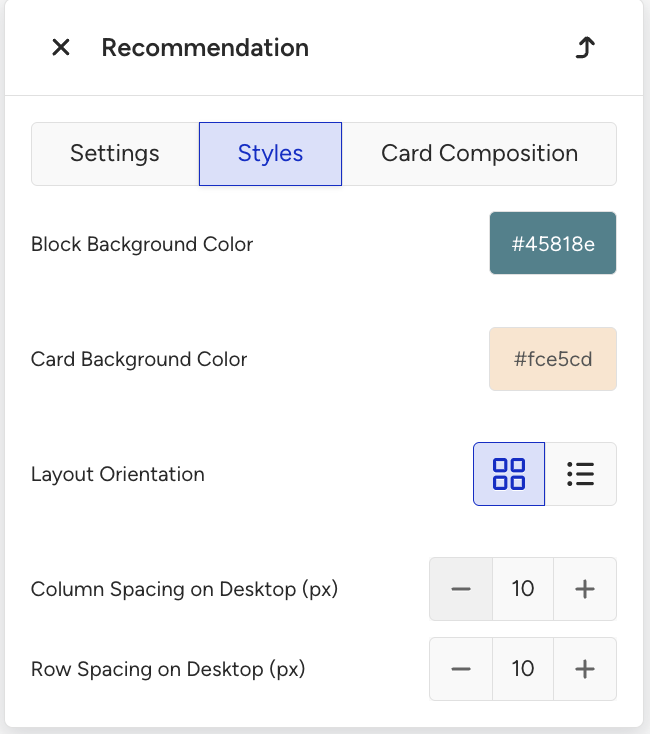
You can configure the visual design of the Recommendation block from the Styles tab.
Block background color
This setting defines the background color of the whole Recommendation block.
The block container can inherit the background color from the content background color.
Card background color
This setting defines the background color of each product card.
Layout orientation
You can choose how products are displayed inside the block.
Available layout orientations are:
Grid
List
This controls the visual arrangement of product cards.
Column spacing on desktop
This setting defines the horizontal spacing between product cards on desktop.
Row spacing on desktop
This setting defines the vertical spacing between rows of product cards on desktop.
These spacing settings help you organize the recommendation layout more clearly.
Card composition tab
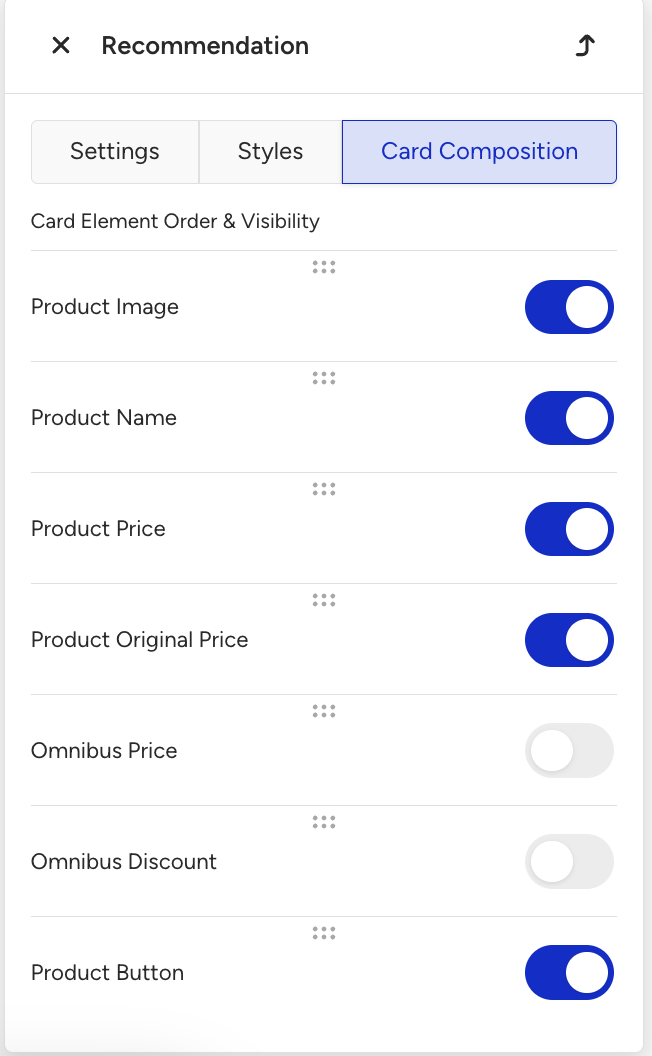
You can configure which product elements are shown in each card from the Card Composition tab.
This tab allows you to control both:
visibility
order
of product card elements.
Available elements include:
Product Image
Product Name
Product Price
Product Original Price
Omnibus Price
Omnibus Discount
Product Button
You can enable or disable each element using its toggle.
You can also drag the elements to reorder them.
This allows you to customize how product information appears inside each recommendation card.
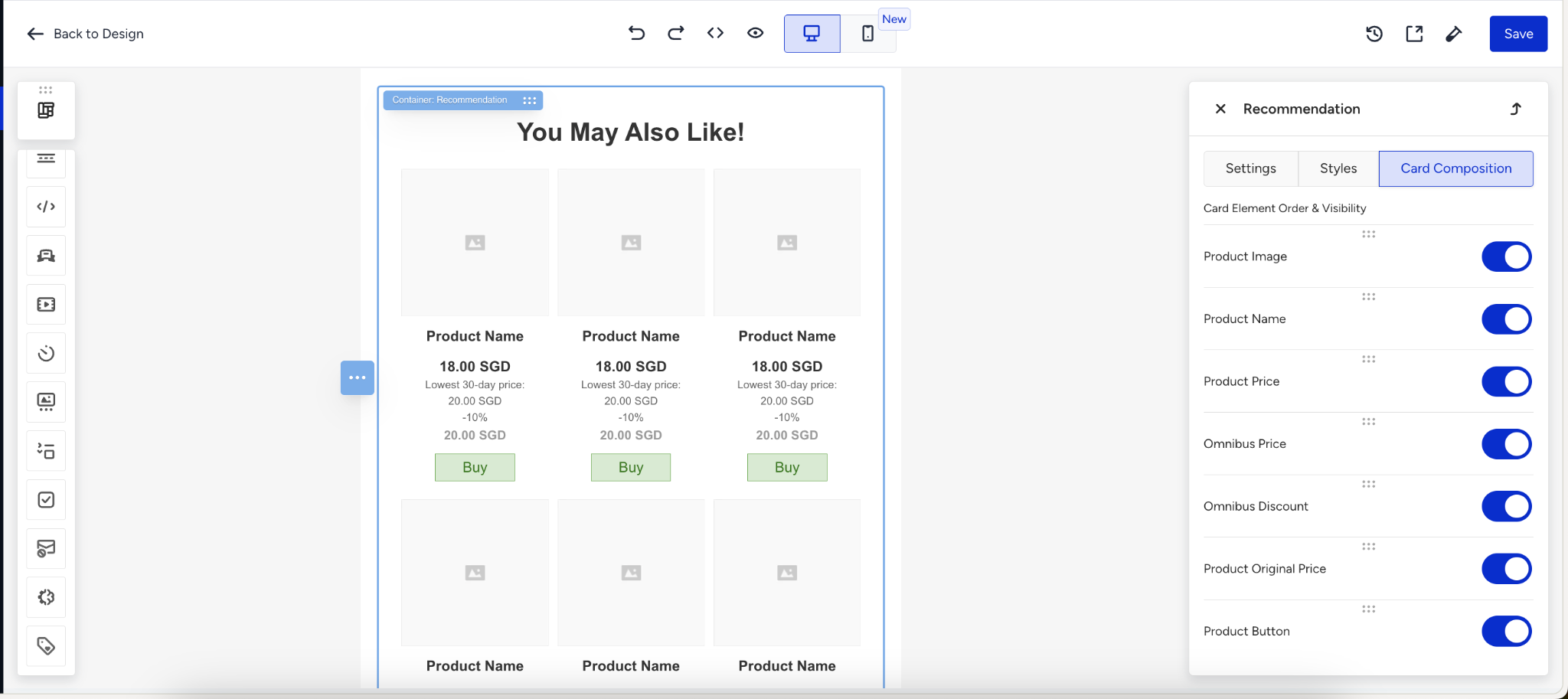
The Text Trimming in Product card composition > Name area is toggled on by default. This option shortens the product names and ends them with "..." on a single line. If you do not want shortened product names, you can toggle this option off in your recommendation block.
The text trimming feature is only supported in the new Outlook application for Microsoft 365. Older versions of Outlook (2019, 2016, standard 365) do not render this feature correctly. While these versions can understand the template code, they fail to render the trimming properly.
We recommend avoiding this feature for targets using these versions. If the product name does not meet the required length to trigger trimming, this feature will not render on certain ISP providers either, regardless of the Outlook version.
Configure the omnibus price for the products
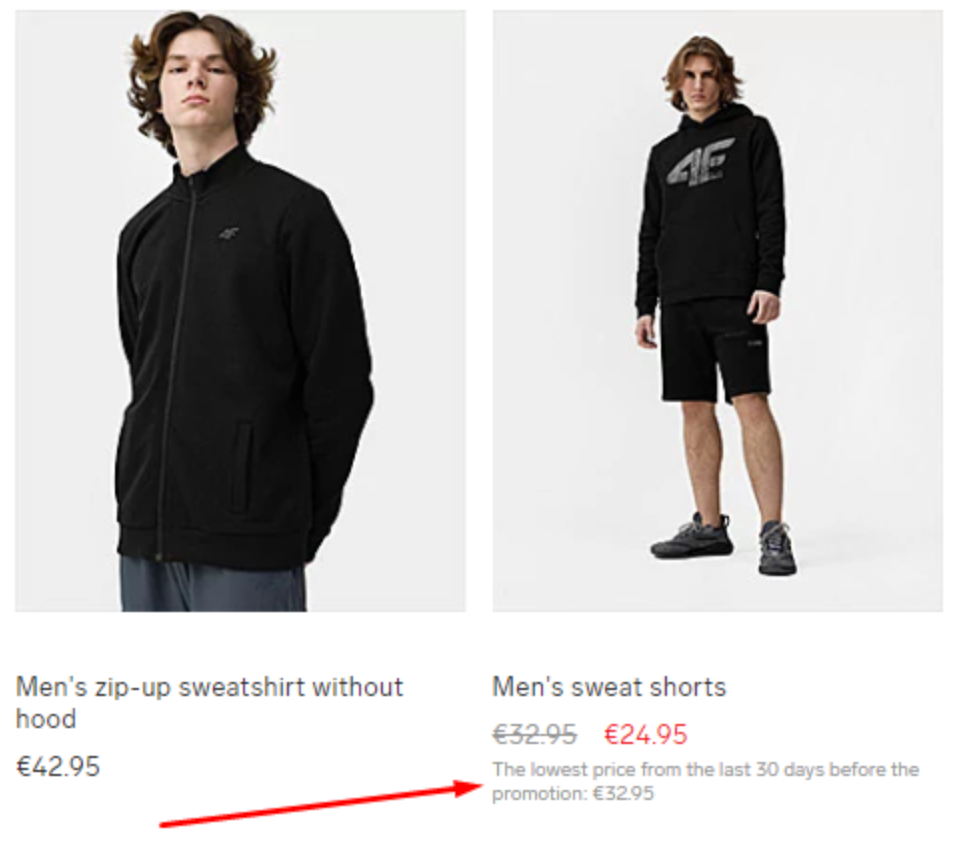
Omnibus price indicates the lowest price a product has been sold for in a specific period (often 30 days). It's used in marketing and pricing regulations to show consumers a reference price, helping them understand discounts and ensure transparent pricing.
When a discount or promotion is advertised, the seller must display the lowest price the product has been sold for in the last 30 days (the omnibus price) alongside the new discounted price. This regulation ensures customers see a clear reference price and aren't deceived by the inflated pre-sale prices.
The regulation typically applies to price reductions in consumer goods, both online and offline, and covers a 30-day window before the discount. New products introduced within the last 30 days or short-term price reductions like flash sales may have exceptions depending on local regulations.
This regulation aims to enhance price transparency and protect consumers from deceptive pricing practices.
About the regulation
According to the EU Directive 2019/2161, also known as the "Omnibus Directive", the omnibus price regulation is primarily required in the European Union (EU) countries. Some of the countries where this regulation applies include the following. This list might change over time:
All EU Member States
Norway and Iceland also follow similar rules as they are part of the European Economic Area (EEA), which aligns closely with EU regulations.
Outside the EU, other countries may have their own price transparency or consumer protection regulations, but the omnibus price regulation is specific to the EU and EEA.
How does the omnibus price work?
The omnibus price is a product attribute displayed only for products with discounts. The customer should create the omnibus price as a product attribute in the product catalog.
How can you use the omnibus price in the block?
The configuration settings for the omnibus price and omnibus discount are available in the Recommendation block only if the "omnibus price" and "omnibus discount" attributes are defined in the product catalog. Otherwise, the respective toggles will not be visible.
The Omnibus Price and Omnibus Discount toggles are disabled by default. You should toggle them on if you want to add them to your email.
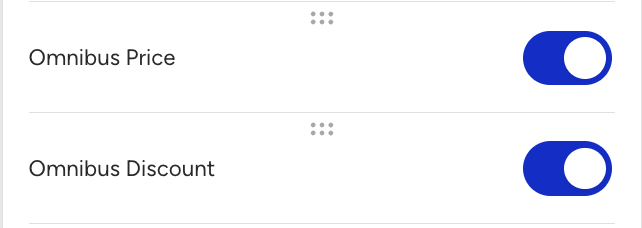
Omnibus Price and Omnibus Discount also have all the necessary settings to adjust the text styles, font size, and alignments, and add custom text before and after the omnibus price and discount values.
Finalize and test the Recommendation block
After you complete your configuration:
Review the block in the desktop and mobile preview.
Save your email design.
Send a test email to verify the recommendation output.
Recommendation content, such as product image, product name, prices, and availability, is generated when the email is sent, not when the email is opened.
You can save the full email design as a template and reuse it in future campaigns. However, you can't currently save the Recommendation block as a standalone module.