Experiment campaigns help you A/B test your single email designs and optimize your campaign performance.
A/B testing is unavailable on recurring or send time-optimized email campaigns to not disrupt the campaign flow. It is also not available during the account warm-up phase.
Requirements
Complete the Email Channel Setup before starting to use Insider One's Email product.
What you can test with an email experiment
An experiment campaign compares exactly two variants, A and B. Between the two variants, you can change:
Subject line
Preheader
From address
Reply-to address
Mail design
UTM parameters
How the winner is decided: The test runs for the window you set (1–24 hours), and the winning variant is selected by the metric you choose: highest unique open rate, highest unique click rate, lowest unsubscription rate, or lowest spam rate. In the event of a tie, Variant A is selected as the winner.
Create your variant
After configuring your audience on the Recipients step, you will proceed to the Design step where you create your email design. You will have Variant A already created in your campaign.
Read more about the anatomy of an email campaign and creating an email.
If your account is still in the warm-up phase, A/B testing won't be available in the email campaigns. It will be enabled once the warm-up period is completed. You will see the below toaster in your Inone panel if your account is still in the warm-up period.

To create an experiment campaign, you can:
Click the Variant A to duplicate it.
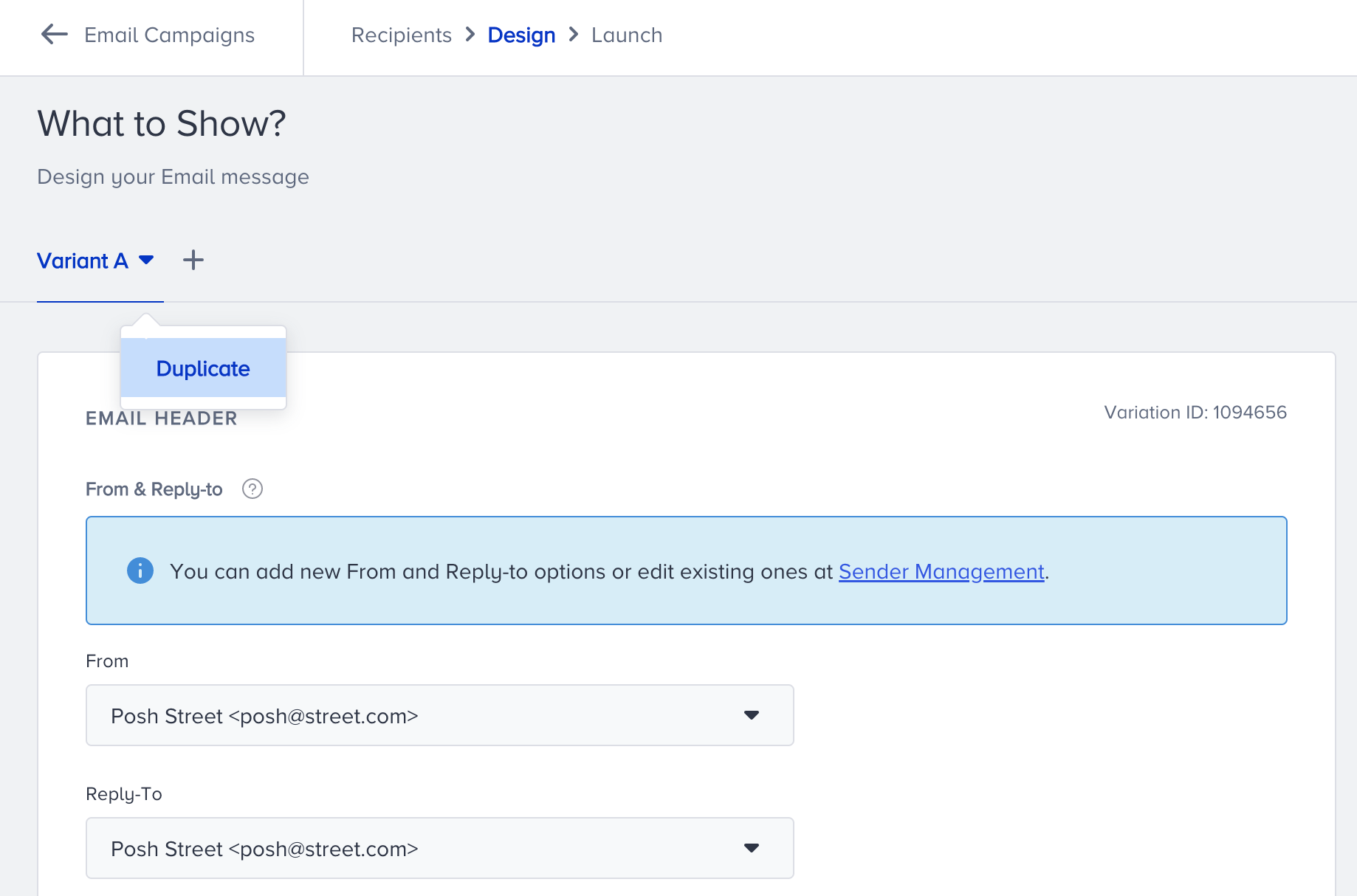
Click the plus (+) button above to add Variant B. Then, Variant B will be listed right next to Variant A.
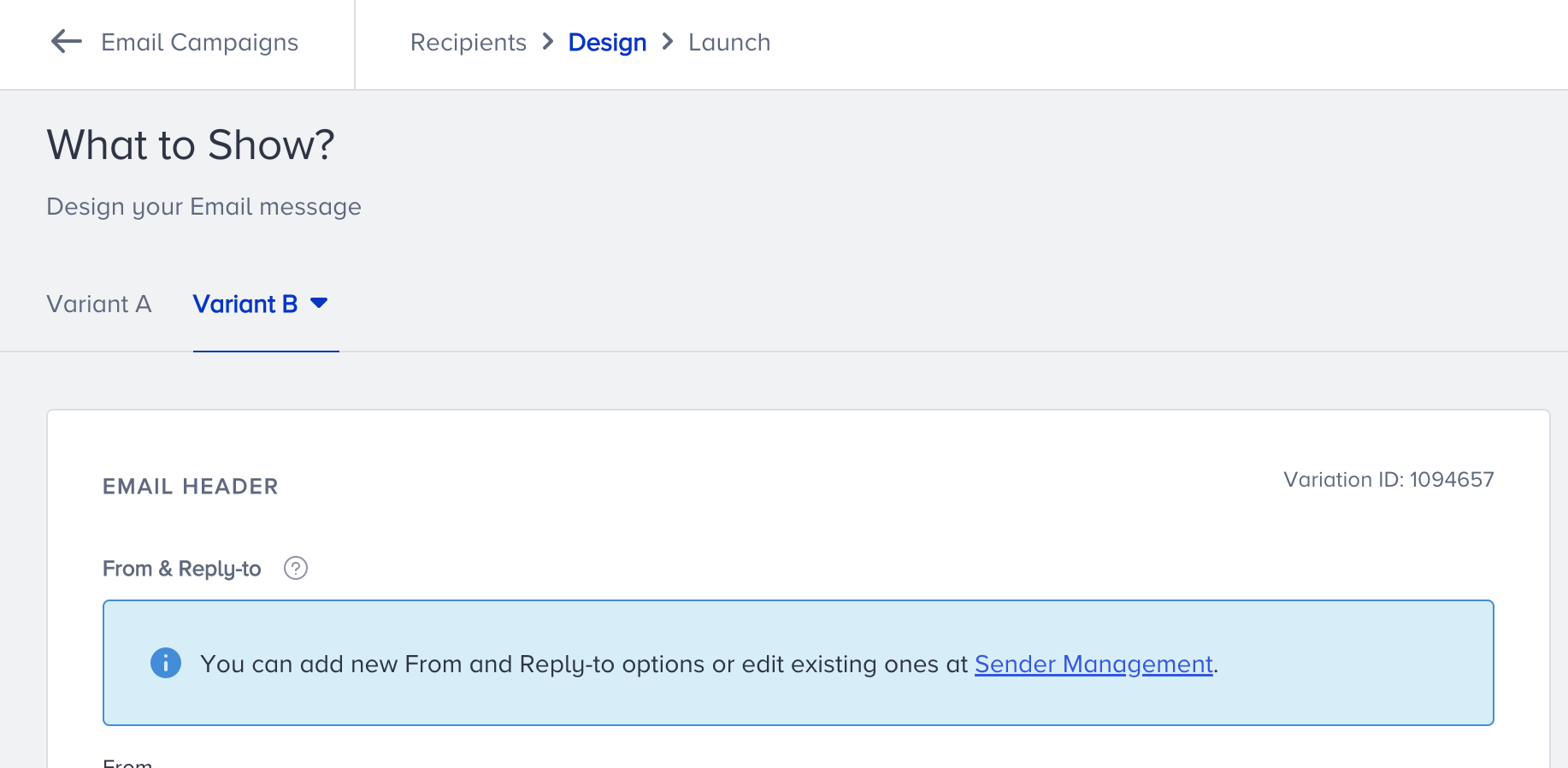
We support only 2 variants in experiment campaigns. There is no "multivariate" mode for email campaigns.
As an alternative, you can create a journey with an A/B Split element to create multiple paths for different email options.
To delete this new variant, click Variant B > Delete.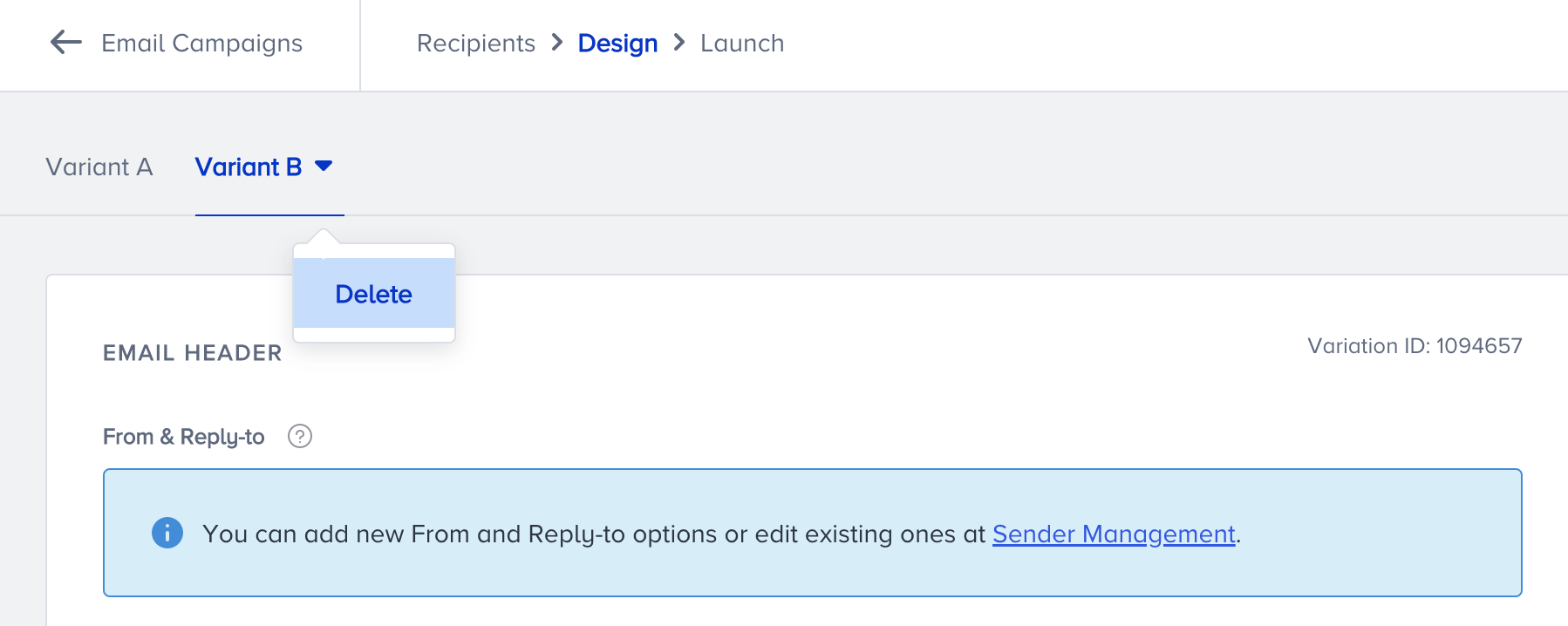 Deleting is not an available option for Variant A as one email design is mandatory for each campaign.
With Variant B, you can A/B test the following items differently for your experiment campaign:
From address
Reply-to address
Preheader
Subject line
Mail design
UTM parameters
How does an email experiment work?
Once you complete designing your email, you should configure its launch settings. When you add a second variant to your email campaign, you can complete the experiment campaign configurations on the Launch step. A/B test settings allow you to set the size of your testing pool and test duration.
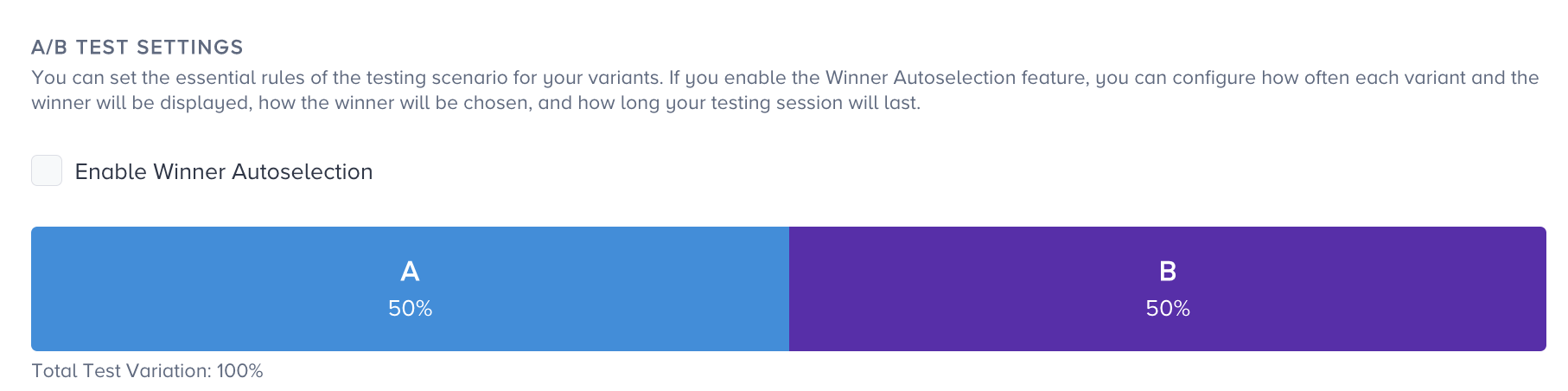
50/50 Testing
50/50 is allocated to your experiment campaign by default unless you enable the winner autoselection to allocate the percentage manually.
You can see the results of the test for each metric separately.
Enable Winner Autoselection
Once you enable the winner autoselection, you can drag the group allocations to determine the percentage of subscribers that will be targeted as the test pool.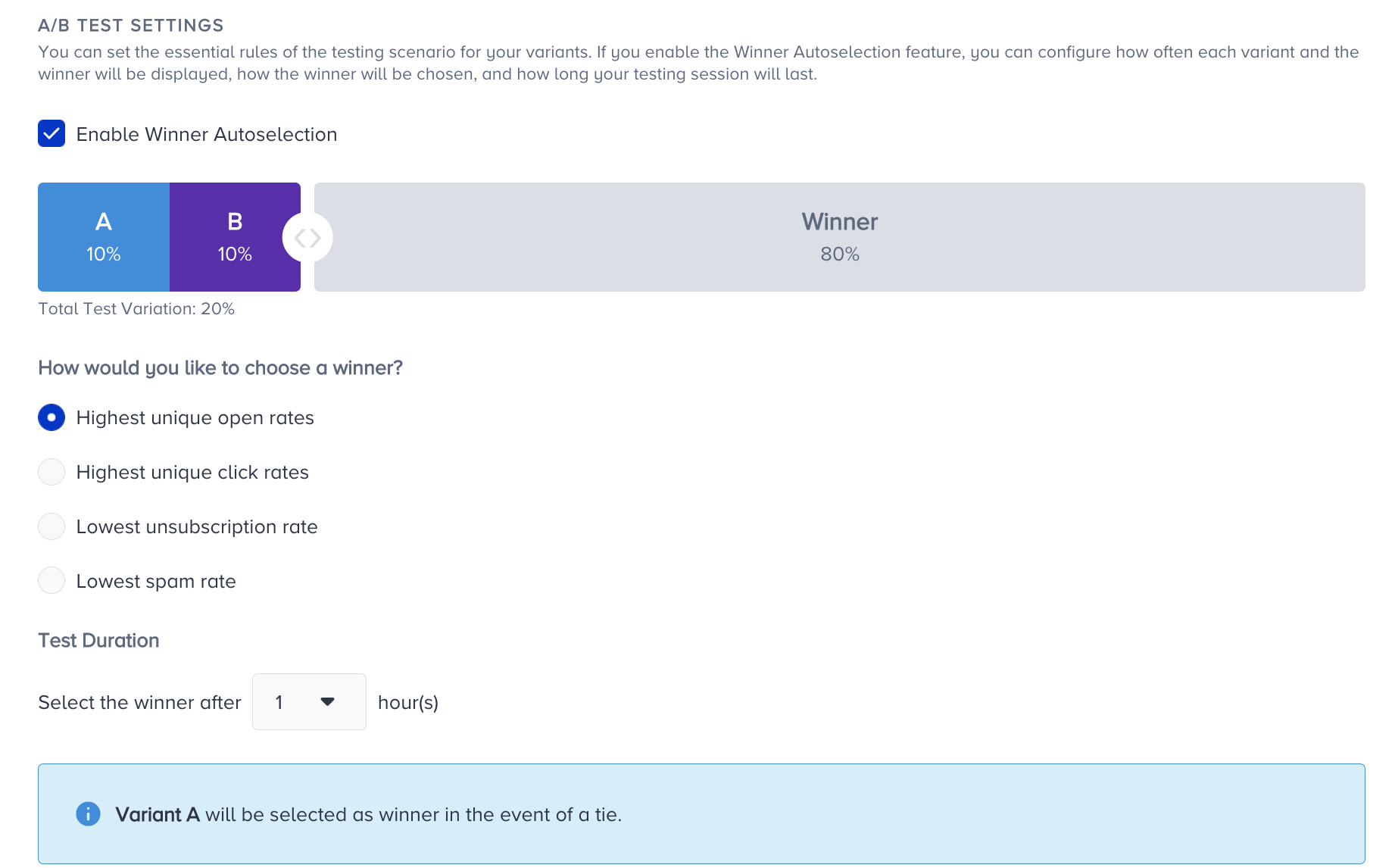
After setting the designs of your variants, you will proceed to the launch step to configure your experiment. Under the A/B Test Settings, you can arrange the size of your testing pool and the test duration.
To determine the percentage of subscribers that will be used as the test pool, you can drag the button shown above and increase/decrease the allocation. Each variant can have a minimum of 10% and a maximum of 45%. Your subscribers will be distributed to the groups randomly.
The next step will be choosing the method for selecting the winning variation. The winner variant will be autoselected based on one of the following methods as per your selection:
Highest unique open rates
Highest unique click rates
Lowest unsubscription rate
Lowest spam rate
Test Duration
With the Test Duration, you can set a duration after which your campaign will have a winner. You can set it between 1 and 24 hours.
Let's use an example to better understand the A/B test settings. You allocate 20% to both variants A and B, choose the "highest click rates" as your winner method, and set a 1-hour test duration.
Suppose that you have 100 recipients. Variants A and B will be assigned with random 20 subscribers each. You will send your email campaign to these subscribers and observe their engagement for 1 hour. After 1 hour, the system will assess the unique click rate of each variant. If variant B has a higher unique click rate, it will be sent to the remaining recipients, which makes 60 recipients after subtracting the recipients of variants A and B.
In the event of a tie, Variant A is selected as the winner variant.
How should you evaluate the campaign performance?
You can use the campaign analytics to evaluate the performance of your experiment campaigns during the experiment period. You can easily see which metrics your experiment is based on.
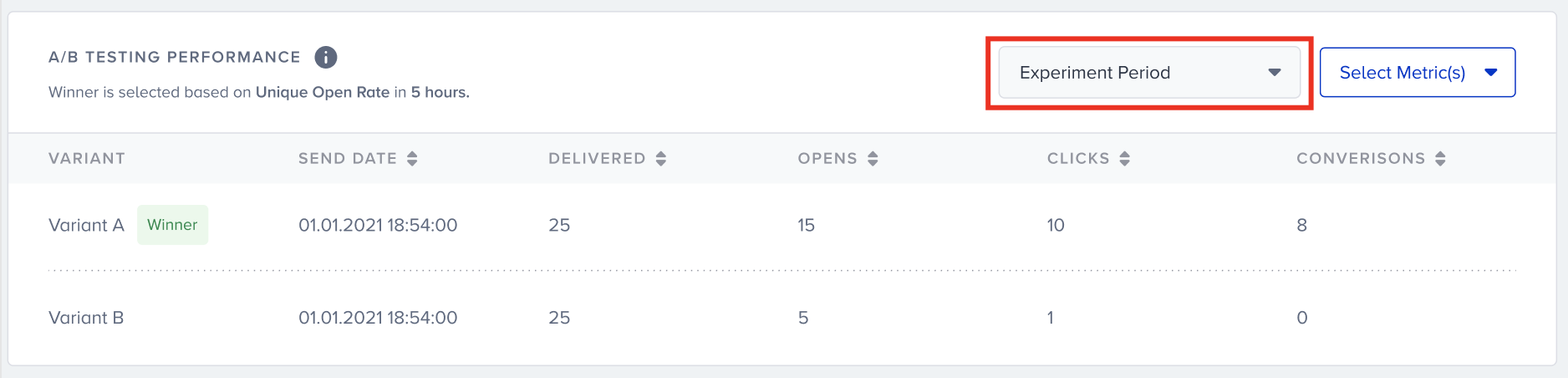
On top of the page, you can see the overall analytics. These metrics will cover both the testing period and the post-test period. At the bottom of the page, you can see a detailed version of the variant statistics.
You can see the performance of both variants when they are in the Running status and the winner variant. To evaluate your campaign in depth, you can choose the metrics you want to see in the variant comparison table. The available metrics are Send Date, Delivered, Opens, Unique Opens, Open Rate, Clicks, Unique Clicks, Click Rate, Conversions, Conversion Rate, Bounce, Unsubscribers, Spam Reports, Invalid Emails, and Blocks.
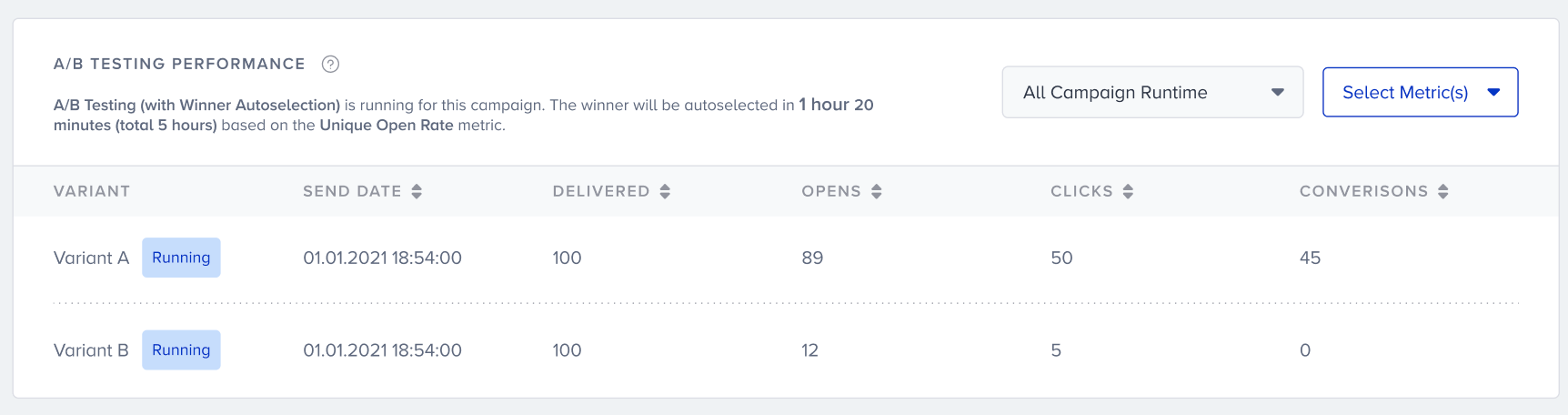
The experiment period is disabled for 50/50 campaigns, as there is no additional experiment for 50/50 testing.
