Smart Recommender enhances your website’s product recommendations with advanced personalization and filtering techniques. By tailoring suggestions to user behavior, it ensures that customers see the most relevant products at the right time, improving engagement, boosting conversions, and creating a more optimized shopping experience.
Why personalization matters
Effective product recommendations can drive higher sales and improve customer retention. Personalization ensures that:
Customers discover new products aligned with their preferences.
Irrelevant suggestions (e.g., already purchased or recently viewed items) are excluded.
Recommendations match user interests, leading to higher conversion rates.
Set up advanced personalization
Enhance recommendations with Attribute Affinity
Attribute Affinity segments users based on their interactions with specific product attributes and boosts items that match those preferences in recommendations. Enabling this feature ensures customers are shown more products they’re likely to engage with.
To enable Attribute Affinity:
Navigate to Product Catalog Management > Product Attributes.
Select the attributes to be used for Attribute Affinity calculations.
Enable the “Personalize recommendations based on attribute affinity” checkbox to prioritize products aligned with user preferences.

You can only select up to 5 product attributes for Attribute Affinity calculations.
Exclude specific products from recommendations
Exclusions help refine recommendations by preventing redundant or irrelevant product recommendations.
Exclude the Items in the Cart
Prevents showing products that the user has already added to their cart.
To enable this feature, enable the Exclude the Products in Cart checkbox in your strategy.

If the user’s cart contains more than 10 items, only the first 10 are excluded.
Exclude Recently Viewed Products
Avoids recommending products a user has already seen.
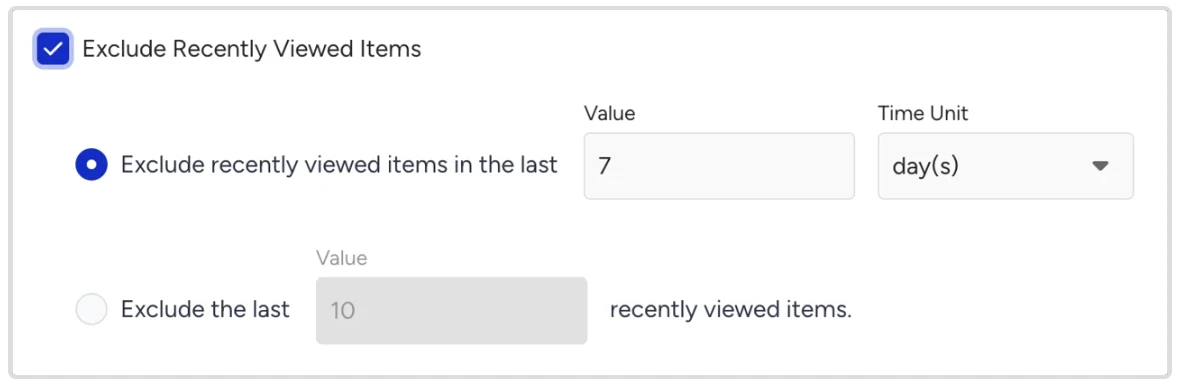
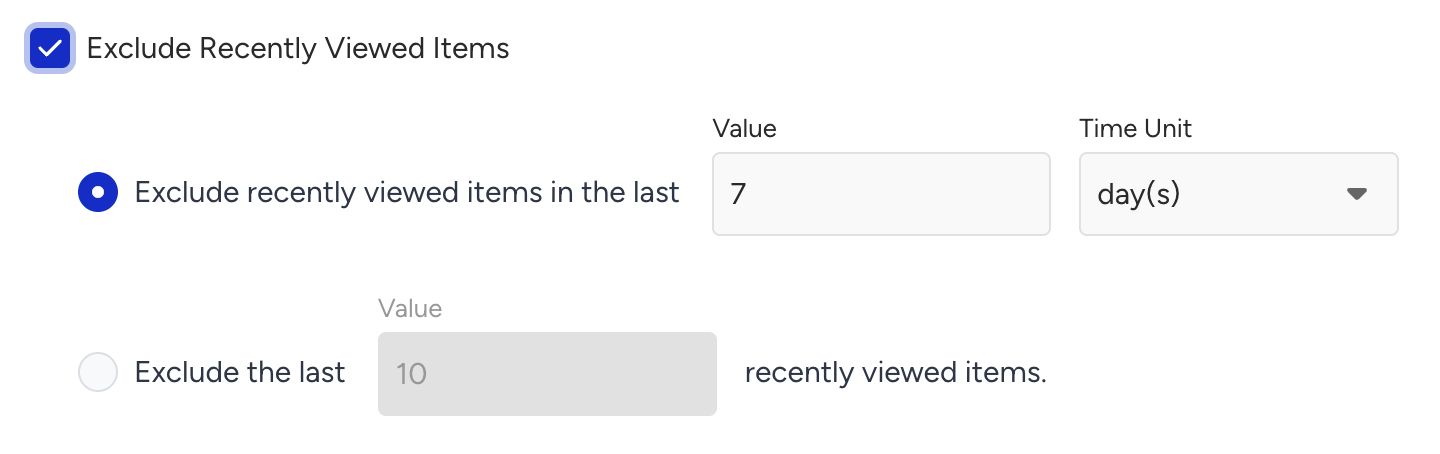
To enable the Exclude Recently Viewed Products feature, you can set either a look-back period or the number of the last viewed items to be excluded:
Look-back period: Exclusion of recently viewed products in a time period. The look-back period is configured as 1–30 days or 1–4 weeks, and its default value is 7 days.
Last X viewed items: Exclusion of recently last X viewed products. The number of last X items can be configured between 1–100, and its default value is 10.
Exclude Recently Purchased Products
Prevents recommending items that a user has already bought.
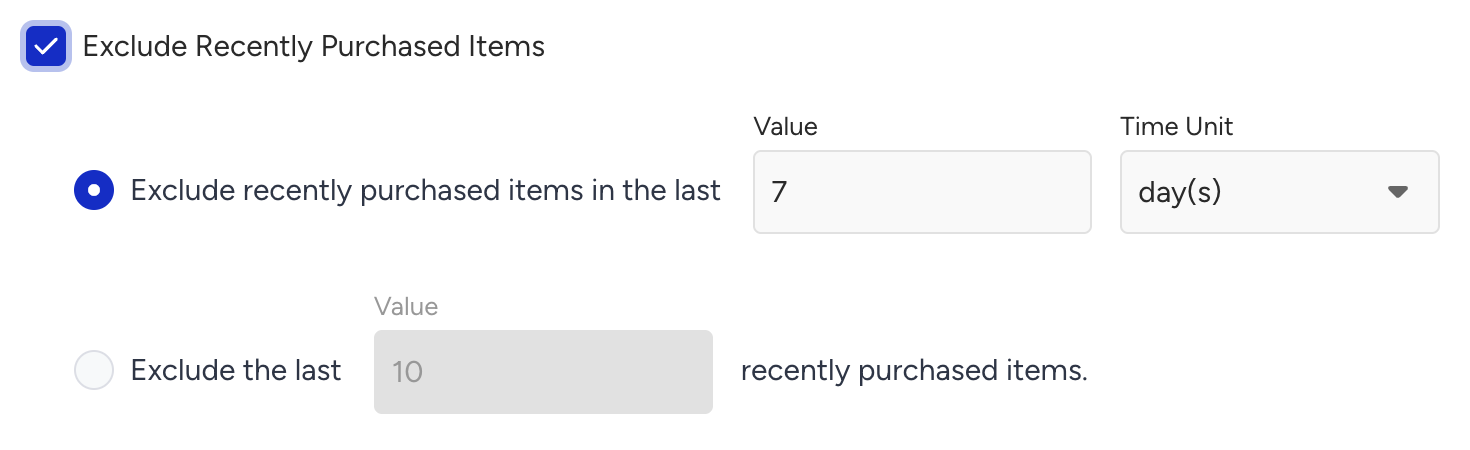
To enable the Exclude Recently Purchased Products feature, you can set either a look-back period or the number of the last purchased items to be excluded:
Look-back period: Exclusion of recently purchased products in a time period. The look-back period is configured as 1 - 30 days or 1 - 4 weeks, and its default value is 7 days.
Last X purchased items: Exclusion of recently last X purchased products. The number of last X items is configured as 1 - 100, and its default value is 10.
Use filters to customize recommendations
Filters refine recommendation results based on specific criteria. When adding a filter, you first select a filter type. This determines where the filter value comes from. Depending on the type, you then configure the attribute, operator, and value source accordingly.
Apply a filter
Click the Add Filter button.
Select a filter type from the dropdown (Static, Page Context, User Context, User Attribute, or Product Analytics).
Select the product attribute you want to filter by (e.g., brand, category, price).
Choose an operator (e.g., is, contains, is more than).
Set the value source based on the filter type:
Static: Enter or select a fixed value manually.
Page Context: Select the page source; item viewed on page or items in cart.
User Context: Select the user event whose product supplies the value (e.g., user's last viewed item).
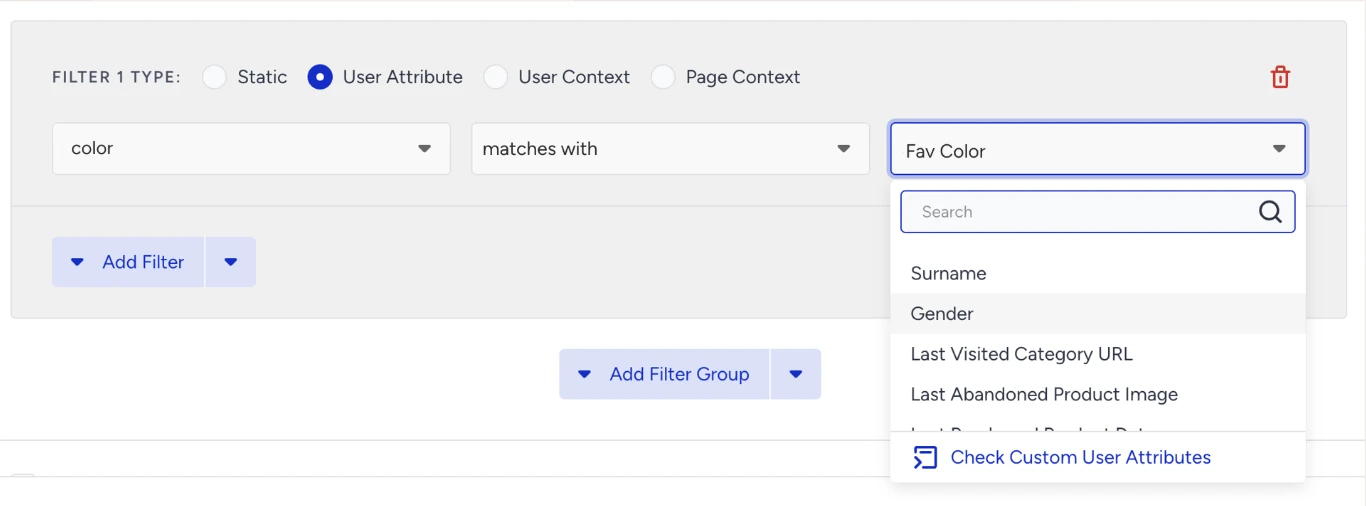
User Attribute: Select the user profile attribute whose value supplies the filter (e.g., Favorite Category).
Product Analytics: Select the metric (view count, add-to-cart count, or purchase count) and the time window (last day, last 7 days, last 30 days).
Filter groups
Filters can be combined using logical connectors:
AND: Products must meet all selected filter conditions.
OR: Products must meet at least one filter condition.
You can create multiple filter groups and connect them using AND/OR to further customize recommendations.
Filter types
Smart Recommender supports four filter types. The type determines where the filter value comes from when the recommendation is served.
Static Filters
The filter value is set manually at configuration time and does not change per user or per session. Use static filters when you want consistent scoping across all shoppers, for example, always showing products from a specific brand or above a certain price point.
Example: brand + is + Nike
Product Analytics Filters
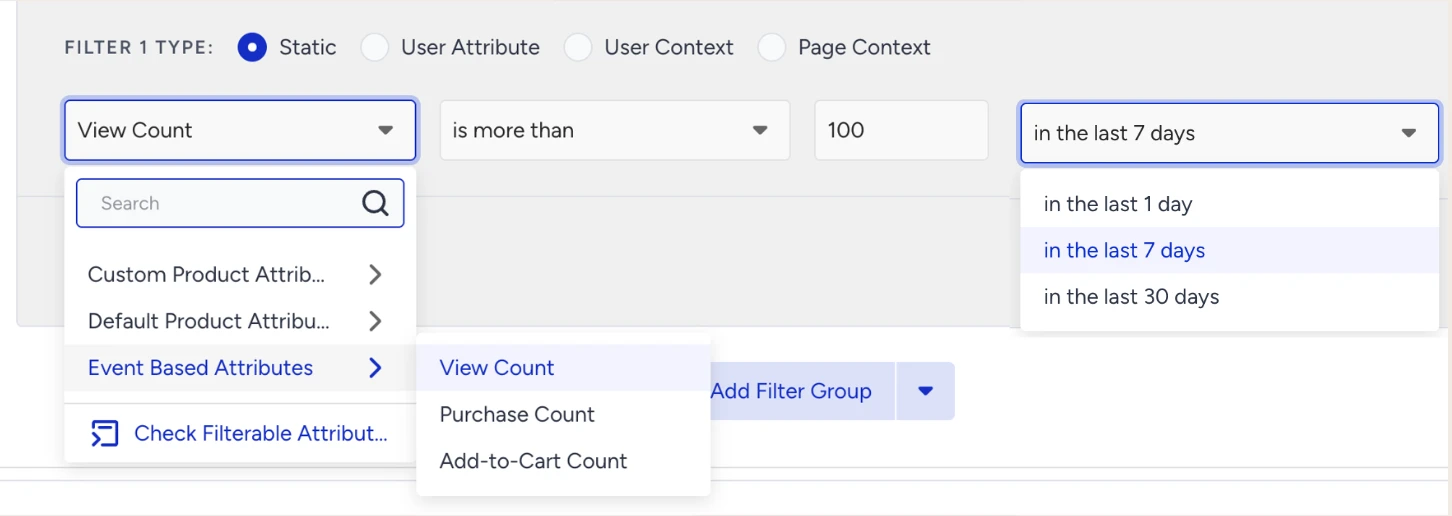
Filter recommendation results based on how products are performing across your site. Instead of filtering by a product attribute or user behavior, Product Analytics Filters use aggregated engagement counts (views, add-to-carts, and purchases) over a defined time window (last 1, 7, or 30 days).
Example: View count (last 7 days) + is more than + 100 → only recommends products that have been viewed more than 100 times in the past week.
Page Context Filters
The filter value is drawn from the product on the page the shopper is currently viewing.
Available page context sources:
Item viewed on page: Uses the product the shopper is viewing on a Product Detail Page or the category of the Category Page.
Items in cart: Uses the products currently in the shopper's cart.
Page Context Filters are available on Product Detail Pages and Cart pages. They are not available on All Pages widgets. On Category pages, only the Category product attribute filter is supported for Page Context.

Example: gender + matches with + currently viewed item on page → recommends products from the same gender as the product the shopper is on.
You can select the dynamic value source (System Rules / Product ID Matching) from the Components > Recommendation Algorithms page under the Recommendation Settings tab.
User Context Filters
The filter value is drawn from the product associated with the shopper's most recent behavior, fetched in real time from the Unified Customer Database. This lets you filter recommendations based on what the shopper was interacting with before or during the current session, regardless of the page they are on.
When you add a User Context Filter, you select:
A product attribute to filter by (e.g., brand, category, price)
An operator
A user event whose associated product supplies the attribute value
Available user events:
User's last viewed item
User's last purchased item
User's last added to cart item
User's last removed from cart item
User's last added to wishlist item
User's last removed from wishlist item
User Context Filters are available on all page types.
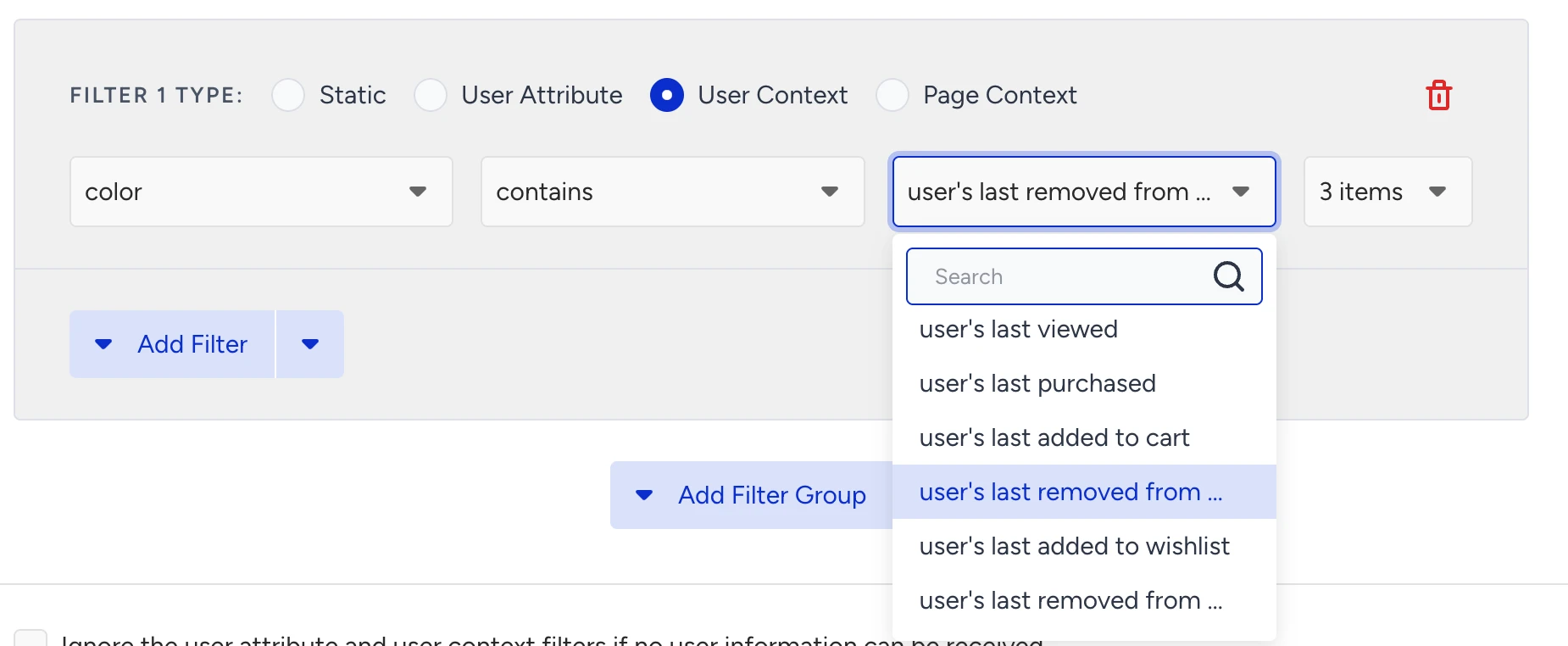
If the shopper has no matching event, or the source product isn't in the catalog, the filter is automatically skipped instead of zeroing out results.
User Attribute Filters
The filter value is drawn from a shopper's profile attribute stored in the Unified Customer Database. Both default attributes and custom attributes you synced are supported, for example, Favorite Category, Membership Tier, or Preferred Size.
When you add a User Attribute Filter, you select:
A product attribute to filter by
An operator
A user attribute whose value supplies the filter
User Attribute Filters are available on all page types.
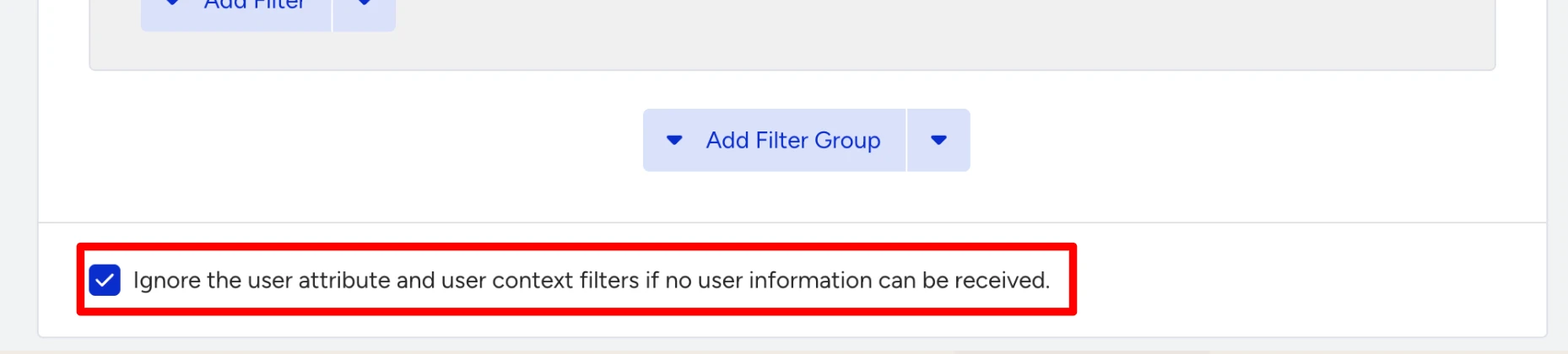
“Ignore User-Context Filters” toggle
When a strategy uses User Context Filters or User Attribute Filters, the Ignore User-Context Filters toggle controls what happens when a shopper has no matching event or attribute value to fill the filter.
ON: The filter is skipped for that shopper and recommendations are still returned based on the remaining strategy logic.
OFF (default): The filter applies with an empty value, which causes the widget to return no results for that shopper.
This toggle only covers missing user data. If the filter value resolves correctly but no products in the catalog match it, the widget can still return empty results.
When to use it:
Turn this toggle ON for personalized strategies where you want to ensure all shoppers, including new or anonymous users who may not yet have event history, still see recommendations rather than an empty widget.
Quick filters for easy setup
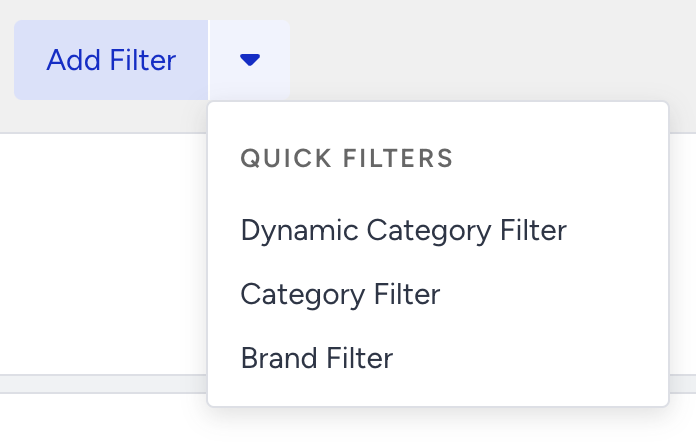
Quick Filters are pre-configured filters tailored for different page types. To apply a Quick Filter:
Click the arrow next to the Add Filter button.
Select a relevant quick filter.
Adjust the filter settings as needed.
Filter by Category
Category filters are among the most powerful tools for creating upsell and cross-sell scenarios. They provide strong context and allow you to tailor recommendations to your catalog’s structure. When you work with hierarchical categories, you can achieve different outcomes depending on how precisely you filter.
Let’s walk through an example using a hierarchical category tree.
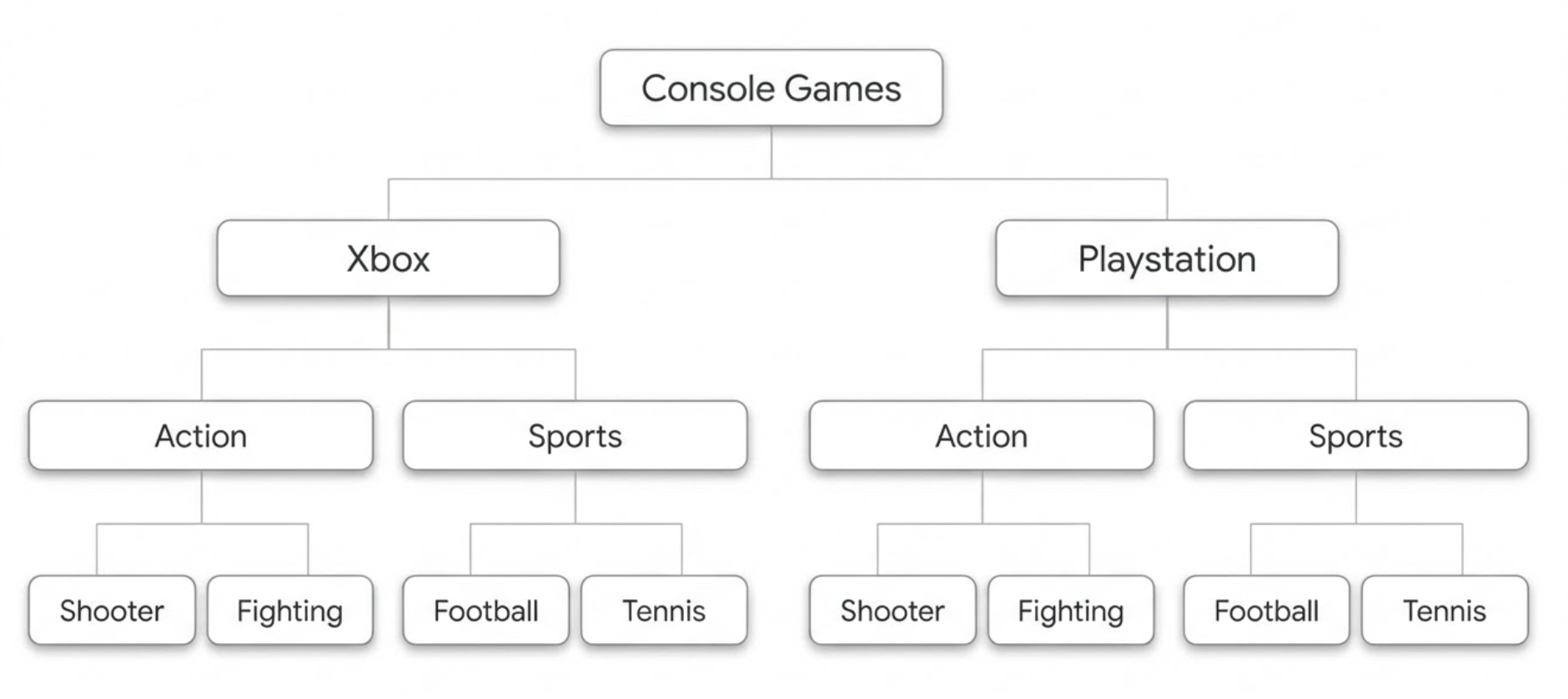
If you want to show Tennis games, and the platform does not matter, you can simply filter by the Tennis category.

Recommendations can include any product that has Tennis in its category array. A product under [Console Games, Xbox, Sports, Tennis] or [Console Games, PlayStation, Sports, Tennis] can be recommended.
If you want Tennis games only for PlayStation, you can use the “Enable filtering of categories using a structure hierarchy” option. This lets you select a specific category path for precise filtering.

Recommendations will include only products that match the full path [Console Games, PlayStation, Sports, Tennis].
Let’s say you want to show products in the same categories as the visitor is currently viewing.
If a visitor is currently on Console games > Xbox > Action, recommended items will be from [Console games, Xbox, Action]. Products that have [Console games, Xbox, Action, Shooter] can also be recommended since the first three categories match.
If a visitor is currently on Console games > Xbox > Action, recommended items will only be from [Console games, Xbox, Action]. Products that have [Console games, Xbox, Action, Shooter] will not be recommended since it's not an exact path match.
If a user is currently on Console games > Xbox > Action > Shooter, recommended items will only be from [Console games, Xbox, Action, Shooter]. Products that have [Console games, Xbox, Action] will not be recommended since it's not an exact path match.
If you want to show items from the user's current category but want a fallback when there are not enough products, you can expand the scope to the parent category.
If a user is currently on Console games > Xbox > Action > Shooter, recommended items will only be from [Console games, Xbox, Action, Shooter]. If there aren't enough products, recommendations will be filled with products that contain [Console games, Xbox, Action]. This means it can show products from both fighting and shooter.
Best practices for effective recommendations
Balance personalization with discovery: Exclude redundant products while ensuring users still see fresh recommendations.
Test different filter settings: Experiment with exclusion periods and attribute affinities to find what works best.
Monitor conversion rates: Analyze performance data to refine your recommendation strategy over time.
Use filters strategically: Here are some real-life examples of how filters can be applied to improve recommendation strategies.
Enable Ignore User-Context Filters for broad audiences: If your strategy uses User Context or User Attribute filters and targets all shoppers, not just those with established behavioral history, turn the toggle ON to avoid empty widgets for new or anonymous users.
Filtering use cases
Exclude discounted items:
Use category + is not + Discount to remove discounted products if you want to highlight premium offerings.
Show only high-value products:
Use price + is more than + $100 to focus on high-value items.
Highlight new products:
Use date added + is within + last 30 days to feature recently added products.
Exclude out-of-season products:
Use season + is not + Winter to avoid recommending winter items in summer.
Promote specific brands:
Use brand + is + Brand X to spotlight a preferred brand.
Show same branded products as the user is currently viewing:
Use brand + matches the item they're currently viewing to recommend products from the same brand as the product the user is currently viewing.
Show same category products as the user is currently viewing:
Use category + is + matches the items in their currently viewing category to surface alternatives within the same category the user is viewing.
Recommend from the same brand as the user's last viewed product
Use brand + is + user's last viewed item (User Context Filter) to keep recommendations in the brand the shopper was just browsing, even if they've moved to a different page.
Personalize by shopper profile
Use category + is + Favorite Category (User Attribute Filter) to surface products in the category the shopper has most affinity for, as stored in their profile.
Show only products gaining traction
Use View count (last 7 days) + is more than + 100 (Product Analytics Filter) to surface only products with proven recent engagement.
FAQs
Q: How does the contains filter work?
A: Contains filter allows you to filter product attributes by matching part of a value. If the specified value is found within the attribute, the product will be included in the recommendation.
For example, suppose you have a set of products with group codes like ABC123, ABC124, ABC125, and so on. If you want to recommend products from this group but there are too many codes to select individually from the filtering dropdown, you can use the filter: group code + contains + ABC. This will return all products whose group code contains "ABC".
When used with an array of strings, the filter will check each item in the array. If any item contains the specified value, the product will be included in the results.
Q: What happens if a user has no matching event for a User Context Filter or no value for a User Attribute Filter?
A: By default (Ignore User-Context Filters toggle OFF), the filter applies with an empty value and the widget returns no results for that shopper. To avoid this, enable the Ignore User-Context Filters toggle; the filter is then skipped and recommendations are still returned based on the rest of the strategy logic.
Q: Can I combine different filter types in the same strategy?
A: Yes. Static, Page Context, User Context, User Attribute, and Product Analytics filters can all be used together in the same strategy and connected using AND/OR logic.