Search Merchandising allows merchandisers and ecommerce professionals to control the search results for specific keywords. Using merchandising in an ecommerce platform has benefits such as:
Profitability improvement: Increasing the visibility of the most profitable products leads to a boost in their sales, consequently resulting in an overall increase in total revenue.
Stock management: Enhancing the visibility of products with the highest stock and reducing the visibility of critical stock improves stock management efficiency and enhances customer satisfaction.
Seasonal campaigns: Highlighting specific products during designated time periods can significantly increase total sales. For instance, promoting Christmas-themed products during the holiday season can be an effective strategy.
Behavioral adjustments: Tailoring search results based on customer behavior can potentially increase the overall number of purchases directly. For instance, if there's a growing demand for a specific type of product, boosting its visibility can capitalize on that trend.
This article covers the answers to the questions below:
Use cases
You are an ecommerce professional who wants to make the A brand sneakers more visible when a customer searches for “sneakers. “ To be able to do that, you will set a rule and boost the products whose brand is “A“ for “sneakers“ as the trigger keyword. After doing this, customers on the ecommerce platform will see A-brand sneakers at the top when they search for sneakers.
As an ecommerce professional, you want to make a specific product that always displays at the top of the search results when the “sneakers” keyword is searched. To be able to do that, you will set a rule and pin the specific product at the top of the search results for “sneakers“ as a trigger keyword. After doing this, your customers will see that a specific product always appears at the top when they search for sneakers.
You want to make the winter-specific sneakers less visible during summer. To be able to do that, you will set a rule and bury the winter sneakers of the search result of “sneakers“ as the trigger keyword. After doing this, your customers will see the other sneakers more prominently, while the winter sneakers are listed at the bottom of the search results page and are less visible.
Create a Search Merchandising Rule
To create a search merchandising rule,
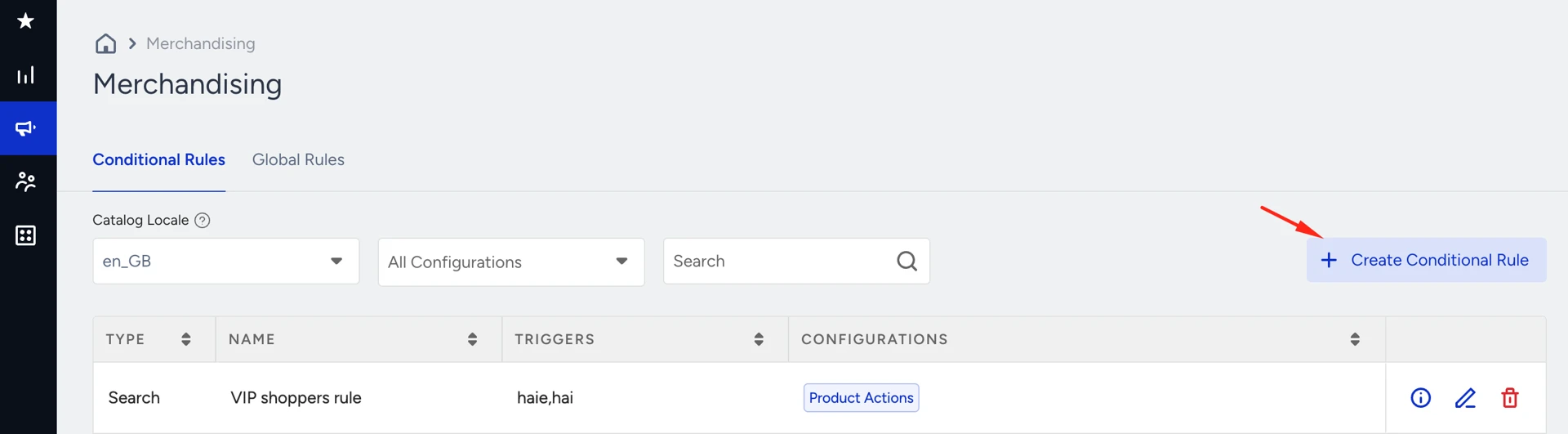
Navigate to Search and Merchandising > Merchandising Rules > Conditional Rules tab.
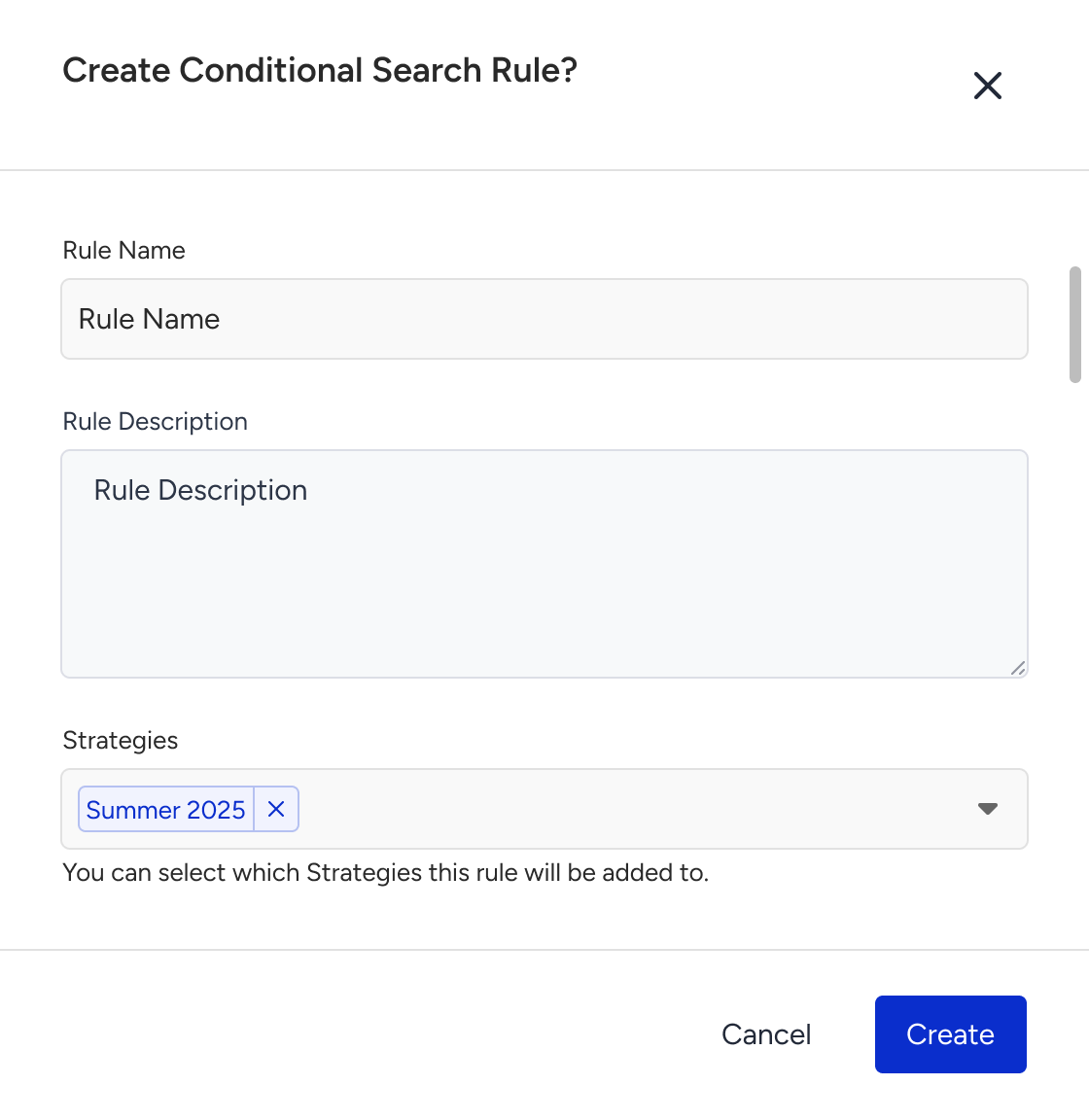
Click the Create Conditional Rule button. Select the Catalog Locale, Conditional Search Rule option and click the Create button.
Type the keyword in the search bar to set it as a trigger. This keyword will trigger the merchandising rule.
First, you will see the original search results of the keyword(trigger) you have entered. Then, you can manipulate the original search result page by pinning, boosting, or burying specific products or creating attribute actions for products on the search result page.
.gif)
Pin to Top
This option ensures that the selected product appears at the top of the search results page.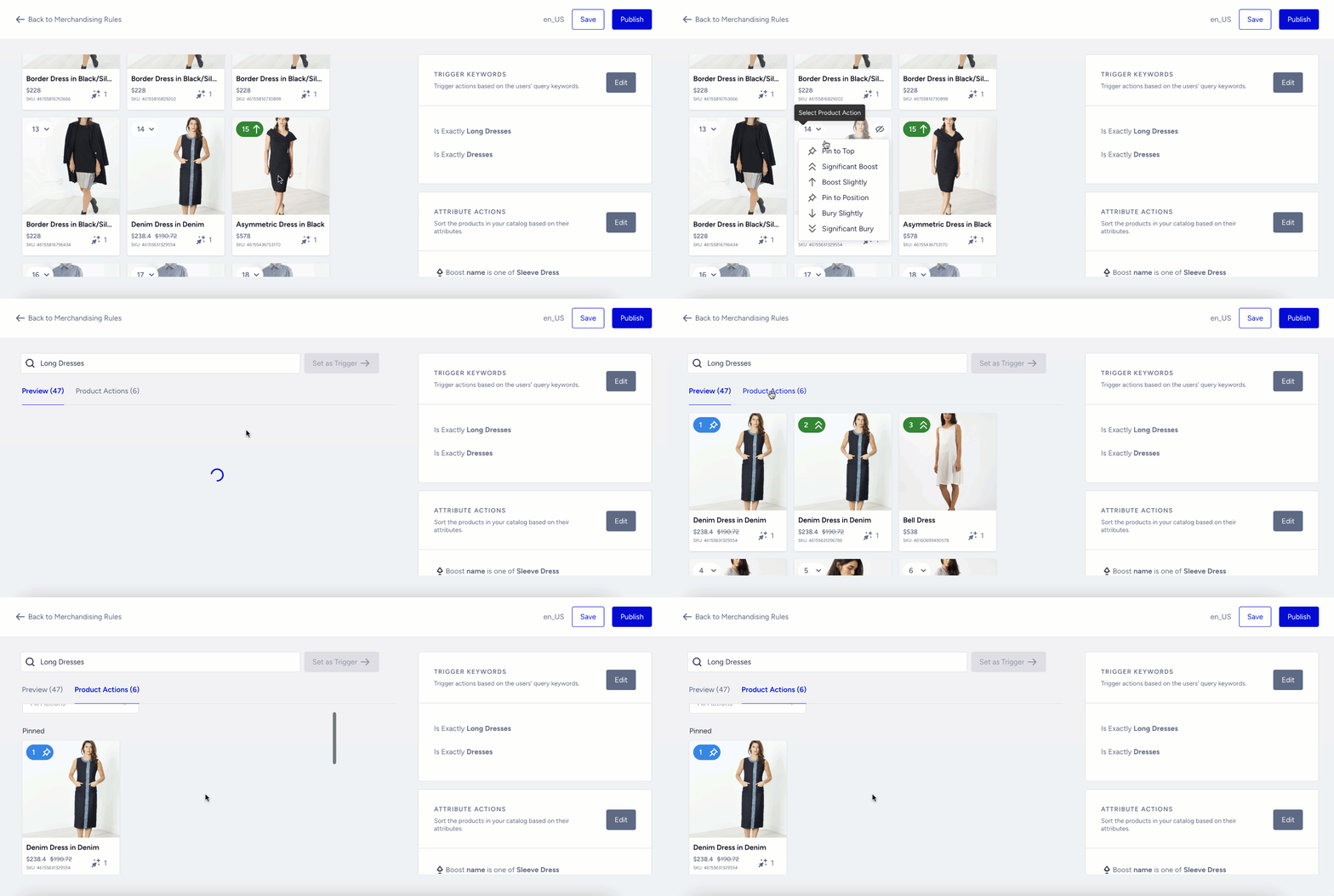
Significant Boost
This option ensures that the selected product appears at the top of the search results page..gif)
Boost Slightly
This option makes the selected product position higher than its original position on the search result page..gif)
Pin to Position
This option sets the product to a specific place on the search result page..gif)
Bury Slightly
This option makes the selected product position lower than its original position on the search result page..gif)
Significant Bury
This option ensures that the selected product appears at the bottom of the search results page.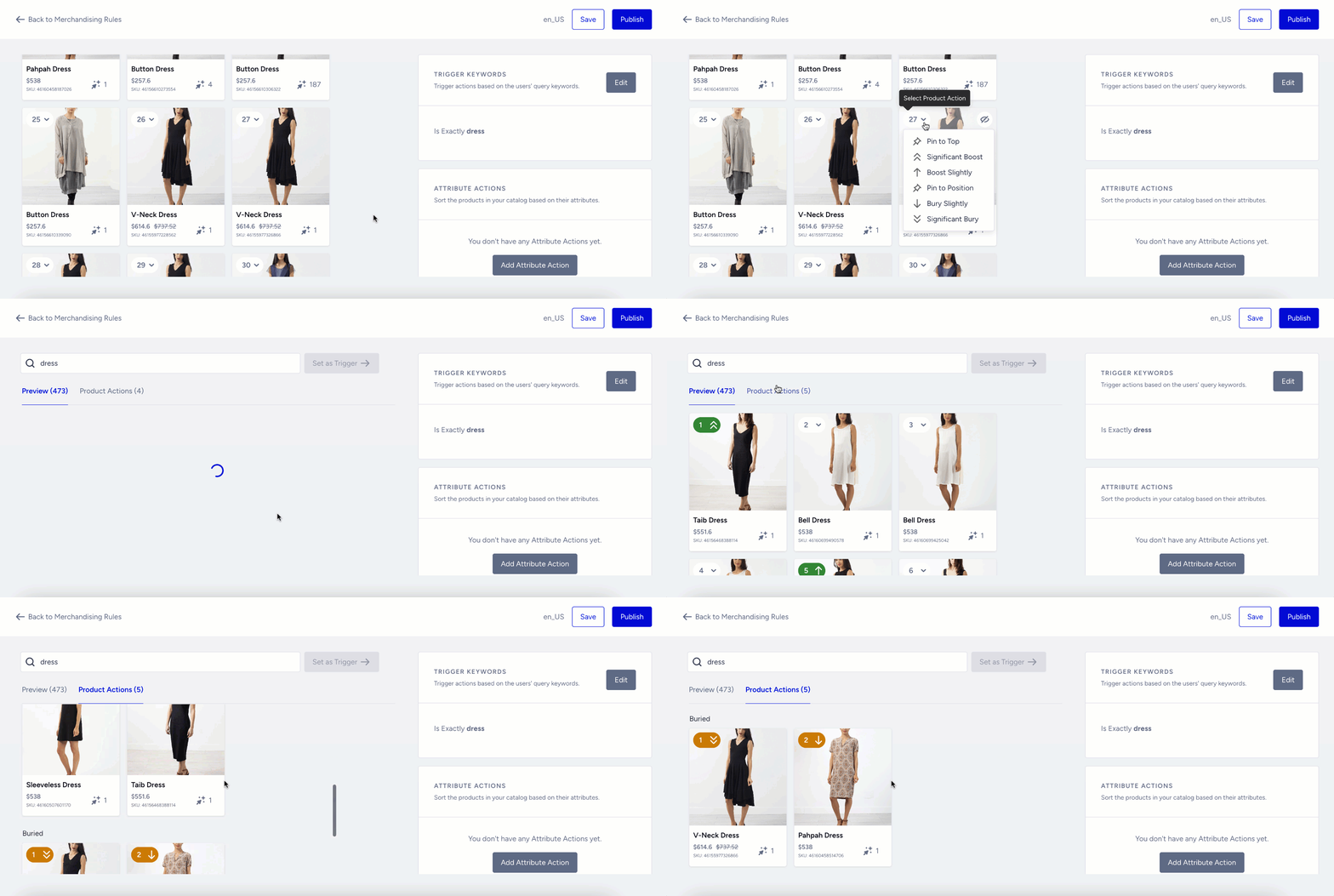
You can see all the merchandising rules you have applied to the different products on the Item Actions tab.
When you complete setting the rules for a keyword, click the Set as Trigger button to set the keyword as a trigger.
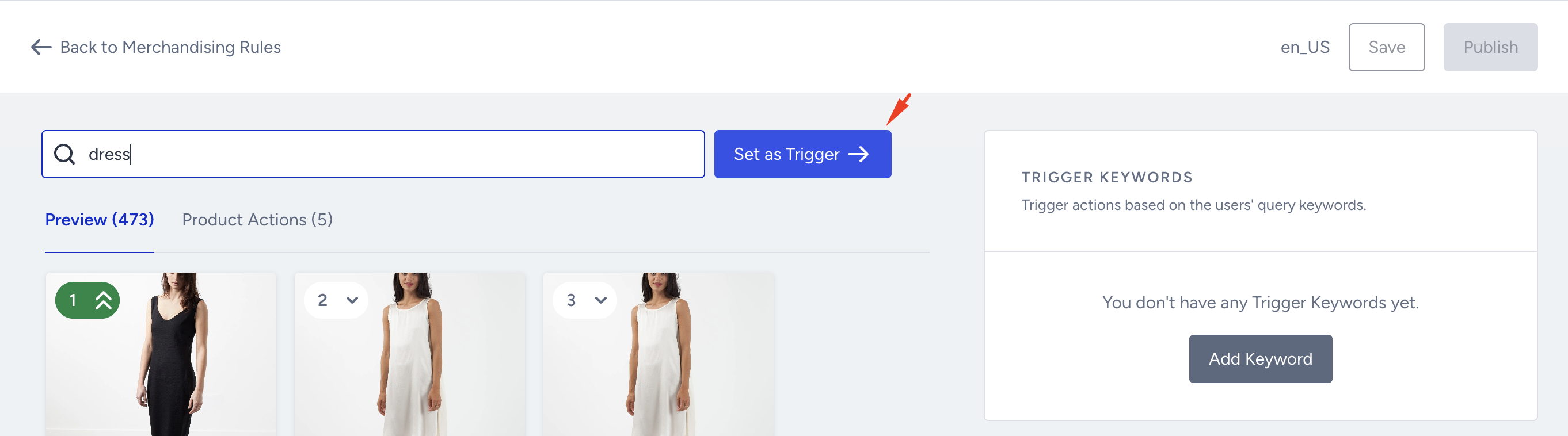
You can add other trigger keywords and combine them for the same rule if you want.
After you complete the rule, you can edit or delete it from the Trigger Keywords part.

You can change the view of the search result page of a keyword according to a specific product attribute or set of product attributes. Click the Add Attribute Action button to configure it.
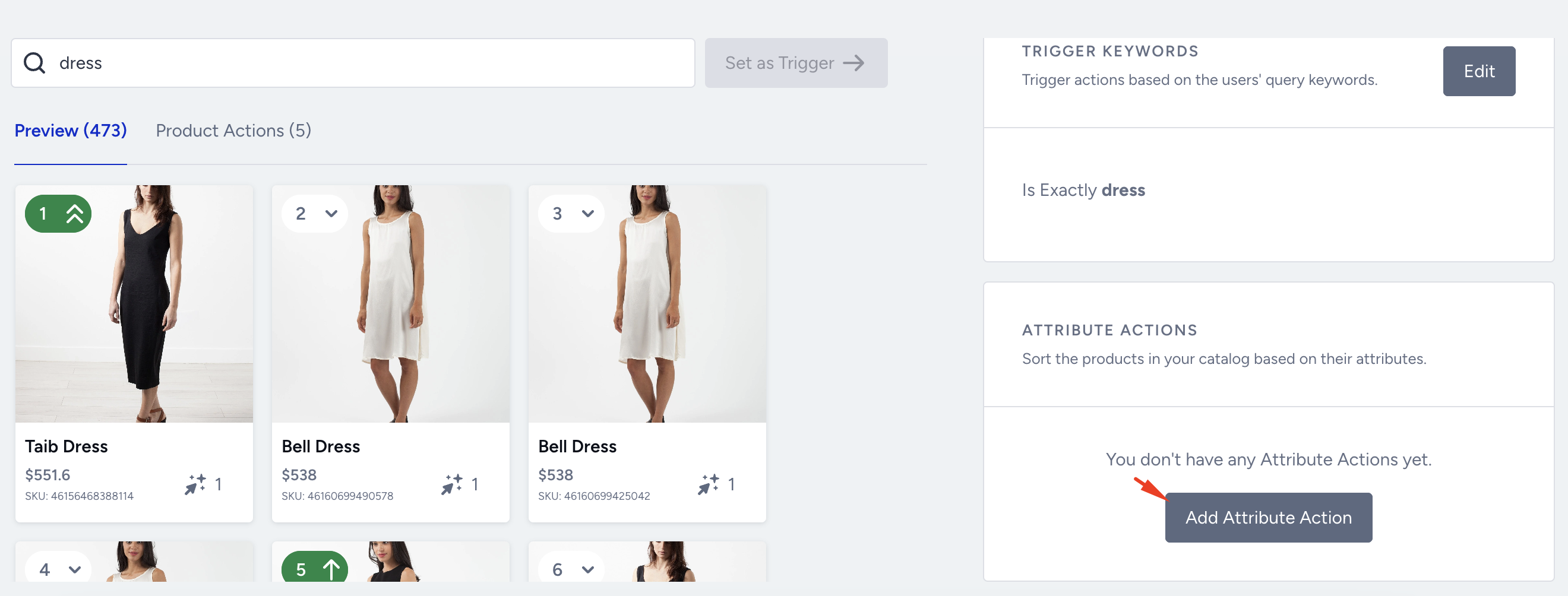
Click the Add Action button and select the action. For example, if the trigger keyword is “sneakers”, you can boost products from the brand “XYZ”.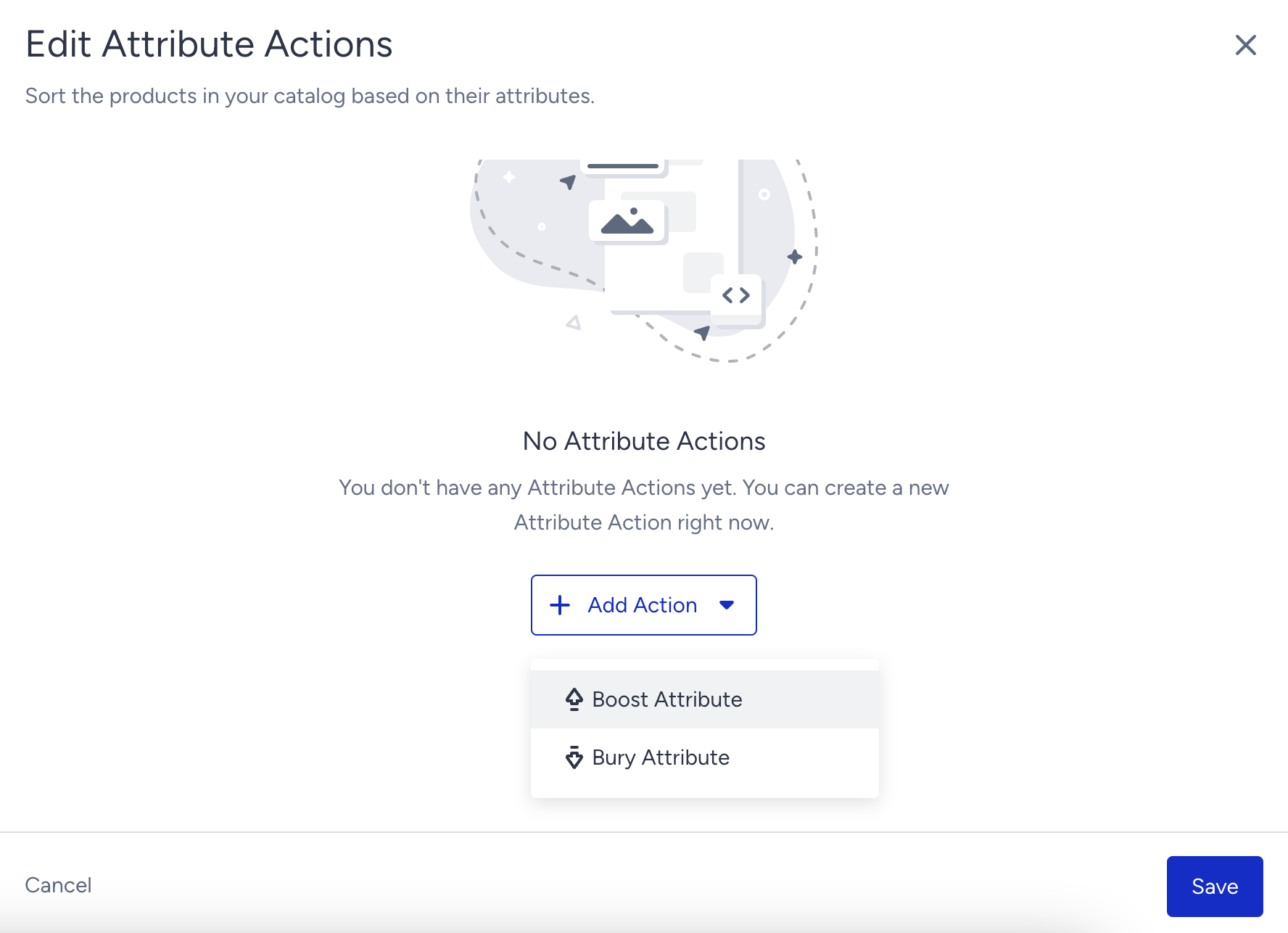
Enter the values and save the action.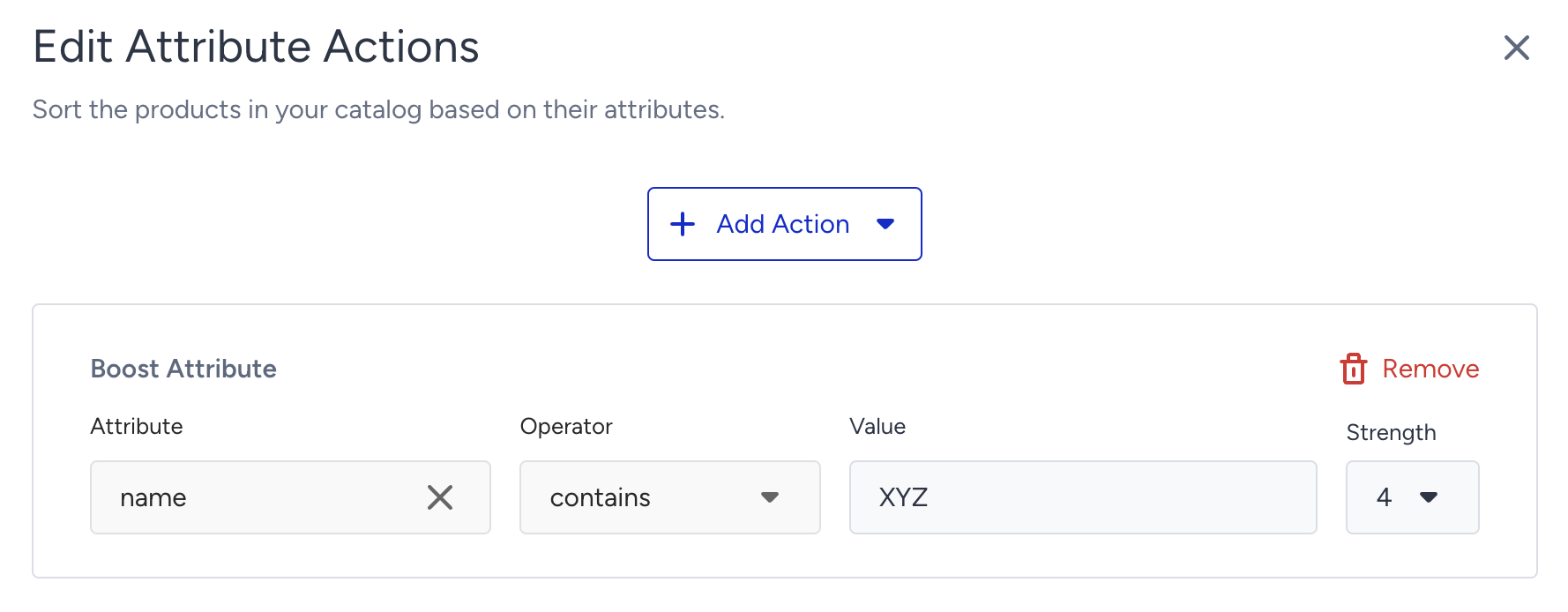
Publish a Search Merchandising Rule
If you haven’t activated Eureka Strategies for your account, you should follow these steps below. If Eureka Strategies is enabled, you can skip these steps.
When you complete setting rules for a key, click the Publish button on the Merchandising Rules page.
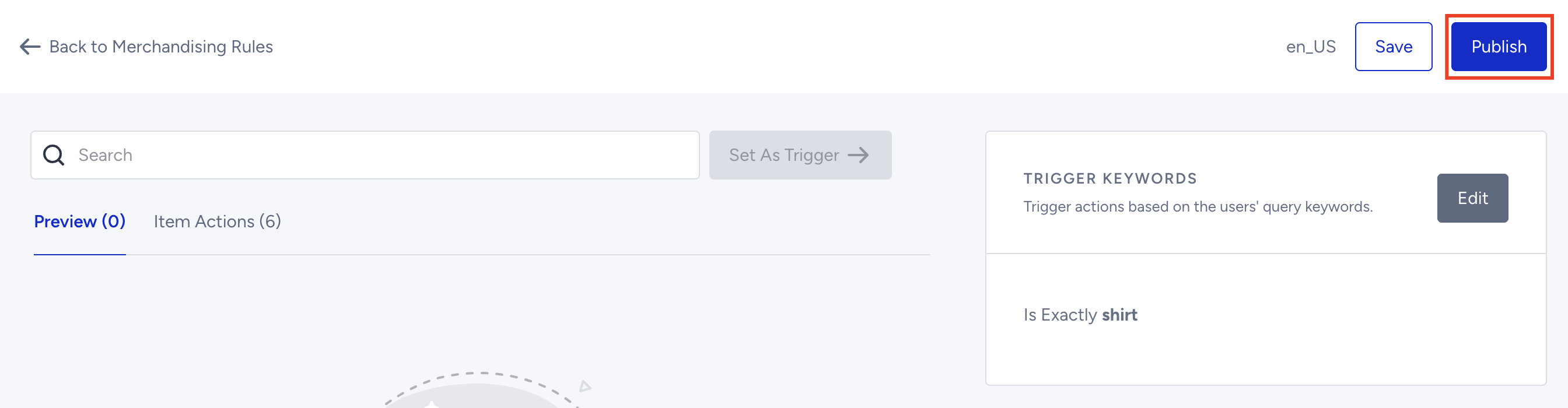
When a rule is published, it becomes active; however, you can make it passive by toggling it. This deactivates the rule.
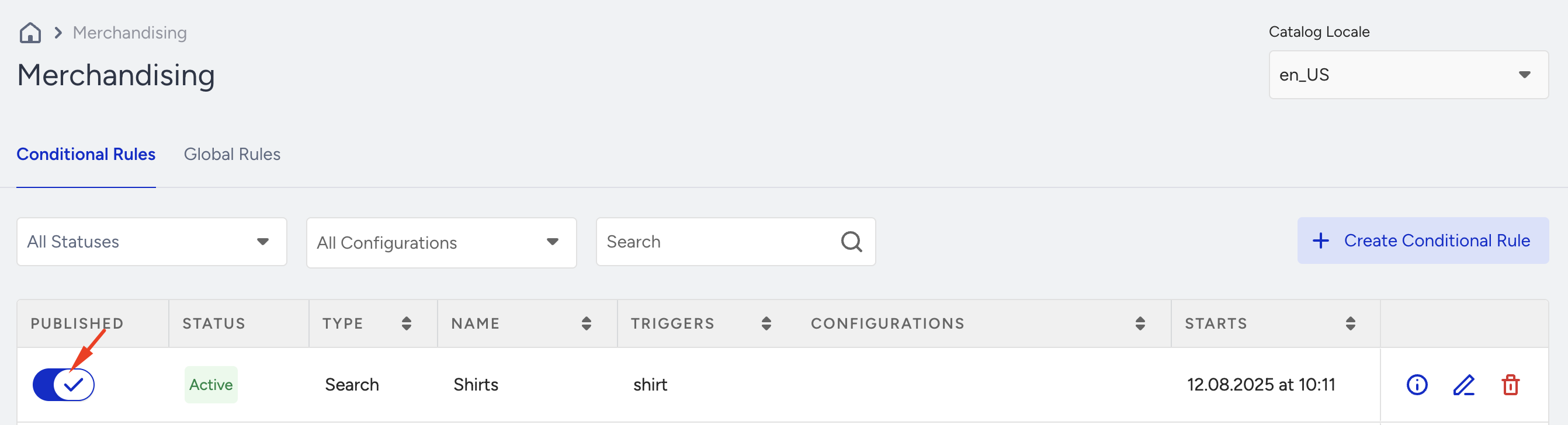
You can also edit or delete a rule by using the icons next to the rule.

Each keyword must be unique in the rule list, so you cannot create two different merchandising rules related to a single keyword.
You can also refer to the video below to understand the Search Merchandising Rule better:
If this video does not load in your region, you can watch it on our YouTube Channel.
Assign a Merchandising Category Rule to Strategies
If Eureka Strategies is enabled for your account, select one or more strategies to associate the created merchandising rule with them.