Global Merchandising allows you to apply merchandising rules to all search results or category pages across your site, without limiting them to specific search terms or category pages. You can use Global Merchandising for both:
Search Merchandising
Category Merchandising
Global Merchandising rules include attribute Actions that let you create rules based on product attributes (e.g., boosting products with the color white).
However, Product Actions are not available for Global Merchandising. This means you cannot:
Pin a product to a specific position in the search results.
Boost a specific product.
Bury a specific product.
This article covers the answers to the questions below:
Use Cases
Examples of typical use cases include:
You can boost your company's own brand products to the top of the search results for all searches.
You can display out-of-stock products in search results, but place them at the bottom of all search results.
You can boost products with a discount rate of 50% or more across all category pages.
You can boost red products with a rating greater than 4.5 across all search results and category pages on Valentine's Day.
Create a global rule
To create a global rule:
Navigate to Search and Merchandising > Merchandising Rules > Global Rules tab
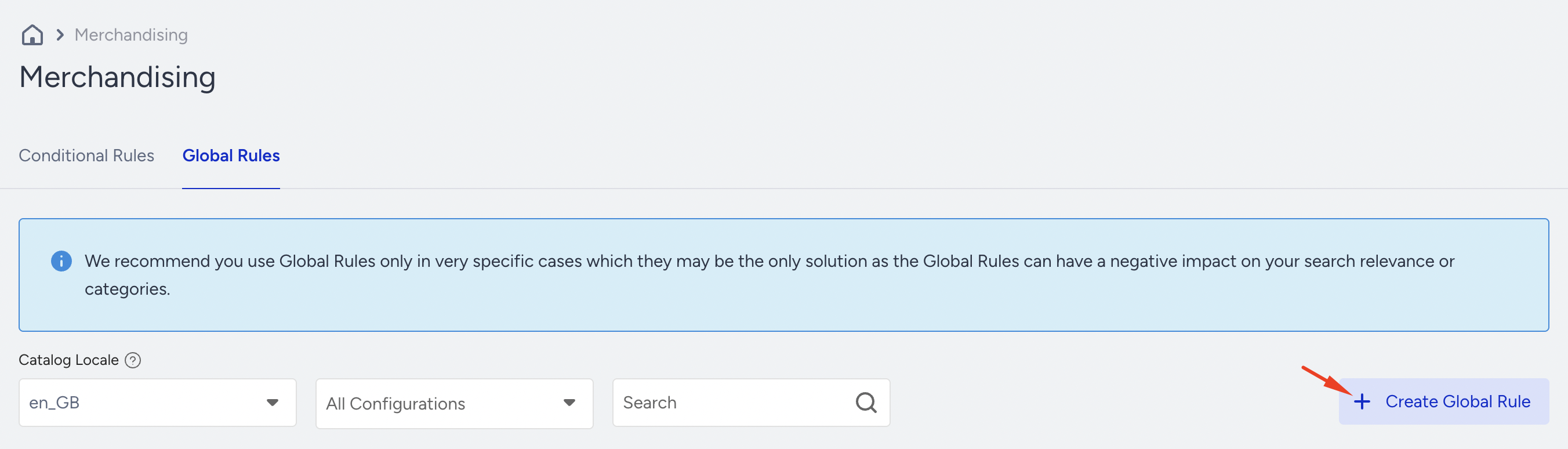
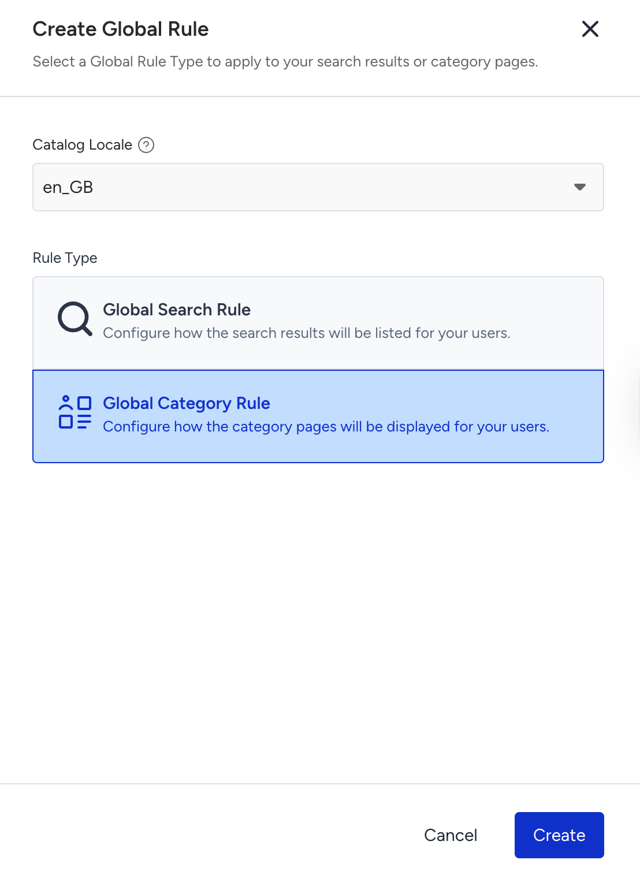
Click the Create Global Rule button. Then select Global Search Rule to create a Global Search Merchandising Rule and select Global Category Rule to create a Category Merchandising Rule. Click the Create button to proceed.
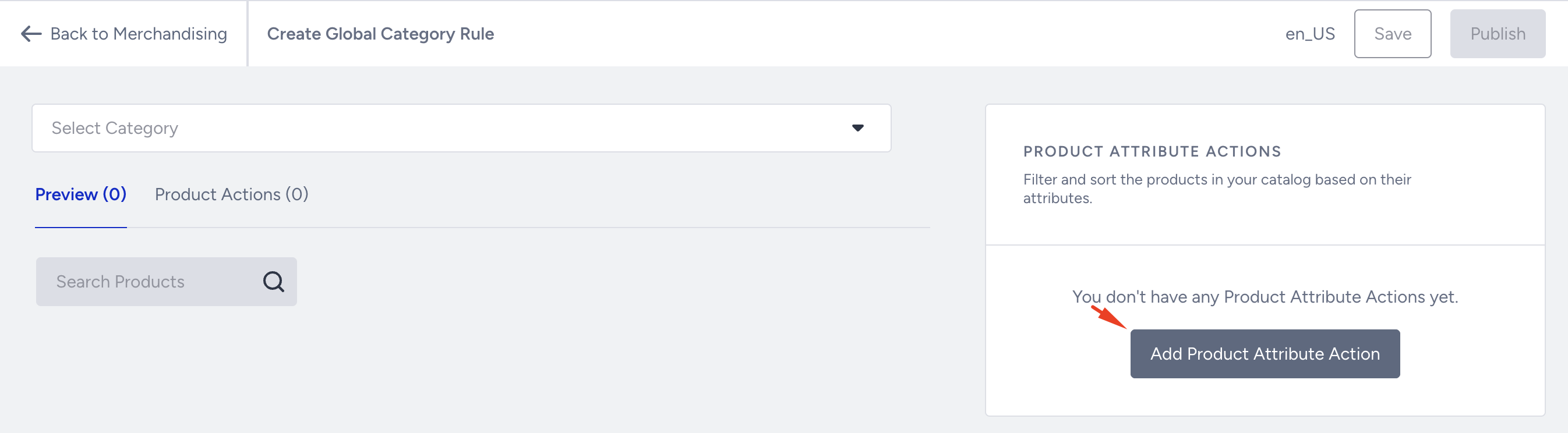
Click the Add Product Attribute Action button.
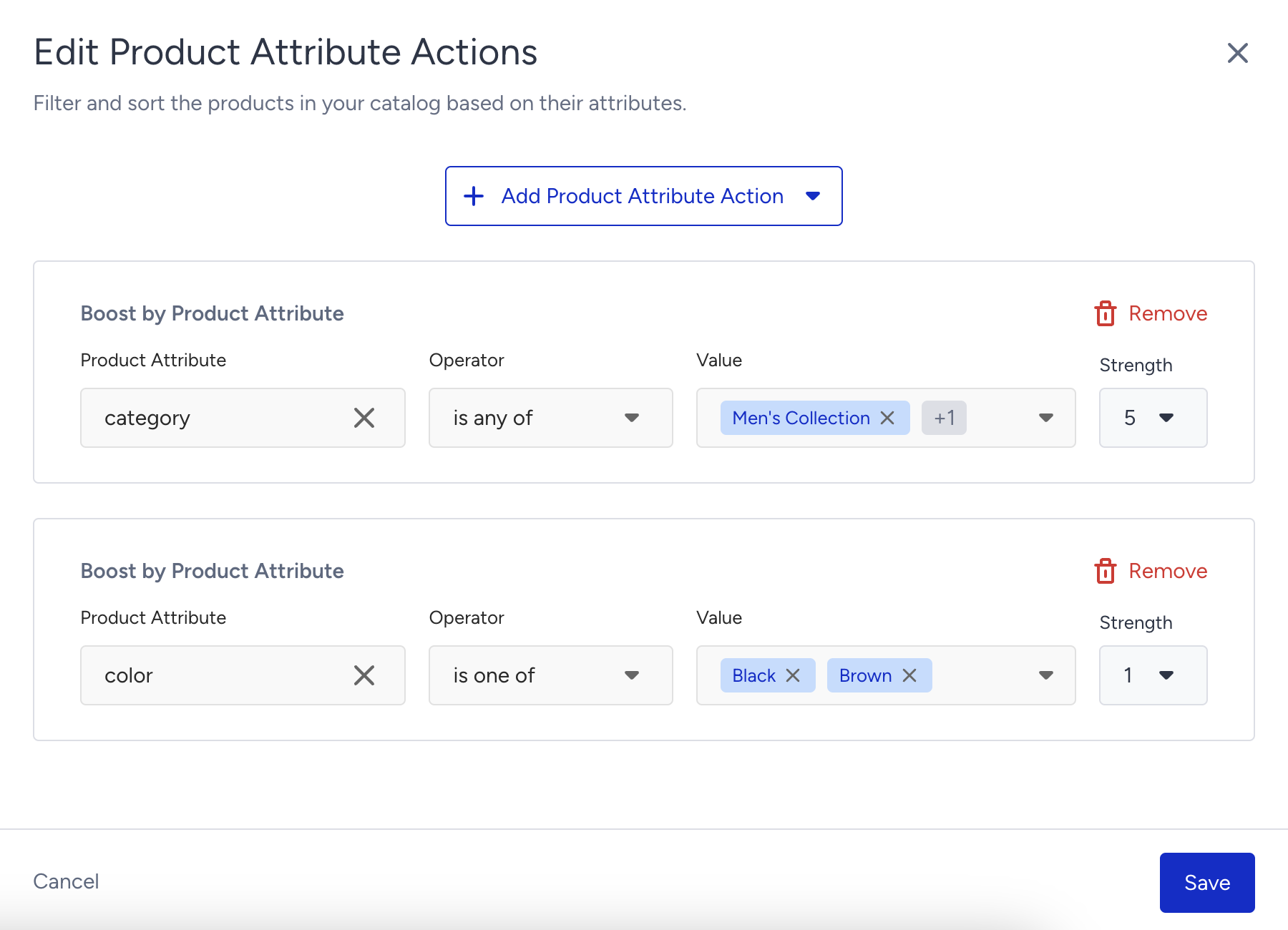
Select either Boost Attribute or Bury Attribute based on your use case. Select an attribute, operator, value, and strength (1 is for the minimum, and 5 is for the maximum). If you want to combine multiple attributes in a single rule, click the Add Product Attribute Action button and repeat the selection action.
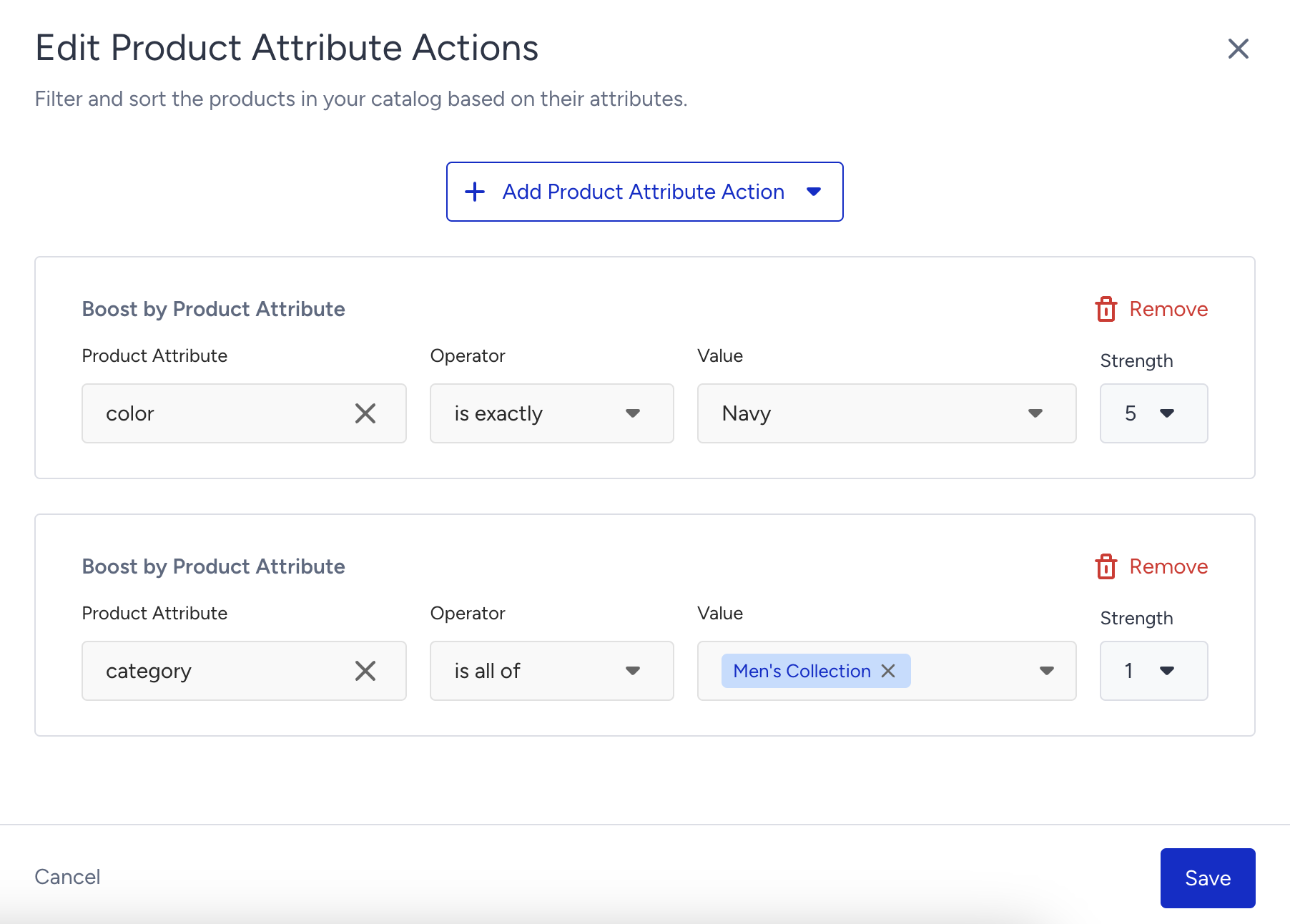
After completing the rule, click the Save button.
To view what your users will see after searching for a specific term in the search bar, use the Preview tab. In the search bar of the Preview tab, type a search term, and products will be displayed as the global rule has been applied.
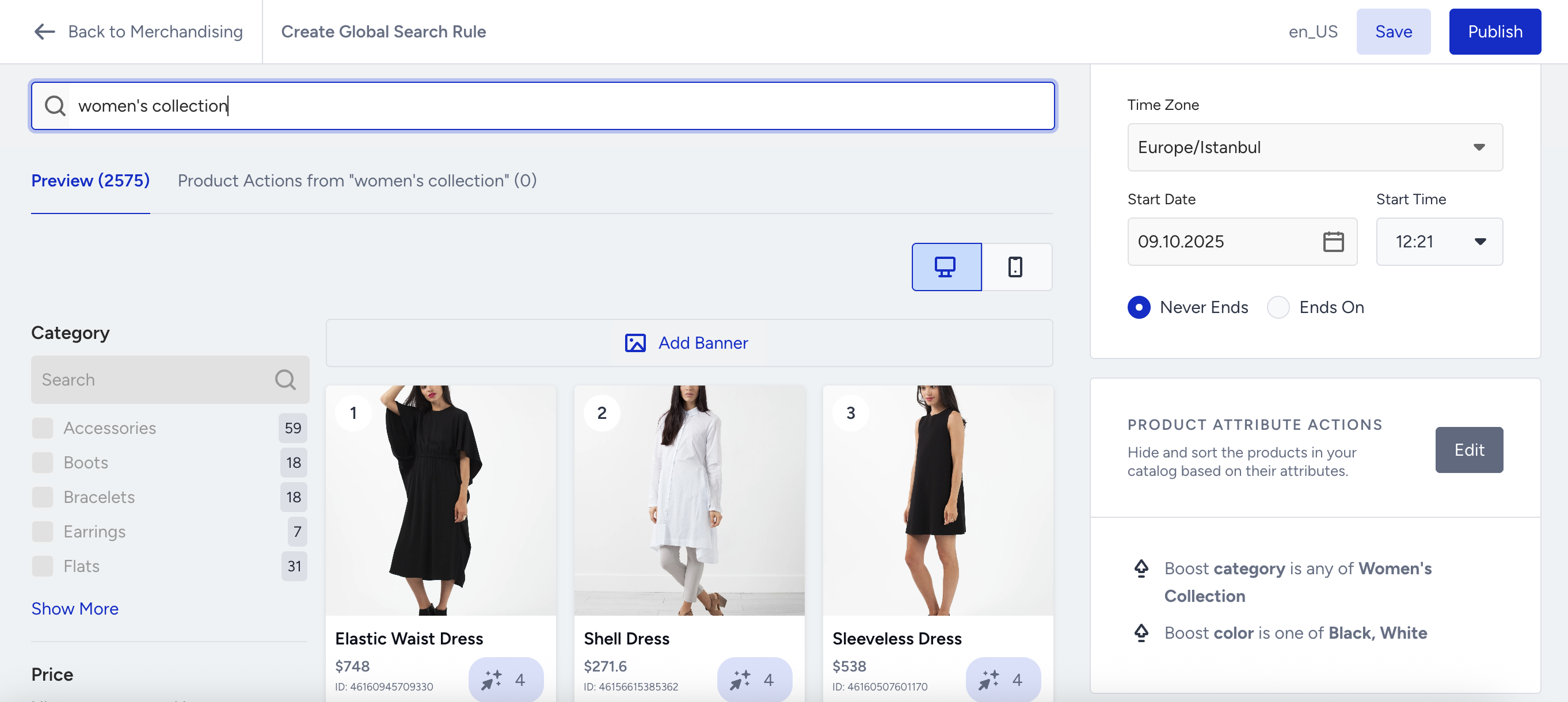
If you haven’t activated Eureka Strategies for your account, you should follow these steps.
After you have completed creating the rule, click the Publish button, define the name and description of the rule, and click Publish. Your rule will be activated in a few minutes.
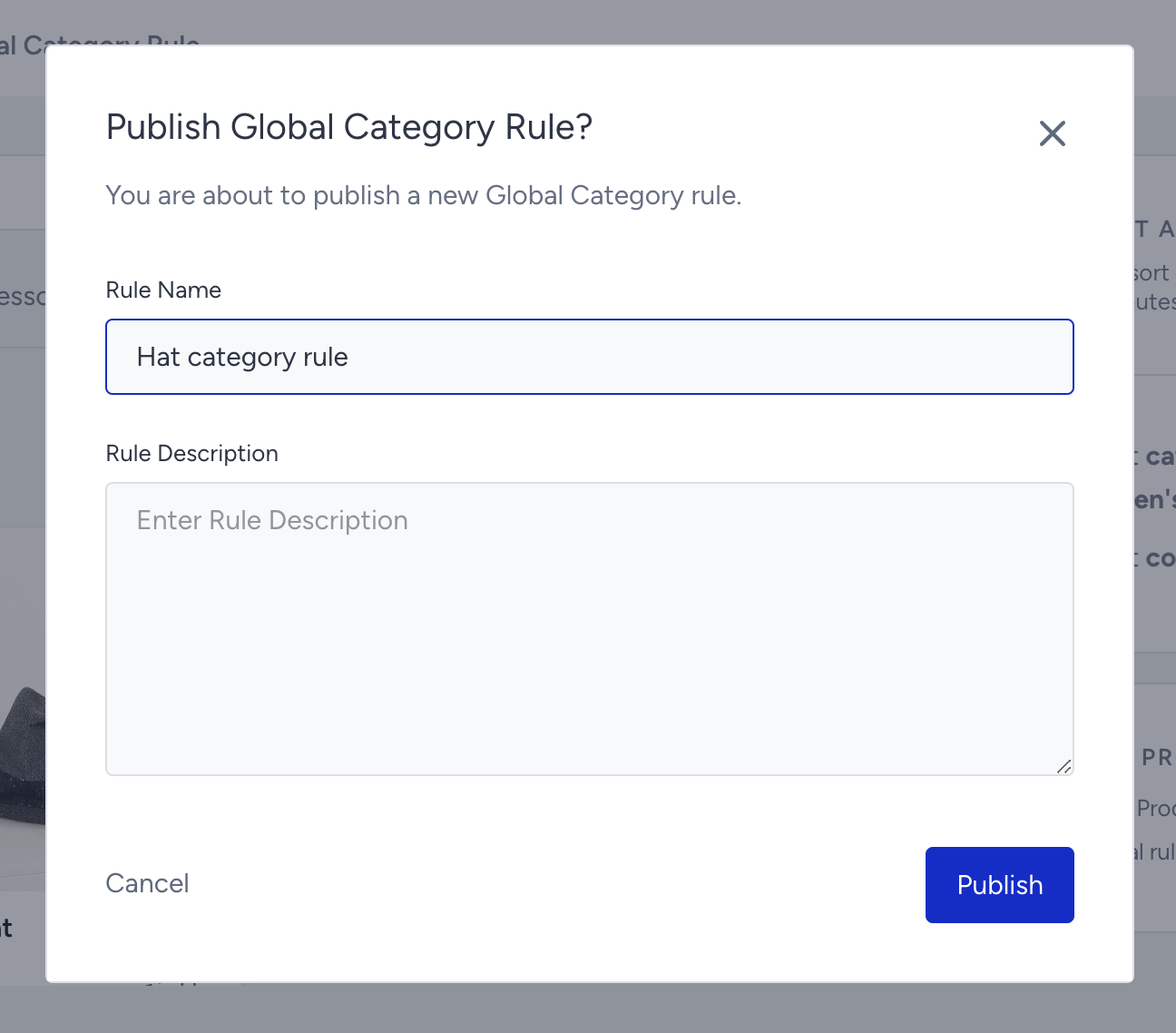
Only one active global merchandising rule can exist for the same Attribute-Operator-Value triple.
If Eureka Strategies is enabled for your account, select one or more strategies to associate the created merchandising rule with them.
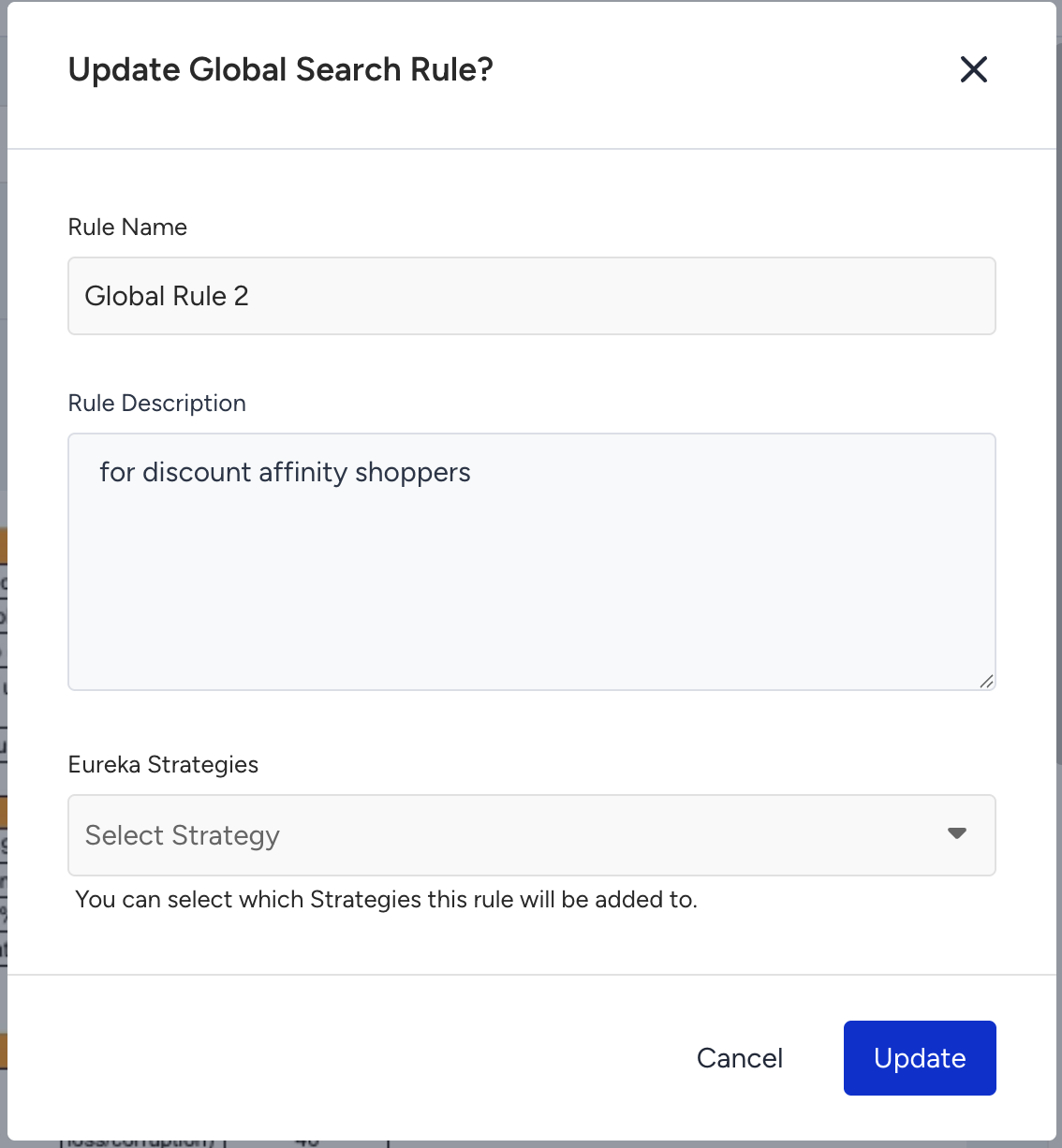
List global rules
To list the global rules, navigate to Merchandising Rules > Global Rules tab.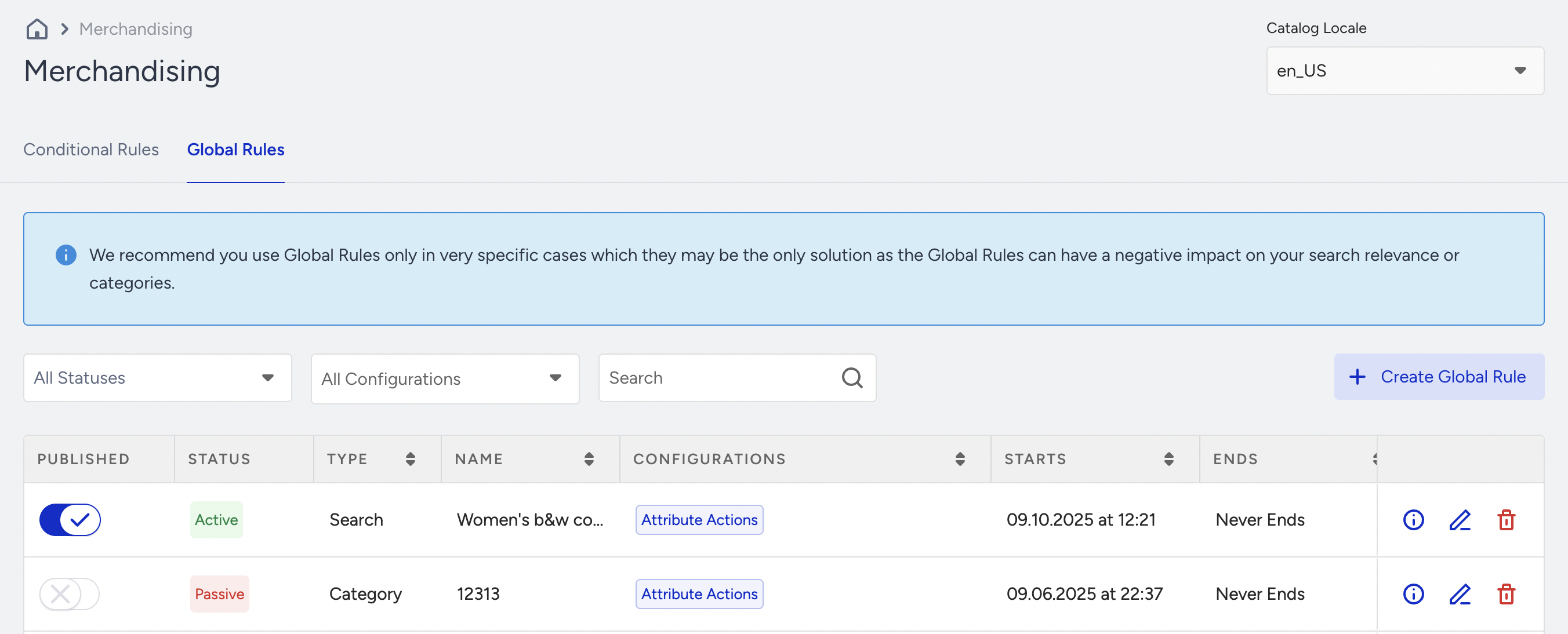
You can use the search bar to search for rule names, rule descriptions, attributes, or operators.
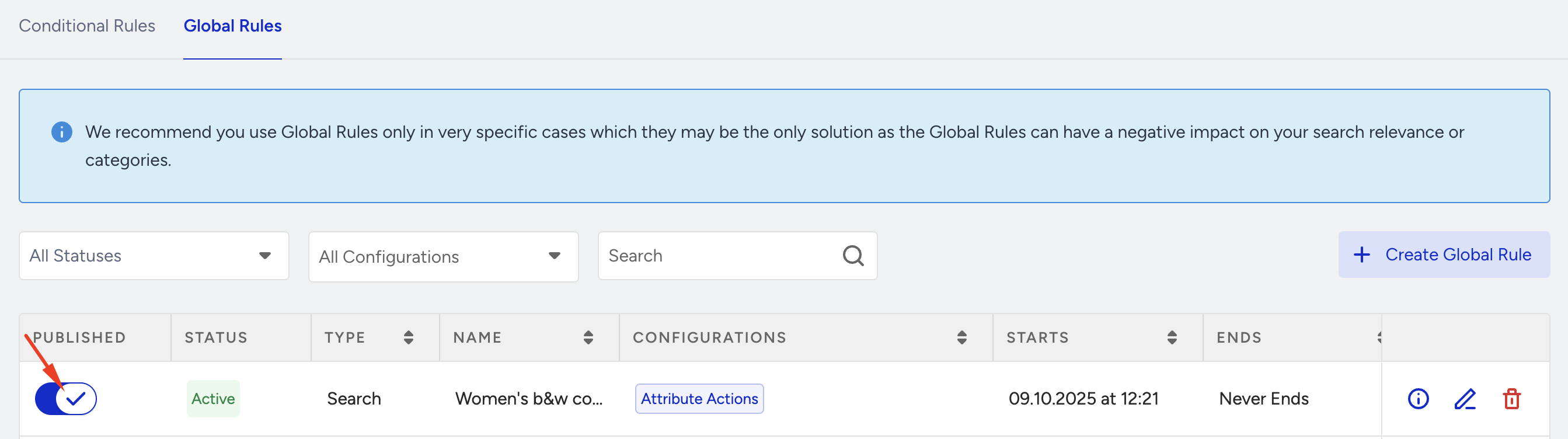
To activate or deactivate a rule, you can use the rule state toggle.
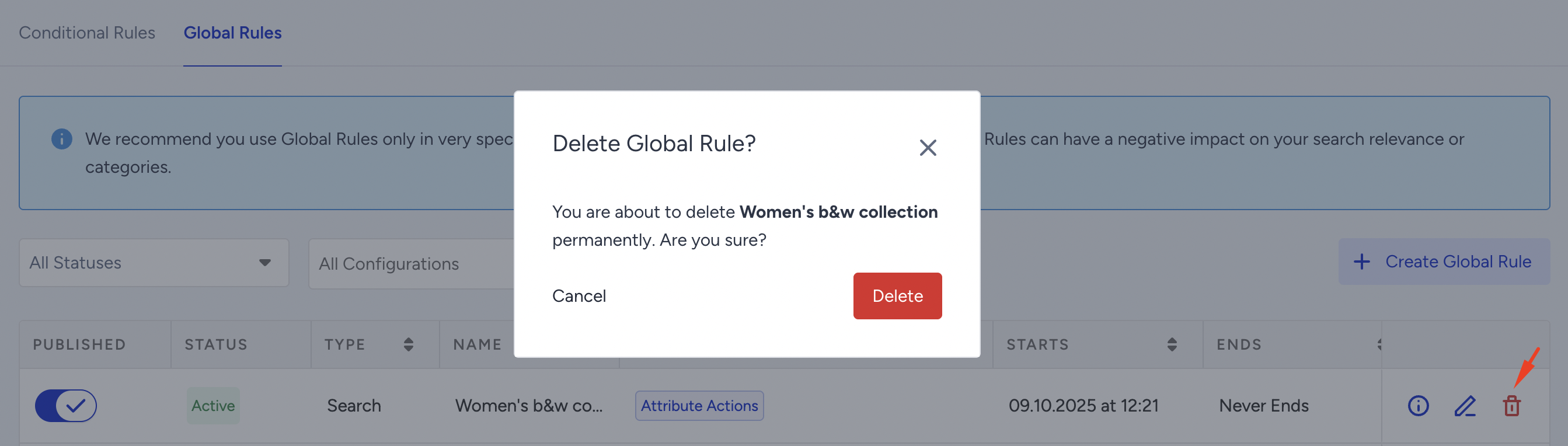
To delete a rule, click the Delete icon, then click the Delete button.
The rules are defined separately for each locale. To list the rules for another locale identified for your panel, use the Locale dropdown in the top-right corner of the screen.
Edit global rules
To edit and change the rule, click the Edit icon against the rule you want to edit.
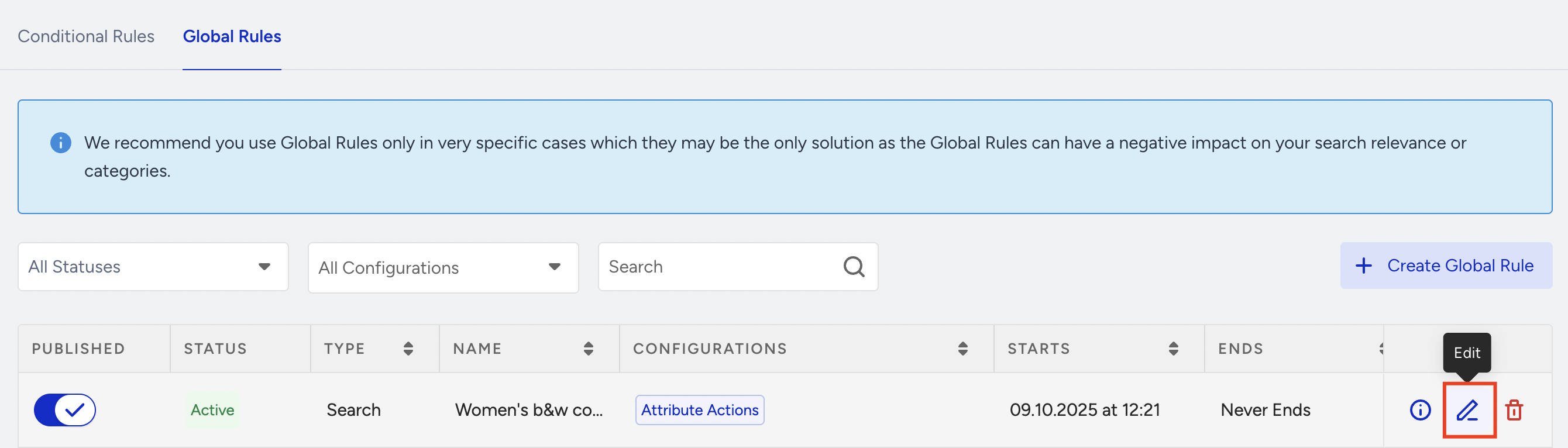
You can change the attribute, operator, or value, or add new attributes to the rule, and then save it.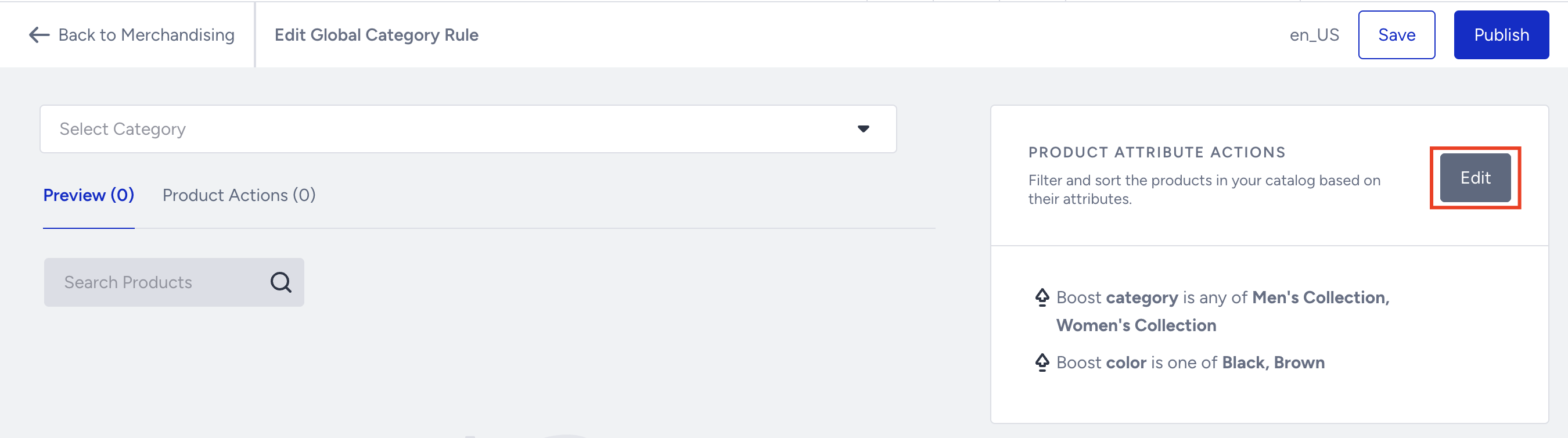
After you make the necessary changes, click the Save button and Publish it.