Once a strategy is created, you can manage its lifecycle and refine its logic through the following actions:
Organizational Controls
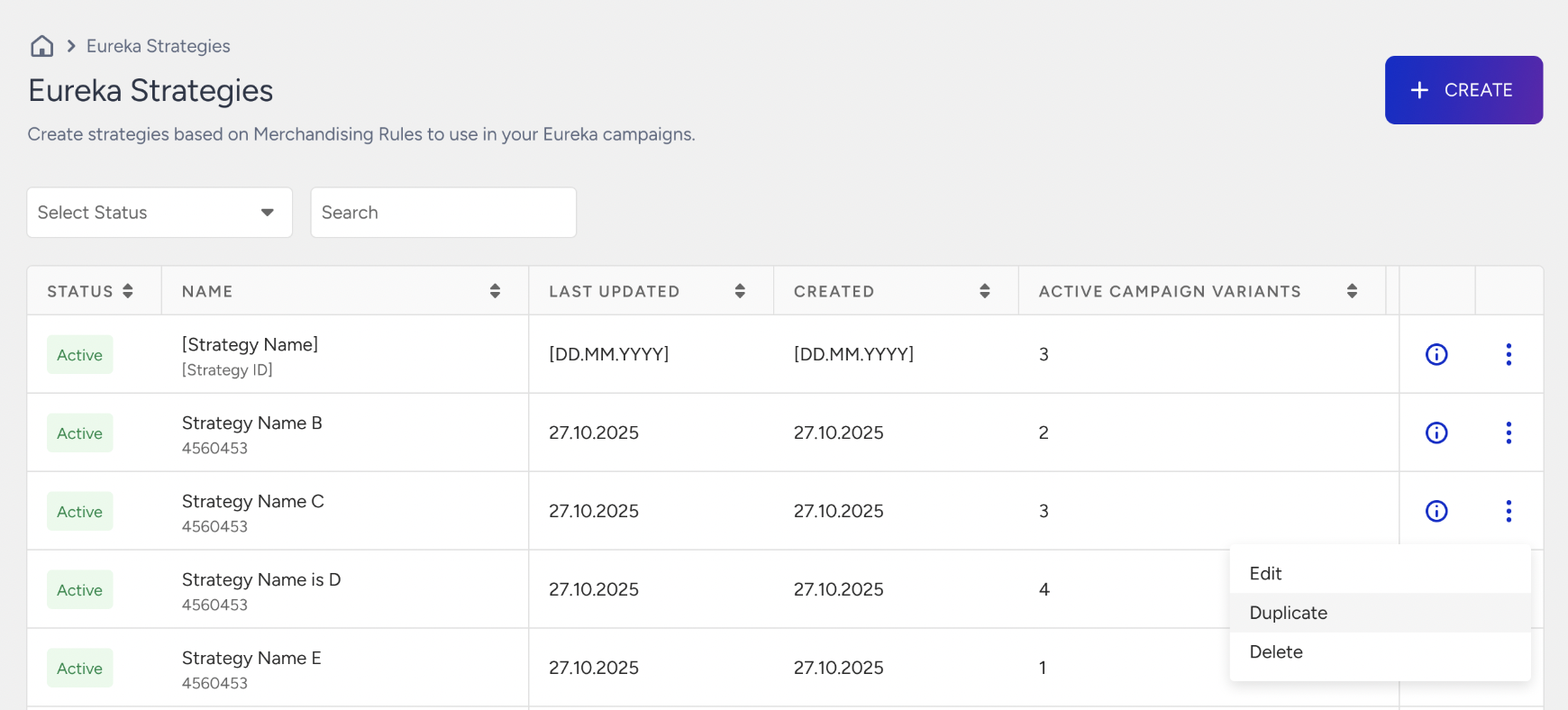
Use the More Options icon to Delete or Duplicate a strategy.
Strategy Insights
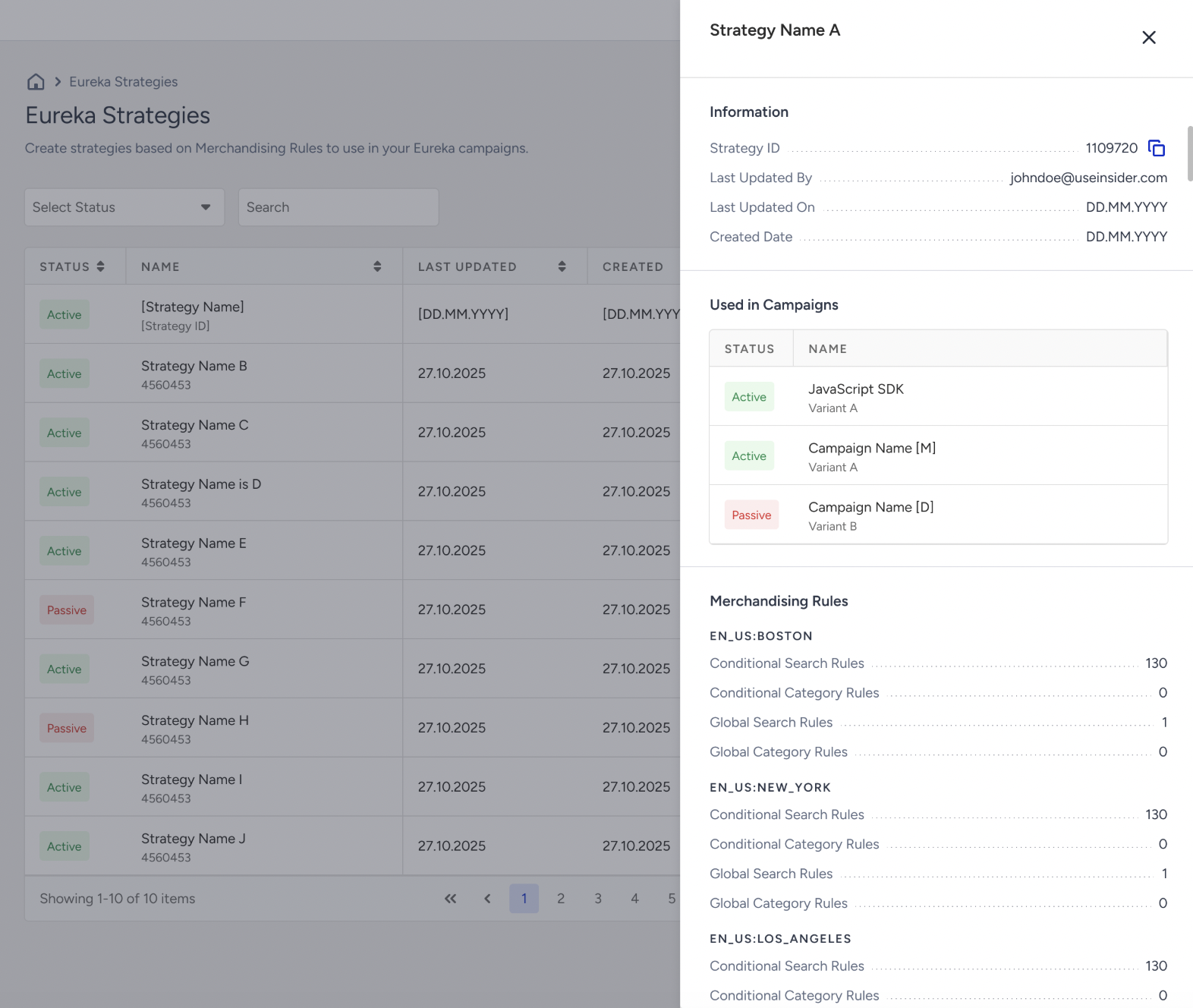
Click the See Details icon to review the strategy’s configuration, including the specific merchandising rules it contains and a list of active campaigns currently using it.
Modify a Strategy
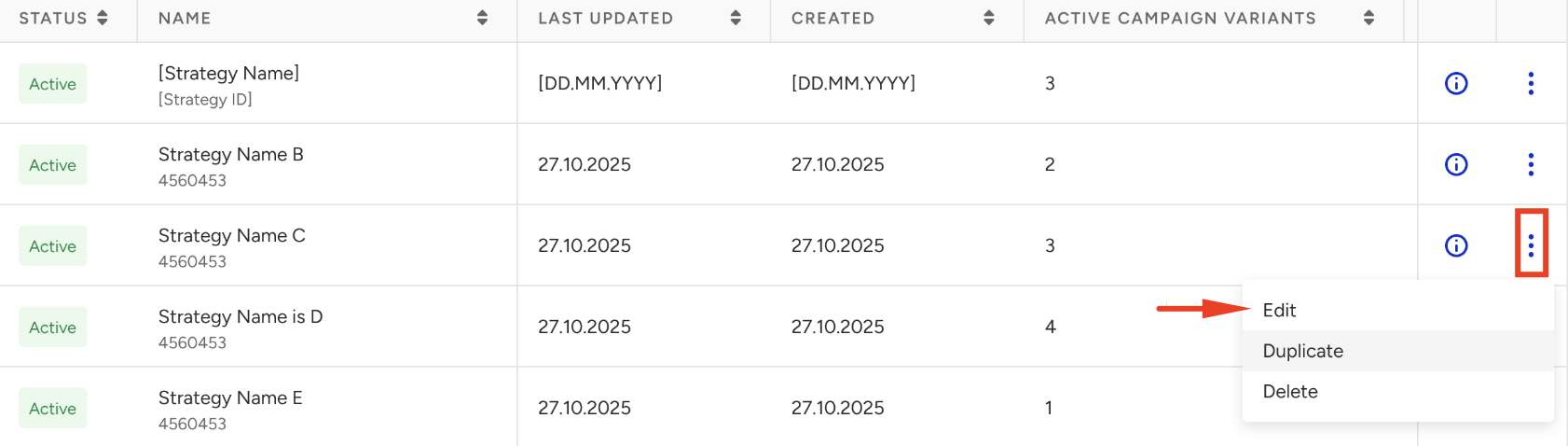
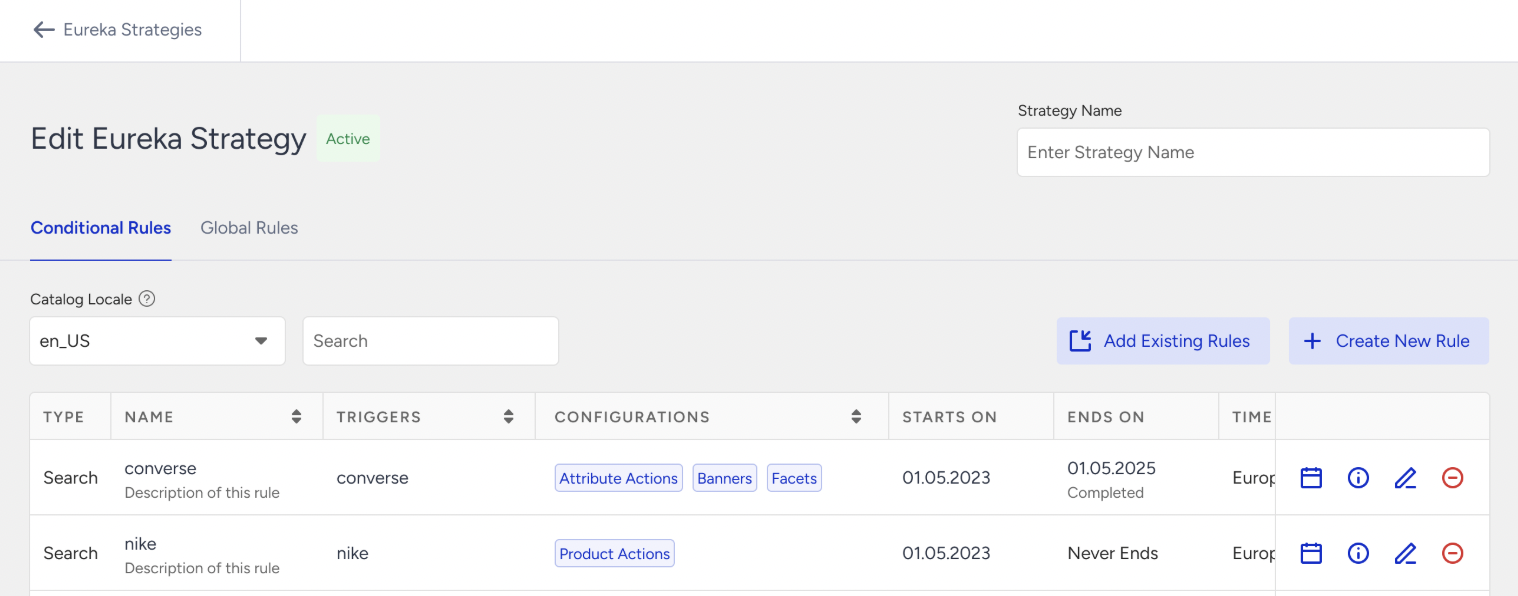
Click on a Strategy or select Edit from the More Options menu to open the Edit Eureka Strategy page. Here you can remove rules or edit existing ones.
To remove a Merchandising Rule from a strategy, click the Remove button. To see the details of the Merchandising Rule, click the See Details button. To edit a Merchandising Rule, click the Edit button.
Edit Merchandising Rule Activation Time
After you add a merchandising rule to a strategy, the Starts On date shows the time when the merchandising rule is added to the strategy, and the Ends On date is set to Never Ends. Click the Edit Activation Time icon to set specific durations.
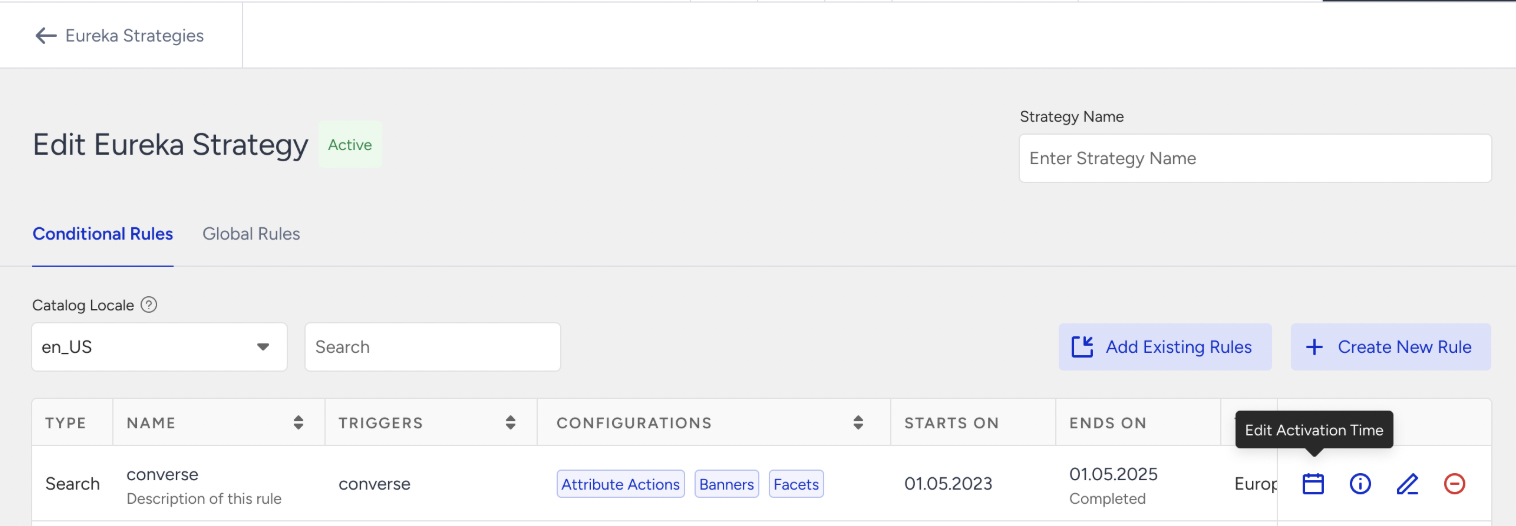
The same Merchandising Rule can have different activation times in different strategies.
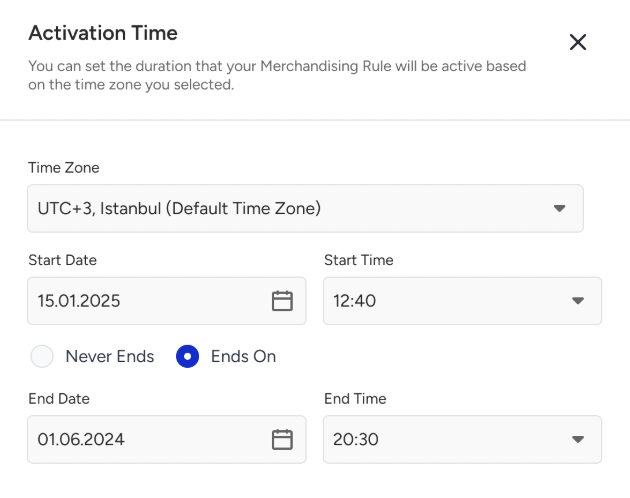
After clicking the Edit Activation Time button, select the time zone for rule creation. If you select a time zone other than your local time zone, an informational message indicates when the rule will begin in your local time zone.
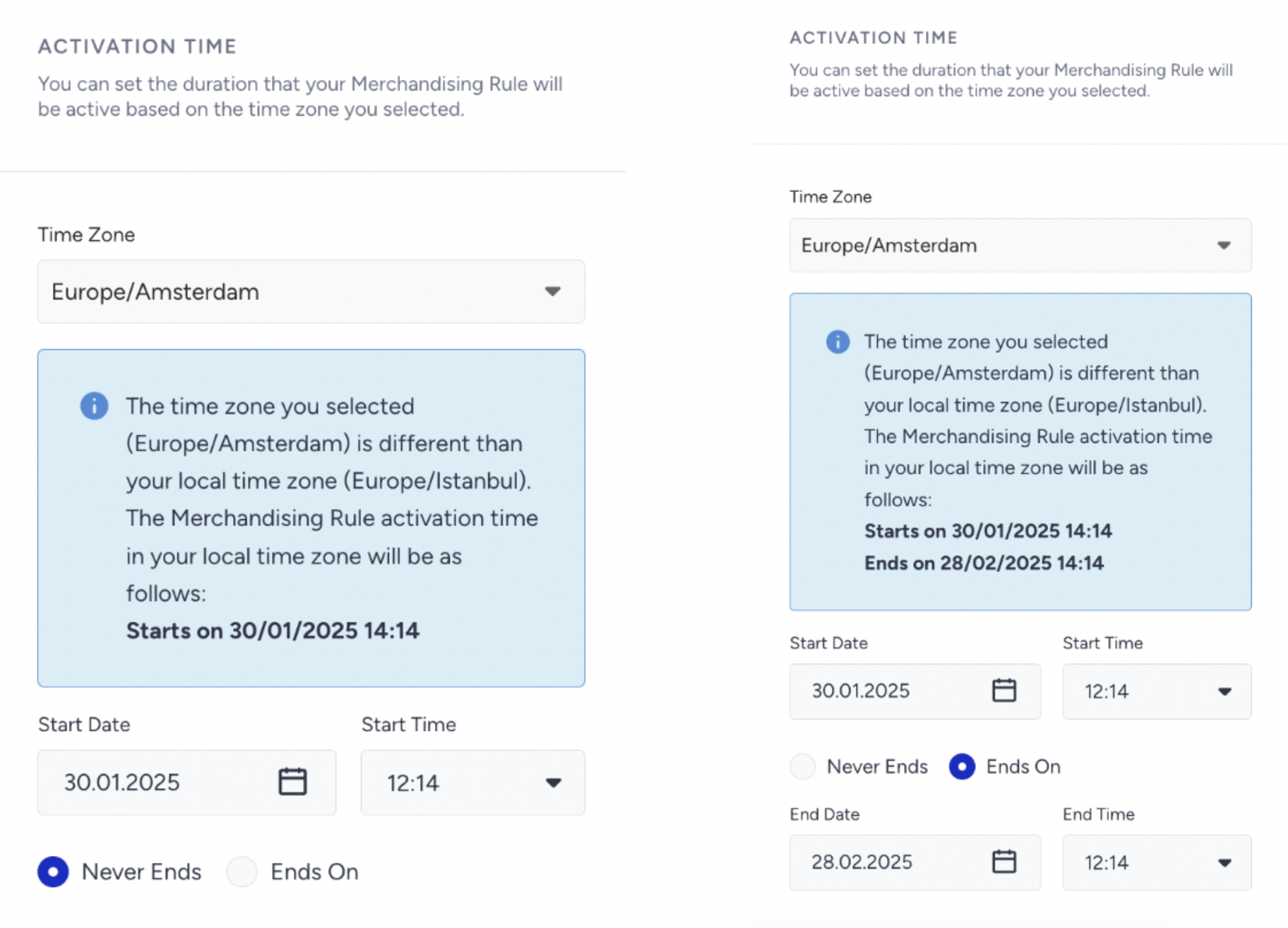
After selecting the time zone, you need to specify whether the rule should “Never End” or “End On” a specific date.
If you select Never Ends, only the Start Date and Start Time fields will be available. The rule will remain active indefinitely until you manually deactivate it.
If you select Ends On, the Start Date and Start Time fields, along with the End Date and End Time fields, will be available. This configuration ensures the rule is automatically deactivated when the specified end date and time are reached.
After you make the necessary configurations for the rule, click the Save Changes button.