Eureka offers two options for launching a campaign: Pop-up and JavaScript SDK.
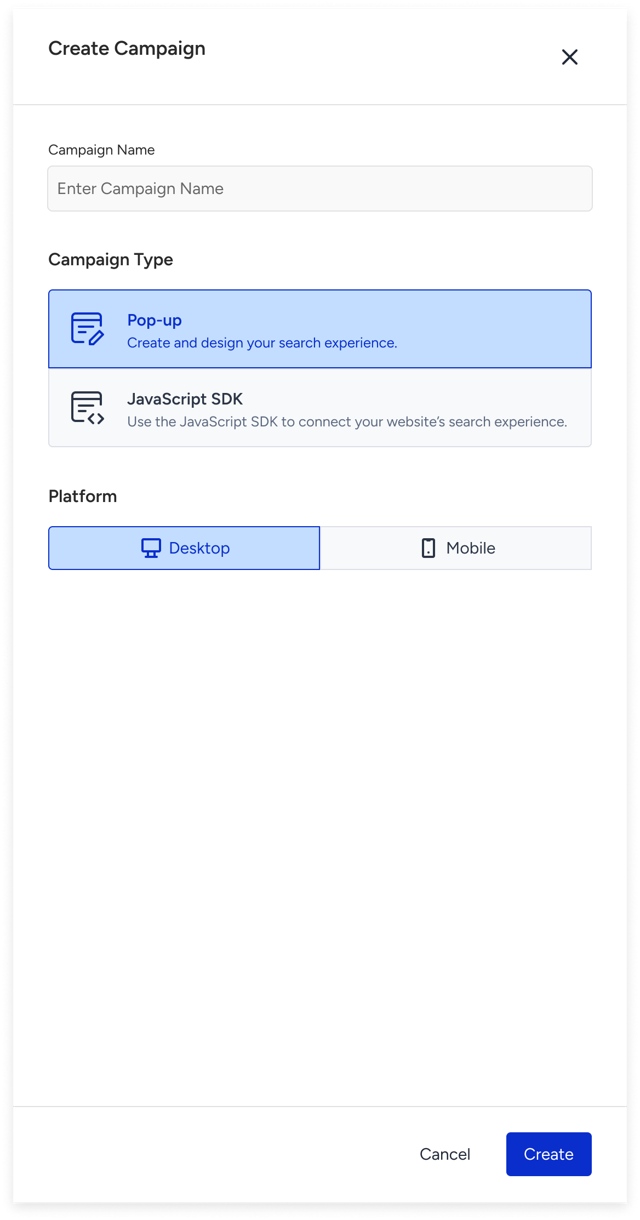
Eureka Pop-up Campaign
The Pop-up option is best for marketers, merchandisers, and teams that want visual control.
Pop-up campaigns let you design the Eureka Instant Search Pop-up that shoppers see on your website without needing developer help. Use a visual design editor to style everything, from how the pop-up appears before the search to how products are laid out after the search.
Think of it as a “What you see is what you get” design, but for search results.
You should choose this option if:
You don’t have custom frontend development resources available.
You want a fast launch with minimal tech dependency.
Example: You want to use Eureka Search Pop-up on your website so that shoppers can search from the search bar and see results in the Pop-up. With a pop-up campaign, you can:
Design Search Page, Result Page, No Result Page
Style the product cards, facets, redirects, and sorting, etc.
Launch it without developer help, all inside Eureka
Integrate via JavaScript SDK
The Integrate via JavaScript SDK option is best for teams with development resources and full design control.
You don’t customize the Eureka design step for the JavaScript SDK option. Instead of using the built-in editor, your development team pulls search data from Eureka and displays it directly on your site or app.
Think of it as “You get the engine, but you build the car.”
You should choose this option if you want to:
Use your own search pop-up and want to return search results, facets, and sorting from Eureka. Your frontend team prefers managing layout and styling on their side.
Bring results from Eureka to your Product Listing Pages (PLP). After users type a query in the search bar and press Enter, they are directed to the PLPs.
Bring results from Eureka to your Category Pages.
Build a fully customized shopper experience.
Example: You want to show products in the “Men’s Clothing” category from Eureka. With the JavaScript SDK option:
You create an Eureka JavaScript SDK campaign and launch it.
Your developer team adds the JavaScript SDK snippets to connect your website’s category pages.
You control exactly how your category pages appear using your own CSS/HTML.
What SDK campaigns support
Segments apply to SDK campaigns. When creating a Eureka SDK campaign, the "Segments" step targets standard/predictive audiences the same as any Eureka campaign.
Eureka Strategies work with SDK campaigns. Assign a Strategy to a variant in the campaign's Design step, as in any Eureka campaign.
Variant-level A/B testing. Different Strategies can be assigned to different variants for head-to-head comparison; read results from the Campaign and Variant Metrics table.
Metrics via event/log collection. To get campaign metrics and run A/B tests on SDK campaigns, you implement the SDK track/log methods (page-view, click).
Final Tip:
If you’re launching your first Eureka campaign, we recommend starting with a pop-up campaign. It is quicker to set up, easier to test, and gives you direct control over the experience.
After that, create a JavaScript SDK campaign for PLPs (Product Listing Pages). Without this integration, search results may differ between the pop-up and PLPs, leading to an inconsistent user experience.