Eureka web campaigns utilize a web search pop-up to enhance the search experience on your website. Thanks to the Eureka campaign generation wizard, you can manage this search experience in the Design step.
Click Add a new variant or Choose an existing variant to start configuring the search experience.
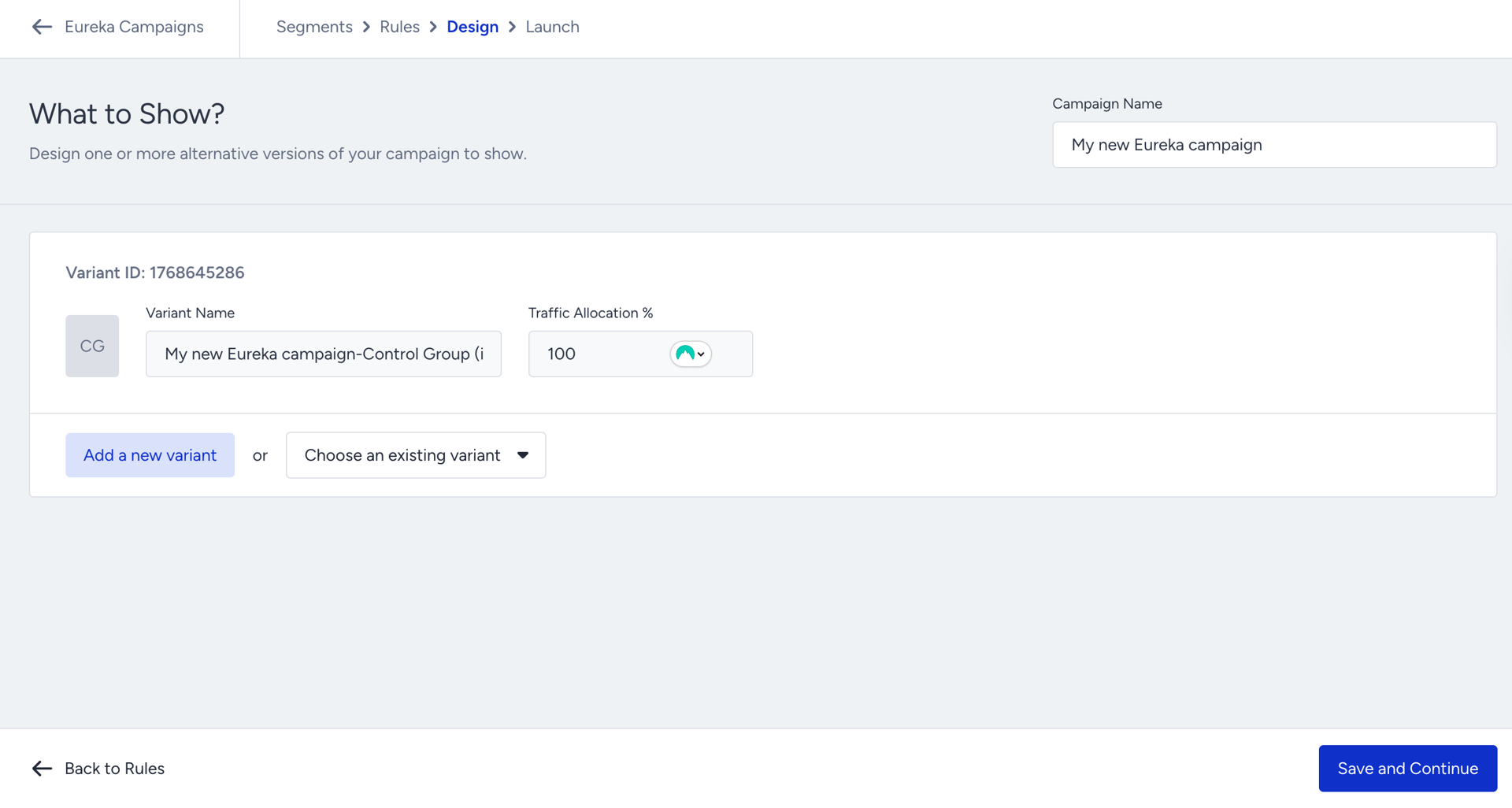
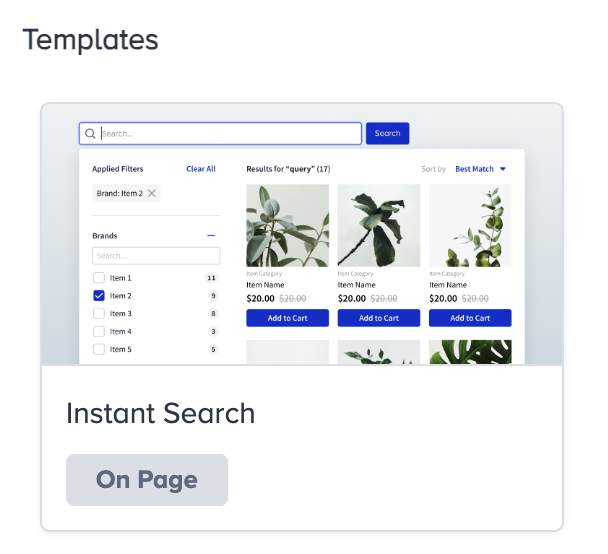
Select the template to configure.
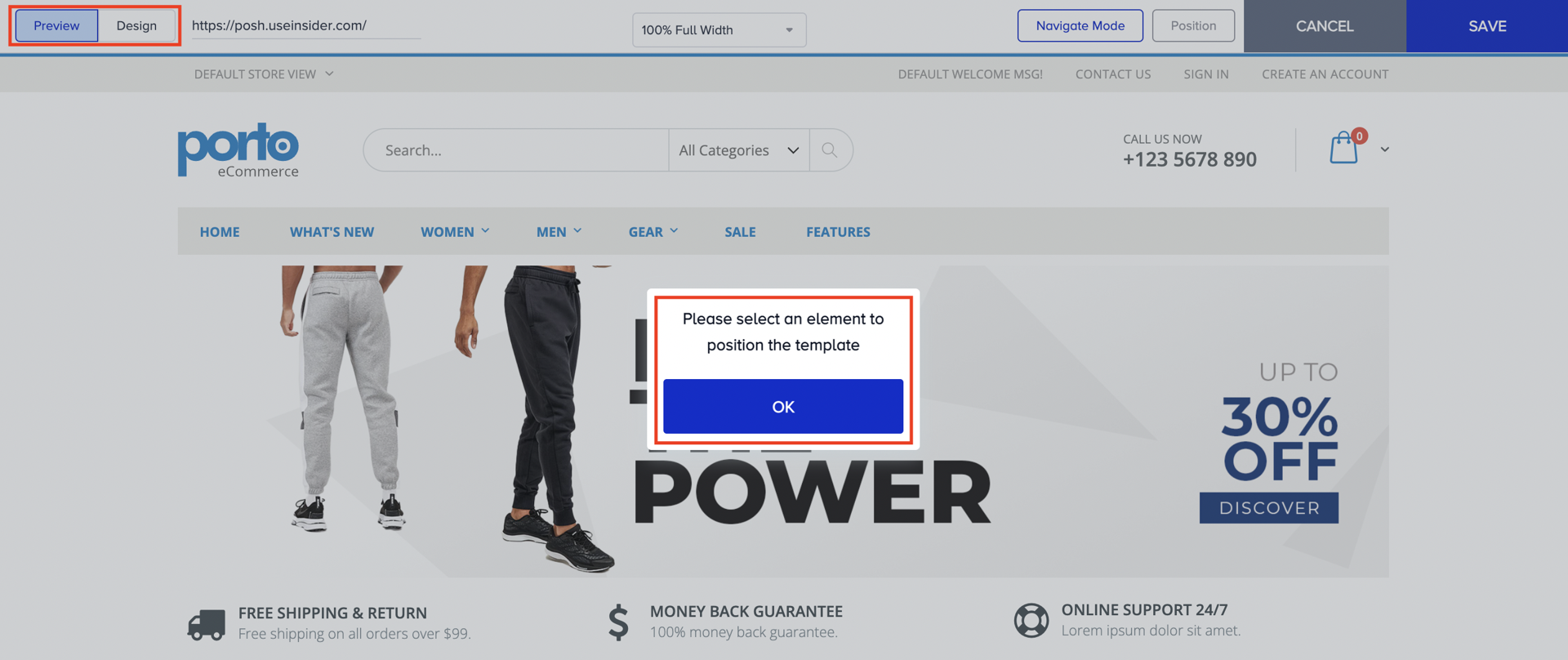
To start designing your template, append it to your website’s search input box.
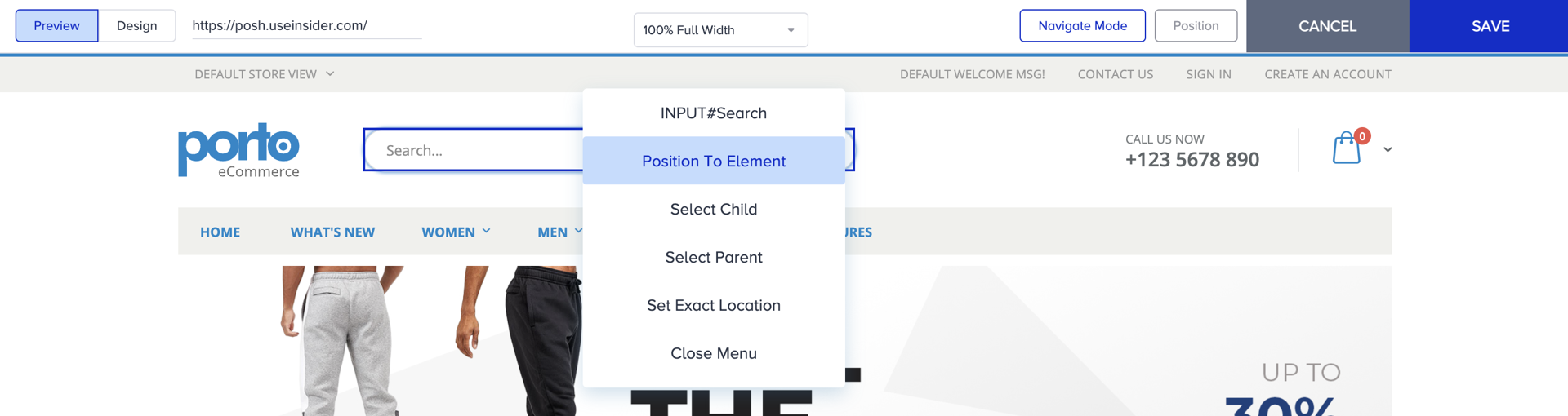
Selecting the #input element in your search box is a requirement for your template to work. After selecting it, use the Position to Element option to place it.
After placing your search template, you can see it in the Preview mode.
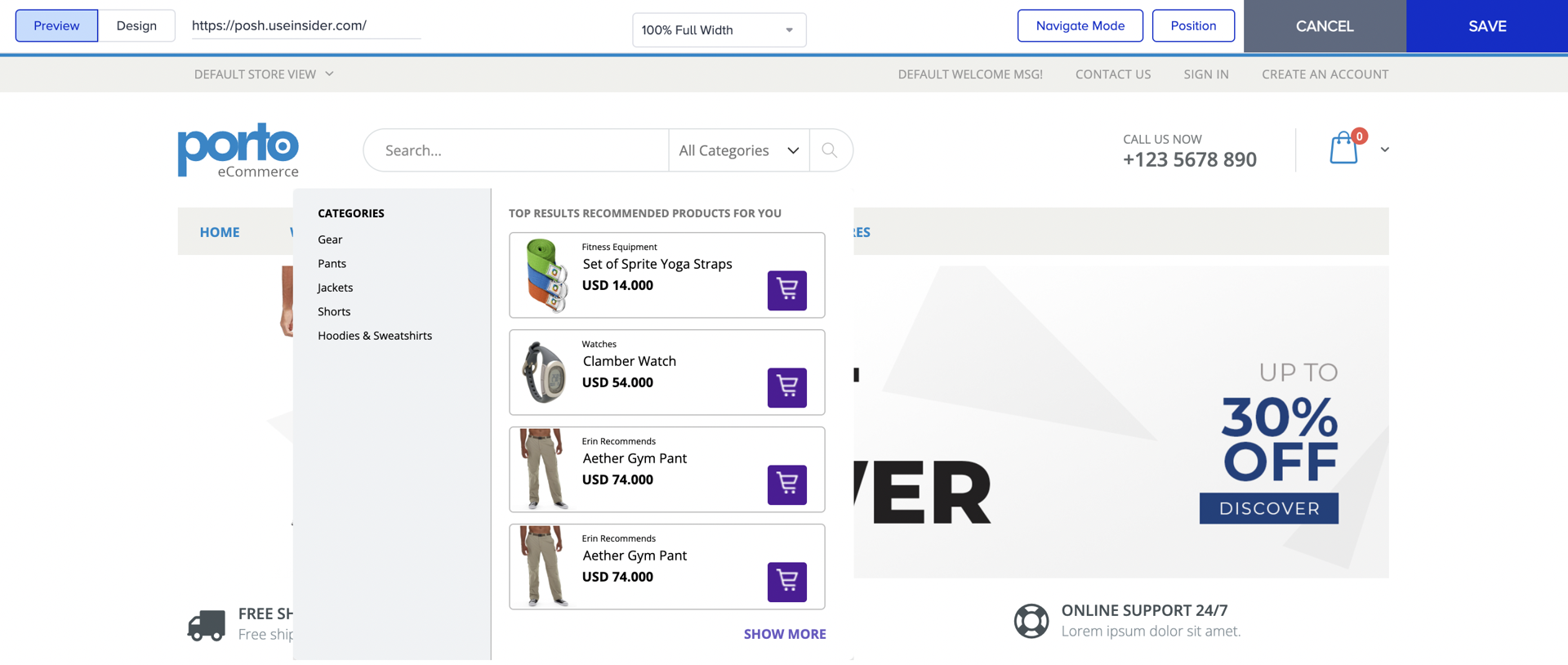
Click on the Design tab to start designing your experience tailored for your website. Eureka enables you to customize your experience template by using an element tree. When you select an element from the left menu, you can edit its customizable styles from the right menu. The Instant Search template has three states:
Search Page
Results Page
No Results Page
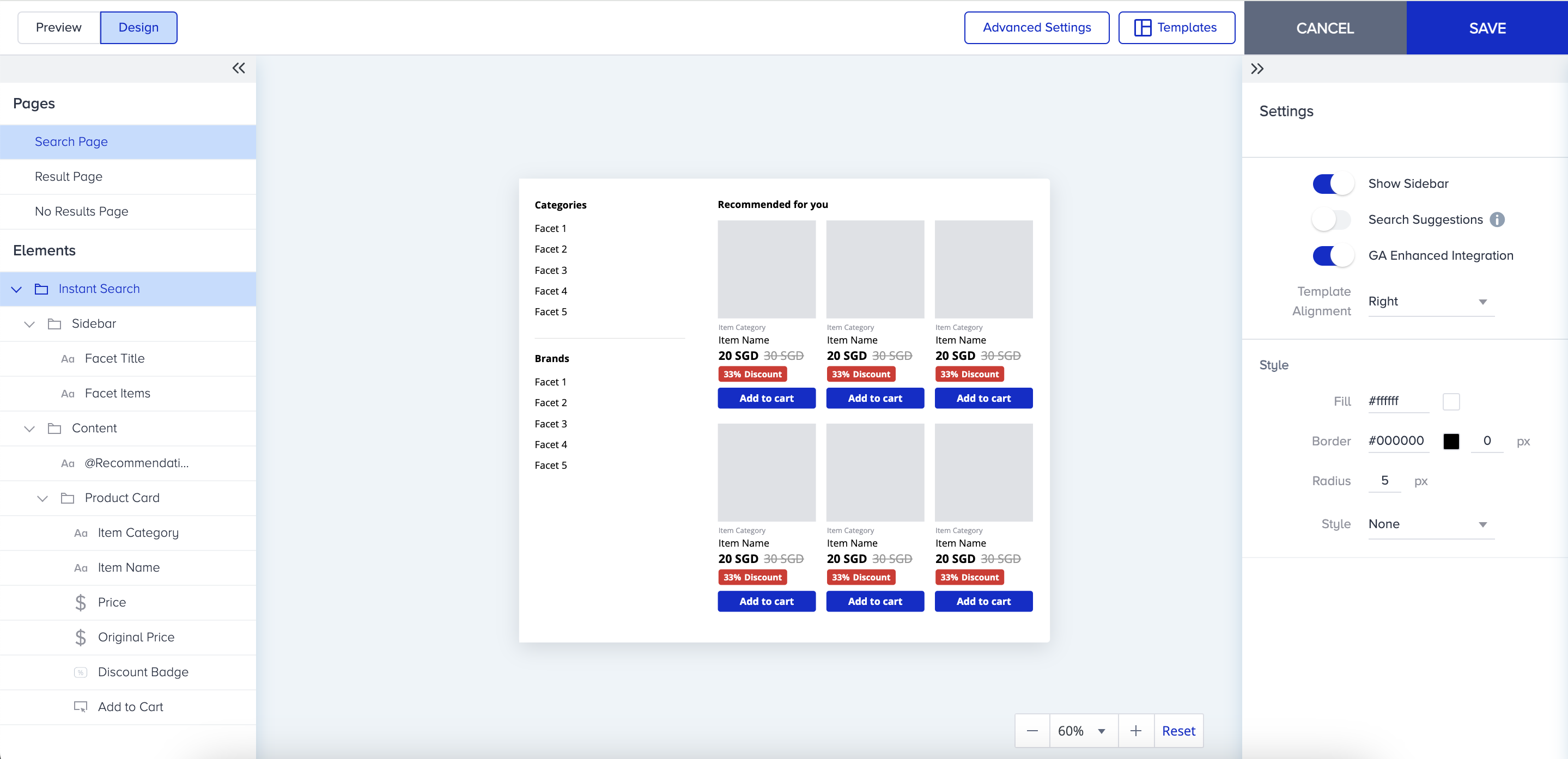
The Search Page
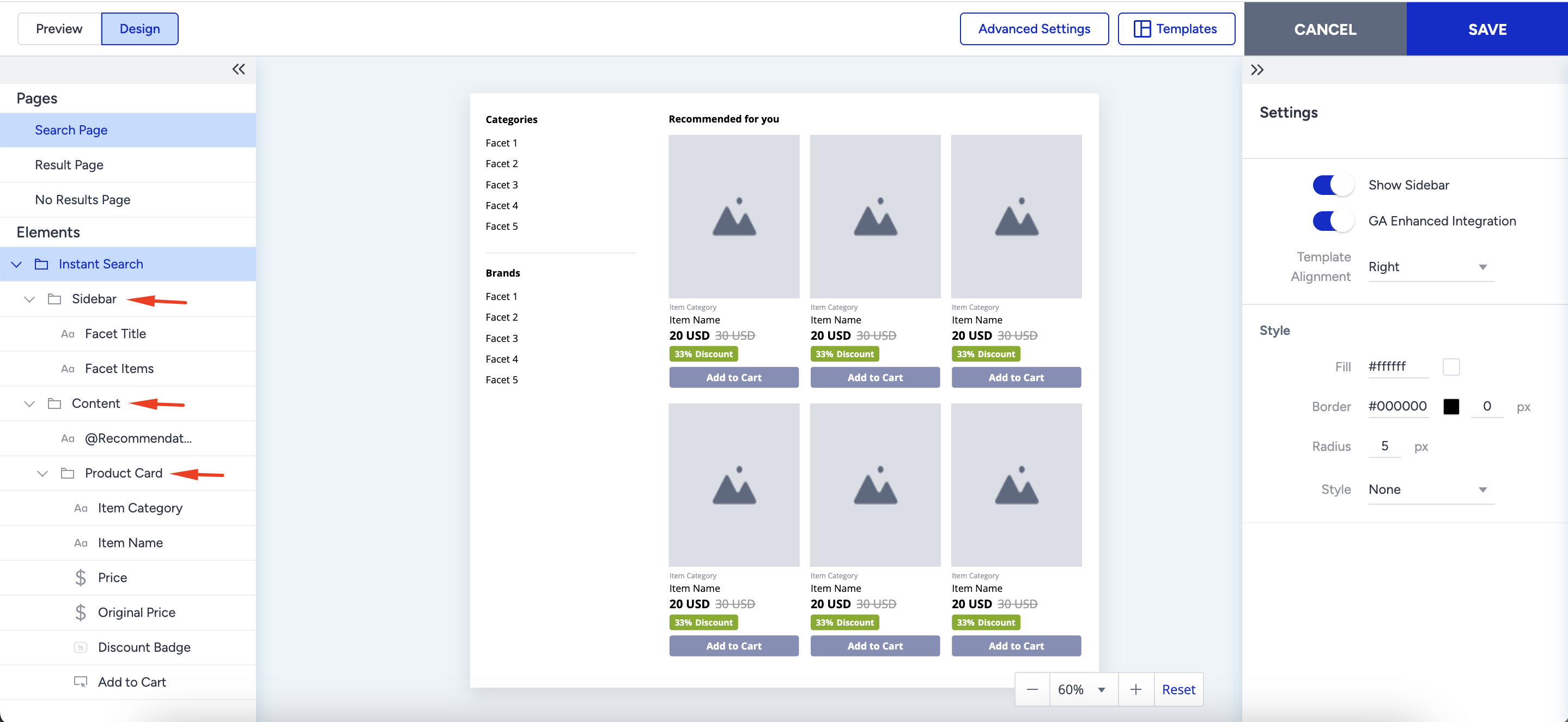
1. The Search Page visualizes data with your enabled facets and product cards by default. You can customize the styling and labels of your facets' titles and items. All the changes you apply are reflected in the Results and No Results pages as well.
2. You can customize your product card and its elements by selecting from the element tree and the Settings menu on the right. If an element takes more than one place in your template, the customizations apply to all of them.
The Results Page
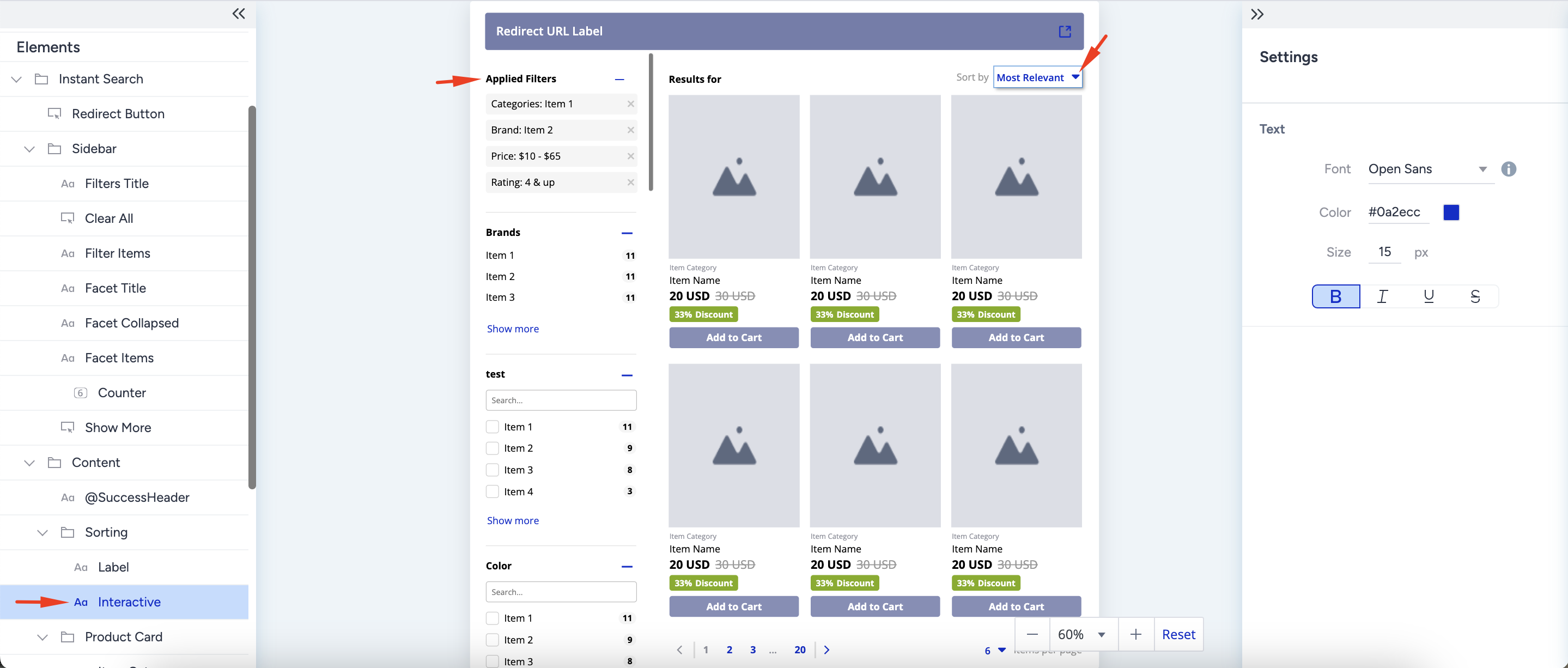
1. The Results Page visualizes data for applied filters, enabled facets with their results page representation, and product content with product cards, pagination, and sorting.
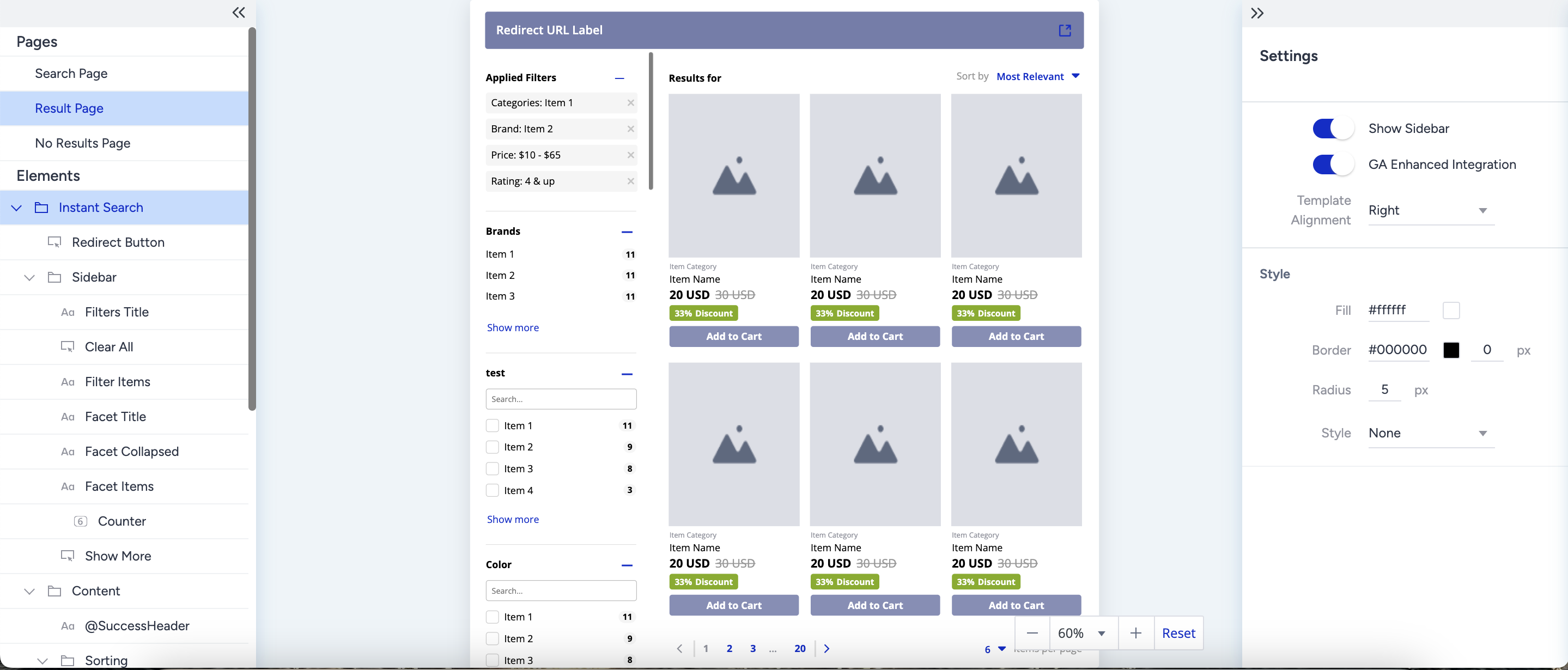
2. You define each facet in Eureka > Settings > Search Facets by attributes, style, and related inputs that are reflected similarly in your search popup. The Search Results page also has additional UI elements for Applied Filters and Facets, like Facet collapsed, Show More, and Counter. The element customization process applies to the results page state as well.
The No Results Page
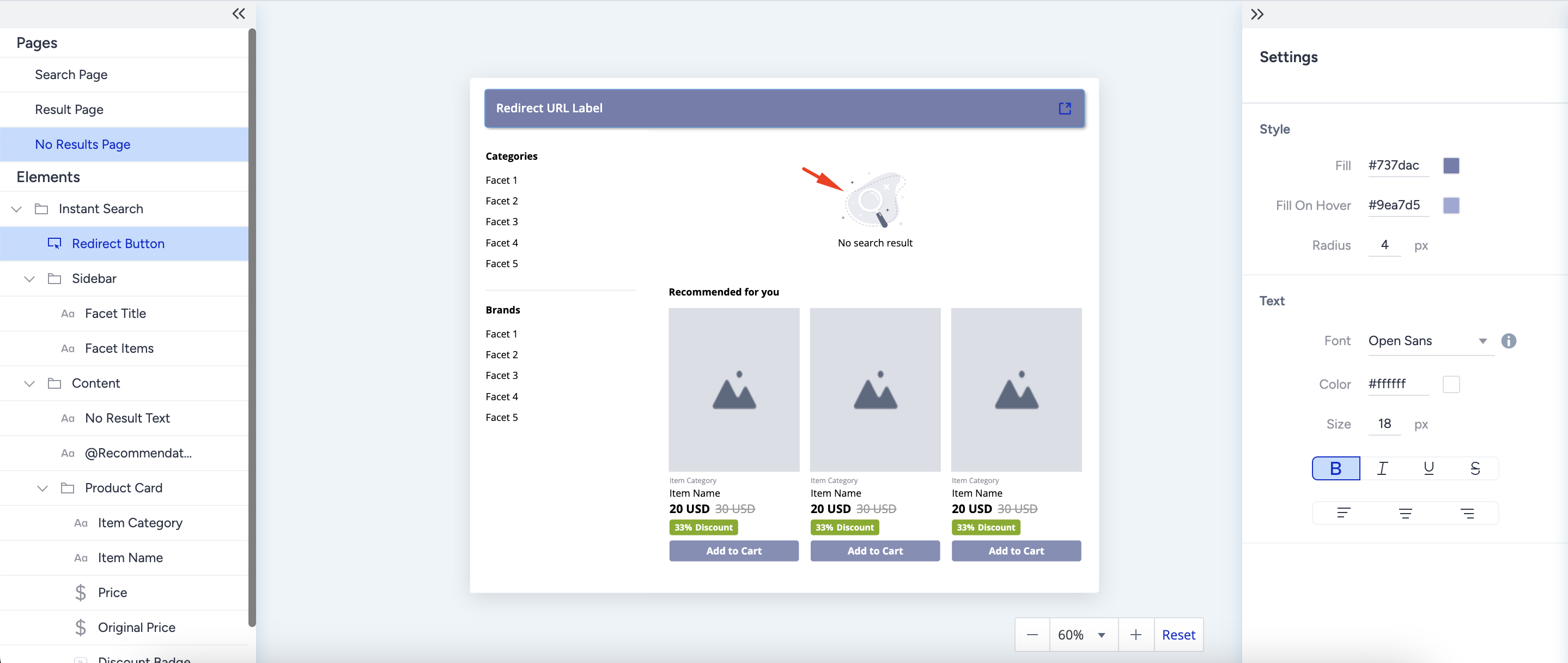
1. The No Results page is very similar to the Search page. In addition, it shows the no-result text you define in Eureka > Settings > Localization Keys menu.
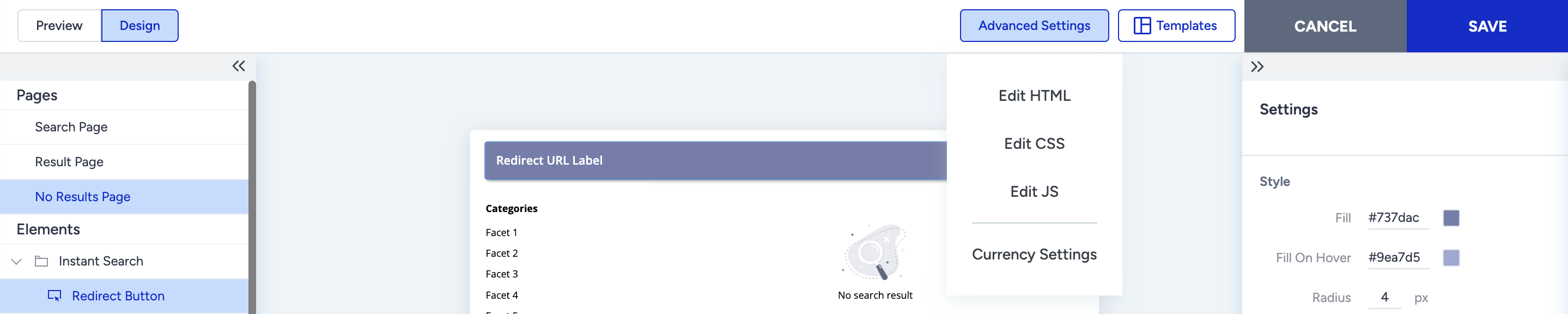
2. You can apply more customizations through Advanced Settings and edit your search template's HTML, JS, and CSS files.
You can also refer to the video below to learn how to customize a Eureka campaign better:
If this video does not load in your region, you can watch it on our YouTube Channel.