Groups and roles define what you can access and manage in your account. They control the visibility of campaigns, templates, and analytics across teams.
This structure helps you organize access based on teams, regions, or responsibilities, so each user only sees what is relevant to them.
Refer to Group Management for further information about the user roles and groups.
The following roles determine what actions users can take and what data they can access.
Account Administrator: Can view, create, edit, and duplicate campaigns and templates. Can manage group access from the listing page and filter analytics by group.
Group Administrator and Member: Can create campaigns and templates limited to their own groups. Listing page visibility is restricted to accessible content. Analytics is scoped to their group(s).
Unassigned User: Can view all campaigns, templates, and analytics regardless of group, but cannot assign or edit group access.
Account Administrator Actions
This section explains what Account Administrators can view, manage, and control in WhatsApp.
Campaign and Template Management
As an Account Administrator, you can view, create, edit, and duplicate any WhatsApp campaign and message templates in the InOne panel. 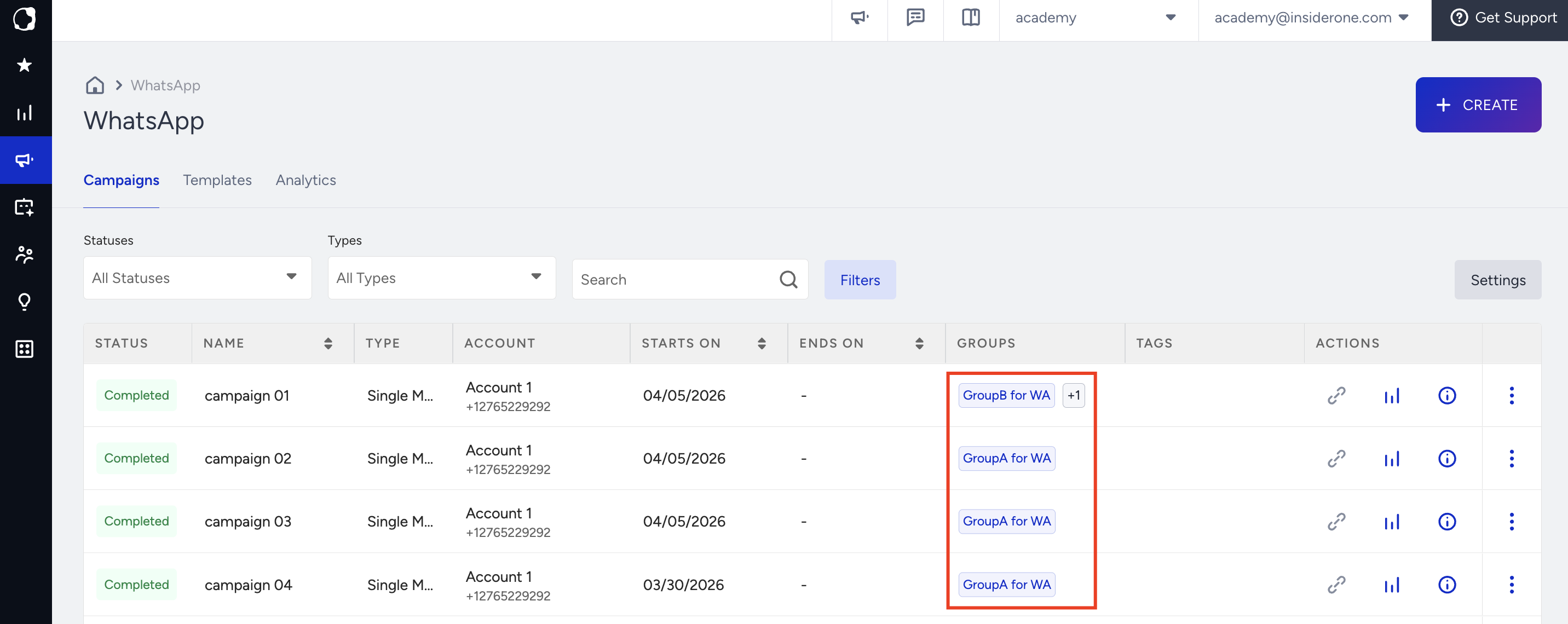
Select or remove groups during the Launch step to control campaign visibility.
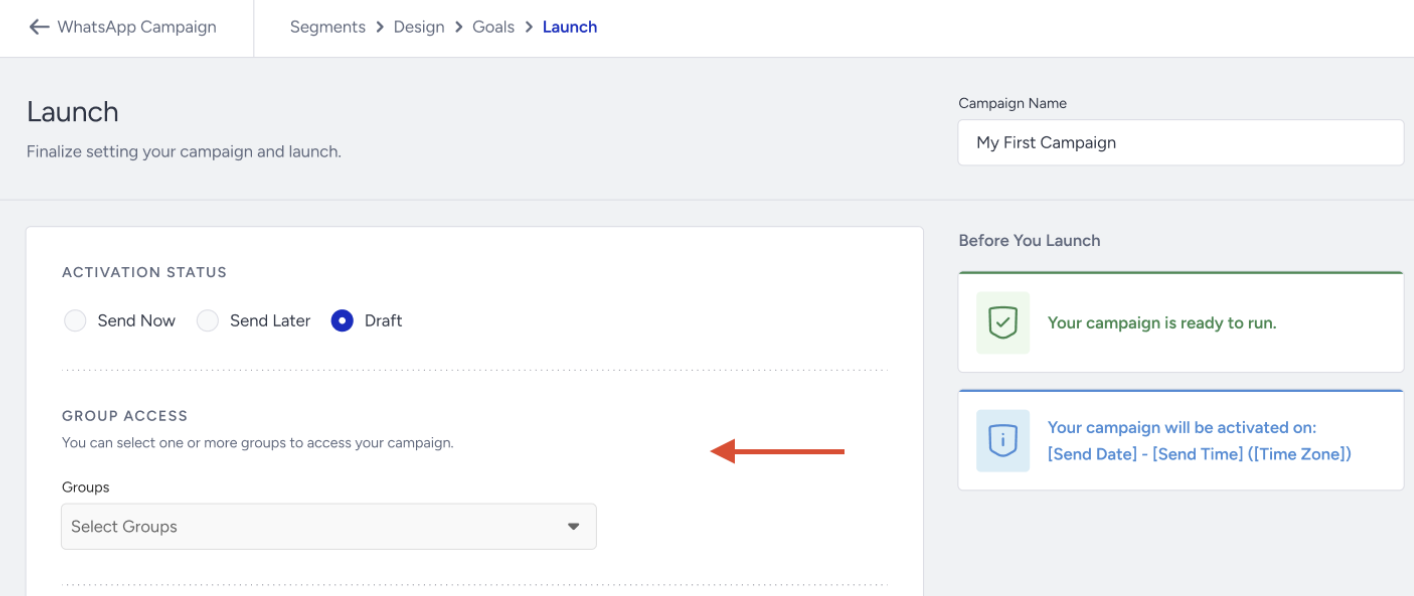
After launch, the campaign is visible only to:
Account Administrators
Users in the selected groups
Unassigned users
When creating or editing a message template, you can also select or remove groups to control which users can view and use the template.
The template’s group assignment determines which groups are available in the Group Access dropdown when the template is used in a campaign.
An Account Administrator who does not belong to any group does not see the Edit option on Approved and Paused templates. For the edit steps, see Edit a WhatsApp Template on InOne.
Listing Page and Group Management
You can view all campaigns and templates on the WhatsApp Campaign Listing page.
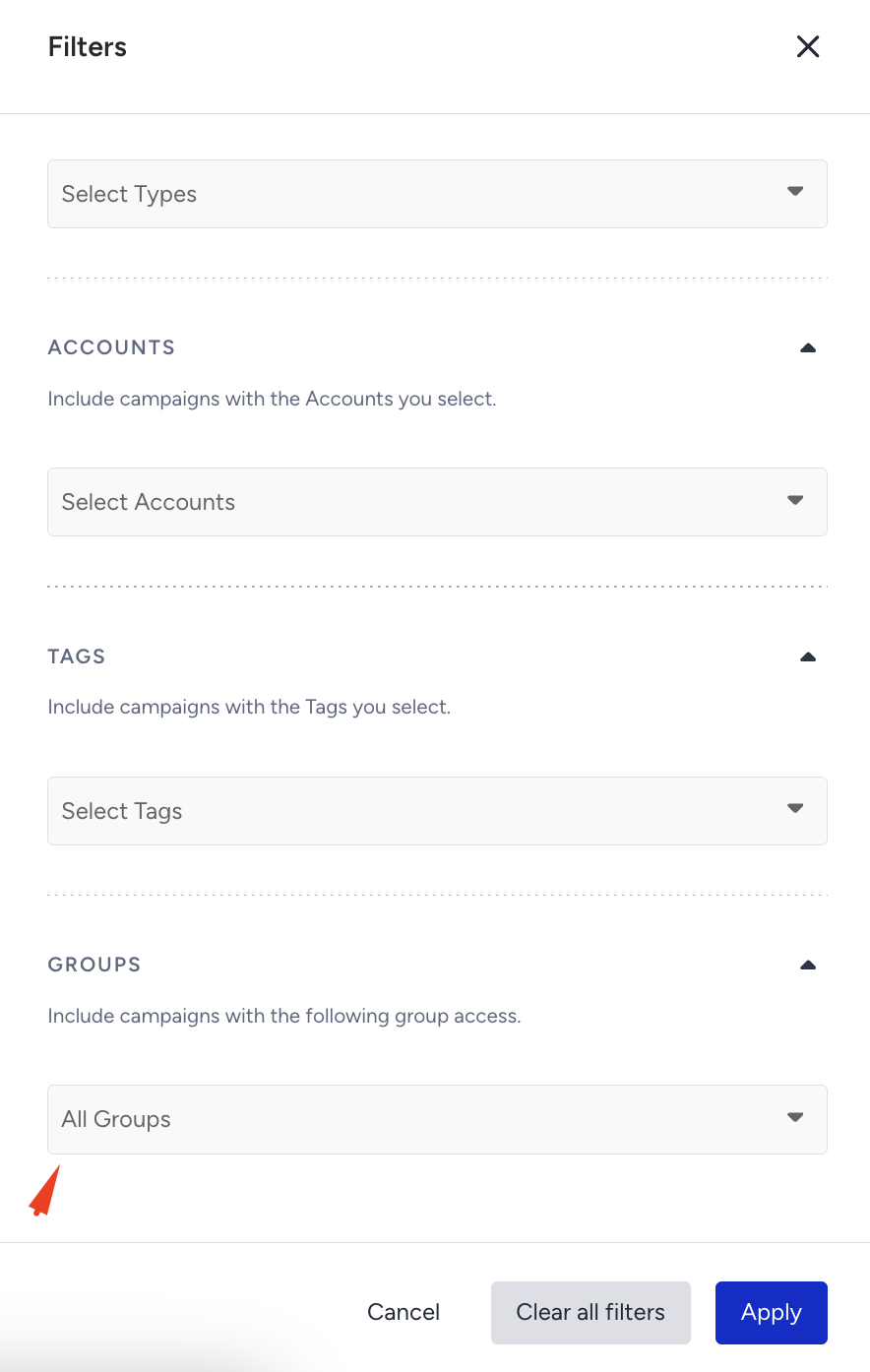
Use the Filters button to filter campaigns and templates by Group Access.
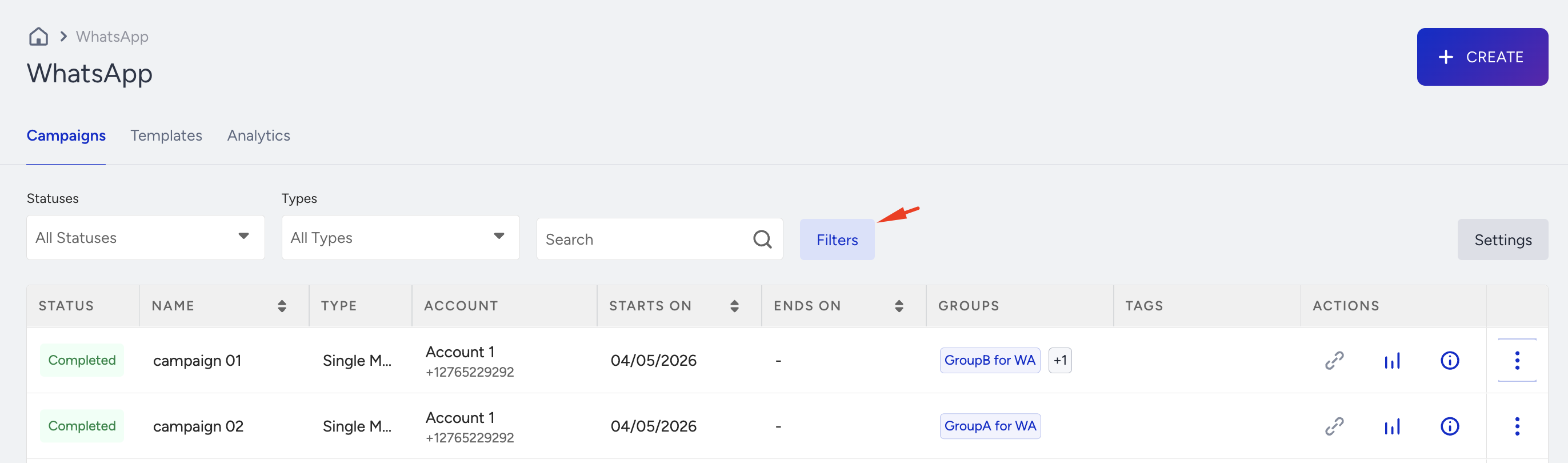
Click the three-dot menu and select Edit Group Access to update group assignments.
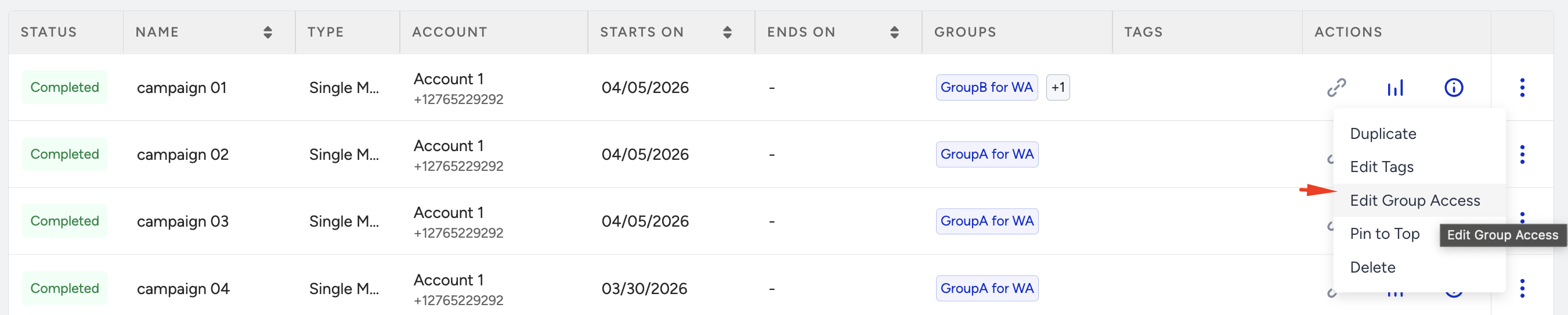
If no groups are created, group-related filters and the Edit Group Access option are not displayed.
Analytics
You can view analytics for all WhatsApp campaigns regardless of their group assignment.
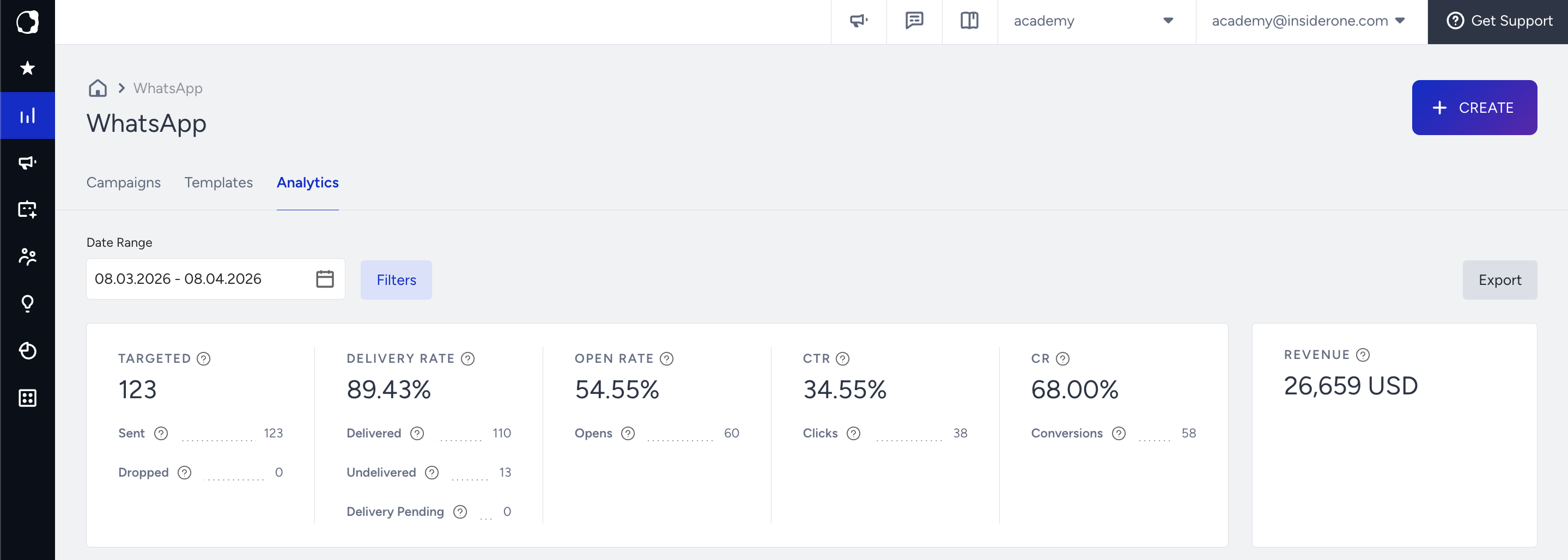
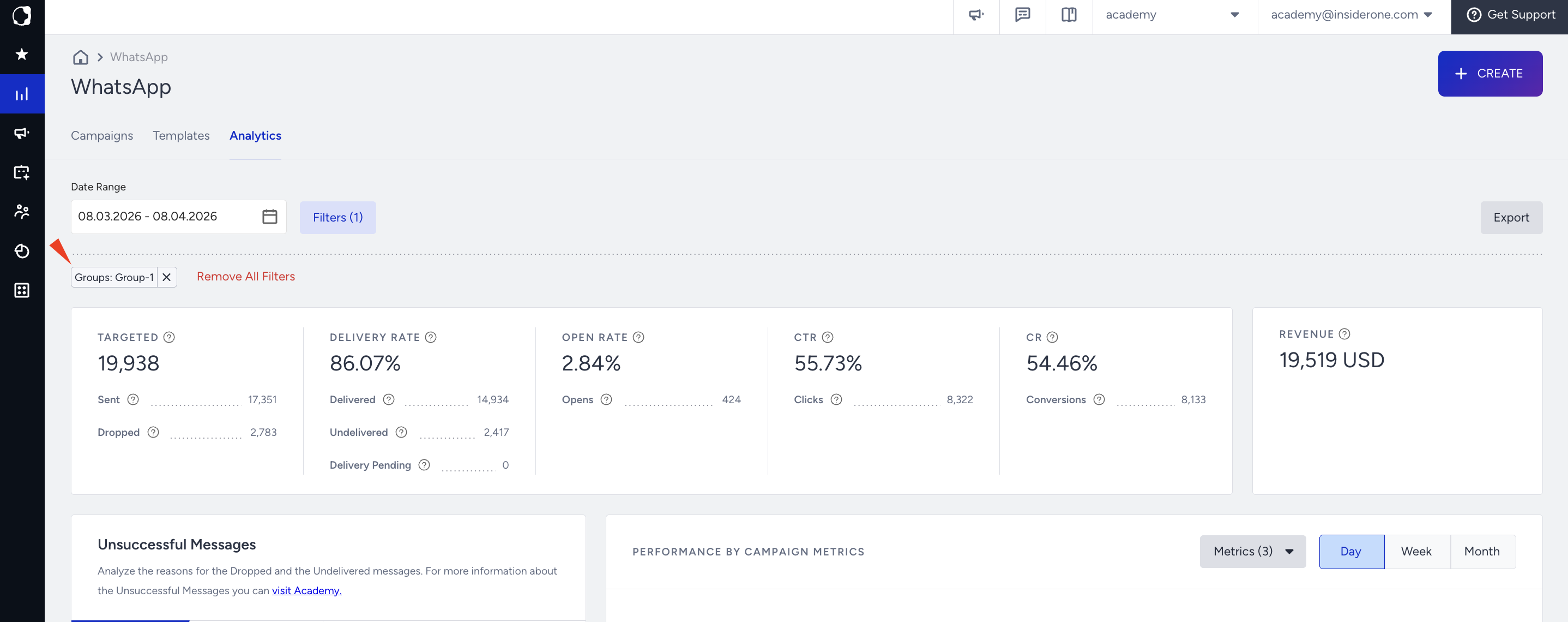
To view Overall Analytics, navigate to InOne > Reports > WhatsApp Analytics, or click the Analytics tab on the WhatsApp Campaign Listing page.
To filter analytics by group, click the Filter button and select the groups you want to include.
Group Administrator and Member Actions
This section explains what Group Administrators and Members can access and manage within their assigned groups.
Access and Visibility
Group Administrators and Members can only view, create, edit, and duplicate campaigns and templates that are visible to their group(s).
You can only assign a campaign or template to the groups you belong to.
You must select at least one group.
You cannot launch a global (ungrouped) campaign.
Campaign Visibility
In the Launch step, you can only select from the groups you belong to when setting campaign visibility.
You can only select from the groups you belong to.
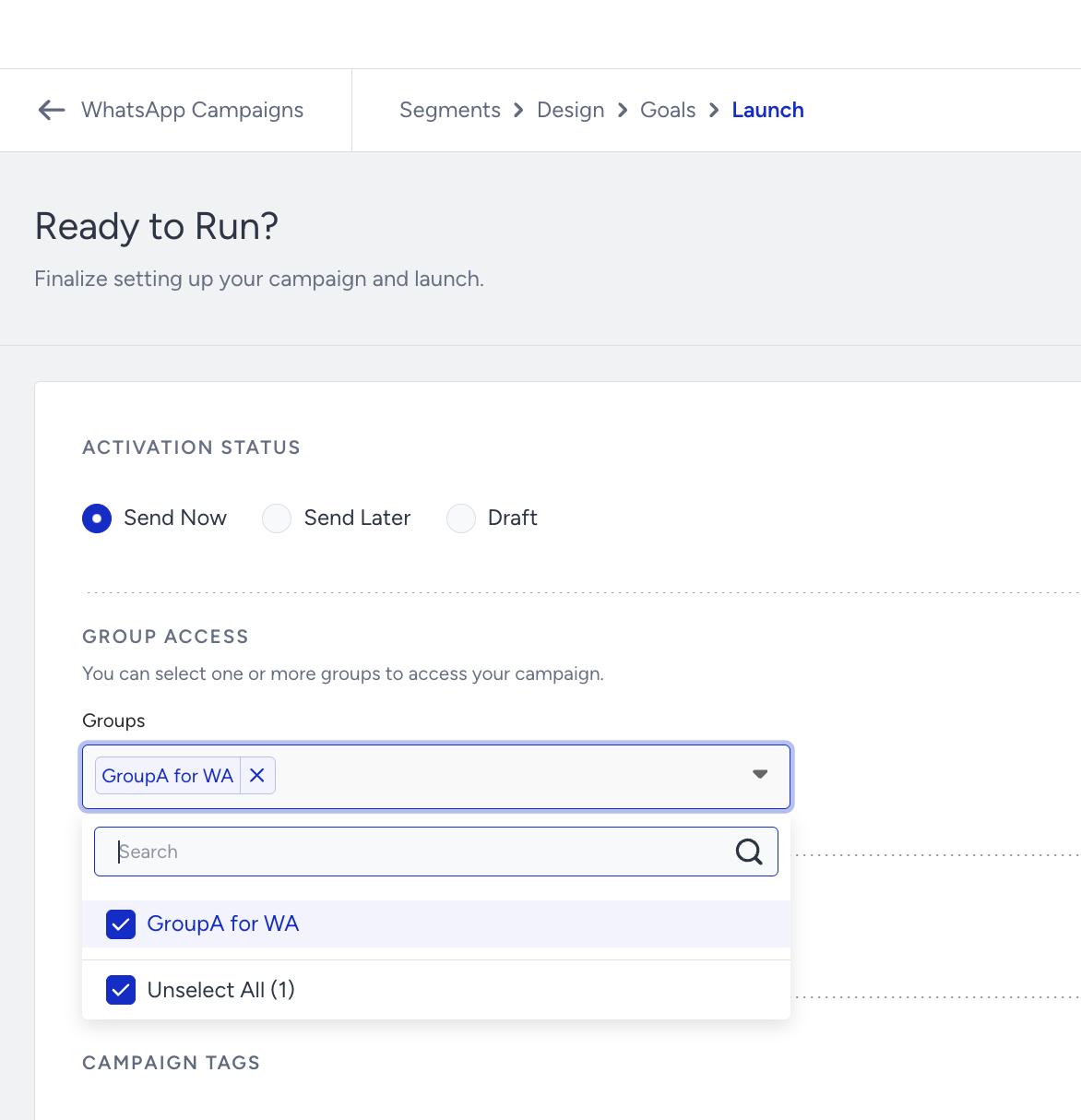
For example, if you are a member of Groups A and B, you will only see Groups A and B during the launch step.
After launch, the campaign is visible only to:
Account Administrators
Users in the selected groups
Unassigned users
Listing Page
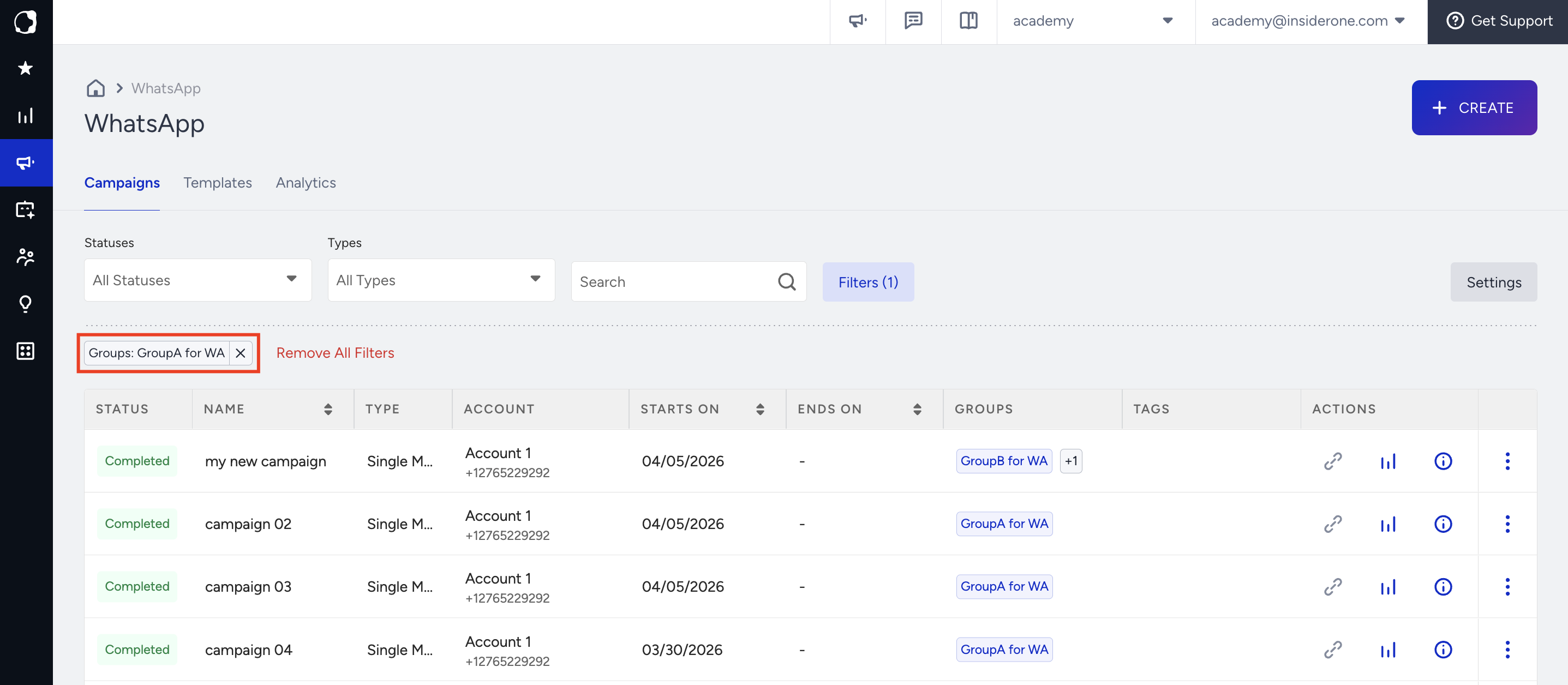
On the WhatsApp Campaign Listing page, you only see the campaigns and templates you have access to.
Use the Filters button to filter campaigns by group access.
If no groups are created, group-related filters are not displayed.
Analytics
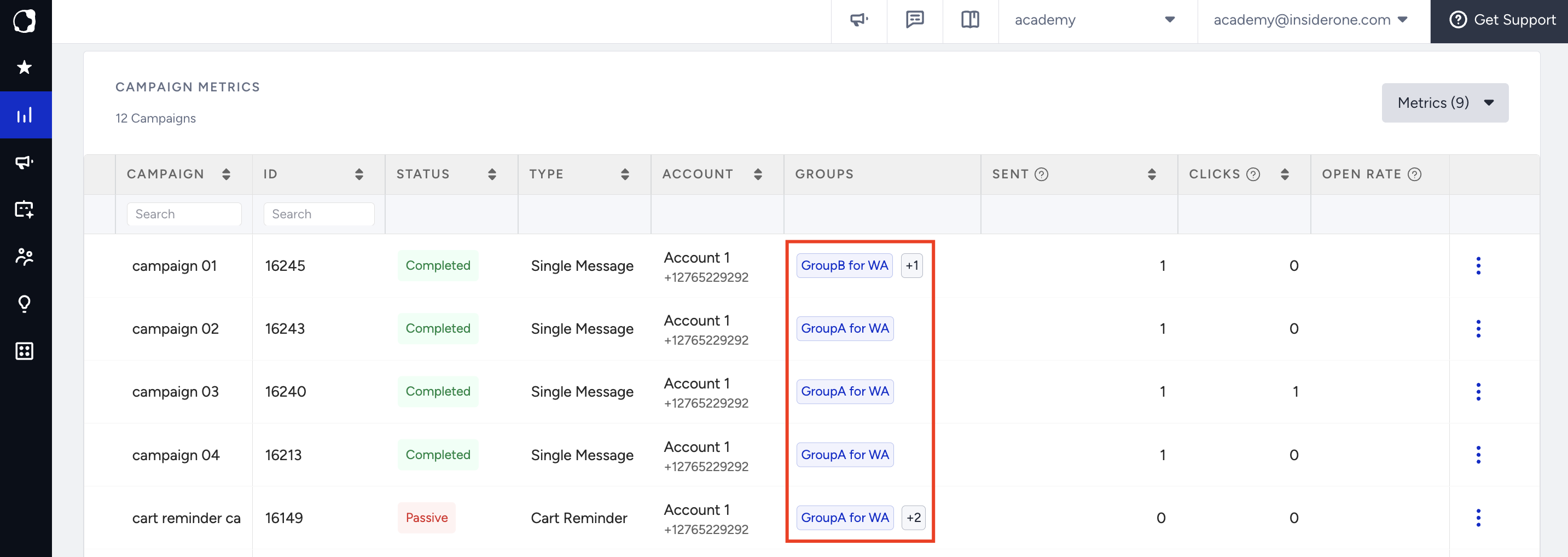
You can view analytics for campaigns that belong to your group(s).
Follow the same steps to access Overall Analytics.
When you open the analytics page, you will see data for campaigns that belong to your group(s). Click the Filters button to select specific groups for your analytics view.
Unassigned User Actions
This section explains what Unassigned Users can access and where their permissions are limited.
Access and Visibility
As an Unassigned User, you can view all campaigns and templates regardless of their group assignment.
You can create campaigns and templates.
You cannot assign a group while creating them.
You cannot edit group access for existing campaigns or templates.
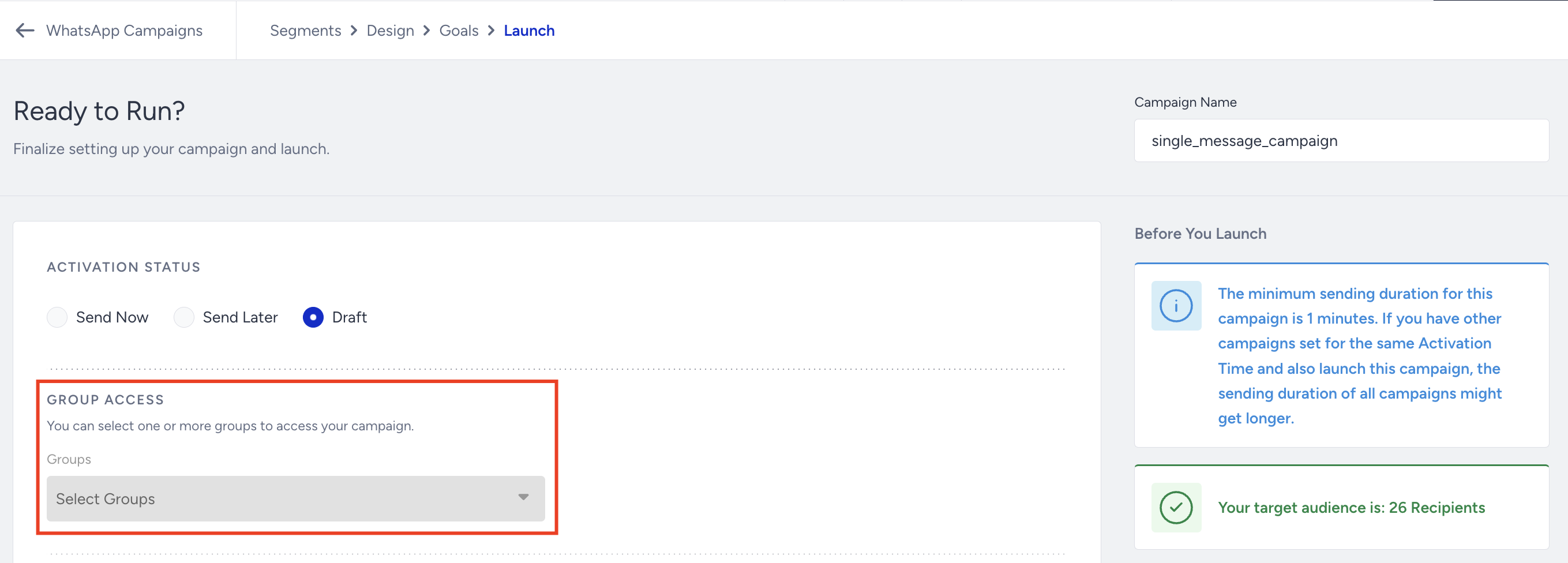
Campaigns and templates you create are visible to Account Administrators and Unassigned Users.
When you duplicate a campaign or template, it becomes visible to all users because group access cannot be modified for unassigned users.
Listing Page
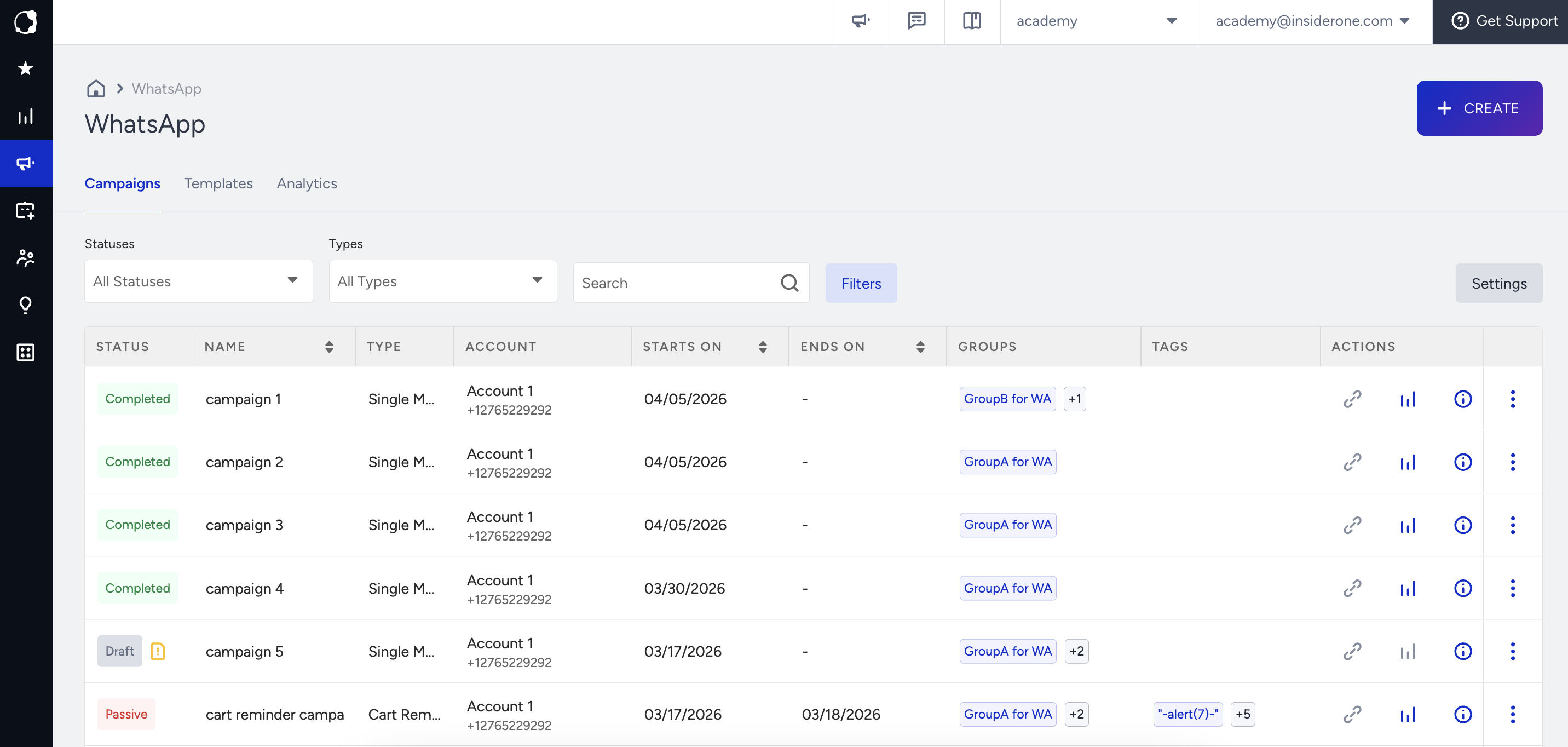
On the WhatsApp Campaign Listing page, you can view all campaigns and templates created by any user.
You can filter campaigns and templates using available groups.
If no groups are created, group-related filters are not displayed.
Analytics
You can view analytics for all campaigns regardless of their group assignment.
Follow the same steps to access Overall Analytics.
Click the Filters button to select specific groups for your analytics view.