Suggested reading: Create a WhatsApp Business Standard Template on InOne, Elements of WhatsApp Message Templates
You can edit an existing WhatsApp message template from the Templates tab in InOne without creating a new one. This keeps your approved content current while your campaigns and journeys continue to run. Meta reviews every edit again and applies its own editing limits, so a few rules apply.
Before you start, check the template status, the edit limit, and where the template is in use. The sections below cover each of these.
Which templates you can edit
The template status decides how you can edit it.
Approved and Paused templates use the edit flow described in this article.
Draft and Rejected templates work as they always did: open the template, change it, and submit it for review.
In-Review, Disabled, and Archived templates cannot be edited. Restore an archived template first. A disabled template must recover its quality rating first.
Templates that WhatsApp generates automatically for Direct Send are view-only. You cannot edit or delete them.
Carousel templates can’t be edited.
What stays fixed
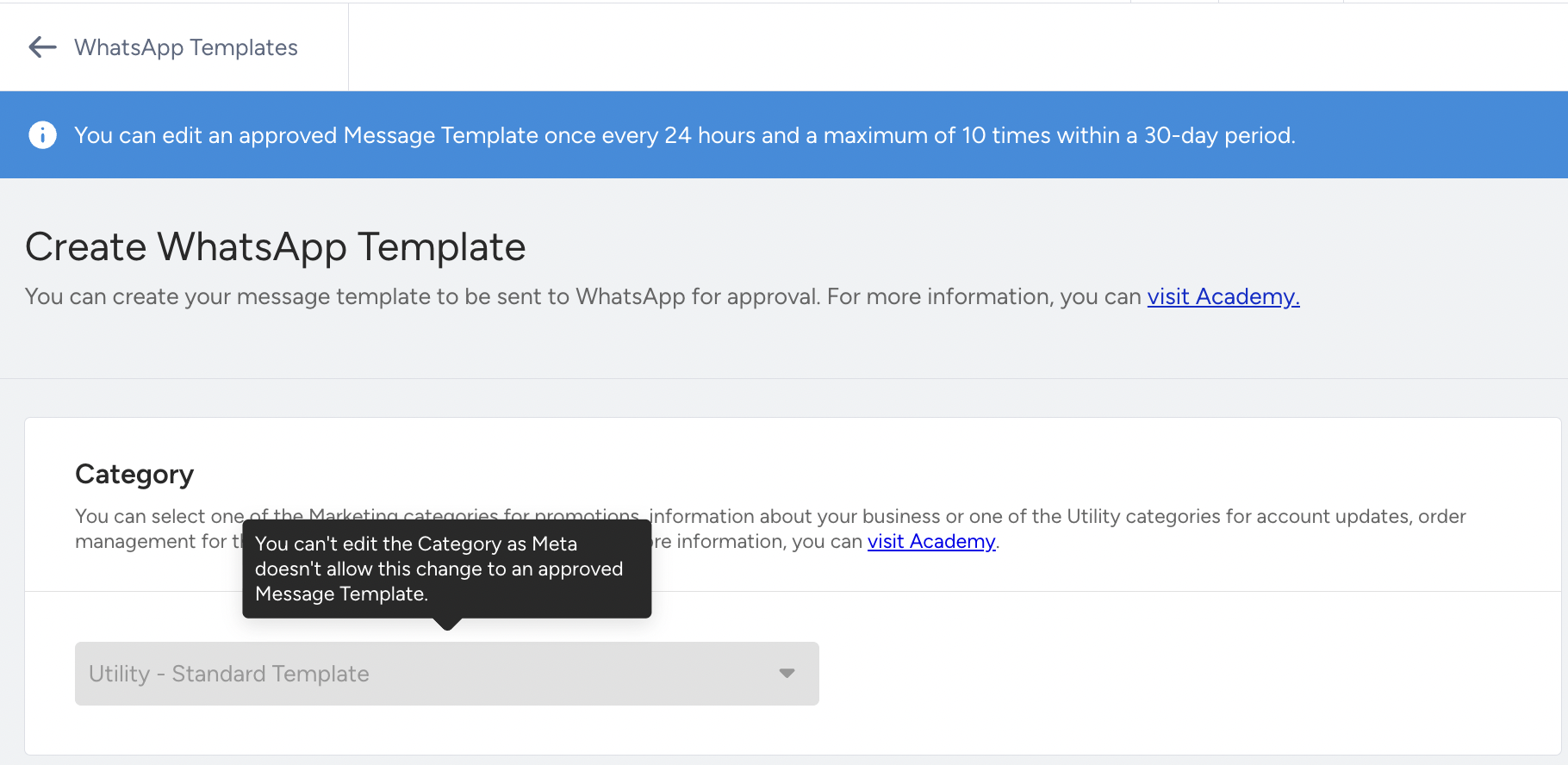
You cannot change the template name, language, or category. If you need a different name, language, or category, create a new template instead.
How many times you can edit
Meta limits edits on an Approved template to one edit every 24 hours and 10 edits per 30 days, counted per template. Paused and Rejected templates do not count toward this limit.
Edits you make directly in Meta's WhatsApp Manager count toward the same limit. As a result, InOne can show fewer used edits than Meta has counted.
Once you reach the editing limit, the page shows a warning and disables the form until the limit rolls over.

Templates used by campaigns or journeys
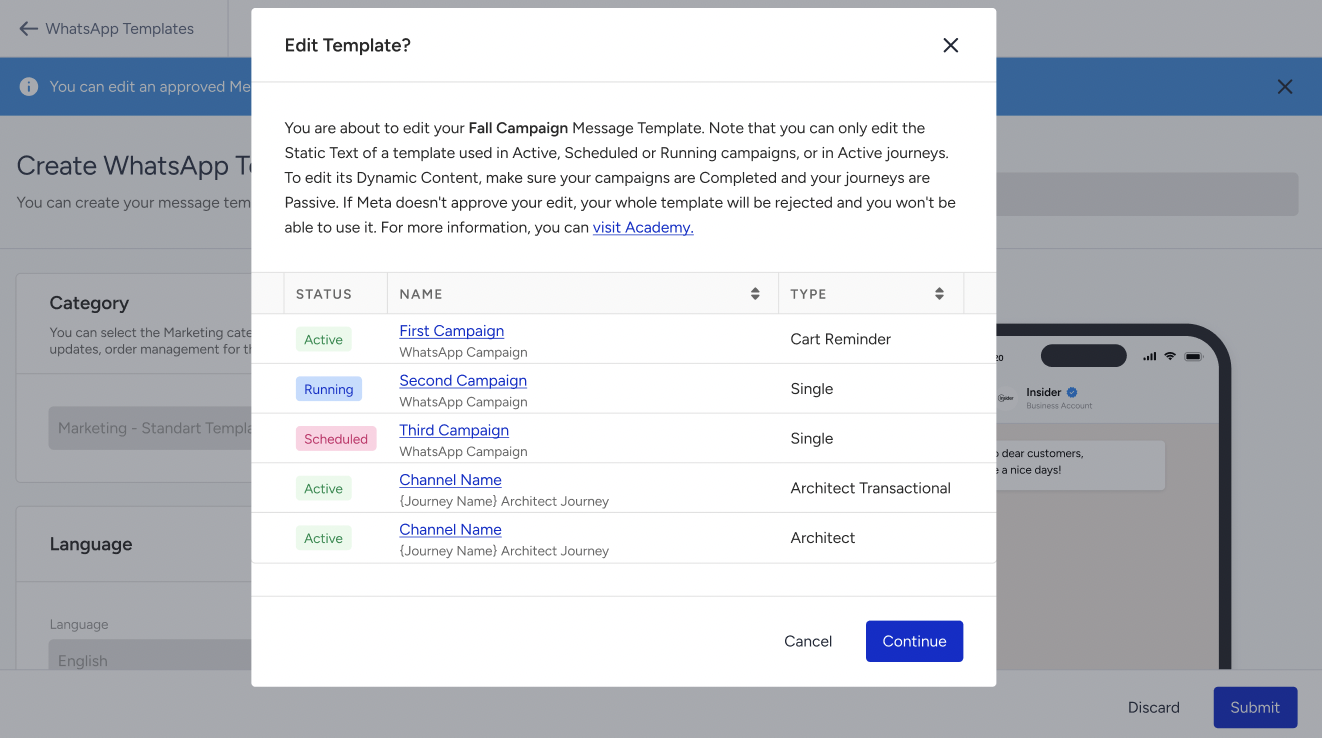
Before the editor opens, InOne checks whether any active, running, or scheduled WhatsApp campaign or Architect journey uses the template, and lists the ones it finds. The result decides what you can change.
If nothing uses the template, you can change anything the rules above allow.
If a campaign or journey uses the template, you can still change the wording: the header, body, and footer text, and the button labels. You confirm the change before InOne submits it.
If a campaign or journey uses the template, you cannot change its structure. This covers adding, removing, or reordering variables; changing the header type or its media; adding, removing, or reordering buttons; changing a button type or URL; and changing carousel cards. Stop or complete those campaigns and journeys first, then edit the template.
An extra rule applies to Approved templates:
You cannot remove a variable from an Approved template, even when nothing uses it, because Meta refuses the change.
The usage list shows the campaigns and journeys you have access to. On accounts with Group Level Access, the total count covers the whole account, so the number can be higher than the list you see.
Edit a template
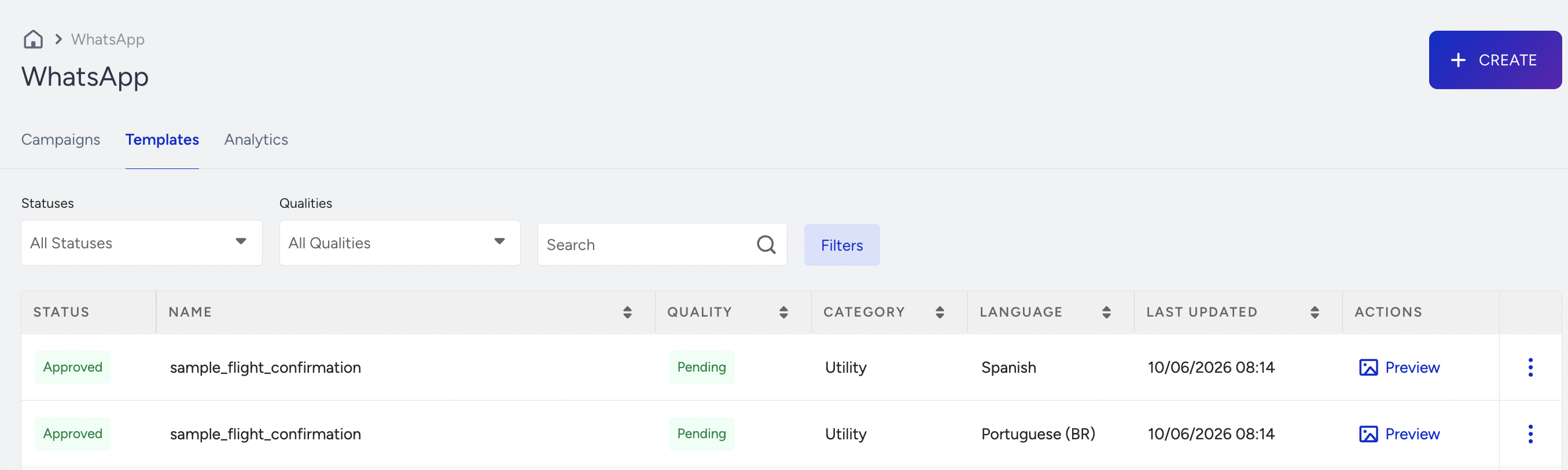
Navigate to InOne > Campaigns > Messaging > WhatsApp and switch to the Templates tab.
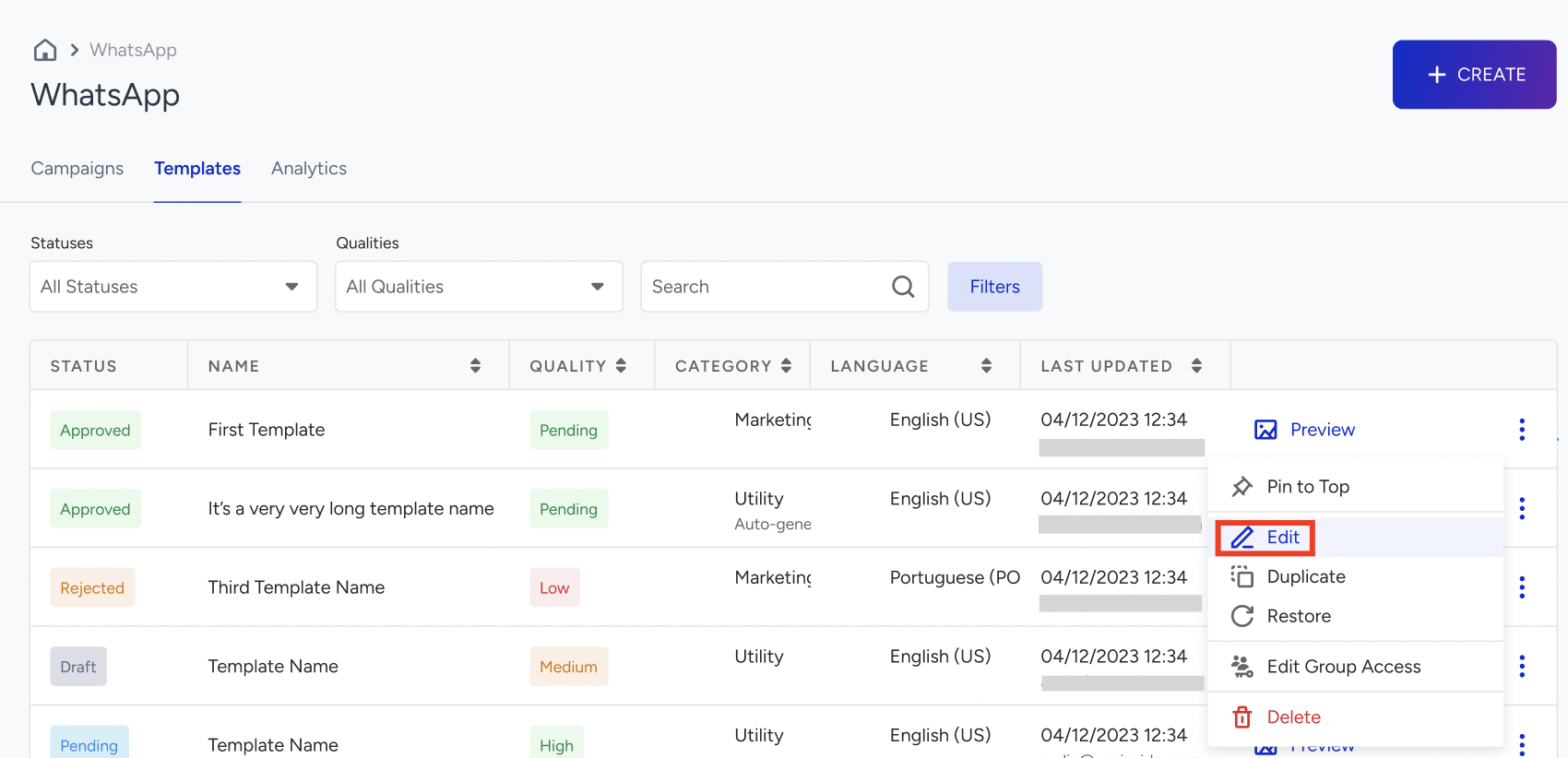
Click the three-dot menu at the end of the template's row, then click Edit.
Review where the template is in use, then click Continue.
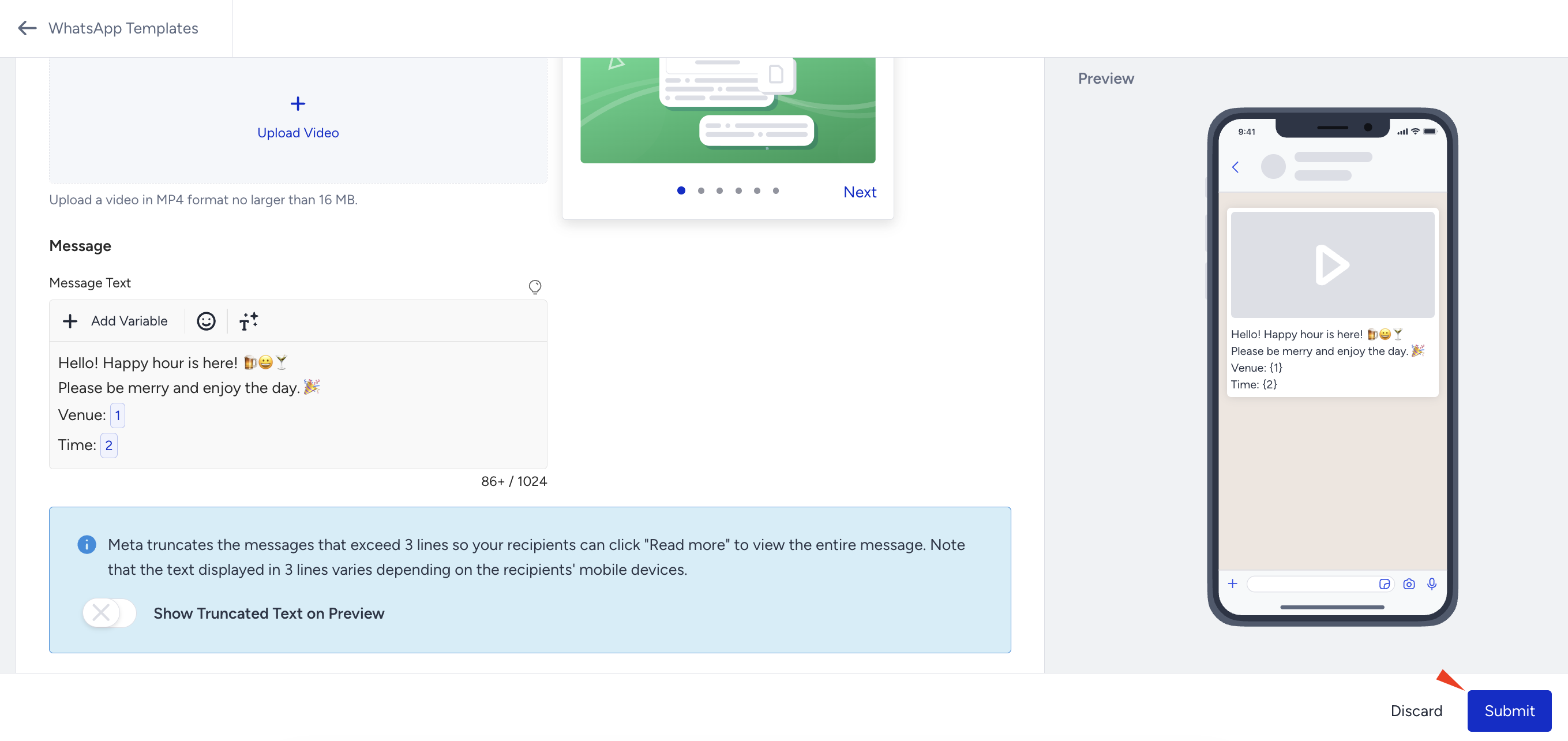
Make your changes in the available fields.
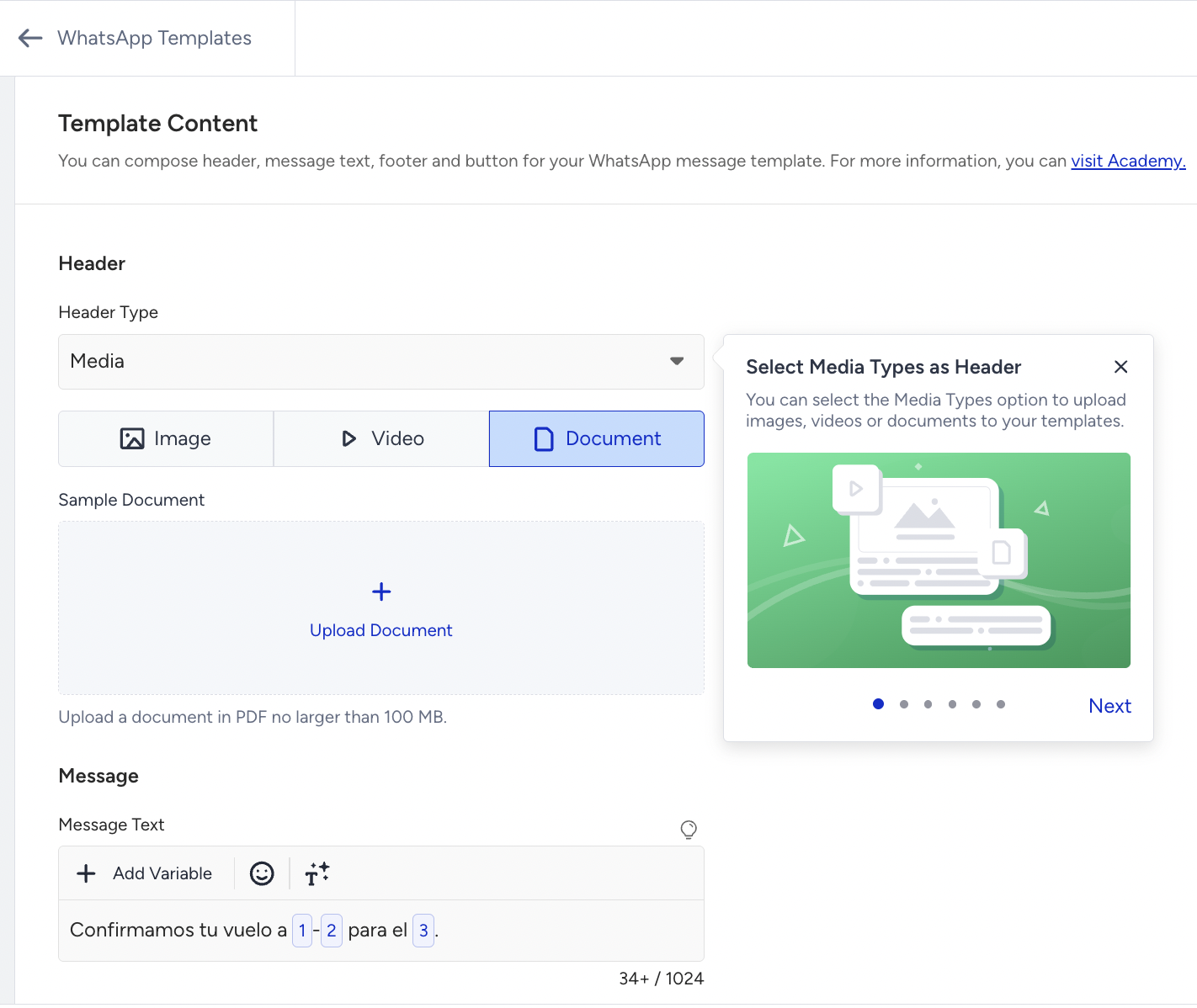
You can't change locked fields; a tooltip explains why.
Click Submit and confirm.
After you submit
The template moves to In-Review while Meta reviews it. Review usually takes a few minutes but can take up to 24 hours. During that time, you cannot edit the template again, and a second attempt shows a message that the status does not support editing.
InOne records who edited the template last and when. An edit made through the API or directly in Meta's WhatsApp Manager shows no panel user.
If Edit is not available
The Edit option does not appear in these cases:
The template was edited less than 24 hours ago, or it has used all 10 edits in the last 30 days.
The template is an auto-generated Direct Send template.
Your account uses Group Level Access, and you are an administrator not assigned to any group. In this case, the Edit option is hidden for Approved and Paused templates.
Summary
You can edit Approved, Paused, Draft, and Rejected WhatsApp templates in InOne, within Meta's limits of one edit every 24 hours and 10 edits per 30 days. When a campaign or journey uses the template, you can change the wording but not the structure. After you submit, the template returns to In-Review until Meta finishes its review.
To check the result of your edit, return to the Templates tab and watch the template status.