Topic & Subtopic Reporting helps you understand what customers talk to your AI agents about and how each subject performs. Insider One analyzes AI agent conversations, groups them into topics and subtopics, and reports their conversation volume and performance.
You can use these insights to identify frequently discussed subjects, review agent performance for specific topics, and find areas where you can improve your Knowledge Base or agent instructions without reviewing conversations individually.
Topic & Subtopic Reporting is available for both Support Agent and Shopping Agent.
This guide provides answers to the following questions:
Why use Topic & Subtopic Reporting?
Topic & Subtopic Reporting can help you:
Understand what customers ask about: See the subjects behind your conversation volume, such as returns, order tracking, billing, or policy questions.
Identify areas for improvement: Find topics with lower resolution or containment rates and use these insights to improve your Knowledge Base or agent instructions.
Track performance over time: Review topic performance across days, weeks, or months to understand how changes affect your results.
Focus on meaningful topics: The report highlights topics with sufficient conversation volume while grouping lower-volume topics together.
How topic reporting works
When reviewing your topic data, keep the following points in mind:
Conversations are organized into topics and subtopics. A topic represents a broader subject identified across your AI agent conversations, while subtopics break that subject down into more specific areas.
Topics are specific to each AI agent. Insider One generates topics separately for each AI agent and maps conversations to the channel where each conversation takes place. Use the AI Agent and Channel filters to narrow down the data you want to review.
A conversation can appear under more than one topic. A single conversation can cover multiple subjects. If its intents match different topics, the conversation is counted under each relevant topic. For this reason, the total number of Topic Conversations can be higher than your total Conversations count, and Topic Conversation Rates can add up to more than 100%.
Topic reporting starts after 1,500 total conversations. Your account needs at least 1,500 conversations before Insider One can generate the report. This is an account-level requirement and does not apply separately to the Date Range you select.
Recent conversations can take up to 24 hours to appear. Insider One groups a conversation into its relevant topics within 24 hours after the conversation ends. Therefore, conversations that have just ended might not appear in the report immediately.
Not every conversation is assigned to a topic. Small talk and single-message conversations do not contribute to topic generation. A conversation can also remain without a topic if it does not match an established topic.
Topics and Subtopics Metrics
The Topics and Subtopics Metrics table lists the detected topics and their performance metrics. Topics are ordered by conversation volume, with one topic displayed in each row.
Each row displays the topic name, the number of subtopics it contains, and the selected metrics.
Expand a topic to view its subtopics and the same set of metrics for each subtopic.
Use the Metrics selector to choose which metric columns appear in the table.
Topics with lower conversation volumes can be grouped under Others instead of appearing individually, helping you focus on the topics with more meaningful volume.
Use the pagination controls to browse the complete topic list and select how many rows to display on each page.
Where can I find Topic Performance?
Navigate to InOne > Reports > AI Agent Analytics and select the Topic Performance tab.
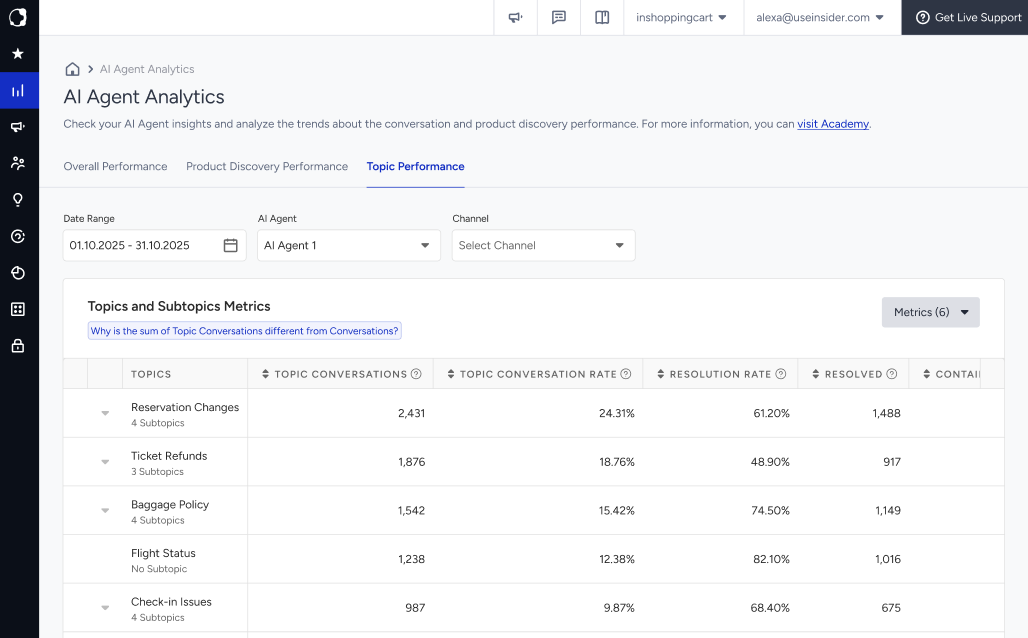
Use the filters at the top of the page to narrow down the report:
Date Range: Select the period you want to analyze.
AI Agent: Select an AI agent when you have more than one agent.
Channel: Select the channel you want to analyze.
Topic performance metrics
The report provides the following metrics for topics and subtopics:
Topic Conversations: The number of conversations that include the topic during the selected period.
Topic Conversation Rate: The topic's share of the total conversations during the selected period. It is calculated by dividing Topic Conversations by the total number of conversations for the same period.
For example, if you have 10,000 conversations and 2,431 of them include the Reservation Changes topic, the Topic Conversation Rate is 24.31%.
Resolution Rate: The percentage of Topic Conversations that are resolved. It is calculated by dividing Resolved by Topic Conversations.
For example, if 1,488 out of 2,431 conversations for Reservation Changes are resolved, the Resolution Rate is 61.20%.
Resolved: The number of conversations for the topic that are resolved.
Containment Rate: The percentage of Topic Conversations handled without a handover to a human agent. It is calculated by dividing the number of conversations handled without a human handover by Topic Conversations.
Performance by Topics
The Performance by Topics chart shows how the selected topics perform over time.
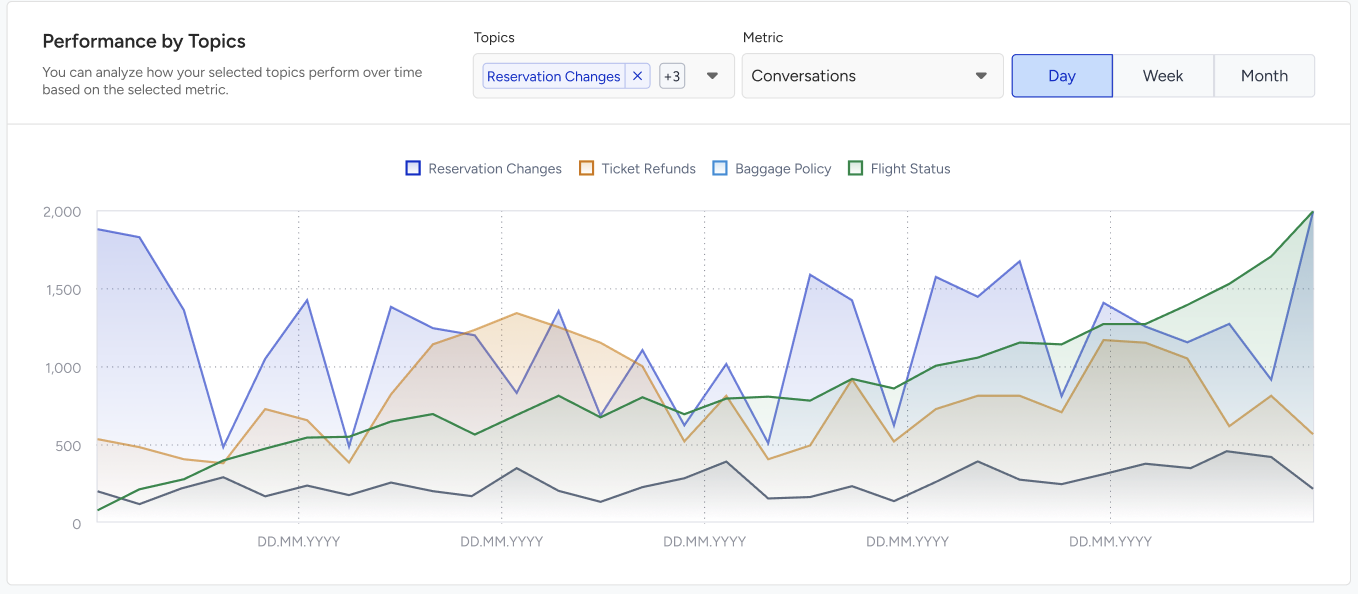
Select one or more topics.
Choose the metric you want to analyze.
Select Day, Week, or Month to change the time interval.
The chart plots the selected metric for each topic across the selected period. You can use it to compare topics and identify changes in topic volume or performance over time.
Topic & Subtopic reporting considerations
Accounts with fewer than 1,500 total conversations see a Not enough data yet message instead of the report. This applies to both the Topics and Subtopics Metrics table and the Performance by Topics chart. A progress bar shows how many conversations remain until the 1,500 threshold is reached.
Topic names are generated from the conversations from Shopping and Support agents, not from conversations you create in the panel.
If an error occurs during topic generation, topic names temporarily appear in English and return to the expected language after the next refresh.