This feature is released in beta. You can contact the Insider One team for further information.
The Quick Response feature allows you to define specific keywords and automated responses directly from the InOne panel. When a keyword is included in an outbound SMS campaign, any end user who replies with that keyword will automatically receive the predefined response without a manual action needed.
In this guide, you will find answers to these questions:
Set up Quick Response for SMS campaigns
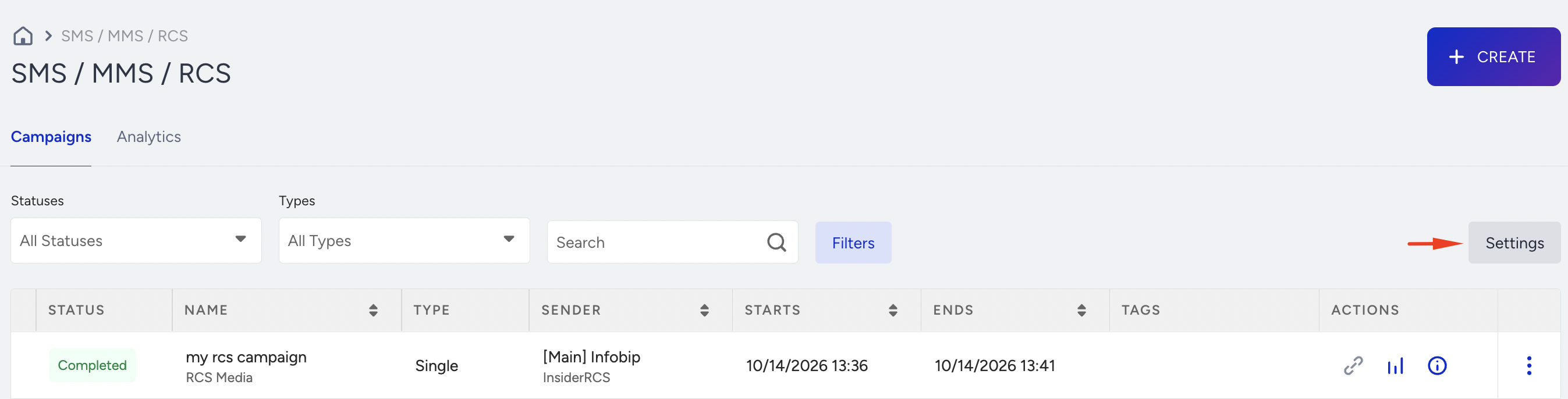
1. Navigate to InOne > Campaigns > Messaging > SMS/ MMS/ RCS and click Settings.
2. Open the Quick Responses tab. 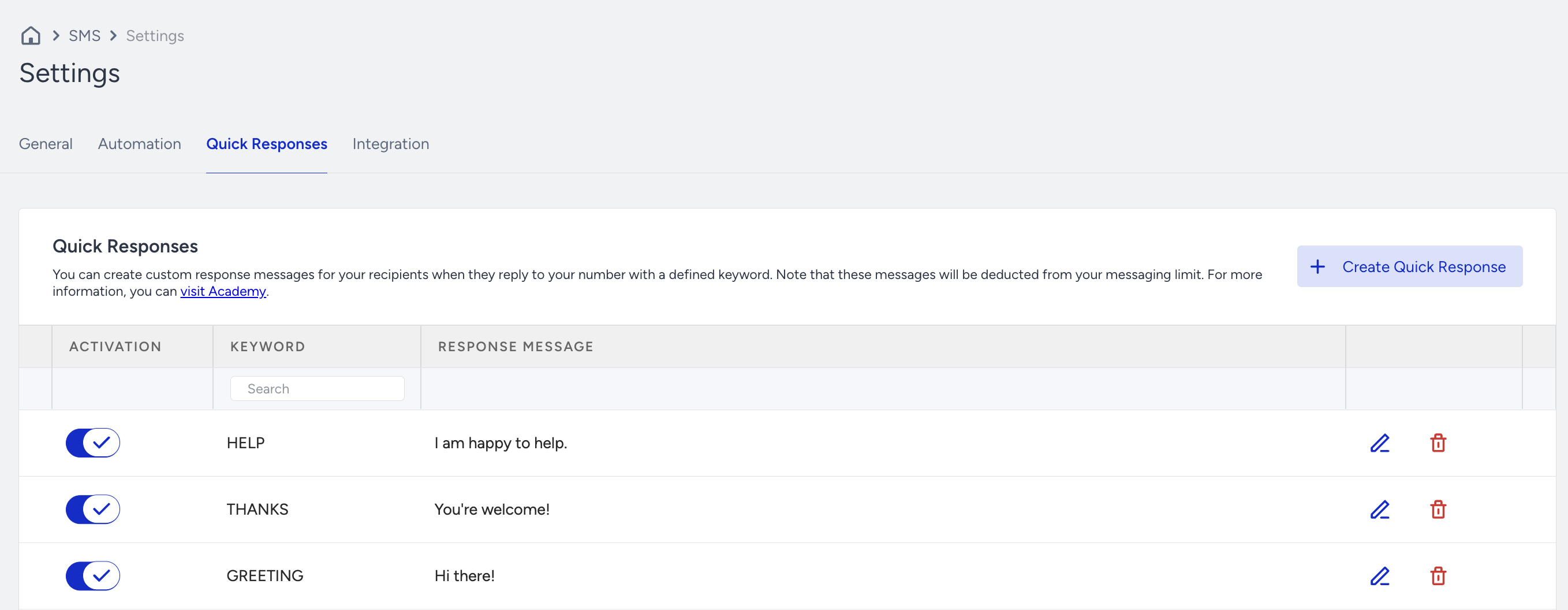
The system provides three predefined keywords by default. These keywords remain inactive until you manually activate them. You can also edit or delete them as needed.
3. To define a new keyword, click Create Quick Response.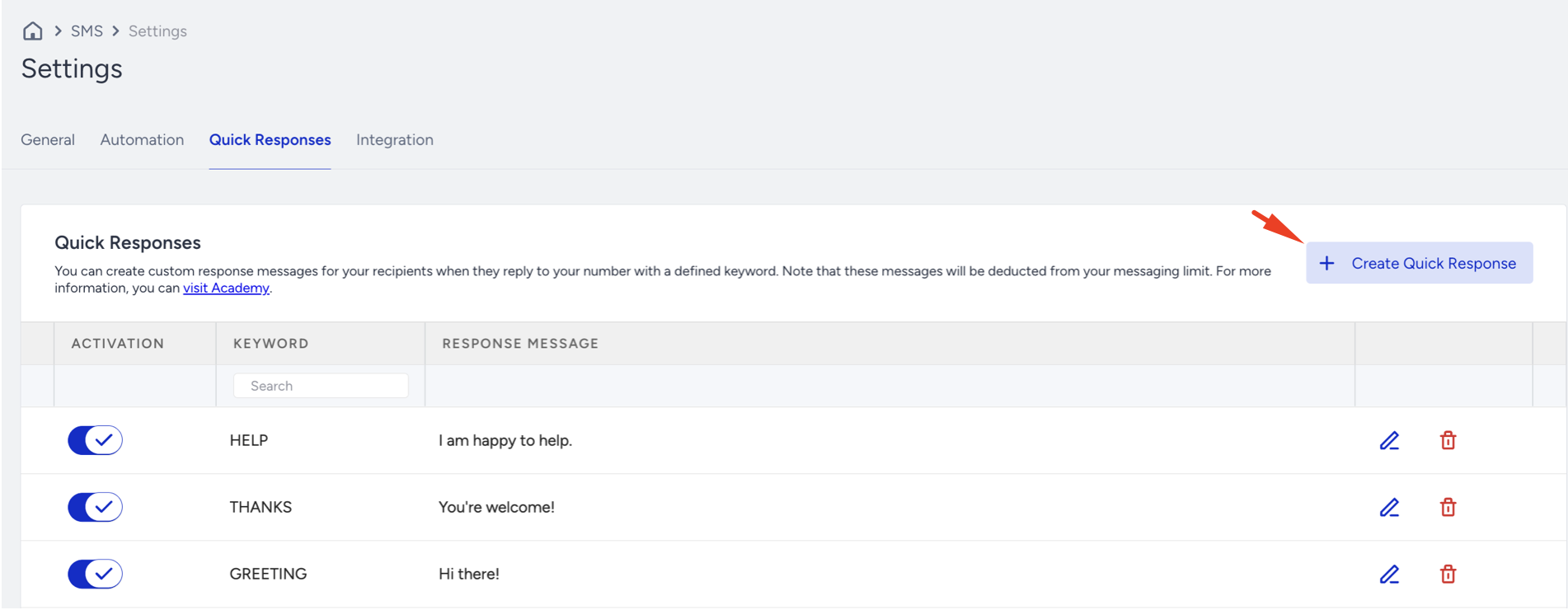
4. Fill in the required fields on the setup screen, then click Create to complete the process. 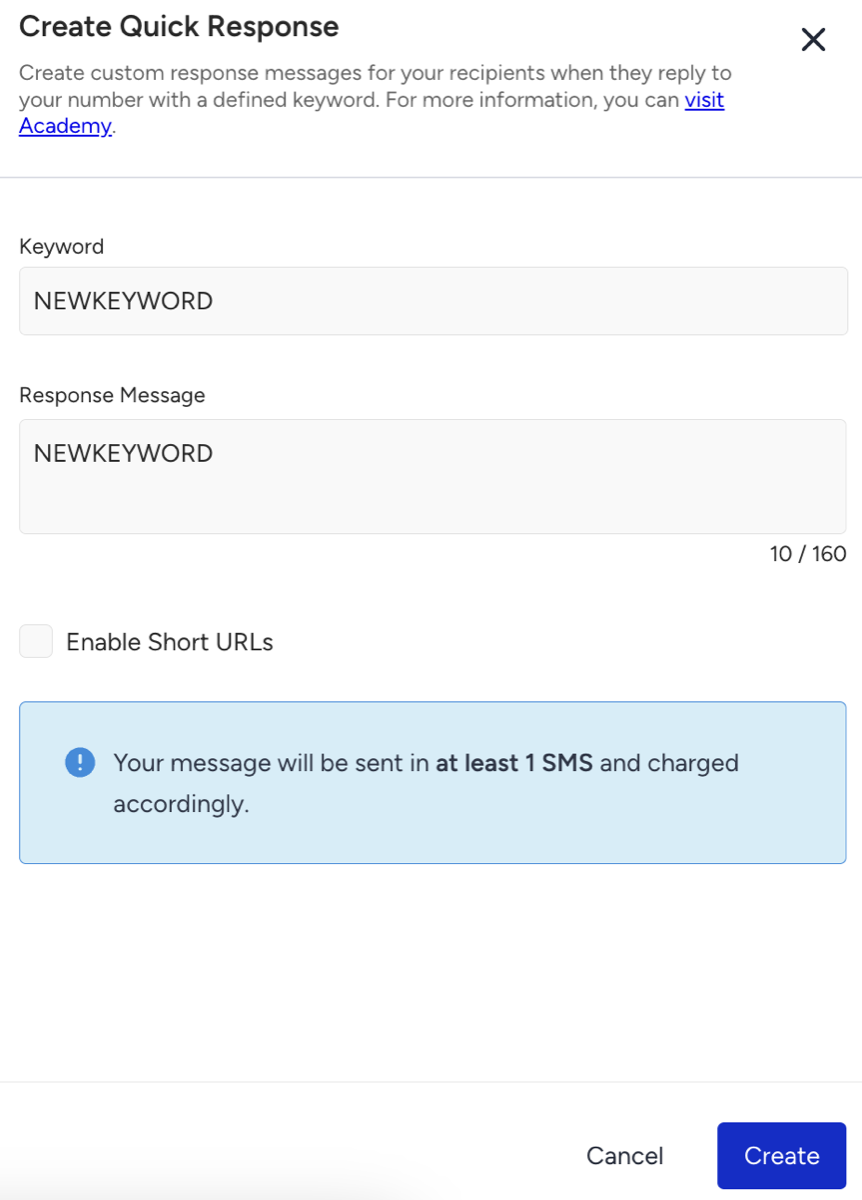
5. After creating your keyword, enable the Activation toggle to activate it.

To shorten a link in the auto-reply message, select the Enable short URL checkbox during the keyword creation process. The link will be delivered to end users in its shortened form.
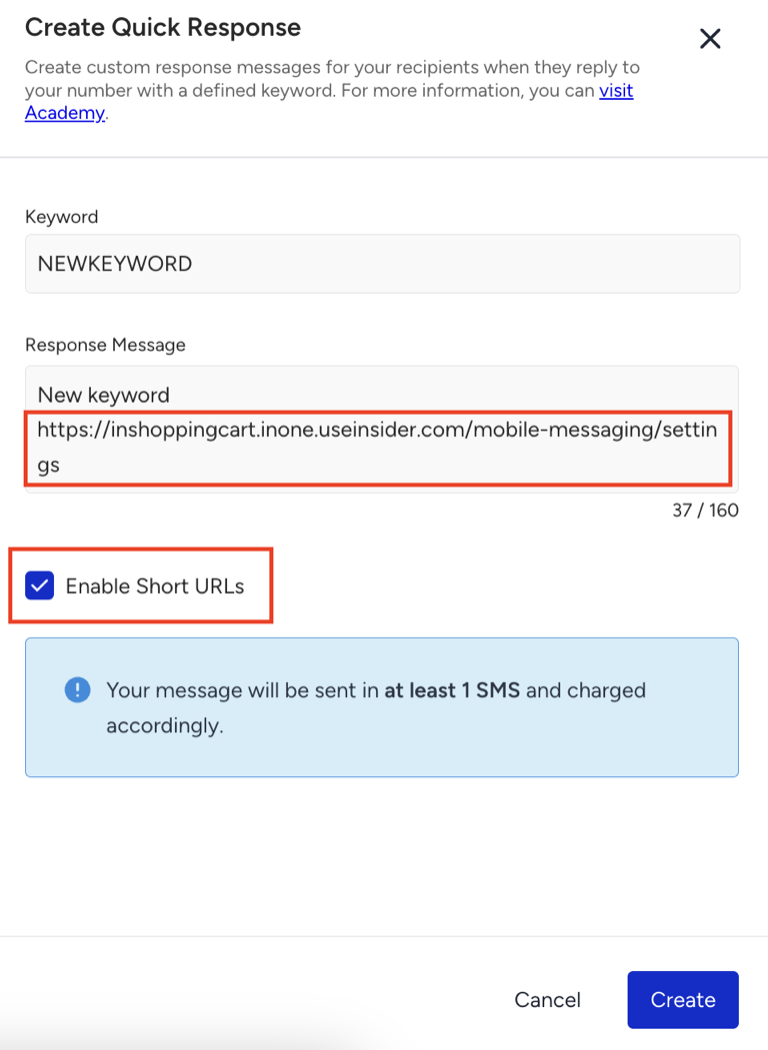
Note that the original link will still appear unshortened in the Response Message field. This is expected and does not affect how the message is delivered.
Auto-Reply and Keyword Management Rules
Alphanumeric sender IDs and shared short codes are not supported.
You can add a maximum of 20 keywords to each configuration.
Keywords must be 1 to 34 characters in length.
Whitespace characters are not allowed within keywords.
All keywords must be unique.
The system automatically capitalizes keywords.
Shortened URL logic is supported and applied correctly.
Dynamic attributes cannot be used in auto-reply messages.
A subscriber can receive a maximum of five auto-reply messages per day per keyword.
Auto-Reply Messaging Logic
Auto-reply usage can be tracked under the Usage Analytics.
Messages sent via auto-reply are deducted from your total message usage and reflected in usage reports.
Frequency capping does not apply to auto-replies. These messages are not counted against frequency limits set for standard campaigns.
The system does not check SMS opt-in status before sending an auto-reply. If a customer sends a message containing a defined keyword, the system automatically delivers the corresponding response.
Quick responses do not automatically create SMS consent. SMS subscription management is handled separately via subscribe keywords and, if enabled, double-opt-in flows.
Use Cases
Quick Response supports various use cases, from meeting legal requirements to creating dynamic, engagement-based messaging flows.
Legal Compliance: In certain regions, specific keywords might necessitate automated responses due to legal regulations. For example, in the US, a customer who sends the keyword HELP must receive an automatic reply. The Quick Response feature enables compliance by allowing you to define such keywords and their responses.
Audience Segmentation: You can segment users based on their keyword responses. For instance, after sending a message with Keyword A, you can identify users who reply with that keyword and send them a follow-up message with Keyword B. This enables multi-step communication flows based on user interaction and engagement.
Receive SMS replies in your own systems
Quick Response sends an automatic response when a user replies to your SMS campaign with one of your keywords. To act on replies in your own systems, such as a customer relationship management (CRM) platform or an internal application, use the SMS Reply event.
When a user replies to one of your SMS campaigns with a message that is not a keyword, Insider One records the reply on the user's profile as an SMS Reply event. Replies that match a Quick Response, subscribe, unsubscribe, or opt-in keyword, including single opt-in, double opt-in, and two-tap opt-in replies, are handled by those features and do not create an SMS Reply event.
Insider One records the reply only if all of the following are true:
Insider One receives the inbound messages from your sender. If you manage replies on your own side, the SMS Reply event is not created.
The phone number is set as an identifier, as described in Use Phone Numbers as Identifiers for SMS.
The user received an SMS campaign within the last year. Insider One attaches the reply to the last SMS campaign the user received. If there is none, the event is not created.
To send replies to your endpoint as they occur, create an Event Stream webhook as described in Insider One Webhook. In the Rules step, select SMS under Event Triggers, then select SMS Reply. In Event Parameters to Send, select the parameters you need, such as Text, which contains the reply. You can also select any user attributes you want to receive, for example the phone number. With the default payload, each webhook includes the event name, the selected parameters and attributes, the user's Insider ID, and a timestamp. For the parameters of the SMS Reply event, see Default Events.
The Reason Type parameter appears in the list because it is shared with other SMS events. It is not populated for SMS Reply.