Suggested readings: Coupon Lists, Create a Coupon List, Launch email campaigns with coupon codes
Unique, single-use coupon codes help reduce cart abandonment and encourage faster purchase decisions. By assigning a different code to each recipient, you can prevent reuse, control redemptions, and accurately measure campaign impact.
This guide explains how to create a coupon campaign in Talon.One, import the generated codes into Insider One and send them via a bulk email campaign.
Step 1: Create a coupon campaign in Talon.One
Log in to your Talon.One Dashboard.
To create a new campaign, navigate to Apps > Campaigns and click +Create Campaign.
Select the Coupons type.
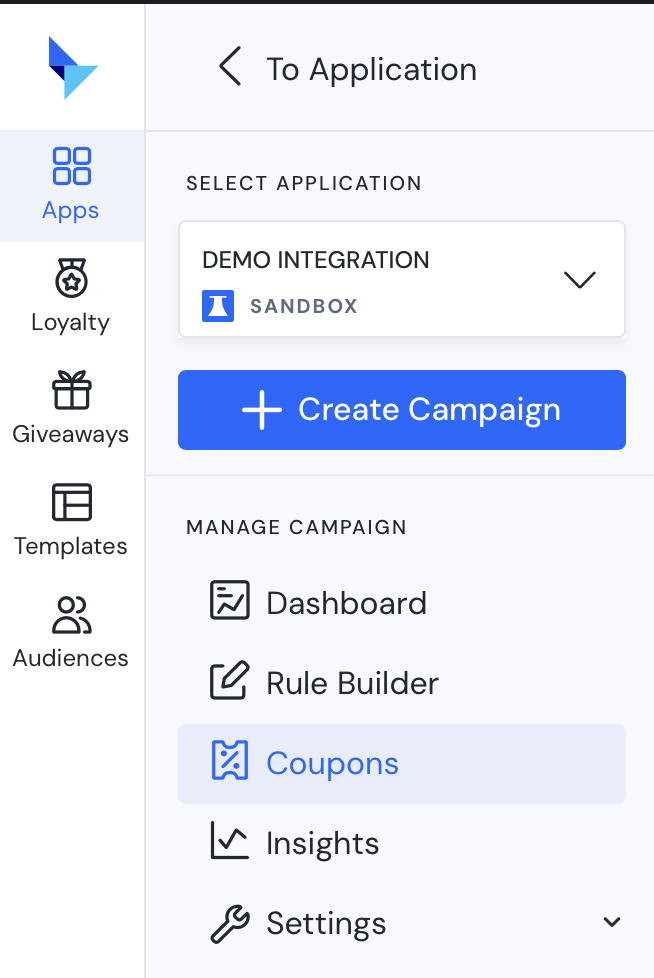
To generate codes, click +Create Coupons and define the following properties for your unique codes:
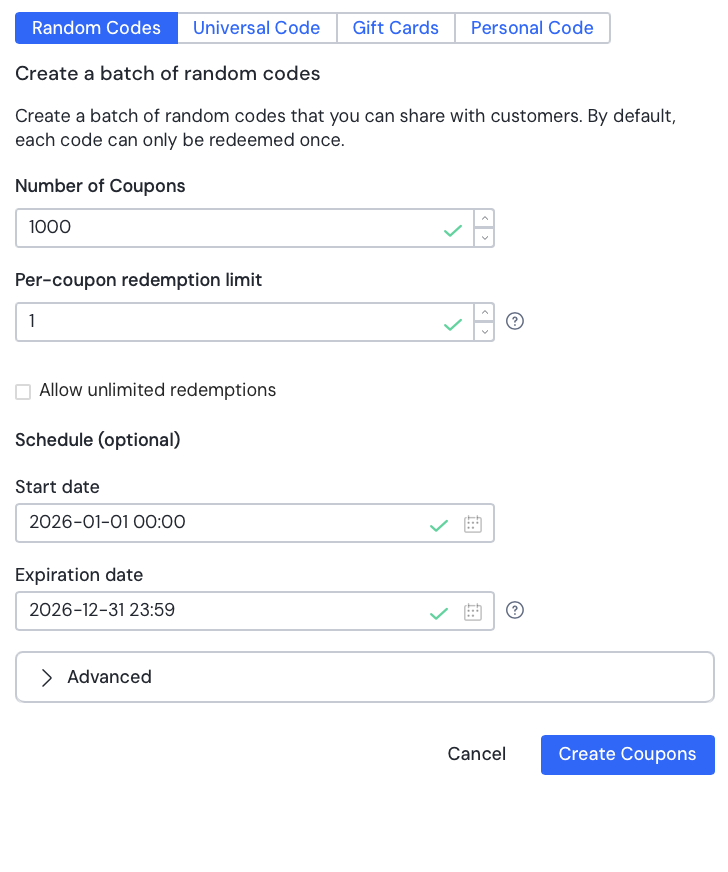
Discount Type: Select the type (e.g., Random codes, Personal Code).
Quantity: Specify the Number of Coupons.
Tip: Always generate more codes than your expected audience size to ensure a smooth launch.
Redemption Limit: Set the Per-coupon redemption limit (typically 1 redemption per code for a unique offer).
Dates: Define the Start and Expiration Dates for the codes.
Format: Set the Code Length, Character Set, and any optional Prefix/Suffix or Disallowed Characters.
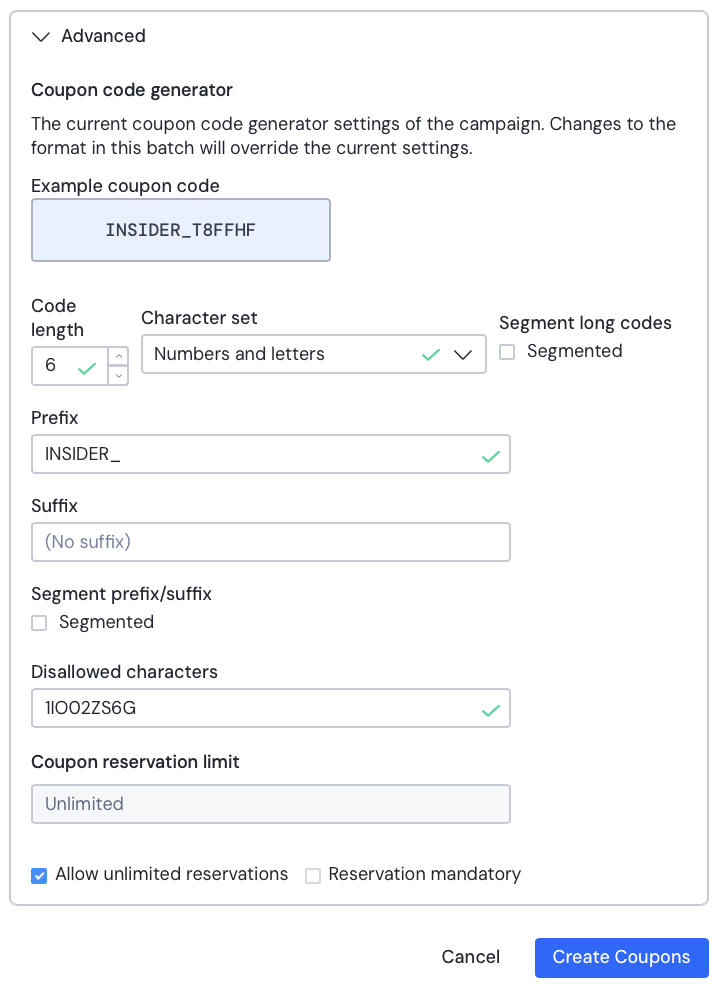
Click Create Coupons.
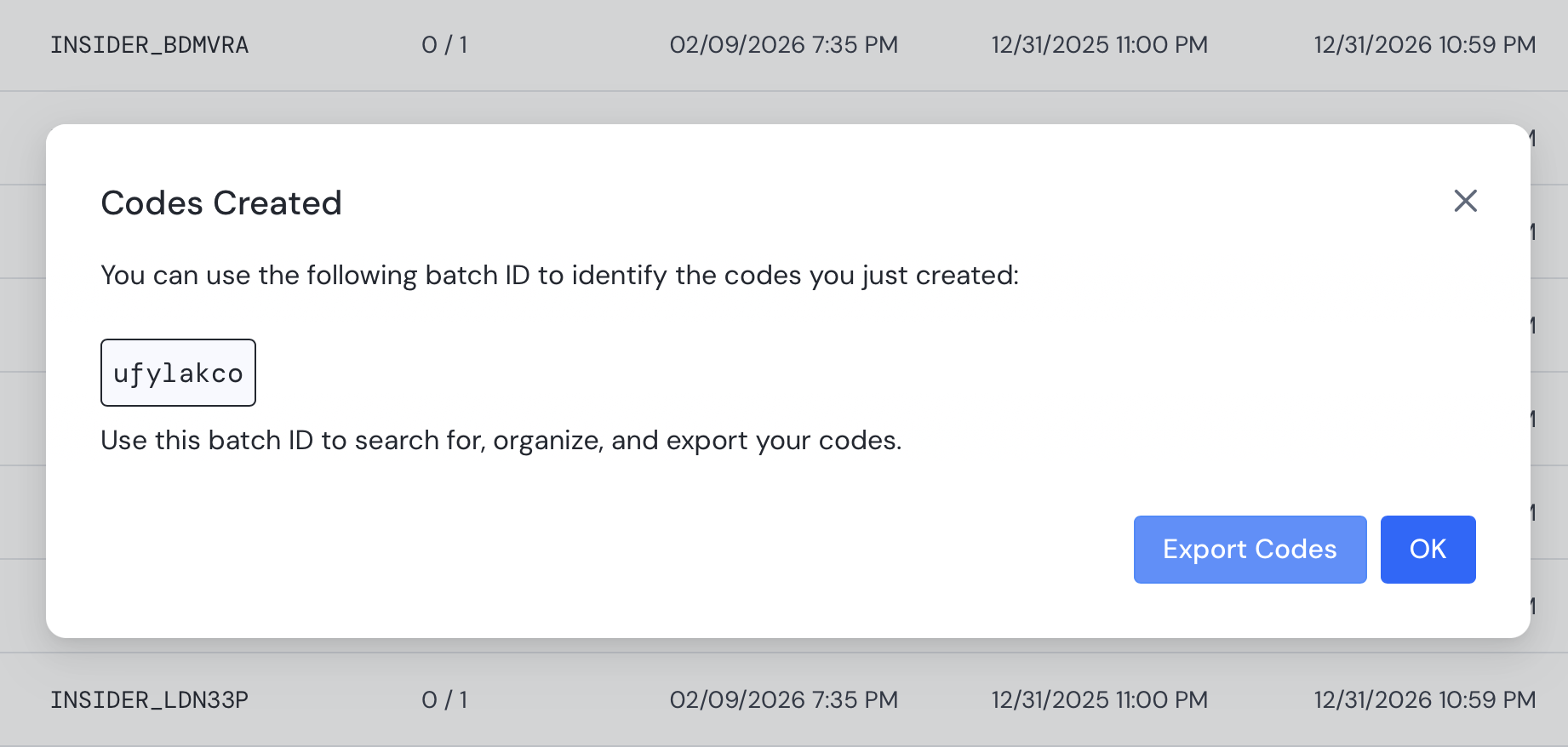
Once generated, click Export Codes to download the CSV file containing your unique codes. You will need this file for the next step.
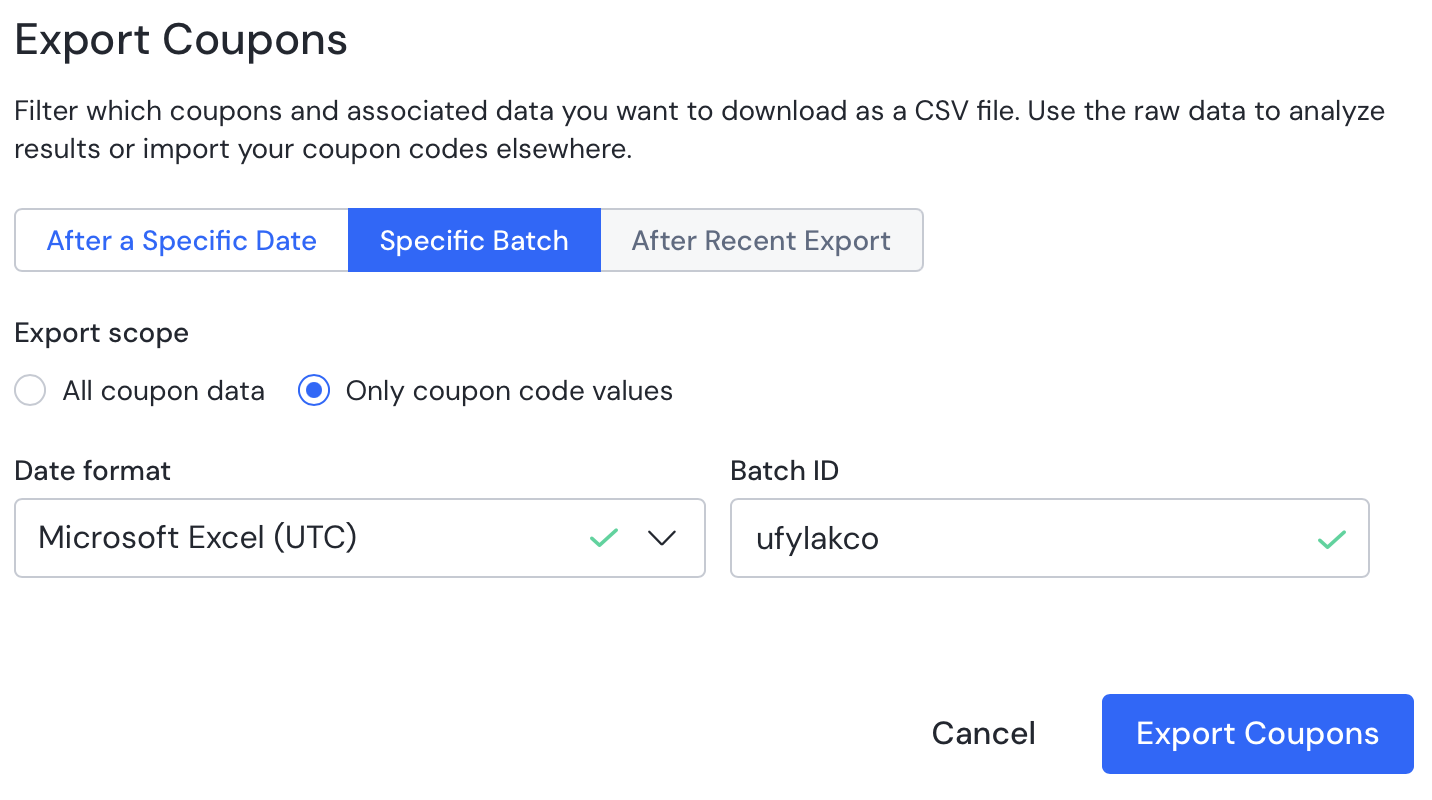
Step 2: Import coupons to Insider One
Log in to your InOne account. Navigate to Components > Coupon Lists.
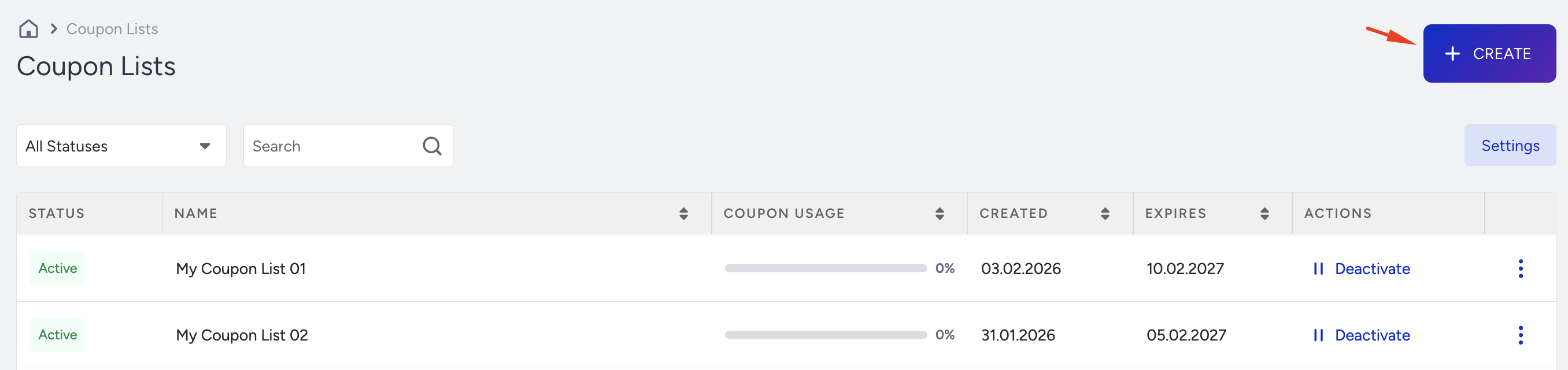
Click the Create button.
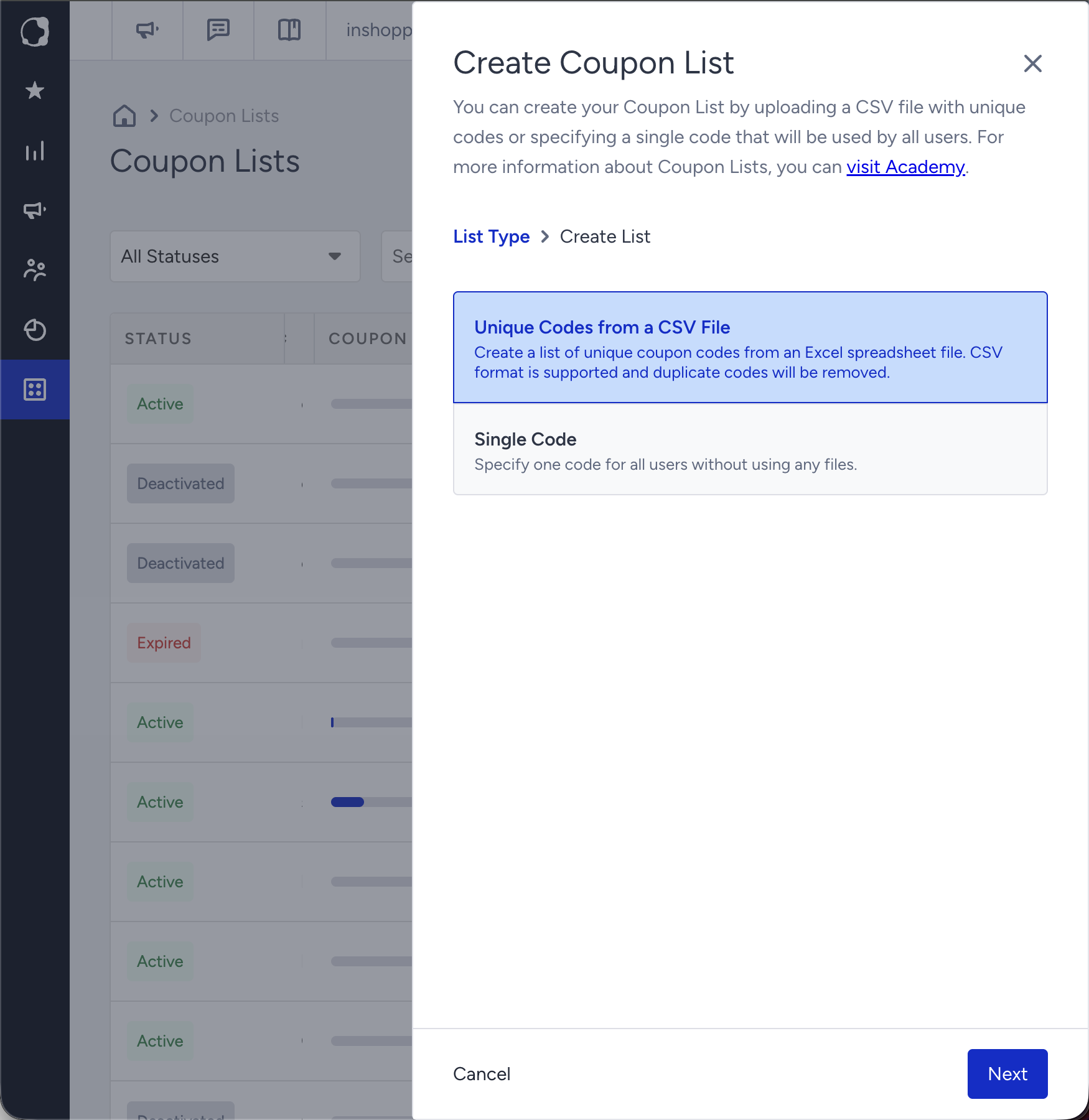
Select the Unique Codes from a CSV File option to upload your CSV file and click Next.
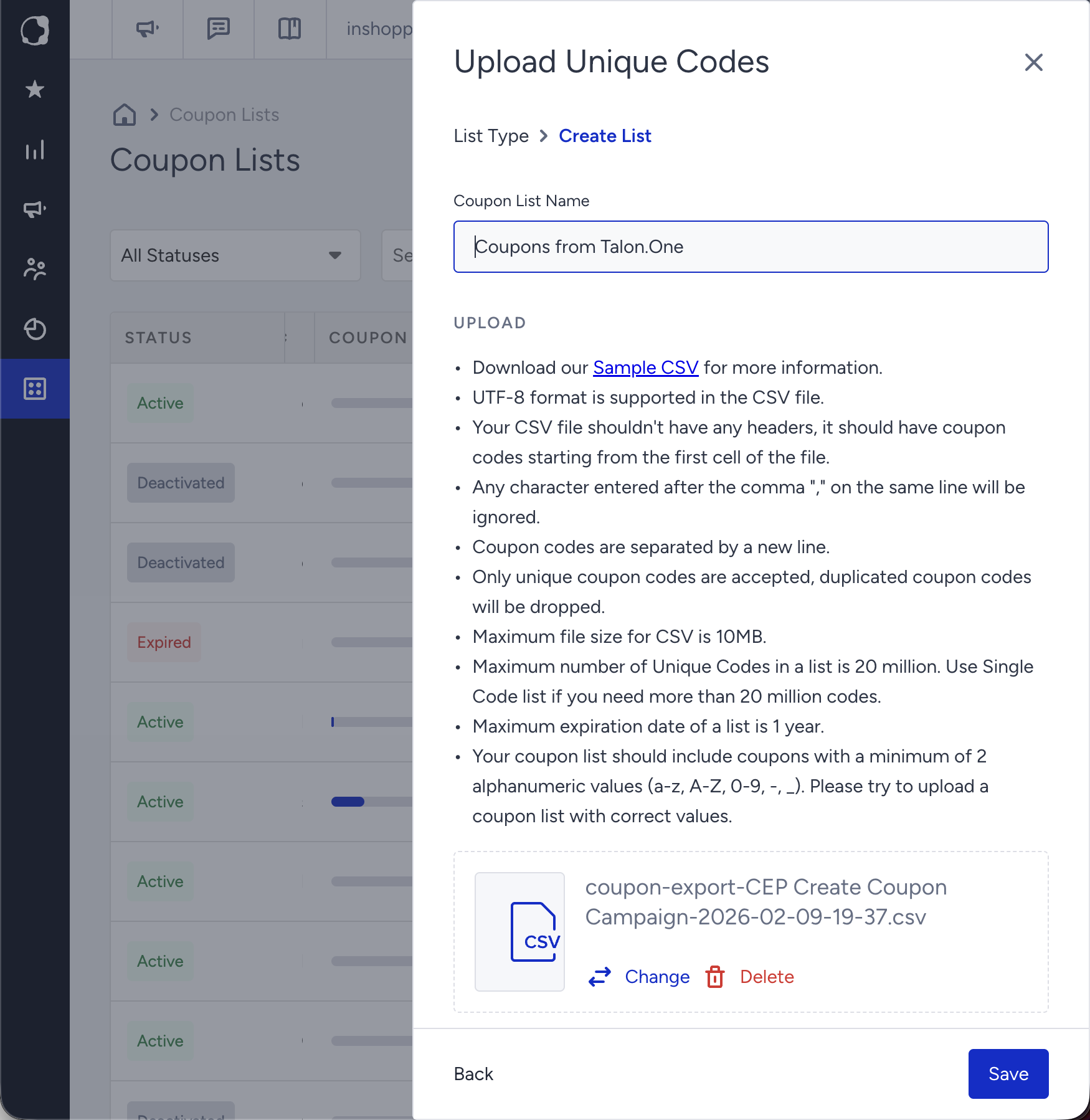
Name your coupon list and upload the coupon list file you exported from Talon.One. Click Save.
The unique codes are now available. You can start using them in your bulk email campaigns.
Step 3: Launch a bulk email campaign in Insider One
To learn more about launching email campaigns with coupon codes, refer to Launch Email Campaigns with Coupon Codes
To create your new email campaign, navigate to InOne > Campaigns > Messaging > Email.
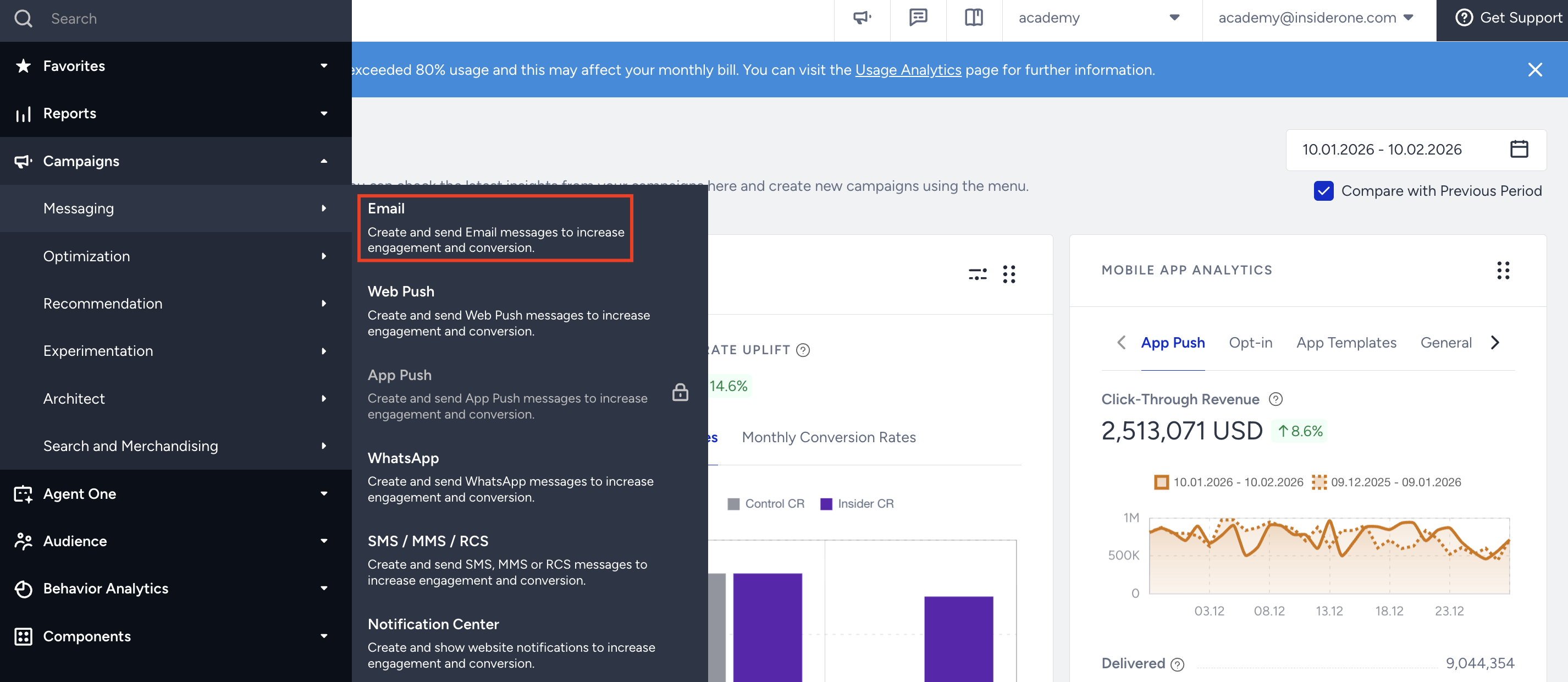
On the campaign listing page, click the Create button.
In the Segments step, select your target audience and specific segmentation.
In the Design step, create your email creative.
To add the coupon code placeholder to your design:
Drag and drop the Coupon Block element, or
Add a Text Block and manually insert the placeholder text: {@COUPON_CODE}.
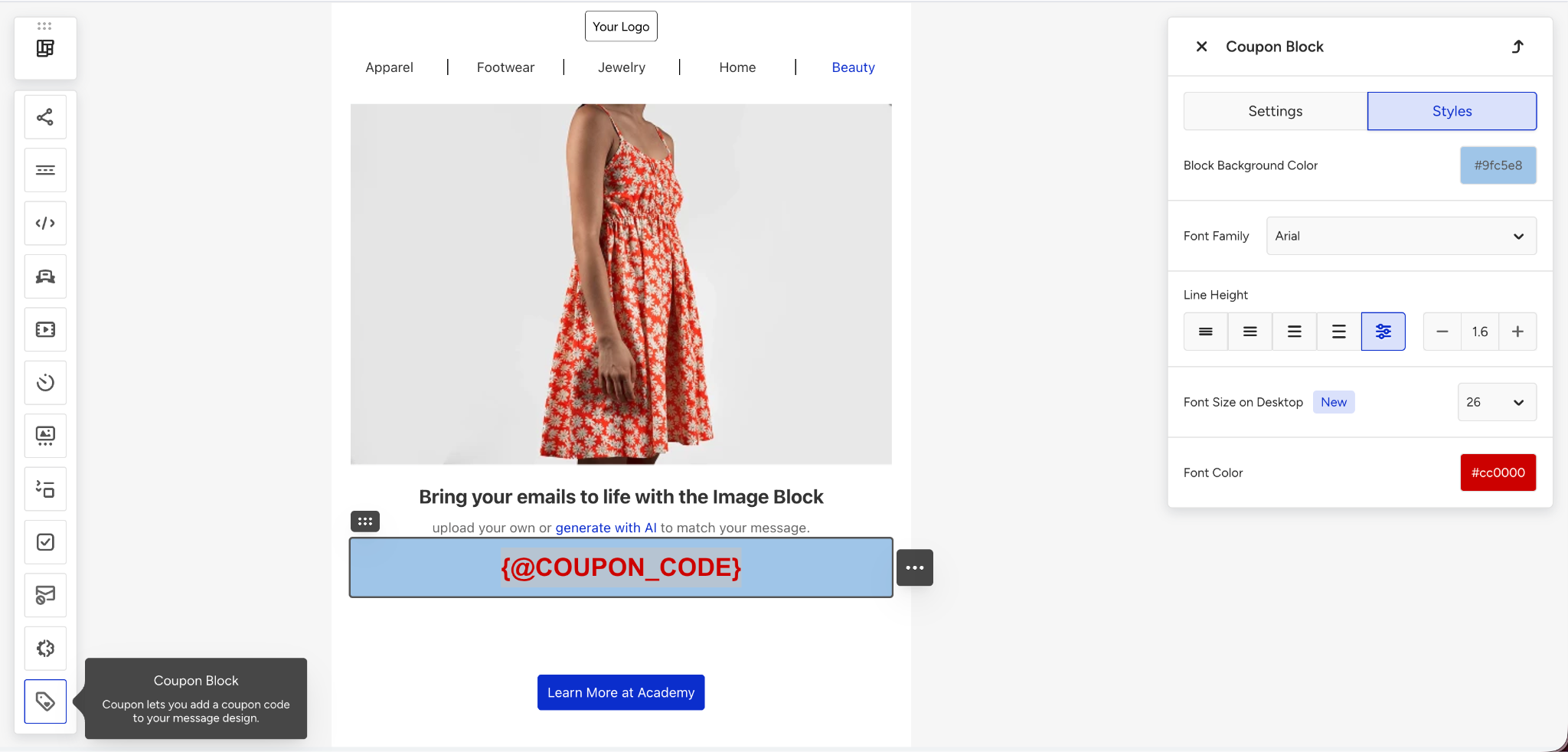
In the Launch step, select the Coupon List you uploaded in Step 2. This links the campaign to the unique code pool.
Double-check that the number of coupons in the list is greater than the number of recipients.
Send a test email to yourself or a test segment to ensure the coupon placeholder correctly resolves to a unique code.
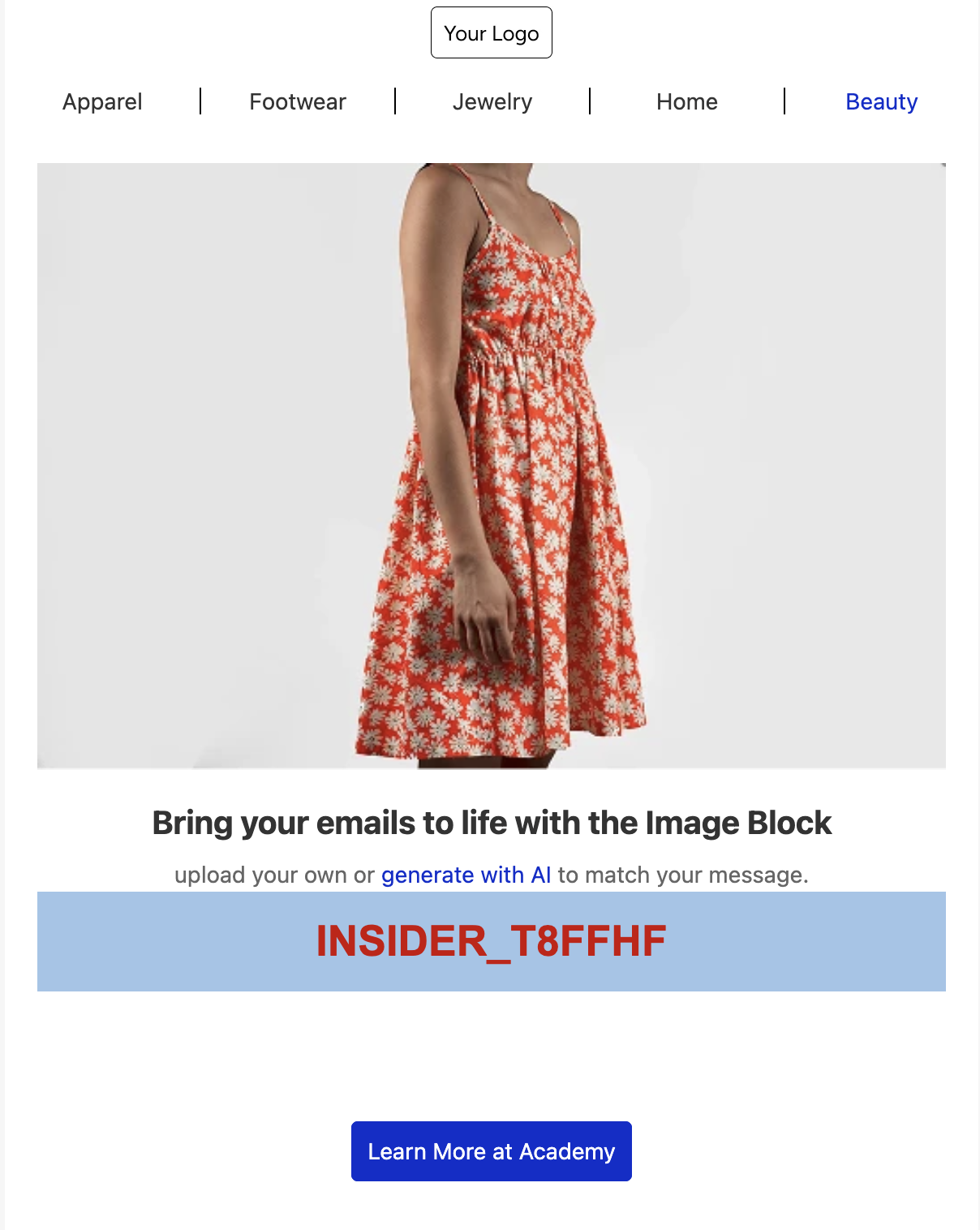
You are now ready to launch your bulk email campaign with personalized, unique coupons!