Suggested readings: Coupon lists, Use coupon codes in email design
To launch an email campaign with a coupon code, first, create a coupon list and add coupon codes to your email design via Insider One's InOne panel or create a list of unique codes via Talon.One.
When you add a coupon to your email, you will see the Coupon Settings on the Launch step. This section lets you select the available coupon lists you have.
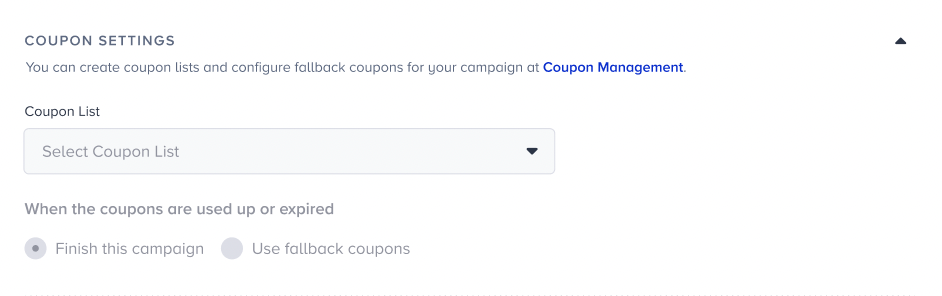
If you do not allocate any coupon code in your email design, this section will be as follows:
It is not possible to choose a coupon list that is already being used in another campaign, regardless of its campaign status and type.
After selecting the coupon list for the campaign, you can specify how to proceed if the coupon list you allocated to this campaign has no available coupons left or has expired.
If you send a test email to yourself, you will not be able to see the coupon code you chose on the Launch step. The only way to see the coupon code is to launch the campaign.

You can select the Finish this campaign option to deactivate your campaign.
You can select the Use fallback coupons option to keep delivering your campaign to the recipients with fallback coupons.
If the campaign does not have a fallback coupon associated with the coupon list, the Use fallback coupons option will not be available for your campaign.
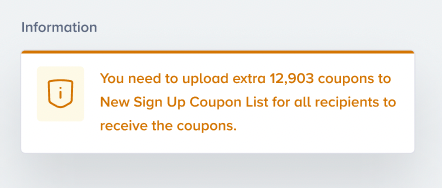
If the number of coupons with the "Finish the campaign" option is fewer than the number of recipients, you need to upload more coupons to the list. You can launch your campaign once you match the number of coupons with the number of recipients.