Insider One lets you manage multiple SMS and RCS senders from a single InOne panel. You can use these senders across SMS, MMS, and RCS messaging. MMS campaigns use an SMS sender.
When creating a promotional campaign, you can select the sender you want to use. You can also filter supported campaign lists and analytics pages by sender and configure the available Sender Preferences separately. Available preferences depend on the sender's channel, usage type, provider, and enabled features.
If your brand operates across multiple countries or brand names, you can manage these senders from the same panel instead of using a separate panel for each sender.
This guide covers the following:
Scope and limitations
This feature supports multiple SMS and RCS senders for SMS, MMS, and RCS messaging. MMS campaigns use an SMS sender. Sender records can have a promotional or transactional usage type. If an RCS message falls back to SMS, the fallback message can use a separately selected SMS sender.
The campaign creation steps in this guide apply to promotional senders. Transactional senders are used in transactional messaging flows and Transactional Analytics. They do not appear in the sender dropdown for promotional campaign creation. OTP does not support transactional multi-sender selection.
The following limitations apply:
No self-service sender creation. The Insider One team integrates senders upon request. You cannot add a sender directly from the panel.
No content translation. Multi-sender selection does not translate message content between languages. Prepare the appropriate content for each market.
No automatic country or sender segmentation. Multi-sender selection does not automatically segment customers by country or sender. Define the appropriate target segment when creating campaigns for specific countries or senders.
User subscription status is panel-based. If a user opts in or opts out through one sender, the status applies across the senders in the same panel. You can configure the supported subscription and unsubscription methods separately for each promotional sender.
Sender Preferences vary by sender. The available preferences depend on the sender's channel, usage type, provider, countries, and enabled features.
Some settings can fall back to panel-level configuration. For example, if a sender does not have its own Silent Hours configuration, Insider One uses the panel-level Silent Hours setting.
Use cases for multi-sender selection
Multi-sender selection can support different organizational and regional messaging setups. Common use cases include:
Regional marketing teams: A global brand sends SMS and RCS campaigns across Türkiye, Germany, and the United States, with different sender names or codes and country-specific routing. Teams can select the relevant sender when creating a promotional campaign and manage campaigns by sender from the same panel.
Parent brand with sub-brands: A company manages several sub-brands, each using a different sender name. With multi-sender selection, the parent brand manages all communication from a single panel while keeping campaigns and reports separate per sender.
Benefits of multi-sender selection
Multi-sender selection helps you manage communication across teams and regions:
Single-panel efficiency: View and manage your senders under SMS/MMS/RCS > Settings > Sender.
Time savings: Switch between senders without switching panels.
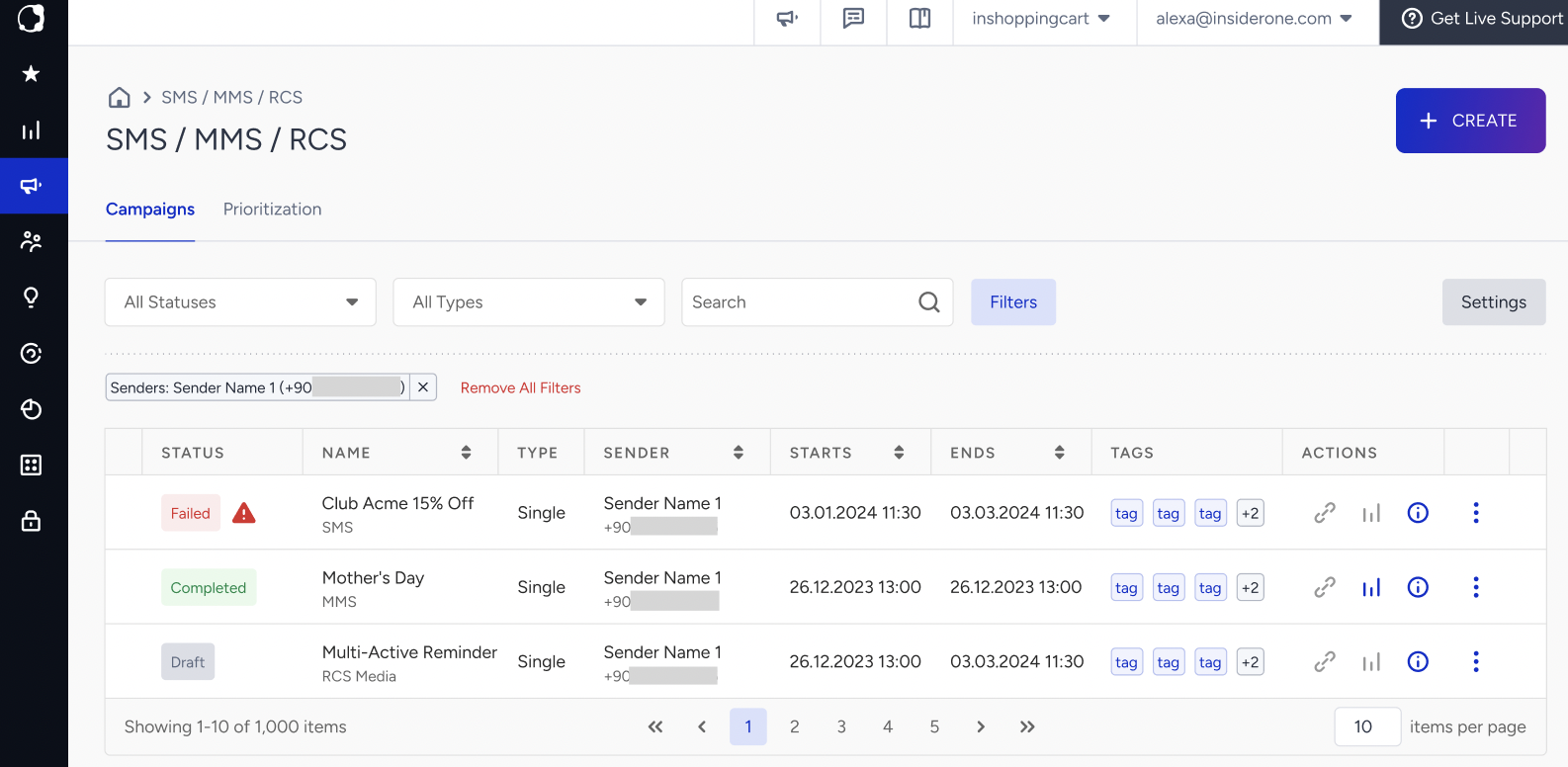
Unified visibility: Use the Sender column and sender filter to view campaigns associated with selected senders.
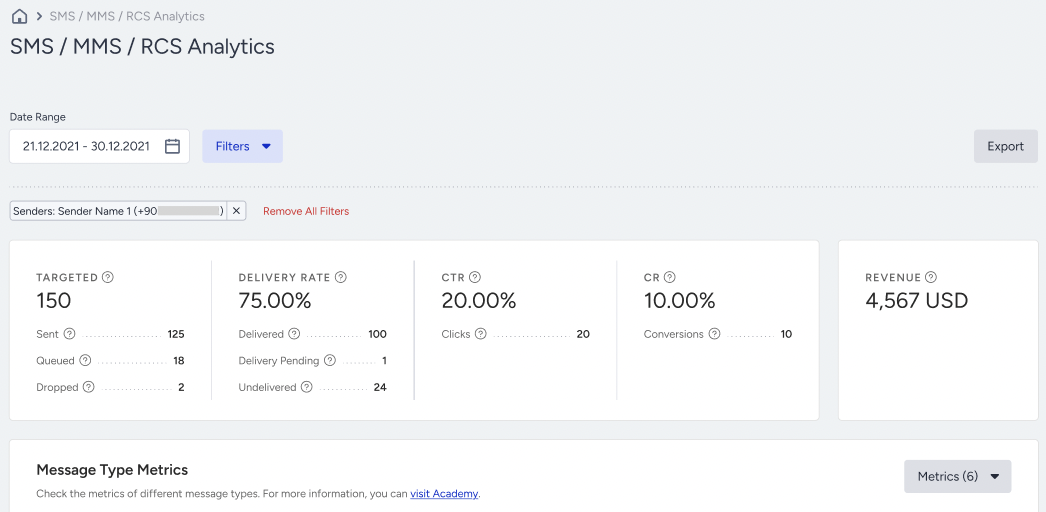
Improved analytics: Compare analytics per sender without navigating across panels.
Support for expanding messaging setups: Add senders for new countries or sub-brands without moving them to separate InOne panels.
Use multi-sender selection in InOne
Multi-sender selection is available across different areas of InOne, including sender management, campaign creation, campaign filtering, and reporting.
The Insider One team adds senders upon request. Once integrated, the sender appears under SMS/MMS/RCS > Settings > Sender.
Review your sender list
The Sender tab lists your configured senders and the following information:
Message type (SMS or RCS)
Usage type (promotional or transactional)
Countries
Default status, marked with a Default (SMS) or Default (RCS) badge.
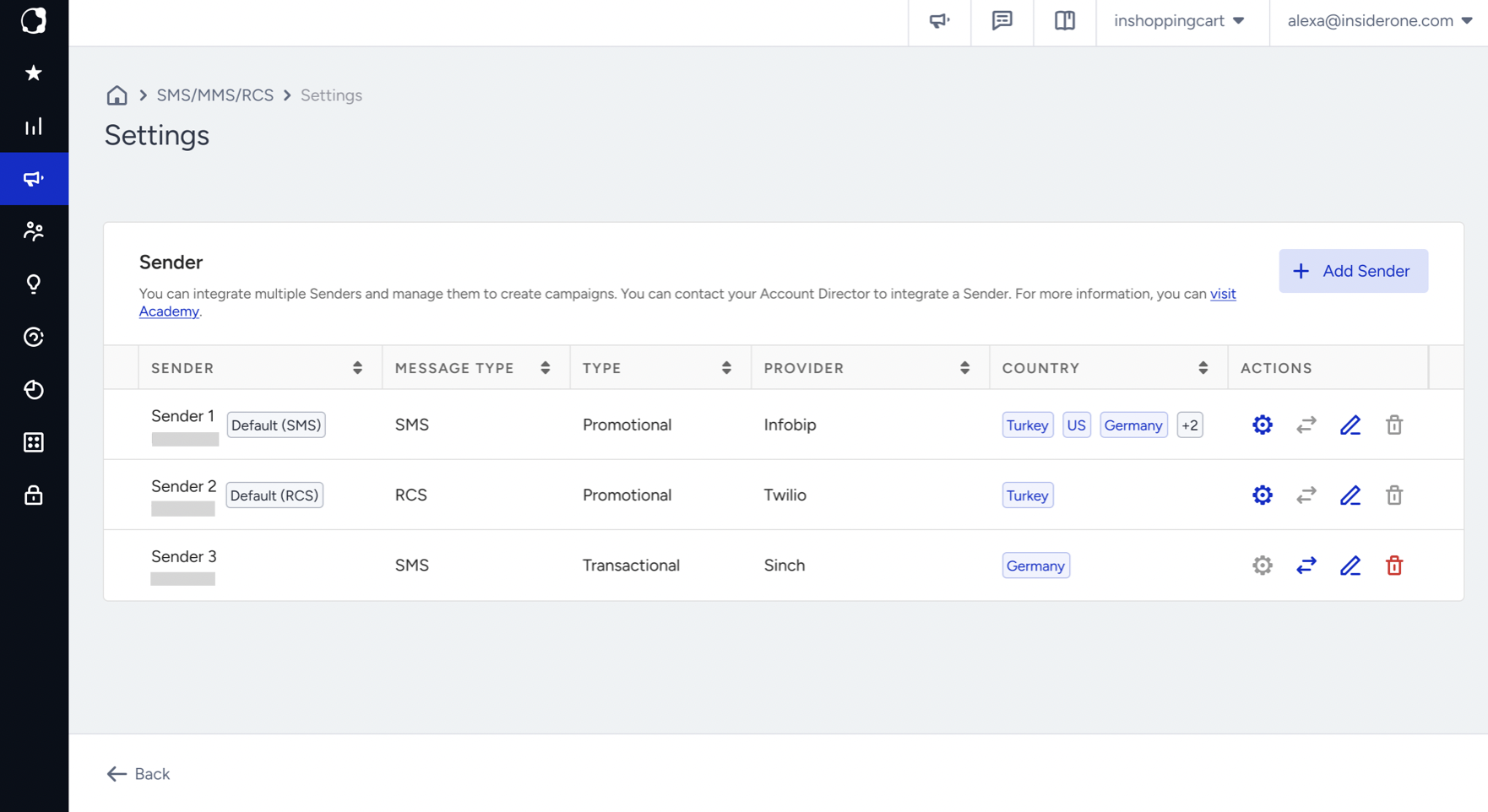
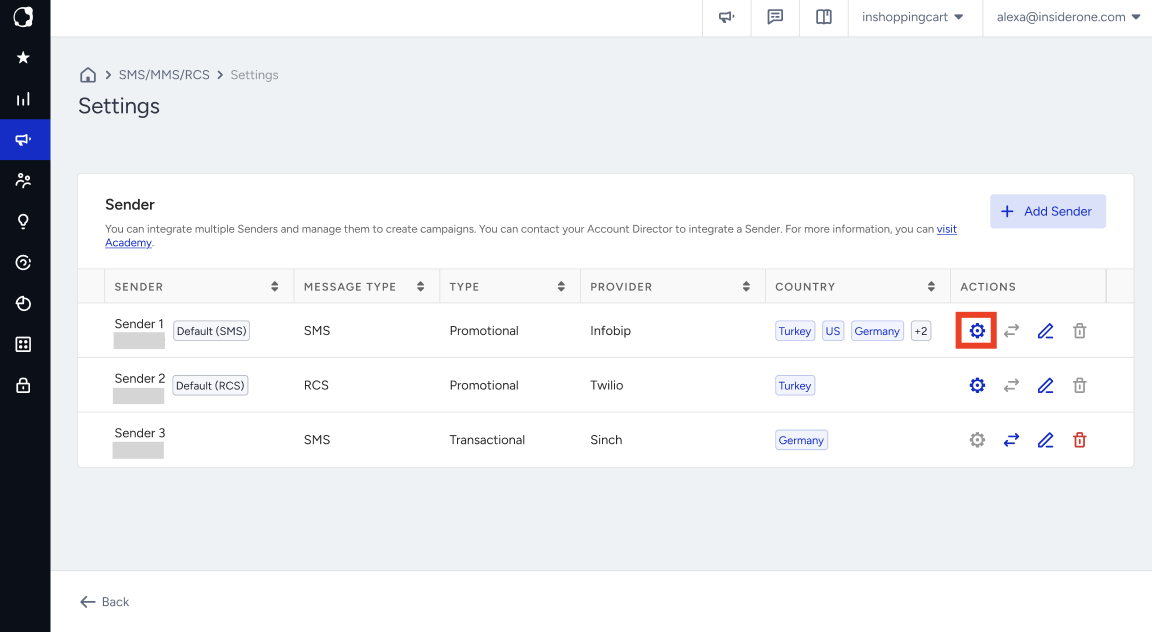
In the Actions column, click the Sender Preferences gear icon to open the preferences available for the sender. You can also use the other icons to make a non-default sender the default, edit a sender, or delete a non-default sender. You cannot delete the current default sender.
Sender Preferences are unavailable for transactional senders.
Set your default sender
For promotional campaigns, you can set one active SMS sender and one active RCS sender as the defaults. Insider One automatically selects the corresponding default when you create a new campaign. MMS campaigns use the default SMS sender.
If you already use Insider One, your current sender remains the default, so nothing changes for your existing campaigns. Insider One migrates provider settings, RCS brand preferences, and stop word assignments automatically for the default sender.
Configure Sender Preferences per sender
From the Actions column, click the Sender Preferences icon for the relevant promotional sender.
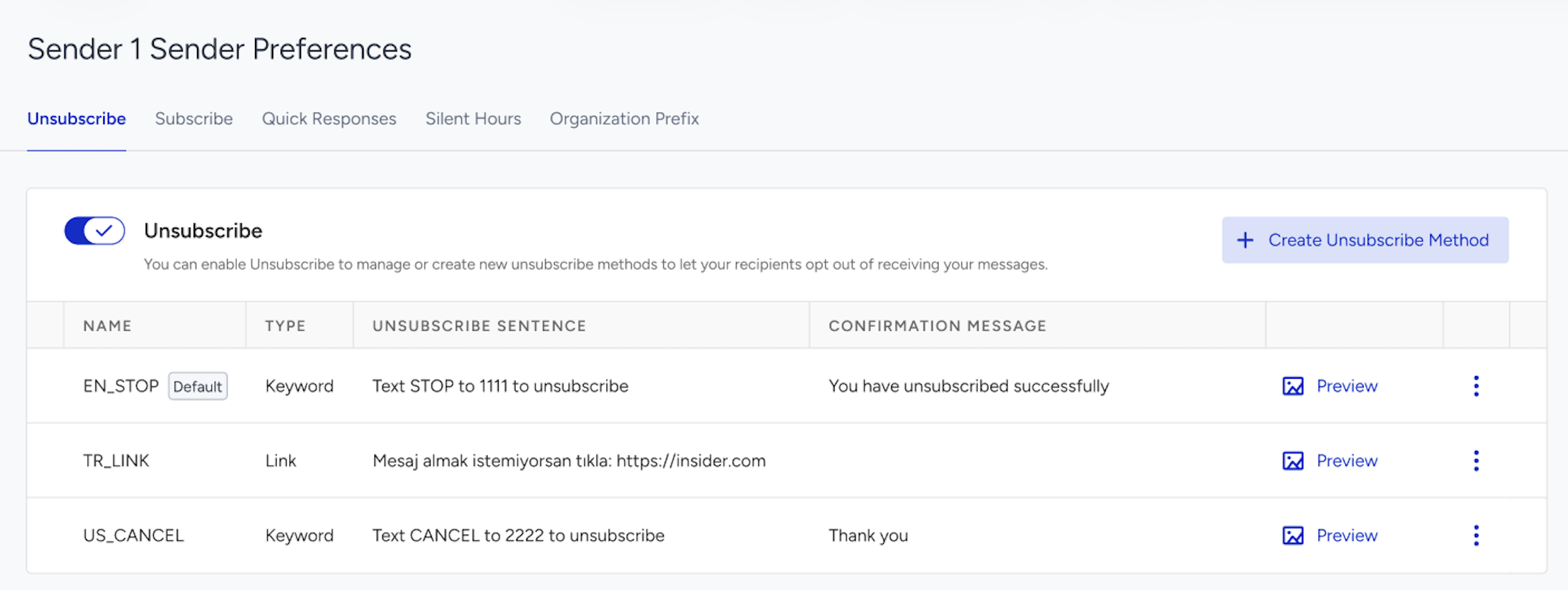
Depending on the sender and enabled features, the page can include:
Unsubscribe methods and keywords
Subscription settings
Quick Responses
Silent Hours
Organization Prefix for supported SMS senders
Verified Sender Management for RCS senders
The available preferences vary by channel, usage type, provider, country, and enabled features. Quick Responses, for example, are unavailable for RCS or transactional senders.
After the Insider One team adds a new promotional sender, review and configure its available Sender Preferences before using it in a campaign.
Select a sender when creating a campaign
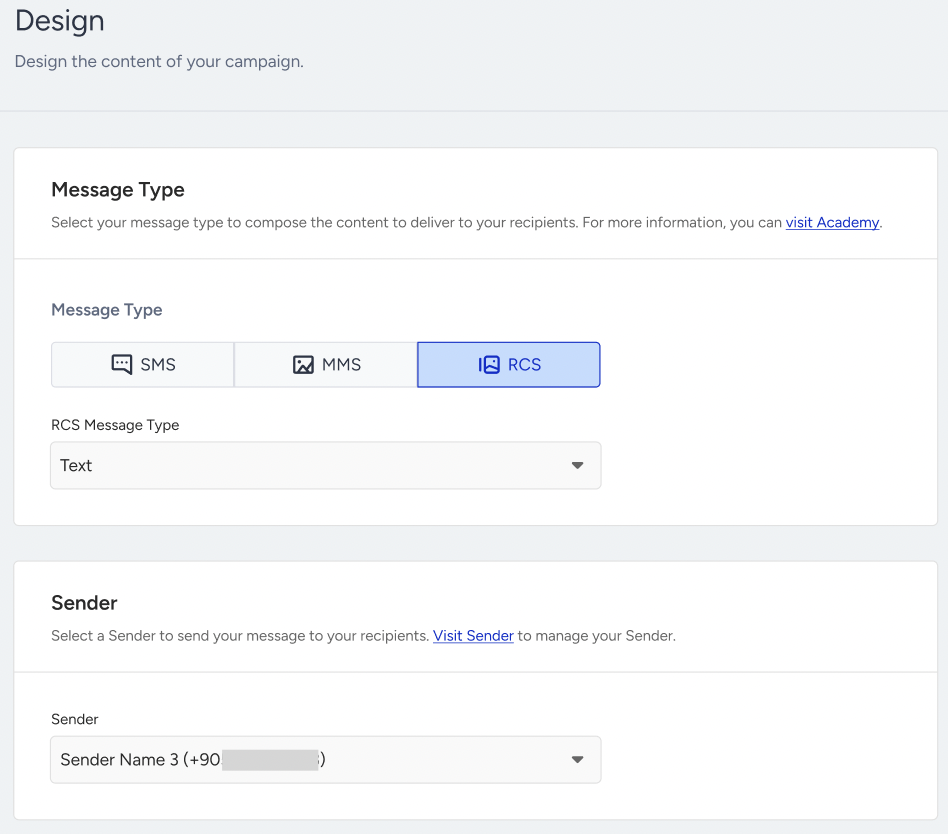
When creating a promotional campaign, select the sender you want to use from the Sender section in the Design step. Use the Select Sender dropdown to choose a sender, or select Visit Sender to manage your configured senders.
The dropdown appears only when your panel has more than one available sender for the relevant channel. If only one sender is available for that channel, Insider One selects it automatically and hides the dropdown.
When SMS fallback is enabled for an RCS campaign, you can select the SMS fallback sender separately if multiple SMS senders are available.
Resolve a deleted sender in a draft campaign
If a sender selected for a draft campaign is deleted, the Design step prompts you to select another available sender. You cannot continue until you select a valid sender.
Filter your campaign list by sender
On the campaign list, the Sender column shows the sender used for each campaign. To view campaigns for specific senders, open Filters and use Select Senders to choose the senders you want to include.
Deleted senders remain visible on past campaigns for reporting purposes, but you cannot select them for new campaigns.
View analytics by sender
Overall SMS Analytics can display sender information and provide a sender filter when multiple sender options are available.
SMS Usage Analytics provides a sender filter for comparing usage across senders.
Transactional SMS Campaign Analytics provides a sender filter when the panel has multiple transactional senders. The sender filter does not apply to OTP SMS Analytics.
To add another sender to your panel, contact the Insider One team.