Liquid is a templating syntax you write directly inside your content. Instead of dropping a value into a sentence and hoping it is there, you can branch on it, give it a fallback, loop over a list, and format dates, numbers, and text.
Instead of | You can use |
|---|---|
{first_name|Customer} | {{ first_name | default: "Customer" }} |
One variation per case | {% if ins_coupon_code %}Use {{ ins_coupon_code }}{% else %}Welcome back{% endif %} |
A pre-formatted attribute | {{ renewal_date | date: "%d %B" }} |
Below you can see where you can use Liquid in Architect.
Where | Liquid fields | Non-Liquid |
|---|---|---|
Email, promotional and transactional | Subject, preheader and body content, in both the drag and drop editor, and the HTML editor | Sender and delivery settings |
App Push | Message Title and Message Description | Image URL, deep link, dynamic image, sounds, and channel settings |
SMS (promotional only) | Message Text of the SMS, MMS and RCS message types, and the SMS Fallback message text of an RCS message | Message type selection, coupon settings, tracking parameters, URL shortening, stock control, and sending settings |
Call an API | Path, header keys, header values, and request body | Method and the base endpoint URL |
The dynamic content you added without Liquid remains unaltered unless you switch it on. You can enable this feature in the header of the content section of the element you are editing.
Call an API additionally runs its Liquid rendering through the service that prepares the request at delivery time.
Switching the element toggle on swaps the plain inputs for a Liquid-aware code editor with line numbers, syntax highlighting, and live validation. Switching it off while the fields still contain Liquid syntax first triggers a warning. If you confirm, the text stays as it is but is sent as plain text, so it needs cleaning up.
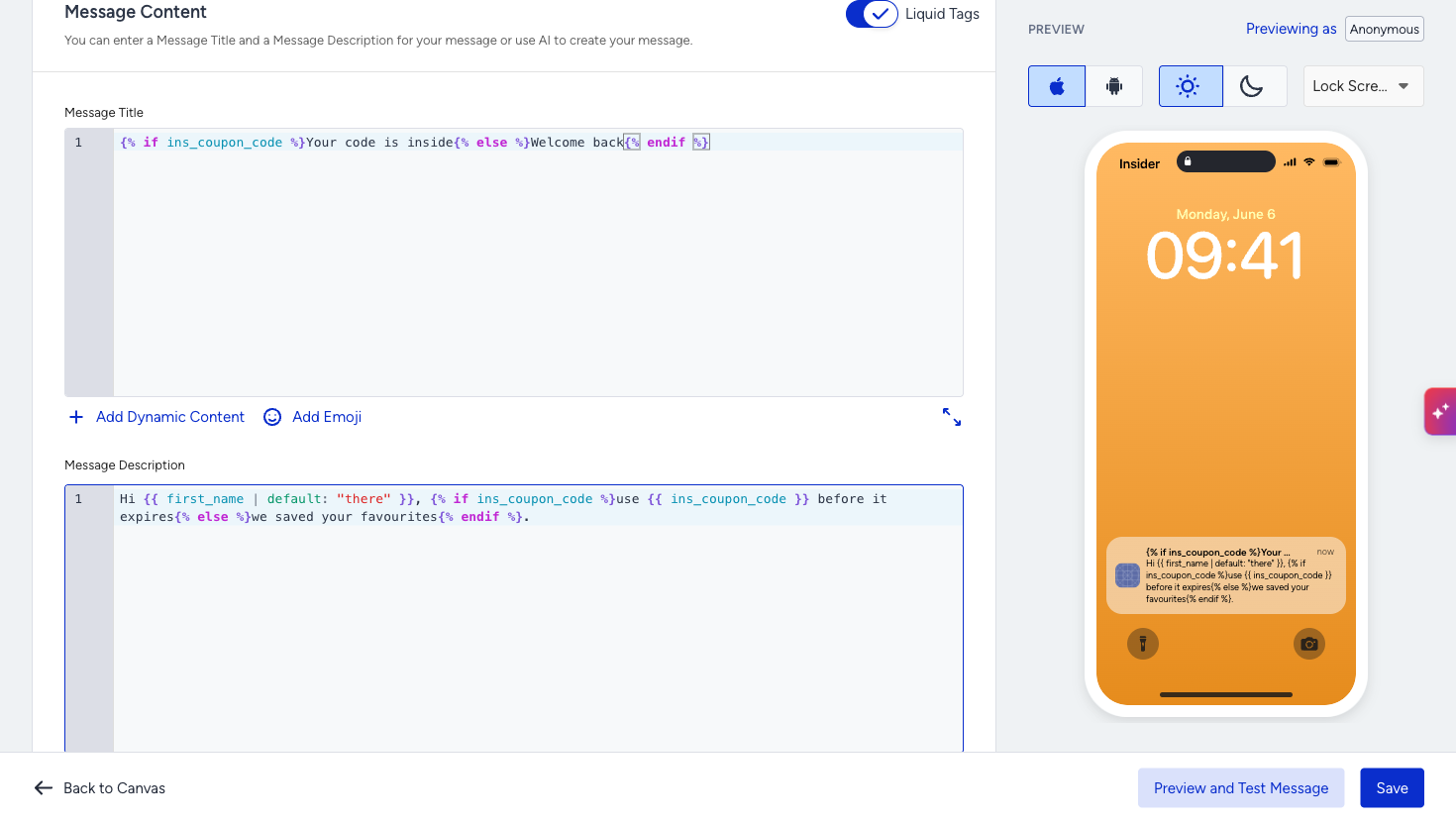
Liquid enabled in App Push message content
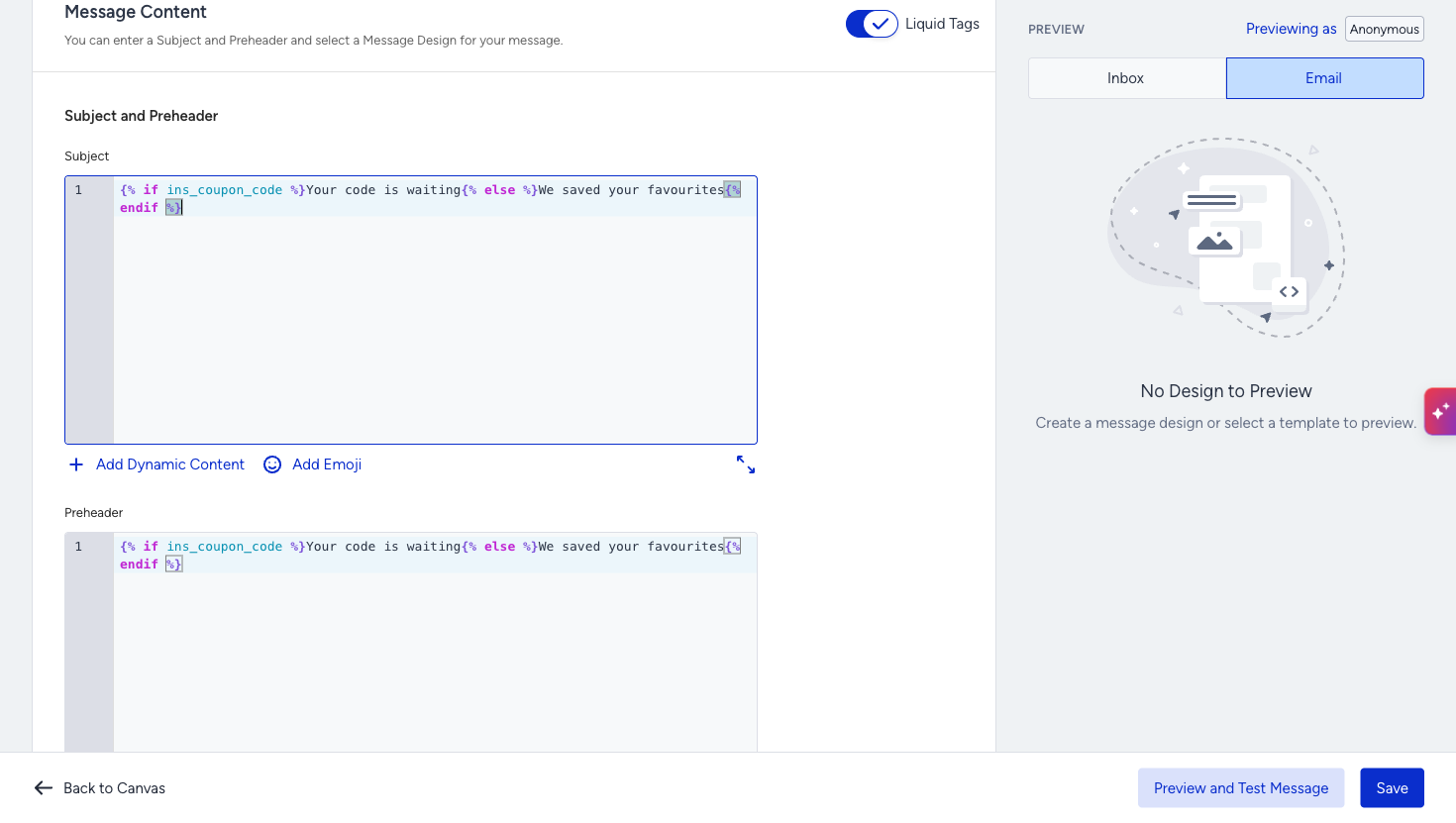
Liquid works in the subject, preheader, and body of both promotional and transactional Architect emails. Everything authored before Liquid keeps rendering through the old path until the element is switched over.
Below is conditional content in the Subject and the Preheader.
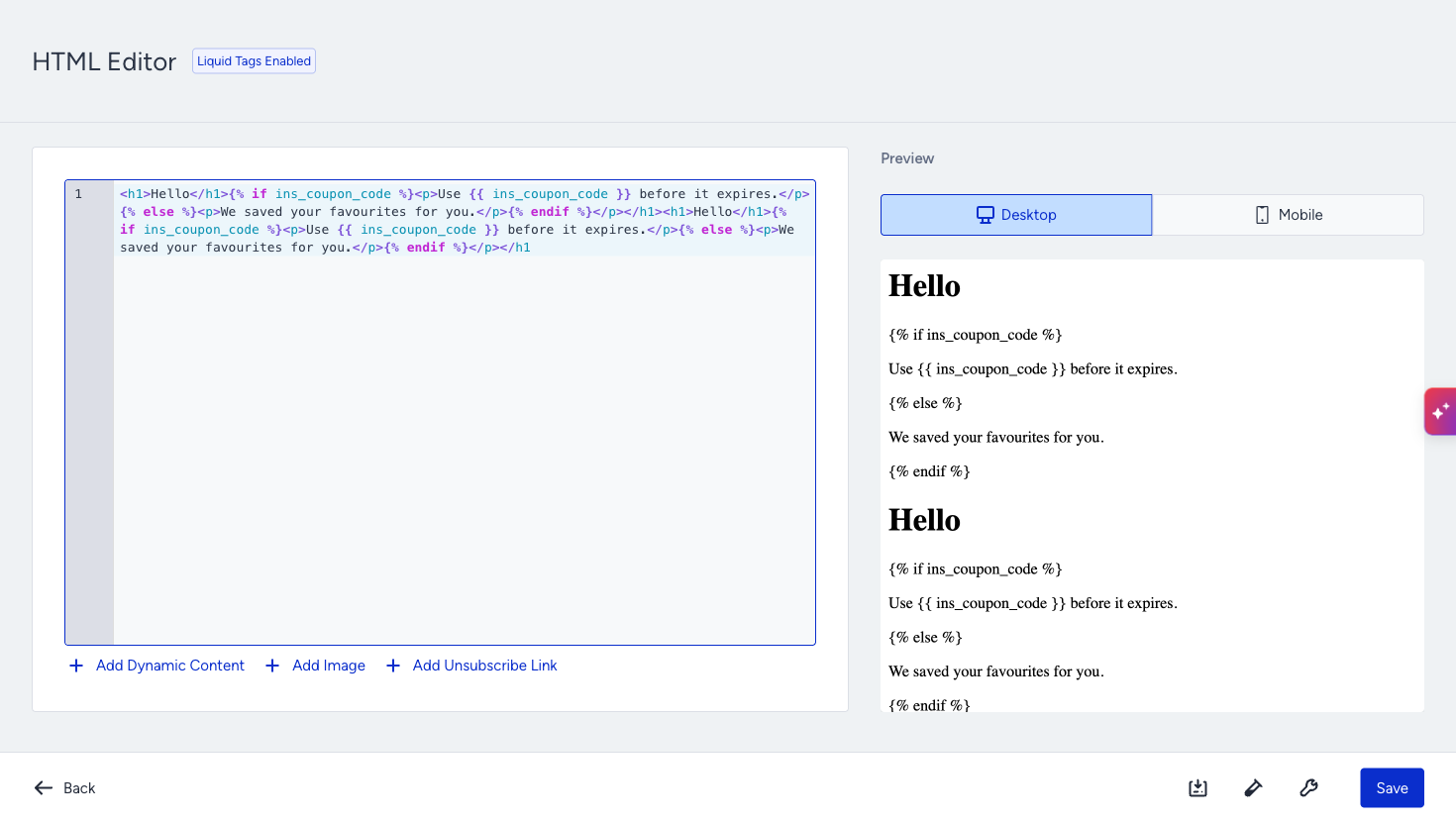
In the body, it is available in both editors. In the Drag & Drop Editor, you write Liquid inside the text blocks, so a single block can carry the branch instead of building a separate block or a separate variation for each case. In the HTML editor, you write it directly in the markup, which is a better fit when the logic wraps around the layout rather than sitting inside a single sentence, e.g., showing a whole section only to part of the audience. The HTML editor carries a Liquid Tags Enabled badge next to its title so you can tell which mode you are in, and the preview beside the editor shows the template as written, not the rendered result.
Below is a condition example wrapped around a block of markup in the HTML editor.
See Liquid in standalone Email for more use cases.
App Push
Turn the Liquid Tags toggle on in the Message Content section and write the Message Title and the Message Description in the editor. The live preview on the right keeps updating while you type, showing the raw template rather than a rendered message.
A push title is cut at roughly 60 characters, and the body at roughly 240, and the cut happens after Liquid renders, not before. The plain character counter shown in legacy mode is not displayed while Liquid is on, so keep the branch that produces the longest output in mind.
Image URL, deep link, and the other non-text fields are non-Liquid components.
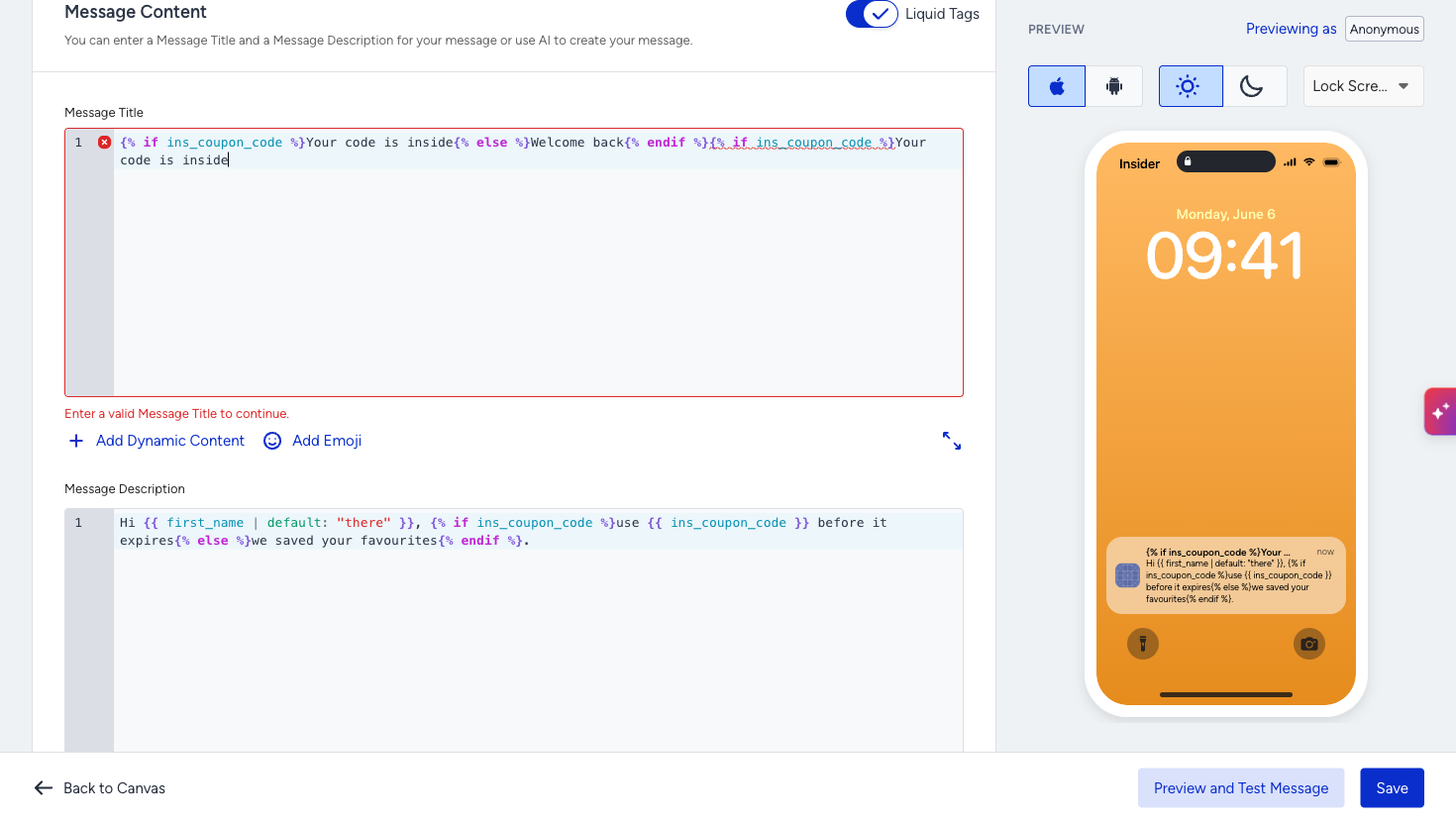
In case of a syntax error, a red marker is displayed with the broken fragment underlined, and a message under the field.
See Liquid in standalone App Push for more use cases.
SMS
Liquid is available in promotional SMS journeys. Turn the Liquid Tags toggle on in the SMS Message Content section and write the Message Text in the editor.
The preview on the right shows the raw template. You can open Preview and Test Message, pick a user, and click the Reload Preview button to see it rendered with that user's data. Test messages are sent rendered too.
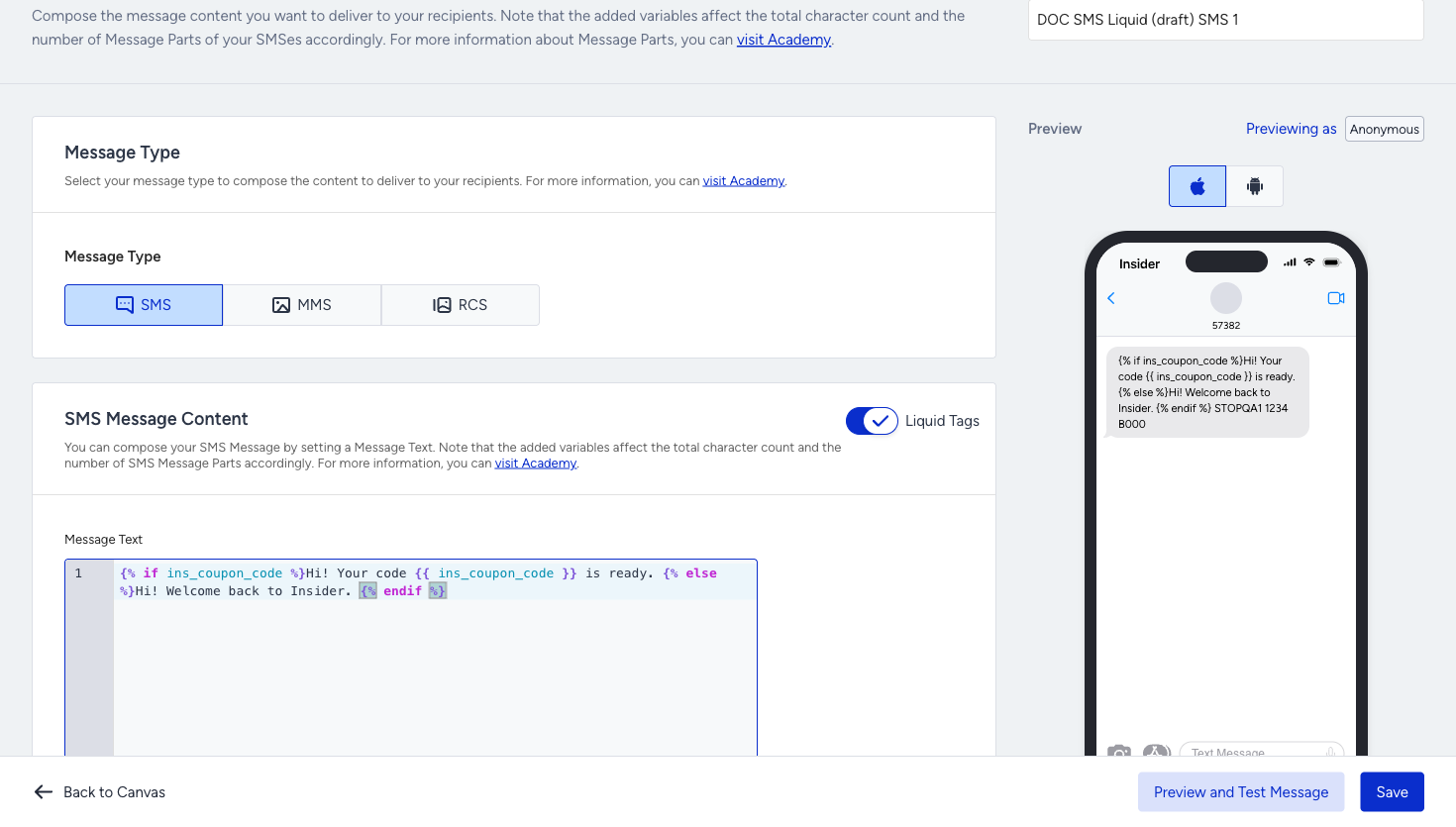
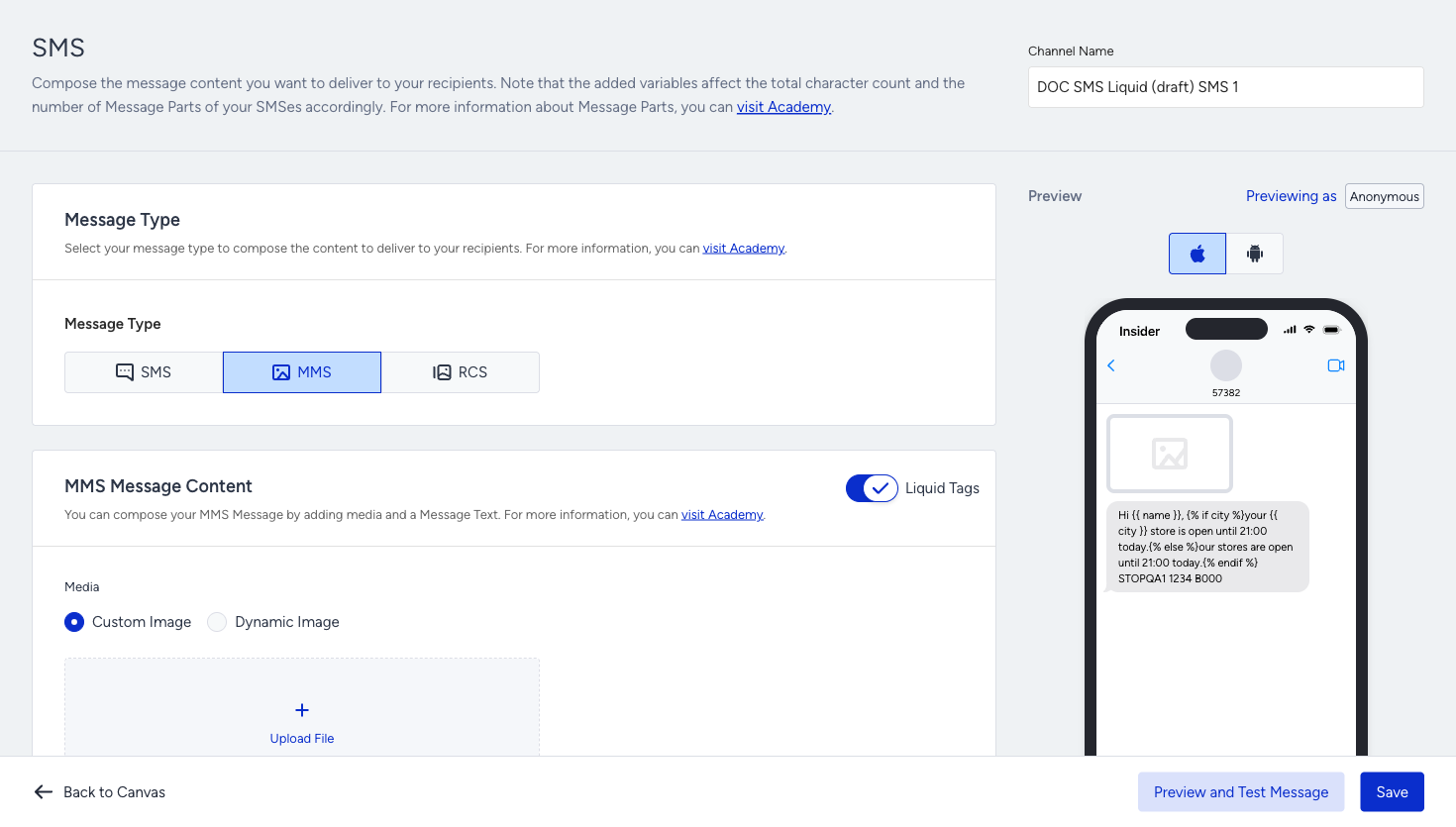
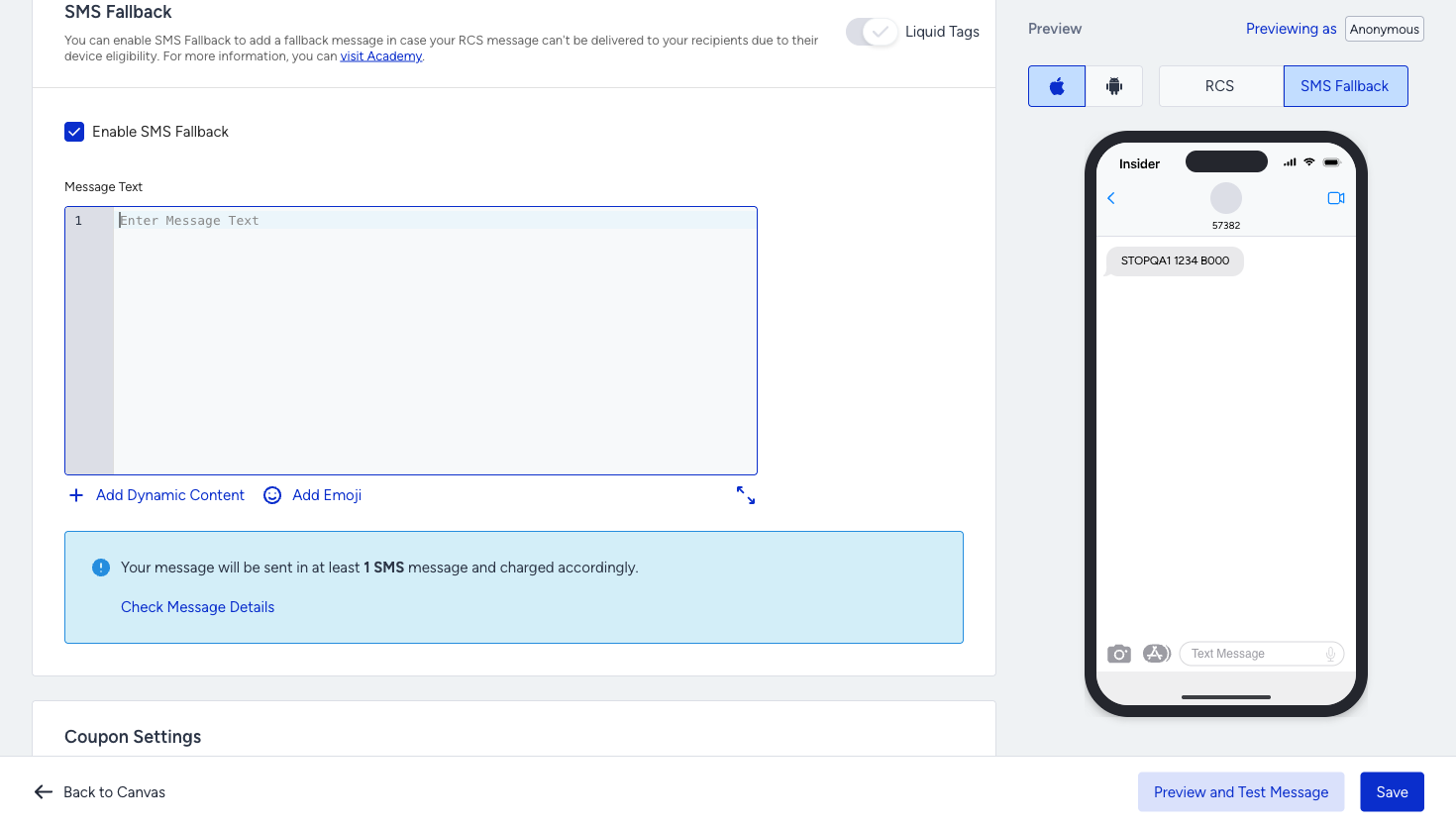
SMS, MMS, and RCS share one message text and one Liquid switch, so turning Liquid on for one type turns it on for all three options. For RCS, only the first card takes part, and the SMS Fallback follows the same switch. The Add Dynamic Content picker inserts every attribute in {{ }} form here, so plain user attributes such as {{ name }} or {{ city }} can be used directly in conditions and filters.
Call an API
Turn the Liquid Tags toggle on in the API Configuration section. The header keys, the header values, and the request body all accept Liquid, so the request itself adapts to the user rather than being a fixed shape.
Liquid inside a JSON string is safe. Liquid that is meant to be a JSON value, an object, or an array needs a filter that outputs valid JSON.
Control tags such as {% if %} are best kept out of positions where they would straddle a comma or a brace, since that breaks the structure after rendering.
Values you put into the path, or the query string are sent as they are, so encode them yourself when they can contain special characters.
Test API fires the rendered request, not the raw template, and the Final URL Preview shows the call that will actually go out. Both use the same renderer that runs at delivery time, so what you validate is what gets sent.
Call an API response
In Liquid mode, the reference carries the element and the variable name you choose. This way, the content self-describes. The old form continues to work in elements that are not in Liquid mode, so nothing needs to be migrated.
Validation
Validation runs while you type. A broken template marks the line in the gutter, underlines the fragment that failed, and shows a message under the field asking you to fix it before continuing. The same check runs again when the journey is launched, so a Liquid error cannot reach production.
If you type an attribute name that is not one of the Liquid-aware variables, the field reports it as invalid dynamic content and names the token it rejected. Refer to Limitations about the content picker below.
Use case examples
One push instead of two
A campaign gives a coupon to part of the audience. Instead of building two App Push elements and splitting the journey, one element carries the coupon line when a coupon exists and a clean alternative when it does not.
One email instead of a variation per segment
A newsletter has a section that only applies to loyalty members. Rather than duplicating the email, the section is wrapped in a condition in the HTML editor, and the same email serves both audiences.
An API call that adapts per user
A loyalty endpoint expects a different payload for members and non-members. One Call an API element covers both, and the request body decides which shape to send while it renders.
A status-driven follow-up
A journey calls an order service, then sends an email whose subject line depends on the response, with a safe fallback for users whose order is still being processed.
Limitations
Only some variables are Liquid-aware. Coupon, Call an API response, and Group Level Unification values can be written in Liquid syntax. Plain user attributes and other dynamic content types are still inserted via the Add Dynamic Content button and retain their existing token form. Typing an attribute name in Liquid syntax is rejected as invalid dynamic content, with the token named in the error.
Text fields only. The App Push image URL, deep link, and dynamic image remain on the plain path even when the element is in Liquid mode. The same applies to the base endpoint URL in Call an API.
An element is either Liquid or legacy. The two syntaxes cannot be mixed inside the same element.
Switching the toggle off does not undo your content. The text is kept as written and sent as plain text, so any remaining Liquid syntax needs to be removed by hand.
Transactional SMS journeys do not support Liquid Tags.