This feature is currently available in early access. To enable it for your account, contact your Insider One team.
Event Enrichment fills event parameters with product details from your product catalog. When an event that carries a product ID reaches Insider One, Insider One looks up the product in your catalog. It then fills any mapped parameter missing from the event with the matching product attribute, such as category, brand, or color.
This way, your events can carry only a product ID and a price and still support segmentation and personalization for any product detail in your catalog. You do not need to send every product detail on every event.
Initial setup usually involves your data or integration team, since it depends on your product catalog and event structure.
This article covers the following topics:
Before you begin
Make sure the following requirements are in place:
Product catalog: Your account has a product catalog integrated through Product Catalog Management. Without a catalog, the Event Enrichment page shows Start Your Product Catalog Integration, and the setup controls stay disabled.
Product ID on events: The events you want to enrich carry the product_id event parameter. Only events that carry it appear in the list of events to enrich.
Activation: Event Enrichment is activated for your account. To request it, contact the Insider One team.
Set up Event Enrichment
Step 1: Open Event Enrichment
Navigate to Components > Attributes and Events > Event Enrichment. The item appears right after Attributes and Events in the menu, with a New badge.
The page shows what is still missing:
No product catalog: The page shows Start Your Product Catalog Integration. Click Complete Your Configuration to open the Catalog Manager.
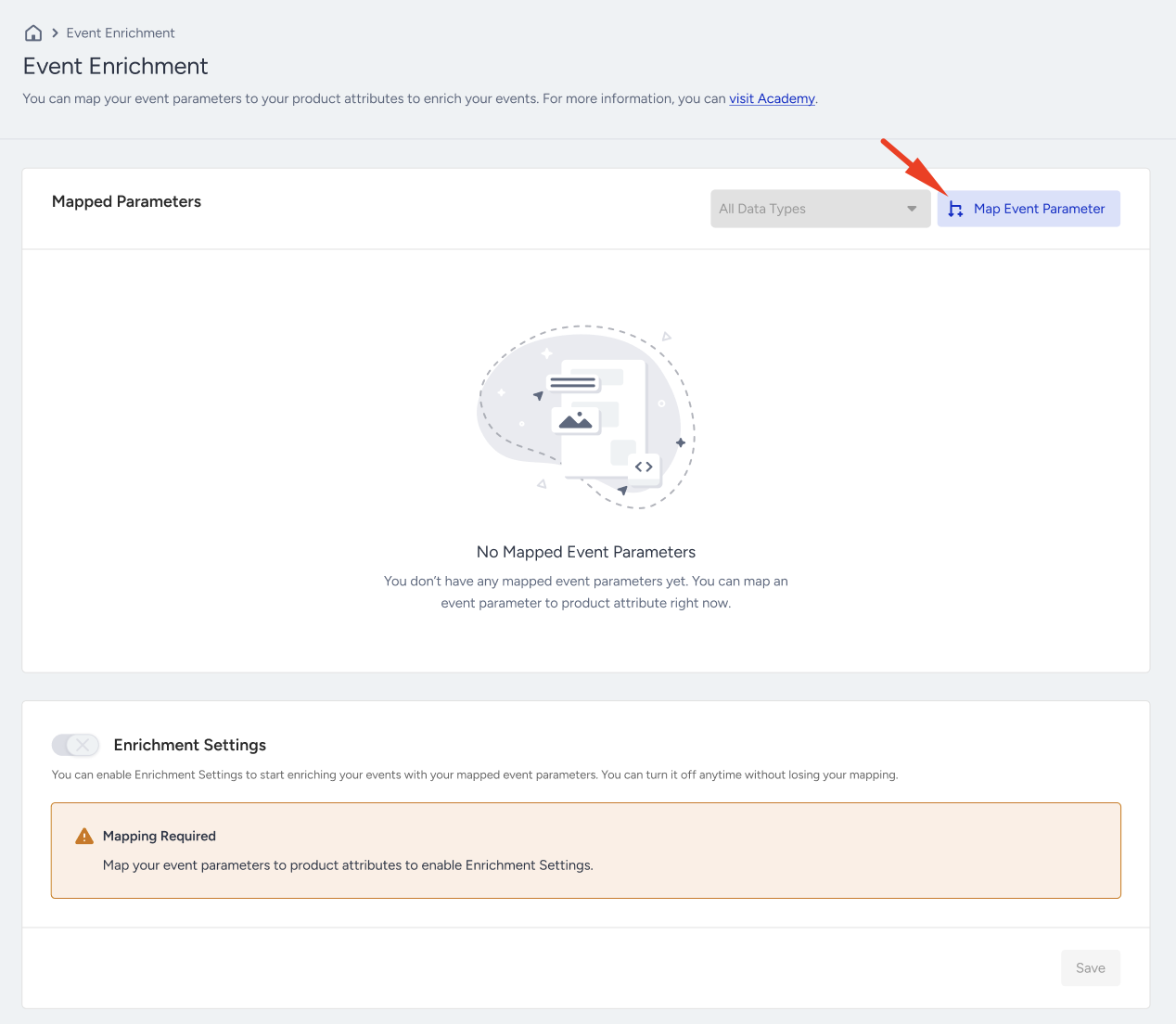
Catalog in place, nothing mapped: The page shows No Mapped Event Parameters, with a Mapping Required warning above Enrichment Settings.
Click Map Event Parameter to open the Map Event Parameters drawer.
The drawer guides you through four steps: Primary Key and Fallback, Field Mapping, Events, and Summary. You can return to any completed step, and your choices are kept.
Step 2: Review the primary key and select a fallback locale
Primary key (read-only): Insider One always matches the Catalog Identifier (catalog_id) to the Event Parameter Identifier (product_id). This is how each event finds its product in your catalog.
Fallback Locale (required): Enrichment uses the user's locale first, then their language. If neither matches a catalog locale, enrichment uses the fallback locale you select. Select a locale from the searchable list of your catalog locales, such as en_AE. If your catalog has a single locale, Insider One selects it for you.
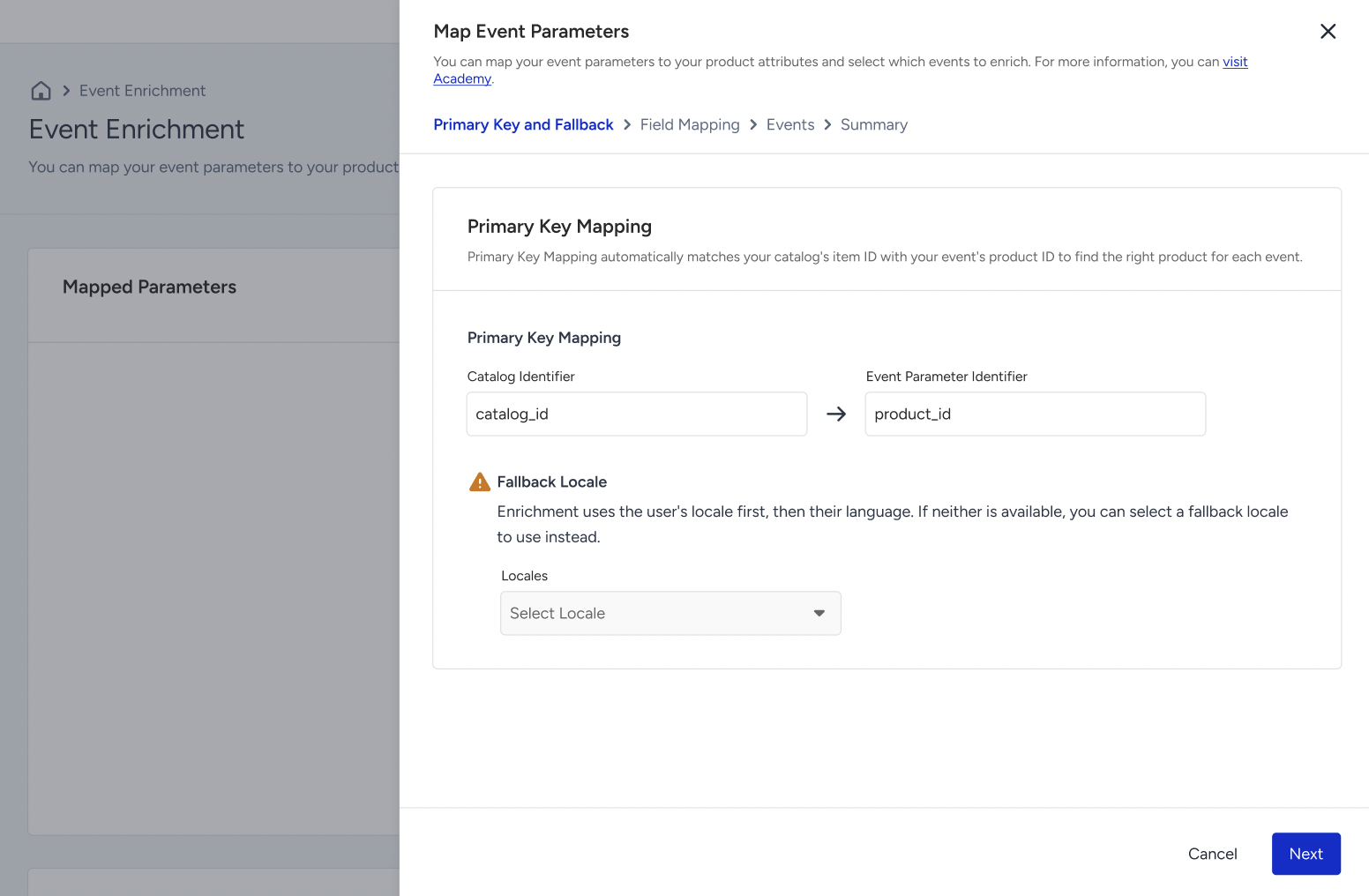
Choose the fallback locale carefully. A wrong fallback locale fills events with product details from a different catalog locale instead of leaving them empty.
Step 3: Map product attributes to event parameters
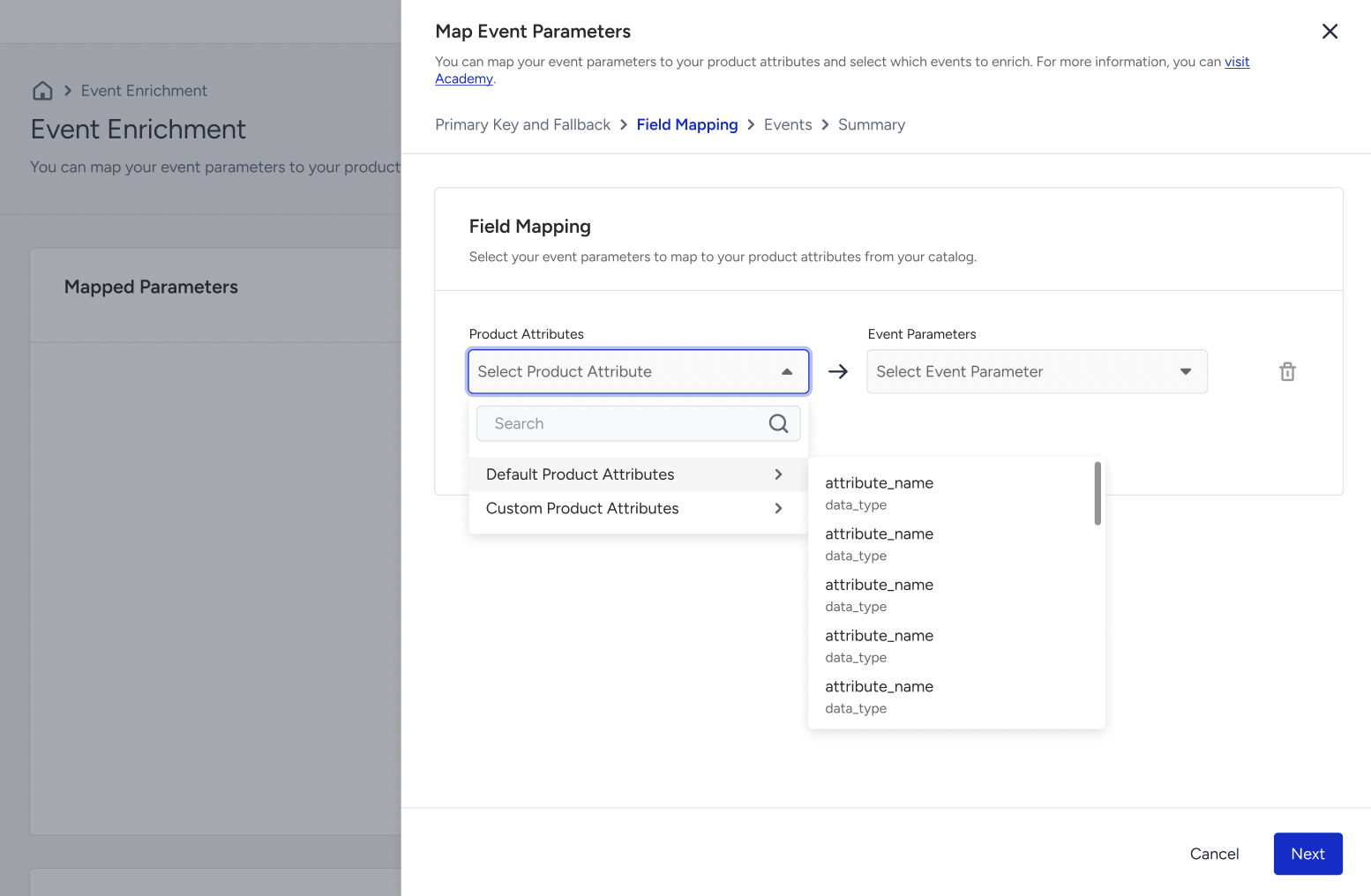
In each row, select a Product Attribute from your catalog (Default or Custom Product Attributes) and the Event Parameter it fills (Default or Custom Parameters). Click Add Fields to add another row, or the trash icon to remove one.
The following mapping rules apply:
The Event Parameters list shows only parameters whose data type matches the selected product attribute.
Mapping is one-to-one. Each product attribute fills one event parameter, and each event parameter is filled by one product attribute. An item used in one row is hidden from the other rows.
You need at least one row.
Step 4: Select the events to enrich
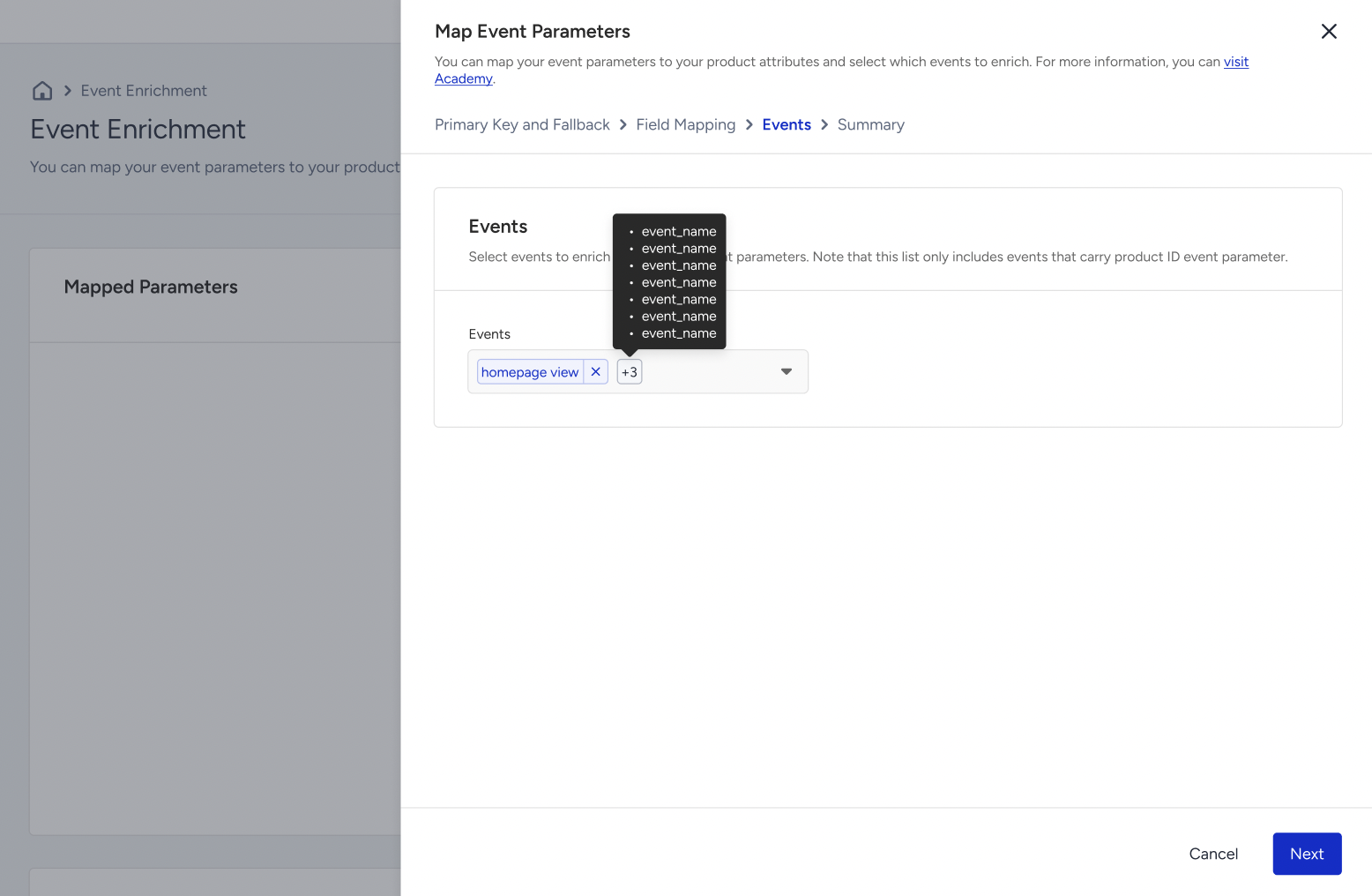
Select the events to enrich. The list shows only events that carry the product_id parameter, grouped as Default Events and Custom Events. You can select events one by one or click Select All. Hover over an event to see which mapped parameters it carries.
Only the events you select are enriched. Events you create later are not added automatically. To enrich a new event, go to Event Enrichment, click Edit Mapping, and select the event in the Events step.
Step 5: Review and save your mapping
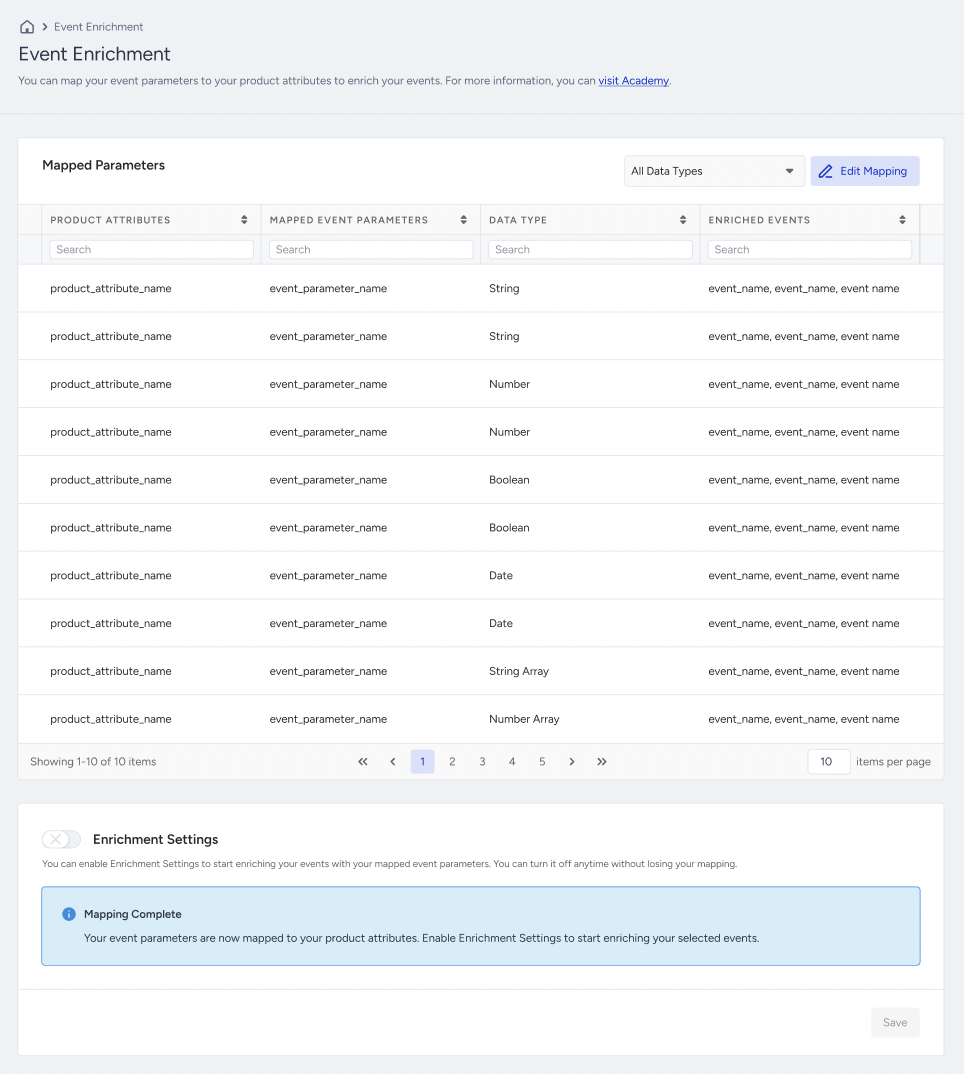
The Summary step confirms that your mapping is complete. Click Save. The drawer closes, and the Event Enrichment page lists your mappings in a table with the following columns: Product Attributes, Mapped Event Parameters, Data Type, and Enriched Events.
Step 6: Turn on Enrichment Settings
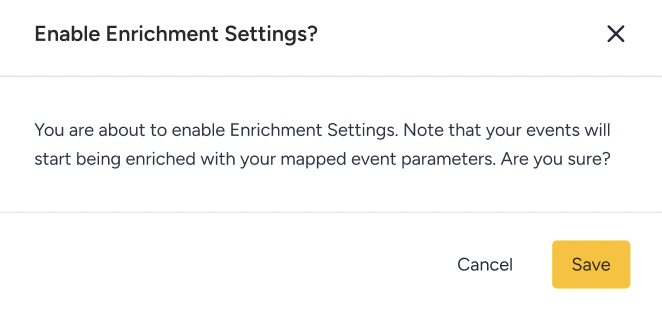
A saved mapping starts enriching events only after you turn on Enrichment Settings. Switch the toggle on, click Save, and confirm in the Enable Enrichment Settings? modal. Enrichment applies to events that arrive after you save.
Manage your mappings
Find a mapping: Sort any column, search within each column, or filter by data type (Boolean, Date, Number, Number Array, String, or String Array).
Edit a mapping: Click Edit Mapping. The drawer opens with your saved locale, rows, and events filled in.
Turn off enrichment: Switch the Enrichment Settings toggle off and click Save. If no enriched parameter is in use, confirm in the Disable Enrichment Settings? modal. If enriched parameters are in use, the Event Parameters in Use modal shows the number of campaigns and dynamic segments that rely on them before you confirm.
Parameters and events in use
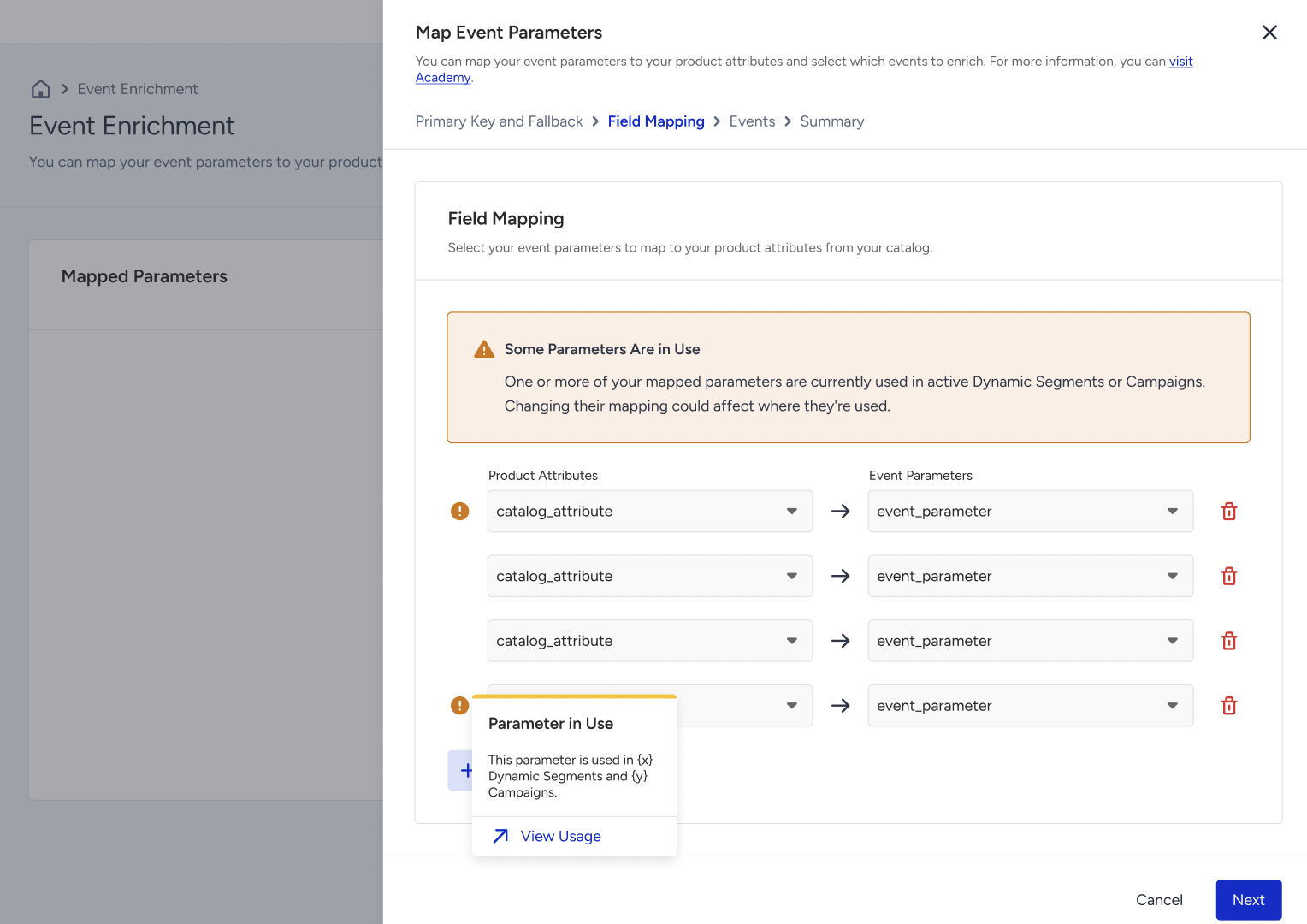
If a mapped parameter or a selected event is used in active campaigns or dynamic segments, the drawer shows Some Parameters Are in Use, or Some Events Are in Use, with an orange icon on that row. Hover over the icon to see how many dynamic segments and campaigns use the parameter, and click View Usage to see them.
In-use rows stay editable. Review the listed campaigns and segments before you change them.
Users with view-only or collaborate access can view the Event Enrichment page but cannot change mappings or Enrichment Settings.
How Event Enrichment works
Matching
When an enabled event arrives, Insider One reads its product_id and finds the product with the same catalog_id in your catalog. It reads the mapped product attributes for the user's locale, then their language, then your fallback locale. Then it writes those values onto the event.
Values you send are never overwritten
Enrichment only fills gaps. Insider One fills a parameter only when it is absent from the event or sent as null. A parameter sent with any other value, including an empty string, 0, false, or an empty list, stays as sent.
For example, you send a purchase event with product_id: SKU-123 and price: 79.90, and you have mapped category and brand. The stored event carries your product ID and price as sent, plus category: Running Shoes and brand: Acme from the catalog.
Enriched values are stored on the event
Insider One saves enriched values at the moment the event arrives. They do not change when your catalog changes later. Enriched parameters work like any other event parameter across Insider One.
Only incoming events are enriched
Enrichment does not apply retroactively to events stored before you turned on Enrichment Settings. Likewise, a mapping change applies only to events that arrive after you save it.
Missing products never block events
If the product is not in your catalog, or the catalog cannot be reached, Insider One still accepts the event. The mapped parameters stay empty on that event and are not filled in later.
Enriched parameters on the Attributes and Events page
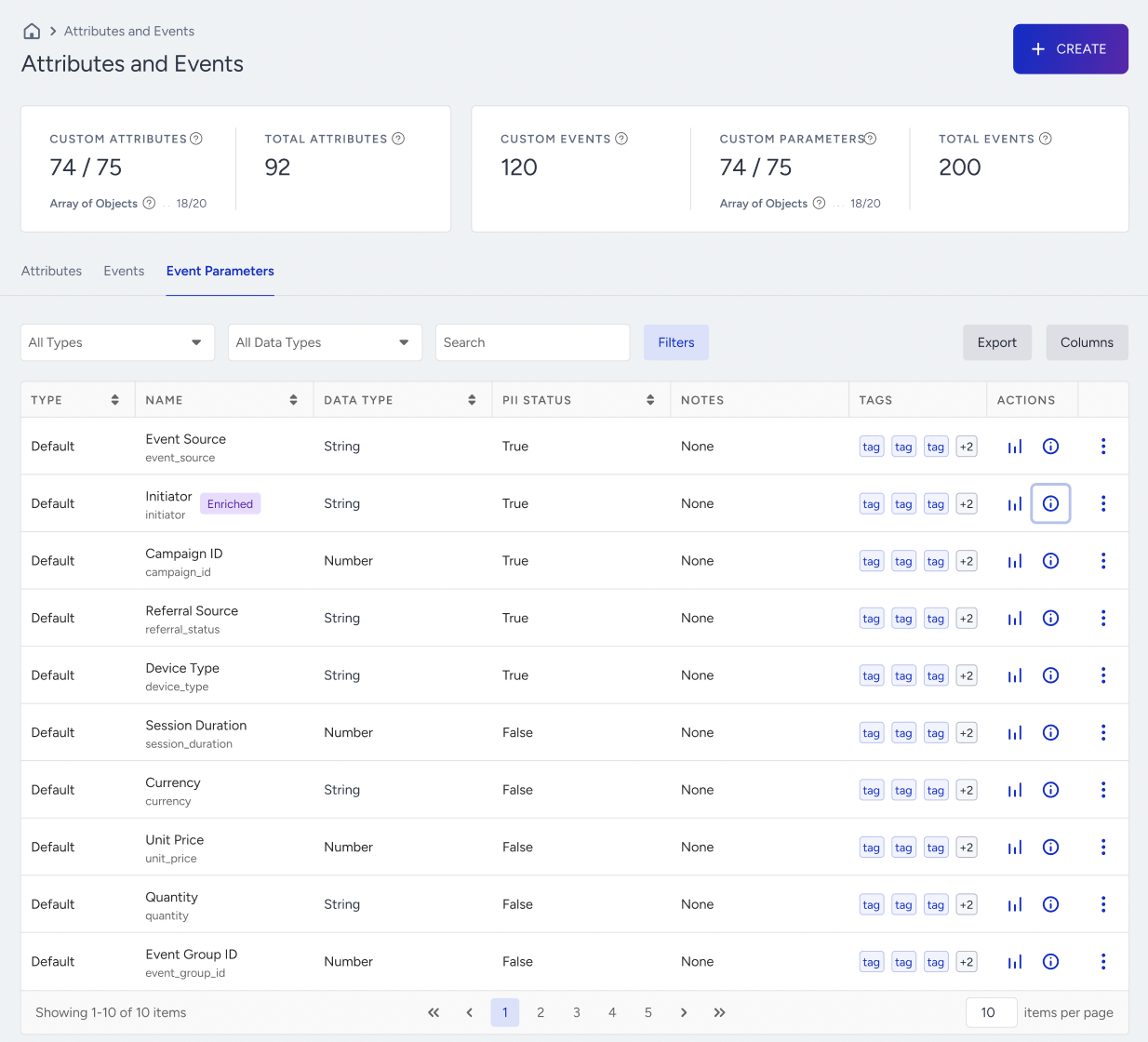
Navigate to Components > Attributes and Events > Event Parameters to review enriched parameters:
A purple Enriched badge appears next to each parameter filled from your catalog. [VERIFY: whether the badge depends on the mapping alone, or only appears while Enrichment Settings is on]
To filter the list, go to Filters > Enrichment Status and select Enriched or Not Enriched.
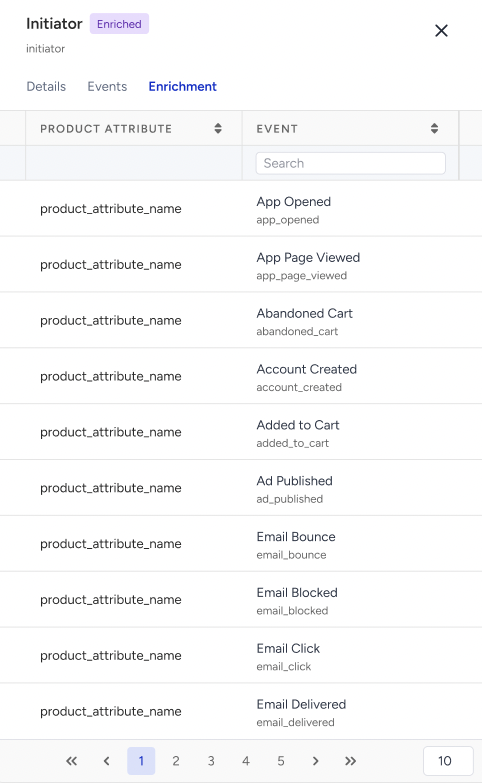
Open an enriched parameter to see the Enrichment tab. It lists the product attribute that fills the parameter and the events it applies to.
You cannot change the System Name or Data Type of an enriched parameter, and Show on Segment stays selected. To change them, remove the parameter from your enrichment mapping first. Display Name, Sample of Data, PII, Tags, and Notes stay editable.
Use enriched data in segments
When you add an event condition to a segment, the Parameters dropdown offers two groups. The group you pick decides which value the segment uses.
Group | Includes | Value used |
|---|---|---|
Event Parameters | Default, Custom, Array of Objects, and Lookup Table Parameters | The value recorded at the time of the event, including values filled by Event Enrichment |
Product Attributes | Default and Custom Product Attributes | The current value in your product catalog at the time of the campaign, such as the latest price or category |
Use Event Parameters to target what was true when the user acted. For example, target users who purchased a product whose category was Running Shoes at the time of purchase.
Use Product Attributes to target products by what is true today. For example, target users who added a product to their cart whose current price is below 50.
The first time you open the dropdown, the Discover New Parameter Options banner offers a short tour. Click Start Tour to view it.
Note: To segment by Product Attributes, the event must carry the product_id parameter. Event Enrichment does not need to be turned on for this.
A Product Attributes condition cannot match a product removed from your catalog, including in "is not" conditions. To target past behavior regardless of later catalog changes, use Event Parameters.
Limitations and considerations
Event Enrichment requires a product catalog integrated through Product Catalog Management, and events that carry product_id.
Each product attribute maps to one event parameter, and their data types must match.
Only the events you select are enriched. You need to add events created later to the mapping manually.
Only events that arrive after you turn on Enrichment Settings are enriched. Mapping changes apply from the moment you save them.
Values sent with the event are never overwritten. Insider One fills only absent or null parameters.
If a product is not in your catalog, the mapped parameters stay empty on that event.
You cannot change the System Name or Data Type of an enriched parameter while it is mapped.