Most ecommerce product catalogs contain various products with different SKUs called variants. Depending on the industry, a product variant can mean different packaging, colors, or sizes of the same product. The display of product types in search results may vary based on product attributes and business objectives. Displaying variants in search results might prevent other products from being discovered. That's why sometimes eliminating variants becomes the best choice. On the other hand, if only one variant appears in the search results, it is crucial to determine which variant to display, as selecting the best one is essential.
This article covers the answers to the questions below:
How Smart Variant Grouping helps
Eureka's Smart Variant Grouping setting lets you manage product variants in search results. When Smart Variant Grouping is activated, Eureka groups product variants and selects the best one based on search-term similarity and user activity ratings for those variants.
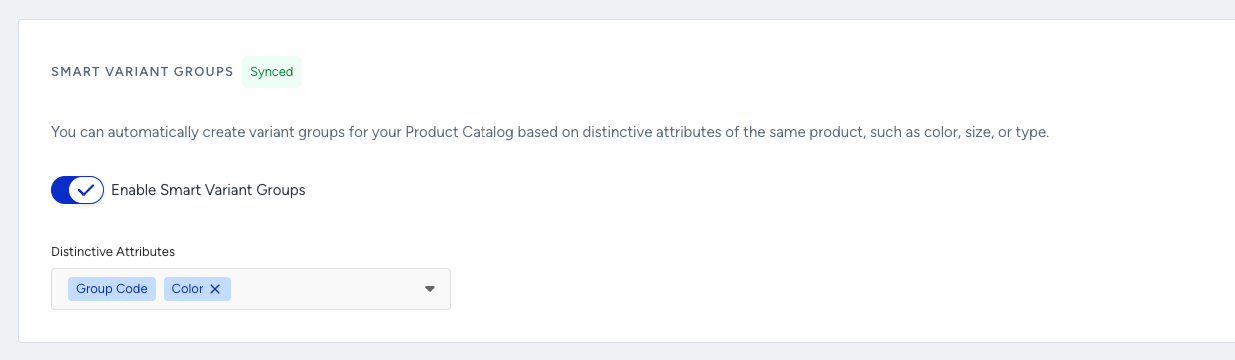
When using the Smart Variant Group setting, you can select a specific attribute, such as color, to group variants of the same color, ensuring a more streamlined and efficient search experience.
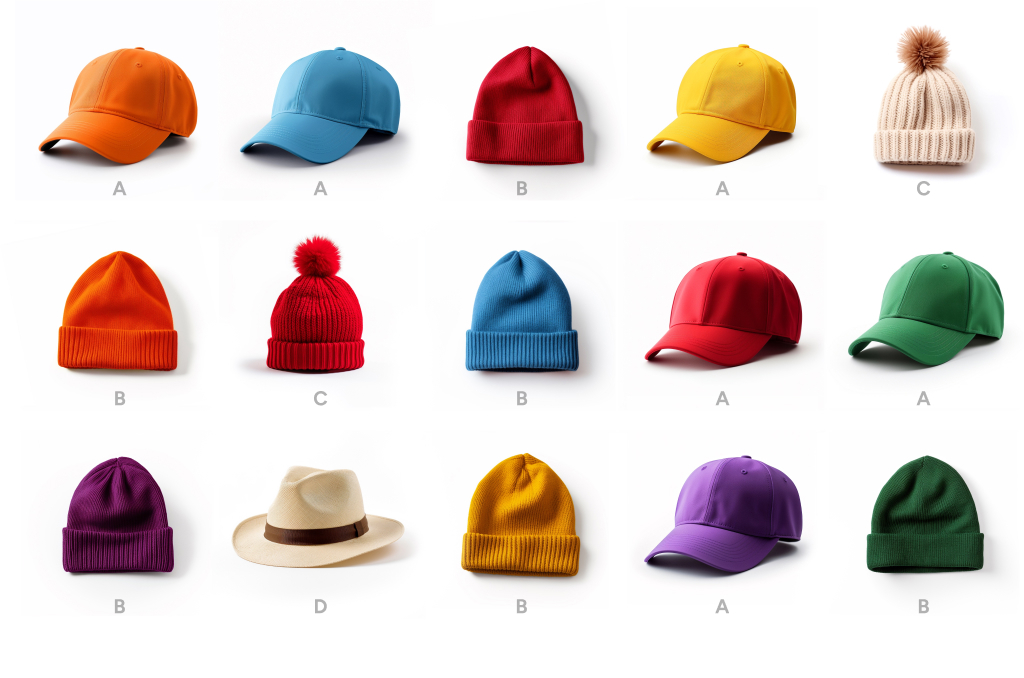
Smart variant grouping disabled
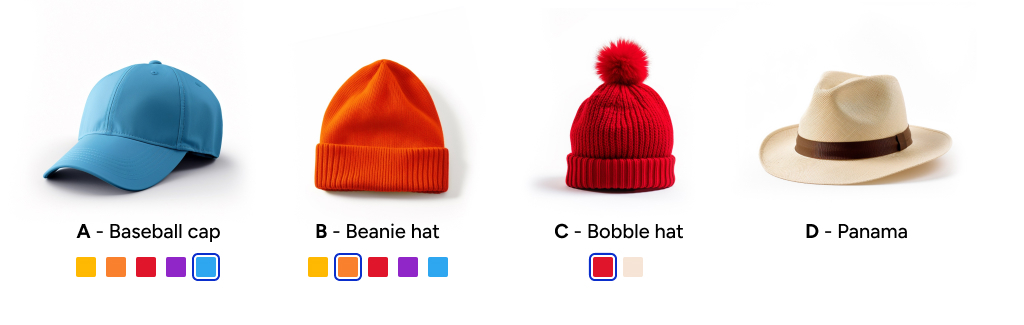
Smart variant grouping enabled
Enable Smart Variant Grouping
To enable Smart Variant Grouping, follow these steps:
Navigate to Eureka > Settings > General tab.
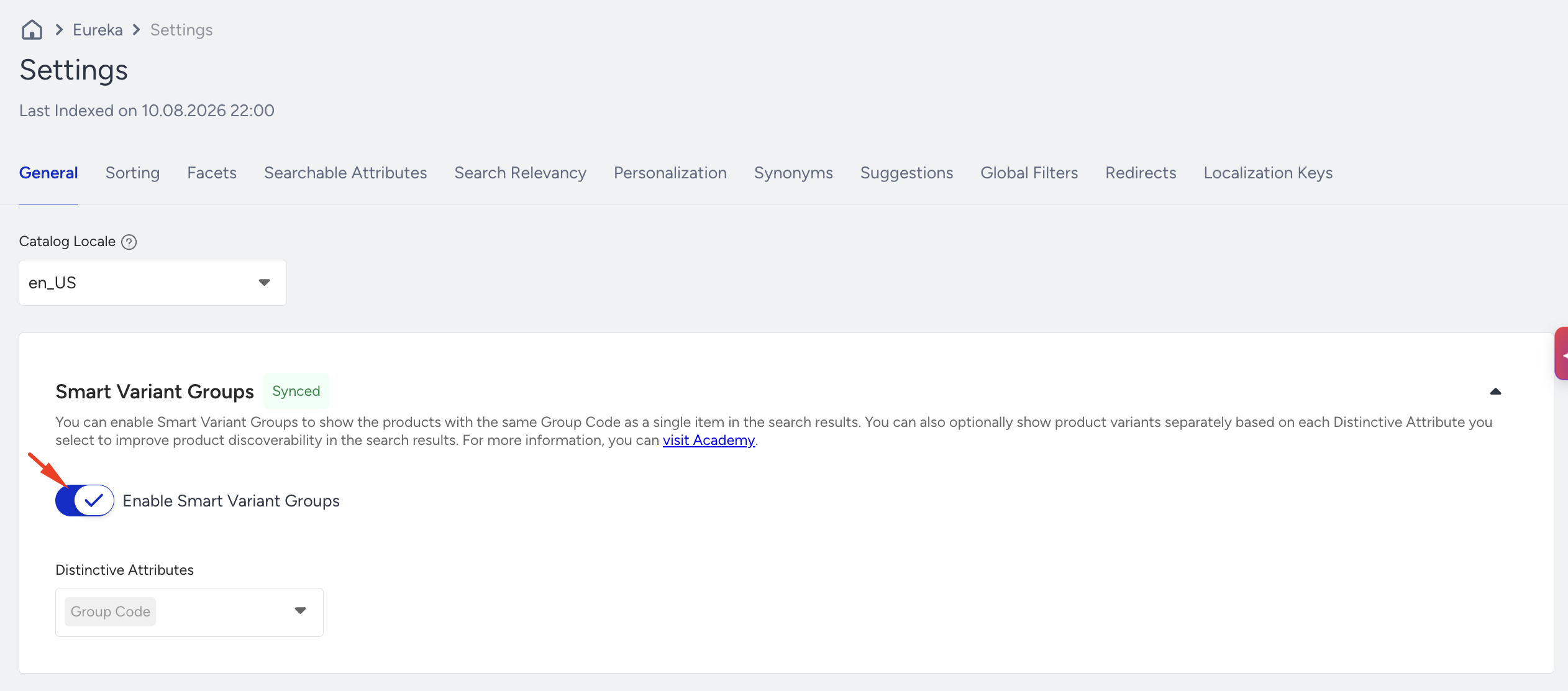
Enable the Enable Smart Variant Groups toggle.
The default distinctive attribute selected is Group Code. Based on the selected locale, select the variable product attributes you want to group your variants by.
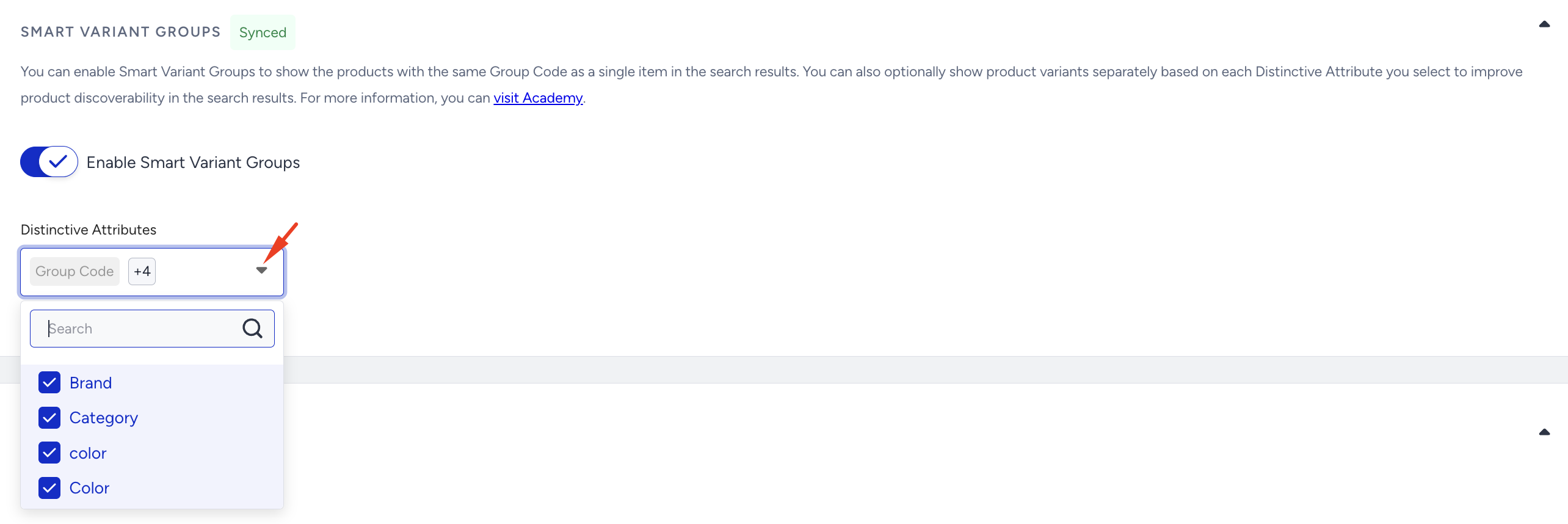
Click the Save button to save your selection(s).
If you have more than one locale, you will be prompted with the option to Apply for All Locales or Apply Only for the selected locale. Select the option that best fits your case, and click the Save button.
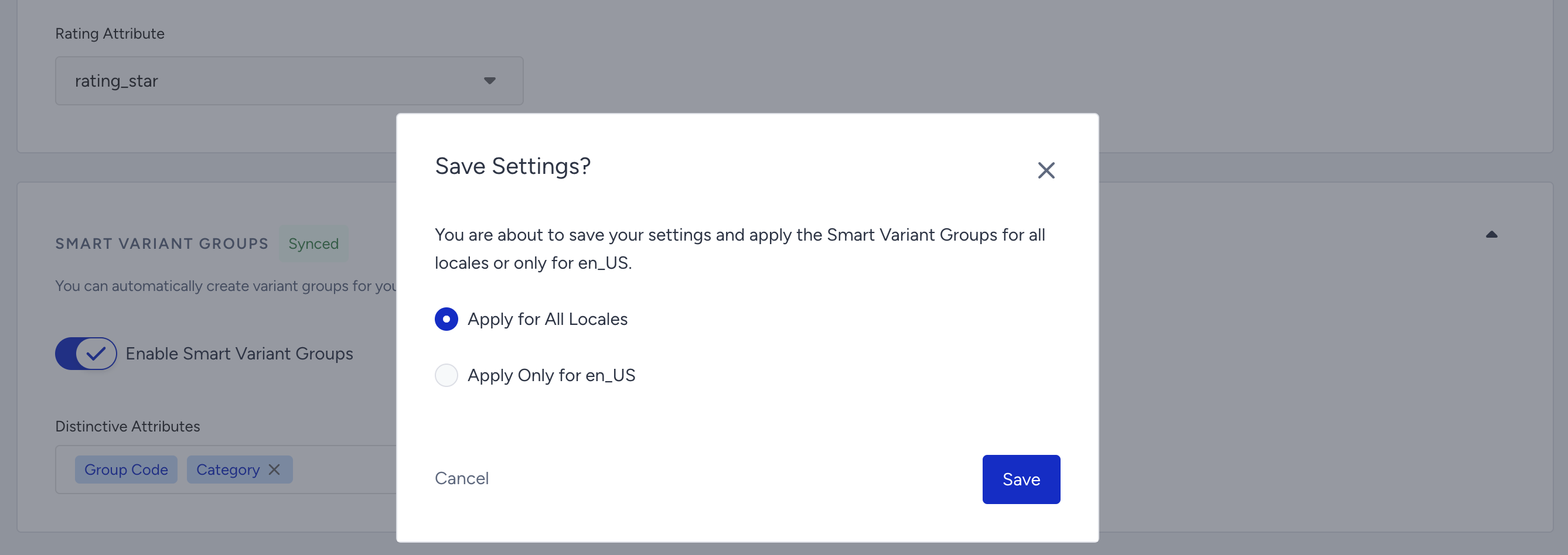
After saving your changes, the status of the Smart Variant Grouping will be updated to Pending. In this step, Eureka needs to index the data according to your Smart Variant Grouping configuration. You can reindex immediately or wait for a regular indexing period.

Once the indexing is completed, the status will be updated to Synced. This means that the configuration is active on the search engine.