The Rating facet lets visitors filter search results by product rating, for example, showing only products rated 4 stars and above. It is especially useful for categories where reviews influence purchase decisions, such as electronics, fashion, and beauty.
Set up the Rating Attribute
Before you can add a Rating facet, Eureka needs to know which attribute in your product catalog contains your rating data. To set up the Rating Attribute,
Navigate to Eureka > Settings > General.
Select your rating attribute from the list of available product attributes.
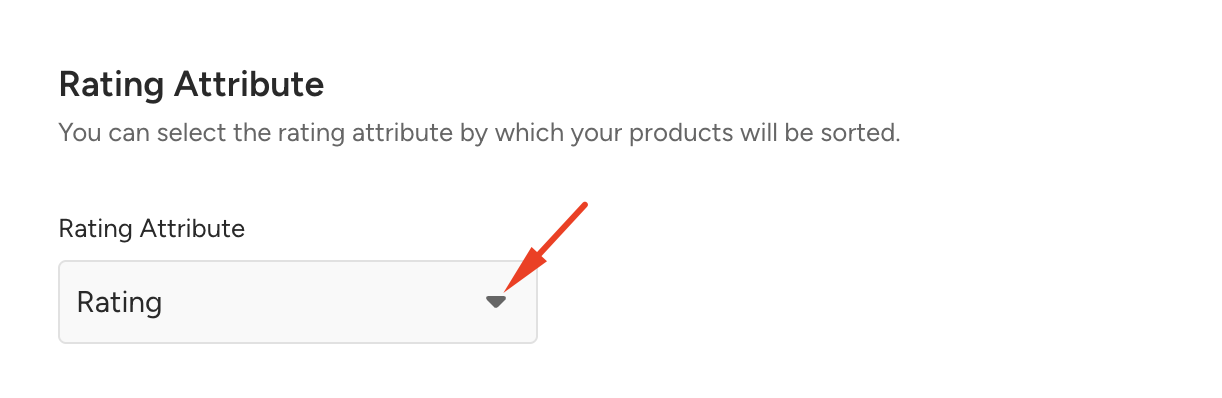
Why is this step required?
Eureka does not assume a default rating attribute during product catalog integration. Rating data may be stored under different attribute names depending on your catalog setup, such as average_rating, review_score, or star_rating. Selecting the correct attribute in General Settings tells Eureka which field to use when displaying the Rating facet.
Once your rating attribute is selected in General Settings, it will automatically appear with the Rating view style option when you add it as a facet.
Using a custom rating attribute?
If your catalog sends rating values to a custom attribute rather than the default rating attribute, select that custom attribute in Settings > General. This was a common setup before a default rating attribute was available in Eureka. Selecting the correct custom attribute ensures the Rating facet reads from the right field in your catalog.
Add the Rating facet
Available view style: Rating
Maximum Rating options: 5 or 10
When adding the Rating facet, select the Maximum Rating that matches the rating scale in your product feed.
Maximum Rating | When to use | Example values |
|---|---|---|
5 | Your products are rated on a 1–5 scale | 4.5 out of 5, 3 out of 5 |
10 | Your products are rated on a 1–10 scale | 8.3 out of 10, 6 out of 10 |
The Maximum Rating you select must match the scale used in your product feed. A mismatch will cause the facet to malfunction or not appear.
If your catalog uses a 1 to 5 scale but you select Maximum Rating 10, the rating facet will not appear because all values fall outside the expected range.
If your catalog uses a 1 to 10 scale but you select Maximum Rating 5, ratings above 5 will not appear in the facet.
How the Rating facet works
Once active, the Rating facet appears on your search popup or search listing page as a set of clickable star ranges. Visitors select a minimum rating threshold, and the search results update to show only products that meet or exceed that rating.
Star ranges are generated automatically based on the Maximum Rating you selected. You do not need to configure individual ranges manually.
Examples
Visitor selects "4 stars and above" (Maximum Rating: 5)
Only products with a rating of 4.0 or higher appear in the results. Products rated 3.9 or below are filtered out.
Visitor selects "8 and above" (Maximum Rating: 10)
Only products with a rating of 8.0 or higher appear. Products rated 7.9 or below are not shown.
Visitor combines Rating with another facet
Facets work together. A visitor can combine "4 stars and above" with a price range of $50 to $100 to see only highly rated products within their budget. To control the order in which the facets appear, go to Settings > Facets and drag and drop them into the desired order.
Limitations
Only the Rating view style is supported for rating attributes. Checkbox and slider styles are not available.
Maximum Rating can only be set to 5 or 10. Other scales, such as 3 or 7, are not supported.
If a product does not have a value for the rating attribute, it will not appear in the rating facet count but will still appear in search results.
The Rating facet does not support filtering by number of reviews, for example, "products with more than 50 reviews." Only the rating value is used.