The Template Library helps you select from a variety of predesigned templates and create your own templates from scratch, enhancing your email campaigns. This flexibility is essential for managing both promotional and transactional emails. You can craft your emails with both the HTML editor and the Drag & Drop Editor.
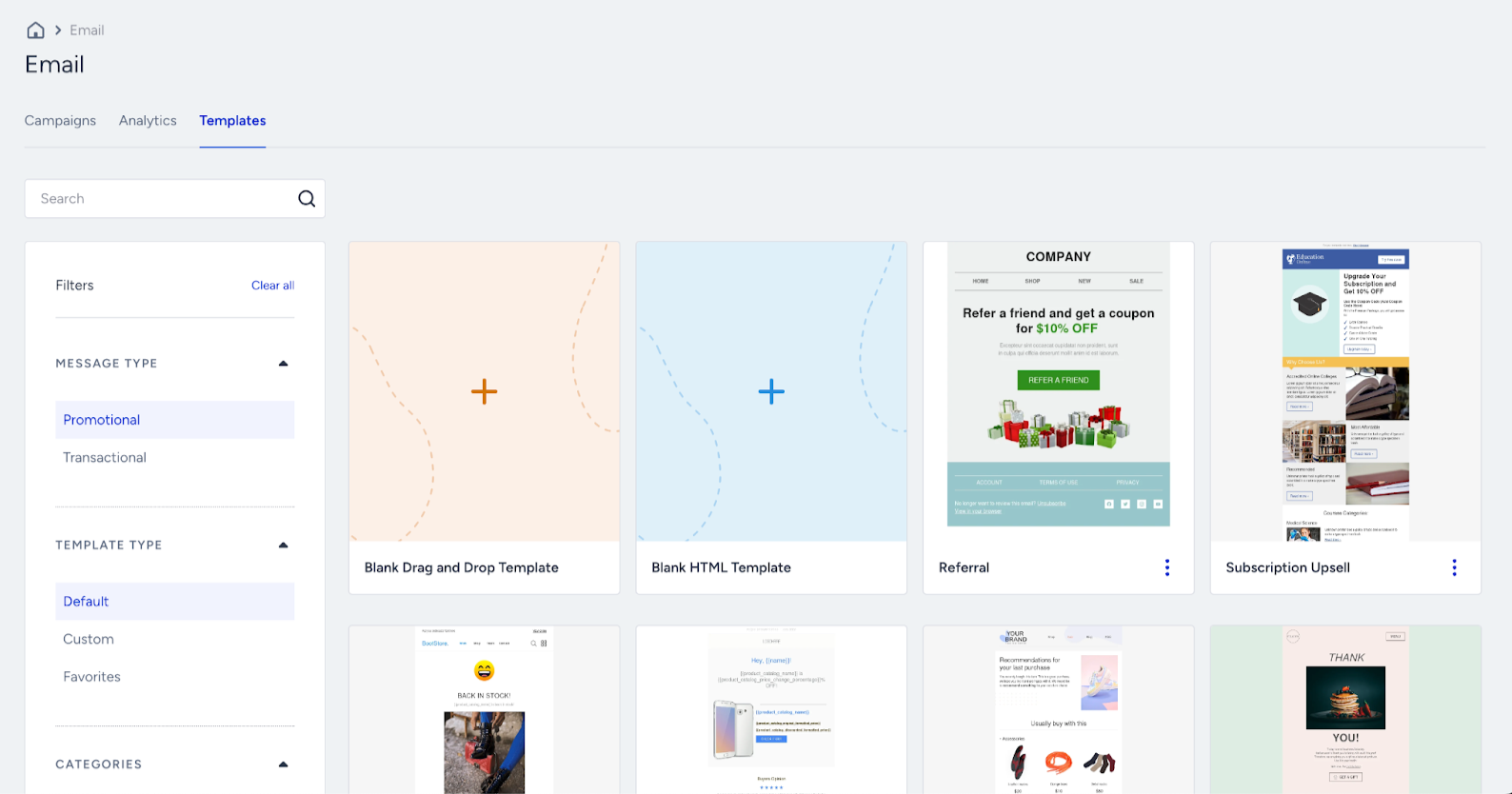
You can reach the Template Library via Email > Templates.
This guide explains the following concepts:
Promotional email templates
You can access and customize promotional email templates for your marketing campaigns, announcements, and other promotional activities within the Template Library.
The available editing tools enable you to select an existing template and tailor it to your needs or start from scratch to create a unique template. Once you finalize your design, you can save it as a custom template for future use.
Also, you can add your promotional templates to the Favorites shortlist for quick access and organize them into predefined categories or create your own.
Transactional email templates
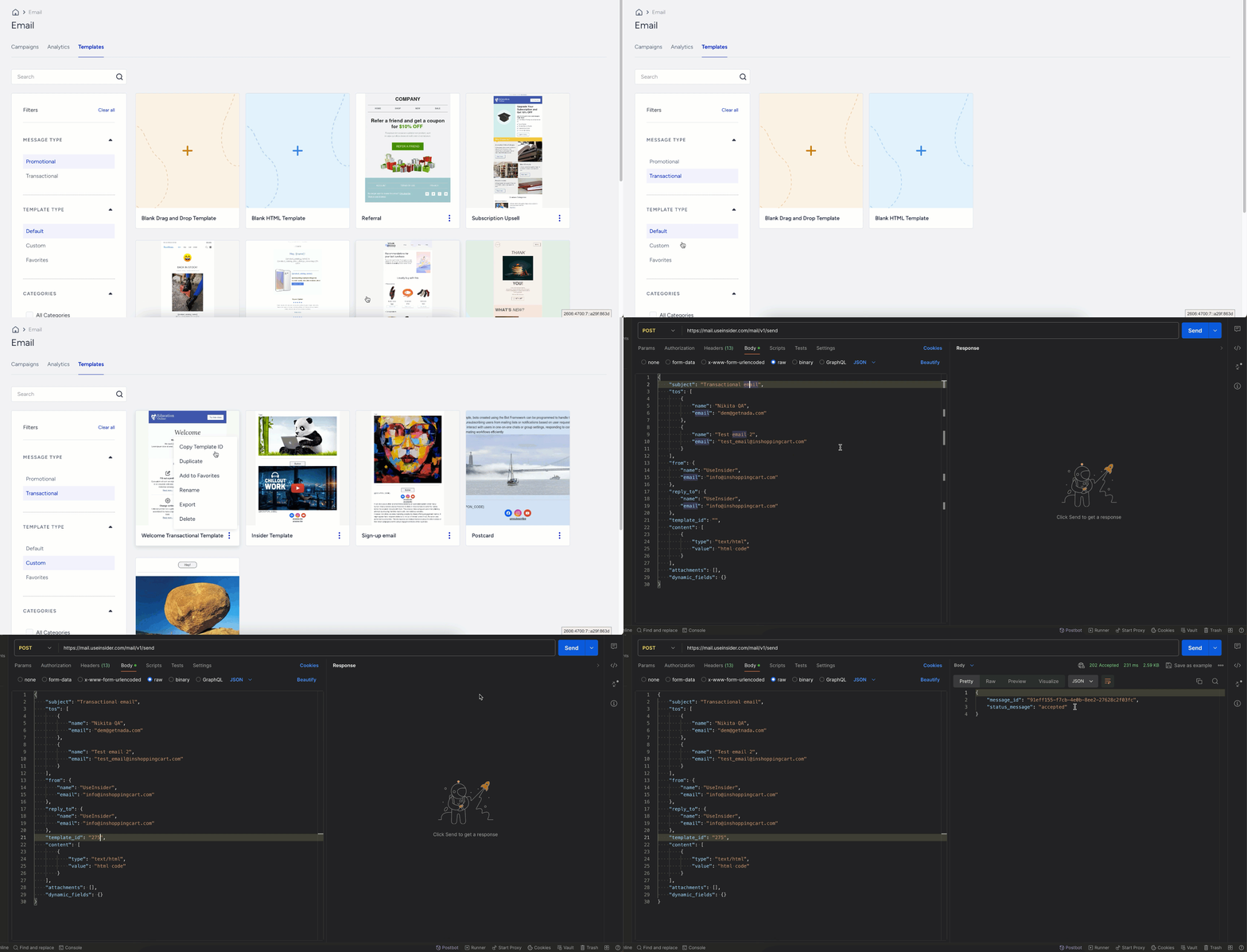
Creating designs for transactional emails via the Transactional API requires a thorough understanding of HTML and manually inserting the template's HTML code into the requests. However, with Insider One's new Template Library, you can create your transactional email templates via the Drag & Drop Editor without any coding knowledge or need to embed the HTML code directly.
The Template Library allows you to create and design transactional email templates directly from the Inone panel. This enhancement saves time and reduces the risk of errors in the email design and deployment process, ensuring consistent and professional communications without handling raw HTML in your API calls.
Once you design your template, you can simply copy the template ID to use in your Transactional API requests. To copy the template ID, click the three-dot menu > Copy Template ID on the template you want. Refer to Requests with Transactional Email Templates for further details.
Transactional email CTA buttons do not support custom URI schemes such as app://. The editor validates every link against an allowlist: http(s) URLs, plus mailto:, tel:, sms:, ftp:, ftps:, skype:, viber:, anchors, and merge tags. A link outside that list isn't silently removed; the template save and campaign launch are both blocked with a “missing (or invalid) URL links” error until you fix the link.
Template library features
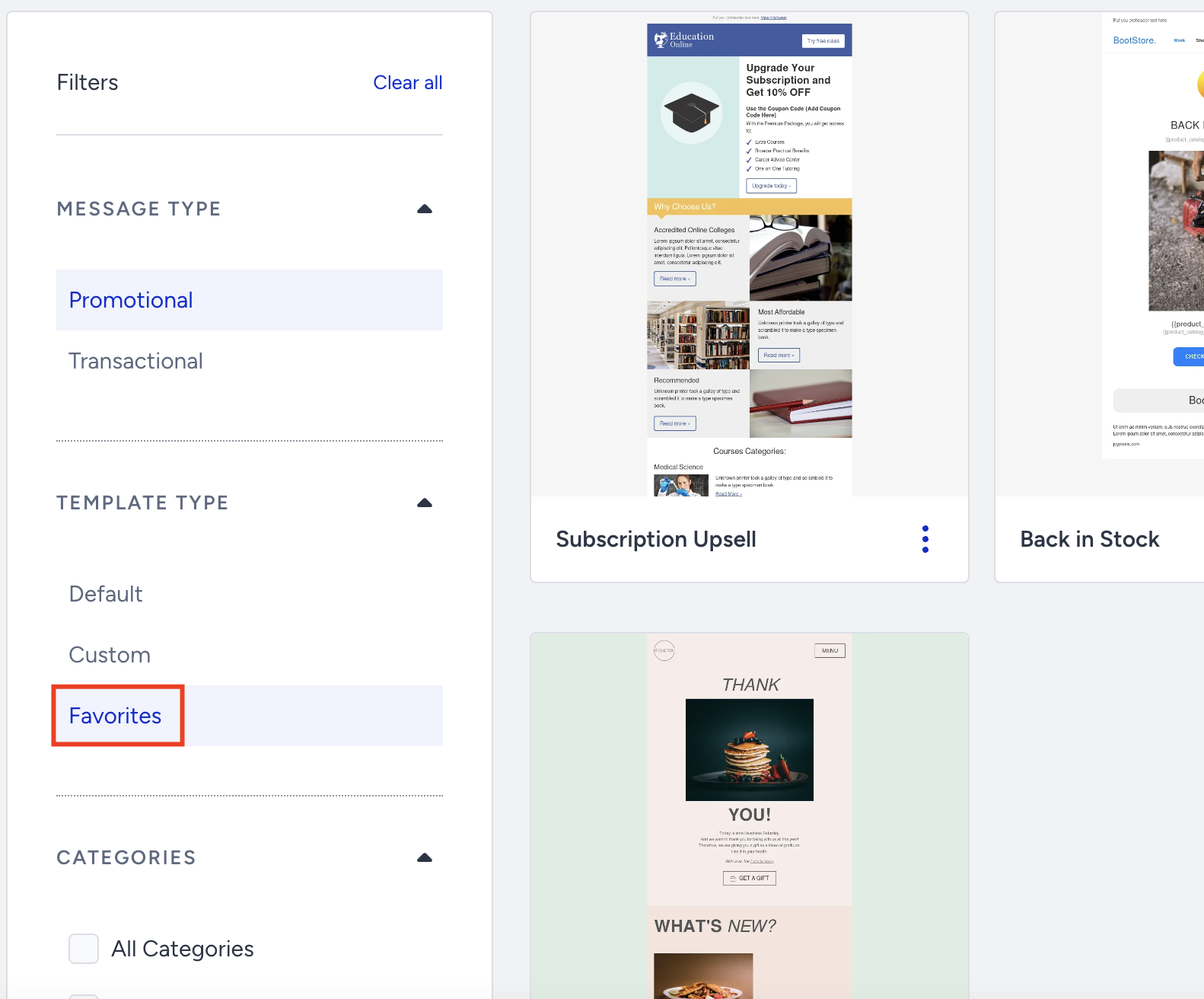
The Template Library offers enhanced organization and accessibility with its Favorites shortlist and categories. You can add your frequently used templates to the Template Type > Favorites list.
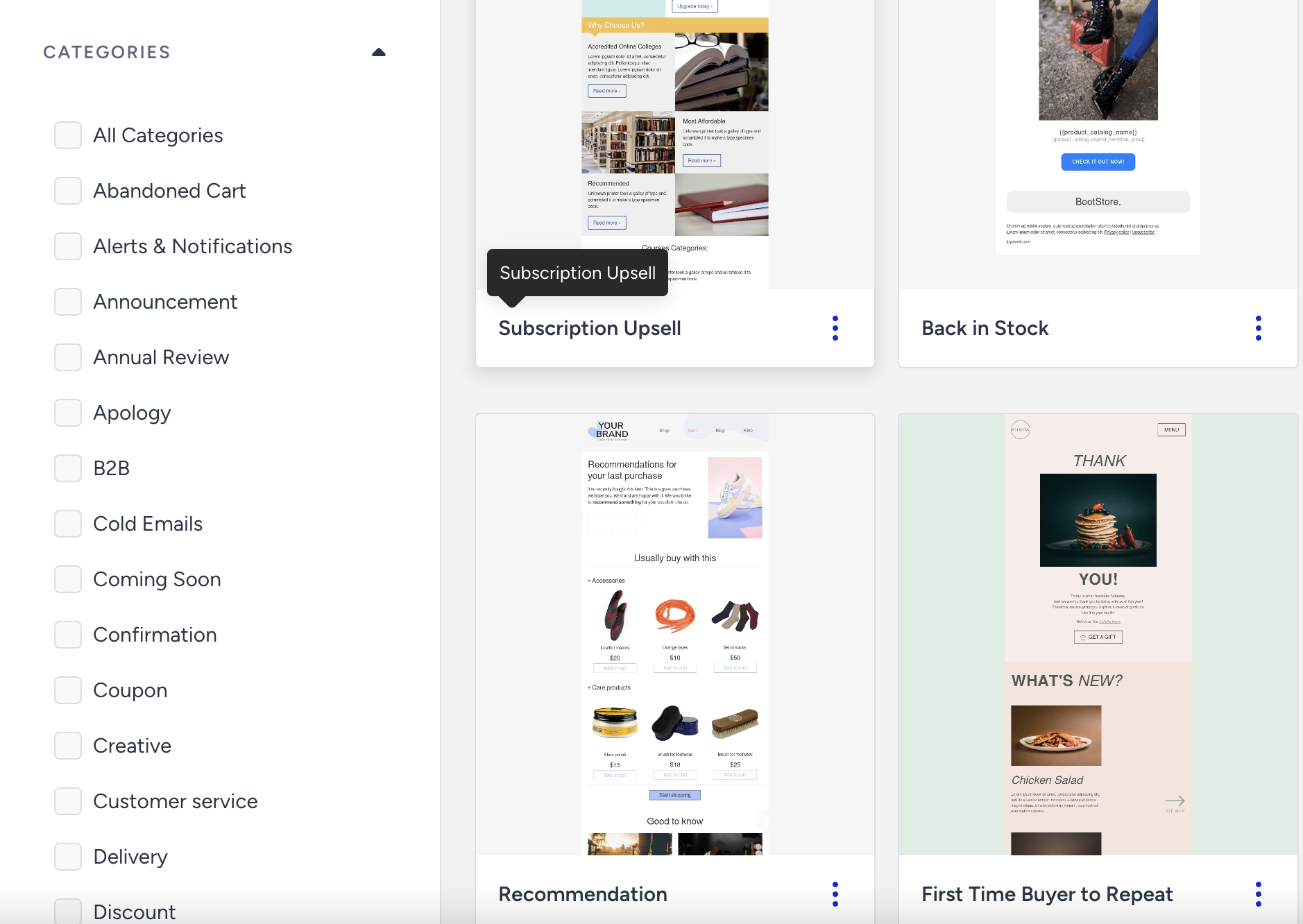
You can also organize your templates in different categories, choose from a predefined list, or create yourself.
The Template Library also offers the following key features:
Customization: You can choose from predesigned default templates or create custom templates using the HTML Editor and Drag & Drop Editor.
Custom Templates: You can create templates from scratch or customize the existing templates and save them as custom templates to use later.
Message Types: Separate promotional and transactional email template sections simplify the email creation and management.
Search: You can find a template by its name in the search bar.
Filter by Dynamic Content Type: Select the Liquid Tags filter to list only Liquid-enabled templates. If no template matches, the Blank Drag and Drop Template and Blank HTML Template buttons are still shown.
Create a blank or default template: Clicking the Blank Drag and Drop Template button, Blank HTML Template, or a Default Template opens the Create Template drawer. It has Template Name, Template Category, and a Liquid Tags section with an Enable Liquid Tags checkbox. Leave the checkbox cleared to use the standard dynamic-content syntax.
Liquid Tags Enabled chip: Appears in the Drag & Drop Editor's top bar or the HTML editor's bottom bar when the template was created with Liquid Tags enabled.
(1).png)
Create and save custom templates
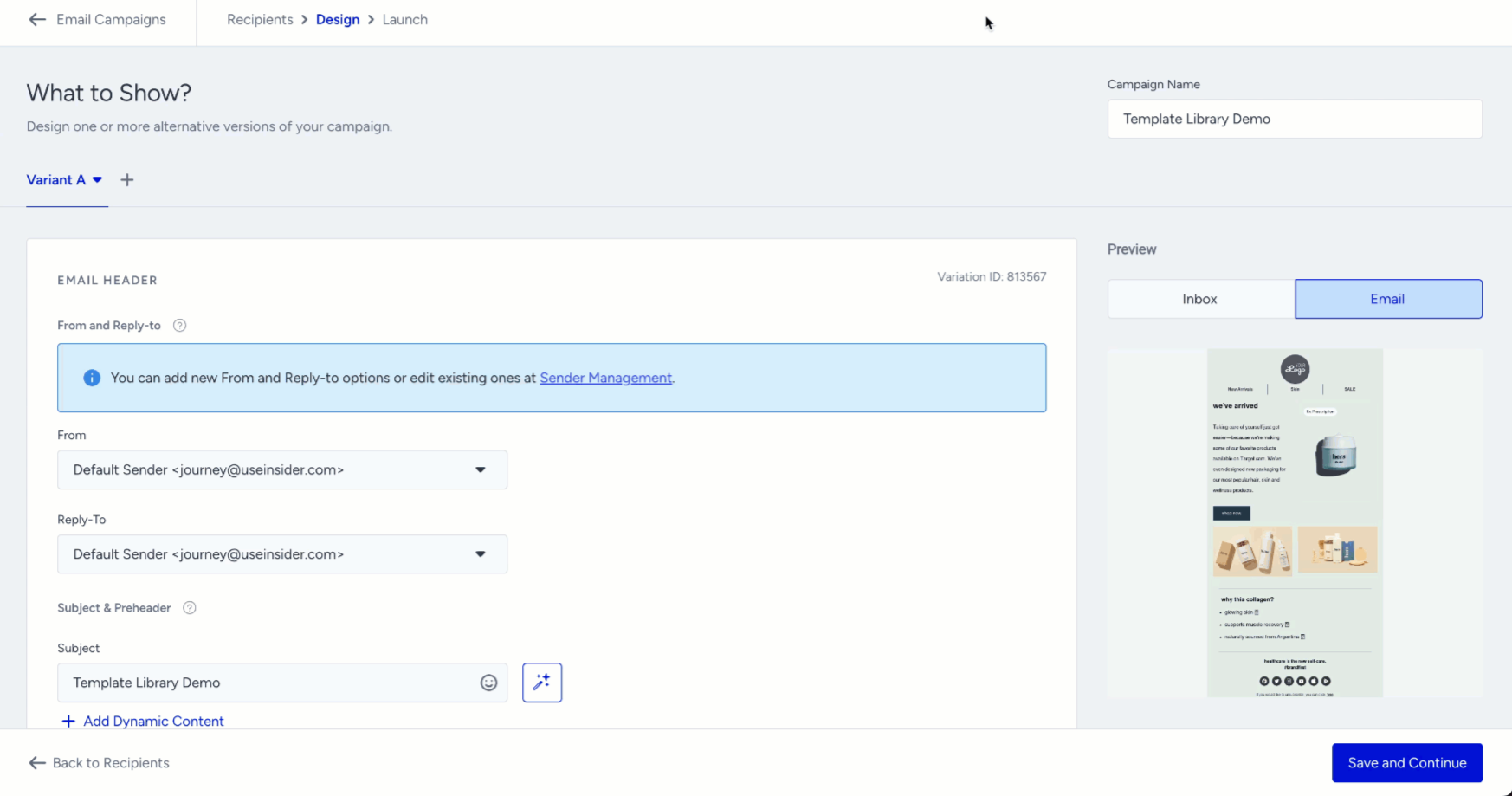
You can save your templates to the Template Library while on the design step.
1. Click the Save as Template button at the top of the page.
2. Add a template name and choose a template category from the predefined list, or click the Create a new category button to create your custom category.
When you save a custom template that has validation errors in the HTML editor, the Design Validation Error drawer opens; choose Update Design to keep editing or Save and Continue to save the template and return to the library.
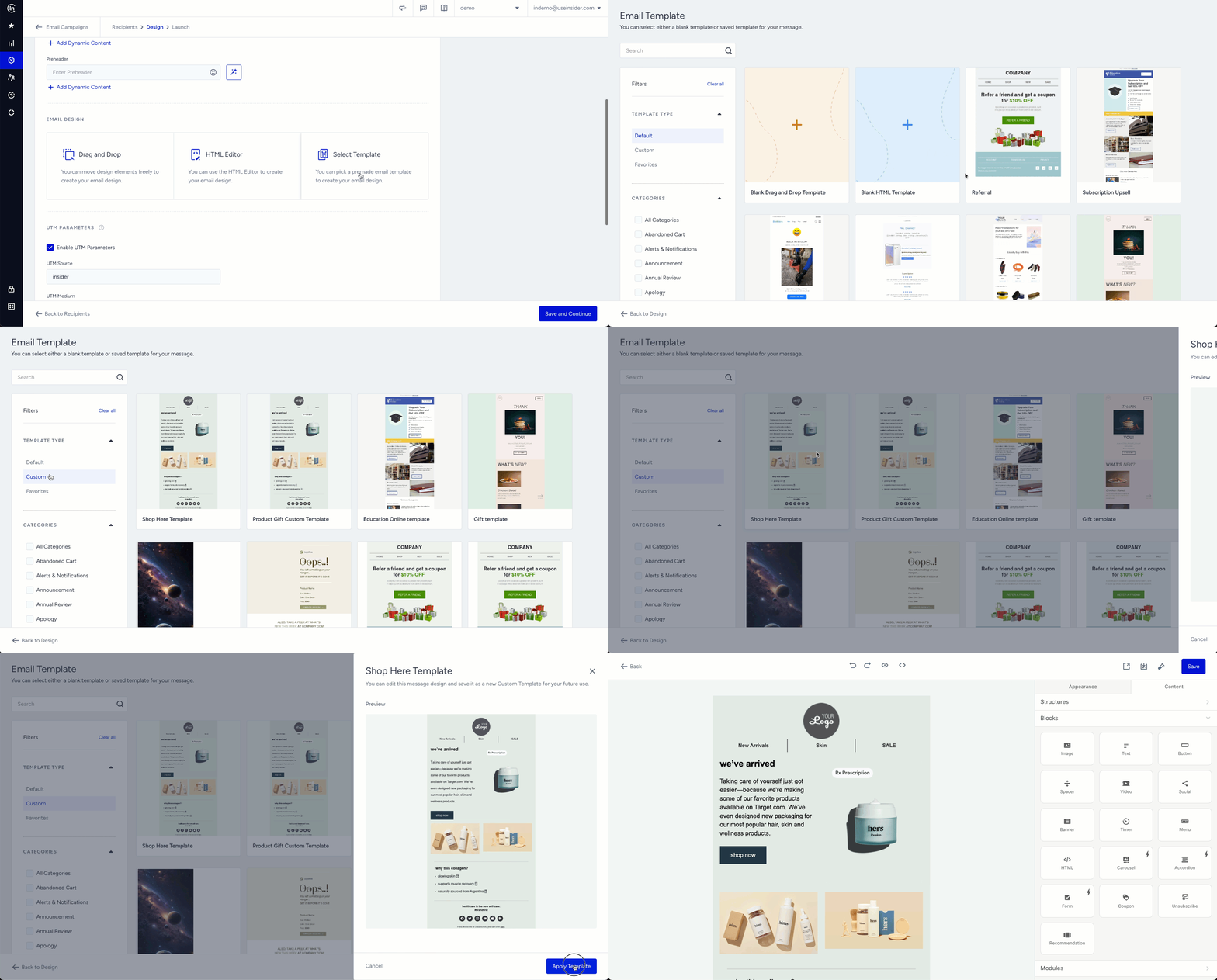
Once you save a template, you can select it from the library to use in your email campaign.
Edit Details replaces Rename in the three-dot menu. It lets you edit the Template Name. A read-only Liquid Tags Enabled chip shows the template's language.
Duplicate opens the Duplicate Template drawer. The name defaults to the template's name followed by "Copy", then "Copy 1", "Copy 2"… if the name is taken. For a standard-syntax source, you can select Enable Liquid Tags for the copy. For a Liquid source, the checkbox is selected and locked. Any Dynamic Content in your template may need to be updated manually if you change the Liquid Tags setting, as it can't be converted automatically.
Add/remove templates to/from favorites
You can add your frequently used templates to the favorites list to quickly access them.
1. Navigate to Email > Templates to find the template you want.
2. Click the three-dot menu > Add to Favorites button.(1).png)
To remove the template from the favorites list, click the three-dot menu > Remove from Favorites button.
(1).png)
This feature is available on the Email product listing page where users can create email templates for both email and Architect Email. Transactional email templates are only available in the Email product but not the Architect Email. Some of the Architect-specific templates that have blocks like Cart Items, Purchased Items, or Browsed Items are only available in the Architect Email.