Architect Analytics dashboard offers a visual report to analyze the performance of all journeys. You can easily navigate to this dashboard through the Analytics tab on the journey listing page.
Analytics Dashboard consists of 6 sections:
- Number of journeys
- Live stats
- Analytics of all journeys
- Performance of channels
- User Reachability
- Performance of journeys
You can choose a specific time range to view the statistics that belong to the journeys in that time interval.
You can click the Sirius Assistant to ask your questions, and the Sirius Assistant will provide quick answers with analyzed data.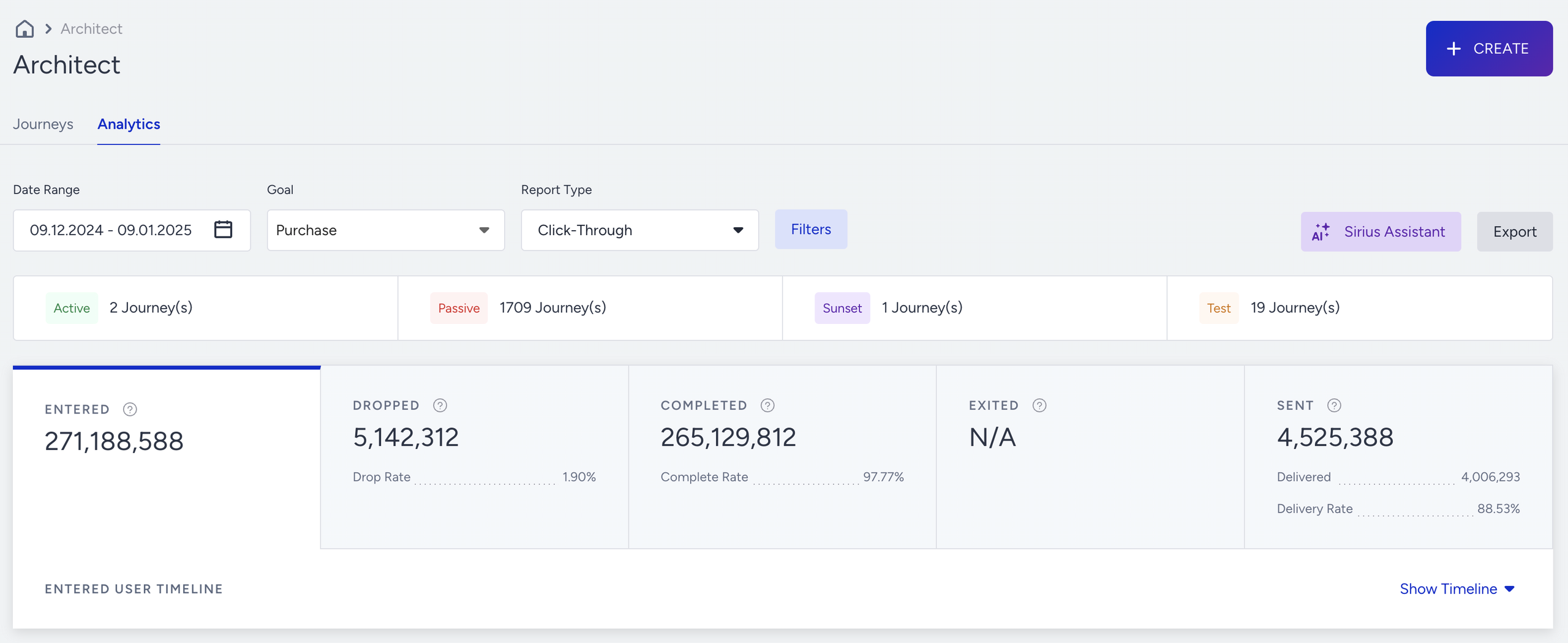
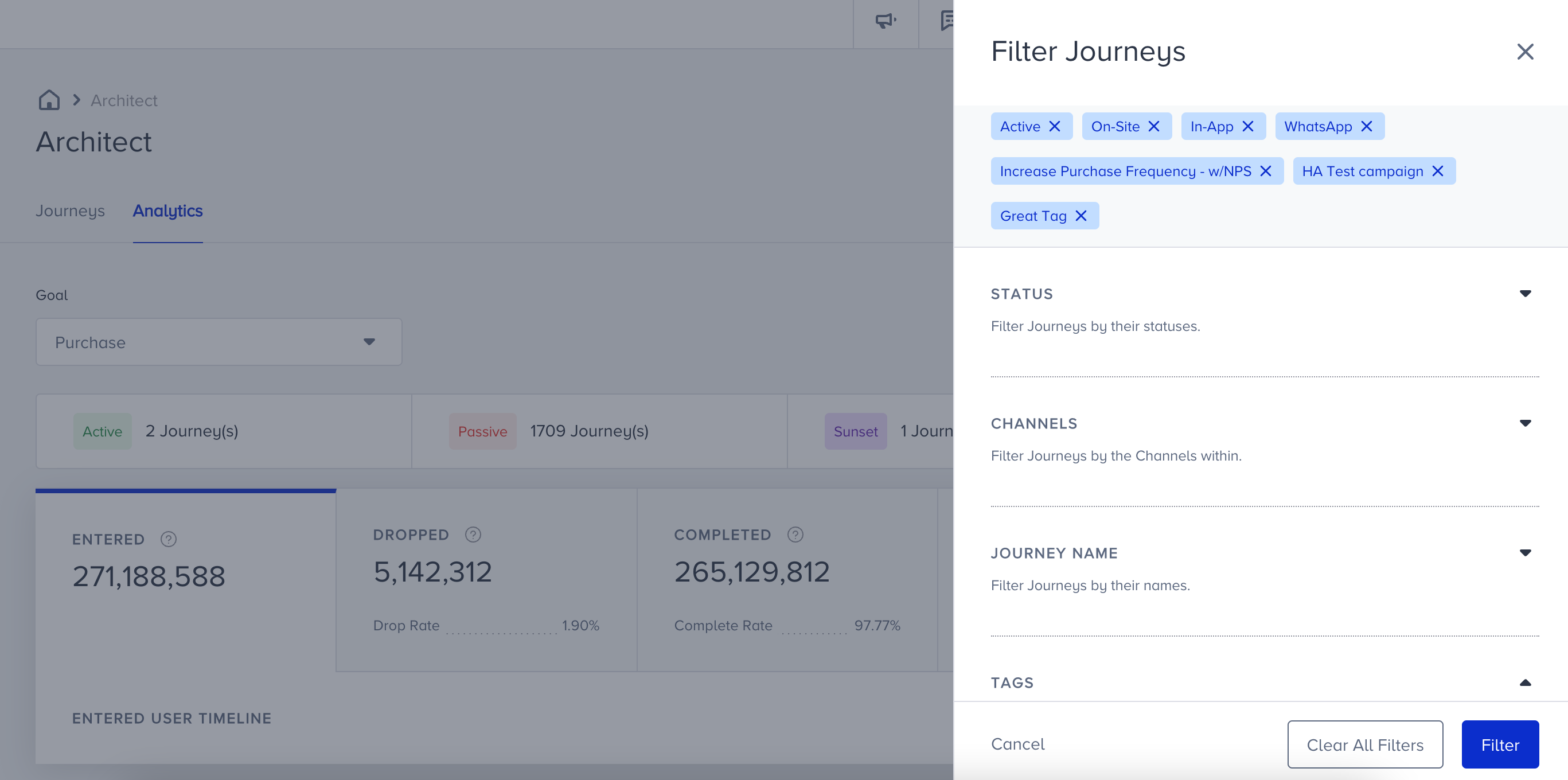
You can filter the dashboard by journey status, including channels, journey names, and journey tags. Filtering allows you to get meaningful data.
Conversion Goal
For each journey, you can define goals that represent the actions or changes you expect users to complete after engaging with a message. Event-based goals are triggered by user actions and can be based on any default or custom event. You can also add event parameters to make these goals more specific (e.g., to count only when the event meets certain conditions). Alternatively, attribute-based goals track changes in user attributes, such as status, tier, or subscription level, and can be defined using any default or custom attribute
Read more on Journey Goals and Conversions and Attribution Models in Architect.
You can select a goal from the Goal dropdown to view the metrics. When you hover over a goal, you can see all its details in addition to the main event or attribute name.
After selecting a goal, the conversion, conversion rate, revenue, and average order value metrics for that goal will appear across all charts and tables that are calculated based on it. This allows you to analyze conversions across different dimensions, such as conversions from a specific messaging channel, conversions per journey, or overall conversions. In addition, the Goal Metrics table on the Architect Analytics dashboard always lists all conversion goals that match your current filters at the same time, regardless of which goal is selected in the Goal dropdown.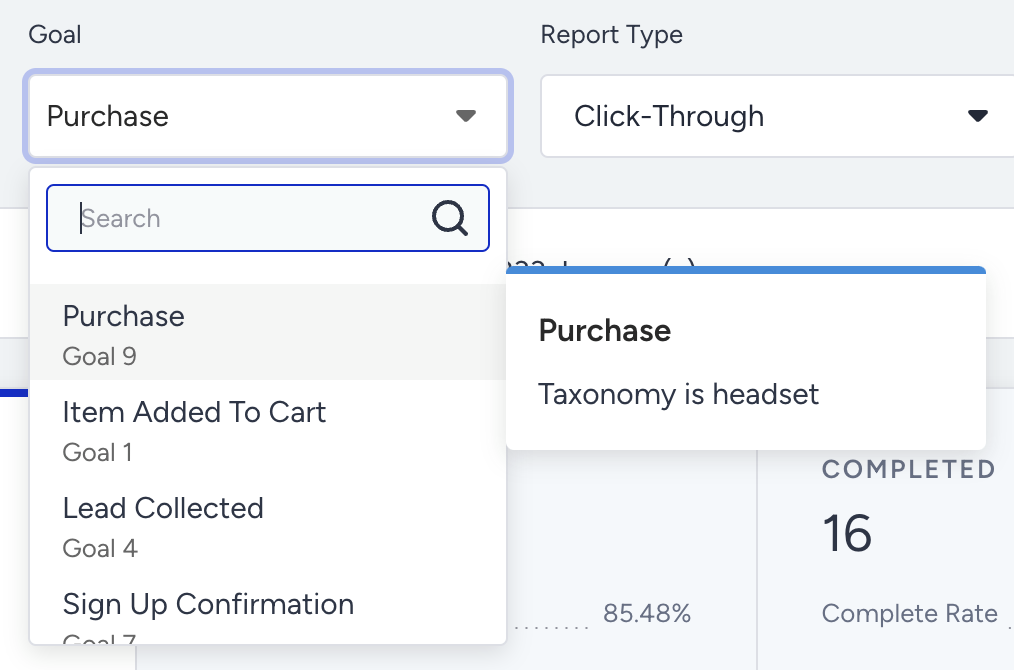
Report Type
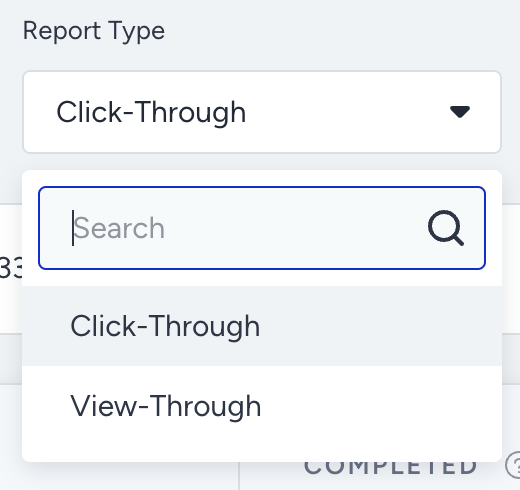
The Report Type dropdown allows you to switch between different attribution models: click-through (last click) and view-through (last view). When you change the report type, only conversion and revenue numbers will change as it does not affect metrics like entered, sent, clicked, etc.
Export
To export the results, click the Export button. This way, you can get your results with the selected filters. You can also use Architect Analytics API to export your results.
The exported file includes five tabs: Consolidated Metrics, Per Journey Metrics, Goal Metrics (listing all conversion goals across the journeys that match your filters), Conversion and Revenue Metrics (for all conversion goals under the selected report type), and Formulas Used for Calculations.
Number of Journeys
You can see how many journeys you have on different statuses. Analytics dashboard displays only active journeys by default. You will see only the count of the active journeys initially. To add other statuses, click the Filter button.
Live Stats
Live stats offer the following metrics:

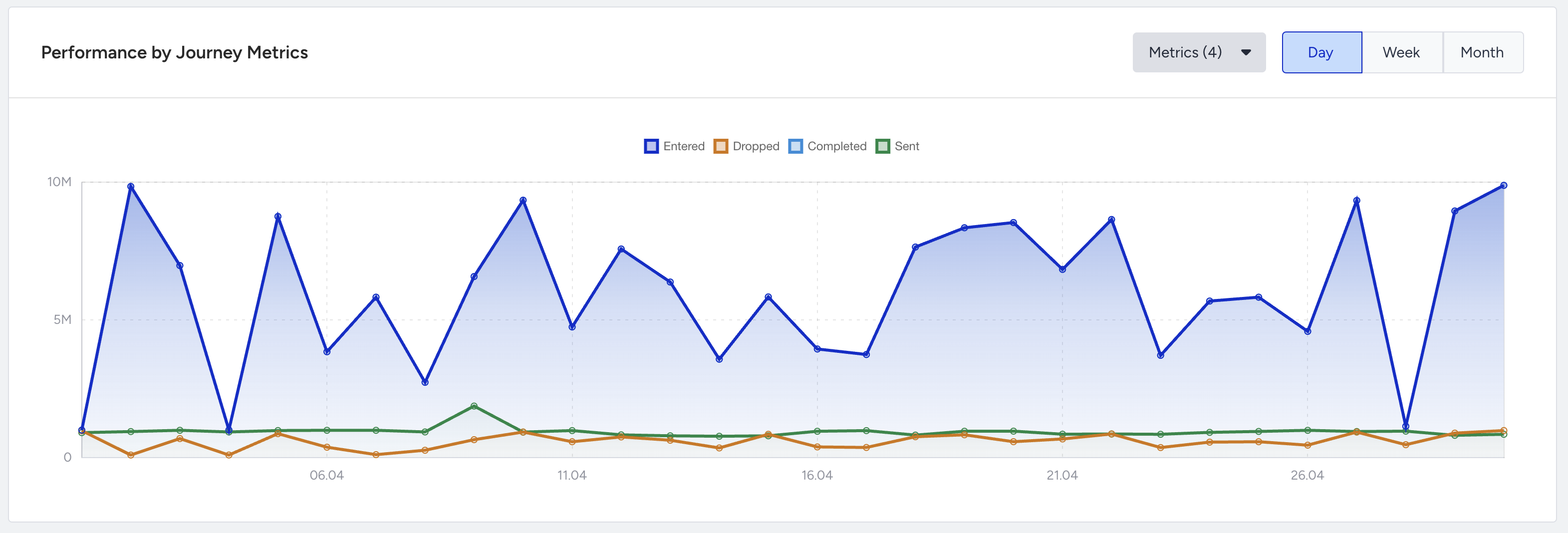
- Entered: The number of users who became eligible and started the journeys.
- Dropped: The number of users who got dismissed from the journeys due to channel reachability.
- Drop rate: The percentage of the users who dropped from the channels and "not reachable" path to the users who entered the journeys.
- Completed: The number of users who finished the journeys by reaching the last element or an empty path.
- Complete rate: The total number of completed is divided by the number of the total entered of all journeys.
- Exited: The number of users who got dismissed from the journeys by matching the exit criteria. You can click the View Exit Criteria to see how many users exited from each journey due to which exit criteria.
- Sent: The number of messages addressed to the users via all channels in all journeys.
- Delivered: The number of messages delivered to the users via a channel in all journeys. Impressions are counted as Delivered for the onsite and inApp channels.
- Delivery rate: The percentage of the delivered to the sent messages.
To see the daily, weekly, monthly timeline of the Entered, Dropped, Completed, Exited and Sent metrics, you can scroll down to the Performance By Journey Metrics chart.
All Journeys Analytics
This section offers total clicks, click-through rate, total conversions, conversion rate, total revenue, and average order value metrics, and their trends in a time interval.
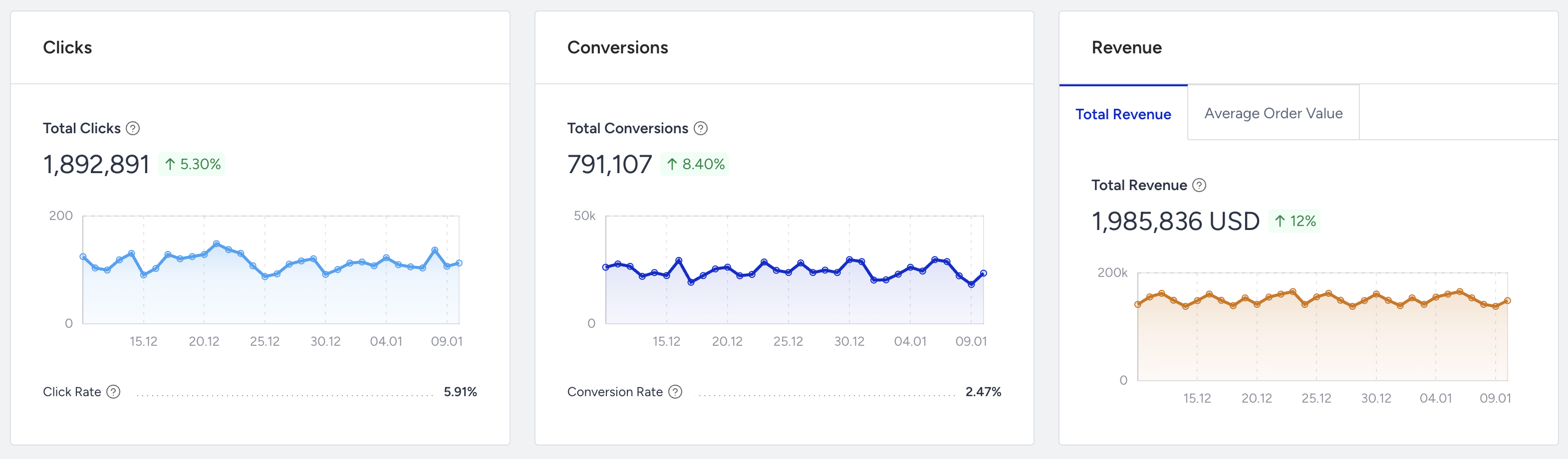
- Total Clicks is the total number of times that the users clicked the messages via all channels in the journey. On the chart, you can see how many clicks the journey received based on their dates.
- Total Conversions is the total number of successful goal accomplishments via all channels in the journey. On the graph, you can see how many conversions the journey received based on their dates.
- Total Revenue is the total value of purchases made via all channels in all journeys. On the graph, you can see the total revenue amount of the journey got by conversions.
- Average Order Value is the division of revenue by the number of purchases made via all channels in all journeys.
You can see the incremental or decremental changes in click, conversion, revenue, and average order value based on the selected date range. For example, when you select "last month", it will compare the last month to the previous month. When you select 7 days on the date picker, it will compare the selected 7 days to the previous 7 days.
Goal Metrics
The Goal Metrics table is displayed below the Total Clicks, Total Conversions, Total Revenue, and Average Order Value cards. It lists all conversion goals for the journeys included in your current filters, so you can compare their performance on a single table.
The description shows the total number of journey goals for the selected filters. You can use the Metrics dropdown to control the columns in the table. Only Conversions, Conversion Rate, Revenue, and Average Order Value are available to select, and they are all selected by default.
On the Architect Overall Analytics dashboard, each page shows up to 10 journey goals. If more than 10 goals match the selected filters, you can move to the next page to see the remaining goals.

Performance of Channels
You can evaluate the trends of Sent, Delivered, Drops, Clicks, Conversions and Revenue for each channel you sent messages through all journeys.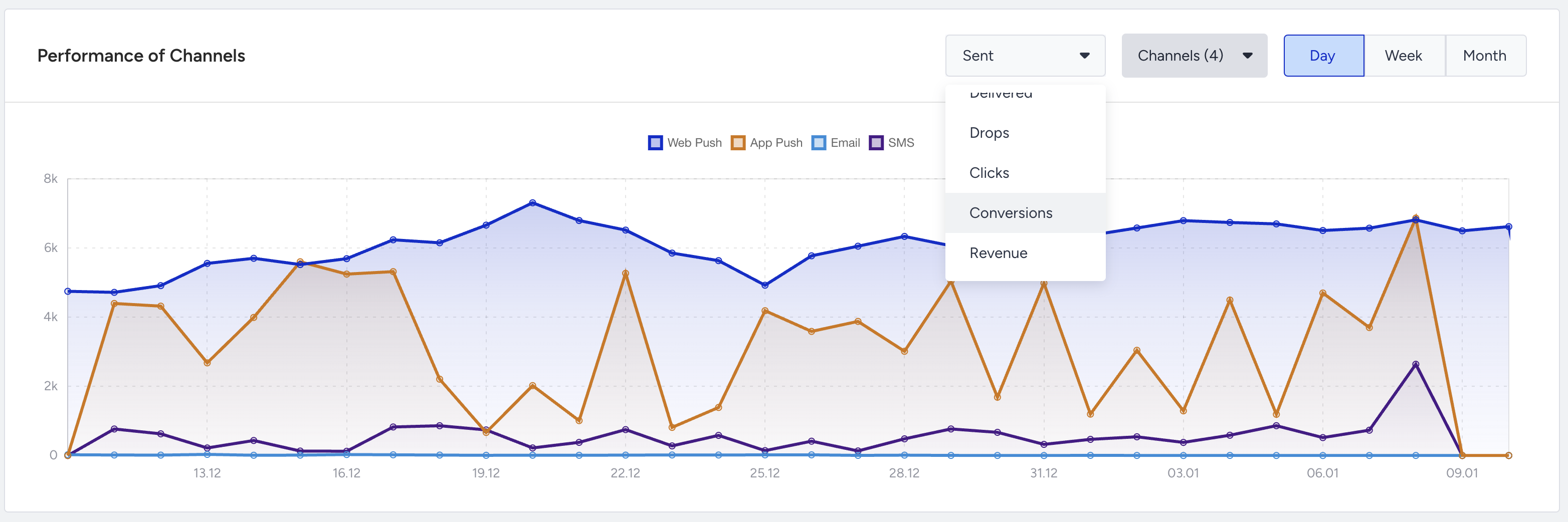
You can compare all the channels you use across your journeys using a performance metric you choose. In the Channels dropdown on the top right of the chart, you can select the channels and view their daily, weekly, or monthly data.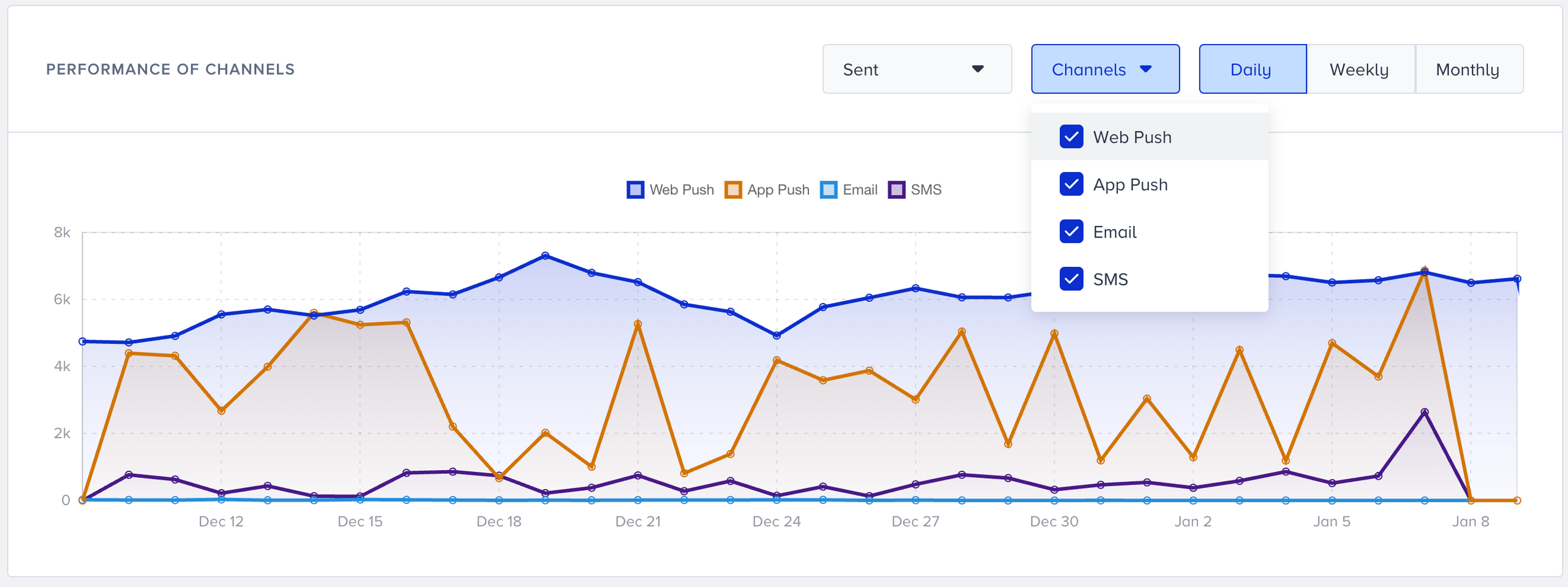
This section provides the channels that you use in all journeys, along with their metrics.
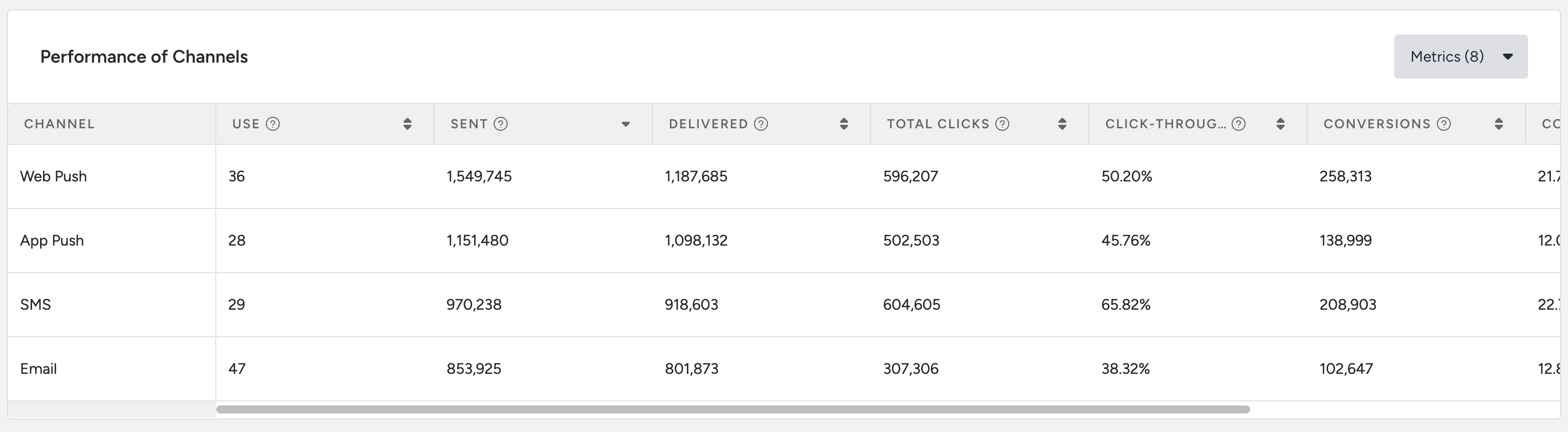
If a channel is used three times in all journeys, its metrics are gathered and displayed in this section. This way, you can compare such channels with others.
You can also select the metrics in the dropdown to remove the available metrics from the table. You can scroll left and right on the table to see all metrics, and sort them with ascending and descending orders.
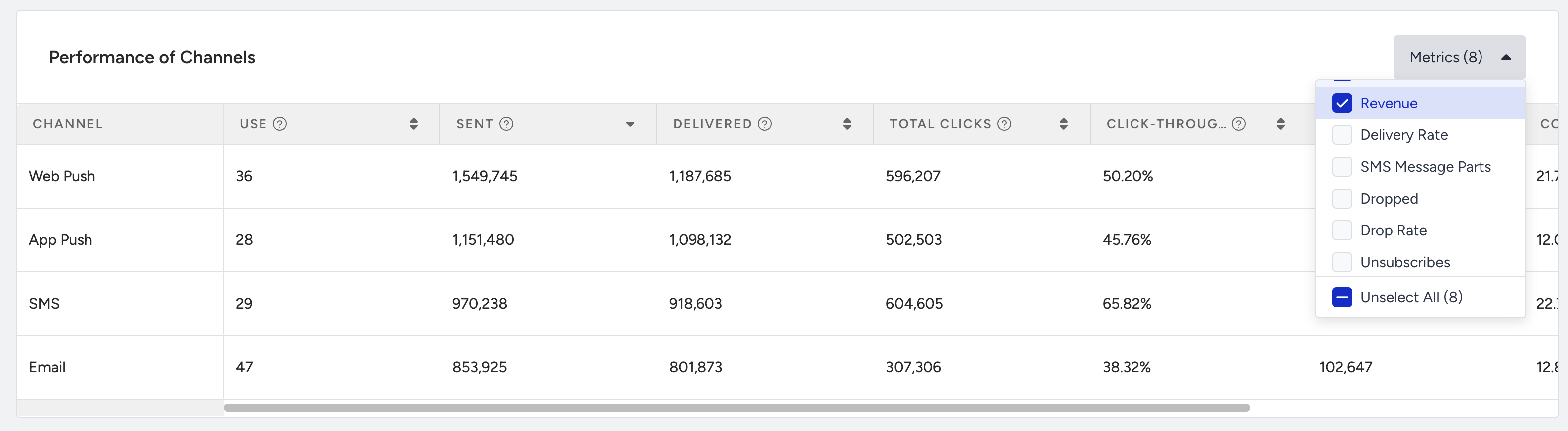
- Use: The number of times that a channel type is utilized in all journeys.
- Sent: The number of messages addressed to the users via a channel.
- Delivered: The number of messages delivered to the users via a channel in all journeys. Impressions are counted as Delivered for the on-site and in-app channels.
- Delivery rate: The percentage of the delivered to the sent messages.
- SMS message parts: The number of SMS message parts allocated for sending all the content in the SMS messages.
- Drops: The number of users who got dismissed from the journeys due to channel reachability.
- Drop rate: The percentage of the users who dropped from the channel to the users who arrived at the channel in all journeys.
- Unsubscribes: The number of recipients who opted out from your messages in all journeys in the selected period of time. This metric exists for WhatsApp, SMS, and Email channels and will be displayed as N/A for other channels.
- Unsubscribe rate: The percentage of unsubscribes to the delivered messages.
- Total Opens: The total number of times that the users opened the Email and WhatsApp messages in all journeys.
- Unique Opens: The unique number of times that the users opened the Email or WhatsApp messages in all journeys.
- Open rate: The percentage of users who opened the Email and Whatsapp messages in all journeys.
- Total Clicks: The number of times that the users clicked the messages via a channel.
- Unique Clicks: The unique number of times that the users clicked the Email.
- Click-through rate: The percentage of times that the users clicked the messages to the sent messages via a channel.
- Conversions: The number of successful goal accomplishments via a channel.
- Conversion Rate: The percentage of the successful goal accomplishments to the delivered messages via a channel.
- Revenue: The value of purchases made via a channel.
- Average Order Value: The division of Revenue by the number of purchases made via a channel in all journeys.
Open rates may exceed 100% when a narrow date range is selected. Delivered messages are counted based on deliveries within the selected period, while unique opens can include users who opened messages delivered before the selected period. As a result, unique opens may exceed delivered messages. If this occurs, expand the date range to include the relevant delivery period.
User Reachability
The User Reachability section lets you see the number of reachable users on each channel and channel combinations.
The number of reachable users on a single channel is compared to the total number of users that can be reached potentially. You can see the top channel combinations of your channels in terms of users who are reachable on both channels. You can use this insight while designing cross-channel journeys to select the best channel combinations targeting a wider audience.
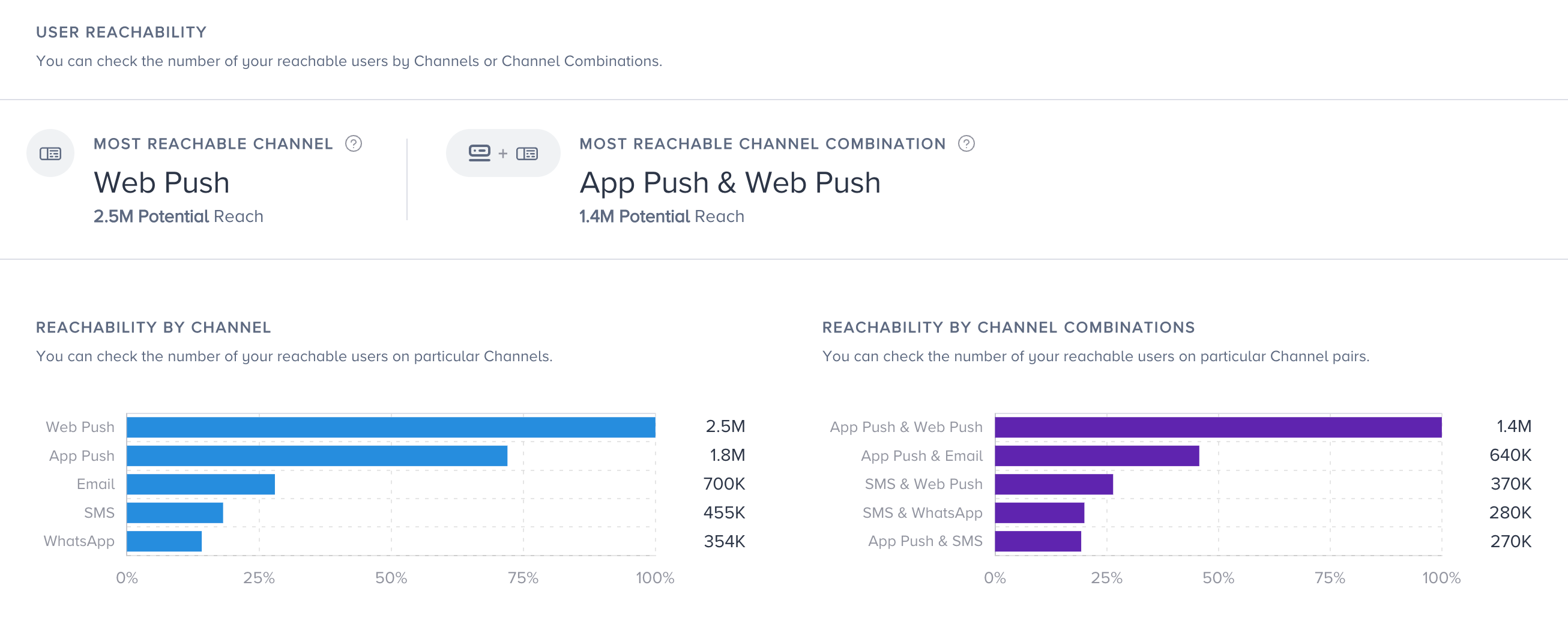
The reachability numbers are not affected by the filters at the top.
Refer to Reachability on Channels to see how reachability is calculated and detected differently for each channel.
Performance of Journeys
This section provides all journeys with their metrics based on the filter you select at the top of the page.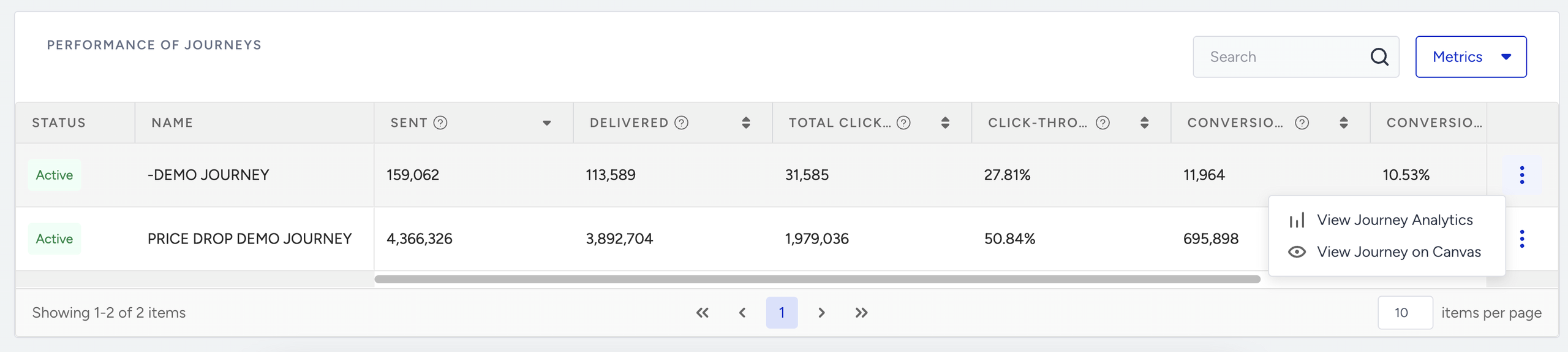
You can search for your journey in the top right corner, and click it to see the journey flow in a new tab. You can select the metrics in the dropdown, add and remove the available metrics from the table, scroll left and right on the table to see all metrics, and sort them in ascending or descending order.
This table displays the following information and metrics:
- Status: Indicates the current status of the journey.
- Name: Shows the journey name.
- Entered: The number of users who entered the journey.
- Completed: The number of users who completed the journey.
- Completion rate: The percentage of users who completed the journey to the users who entered the journey.
- Exited: The number of users who exited the journey because they matched the exit criteria set for that journey.
- Sent: The number of messages addressed to the users via all channels in the journey.
- Delivered: The number of messages delivered to the users via all channels in the journey. Impressions are counted as Delivered for the on-site and in-app channels.
- Delivery rate: The percentage of the delivered to the sent messages.
- SMS message parts: The number of SMS message parts allocated for sending all the content in SMS messages.
- Drops: The number of users who got dismissed from the journey due to channel reachability.
- Drop rate: The percentage of the users who dropped from the channels and "not reachable" path to the users who entered the journey.
- Unsubscribes: The number of recipients who opted out from your messages in that journey in the selected period of time. This metric exists for WhatsApp, SMS, and Email channels and will be displayed as N/A for other channels.
- Unsubscribe rate: The percentage of unsubscribes to the delivered messages.
- Total opens: The total number of times that the users opened the Email(s) or WhatsApp messages in the journey.
- Unique opens: The unique number of times that the users opened the Email(s) or WhatsApp messages in the journey.
- Open rate: The percentage of users who opened the Email or WhatsApp messages in the journey. When calculating the open rate, unique opens are considered for Email, while total opens are considered for WhatsApp.
- Total clicks: The number of times that the users clicked the messages via all channels in the journey.
- Unique clicks: The number of times that the users clicked the Email(s) in the journey.
- Click-Through rate: The percentage of times that the users clicked the messages to the sent messages via all channels in the journey.
- Conversions: The number of successful goal accomplishments via all channels in the journey.
- Conversion rate: The percentage of the successful goal accomplishments to the sent messages via all channels in the journey.
- Revenue: The value of purchases made via all channels in the journey.
- Average order value: The division of Revenue by the number of conversions made via all channels in the journey.