API-based Smart Recommender allows you to design your own Smart Recommender widgets on your end and integrate them into Insider One's Smart Recommender API. With this campaign type, you can continue creating and editing all other campaign configurations (e.g., segments, A/B testing, analytics) on the Insider One's InOne panel.
Your title goes here
Desktop Web Smart Recommender and Mobile Web Smart Recommender support API-based campaign type.
Completing two steps in a row, you can launch an API-based campaign;
1. Create your widget on InOne
2. Integrate your widget with Insider's Smart Recommender API
1. Create your widget on InOne
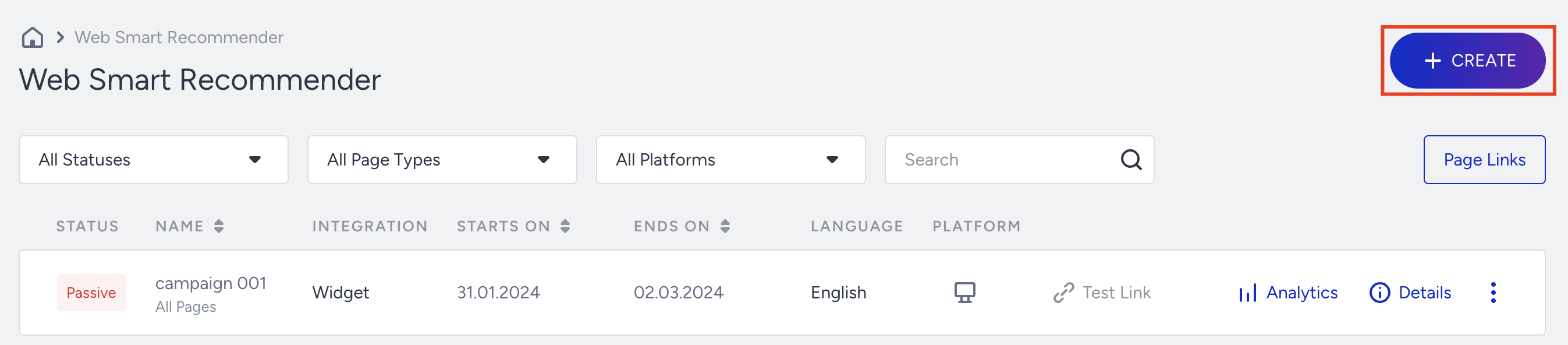
- Navigate to Experience > Discover > Web Smart Recommender.
- Click the Create button.
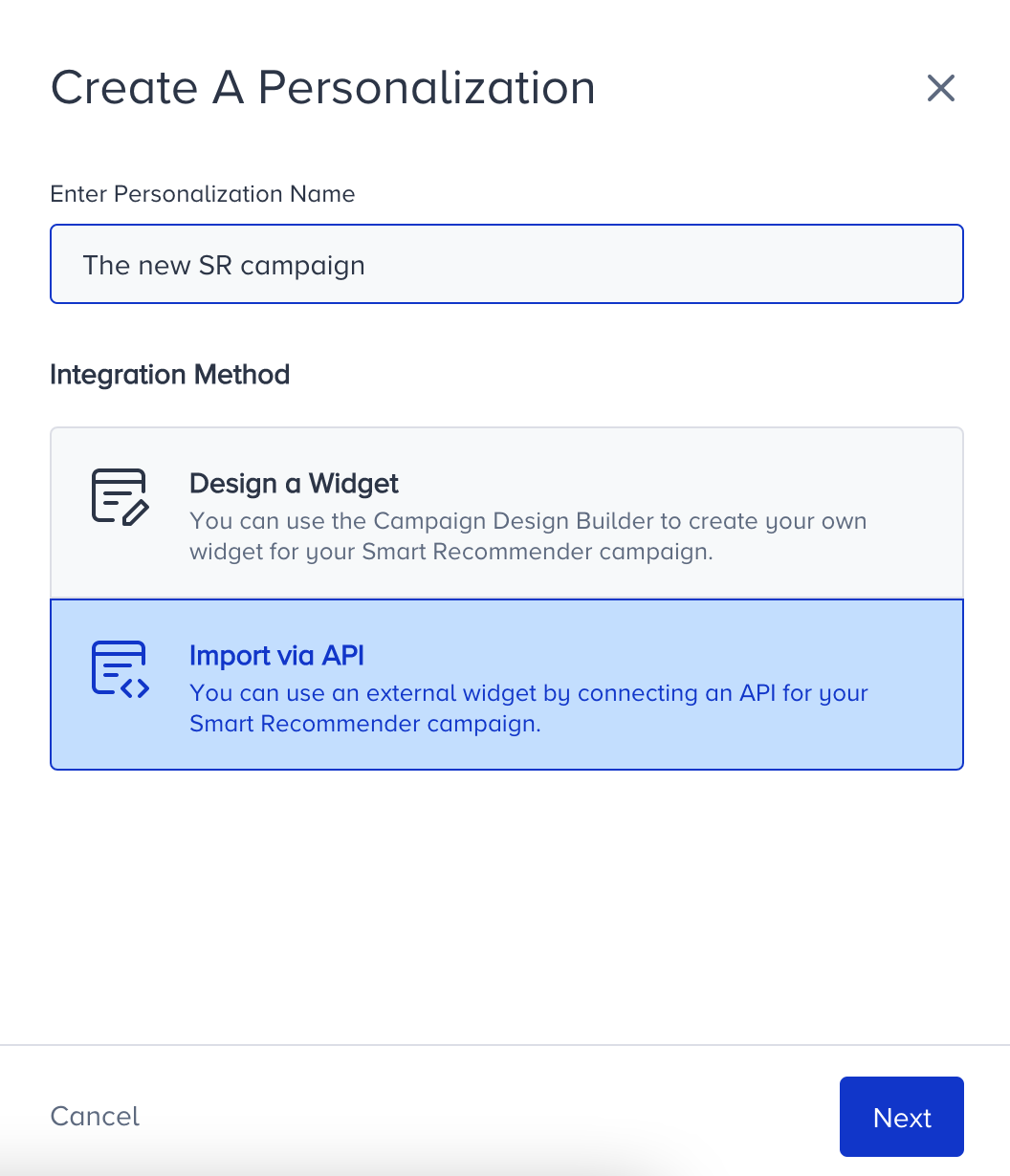
- Select the Import via API method and name your campaign.
- Select the platform and page type where you want to add your widget. Then, click the Create button.Your title goes hereIf you haven't configured your page links yet, complete this step before selecting a page type.
.png)
- Configure your segmentsfor a narrowed-down audience. The available segmentation options are:
- Predictive Segments
- Purchasing Behavior
- Visiting Behavior
- First-Party Segments
- OnSite Campaign History
- Onsite Segment
- CRM Attributes
- RFM
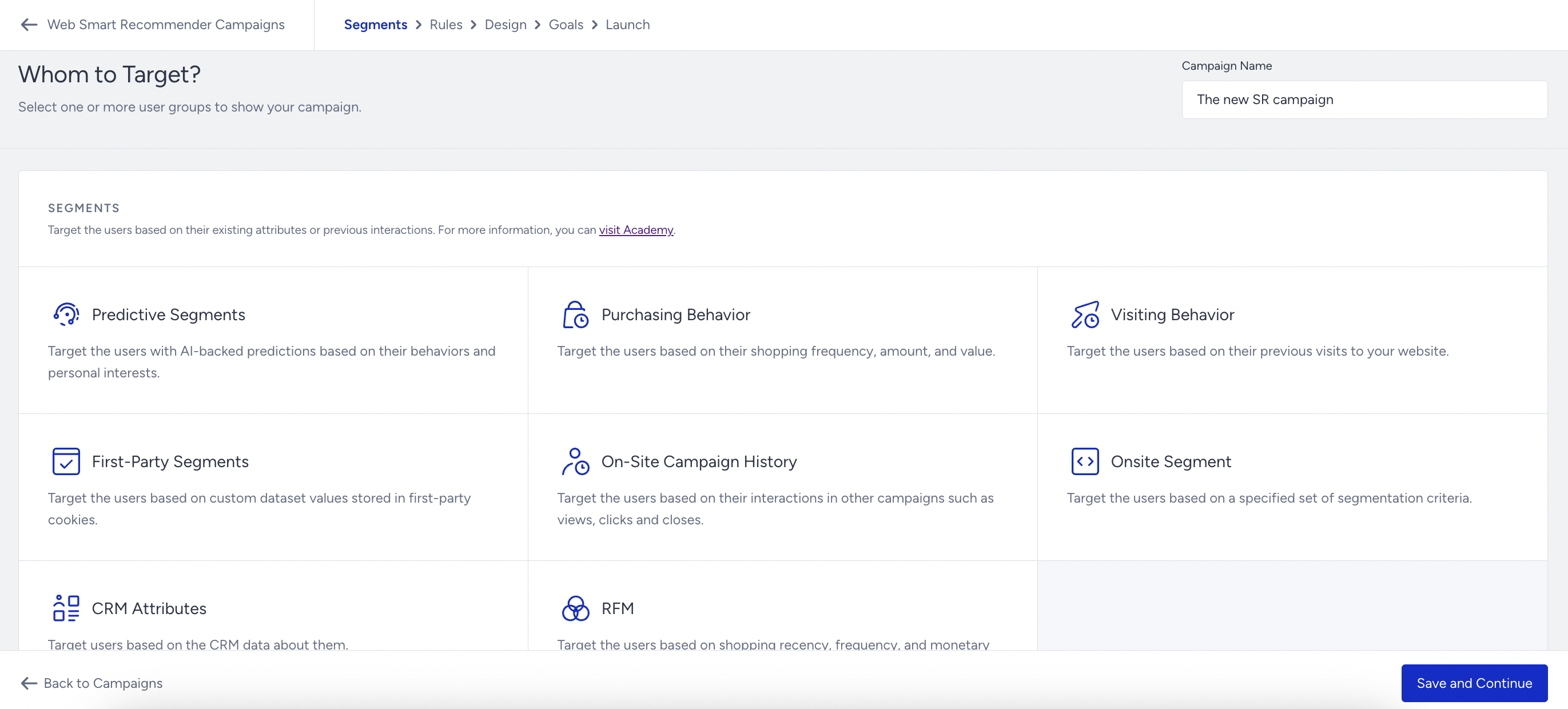 If you do not apply segmentation, your campaign will be delivered to all available users.
- In the Rules step, the page type you select initially is selected by default. You can also add rules to start showing your campaign:
- Page Rules
- Page Behavior
- Weather Rules
- Browser Storage Rules
- User Rules
- Custom Rules
- Data Layers
- Website Trigger
- Traffic Source
- Purchasing Behavior
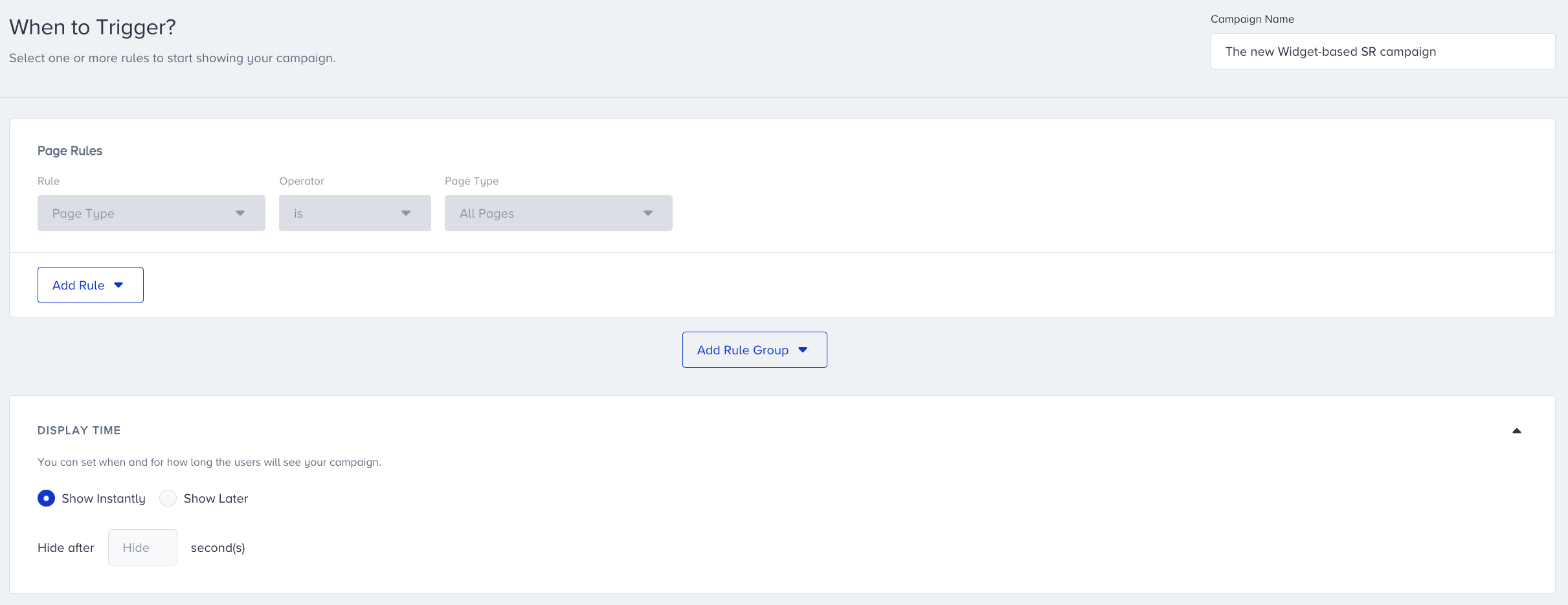 You can also configure Display Time to set when and how long the users will see your campaign.
- Go to the Design step and click the Add a new variant button. Then, select the Recommendation Strategy you have configured to tailor the recommendation experience.Your title goes hereAPI-based Smart Recommender does not require any visual design on InOne. For this reason, you are not directed to the Action Builder.
- Decide on the traffic allocation of your variant(s) to get and track the results of your campaign:
- If you have one variant and want to show it to every user, then set it as 100%.
- If you want to compare it with a control group, allocate 100 between your variant and the control group.
- If you have multiple variants and want to include a control group, allocate them accordingly.
- Configure your goals to track your campaign's performance. Purchases are selected by default. You can also create a new goal or choose from the existing ones.
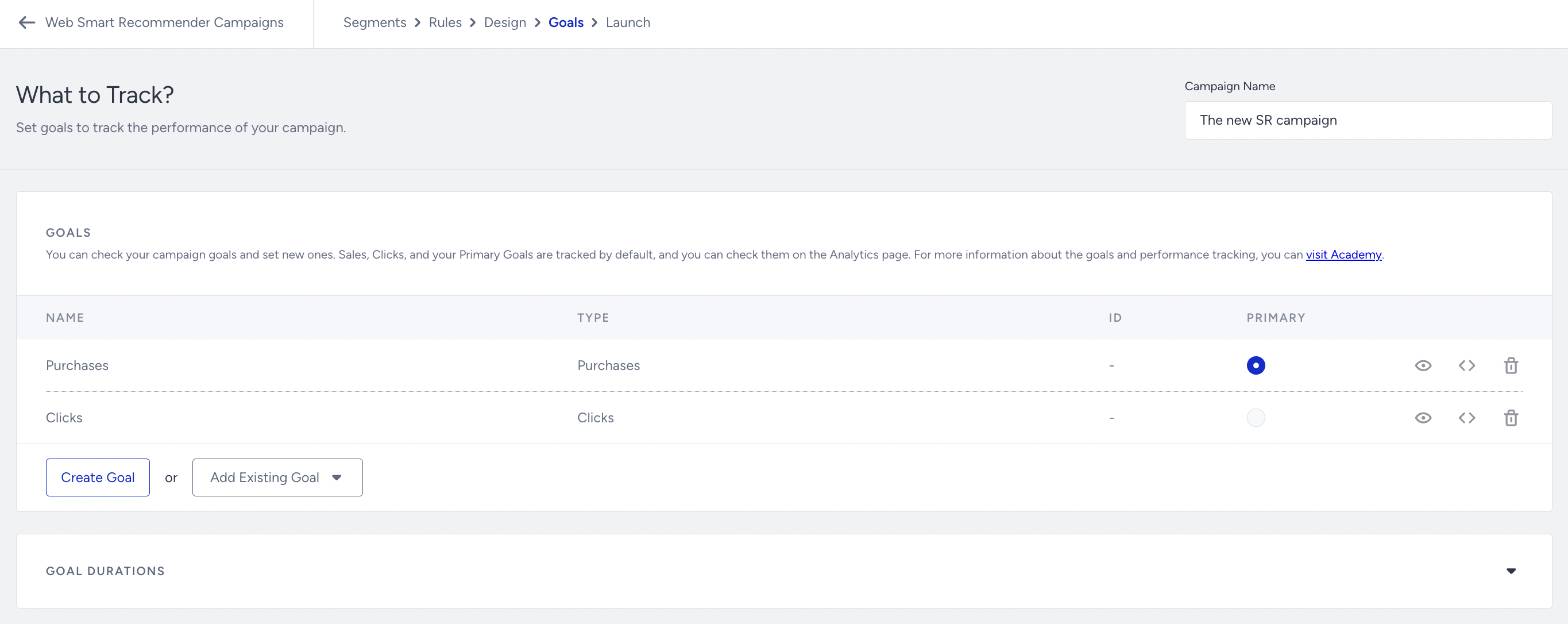 Under Goal Durations, you can set the period for users to complete the goals of your campaign.
 - On the Launch step, select the language that matches your personalization, and configure your locale, store selection, activation time, display settings, and advanced settings as applicable.
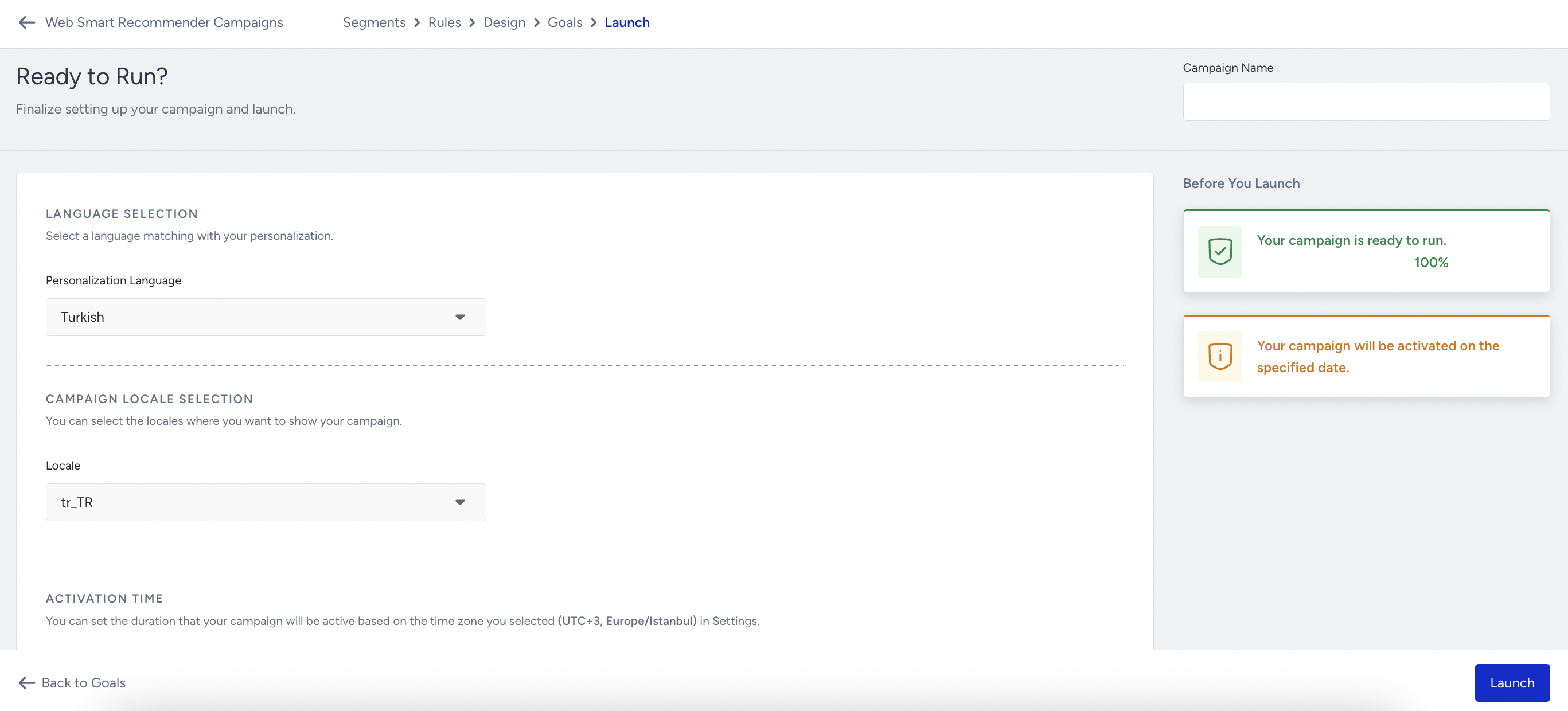
- You can save your campaign in the Active or Passive status, depending on your needs. When you set the status to Active, click the Launch button.
2. Integrate your widget with Insider One's Smart Recommender API
Now that you have created your API-based Smart Recommender widget, you need to integrate it into Insider One's Smart Recommender API to run your campaign.
Your title goes here
You need to integrate your widget with Insider One's Smart Recommender API to finalize your campaign creation, or it will not be displayed to your users. To complete your integration, refer to Integrating API-Based Smart Recommender.