API-Based Smart Recommender enables you to design fully customized recommendation widgets while leveraging Insider’s recommendation engine. This gives you complete control over the presentation of recommendations while still benefiting from segmentation, A/B testing, and analytics tracking through the Insider One's InOne panel.
This guide outlines how to integrate the Smart Recommender API in two simple steps:
- Implement event integration to retrieve recommended products.
- Build and embed your custom HTML design to display the recommendations.
Implement event integration
Before proceeding, ensure that Insider Tag (ins.js) is already implemented on your website. This must load before the Smart Recommender API event.
1. Check if Smart Recommender data is loading
To verify that the API is fetching recommendations correctly, follow these steps:
- Open your website in Google Chrome.
- Open the Developer Console:
- Right-click anywhere on the page and select Inspect.
- Go to the Console tab.
- Paste the following JavaScript code in the console and press Enter:
Insider.eventManager.once('ins-sr:only-api-campaign:load', function (event, data) { console.log(data); });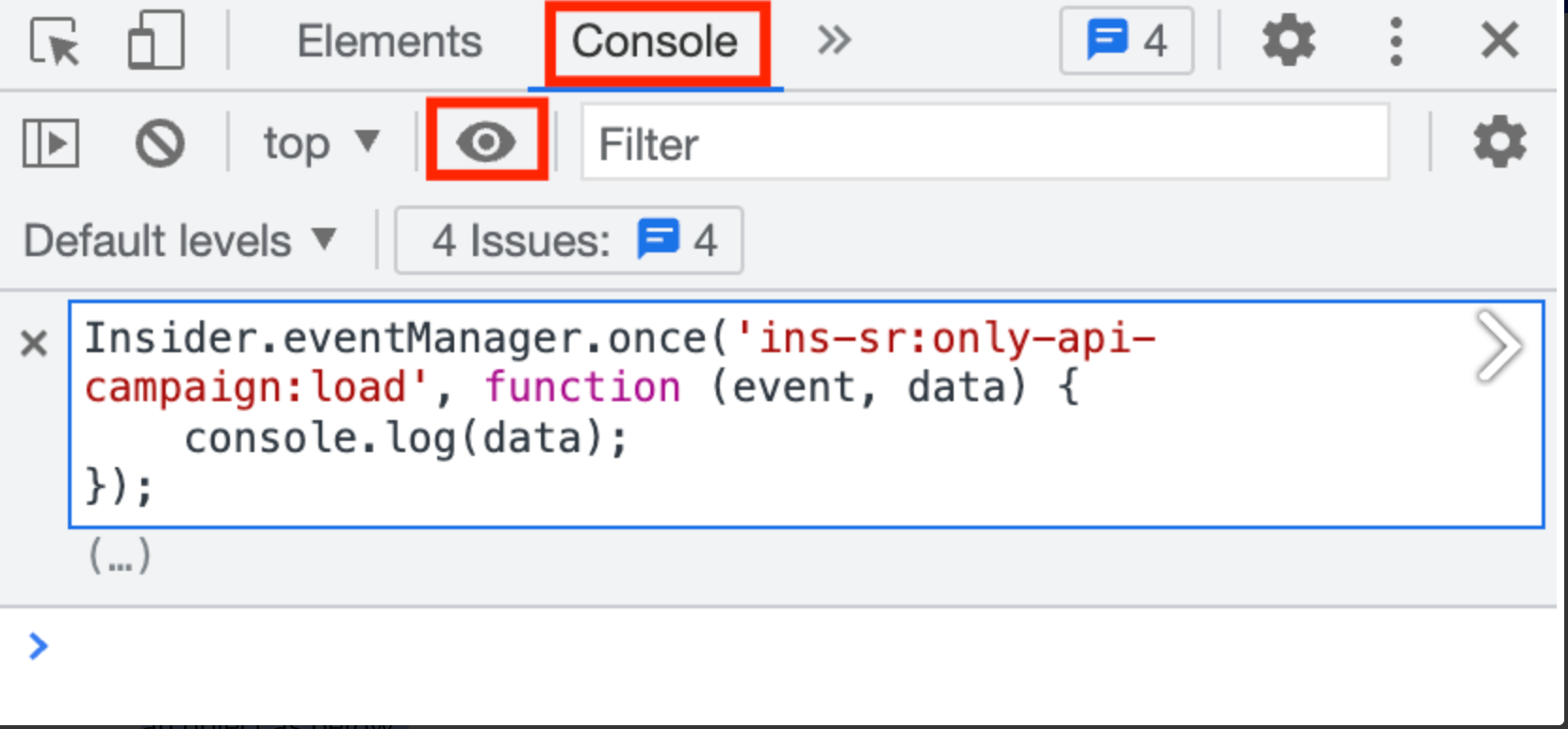
4. Refresh the page.
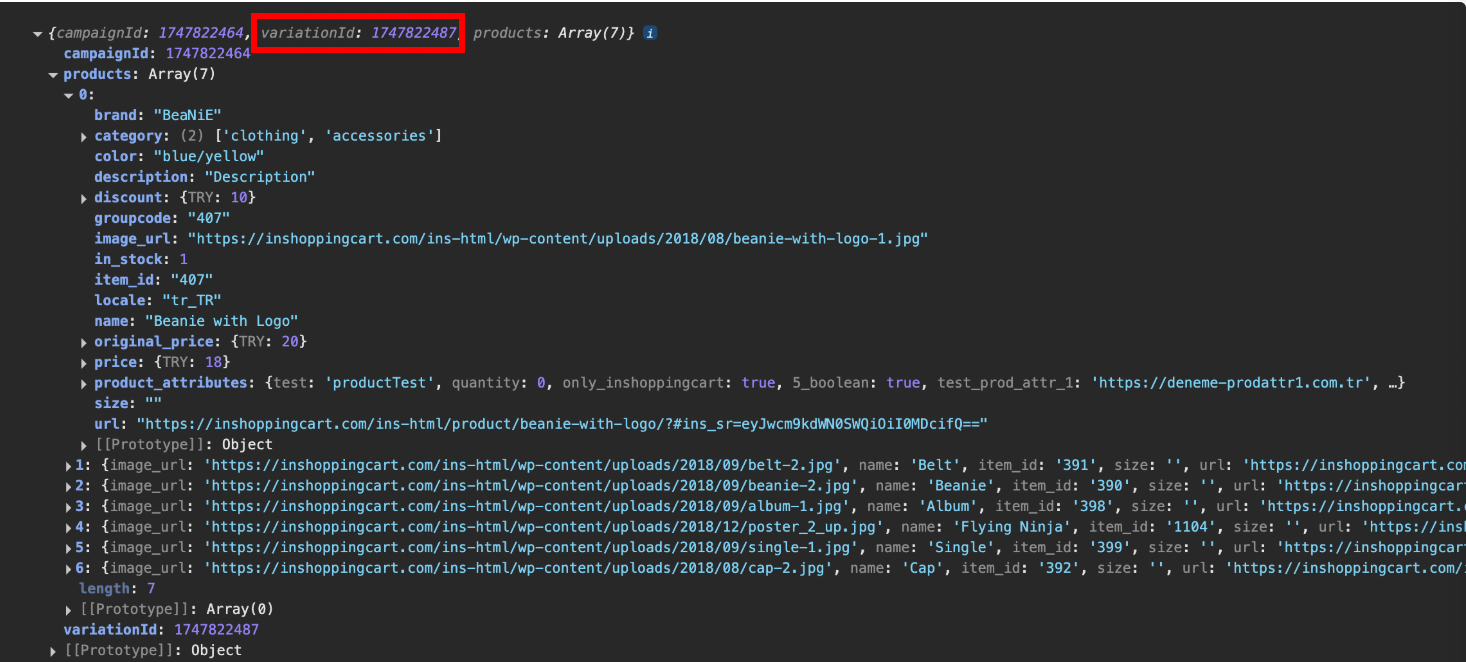
You should see an object containing the campaignId, variationId, and a list of recommended products.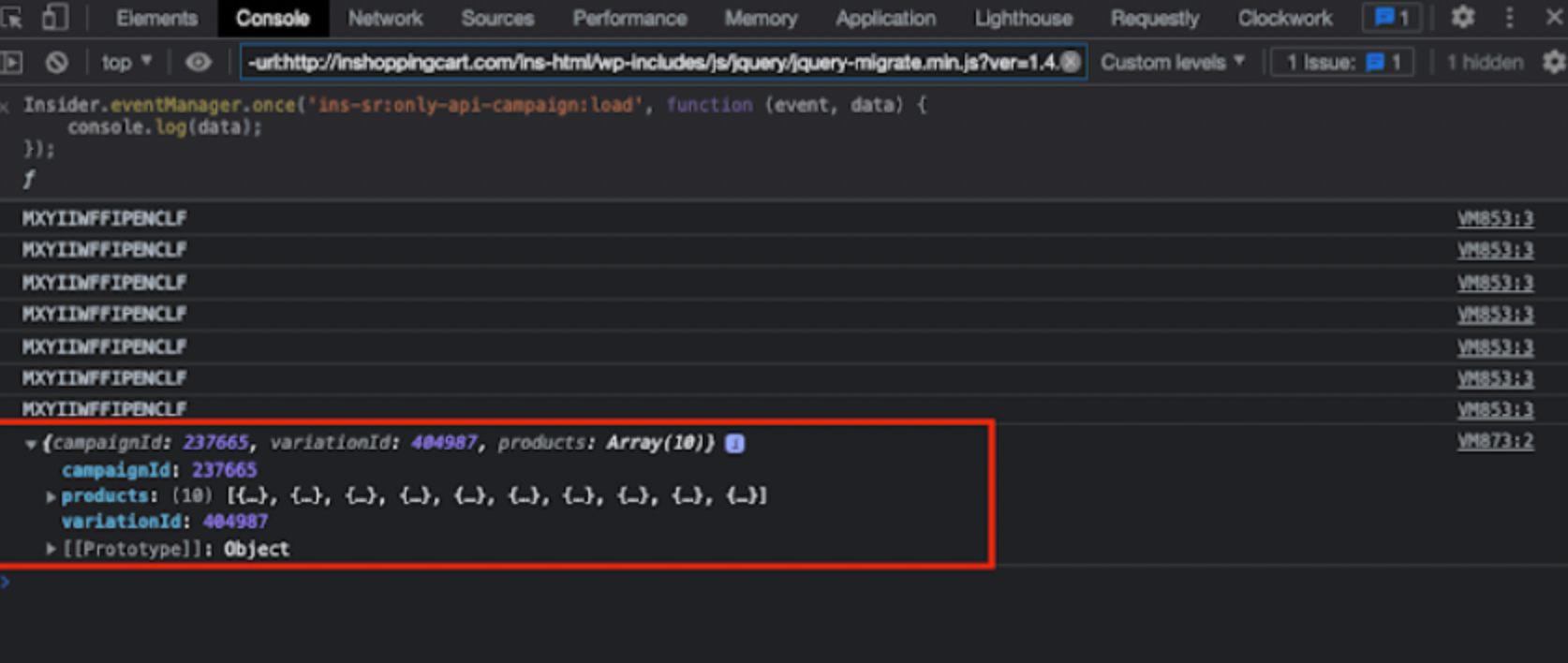
2. Identify Campaign ID
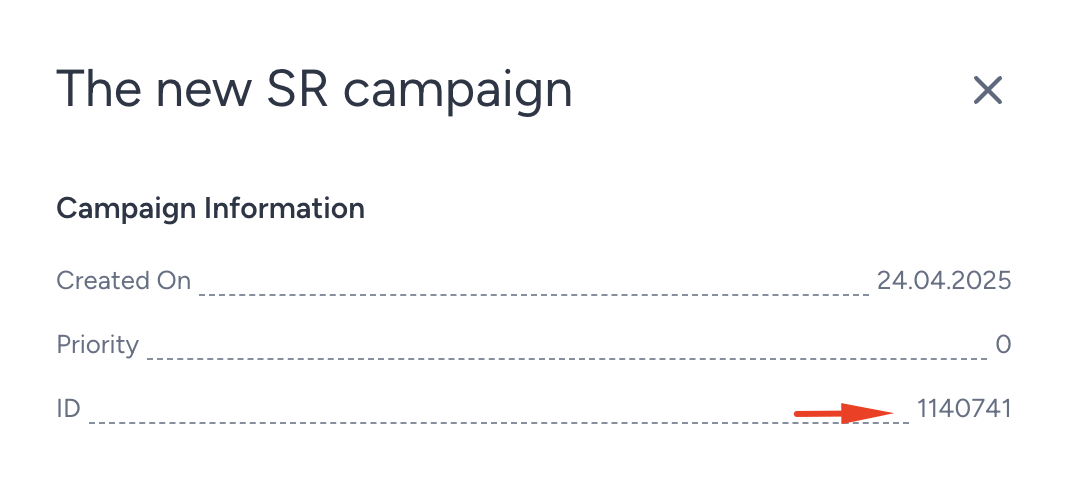
Each Smart Recommender campaign has a unique campaignId. To find it:
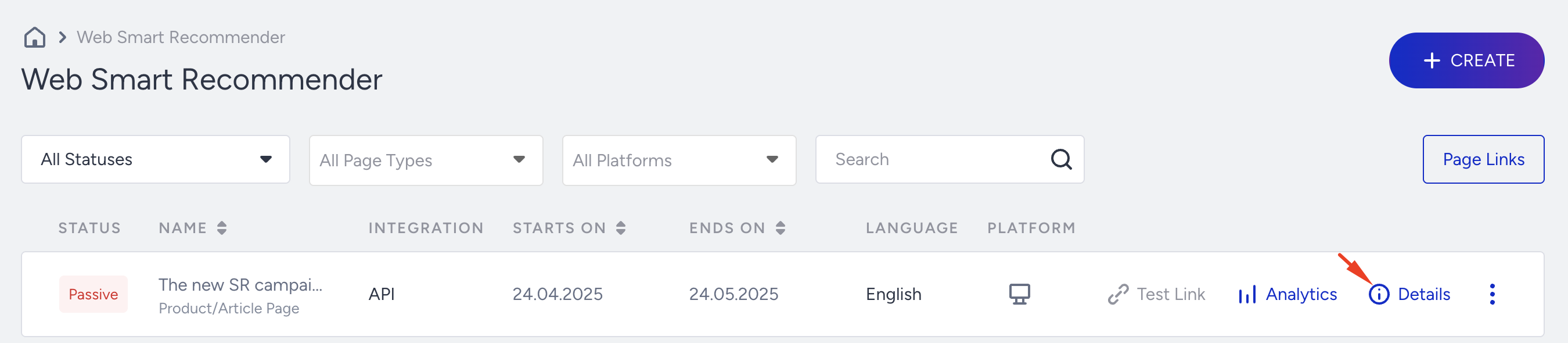
- Go to Web Smart Recommender in the InOne panel.
- Click on Details for the campaign you want to integrate.
- Locate the ID field—this is your campaignId.
3. Fetch data for a specific campaign
If you are running multiple campaigns, you can filter recommendations for a specific campaign by modifying the previous script:
Insider.eventManager.once('ins-sr:only-api-campaign:load', function (event, data) { if (data.campaignId === 123456) { console.log(data); } });4. Final step
Once you confirm that the Smart Recommender API is fetching the correct data, copy the JavaScript snippet below and insert it into your website’s respective pages:
Insider.eventManager.once('ins-sr:only-api-campaign:load', function (event, data) { if (data.campaignId === 123456) { console.log(data); } });Build and integrate your HTML design
Now that the API is fetching recommendations, the next step is to design your widget and integrate it into your website.
1. Choose a design approach
You can structure your HTML in two ways:
- Custom HTML Structure
- If you do not need to track analytics (views, clicks, purchases) inside InOne, you can use any custom HTML & CSS.
- Predefined Insider Structure (Recommended)
- If you want detailed analytics tracking, your HTML must follow Insider’s predefined Smart Recommender structure.
2. Recommended HTML structure
A Smart Recommender widget consists of four main elements: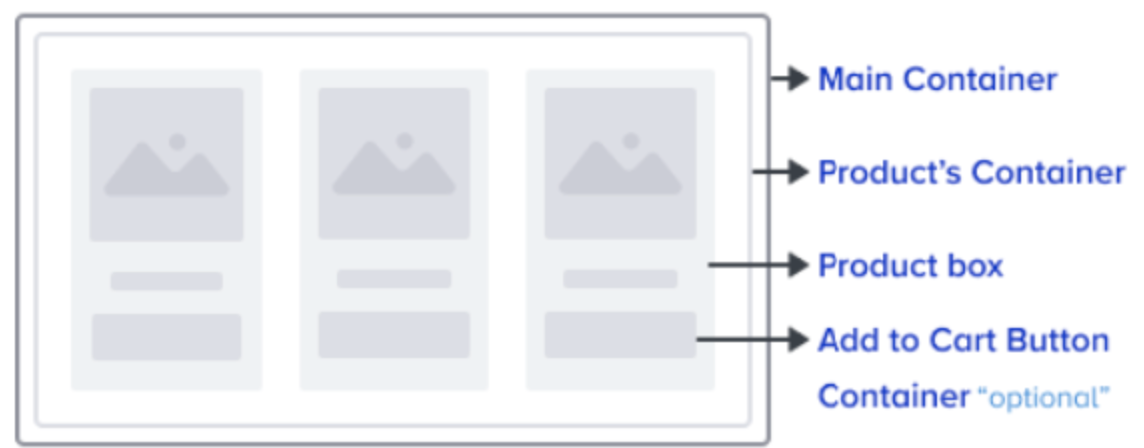
- Main Container: Wraps the entire recommendation widget.
- Product's Container: Holds all product cards.
- Product Box: Represents a single recommended product. You can display any product attribute to show your customers, including a 'Visit Product Page' button. When a user clicks here, the user will be redirected to a product detail page.
- Add to Cart Button (optional): Enables users to add items directly to the cart from the widget. This is required for Insider to collect and add to cart metrics and display them on the analytics page.
3. Example: Desktop Web Template
Below is an example of how to structure the HTML for a Smart Recommender widget:
<div class="ins-preview-wrapper-variationId ins-sr-api-wrapper">
    <div class="ins-web-smart-recommender-body" data-recommended-items="[product_id1, product_id2, product_idn]">
        <div class="ins-web-smart-recommender-box-item">
            <div class="ins-product-box ins-element-link ins-sr-api" ins-product-id="{product's id}" data-product-categories="[product categories]" event-collection="true">
                <!-- Product Image, Name, Price, Go to Product Button etc.-->
            </div>
        </div>
    </div>
</div>- Replace variationId above with the variationId fetched from the API.
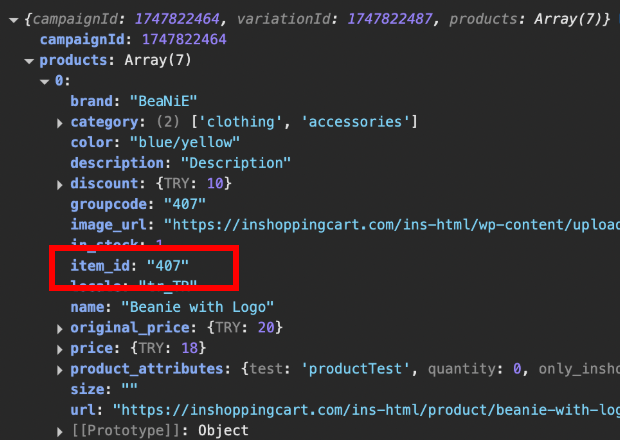
- Replace product_id1, product_id2, etc., above with each product’s item_id.
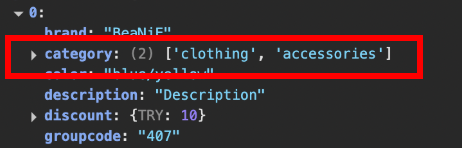
- Replace product categories above with the category of each product. By using product.category, you can get the required information.
4. Example: Mobile Web Template
For mobile layouts, the class names slightly differ:
<div class="iins-preview-wrapper-variationId ins-sr-api-wrapper">
    <div class="ins-mobile-web-smart-recommender-body" data-recommended-items="[product_id1, product_id2, product_idn]">
        <div class="ins-mobile-web-smart-recommender-box-item">
            <div class="ins-product-box ins-element-link ins-sr-api" ins-product-id="{product's id}" data-product-categories="[product categories]" event-collection="true">
                <!-- Product Image, Name, Price, Go to Product Button etc. -->
            </div>
        </div>
    </div>
</div>- Desktop: ins-web-smart-recommender-body
- Mobile: ins-mobile-web-smart-recommender-body
5. Extract data dynamically
To ensure that your widget dynamically updates with recommended products, use the following script:
Insider.eventManager.once('ins-sr:only-api-campaign:load', function (event, data) { var productIds = []; data.products.forEach(function (product) { productIds.push(product.item_id); }); var stringifiedProductIds = JSON.stringify(productIds); });This extracts product IDs (item_id) dynamically from the API and formats them for the integration.
6. Integrate Add to Cart Button (optional)
If you add an add to cart button to each product box, you should place the following add to cart part into <div class="ins-web-smart-recommender-box-item">.
<div class="ins-preview-wrapper-variationId ins-sr-api-wrapper">
    <div class="ins-web-smart-recommender-body" data-recommended-items="[product_id1, product_id2, product_idn]">
        <div class="ins-web-smart-recommender-box-item">
            <div class="ins-product-box ins-element-link ins-sr-api" ins-product-id="{product's id}" data-product-categories="[product categories]" event-collection="true">
                <!-- Product Image, Name, Price, Go to Product Button etc. -->
            </div>

            <!-- Should implement only when needed an add to cart button -->
            <div class="ins-add-to-cart-wrapper" ins-product-id="{product's id}">
                <!-- Add To Cart Button -->
                <div class="ins-element-link ins-sr-api">
                    Add To Cart
                </div>
            </div>
        </div>
    </div>
</div>
Debug and Test
Once your integration is complete, test and debug to ensure everything is working correctly.
1. Use the Insider Debugger Console
- Go to Web Smart Recommender > Test Integration on the Insider One's InOne panel.
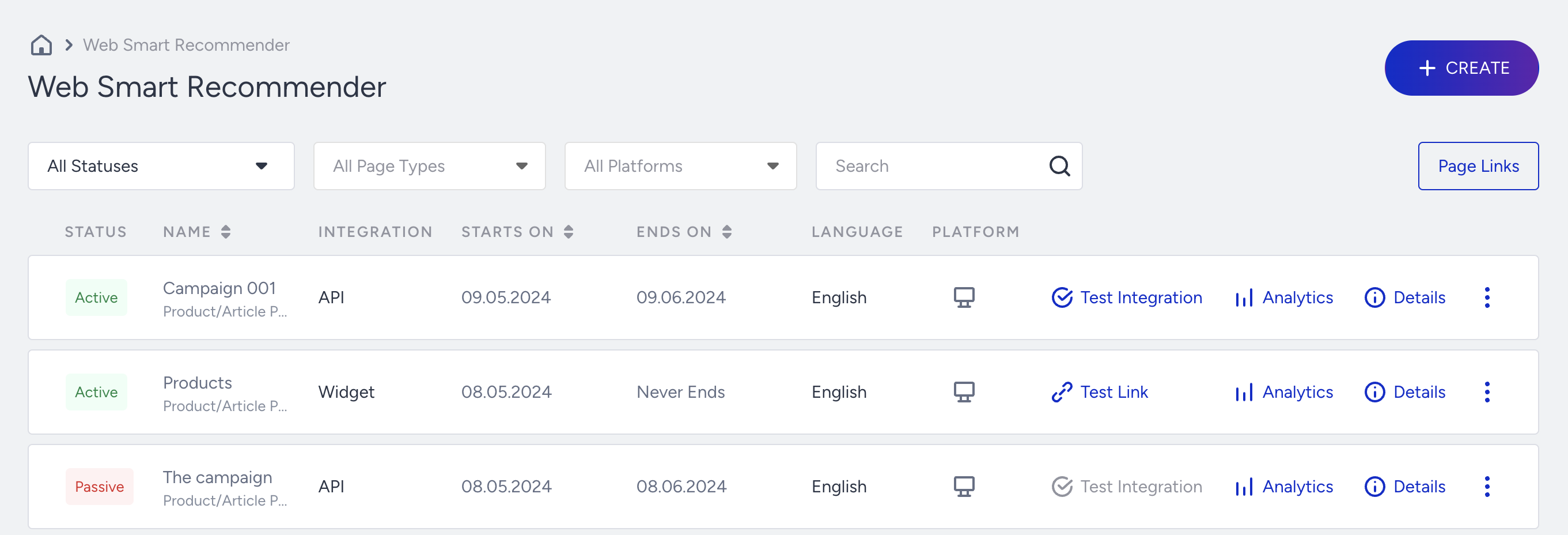
- Click Smart Recommender API Integration.
- Verify that all required classes and attributes are present:
- ins-preview-wrapper-variationId ins-sr-api-wrapper
- ins-web-smart-recommender-body
- ins-web-smart-recommender-box-item
- data-recommended-items
- ins-product-box
- ins-product-id
- data-product-categories
- event-collection="true"
Each validation is indicated by green (✔) or red (✖) badges.
2. Check the Console for errors
If the widget is not displaying recommendations:
- Open the Developer Console.
- Type:
console.log(data); - Check if the products array is empty.
- If empty, your recommendation algorithm may not be returning results (e.g., due to insufficient data or training in progress).
- If it is not empty but not displaying, check your HTML structure.
Troubleshoot your API-based Smart Recommender integration
- If you have multiple campaigns, filter them by their campaignId.
- If recommendations aren’t appearing, ensure:
- Your campaign is active.
- Your Insider Tag (ins.js) is loading before the integration script.
- You are using the correct campaign ID.
- If recommendations are delayed, the model might still be training.