In-app enables you to deliver an interactive experience to your users and engage them. This channel is a more direct way of communicating with your users, as you can get in touch with them while they are active on the app.
You can use the In-App channel in your journeys to display campaigns to your users when they come to the In-App step on the journey flow and meet the conditions to display the campaign.
Architect enables you to use In-App templates in the Template Store and standard In-App.
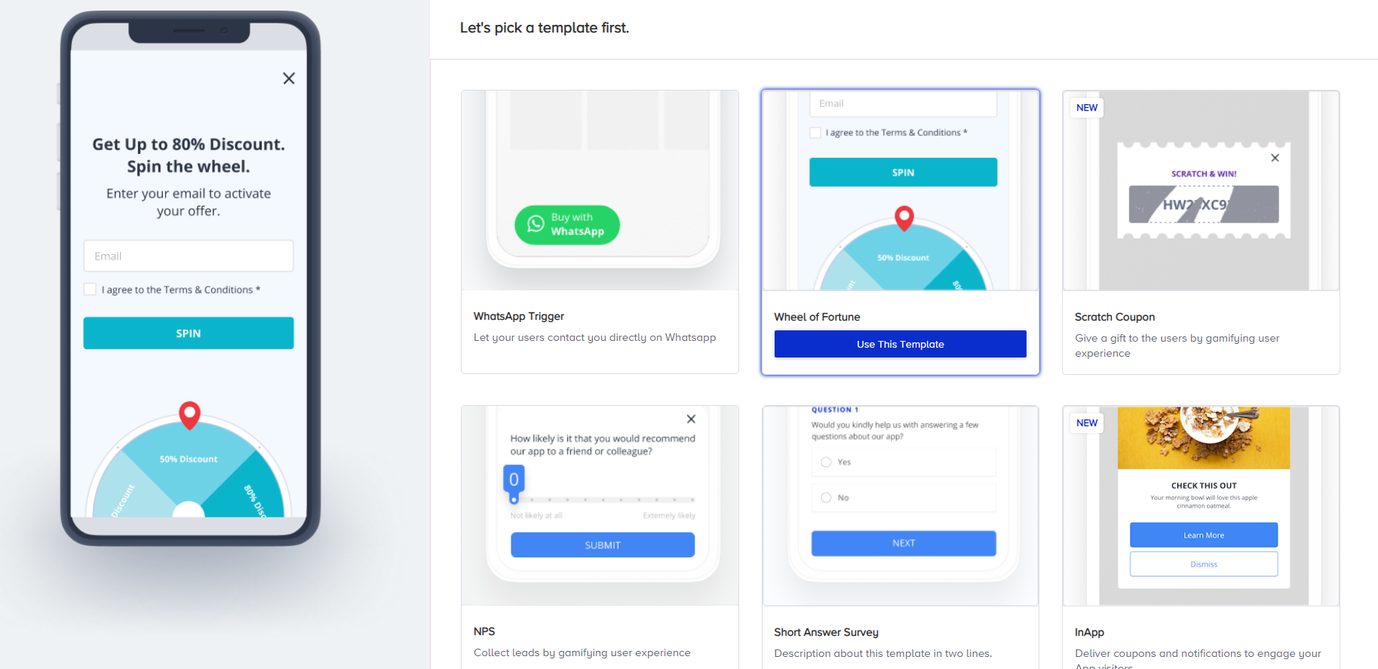
You can use the following templates in your journeys:
Social Proof is not included in the Architect In-App channel as it is not a convenient template to display in an automation or a customer journey flow.
Requirements
Ensure to confirm the steps listed in Before Architect Integration.
Complete the InApp Integration before setting up your InApp in Architect.
If you are already using Insider One's InApp product, you do not need to make any additional integration for the InApp channel in your journeys.
Use cases
Using the In-App channel in your journeys, you can achieve many use cases as follows:
Take users' phone numbers and their consent to send a WhatsApp message on the same journey flow.
Provide a warm welcome to new users who download and open your app.
Promote daily/weekly offers in the app.
Lead users to sign up for your app.
Onboard the users when they have their first session and offer a discount for the first purchase.
Ask users to rate your app on the App Store/Google Play at their happy moments, such as when they complete a purchase or after visiting a certain number of articles/products.
Get feedback from users who have just purchased by using NPS or Short Answer Survey templates.
Target users who are active in the app but have not made any purchases so far and offer a one-time coupon code to get them used mobile purchases.
Show a banner to users who are both website and app users to give them the advantage of buying products in the app instead of the website.
How does it work?
In-App functions as any in-app template does on your app. The system triggers the in-app when the user triggers the condition to see your campaign.
When a user comes to the In-App step on the flow, the system detects their reachability and checks whether they have had any activity on your app in the past 30 days (e.g., performing an event). This user can be considered reachable on this channel if there is any. If they are not reachable, they will drop from the journey and be counted as dropped.
When users trigger the conditions to see your in-app campaign, they can see it when they come to the app within a specified duration. This duration is specified by Time Out.

Some users might not see the in-app campaigns due to campaign priorities configured for the in-app campaigns.
In journey flows, once an InApp message is seen by the user, the same InApp message cannot be shown again to the same user within 5 minutes.
Time out
The in-app channel functions differently from other messaging channels, as it is not certain whether a user will see your in-app campaign when they are at this channel element in the journey flow. Users might not be on the app at the time they come to this step in the flow. That's why journeys run on different logic: to keep users on hold for a specified duration and take action if they do not see the campaign. This function is called Time Out.

You can specify a duration to keep users at the In-App channel and select one of the following actions to take for them in case they do not see the campaign.
This duration can be a minimum of 30 minutes and a maximum of 2 weeks.
Proceed to the next step: If users do not see the campaign within the specified duration, they will proceed to the next element. If there is no next element, they will complete the journey.
Drop from the journey: If users do not see the campaign within the specified duration, they will drop from the journey and be counted as dropped.