Net Promoter Score (NPS) is among the most popular survey types. It shows you how likely customers are to recommend your brand to a friend or colleague on a scale of 0 to 10.
Requirements
To start using the Net Promoter Score (NPS) template, you need to integrate basic SDK version 11.6.1 or higher.
Use cases
To get a better understanding of how and when to use the NPS, refer to Use Cases for NPS.
You should complete the following steps to launch a campaign with the NPS template:
1. Create a campaign
Follow these steps to create NPS surveys:
1. Navigate to Campaigns > Optimization > App Survey and click the Create button.
2. Select NPS and click the Use This Template button.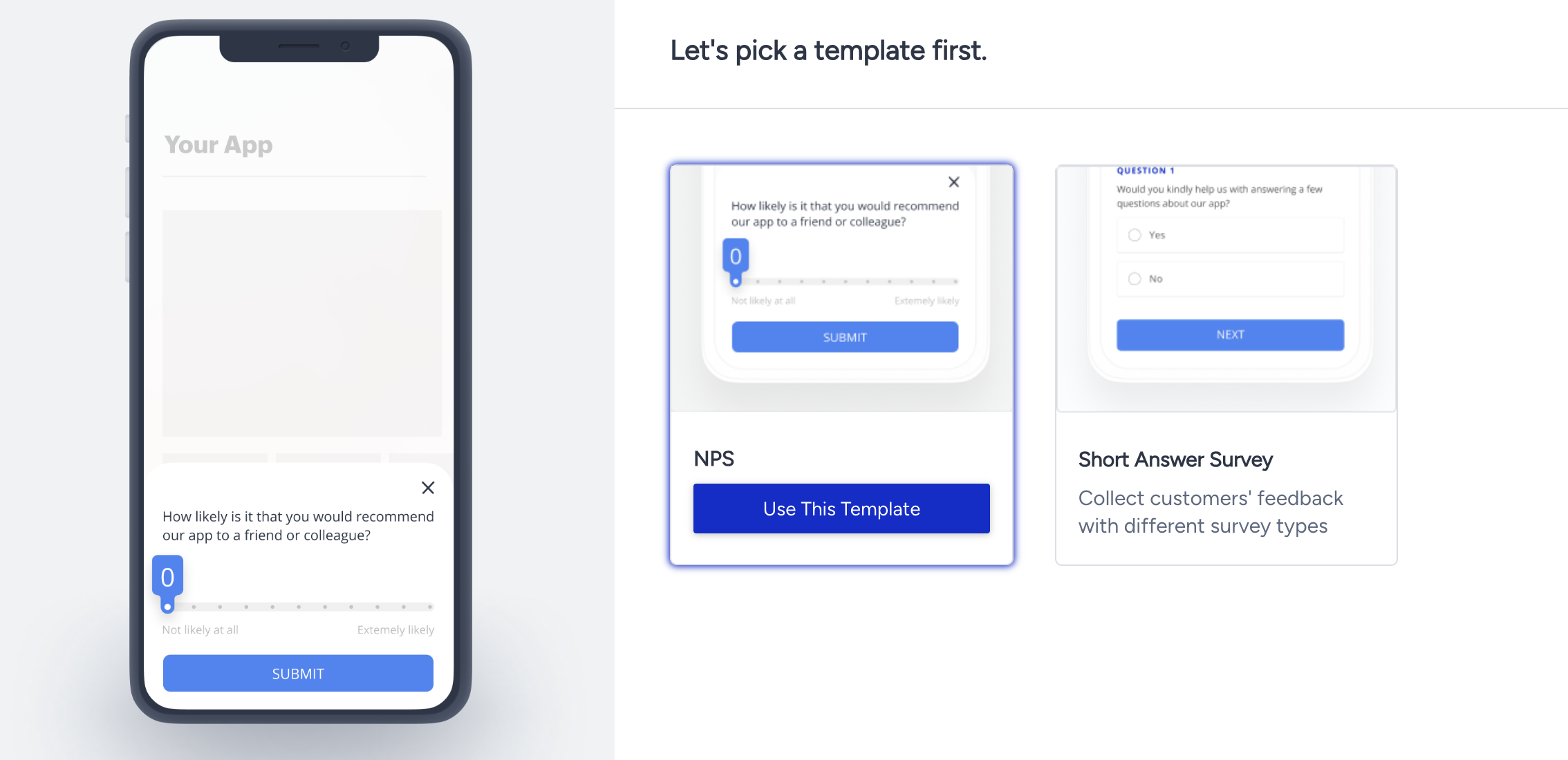
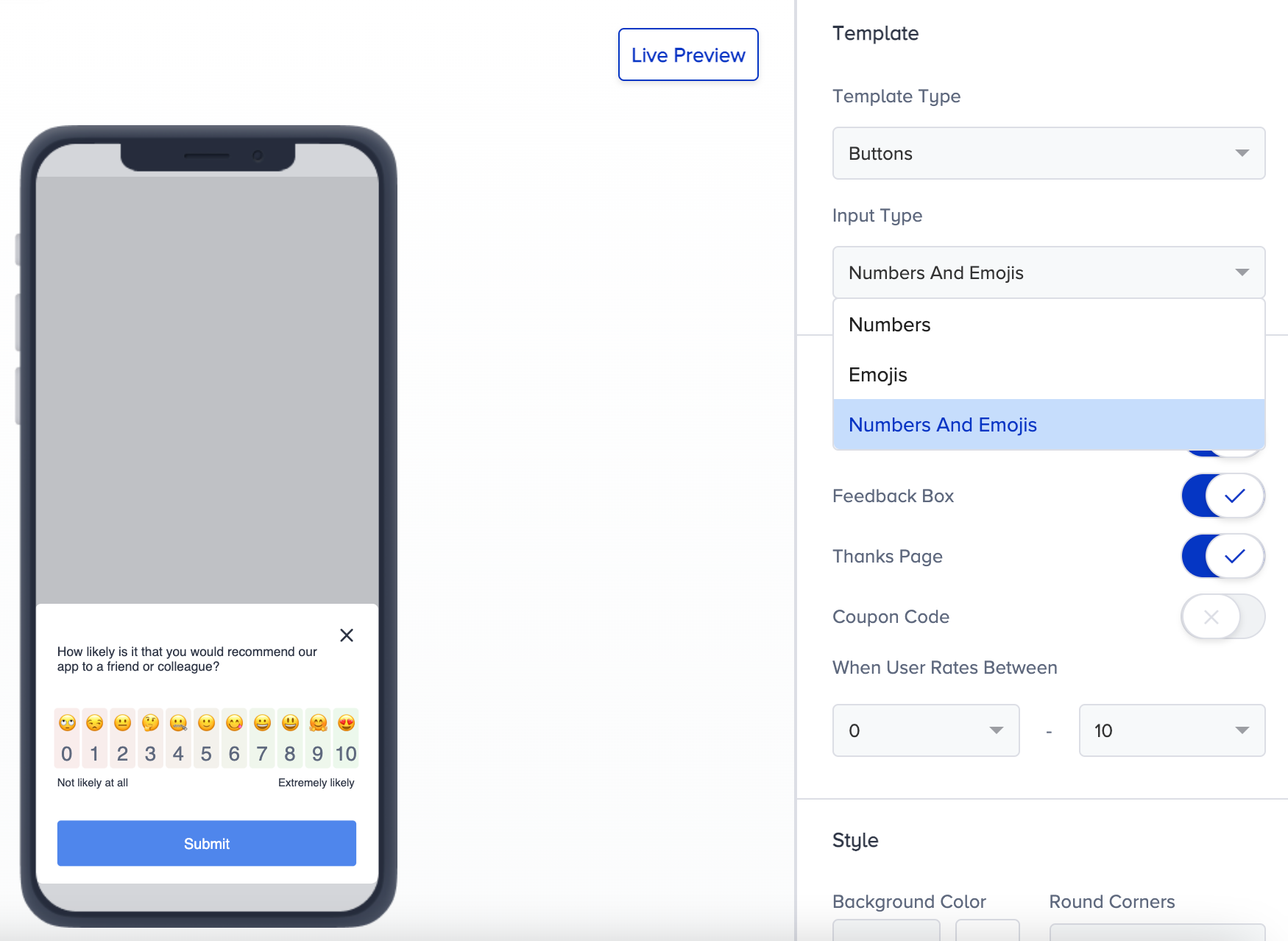
3. Select your template type as Slider or Buttons. You can also use emojis and numbers in your input.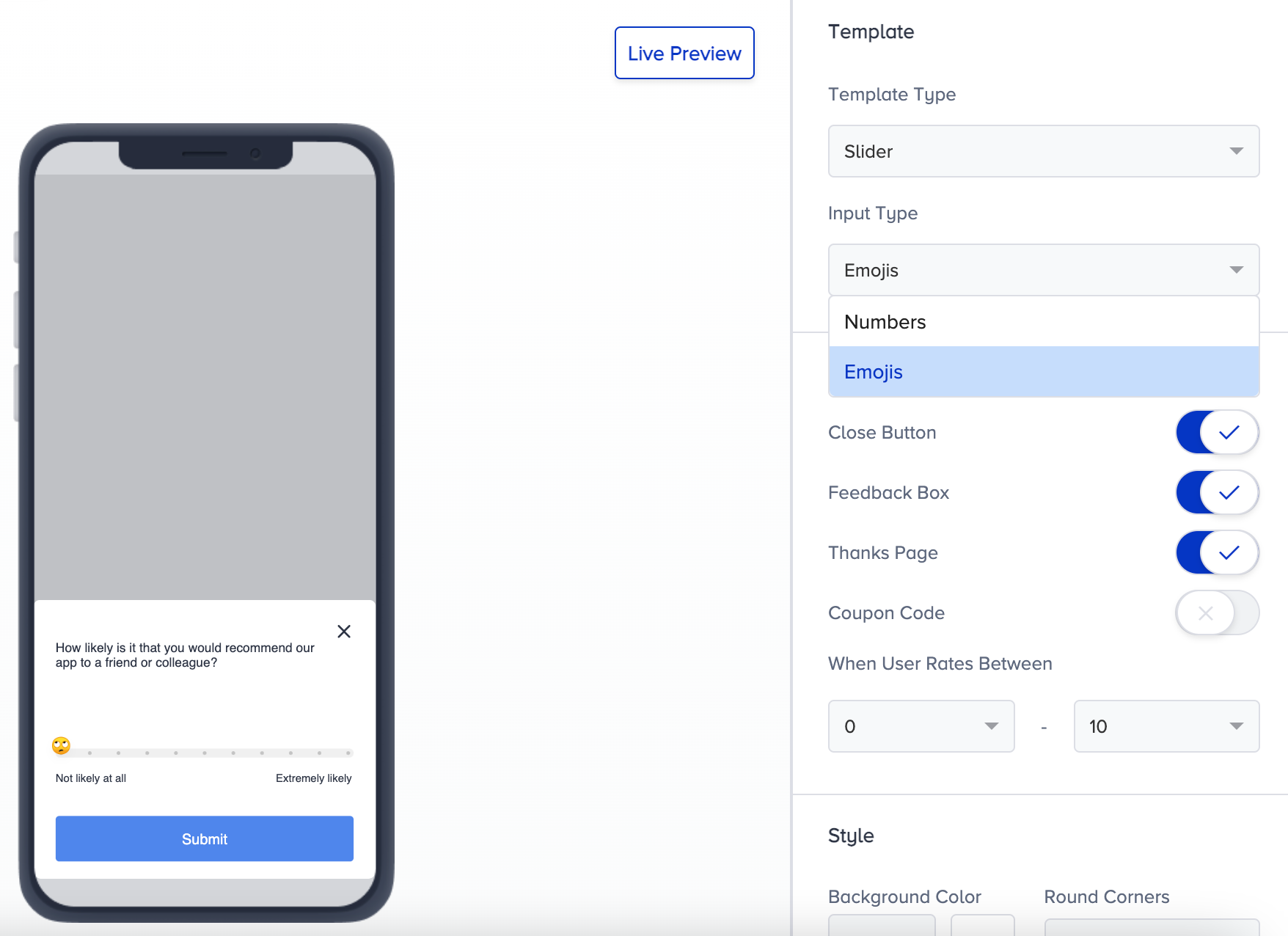
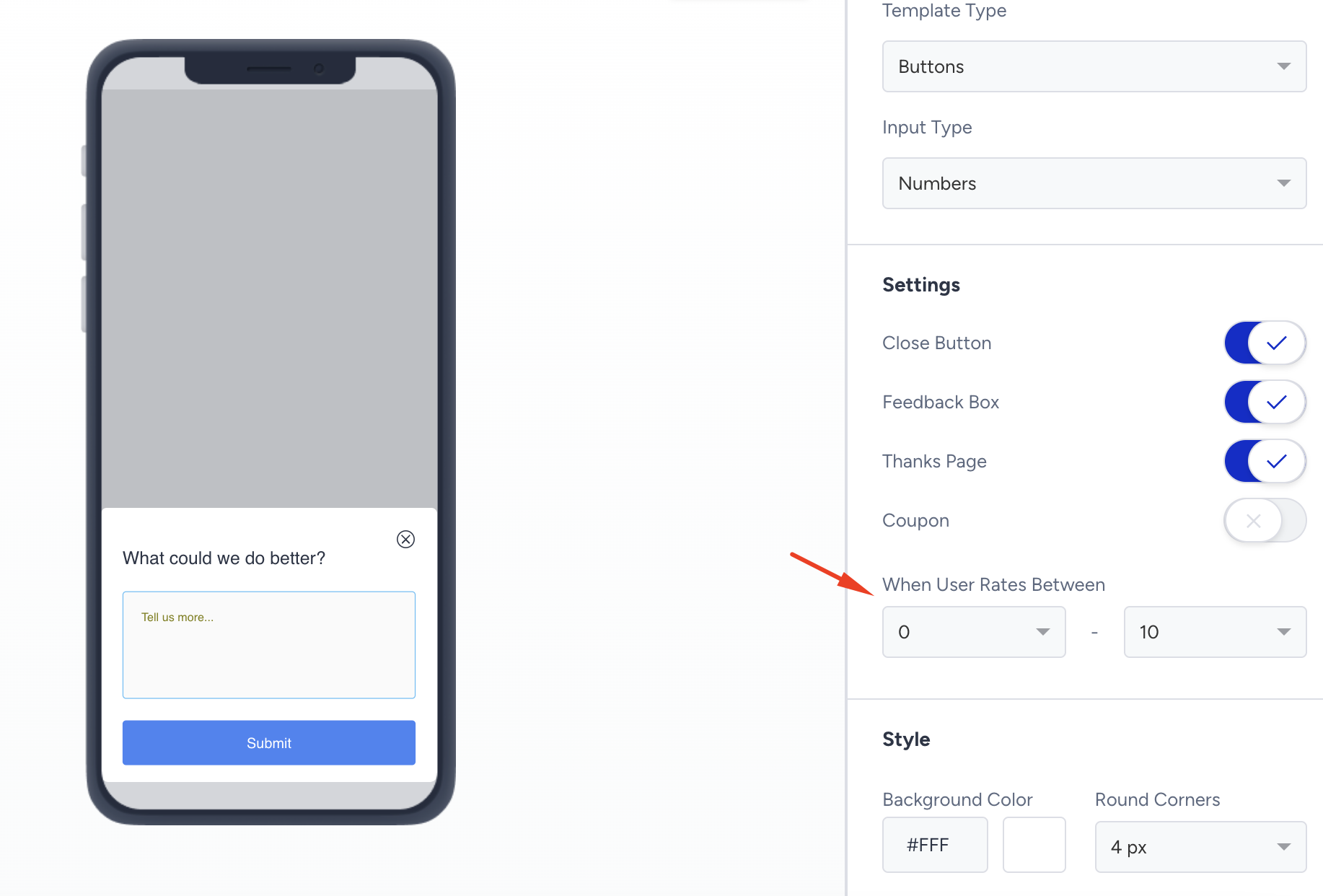
4. When the user rates between the selected options, if the feedback box and Thanks page are toggled on, it directs users to the Comment page. If the Thanks page is toggled on, it directs users to the Thanks page.
5. Configure the settings to decide if your campaign should have a close button, feedback box, thanks page, and coupon code.
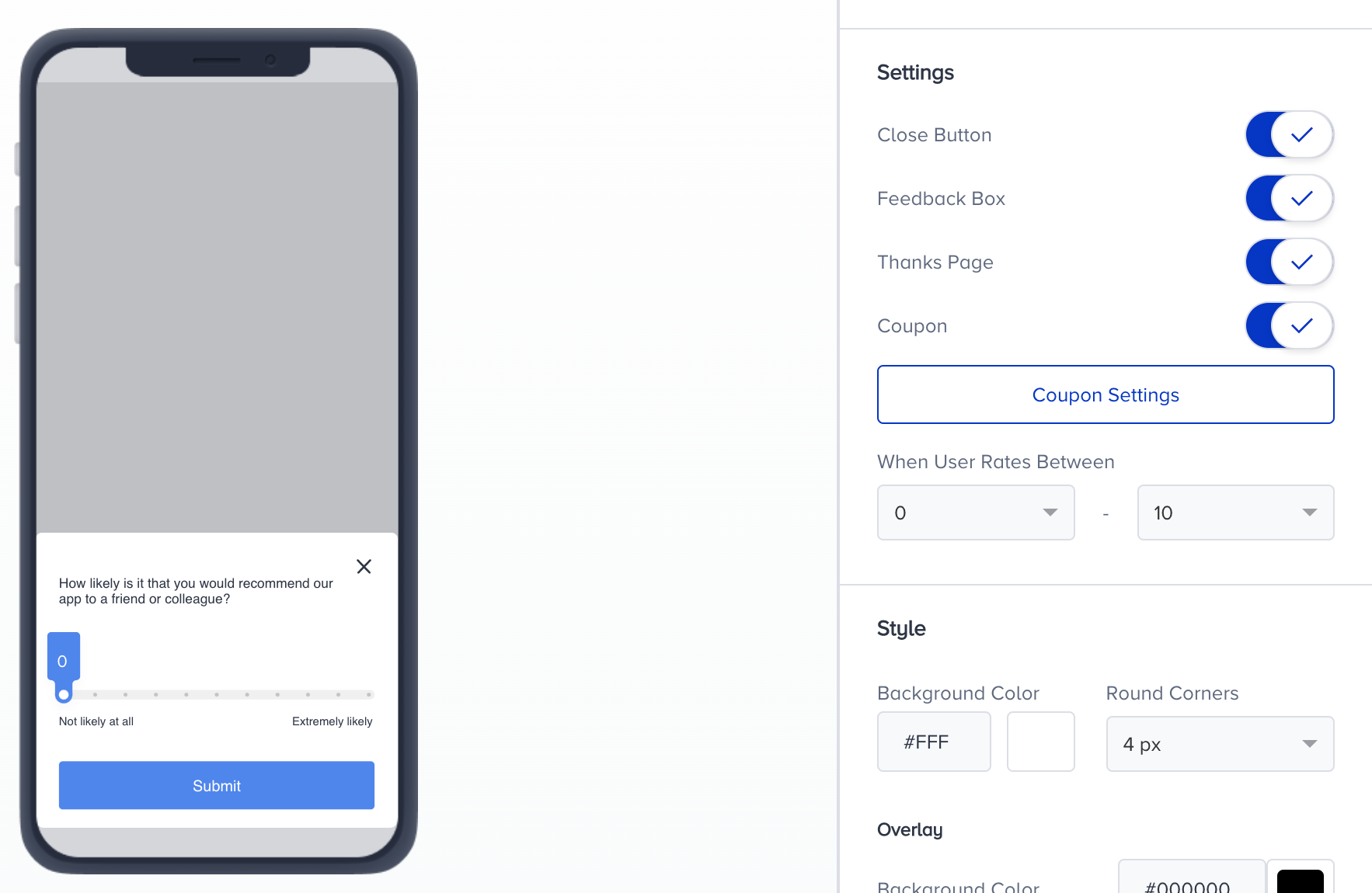
6. If you toggle on the Coupon element, click the Coupon Settings button to select a previously created coupon list. Follow the steps on Coupon Management to add coupon codes to your campaigns.
7. Change the style of your campaign with the tool options.
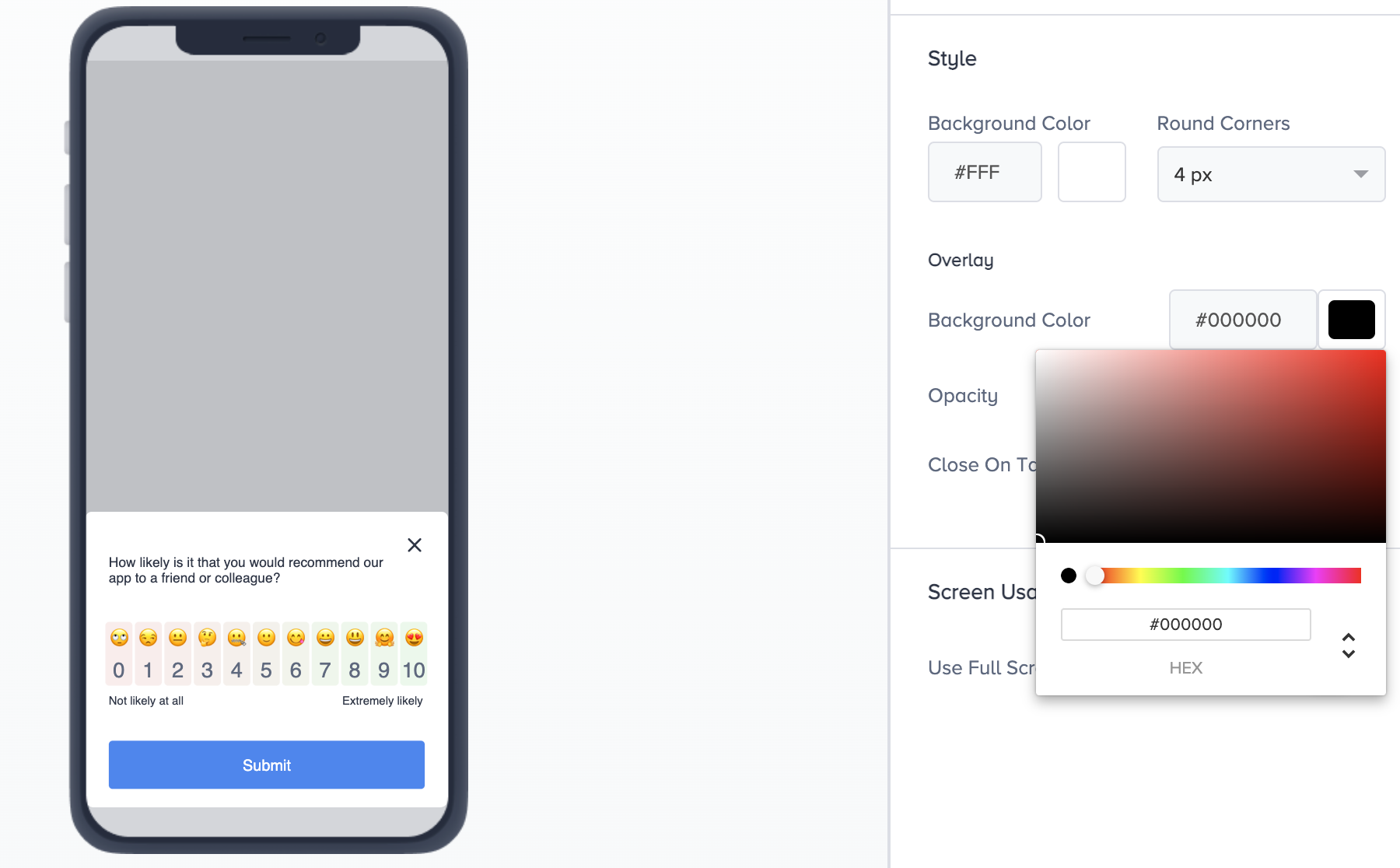
8. Click each page and the elements on that page to see the options you can customize.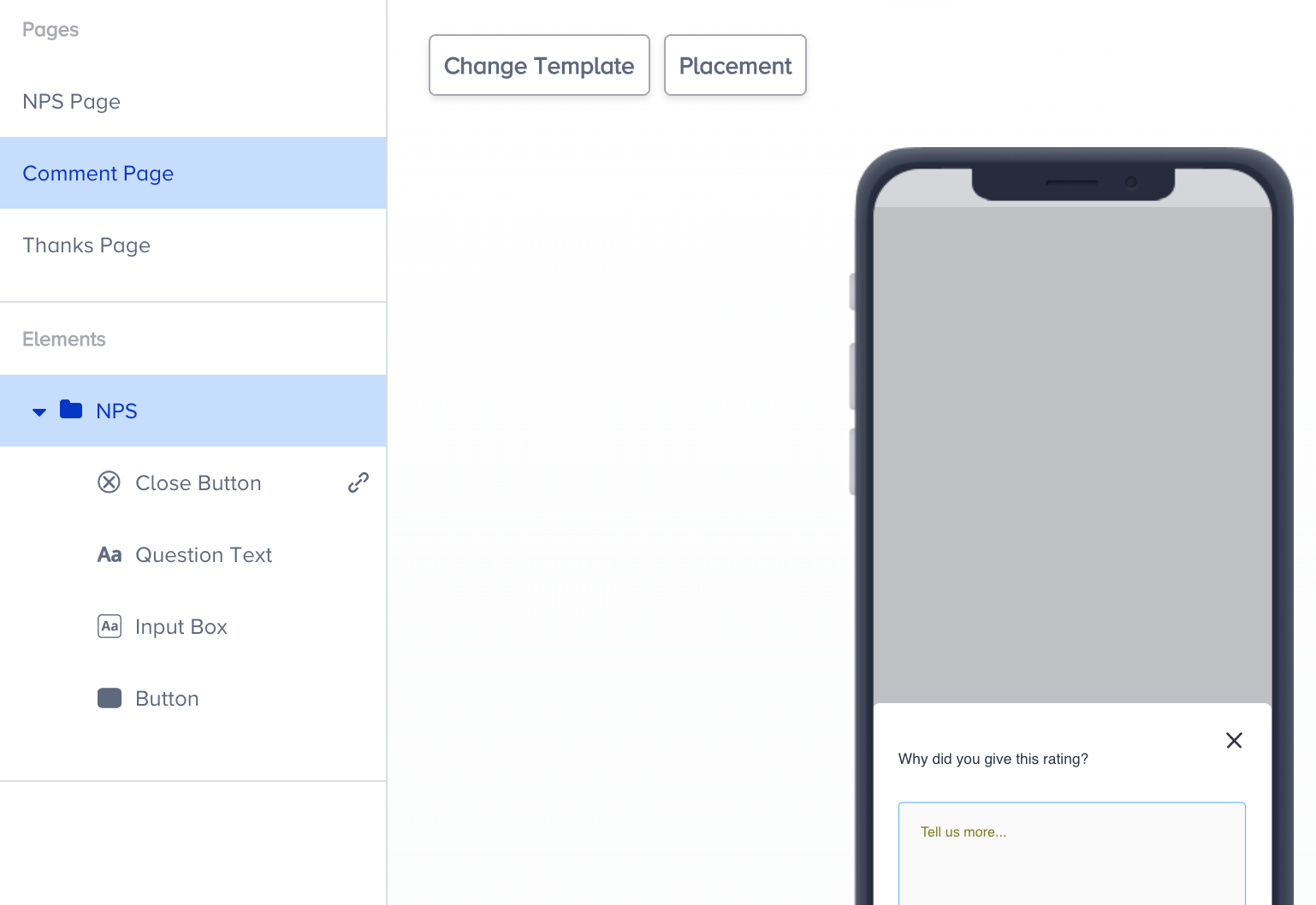
9. Click Question Text to change your question.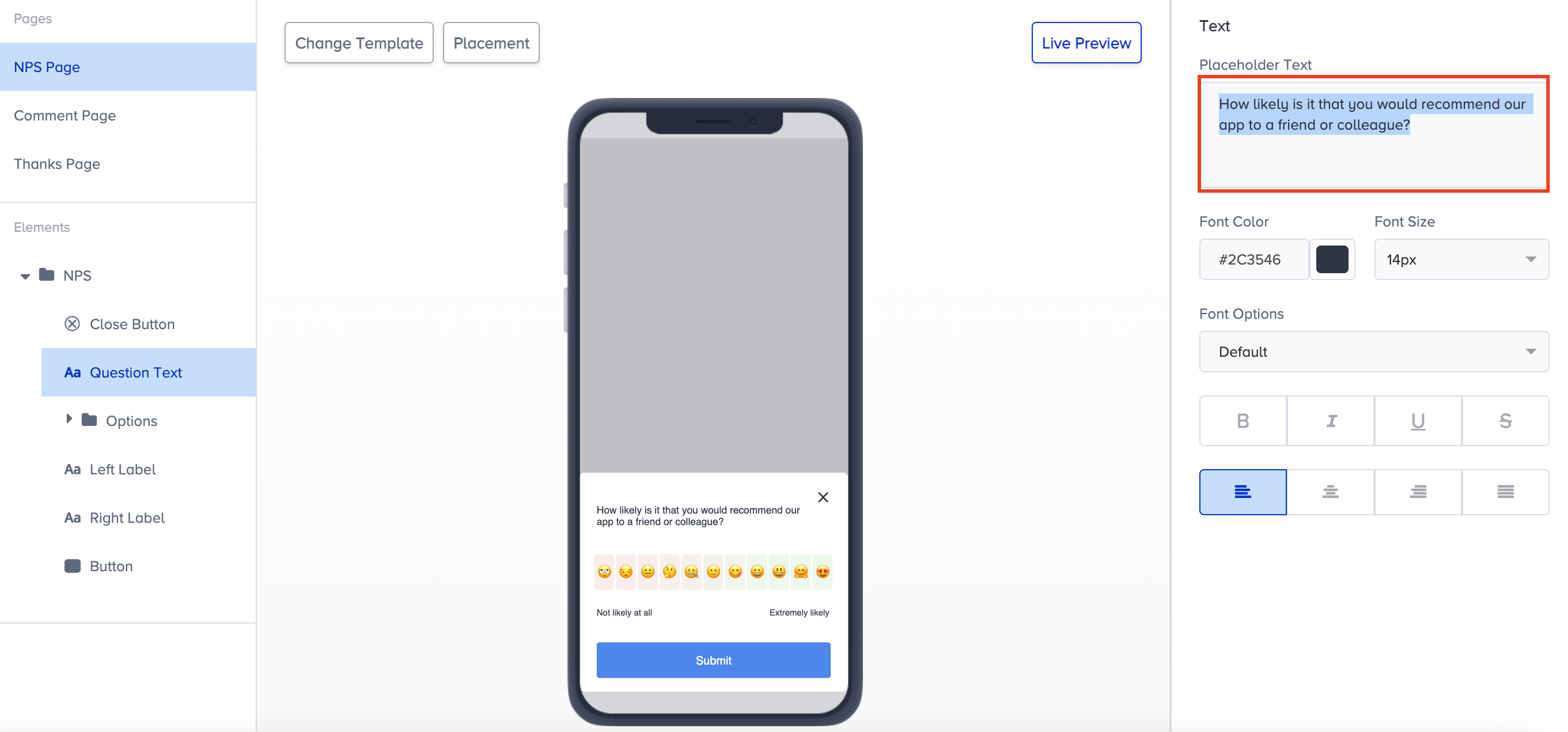
10. Click each option to customize their style.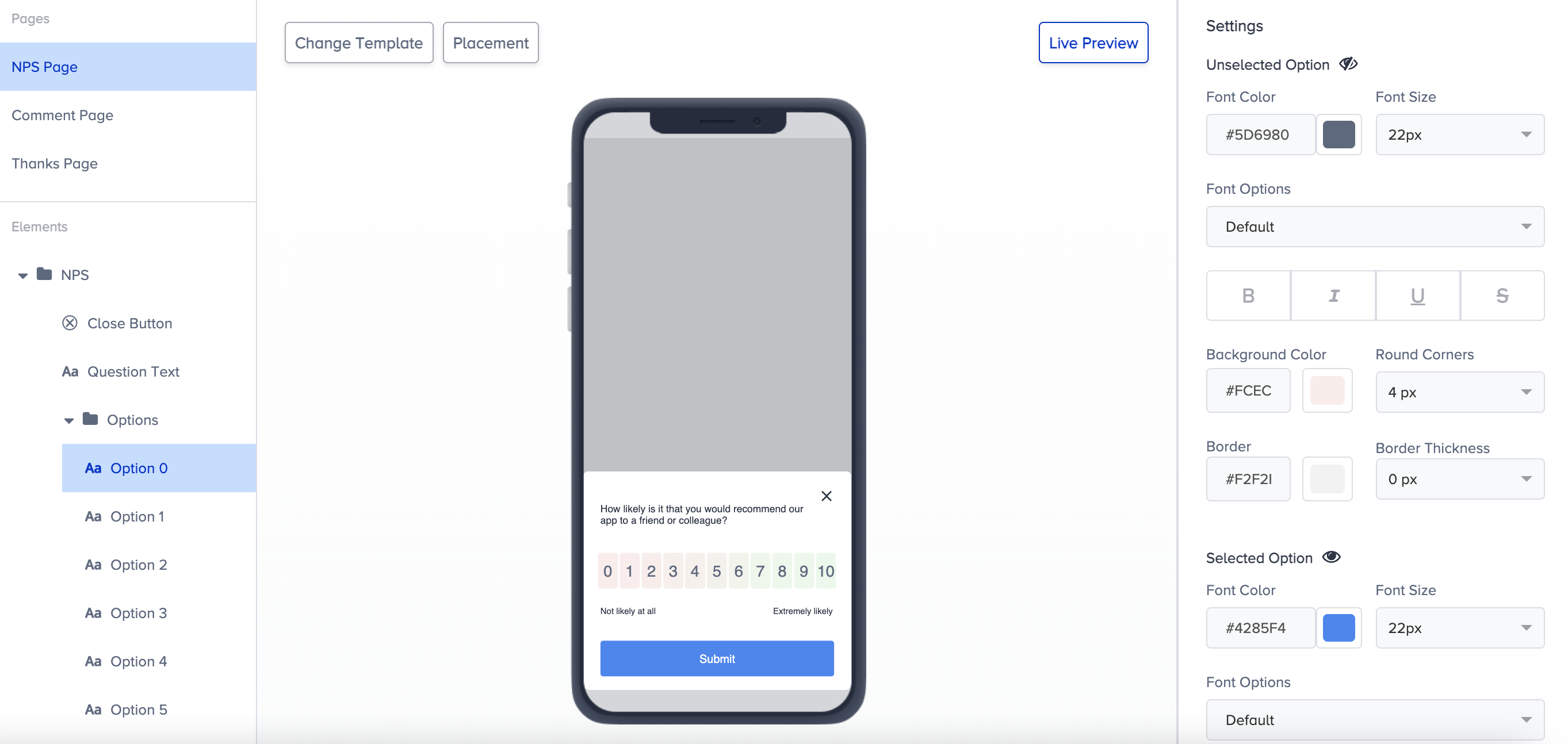
You can also apply the style changes on the left and right labels.
11. Customize your button's color and text style.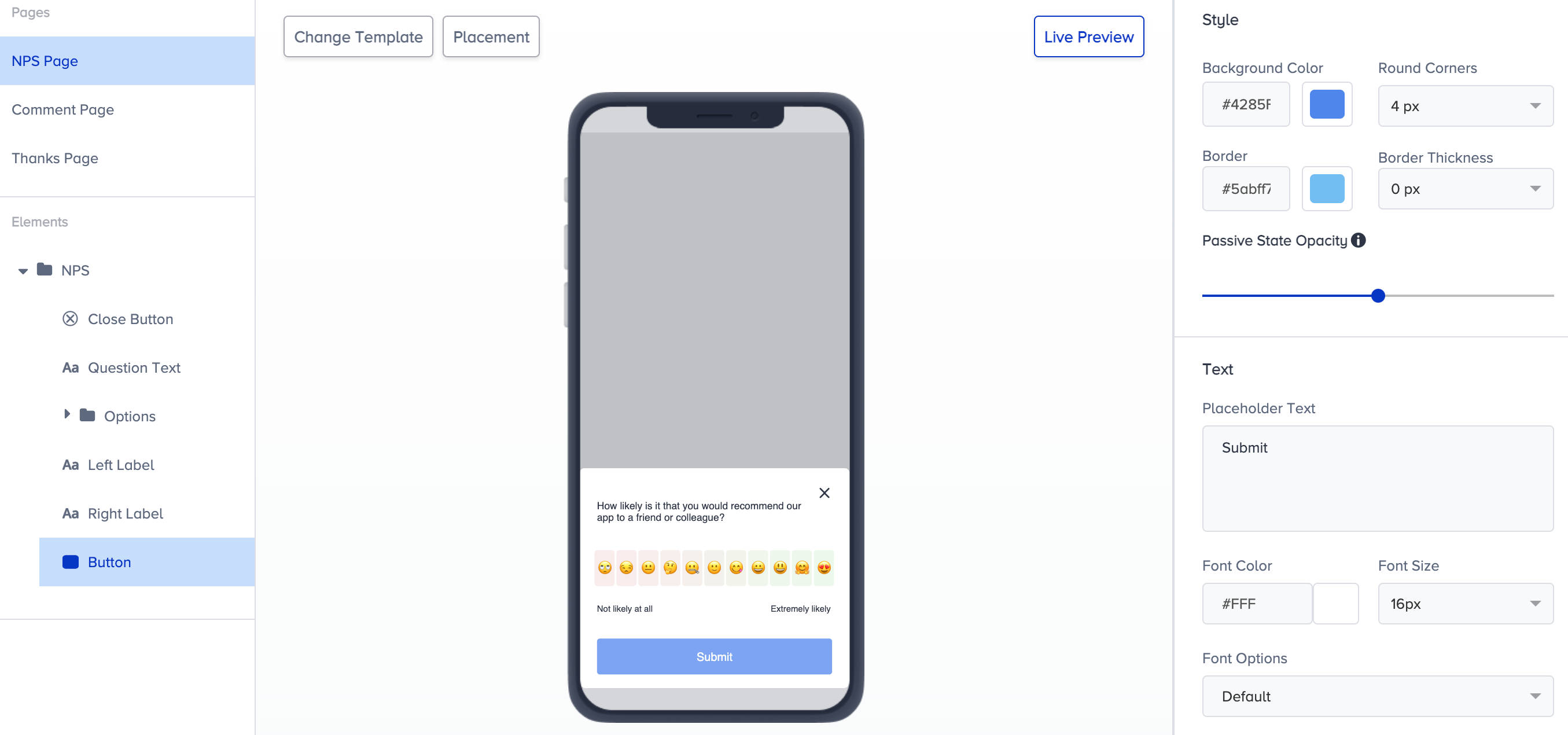
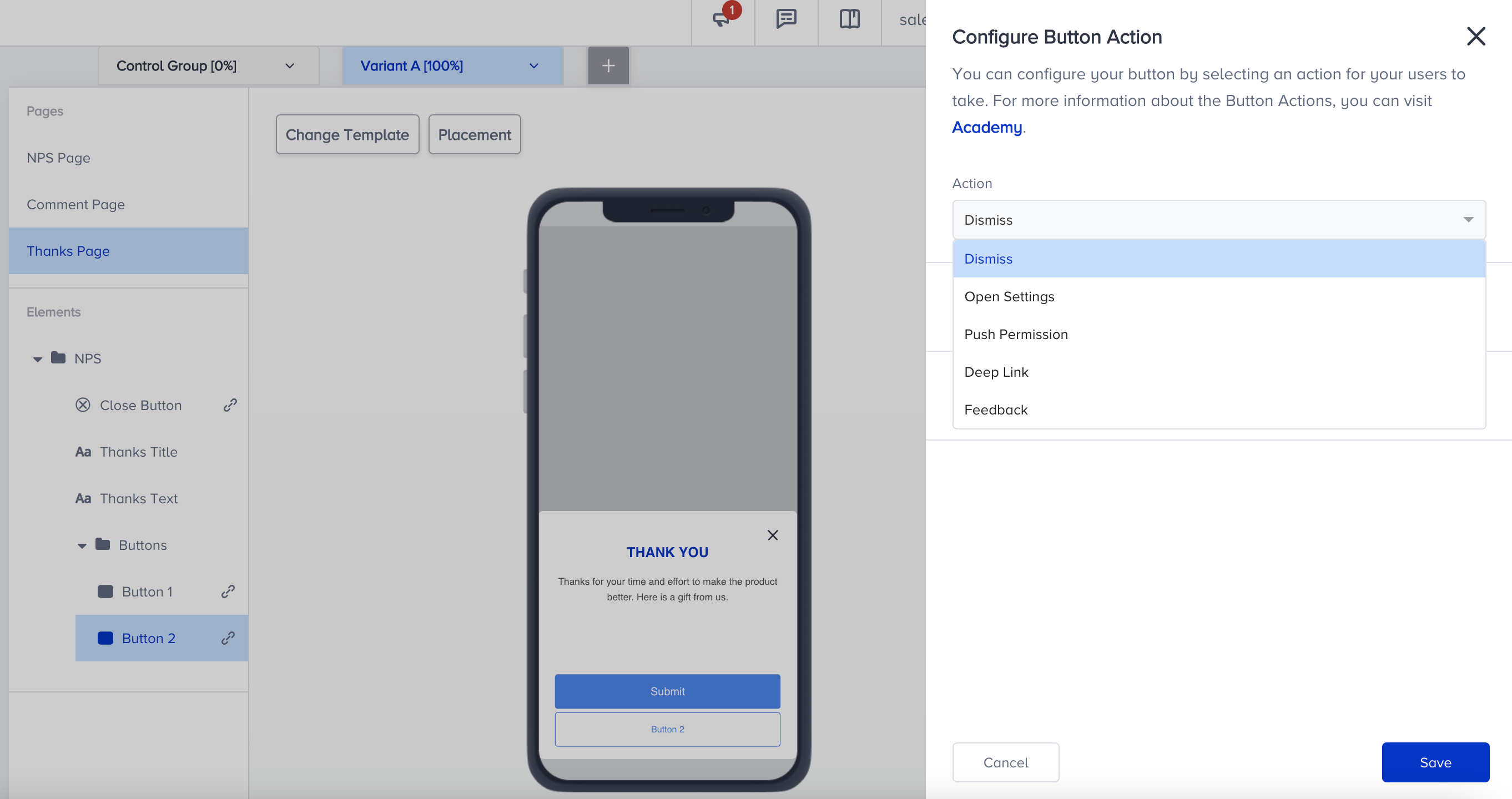
12. Additionally, you can customize the functions of the close button on the NPS, Comment, and Thanks pages by the following actions.
You can configure different actions for the close button. The same action also applies by default to the close function when users tap the screen overlay.
Dismiss: Closes the template.
Deep Link: Redirects users to another page. It works on both internal and external links.
Push Permission: Helps app owners ask for push permission (on iOS) with Insider's App Templates. If a push permission pops up once, it will never be shown again. This is due to operating system limitations designed to avoid bothering the user too much.
Open Settings: Takes the user to the settings of the app at the OS level. If users disabled push notifications or location services before, they can enable them from these settings.
Feedback: Opens the default app rating prompt on the application.
13. The Thanks page can have a second button.
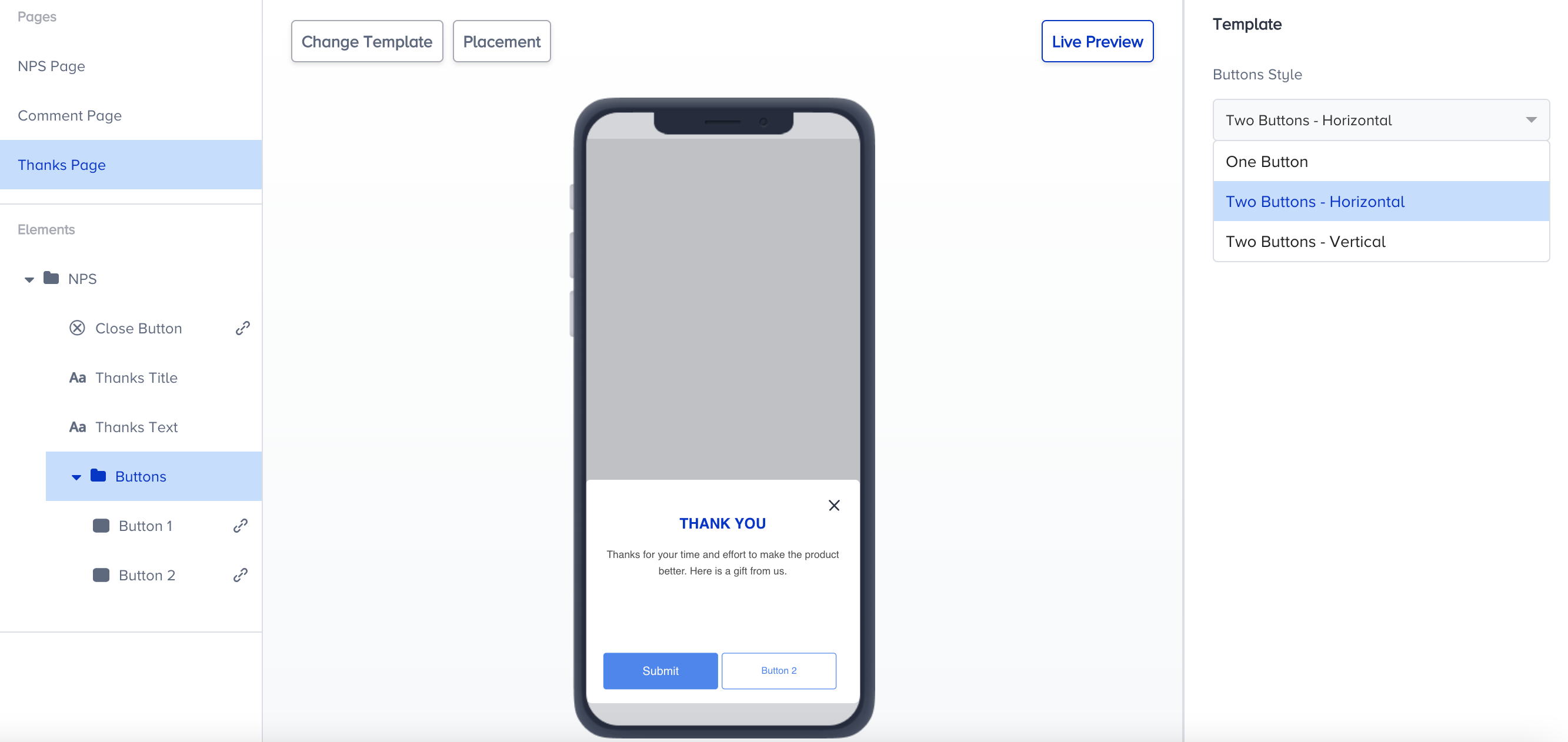
14. You can assign the actions above to this second button as well.
You can change the action of the Submit button only on the Thanks Page. The Submit button on the NPS and Comment Pages is not customizable.
If you want to use your campaign design later for other campaigns, you can duplicate your survey campaign and make the necessary changes on the duplicated version.
2. Test your campaign
Refer to the Testing an app template to see how to test your campaign.
3. Choose a target segment
Refer to Choose a target segment to see the steps that you should complete to select your target audience.
4. Edit campaign options
Refer to Edit campaign options to see the steps that you should configure before launching your campaign.
5. Review and launch
Refer to Review and Launch to confirm the details of your campaign.
6. See results
Go to the Results page to view the analytics of your campaign.
FAQ
For further details, refer to FAQ for App Survey.