Suggested readings: Global Unsubscribe & Preference Center, Create Unsubscribe Pages, Add Unsubscribe Pages into Emails
Once you create your unsubscribe pages, you can validate them in different statuses:
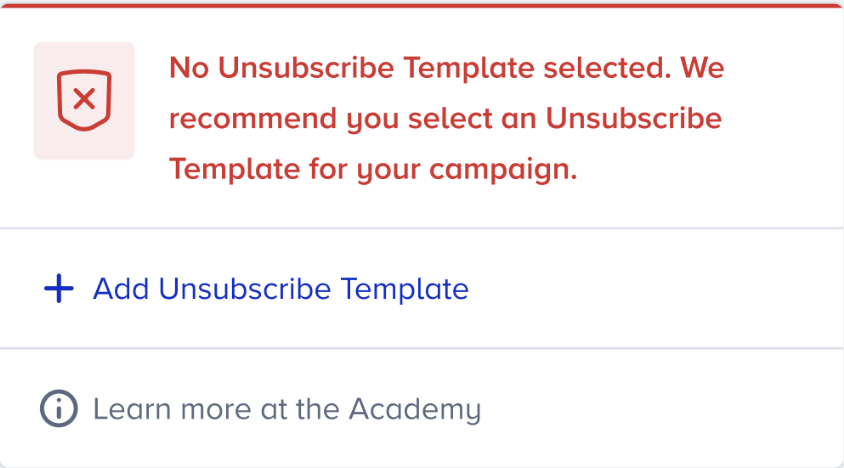
No Unsubscribe Template Selected
If you add a custom unsubscribe link to your email design but do not select an unsubscribe page, you will see this notification on the launch step.
In this case, go back to your email design, select the Unsubscribe block as the template, and choose the custom unsubscribe page you want to use for this email campaign.
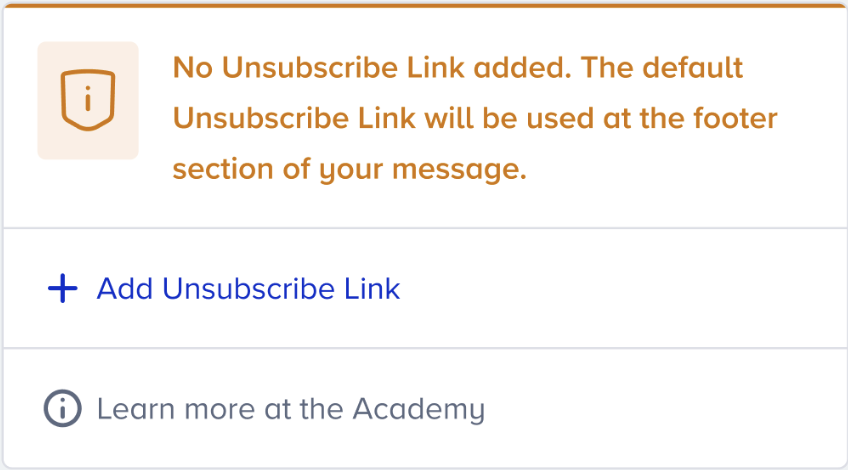
No Unsubscribe Link Added
You will see the following notification if you haven't added an unsubscribe link to your email design. We recommend adding your own unsubscribe template; otherwise, Insider One's default unsubscribe link will be displayed during test sends and campaign launches.
Default Unsubscribe Link
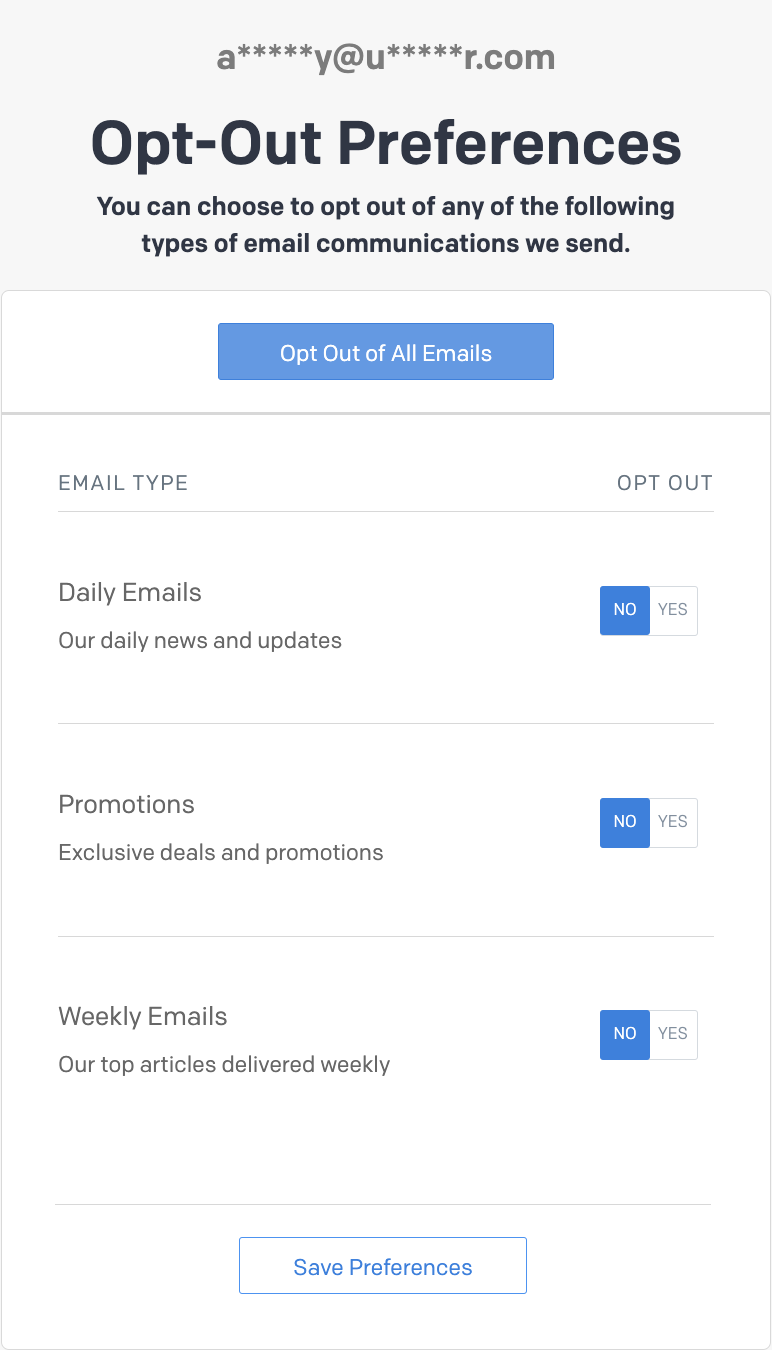
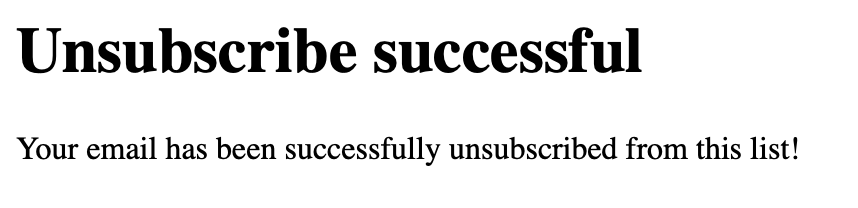
If you proceed to launch your campaign, the system will automatically add the default unsubscribe link to your email.
The default unsubscribe link page is not customizable, and users who click the link will see the following page.
Imported templates and troubleshooting
Unsubscribe text or links that come from outside the Insider One editor can cause the validation to return an unexpected result. Use the following sections to find and fix these cases.
Templates imported from external tools
Insider One does not recognize the unsubscribe links or text that come with a template imported from an external tool, such as Stripo, an HTML paste, or another ESP, as a valid unsubscribe link, even if the text says "unsubscribe". Only the Unsubscribe block that you add from the Insider One editor and link to a Global Unsubscribe or Preference Center page passes validation.
Plain "Unsubscribe" text in the template
Plain text that contains the word "unsubscribe", or a link copied from another system, can cause the validation to return an inaccurate result. Remove that text or link from the imported template and replace it with the Insider One Unsubscribe block. For the steps, refer to Add Unsubscribe Pages into Emails.
No Unsubscribe Link warning at the launch or schedule step
The "No unsubscribe link" warning can appear when you click the Send later button, even if you added the Unsubscribe block. This happens when you saved the template before the block was correctly linked. To resolve the warning:
Open the template in the editor.
Confirm that the Unsubscribe block is selected and linked to an unsubscribe page.
Save the template again.
The warning does not appear on your next launch attempt.