You can follow these steps to use the Wait for Event option in your Wait element.
1. Click the + (plus) button to select a flow element. Select Wait > Wait for Event.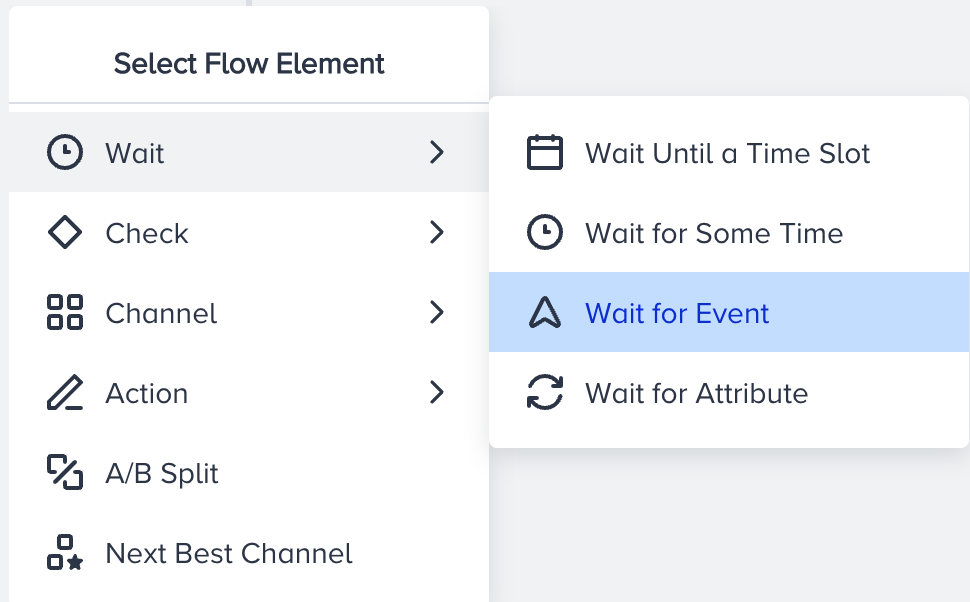
2. Click the Wait element to configure it.
3. Select the event you want users to perform to proceed in the flow. To filter the event, you can add event parameters.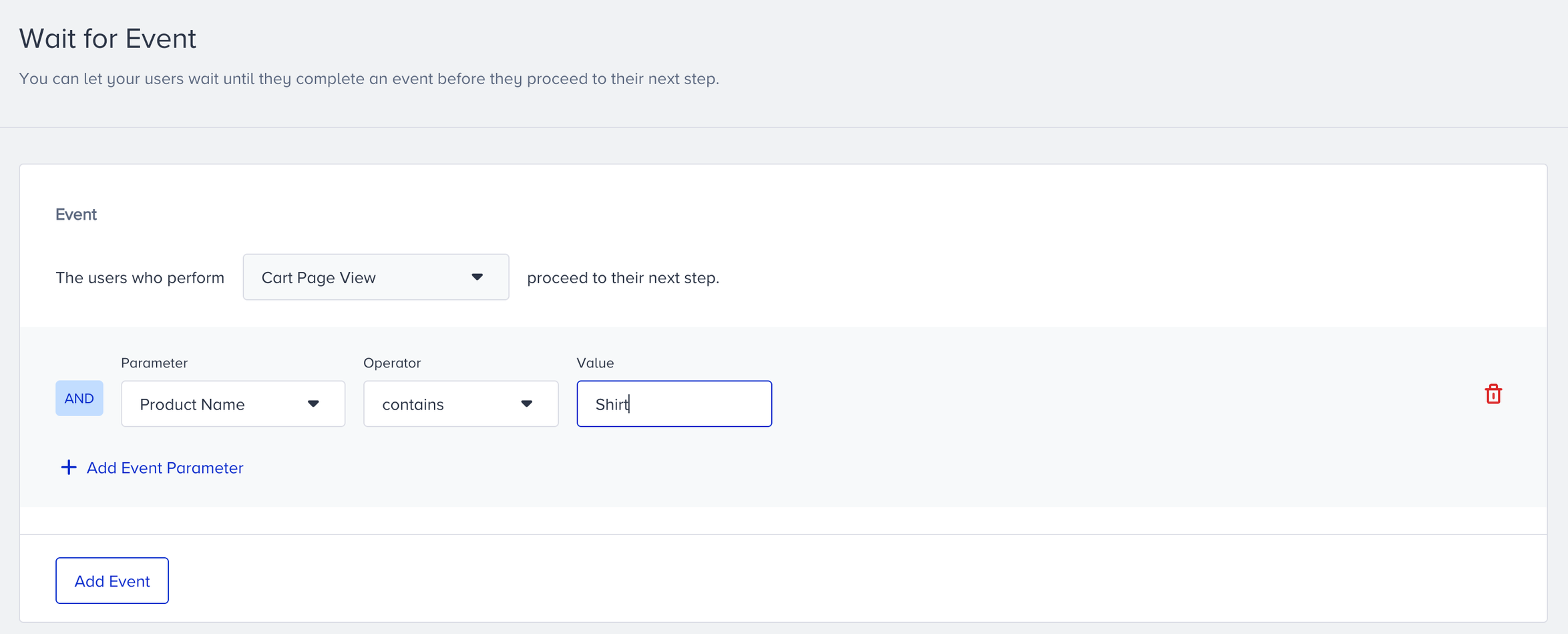
You cannot add an identical event as a second event.
4. Specify a time out duration for one of the following actions:
Proceed to the next step
Drop from the journey

5. Click the Save button to save your changes and go back to the canvas.
Live Stats
After you launch your journey, you can see On Hold, Proceeded (Time Out), or Dropped (Time Out) figures on the Wait for Event element on the canvas.
On Hold: Displays the number of users who wait to perform the specified event.
Proceeded (Time Out): Displays the number of users who proceeded to the next step without performing the specified events within the specified duration.
Dropped (Time Out): Displays the number of users who are dropped from the journey without performing the specified events within the specified duration.
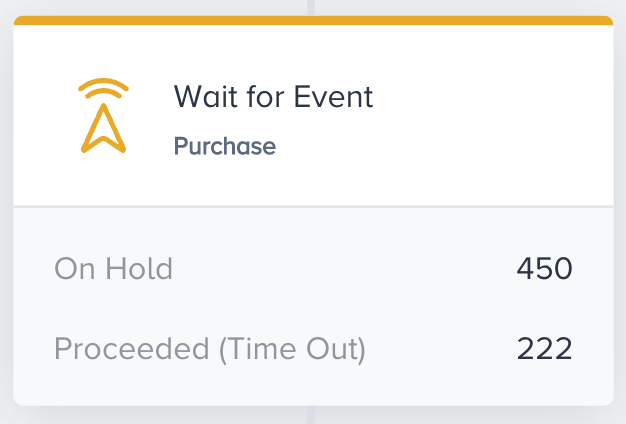
Proceeded (Time Out) and Dropped (Time Out) cannot be shown at the same time. It displays the selected metric within the element.