Suggested readings: Transactional Journeys, Transactional Journeys: Canvas and Navigation, and Transactional Journeys: Wait Elements.
Check Interaction splits users of a transactional journey by what they did with an earlier message in the same journey. Users whose interactions meet the conditions you set take the Matching path. All other users take the Not Matching path. This way, you send a follow-up only to the users who need it.
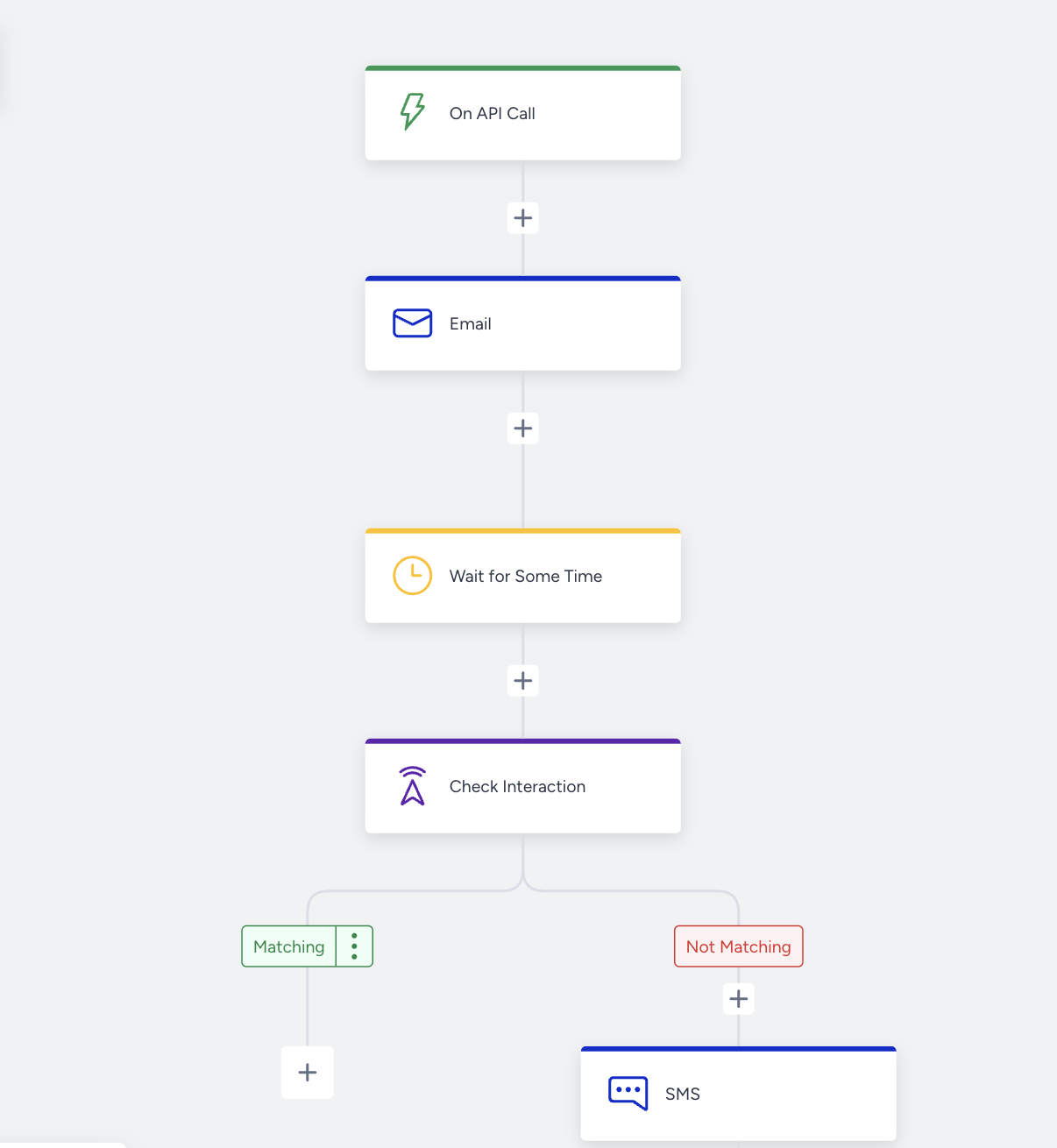
Consider an online retailer that sends a shipping confirmation by email the moment an order ships. If the user hasn't opened the email a day later, follow up with an SMS containing the tracking link. To build this flow, add an Email element, a Wait for Some Time element set to one day, and a Check Interaction element. The Check Interaction element checks whether users have opened the email. The Matching path ends there, and the Not Matching path continues with the SMS element. One API call covers the whole flow.
The 30-second SLA of Transactional Journeys does not apply to journeys that use Check Interaction or any other check or wait element. This includes Check Conditions, Wait for Some Time, and Wait Until a Time Slot.
This guide explains the following concepts:
Use cases
With Check Interaction in Transactional Journeys, you can:
Send a shipping notice by email and follow up by SMS only for users who have not opened it after a day.
Send an invoice and send a reminder only to users who have not clicked the payment link.
End the journey for users who have already engaged, so they do not receive a follow-up they do not need.
How Check Interaction works
Check Interaction looks at the messages sent earlier on the same path of the same journey. It does not look at messages from other journeys or from the other path of a split.
The check runs at the moment the user arrives at the element. Check Interaction does not hold users. It reads the interactions recorded up to that moment and sends the user down the Matching or Not Matching path right away.
Users need time to open or click a message. Add a Wait for Some Time or Wait Until a Time Slot element between the channel element and the Check Interaction element.
You can check the following interactions on each channel:
Channel | Interaction | Details |
|---|---|---|
Opened | The user opened the email. | |
Clicked | The user clicked a link in the email. | |
SMS | Clicked | The user clicked a link in the SMS. |
Viewed | The user read the WhatsApp message. | |
Clicked | The user clicked a link in the WhatsApp message. | |
Replied | The user replied to the WhatsApp message. |
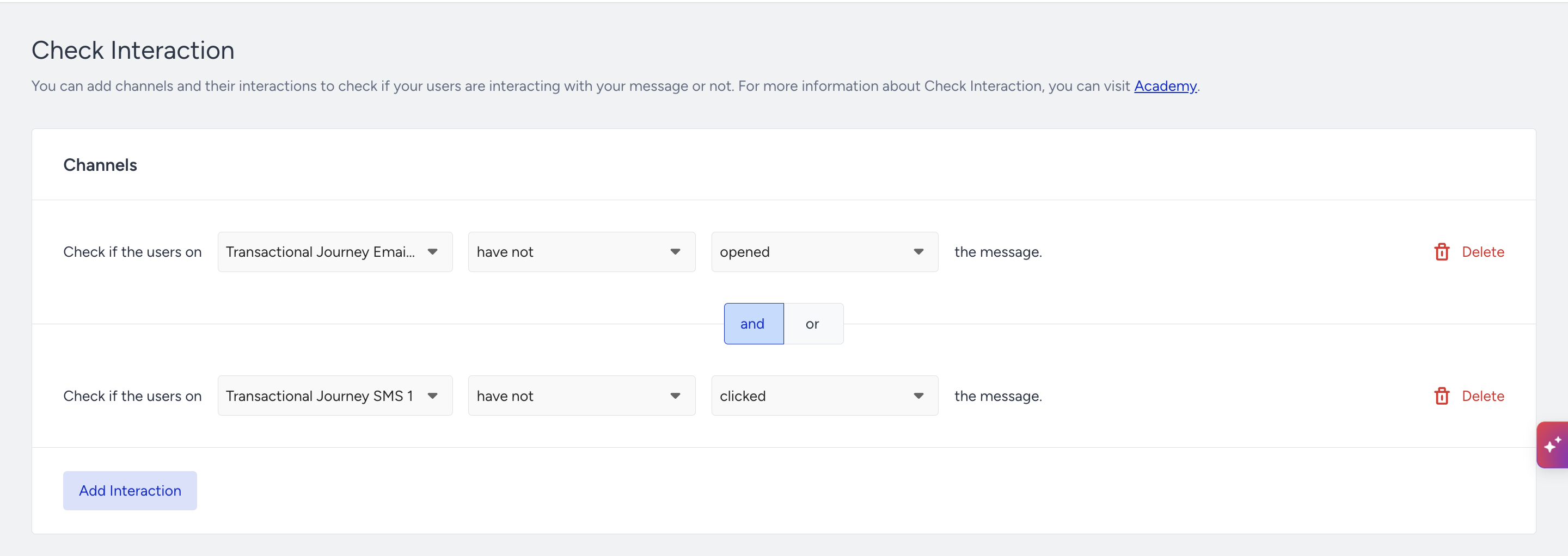
For each condition, select a message, the operator (have or have not), and an interaction. A condition with have matches when the user did the interaction. A condition with have not matches when the user did not.
When you add more than one condition, you join them with AND (every condition must match) or OR (at least one condition must match). The same AND or OR applies to all conditions in the element.
Each entry is checked on its own. A user can enter the same transactional journey several times, e.g., once for each order. Check Interaction reads only the interactions with the messages of that entry, so two entries of the same user can take different paths.
If a path has no element after the Check Interaction element, users who take that path complete the journey at the check.
Placement rules
Check Interaction needs at least one Email, SMS, or WhatsApp element before it on the same path. Without one, the element shows No Channels to Check, cannot be saved, and the journey cannot be launched.
You can add Check Interaction after a channel element or after a wait element, anywhere on a path.
Check Interaction always has two paths: Matching and Not Matching. Each path can continue with channel elements, wait elements, or another check element.
You can reconnect the paths of a Check Interaction element to another point of the journey. See Reconnect Paths.
Use Check Interaction
To use the Check Interaction element in your transactional journey, follow these steps:
Click the + (Add) button after a channel element or a wait element, hover over Check, and select Check Interaction. The element is added with two paths: Matching and Not Matching.
Click the Check Interaction element to open its settings.
Under Channels, open Select Channel Name, hover over the channel type (Email, SMS, or WhatsApp), and select the message you want to check. You can search the list. Channel types that have no element on the path before the Check Interaction element are shown disabled.
Under Select Operator, select have or have not.
Under Select Interaction, select the interaction to check. The list shows only the interactions the selected channel offers.
Optionally, click the Add Interaction button to add another condition, and select AND or OR to join the conditions. To remove a condition, click Delete on its row. At least one condition is required, so you cannot delete the last row.
Click the Save button. If a condition is incomplete, the empty field shows a message (e.g., "Select a Channel Name to continue."), and the element is not saved.
Return to the canvas and add the elements that each path should continue with.
If you delete or replace a message that a condition checks, that condition is cleared. Open the Check Interaction element and select a message again. Otherwise, the journey cannot be launched.
Check Interaction statistics
On a launched journey, the Check Interaction element on the canvas shows the following statistics:
Arrived: Shows the users who reached the element.
Matching: Shows the users who took the Matching path.
Not Matching: Shows the users who took the Not Matching path.
Exited: Shows the users who completed the journey at the element, because their path has no element after it.
Dropped: Shows the users who reached the element while the journey was paused. This row appears only when at least one such user exists.
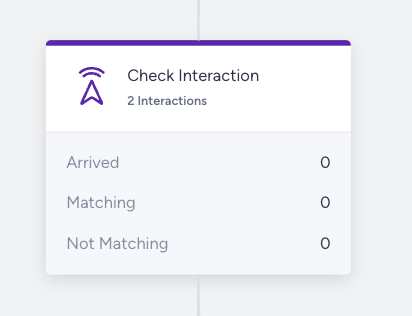
Each entry is counted once at the element. You can use Track User to see which path a specific session took.
Check Interaction sends users down the Matching or Not Matching path based on how they interacted with an earlier message of the same entry. Add a wait element before it so users have time to interact. Reconnect the paths when they should meet again later in the journey. To see how the pieces fit together on the canvas, read Transactional Journeys: Canvas and Navigation and Reconnect Paths.