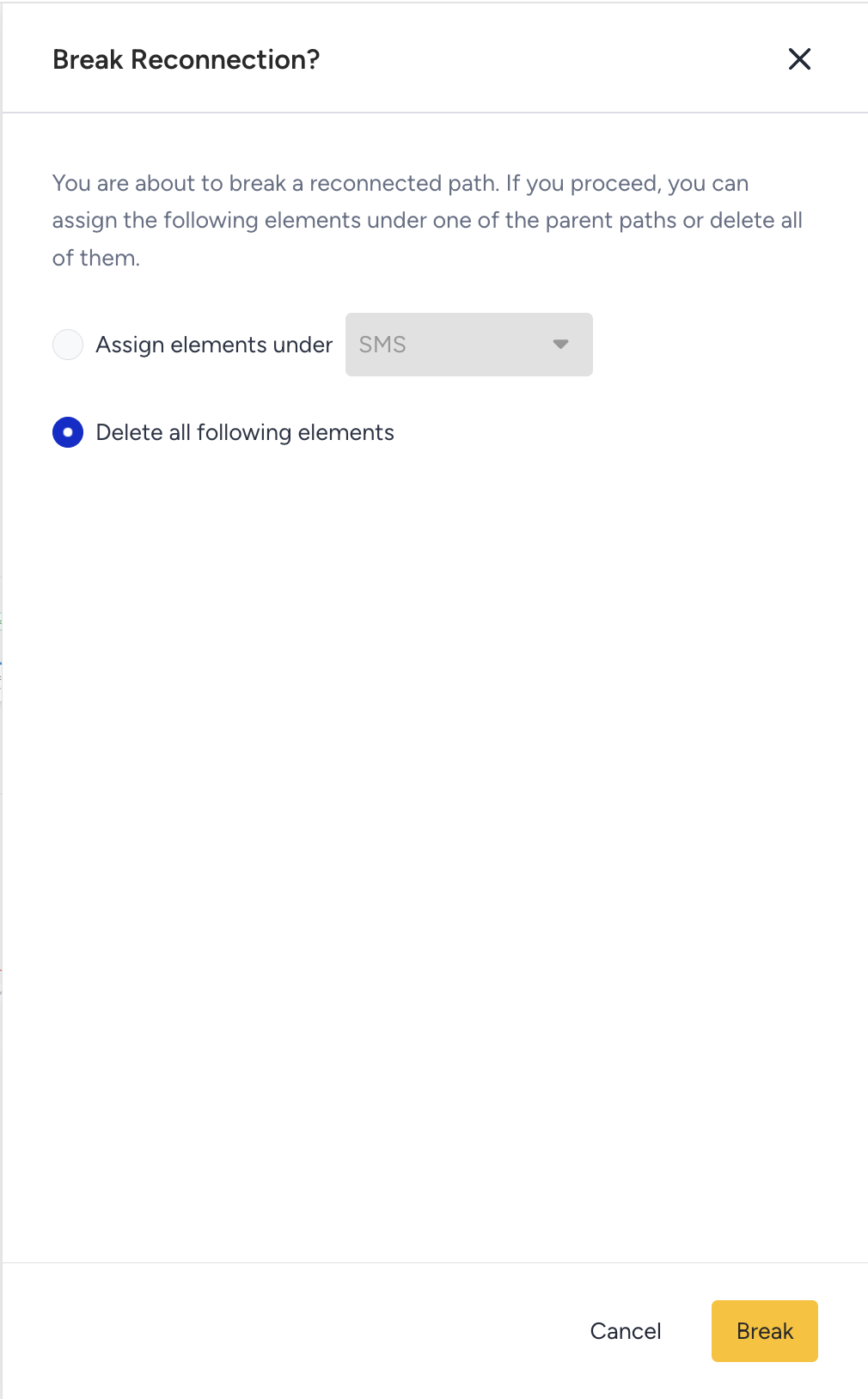
You can add branchable elements to have long journeys. After branching the flow in the journey, you can connect the branches to continue down one path. This removes the manual work of recreating the same messages and steps, and it keeps your journey easier to read since it stays smaller horizontally and vertically.
You can shape a journey's structure freely. You can reconnect from the middle of a path, start a reconnection from the buttons on the sides of an element, break a reconnection while other reconnections sit further down the flow, and add or delete branchable elements while the paths around them stay connected.
The branchable elements are Check Conditions, Check Reachability, Check Interaction, A/B Split, and Next Best Channel.
Let's say you have four paths after the Check Reachability element, each checking the reachability of a different channel (e.g., web push, app push, email, etc.). After sending messages via each channel, you want to check if the users make a purchase. Instead of adding a Check Conditions element to each path, you can merge these paths and add only one.
This article explains the following:
Connect to a single path
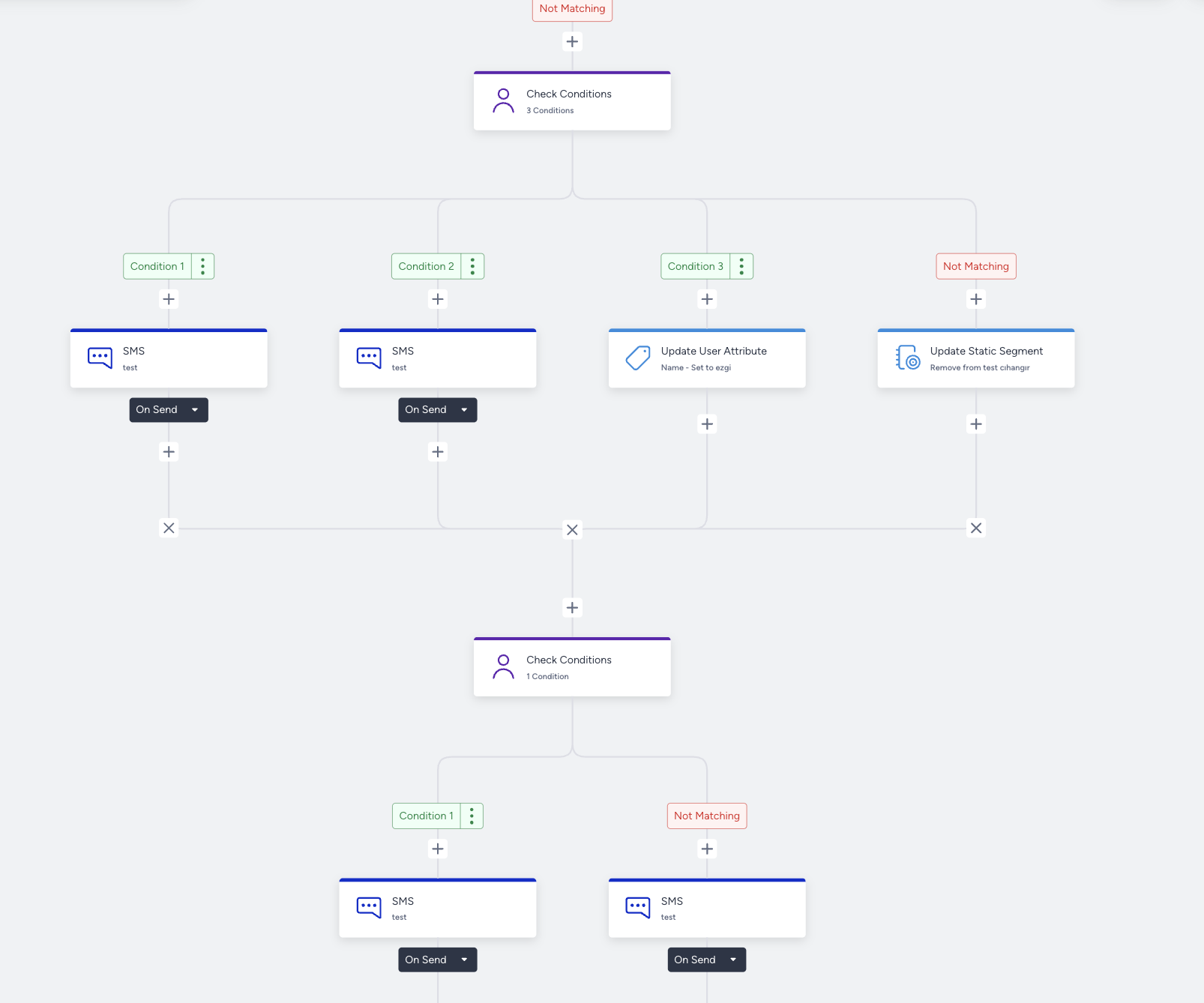
When you have separated paths after branchable elements, you can connect one path to another, including to the middle of another path. When you connect to the middle of a path, Insider One asks where the flow should continue (see Step 3). You cannot connect to a path that has no elements on it.
You can also start a reconnection from the small plus buttons on the left and right sides of an element, as well as from the large plus button below it. Use a side button to connect a path to one that sits next to it.
.gif)
You can also reconnect the paths that has no elements.
Merge all
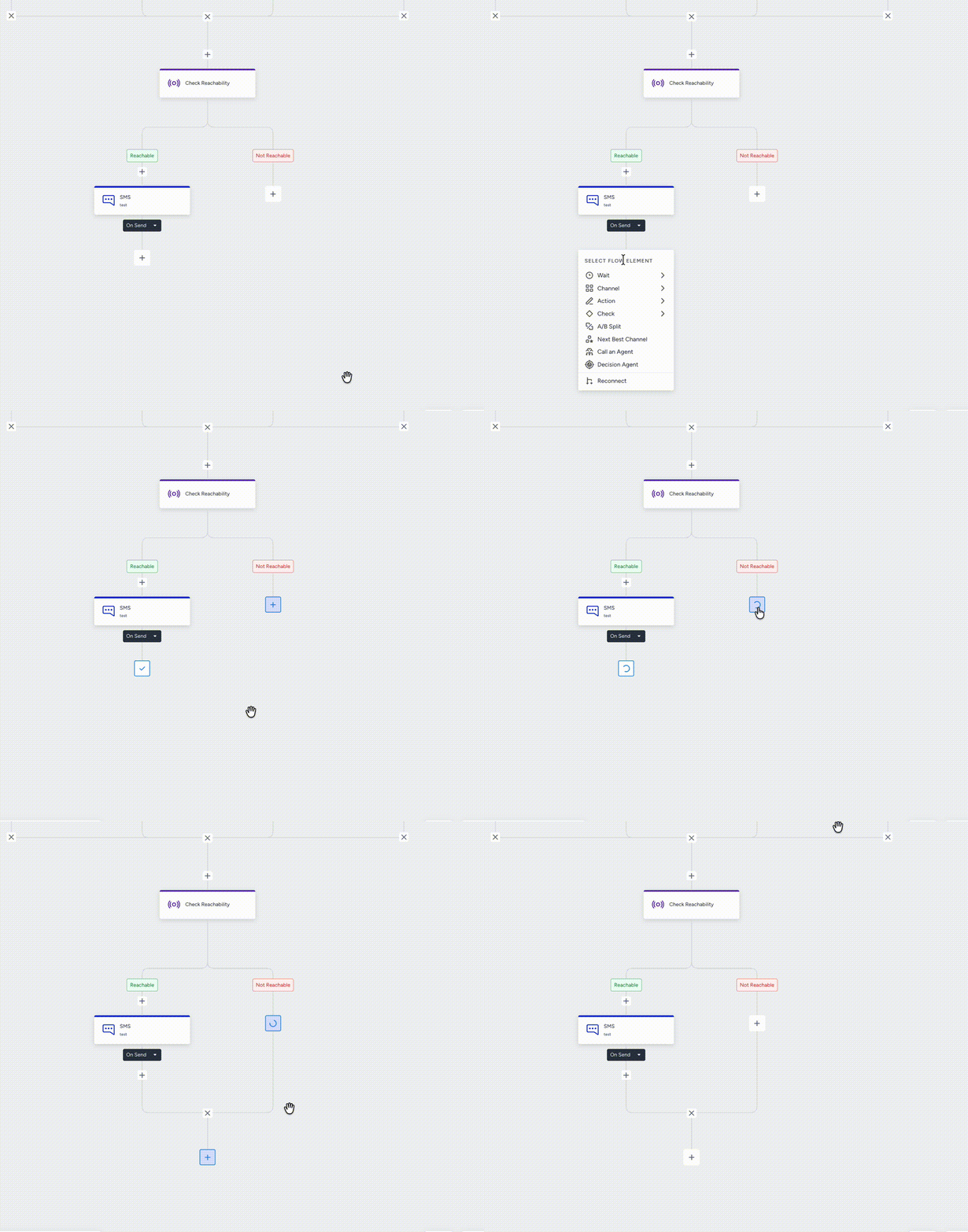
You can merge all the separated paths after a branchable element. This option lets you merge paths quickly instead of connecting them one by one. Merge All can appear on the canvas depending on where you click the Reconnect button on the flow. Merge All is available for connecting all separated paths after the same branchable element.
Reconnect paths
1. Add a branchable element on the canvas
Add one of the following branchable elements:
2. Add elements to the paths
Add your elements based on your use cases to design your flow paths.
3. Click the Reconnect button
Click the plus button to see the reconnect option. When you click Reconnect, the available paths and buttons are highlighted. Click a highlighted button to connect the paths.
An information bar appears at the bottom of the canvas. Click Cancel or press ESC to cancel the reconnection state.
To merge all the paths, click the Merge All button on the bar. The available paths to merge are highlighted, and a Confirm button appears. Click Confirm to merge the paths.
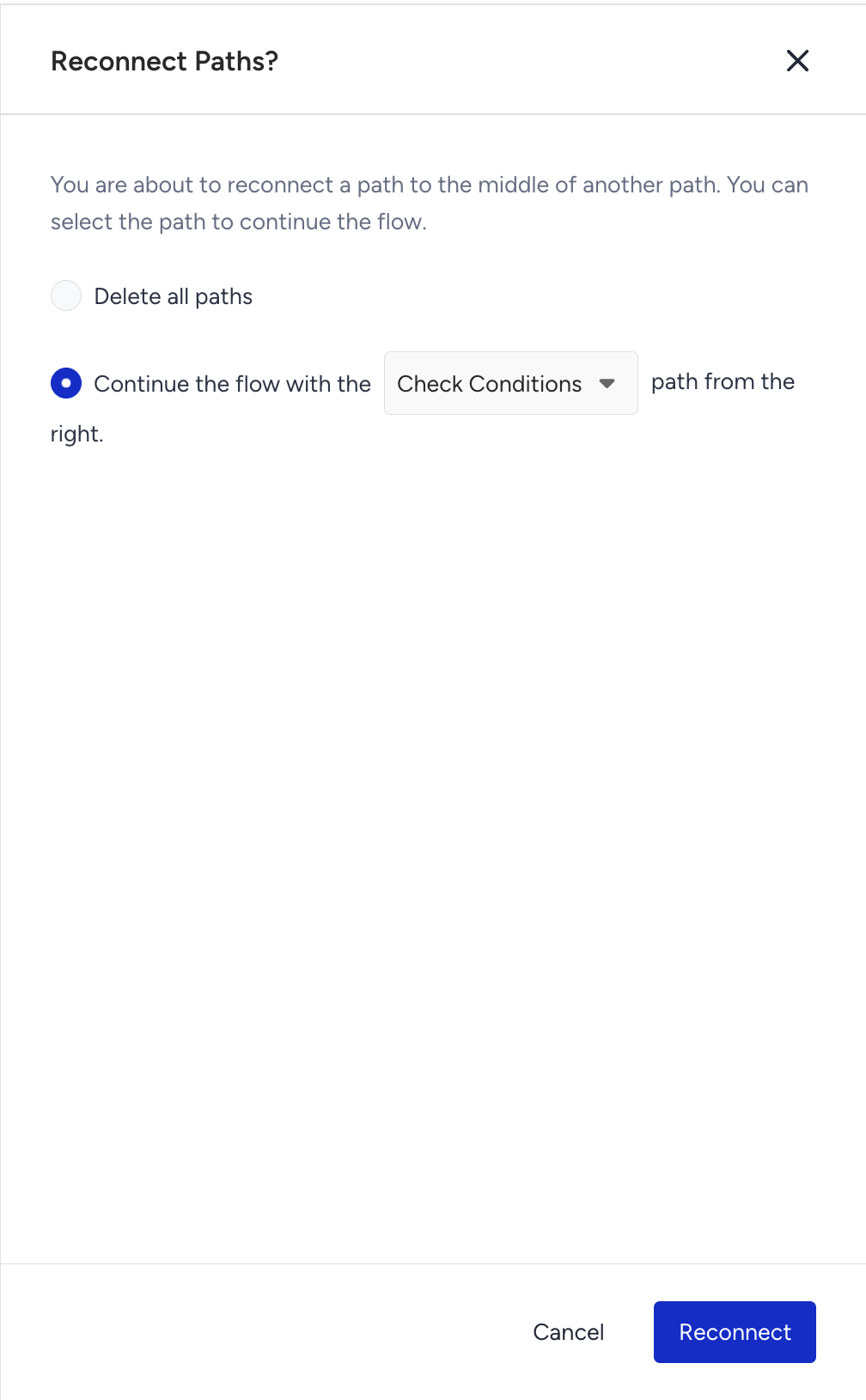
When you connect a path to the middle of another path, the Reconnect Paths? window opens so you can choose how the flow continues:
- Delete all paths: Removes the paths below the reconnection point.
- Continue the flow with the [left / right] path: Keeps the path you choose from the dropdown and continues the flow with it.
Select an option and click Reconnect. Click Cancel to keep things as they are.
Undo and Redo options become available again when you complete or cancel the reconnection.
4. Break the connection
After connecting paths, the break "X" buttons appear on the paths. Click the break button in the middle of the paths to break all the connections. Click the break button on the left or right side to break connections one by one. You can break a reconnection while other reconnections sit further down the flow.
.gif)
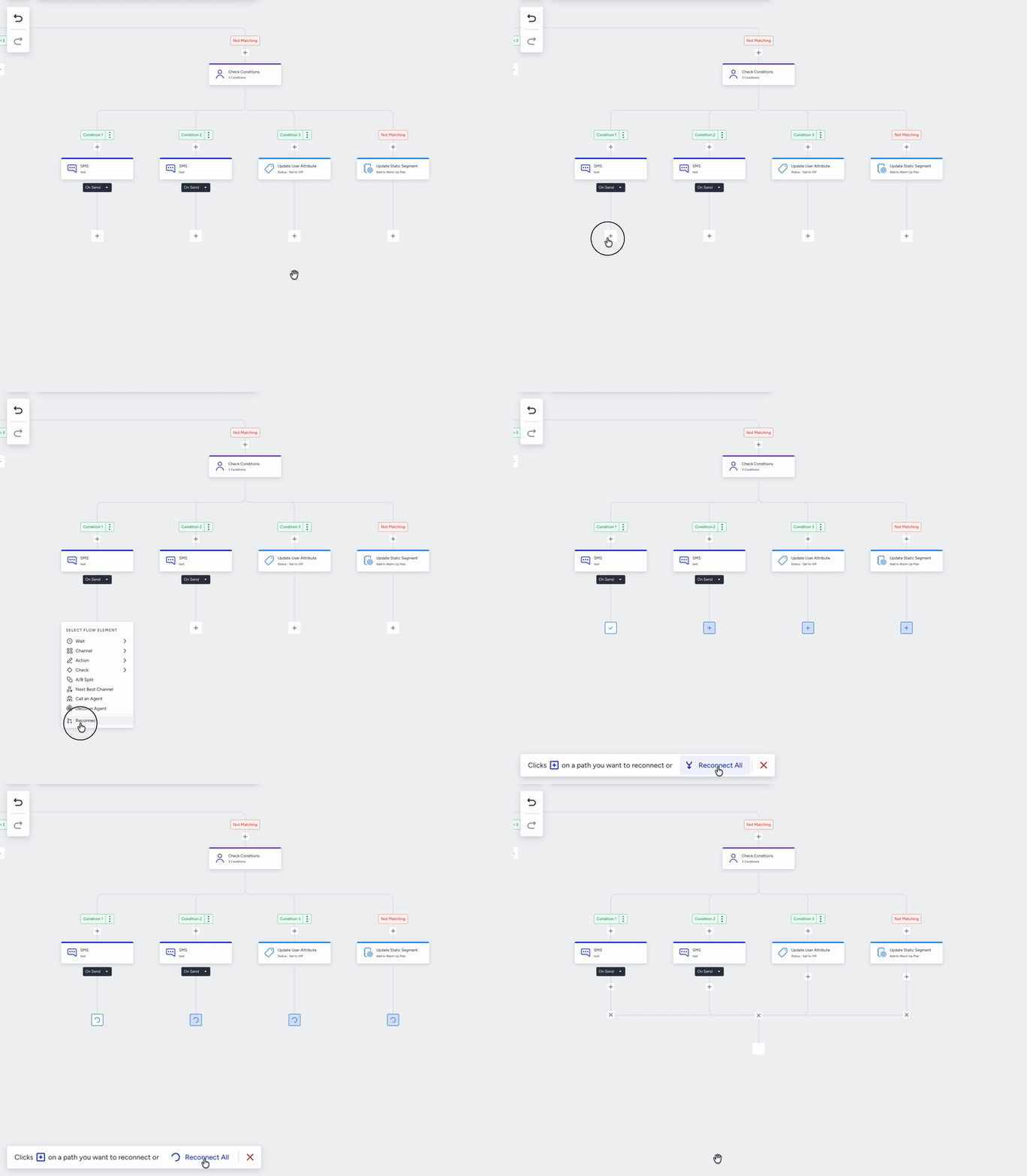
When elements follow the connection, the Break Reconnection? window opens:
- Assign elements under [path]: Keeps the following elements and moves them under the parent path you choose from the dropdown. When you hover a path, Insider One shows "The following elements will be assigned under this path."
- Delete all following elements: Removes the elements below the broken connection.
Click Break to apply, or Cancel to keep the connection.