Suggested readings: Transactional Journeys, On API Call Starter, Transactional Journeys Wait Elements
Wait Until a Time Slot holds users until a specific time window before they proceed to the next element in a transactional journey. You can select Daily, Weekly, or Monthly frequency and set up to 10 time slots.
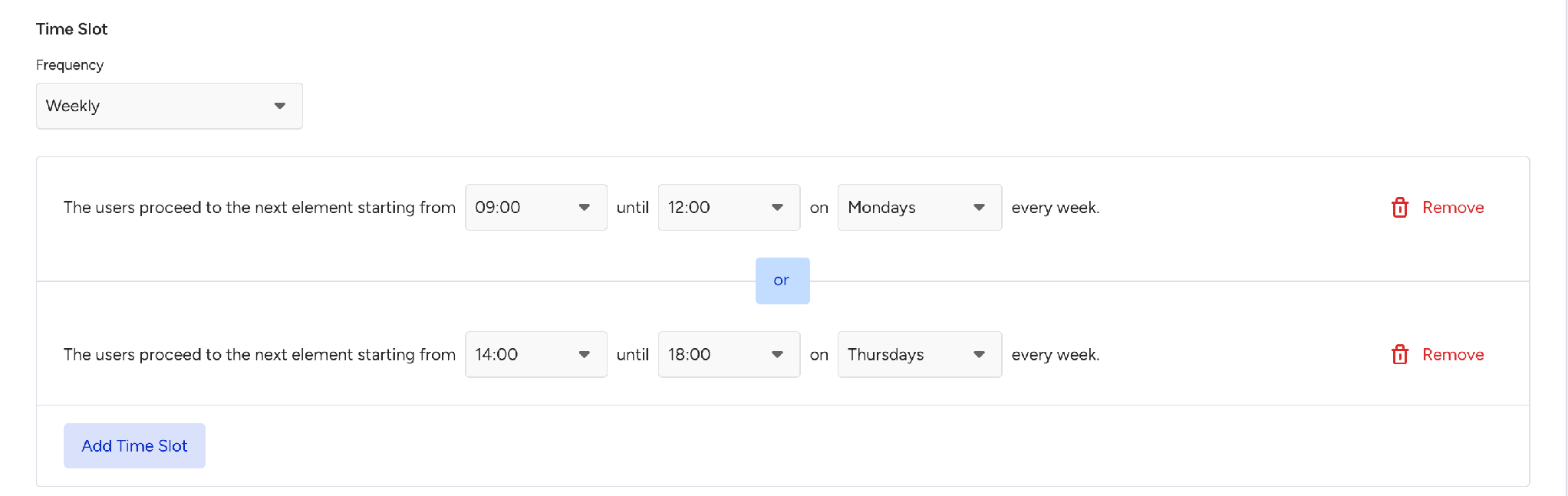
Take, for example, a logistics company. The shipping confirmation goes out right away, but the "Your courier is on the way" message should reach users only between 09:00 and 12:00 in their own time zone. You can add a Wait Until a Time Slot element with User Time Zone before the SMS element, so nobody receives the message in the middle of the night.
Use cases
With Wait Until a Time Slot in Transactional Journeys, you can:
Hold a follow-up message until working hours or a delivery window.
Send messages within each user's local hours by using their time zone.
How does Wait Until a Time Slot work?
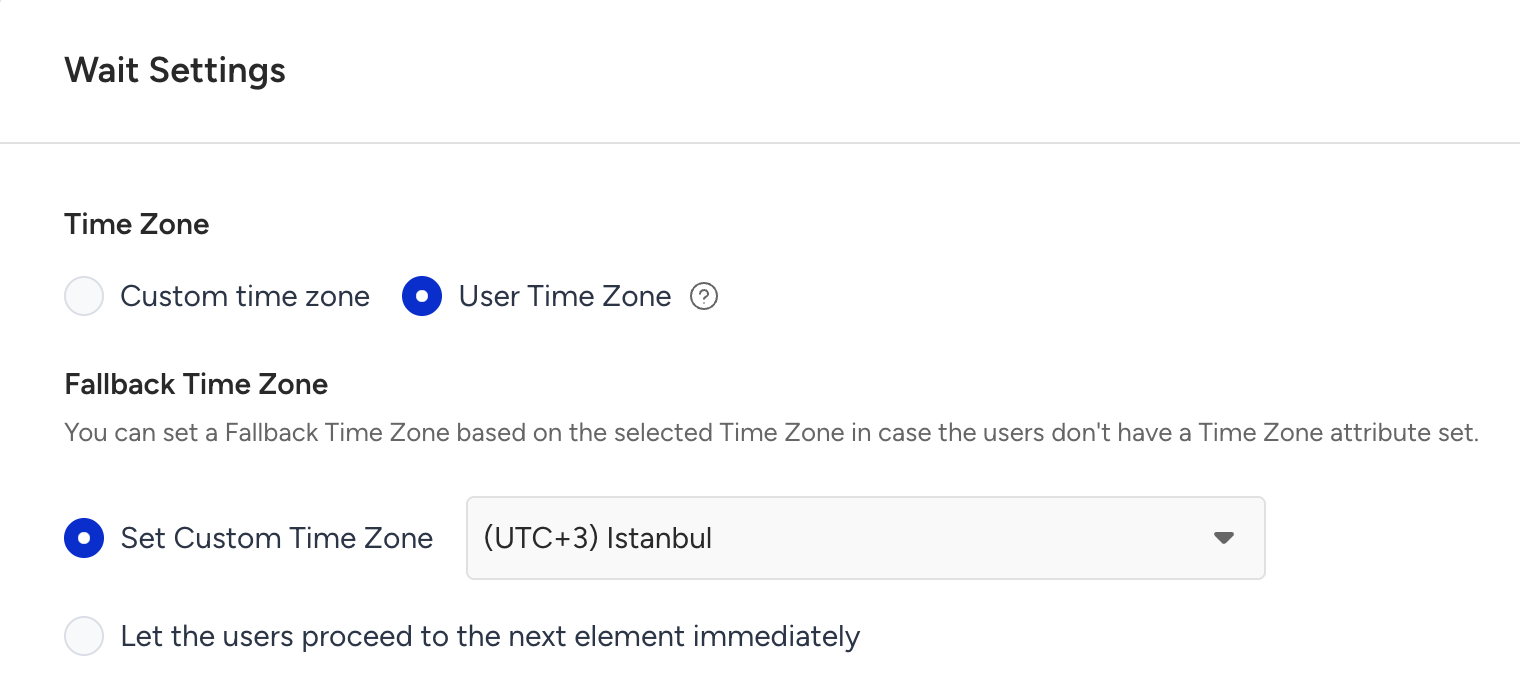
Under Time Zone, you choose which time zone the element applies your time slot in:
Custom time zone applies one fixed time zone to every user.
User Time Zone applies the time slot in each user's own time zone, using their Time Zone attribute.
Users move through the element as follows:
Users who arrive while a slot is open proceed right away.
Users who arrive outside a slot wait for the next one to open.
Users waiting for the same slot are released gradually throughout the slot, not all in the first minute.
Fallback Time Zone
When you select User Time Zone, choose what happens to users without a Time Zone attribute:
Set Custom Time Zone applies one fixed time zone to them.
Let the users proceed to the next element immediately sends them on with no wait.
Users are never dropped for missing a time zone.
Time Slot Delay
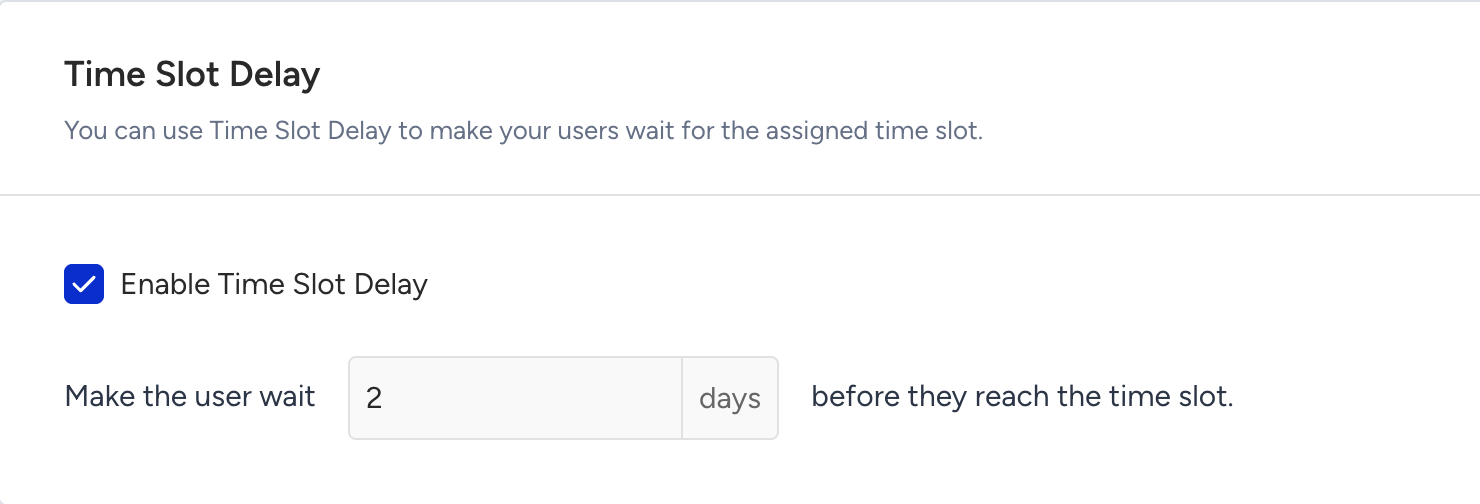
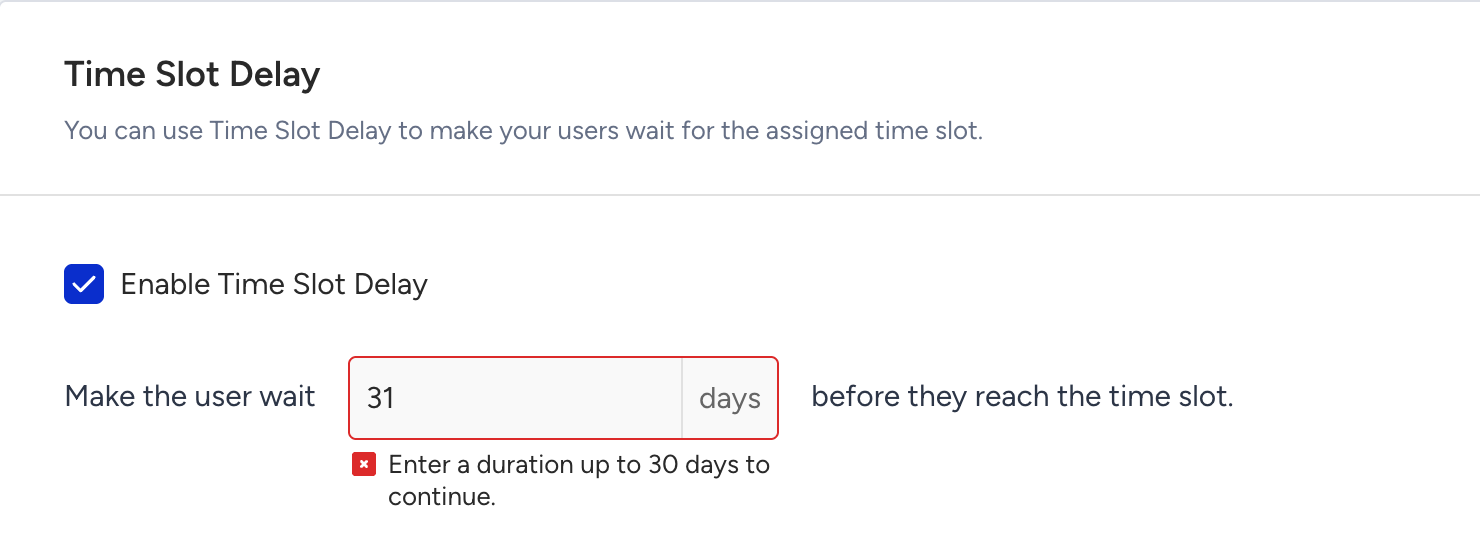
You can also enable Time Slot Delay to make users wait up to 30 days before they start waiting for the time slot. In promotional journeys, the maximum is 90 days.
The total wait time from start to end of a transactional journey cannot exceed 60 days. The same placement rules apply as for Wait for Some Time: a wait must be followed by a channel element, and a journey cannot end with a wait.
Use Wait Until a Time Slot
To use the Wait Until a Time Slot element in your transactional journey, follow these steps:
Click the + (plus) button after the starter or a channel element, hover over Wait, and select Wait Until a Time Slot.
Under Time Zone, select Custom time zone or User Time Zone. If you select User Time Zone, set a Fallback Time Zone for users who do not have a Time Zone attribute.
Select Daily, Weekly, or Monthly.
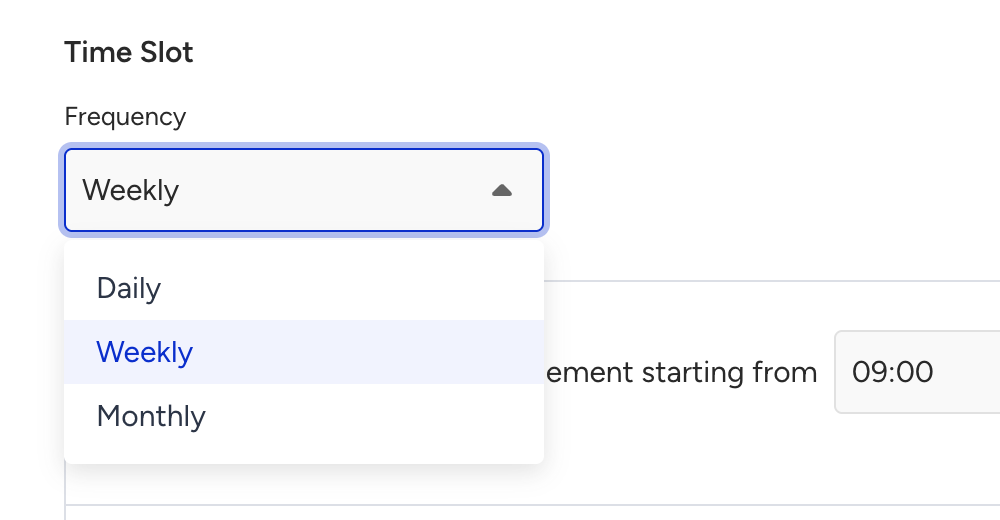
Changing the frequency resets the time slots you added. Select the frequency first.
Set the start and end time of the slot. Times are in 30-minute steps. For Weekly, select the day of the week. For Monthly, select the day of the month, from the first day to the 31st day, or Last day.
Click Add Time Slot to add more windows, up to 10. Users proceed with whichever slot comes first.
Follow these time slot rules:
The end time must be later than the start time.

A slot must be longer than one hour.

Each weekly slot covers one day. To cover several days, add one slot per day.
A slot cannot cross midnight. Split it into two slots instead.
Optionally, select Enable Time Slot Delay and enter the number of days, up to 30.
Click the Save button and return to the canvas to continue designing your journey.