Suggested readings: Transactional Journeys, Transactional Journey Settings
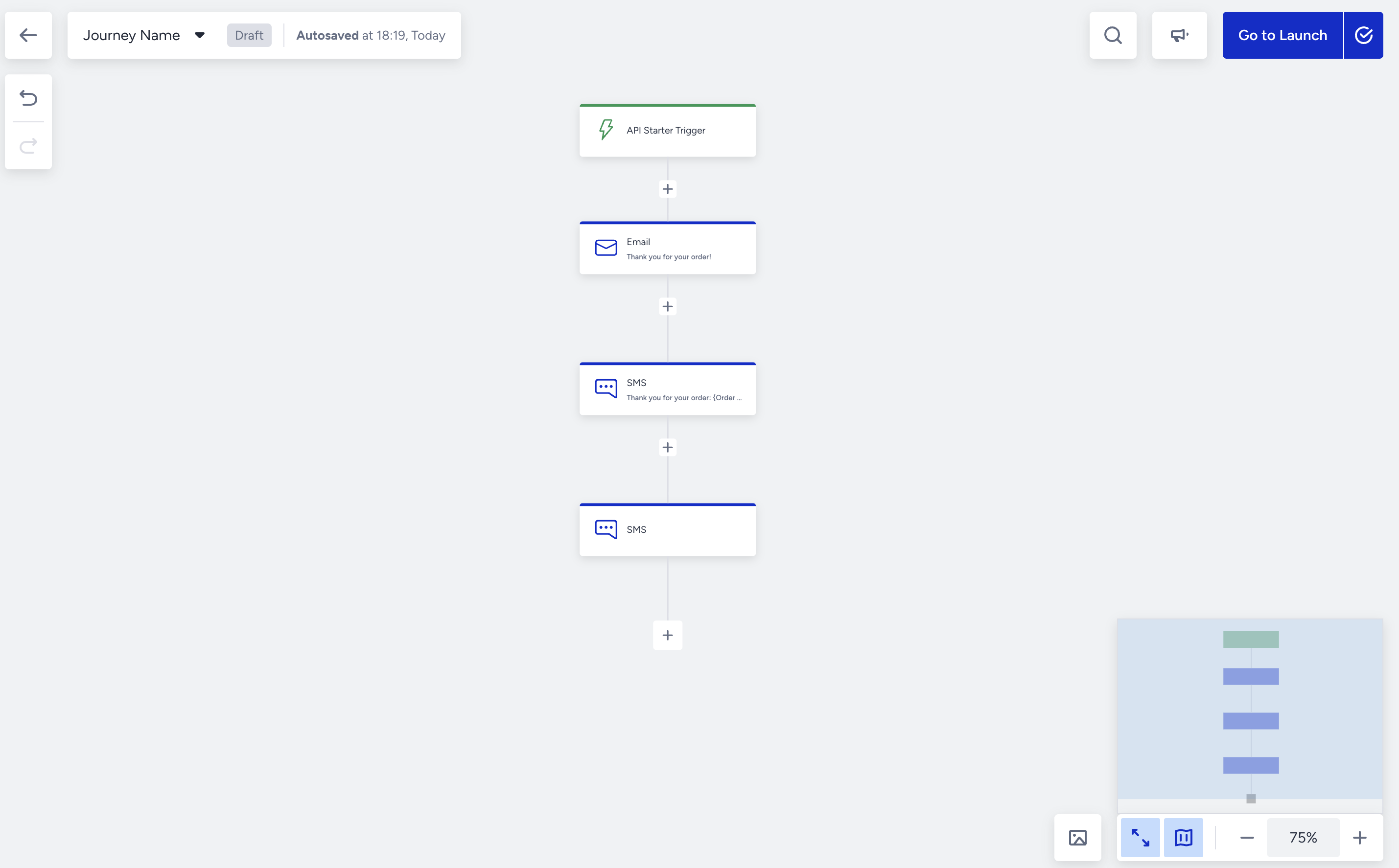
The canvas is the main configuration area where transactional journeys are built and managed. It provides a simplified editing experience focused on speed and clarity.
Transactional Journeys limits the canvas to the following elements that are required for real-time execution.
Canvas structure
Each transactional journey follows a linear structure on the canvas.
A journey consists of:
One On API Call starter
One or more channel elements
A single execution path
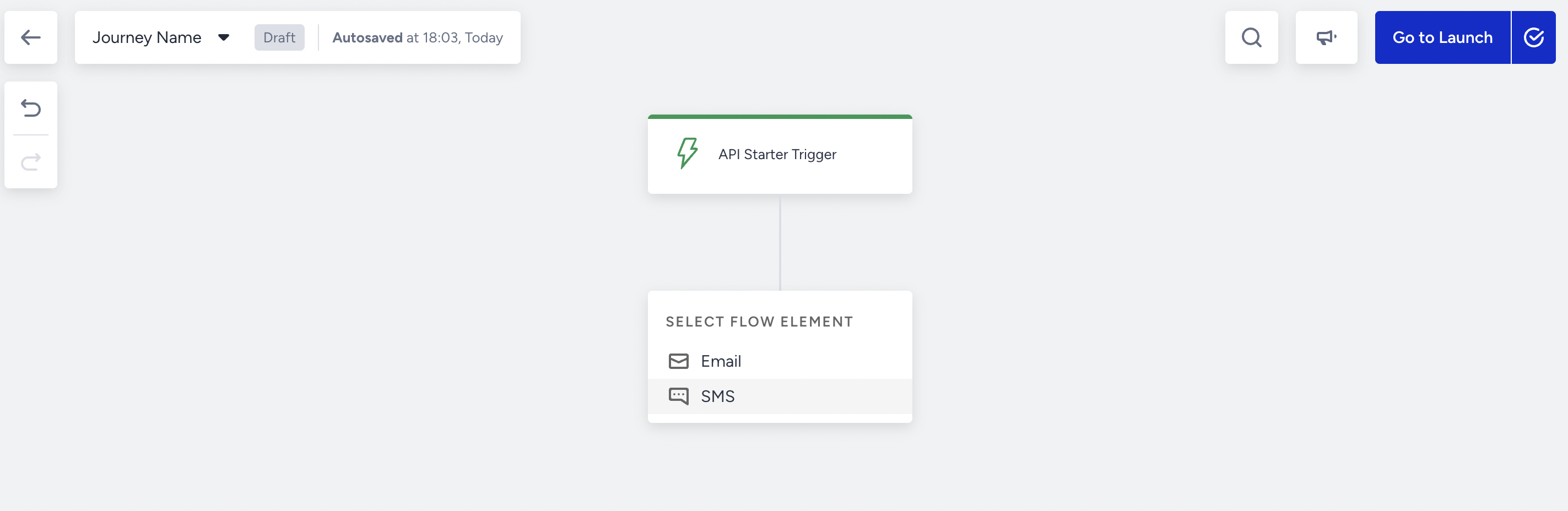
Branching and conditional elements are unavailable. All users follow the same path once they enter the journey.
Available elements
Transactional Journeys supports the following elements on the canvas.
Starter: API Starter
Channels: Email, SMS, and WhatsApp
Wait: Wait for Some Time and Wait Until a Time Slot
No other starter types, check elements, other wait types, or action elements can be added to the canvas.
Add elements
You can click the + (Add) button to add channel and wait elements to the canvas. A wait element must be followed by a channel element.
Channels are added sequentially and executed in the order they appear on the canvas.
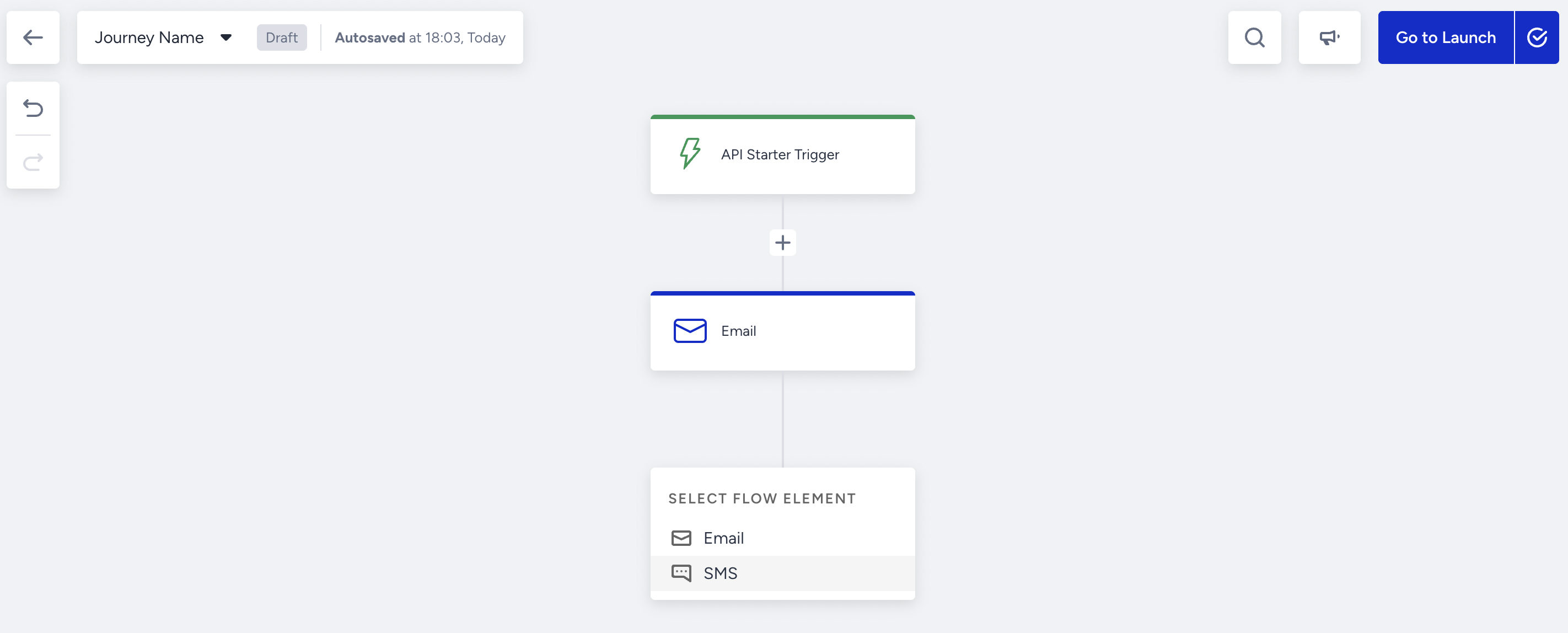
The canvas does not allow creating multiple paths or reconnecting them.
Edit elements
Each element on the canvas can be opened to configure its settings and content.
Changes made inside an element must be saved explicitly. Canvas-level changes are saved automatically while the journey is in Draft status.

Copy/paste element
The Copy button is located in the top-right corner of the elements. When you hover over any element, you will see the Copy element among the options. This option lets you copy your element and paste it into another part of the journey, retaining its content and configured settings.
Click the Copy button on the element you want to copy. You will see the button saying "Copied!" to confirm that you successfully copied your element.
Click the Add button where you want to paste your copied element. You will see the "Paste: {elementname}".
Click "Paste: {elementname}" to paste your element.
Change element
The Change button is located in the top-right corner of the elements. When you hover over any element, you will see the Change element among the options. This option lets you replace your element with the same element type without deleting or adding it again.
Channels can be changed with other channels.
Delete element
The Delete button is located in the top-right corner of the elements. When you hover over any element, you will see the Delete element among the options. This option enables you to delete your element from the flow.
Top bar controls
The top bar provides quick access to common journey actions.
From the top bar, you can:
Rename the journey.
Add or edit tags.
Save the journey as a template.
Browse existing templates.
Duplicate the journey.
Duplicate the journey to other accounts.
Validate the journey.
Activate or stop the journey.
The Undo and Redo buttons are located in the top-left corner of the canvas. You can undo or redo your changes on the canvas by simply clicking on these buttons. You can undo or redo unlimited times on the same page.
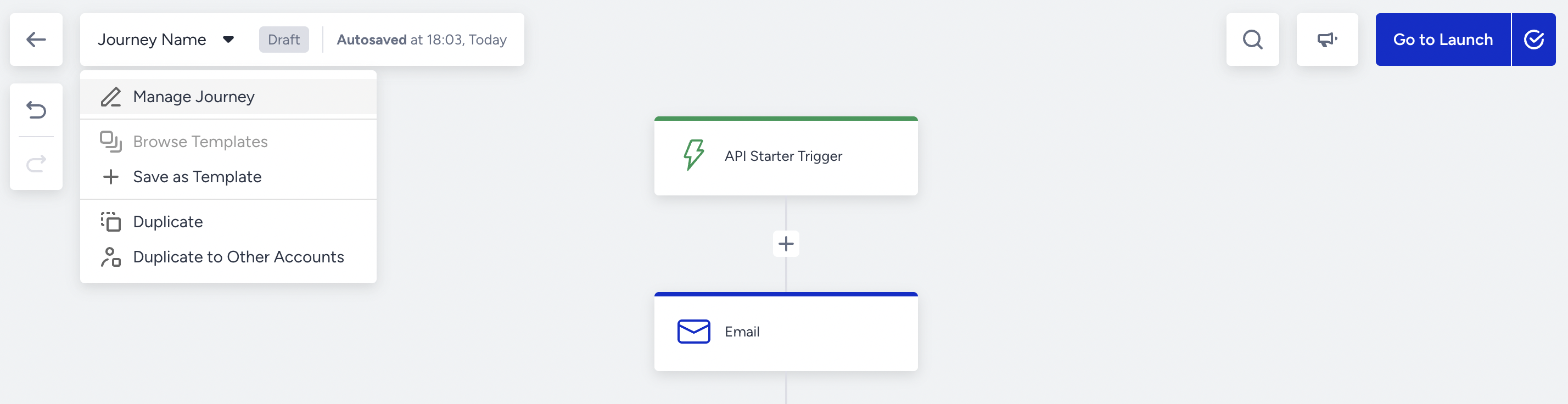
Duplicating the journey to other accounts helps you edit them and create a similar journey in another domain under the same account.
When you click the Duplicate to Other Accounts button, a modal will open. You can select a single or multiple accounts to duplicate your journey. Also, you can edit tags and the journey name in this modal before duplicating.
Under the duplication information, you can see what elements will be duplicated and what will be excluded:
Channels (Email, SMS) will be duplicated.
The journey flow will be duplicated.
Journey Goals will be duplicated.
Journey Tags will be duplicated.
Preview
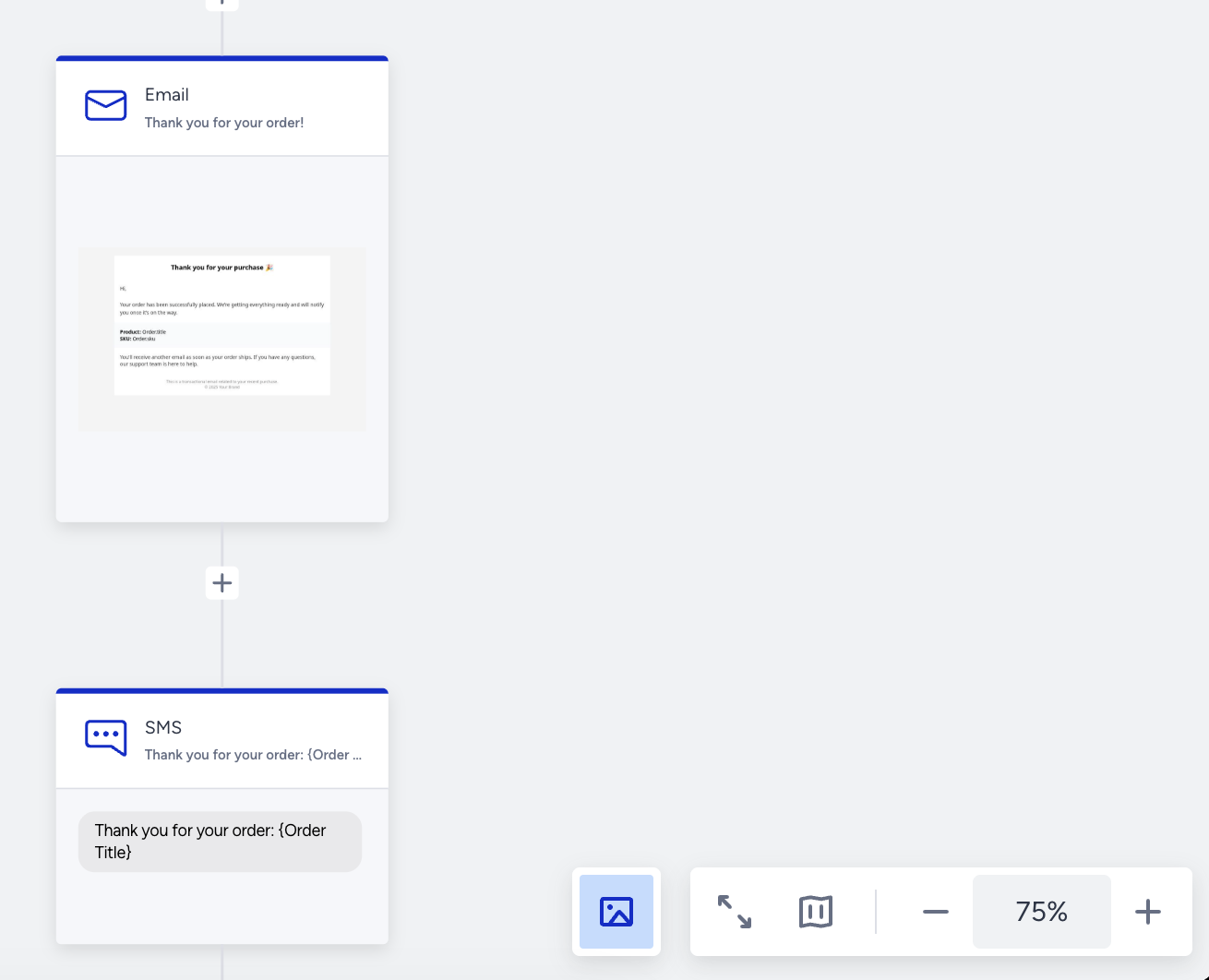
The Preview option allows you to review channel content directly from the canvas.
Preview shows the message layout and placeholders, but does not execute the journey or send messages. It does not evaluate dynamic content.
Validation
Before activation, Transactional Journeys validates the journey structure.
This validation ensures that:
An API Trigger exists and is filled.
At least one channel element is present.
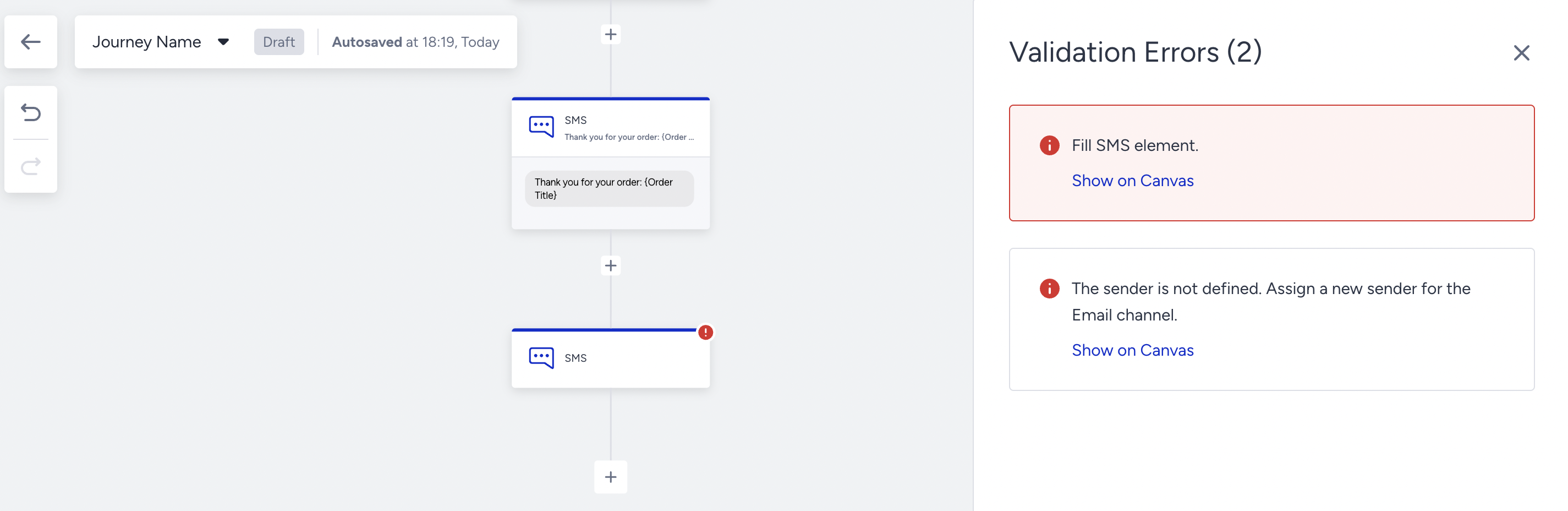
All channel elements are fully configured.
Dynamic content data is valid.
If validation fails, errors are shown on the canvas and must be resolved before activation.
Full-screen and navigation
You can switch the canvas to full-screen mode for a wider editing area.
The minimap helps navigate larger journeys, although transactional journeys are typically short and linear.