To test a campaign, you should add your device as a test device.
You can preview your app pushes on the Design step while designing your message.
Make sure you have opted in to app push notifications in your application before sending a test push notification.
The Test Message button helps you see the campaign preview on your device.
.png)
Click the Send Test Message button to select a test group and/or any individual user. The Selected Test Devices section displays the selected test groups and the individual devices.
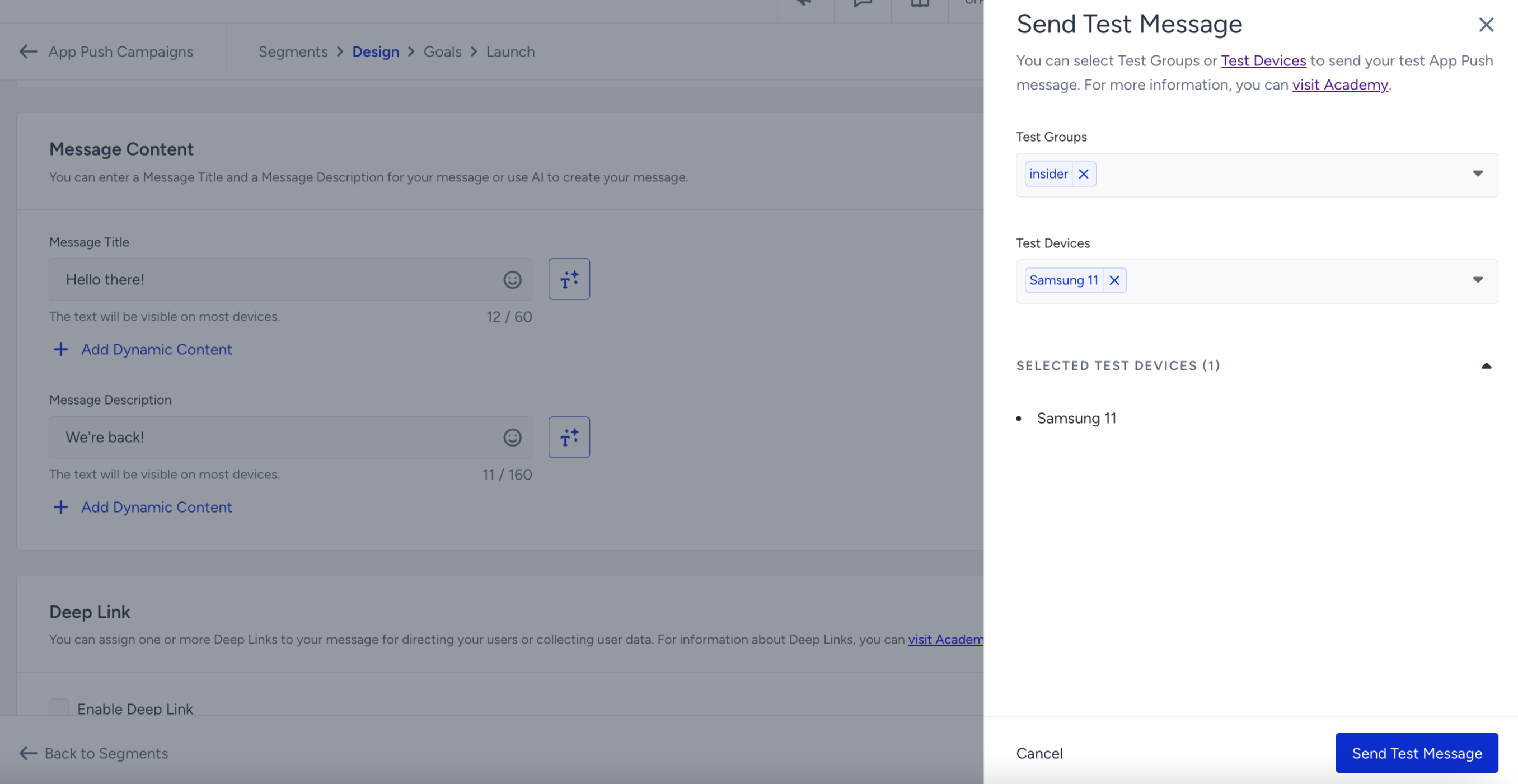
Click the Send Test Message button to send your test push.
Test results
The Live Preview Information prompt will show how many devices received the live preview and how many did not. For those who did not receive the live preview, the error codes are displayed per platform.
Error codes
Error Code | Definition |
|---|---|
InvalidRegistration (Android) | Check the format of the registration token you pass to the server. Make sure it matches the registration token the client app receives from registering with GCM. Do not truncate or add additional characters. |
NotRegistered (Android) | The user uninstalled the app and is no longer reachable. |
MismatchSenderId (Android) | The Google App ID used in the Integration and the FCM (GCM) API Key do not belong to the same parent Google Account. |
BadDeviceToken (iOS) | The application and the app environment do not match. One is in development, and the other is in the production environment. |
DeviceTokenNotForTopic (iOS) | The push notification certificate topic and the application package name do not match. |
Unregistered (iOS) | The user uninstalled the app and is no longer reachable. |