The "Generate Image with AI" feature is available in both App Push and the App Push channel in Architect journeys.
Using visually engaging content is crucial to capturing your audience’s attention. The AI Image Generation feature simplifies this by automatically creating or enhancing images that align with your brand’s unique style and message. Whether you need quick campaign visuals or creative inspiration, this feature provides personalized image suggestions based on your website, allowing you to create high-quality, on-brand visuals efficiently while focusing on strategy and brand consistency.
To learn how to use the App Push Image Generation with AI in your campaigns, follow the steps below:
1. In the Design step of your App Push campaign, select the Custom Image option and click the Generate Image with AI option while sending a Rich Message. 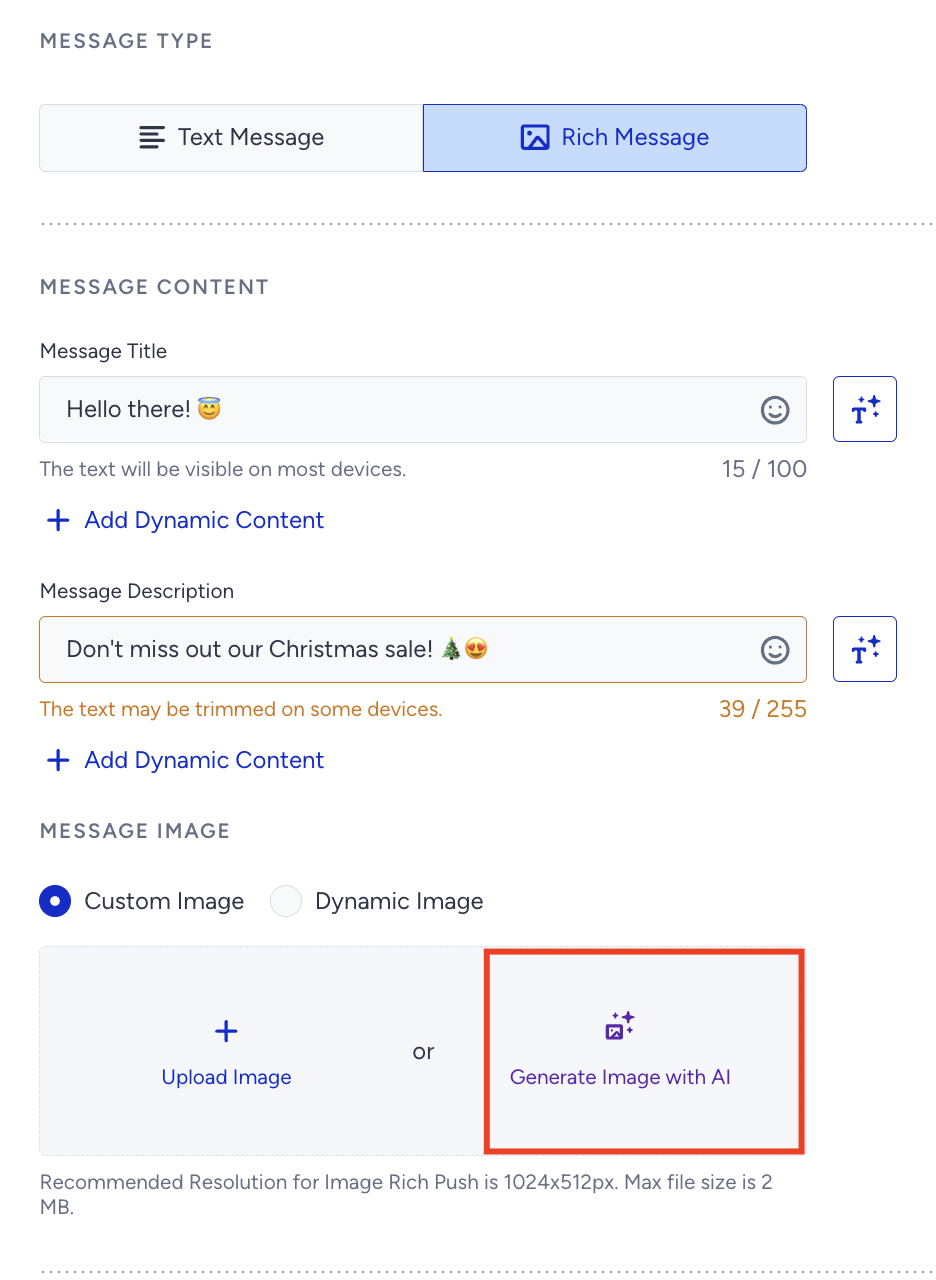
2. Select the Product Image or Campaign Image based on your needs. 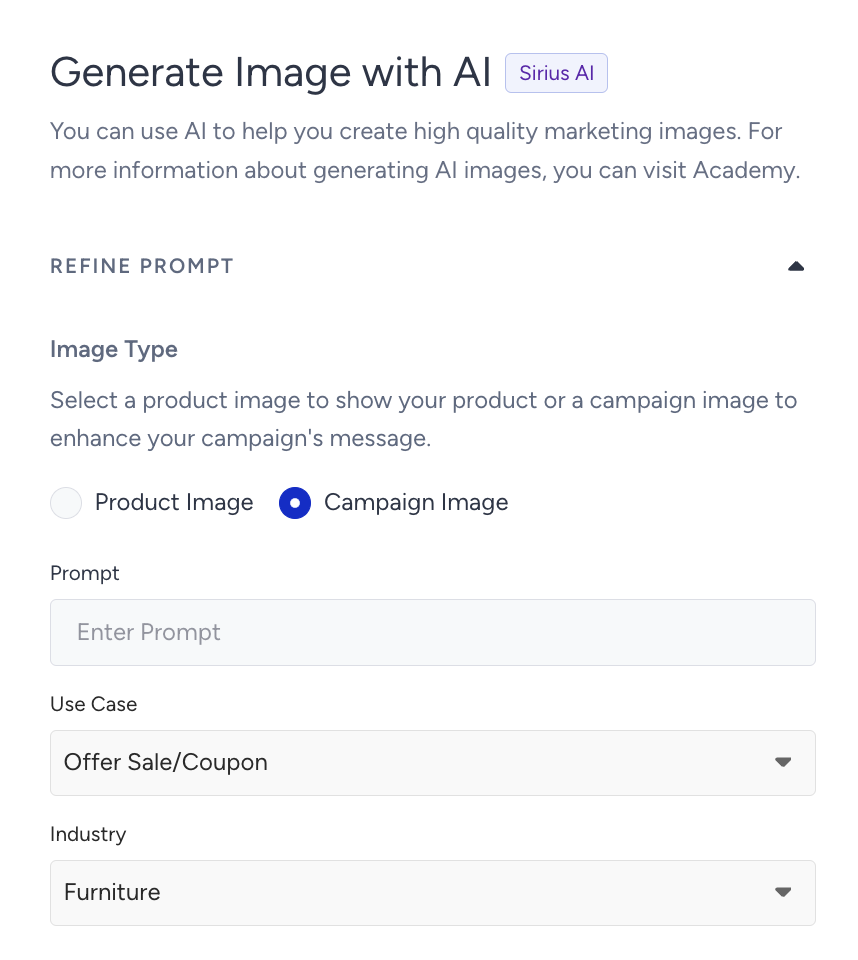
3. Enter a prompt to describe the image you want to generate. Provide as many details as possible in your prompt to achieve more accurate results.
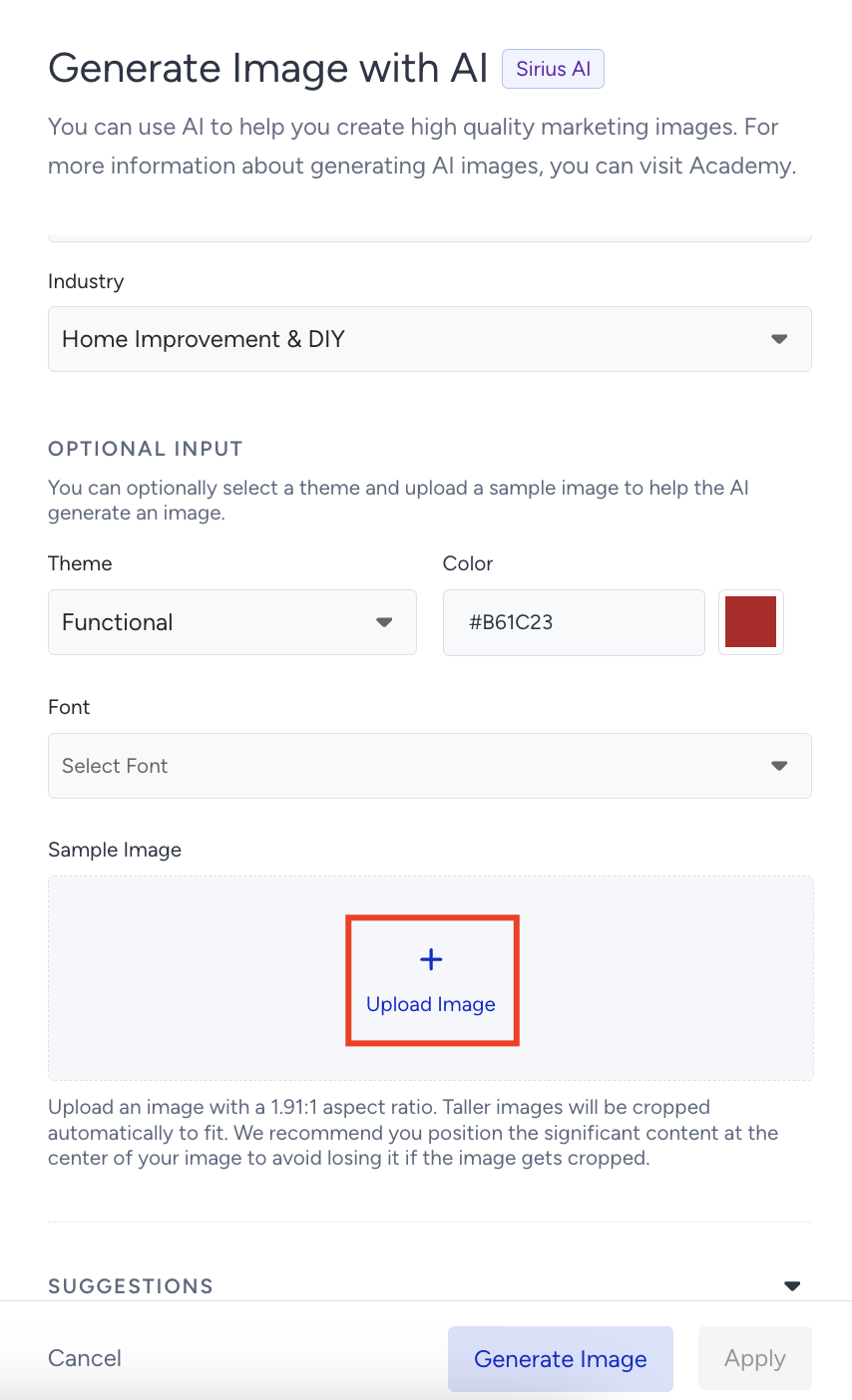
4. Select your use case and industry. 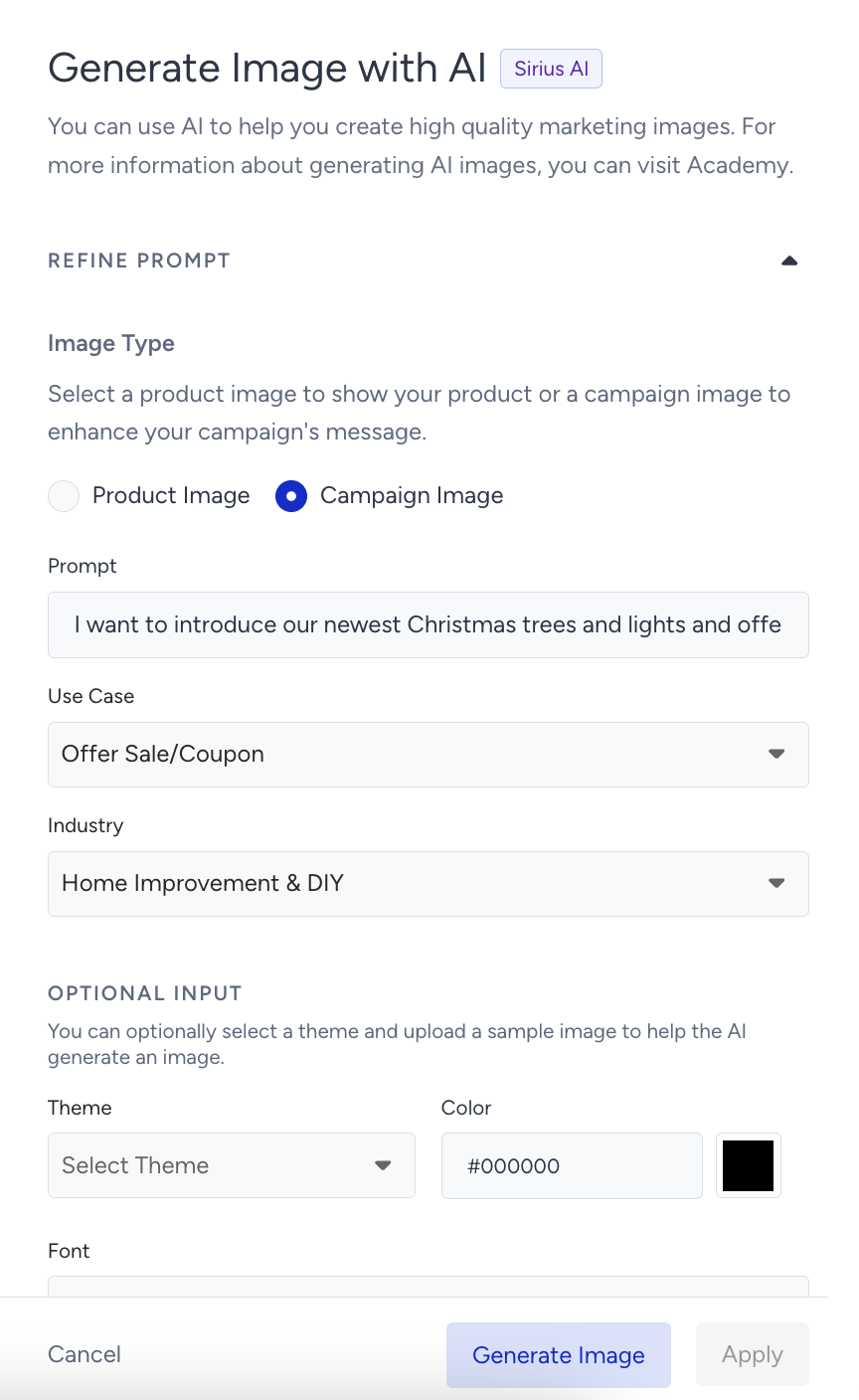
You can optionally select a theme to suit the context of your campaign, such as special occasions or seasonal events, and choose background colors and fonts to match the campaign's style. 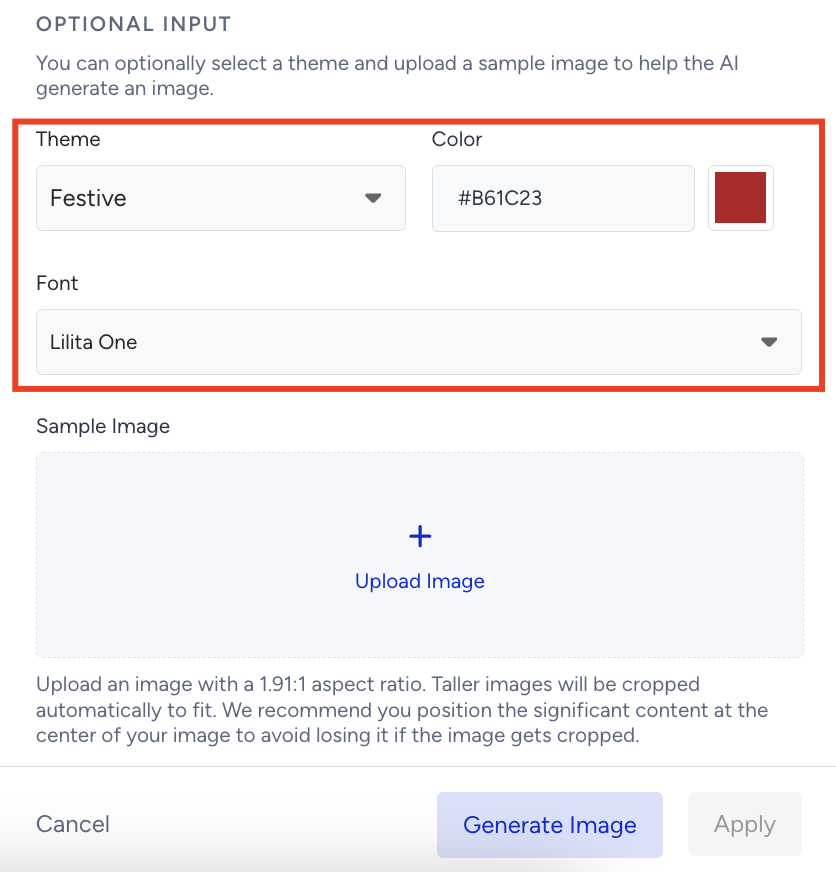
5. Upload a sample image. When you upload a sample image, you should consider the following:
For product images: A sample image is required. The AI will modify the background while keeping the product intact.
For campaign images: Uploading a sample image is optional. The AI will generate the campaign image based on the provided context but not directly use the product.
6. Click the Generate Image button. 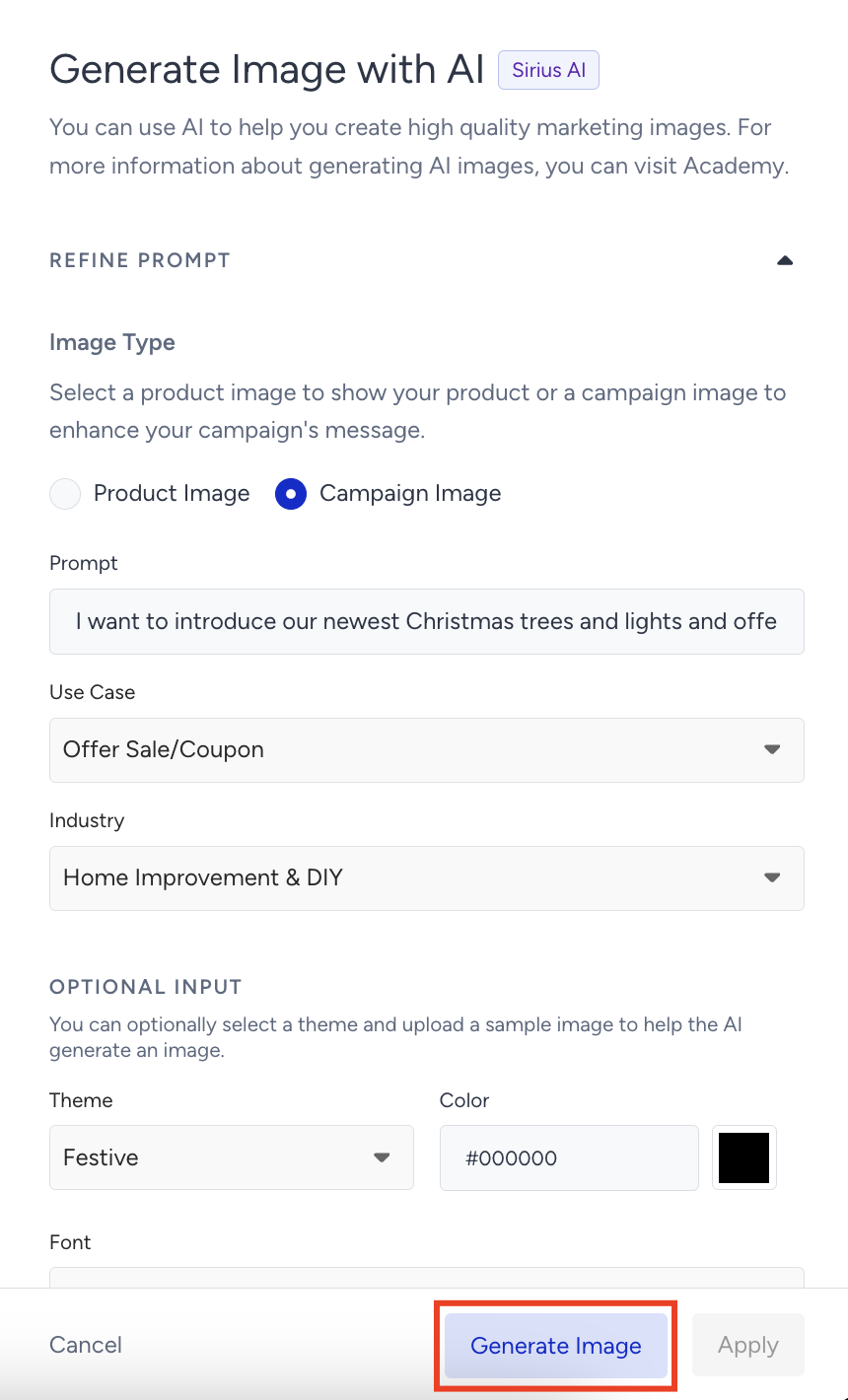
7. The AI will make four image suggestions. 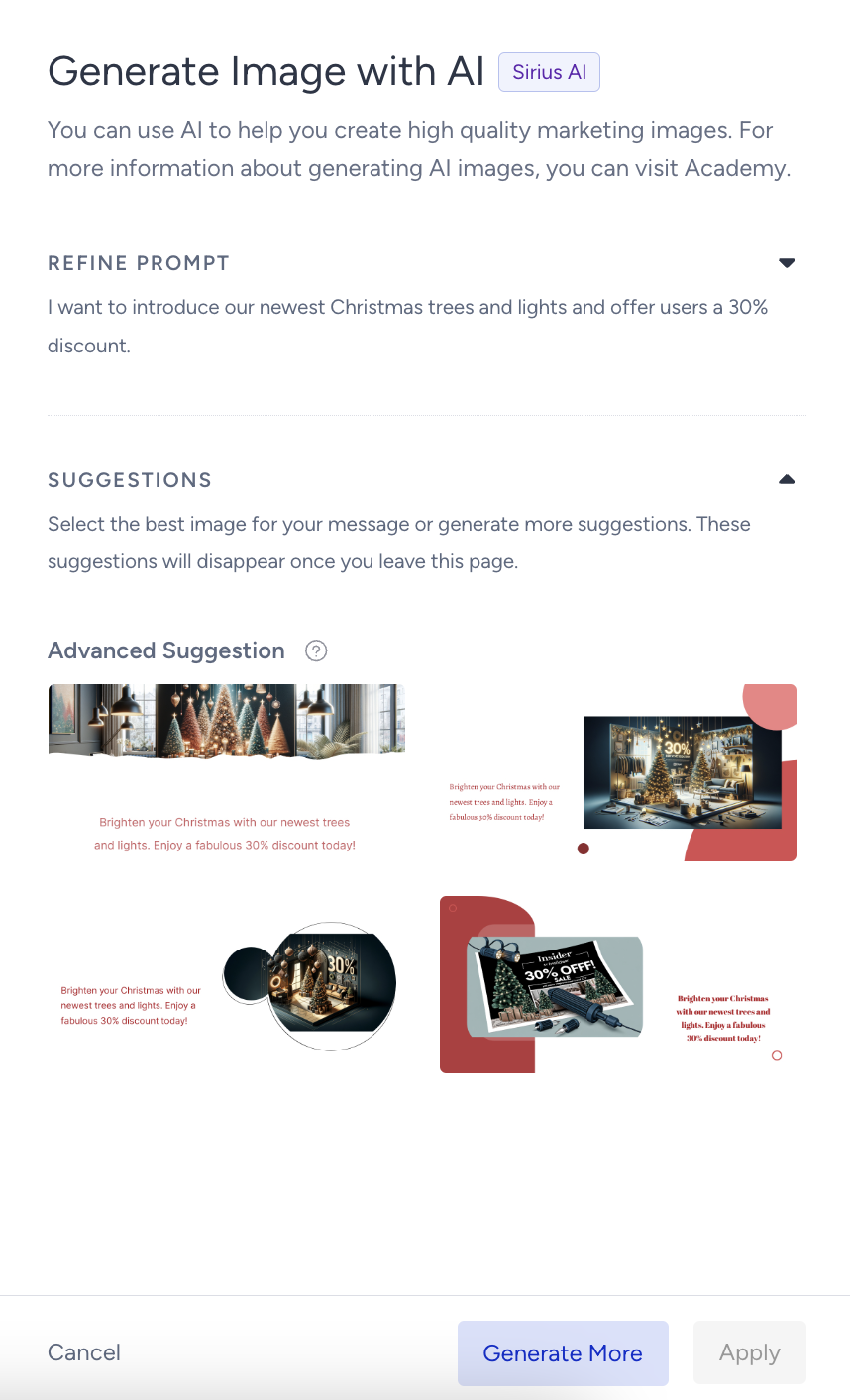
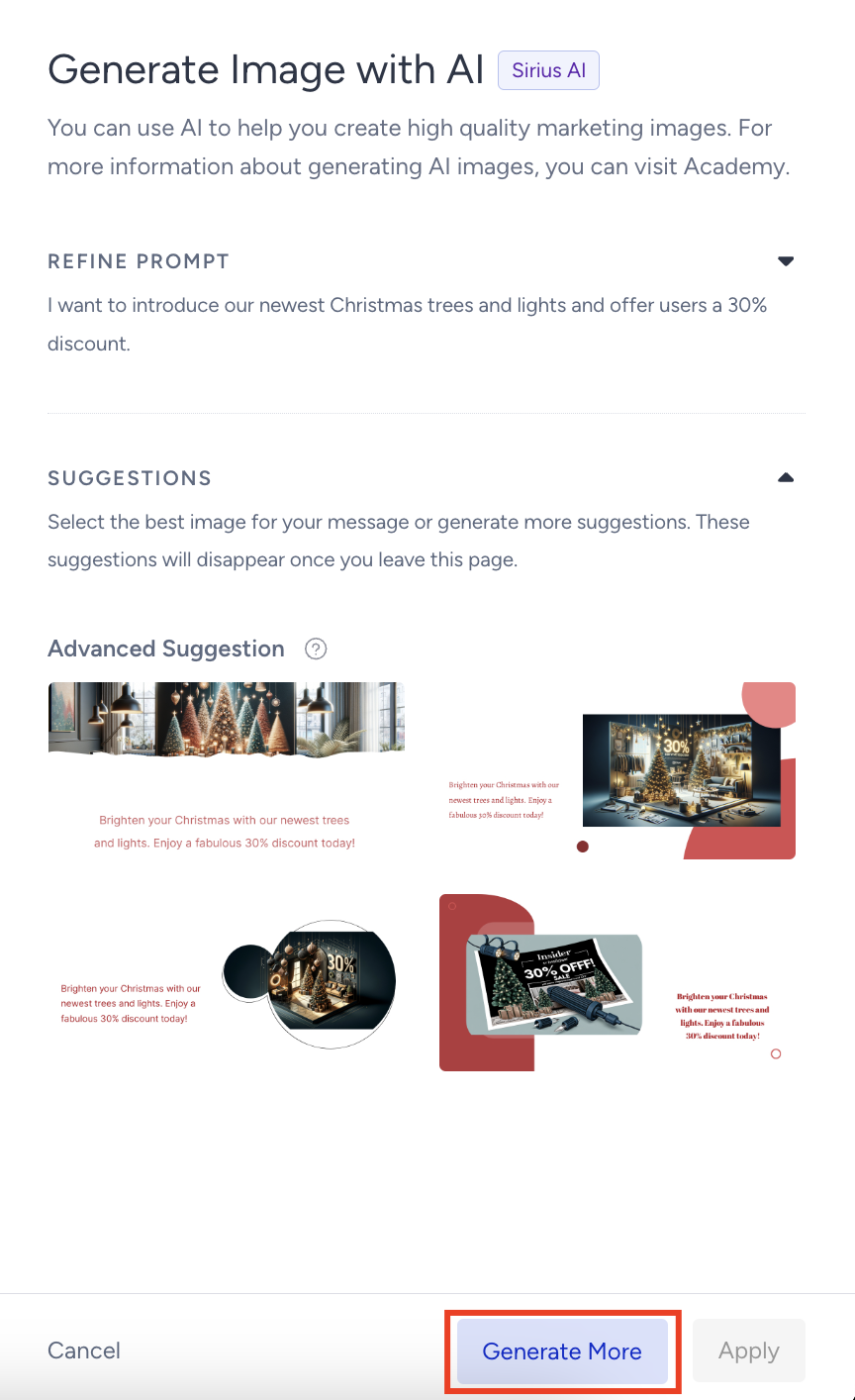
If the initial suggestions don’t meet your needs, click the Generate More button to see the additional options.
To edit an image, hover over the image and click the Edit icon.
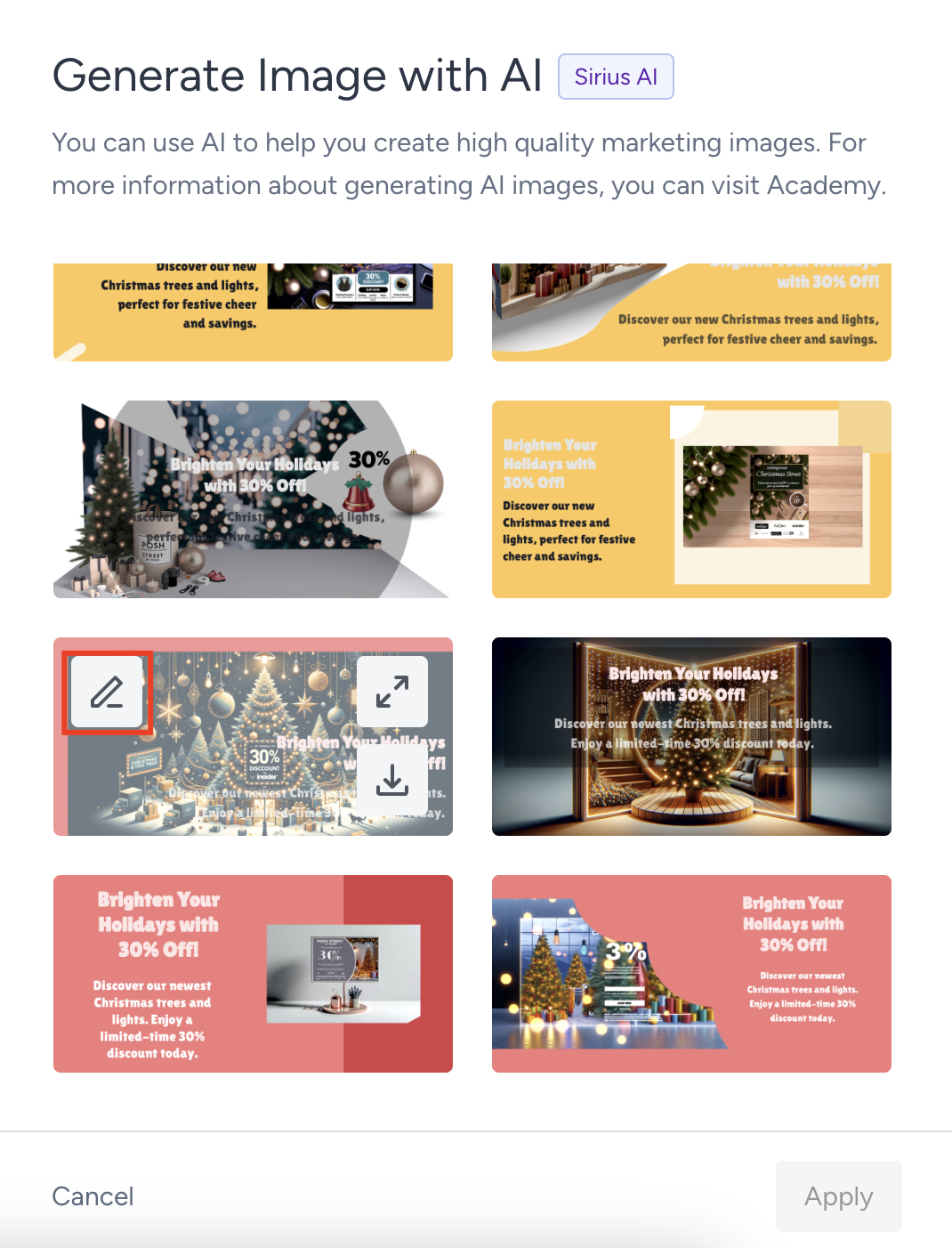
You can change the text, colors, or fonts in the image. For campaign images, you can also replace or download the product-related object. After editing your image, click the Update Image button to save your changes.
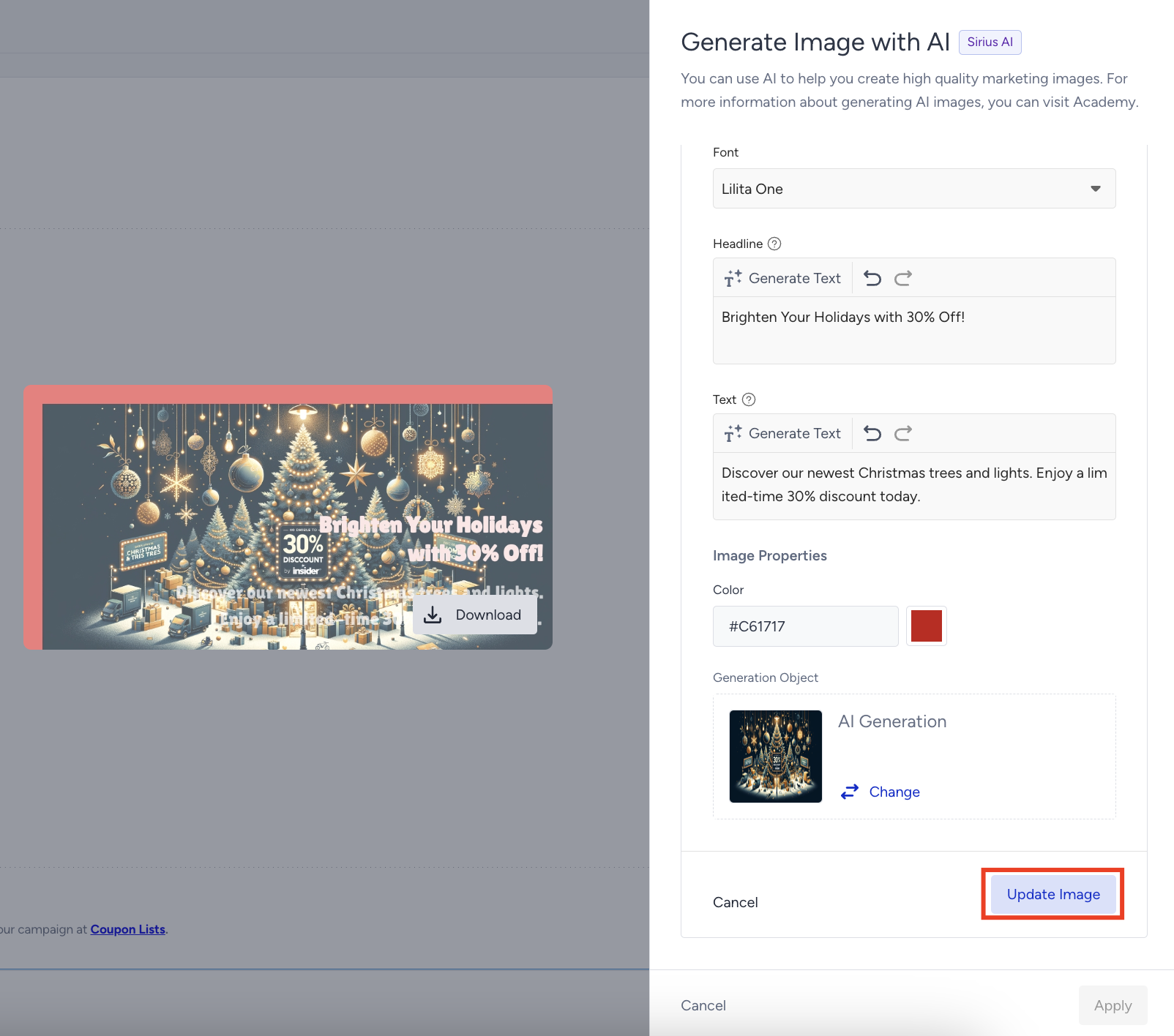
If an image doesn’t display an edit button, it means no editable text is available in that image.
8. When you find an image you like to use in your campaign, click the Apply button to use it in your campaign. 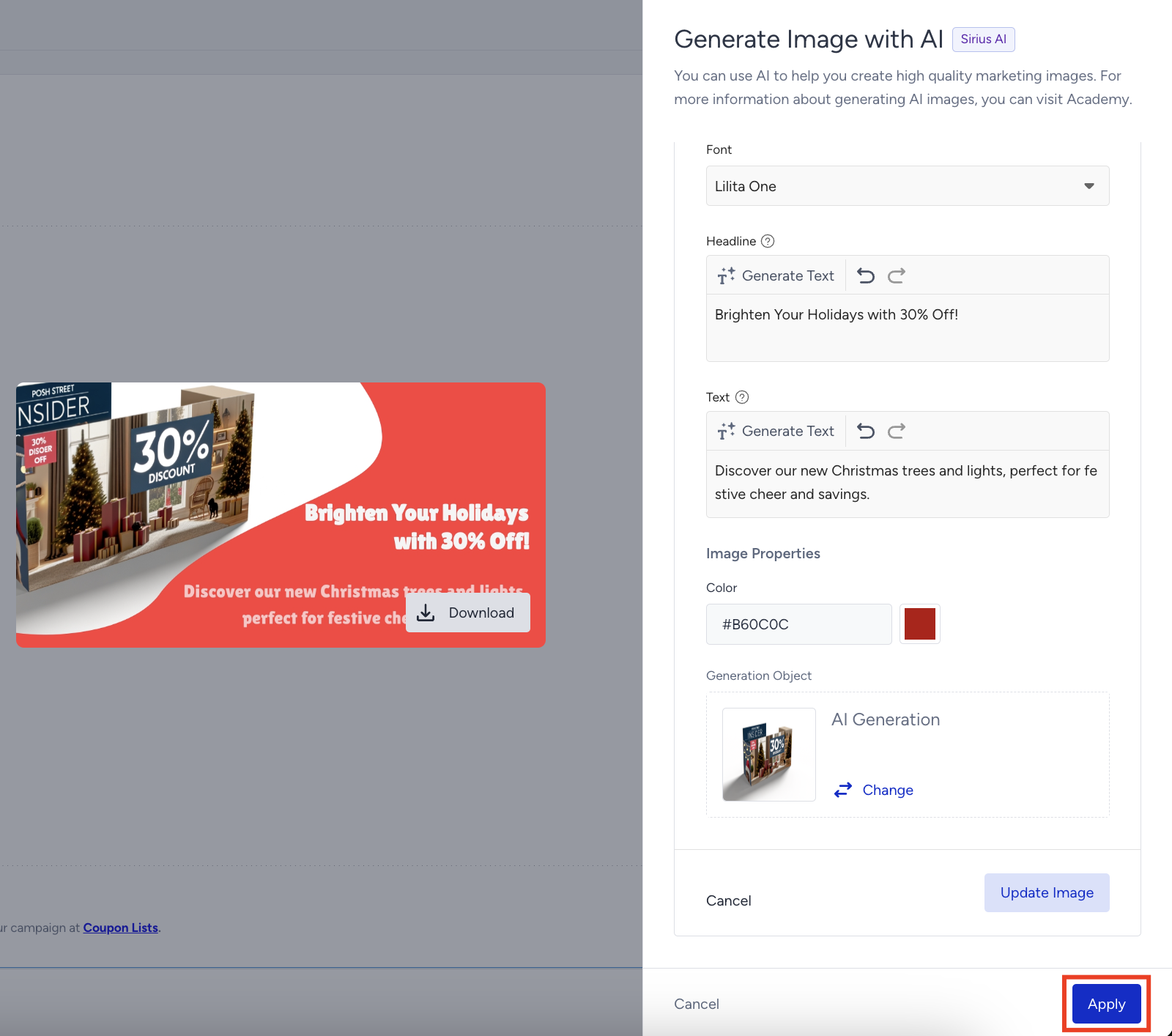
After you click the Apply button, you can change the image, regenerate it with AI, or delete it. 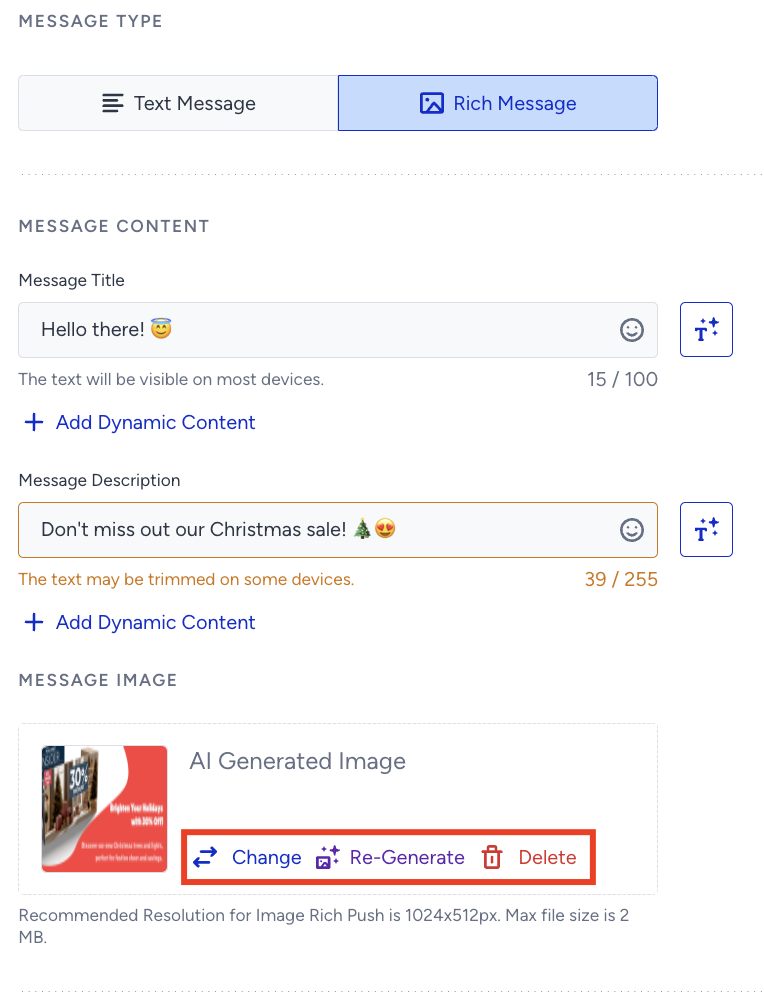
9. Once you are done with designing your campaign, click the Save button to save your changes. 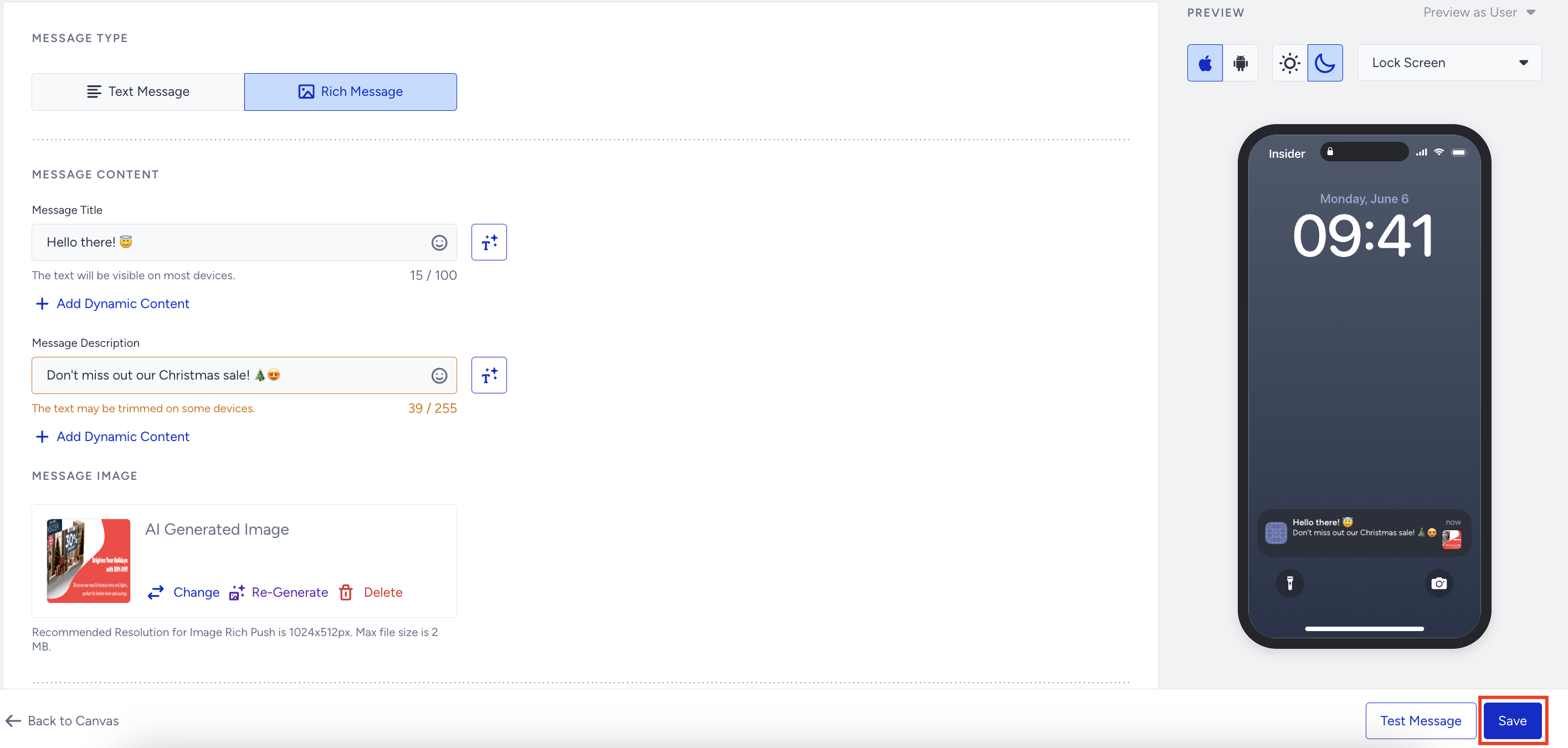
After saving your design, you can return to it on your canvas and click the Enhance with AI button to change the image you selected with AI or create a new one. 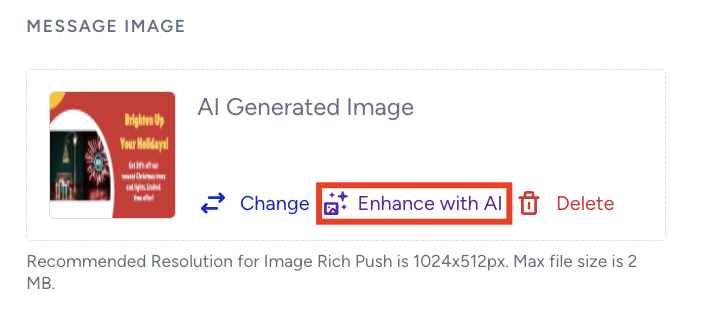
When using the App Push Image Generation with AI feature, consider the following tips:
Upload sample images: Upload images from previous campaigns to guide the AI in capturing your desired style.
Provide detailed prompts: Enter clear and specific details in the prompt field. The more precise your input, the better the AI can tailor the results to match your vision.