Suggested reading: Single Sign-On
This guide lists the actions you need to complete to configure SSO (Single Sign-On) for IBM Verify. On this page, you will learn about:
Set up SSO
1. Go to your IBM Verify account to go to Applications > Add Application.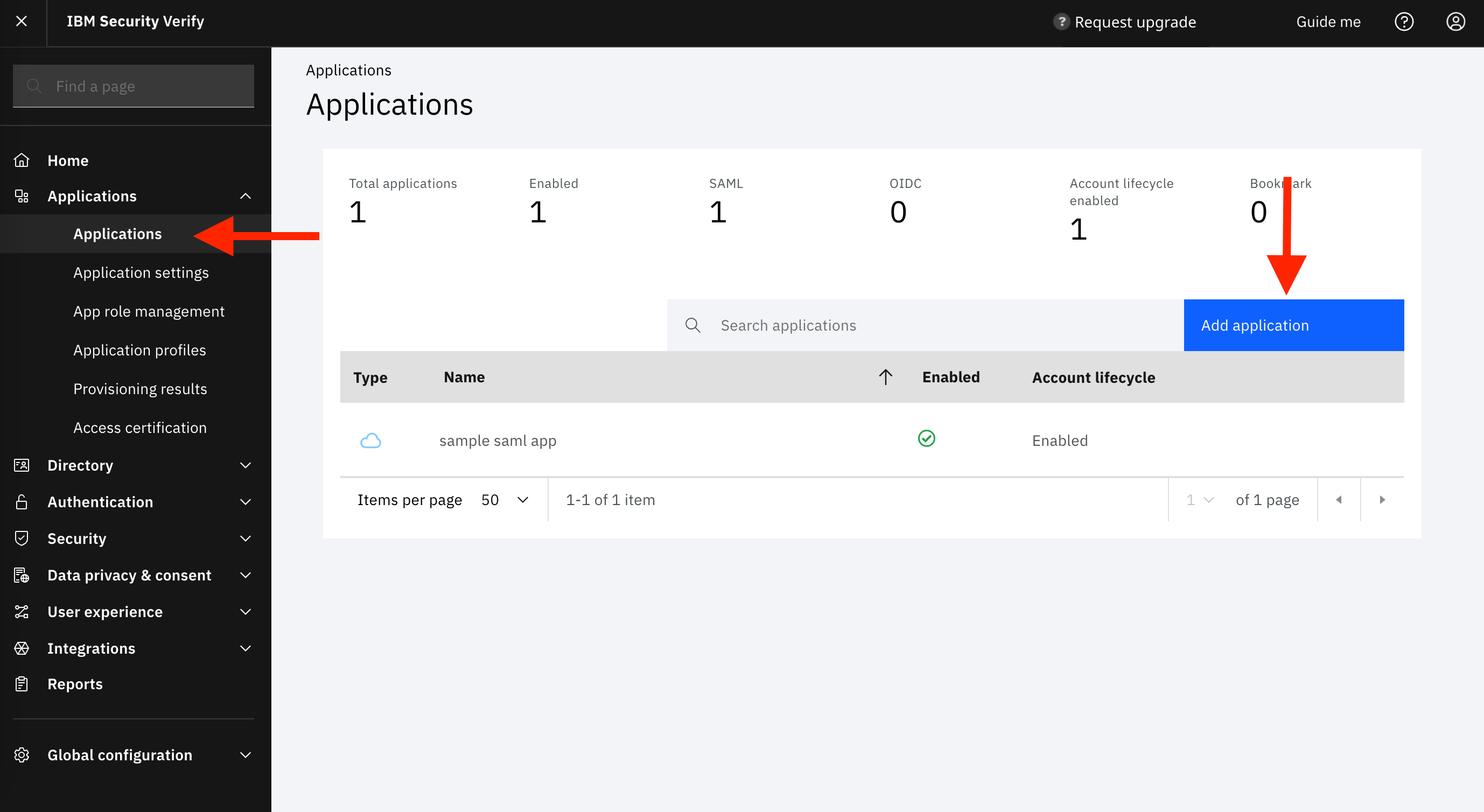
2. Select Custom Application from the top and click the Add application button 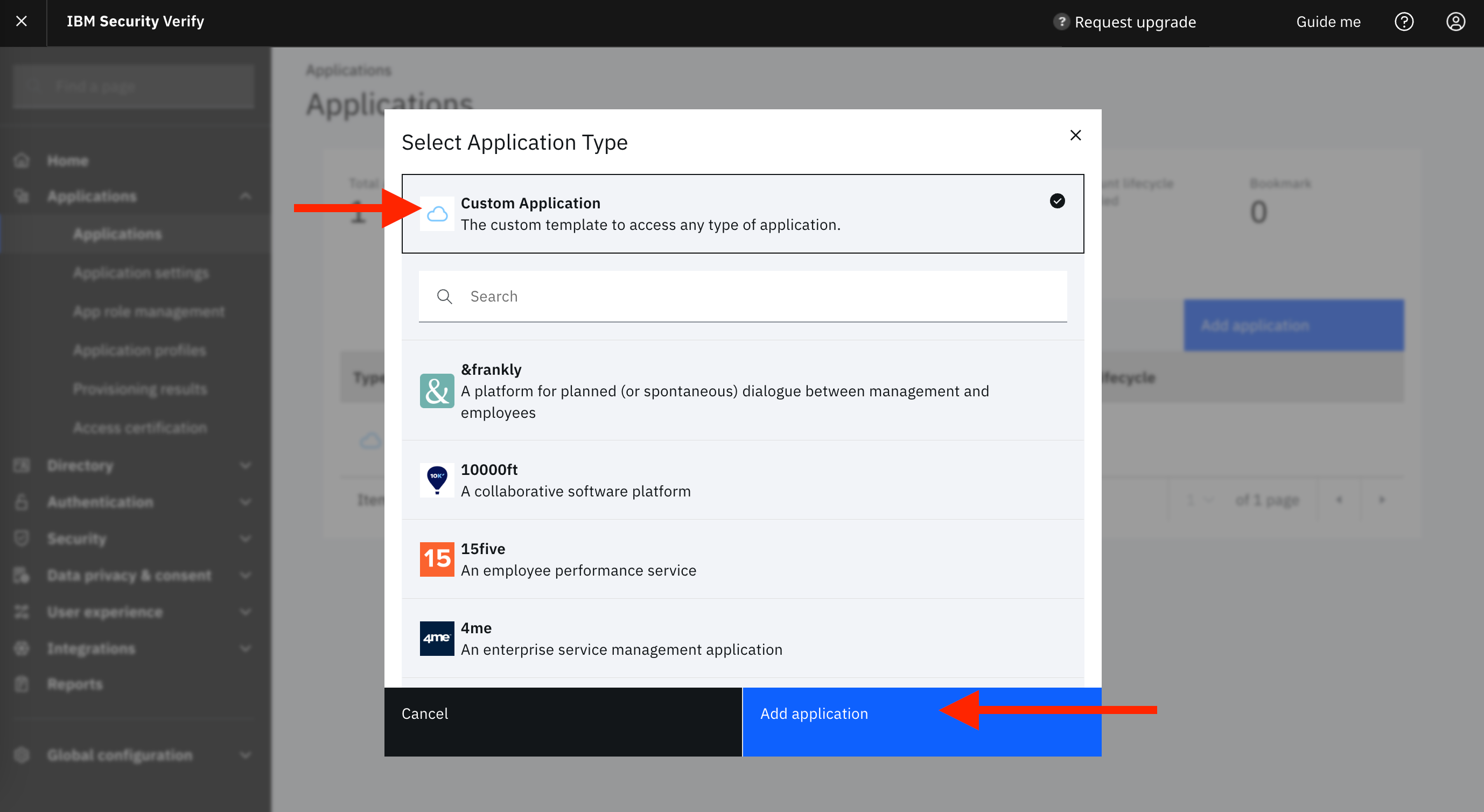
3. Fill in the inputs as shown. Click the Save button. 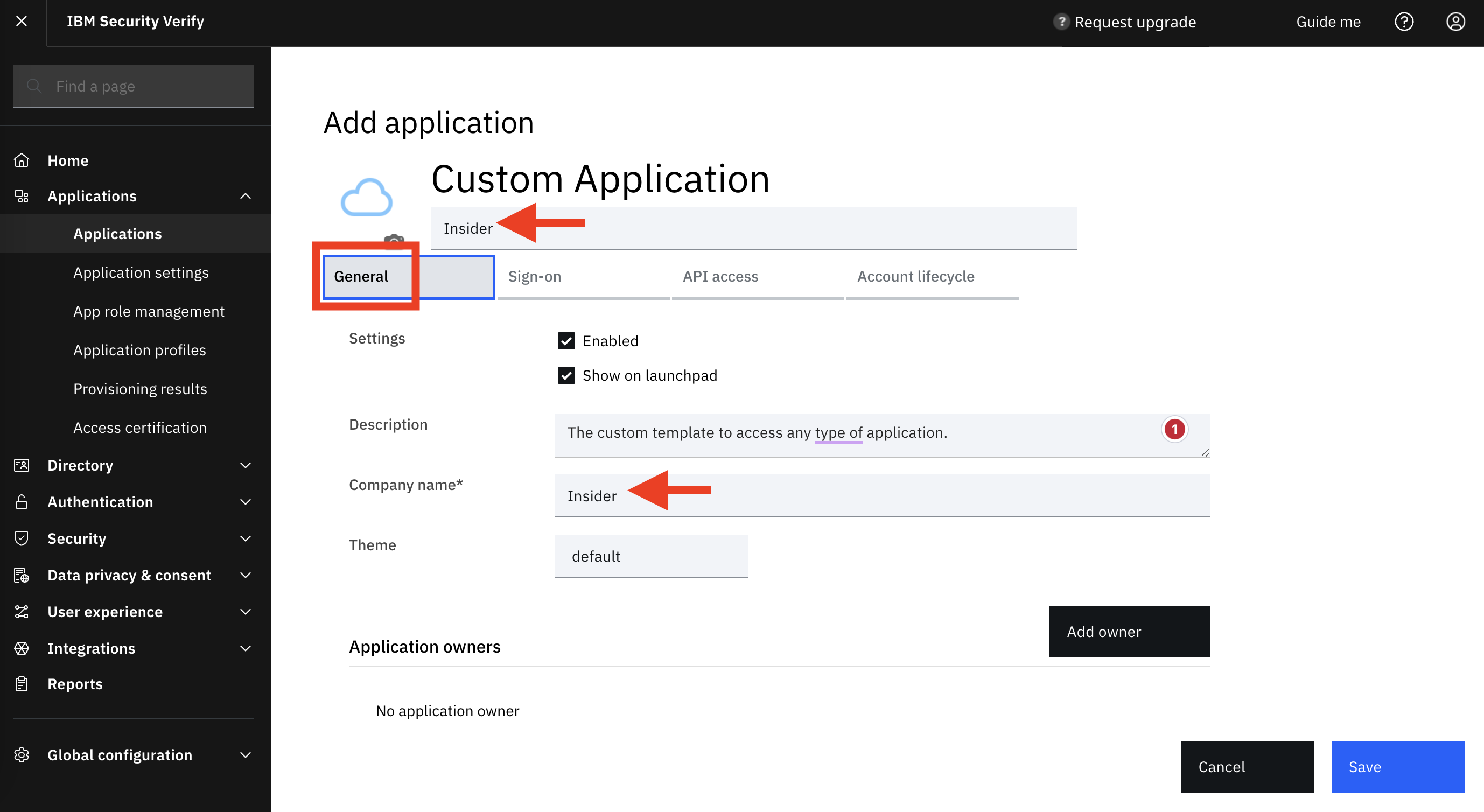
| Field | Value |
|---|---|
| Settings | Enabled Show on launchpad |
| Description | Your description |
| Company name* | Insider |
| Theme | default |
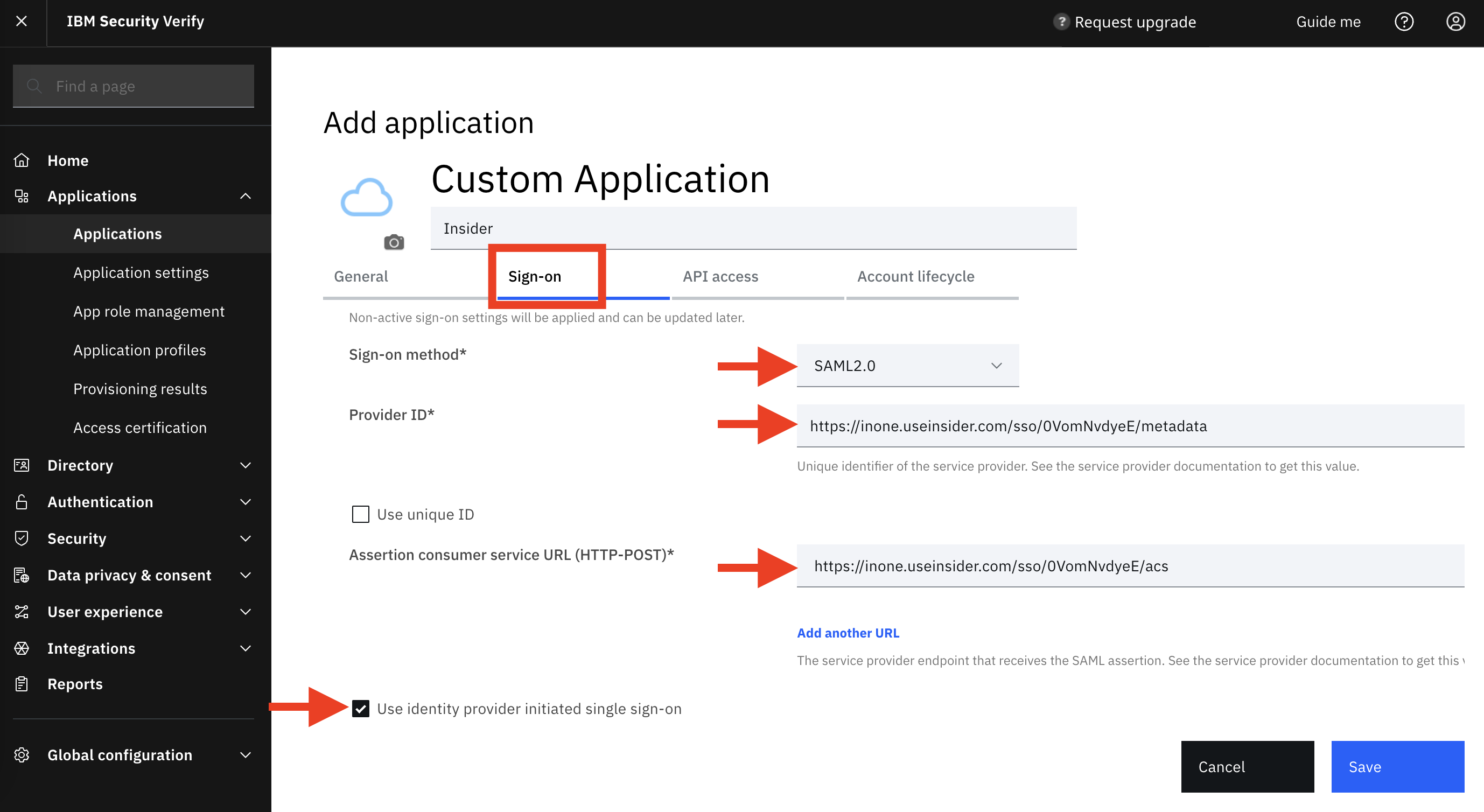
| Field | Value |
|---|---|
| Sign-on method* | SAML2.0 |
| Provider ID | Service Provider Entity ID |
| Assertion consumer service URL (HTTP-POST)* | Insider SSO URL |
| Use identity provider initiated single sign-on | - |
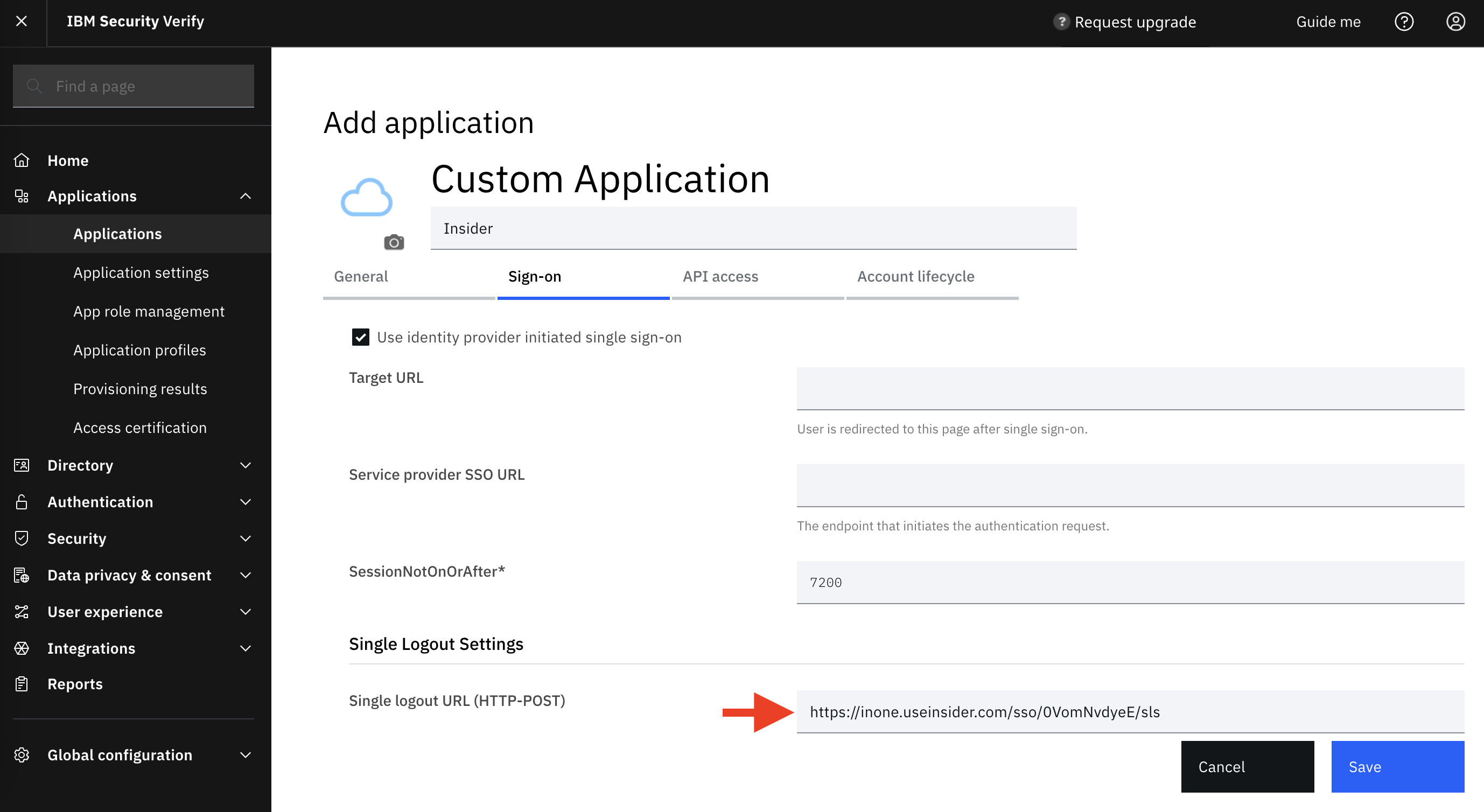
| Single logout URL (HTTP-POST) | Insider Logout URL |
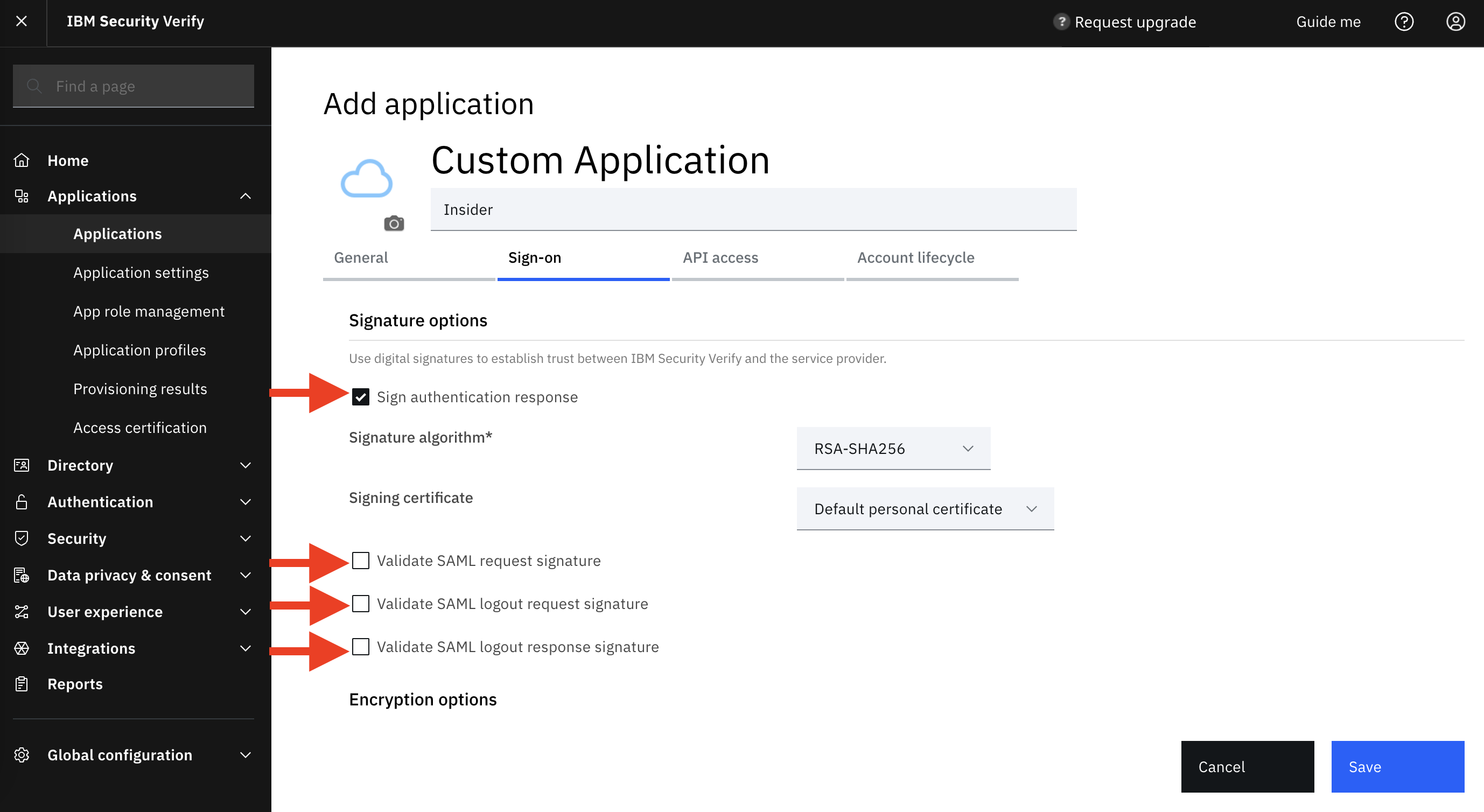
| Sign authentication response | - |
| Signature algorithm* | RSA-SHA256 |
| Signing certificate | Default personal certificate |
| Validate SAML request signature | empty |
| Validate SAML logout request signature | empty |
| Validate SAML logout response signature | empty |
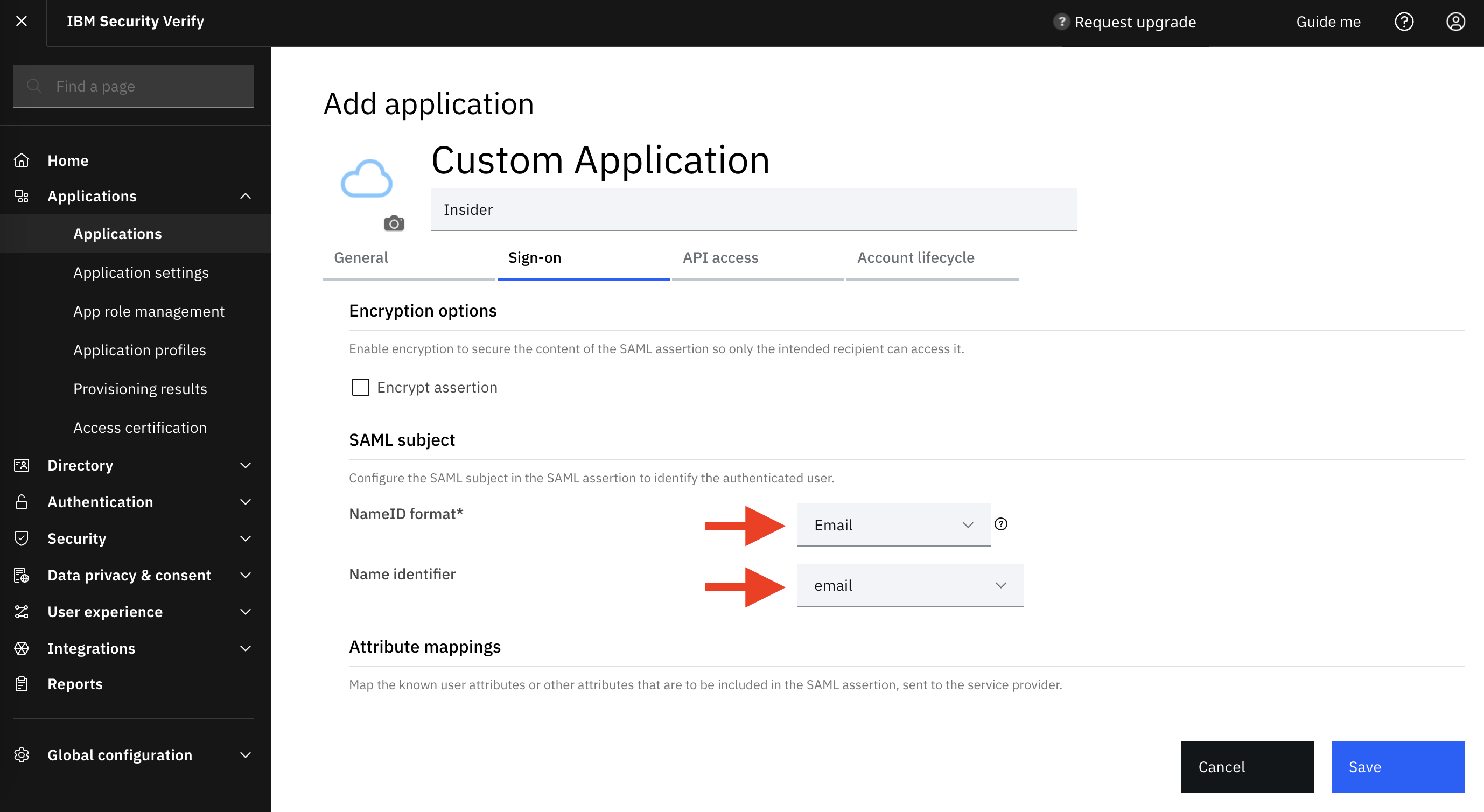
| NameID format* | |
| Name identifier |
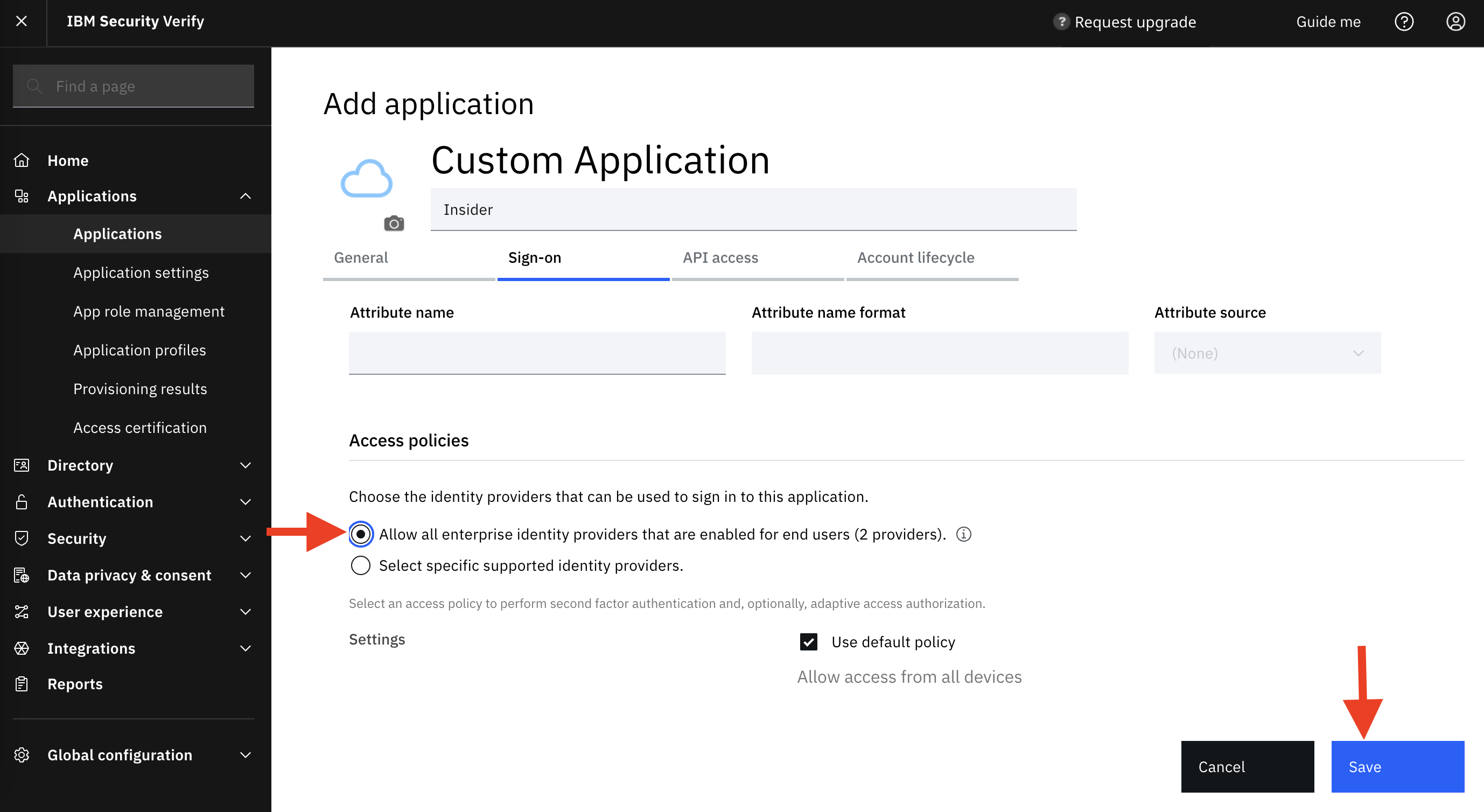
| Allow all enterprise identity providers that are enabled for end users (2 providers) | Checked |
| Use default policy | Checked |
4. To test the connection, you should assign your user to our newly created app. Go to the Entitlements tab, choose “Select users and groups, and assign individual accesses” option as the Access Type, and click the Add button. Select your profile and add the profile to the Insider’s application to successfully test the integration with your login credentials. 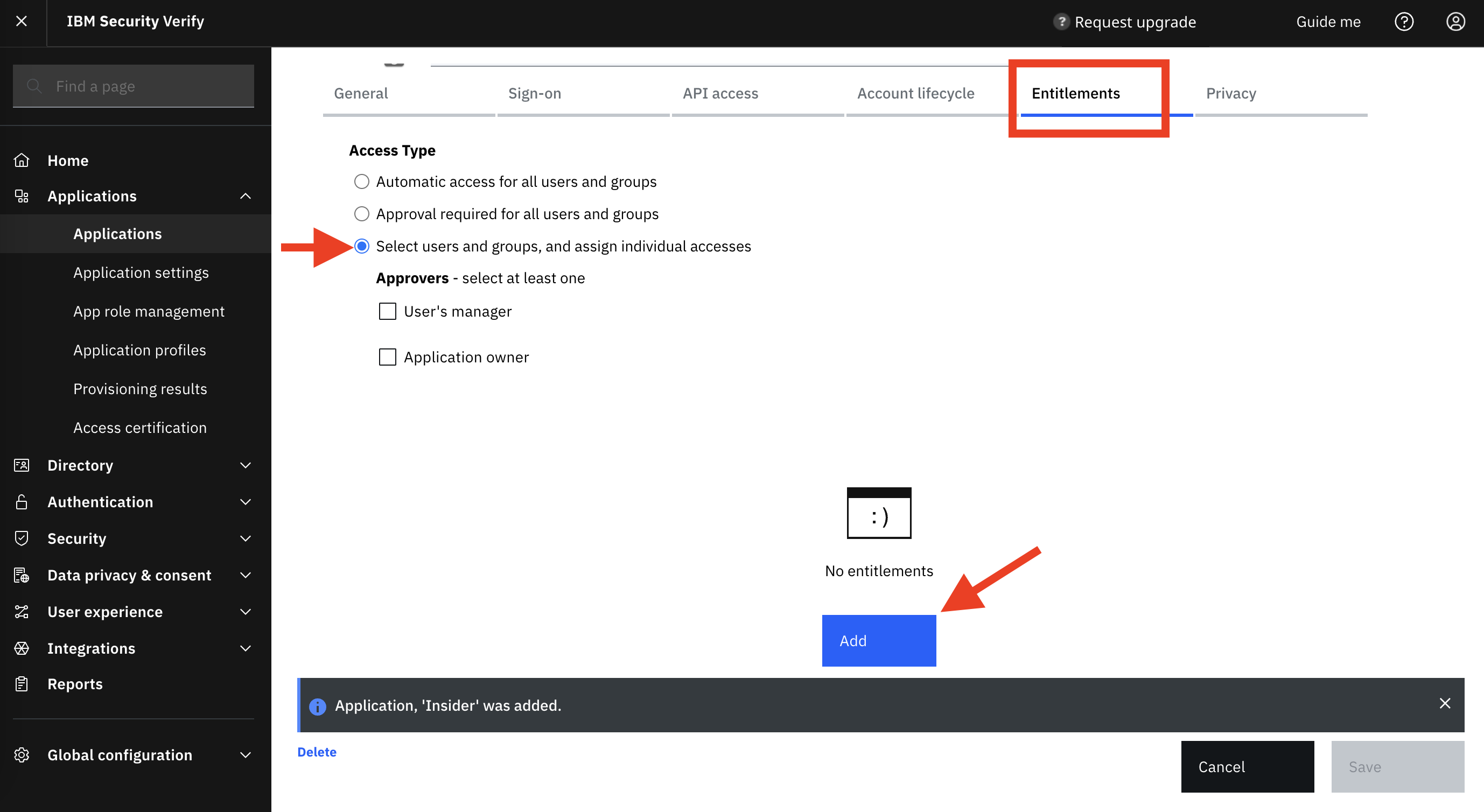
.png)
5. Go to the Sign-on tab on the top menu. Download the Federation Metadata XML. You’ll see an XML file downloaded on your computer. Go to the Insider Security Settings page and upload the XML file you’ve downloaded for the IdP Settings.
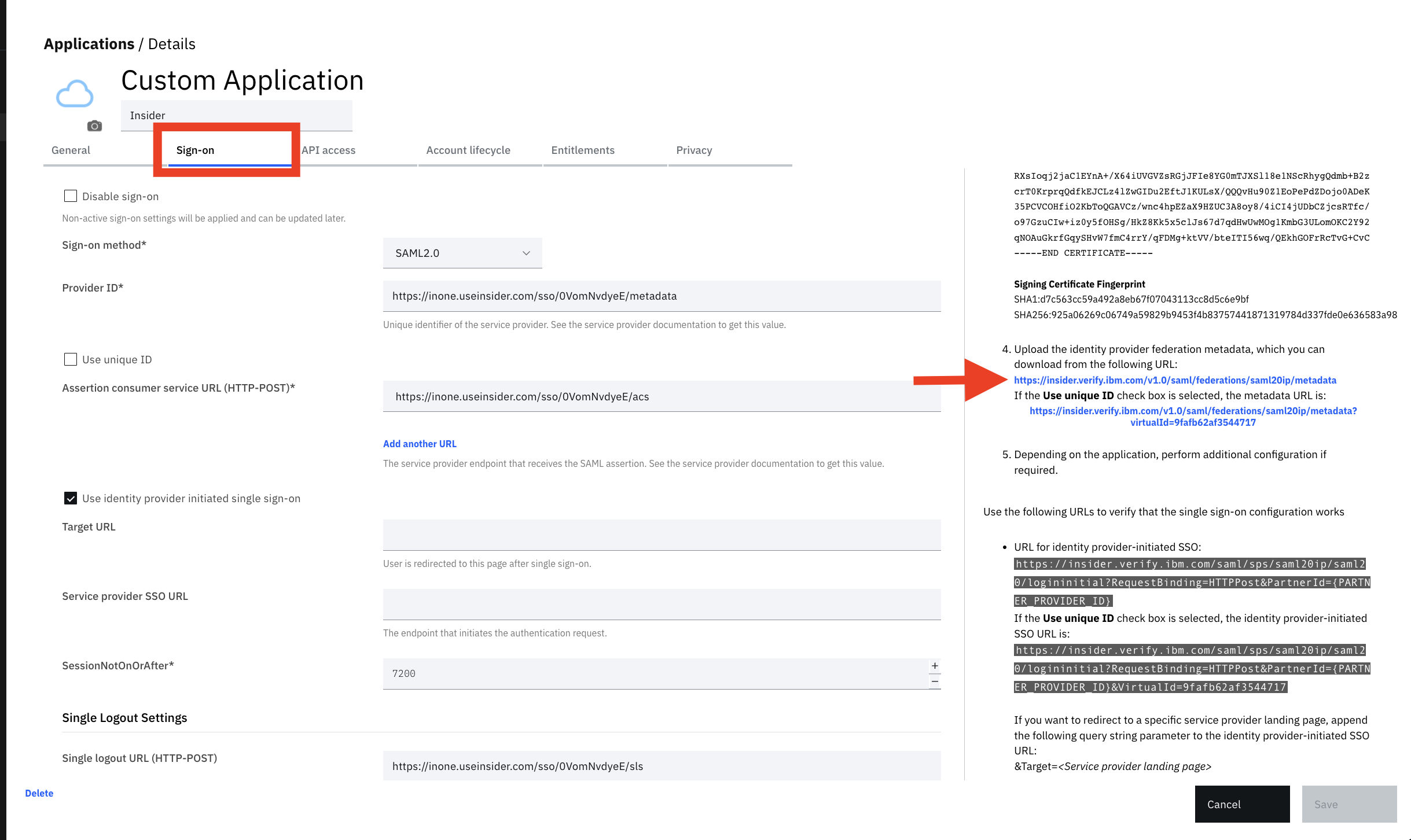
6. Click the Test Connection button to test the connection and save the settings. You are now ready to use the Single Sign-On feature.
Add more users to the Application
Typically, you can log in via email and password registered on Onelogin’s dashboard while testing the Single Sign-On connection. However, to test additional SSO features, you must add another user to the IdP. Here you can find how to add more users to the application.
1. Go to the Directory > Users & groups page. Click the Add User button. Fill in all the necessary inputs as shown, then click the Save button. 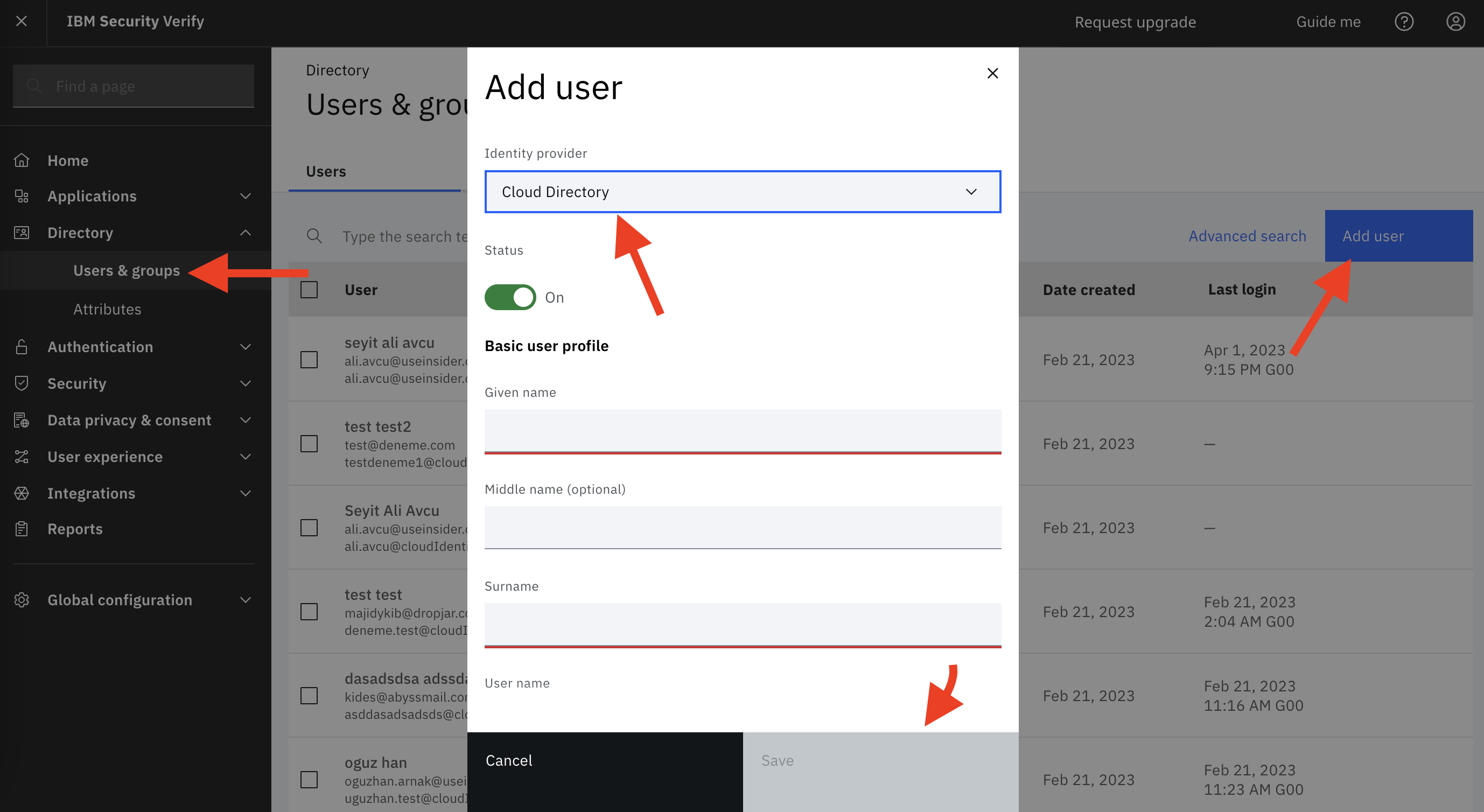
2. Go back to the Entitlements tab on the Insider’s app settings page. Click the Add button. 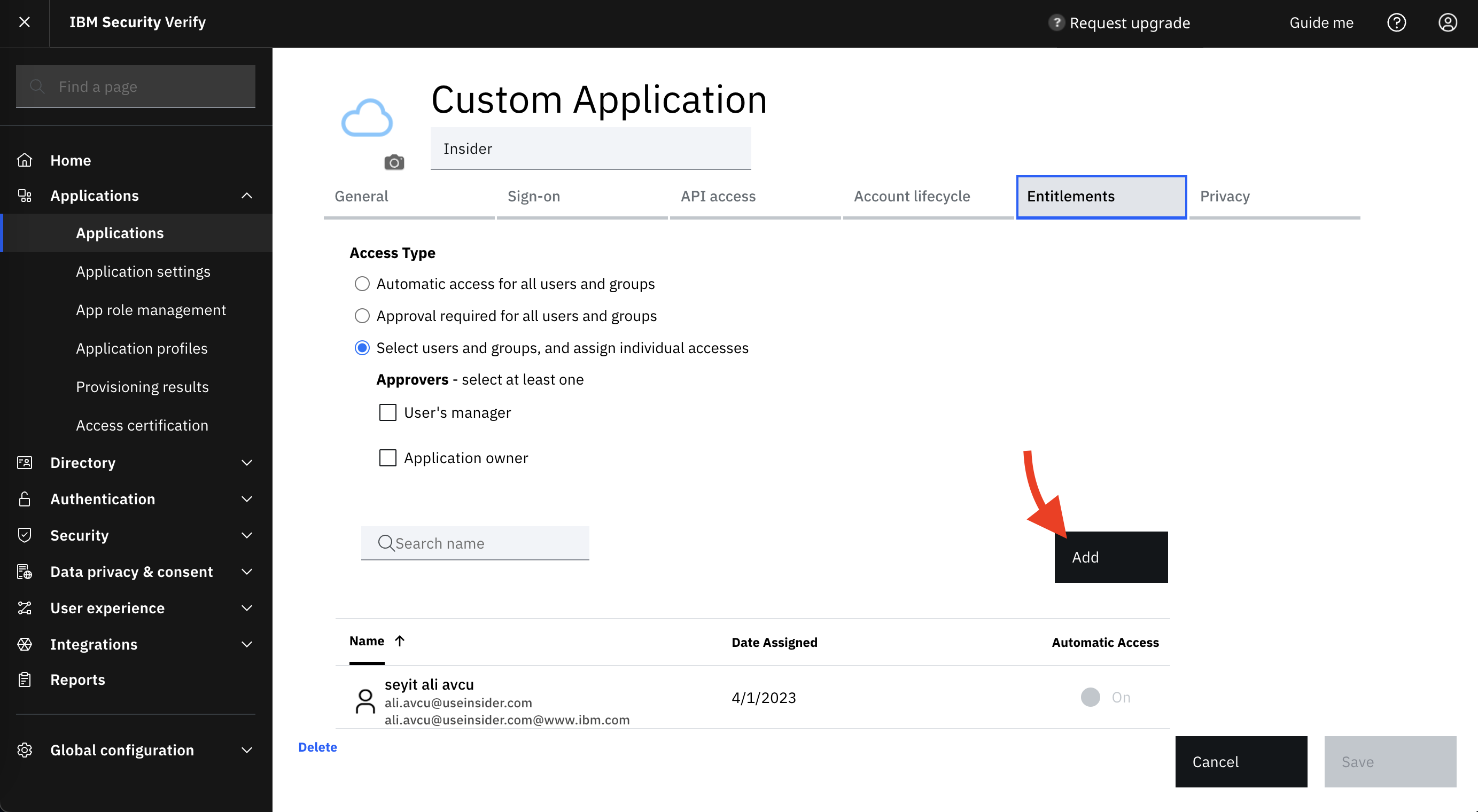
3. Select the user you’ve created from the list and add the user to the Insider app. .png)
Now that you have added a new user, you can start using it to test your Single Sign-On connections.