Single Sign-On (SSO) user authentication service allows you to access multiple applications with one set of login credentials (e.g., your username and password). SSO reduces the number of times a user needs to log in to different systems, increases security with a more centralized authentication process, and improves the user experience.
SSO reduces the risk of security breaches caused by stolen or weak passwords and provides an easy-to-use and secure way to manage user access. With SSO, you can access multiple applications and systems without having to log in to each separately.
Insider One's SSO solution
Insider One offers SSO that enables you to access Insider One's panel, Inone, via your Identity Provider (IdP) and its authorization system. You can grant/revoke access to your users and/or user groups on your IdP, manage user roles on your IdP, and enforce an automatic logout from Inone when a user logs out of their IdP.
With SSO, you can enhance your panel security. It reduces password fatigue, helps your organization enforce consistent security policies, and monitors user activity across multiple systems and applications.
SSO reduces the time and effort required to access multiple systems and applications, allowing your users to focus on their work and complete tasks more efficiently. Overall, this can increase productivity.
It can also reduce the administrative burden and costs associated with managing multiple user accounts and passwords across different systems and applications. Additionally, SSO can help your organization streamline user onboarding and offboarding by reducing the time and effort required to set up and remove user accounts.
SSO can help your organization to comply with regulatory requirements and industry standards related to identity and access management, such as HIPAA, GDPR, and PCI DSS.
Insider One's SSO solution uses SAML 2.0, the latest version of the SAML protocol.
This guide aims to explain the following basic concepts about SSO, and the instructions for setup:
What is SAML?
SAML (Security Assertion Markup Language) is a protocol widely used to exchange authentication and authorization data between parties, particularly between an identity provider (IdP) and a service provider (SP). Our SSO solution uses the latest version of the SAML 2.0 protocol.
What is a Service Provider (SP)?
Service providers are the SaaS (Software as a Service) applications that businesses use, such as Slack, AWS, Figma, Atlassian, etc. Insider One is also a service provider for our customers.
What is an Identity Provider (IdP)?
An identity provider provides authentication services to other systems, services, or applications. Some popular IdPs include Microsoft Azure Active Directory (AD), Okta, JumpCloud, and Ping Identity. An identity provider is responsible for verifying a user's identity and providing the necessary information to access protected resources in an SSO context.
Can I connect an LDAP or Active Directory environment to Insider One?
Yes. Organizations that use LDAP or Microsoft Azure Active Directory (AD) can provide access to Insider One through an identity provider (IdP) that supports SAML 2.0.
Insider One uses SAML 2.0 for SSO authentication. Configure your IdP to authenticate your directory users and send the required SAML response to Insider One. If you use Azure AD as your IdP, see Azure Active Directory Configuration for SSO.
What is Just-in-Time (JIT) User Provisioning?
JIT user provisioning is a method where user accounts are created in a system or an application only when they are needed but not beforehand. In this system, when a user tries to access a system or application for the first time, the system checks whether they already have an account. If they do not have one, the system creates a new account and assigns the necessary permissions and access based on their identity and role.
With JIT as part of the SSO, once users are granted access from the IdP, their user will be automatically created in Inone when they first sign in with SSO.
If you enable both JIT and SCIM, the user provisioning is executed via SCIM. If only JIT is enabled, it is executed via JIT.
What is System for Cross-domain Identity Management (SCIM)?
SCIM is an open standard that automates user identity management in cloud-based services and applications. It allows administrators to manage user identities across multiple systems and applications on their IdP, simplifying user provisioning and management.
SCIM allows you to manage users' roles on your IdP and grant or revoke user access. With SCIM integrated into SSO, once users are granted access via the IdP, their accounts will be automatically created in InOne when they first sign in via SSO.
Requirements for SSO setup
You should have the Administrator role on InOne. Refer to User Management for further details.
You should have administrator access on your IdP.
How to set up SSO
To set up SSO, follow these instructions:
1. Go to InOne and navigate to Settings > InOne Settings > Security.
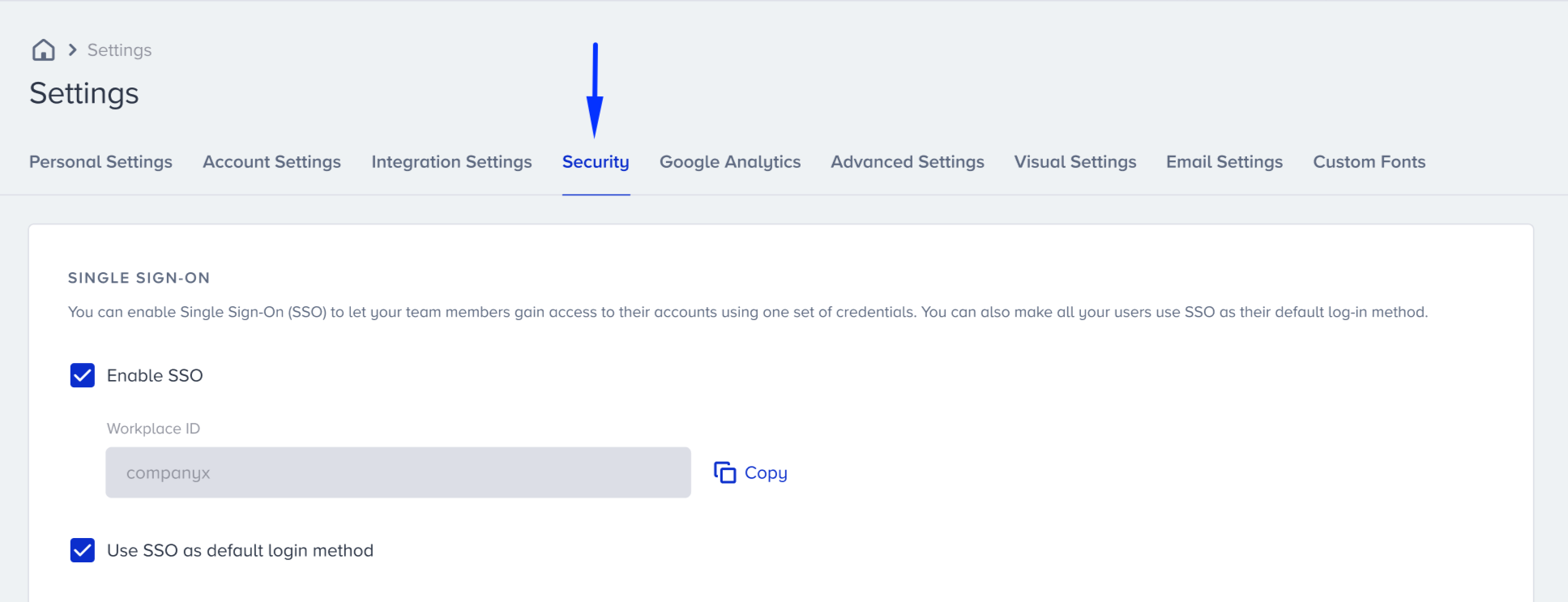
2. Check the "Enable SSO" box. The Workplace ID is the same as your panel name and will be used by users to access the panel when they first sign in with SSO.
3. If you want to enforce that all of your users access the panel via SSO, check the "Use SSO as default login method" box.
Once you enable this option, your current users will not be able to use their Insider One usernames and passwords.
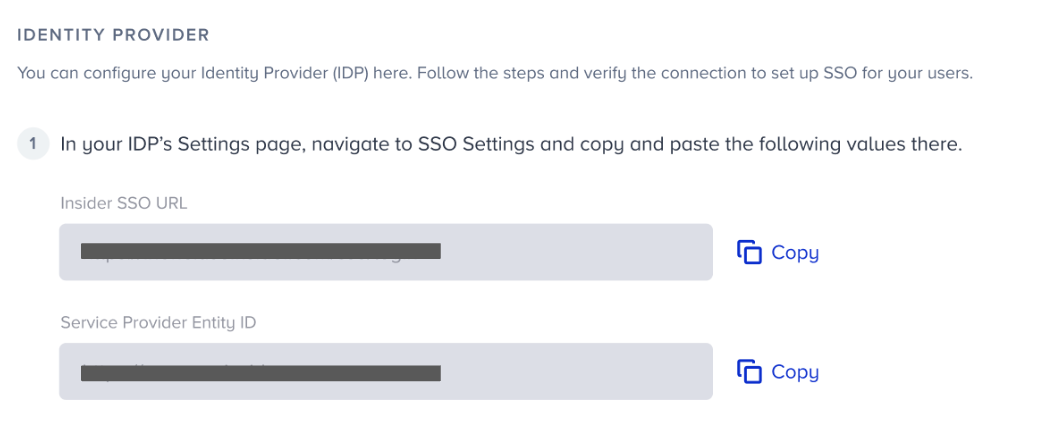
4. Copy the given Insider SSO URL and Service Provider Entity ID, and paste them into the related sections in your IdP.
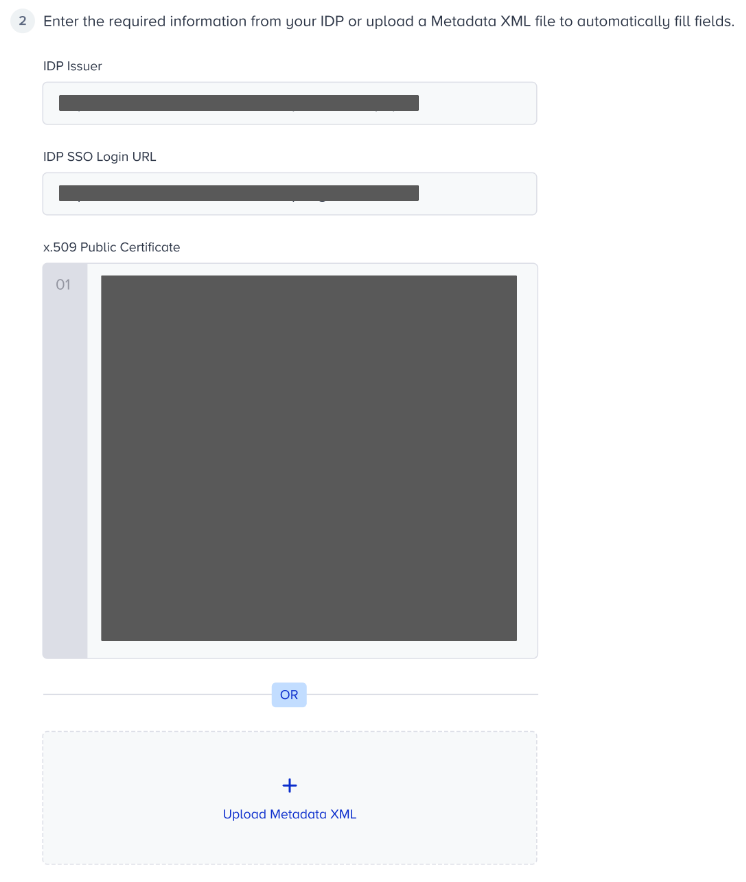
5. Copy the related information from your IdP and paste it into Insider One. You can also use the “Upload Metadata XML” option to upload the file you obtain from your IdP and have the input fields populated automatically.
6. Click the Test SSO Connection button to test your connection. If there is an error, you can see the error code displayed next to the button. Accordingly, you can troubleshoot it and fix it.
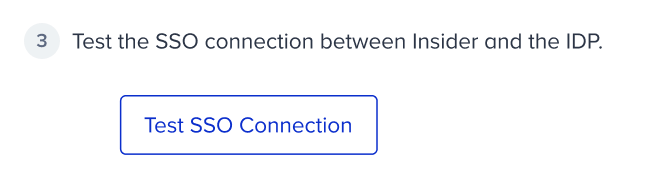
You should pass the SSO connection test to save your settings.
7. Once you pass it, save your settings.
Congrats! You have successfully set up SSO for your users.
How to set up additional functionalities
You can set up JIT user provisioning, SCIM, and single logout as additional options.
JIT User Provisioning
To set it up, check the "Enable JIT Provisioning" box.

SCIM
To set it up, follow these instructions:
1. Check the "Enable SCIM" box.
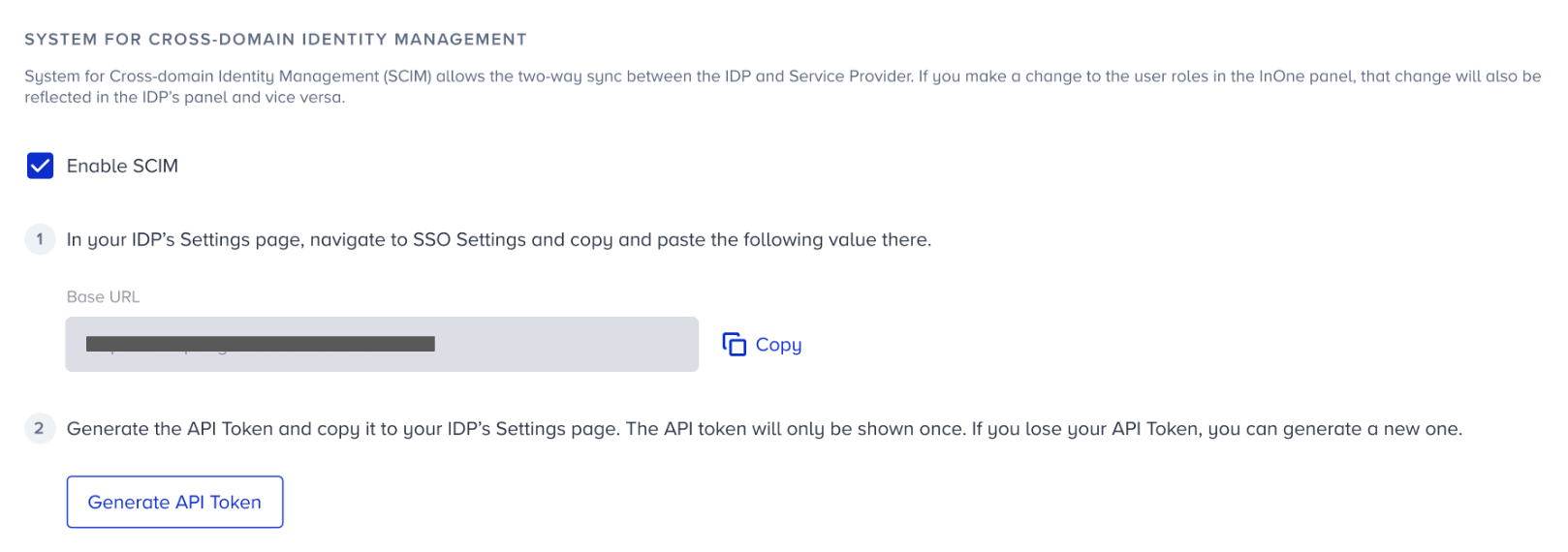
2. Copy the given Base URL and add it to the related section in your IdP.
3. Click the Generate API Token button. To access your one-time API token, click the Generate button on the prompt.
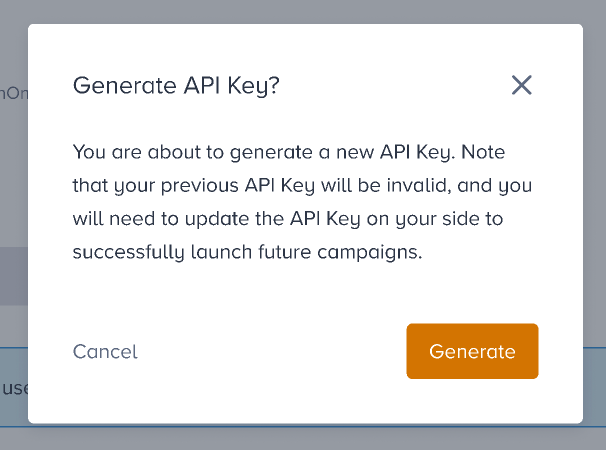
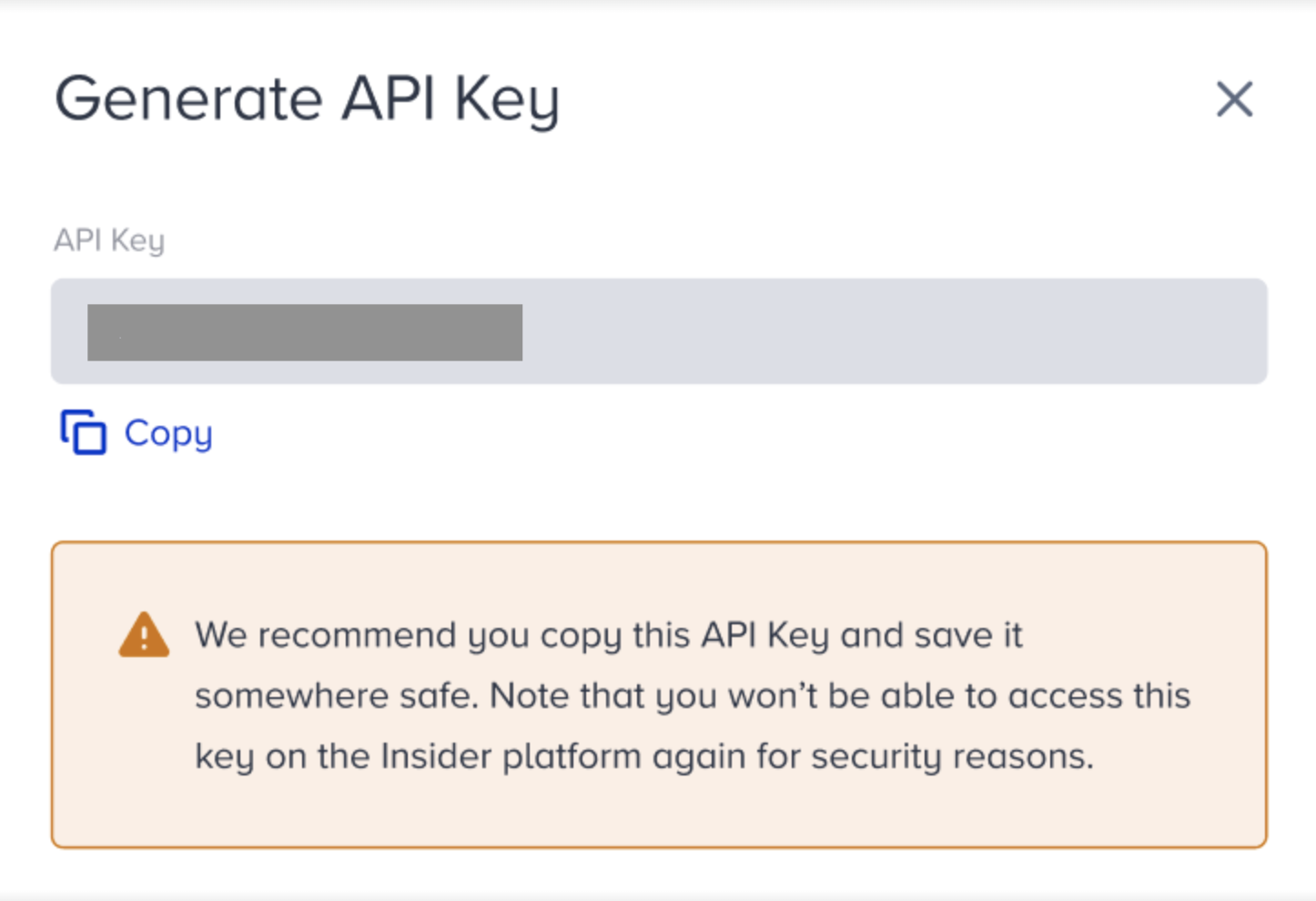
4. Enter the generated API token in the related field in your IdP, and save it in case it may be of use in the future.
If you lose it or do not save it and need a token later, you need to generate another API token and update it on your IdP as well.
Single Logout
To set up single logout for your users, follow these instructions:
1. Check the "Enable SLO" box.
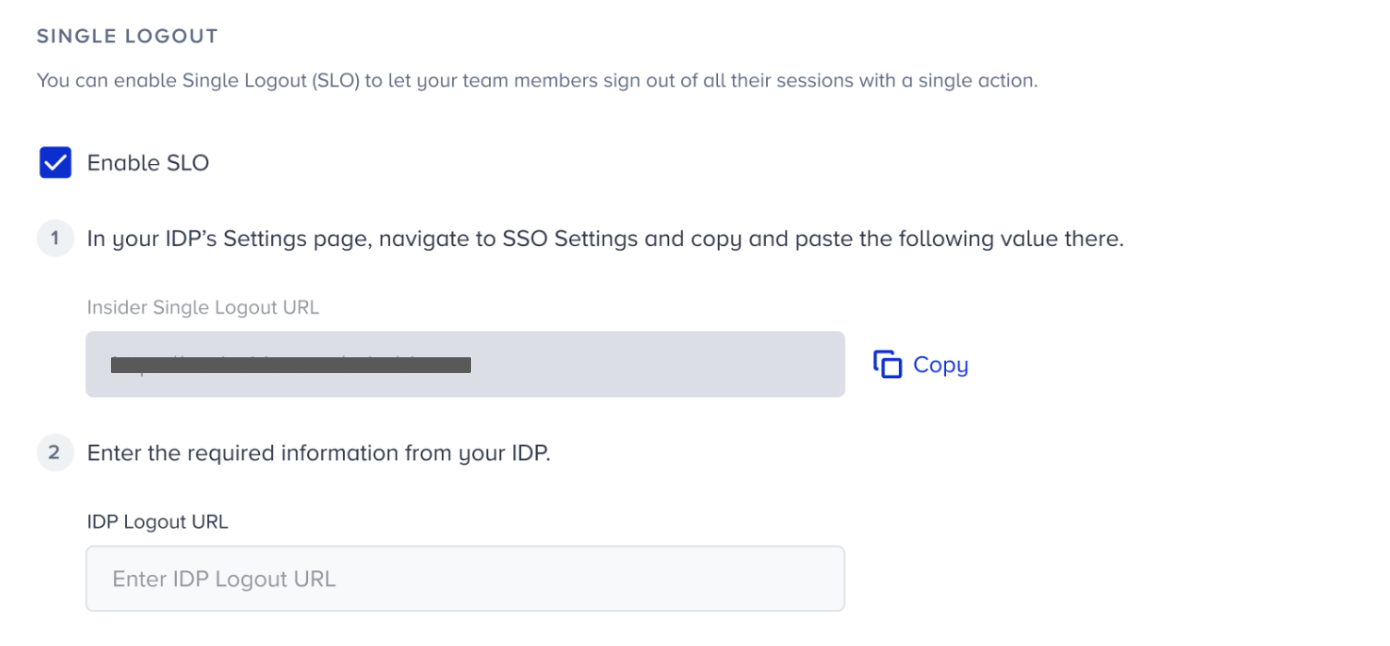
2. Copy the given Insider Single Logout URL, and paste it into the related field in your IdP. Copy the IdP Logout URL given in your IdP, and paste it to the related field on Inone.
How to log in to Insider with SSO
To log in to Insider One with SSO, follow these instructions:
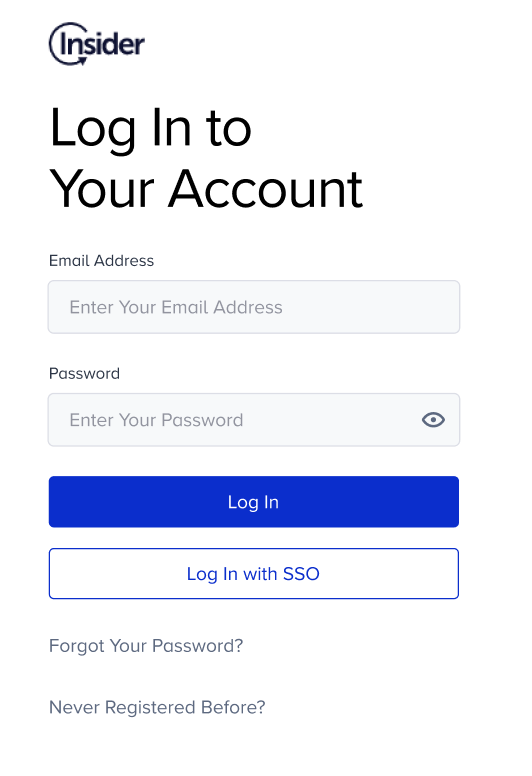
1. Go to the login page of Inone.
2. Click the Log in with SSO button.
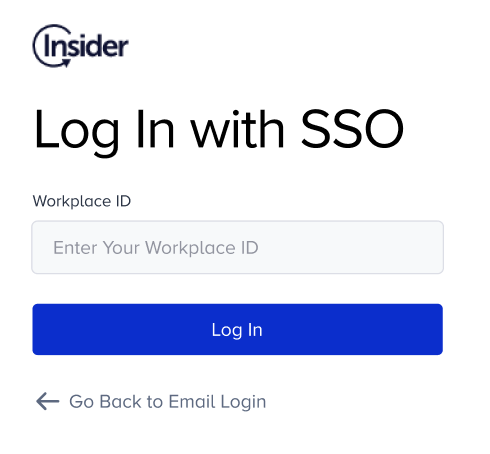
3. Enter your workplace ID. This is the name of the panel you want to access. You can also see the Workplace ID via Settings > Inone Settings > Security.
4. You will be directed to the IdP login page. Enter your IdP credentials and click the log in button.
Multi-domain customers
To assign different user roles to each person across different panels, you have to set up separate applications on your IdP for each domain.
For example, User A will have the Edit & Publish role on the Germany panel and the Collaborate role on the France panel, and User B will have the Manage Users role on the Japan, Korea, and Singapore panels. Let's say you have five panels and only two users.
In this case, you need to create 5 applications on your IdP, one for each country. You will connect each InOne panel to each application. For example, you should create an application for InsiderFrance on your IdP. Using the information and steps on screen, integrate them with the actual Insider France panel. After that, you should create another application for Insider Germany on your IdP; then they will set that one up with your actual Insider Germany panel. At the end, you will see 5 Insider One applications on your IdP.
To manage user roles for each panel, you should generate API tokens and set up SCIM for each panel as well. At this point, you can enter any of these applications and set user roles.
Let’s say you enter the Insider Germany application on your IdP and grant the Edit & Publish role to User A. Currently, User A has access only to the Germany panel, not the other panels. Then, you enter the Insider France application and grant access to User A and select the Collaborate role. Now, User A has different user roles in the Germany and France panels and no access to the Japan, Korea, or Singapore panels.
You can also think of User A and User B as Group A and Group B, meaning you can grant access/give user roles to a whole group but not only users.
Benefits of Single Sign-On
Improved user experience: With SSO, your users only need to remember one set of credentials to access multiple systems and applications. This eliminates the need to repeatedly enter login information and makes the user experience more seamless and convenient.
Enhanced security: SSO reduces password fatigue and encourages stronger, more complex passwords. Additionally, SSO can help your organization to enforce consistent security policies and monitor user activity across multiple systems and applications.
Increased productivity: SSO reduces the time and effort required to access multiple systems and applications to improve productivity, allowing your users to focus on their work and complete tasks more efficiently.
Cost savings: SSO can reduce the administrative burden and costs associated with managing multiple user accounts and passwords across different systems and applications. Additionally, SSO can help your organization streamline user onboarding and offboarding, reducing the time and effort required to set up and remove user accounts.
Compliance: SSO can help your organization to comply with regulatory requirements and industry standards related to identity and access management, such as HIPAA, GDPR, and PCI DSS.