You cannot make any changes to External Platform Integrations without having either an Administrator or an Editor with PII access in InOne. Refer to User Roles for further information.
Purchase Data Synchronization allows you to view each user's purchase data on Insider One's InOne platform and segment them using the Purchase event on messaging channels and Architect. This feature allows you to collect:
Historical Purchase Data Synchronization
Historical purchase event sync is triggered automatically when you activate the Shopify App integration from the InOne panel.
It might take some time for all your users’ purchase information to be migrated to the Insider One Database.
Insider One only collects purchase data according to the TTL of your purchase event. By default, it is stored for 2 years, but this duration can be extended as needed. Reach out to the Insider One team if you have such a requirement. Refer to the Data Retention for more information.
Insider One only collects orders with an Open or Archived status on the Shopify Store.
Name on Insider | Name on Shopify |
|---|---|
Timestamp | o.GetOrderDate().UTC().Format(time.RFC3339) |
EventParams | |
event_group_id | o.Id |
product_id | l.ProductId |
name | l.GetProductName() |
product_image_url | p.Image.Src |
quantity | l.Quantity |
size | v.GetSize() |
color | v.GetColor() |
url | p.GetUrl(domain) |
currency | l.PriceSet.ShopMoney.CurrencyCode |
unit_price | l.GetUnitPrice() |
unit_price_sale | l.GetUnitSalePrice() |
displayed_currency | l.PriceSet.PresentmentMoney.CurrencyCode |
displayed_unit_sales_price | l.GetDisplayedUnitSalePrice() |
displayed_unit_price | l.GetDisplayedUnitPrice() |
taxonomy | p.Taxonomies |
promotion_name | o.DiscountCodes.GetCode() |
promotion_discount | o.TotalDiscounts |
shipping_cost | o.TotalShippingPriceSet.ShopMoney.Amount |
source_name | web |
shopify_order_name | o.Name |
product_type | p.ProductType |
Insider One does not collect any custom event parameters other than those listed above.
Test and confirm the Purchase Data Synchronization
Once you enable existing and new purchase data synchronization, you can easily test each data synchronization from the User Profiles on Insider One's InOne panel.
Test existing Purchase Events Synchronization
Once you enable the Existing Purchase Events toggle, migrating all purchase data to Insider One might take some time. Testing it after 24 hours would be sufficient to see all purchase details on Insider One's InOne panel.
Check the number of unique users who made purchases on Shopify
Insider One segmentation showcases the number of users who have Purchase information, whereas Shopify shows the number of purchases that have been made. So, when comparing purchase data on two different platforms, you need to compare the number of unique users who have made purchases on each platform.
You can create a segment of customers who have made purchases on the Shopify platform as follows: 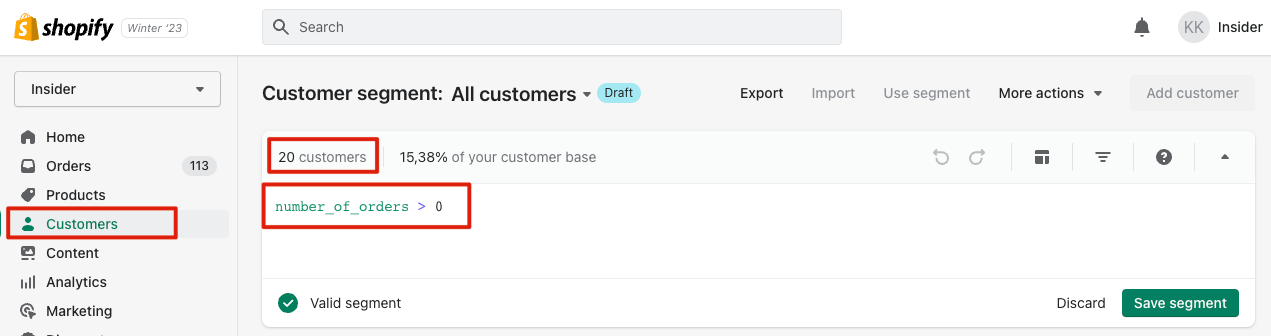
Check the number of unique users who have made purchases on Insider One's InOne panel
To create a segment of users who have made purchases, navigate to the Audience > User Profiles page and apply advanced filtering.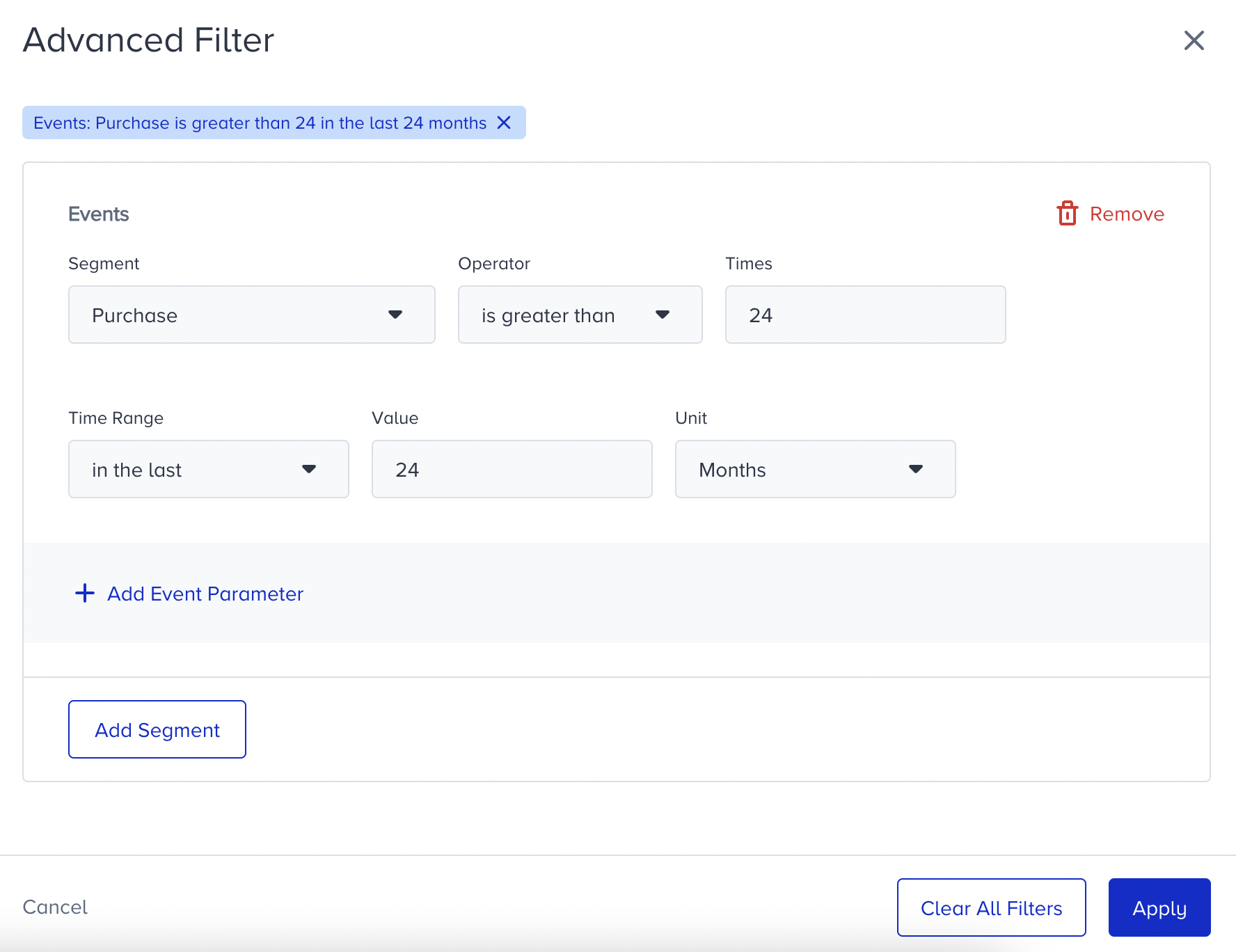

Real-Time Purchase Data Synchronization
Insider One uses Custom Web Pixel to collect real-time purchase data. Ensure that you have implemented the Custom Web Pixel.
For real-time purchase data synchronization, Insider One sends six different custom parameters via purchase event. To use these parameters, ensure that custom parameters are created automatically. If not, refer to the Create Custom Event Parameter for Purchase Events section to create it.
Parameter Name | Data Type | Usage |
|---|---|---|
c_delivery_options_title | Array Strings | Title of the selected shipping method. For example, if there are two shipping methods, Fast and Standard, you can see the title as Fast or Standard. |
c_delivery_options_type | Array Strings | Type of shipping method, such as pickup, shipping, etc. |
c_variant_title | String | The title of the variant that users will see during their shopping experience. For example, if a product comes in different color options, such as blue and red, the user will see the "color" options (e.g., blue or red). |
c_untranslated_variant_title | String | The untranslated version of the variant title, meaning the internal or original name that exists in the store's backend. For example, if your store is in English but also supports Turkish, and a user chooses "mavi" (which is blue in Turkish), the c_variant_title would return "blue," but the c_untranslated_variant_title would return "mavi" (its primary language). This ensures the system captures what was chosen even when the store has different language settings. |
c_product_coupon_codes | Array Strings | The coupon code that is applied to the product itself |
c_cart_coupon_codes | Array Strings | The coupon code that is applied to the whole cart |
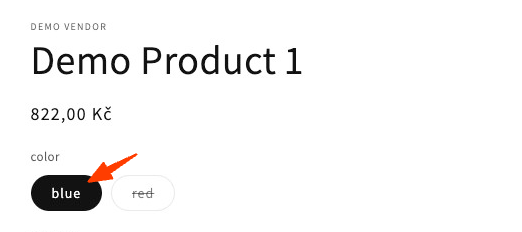
c_untranslated_variant_title enables you to apply the same actions to users who purchase the same variant, regardless of the language.
Create Custom Event Parameter for Purchase Events
To create Custom Event Parameter for Purchase Events,
Navigate to Components > Attributes and Events on the Insider One's InOne panel.
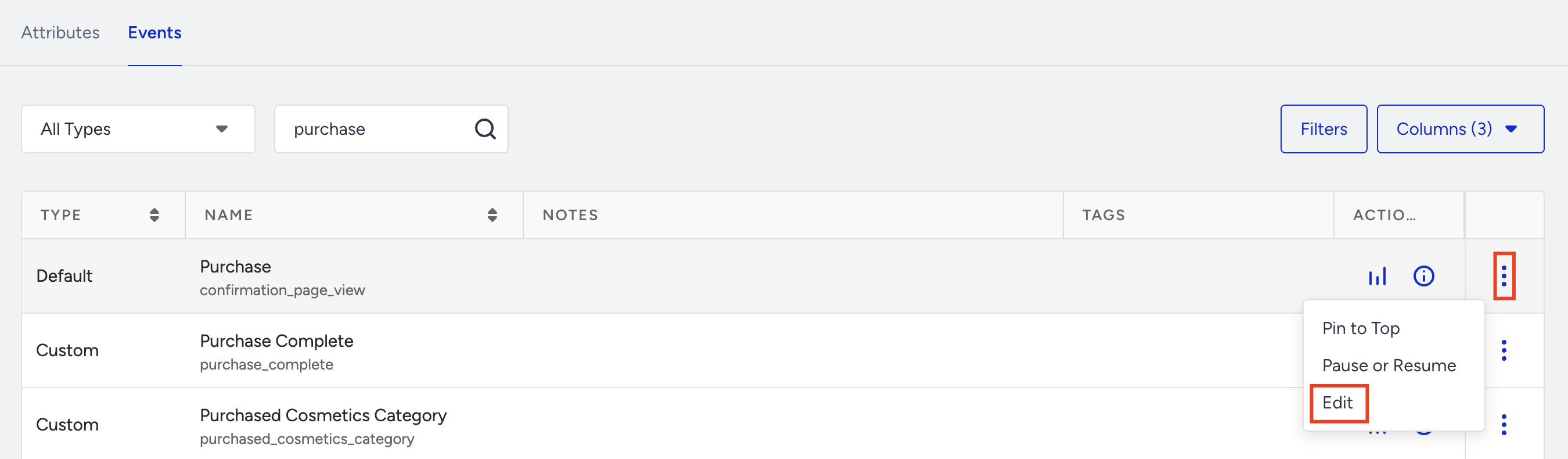
Switch to the Events tab and search for "purchase".
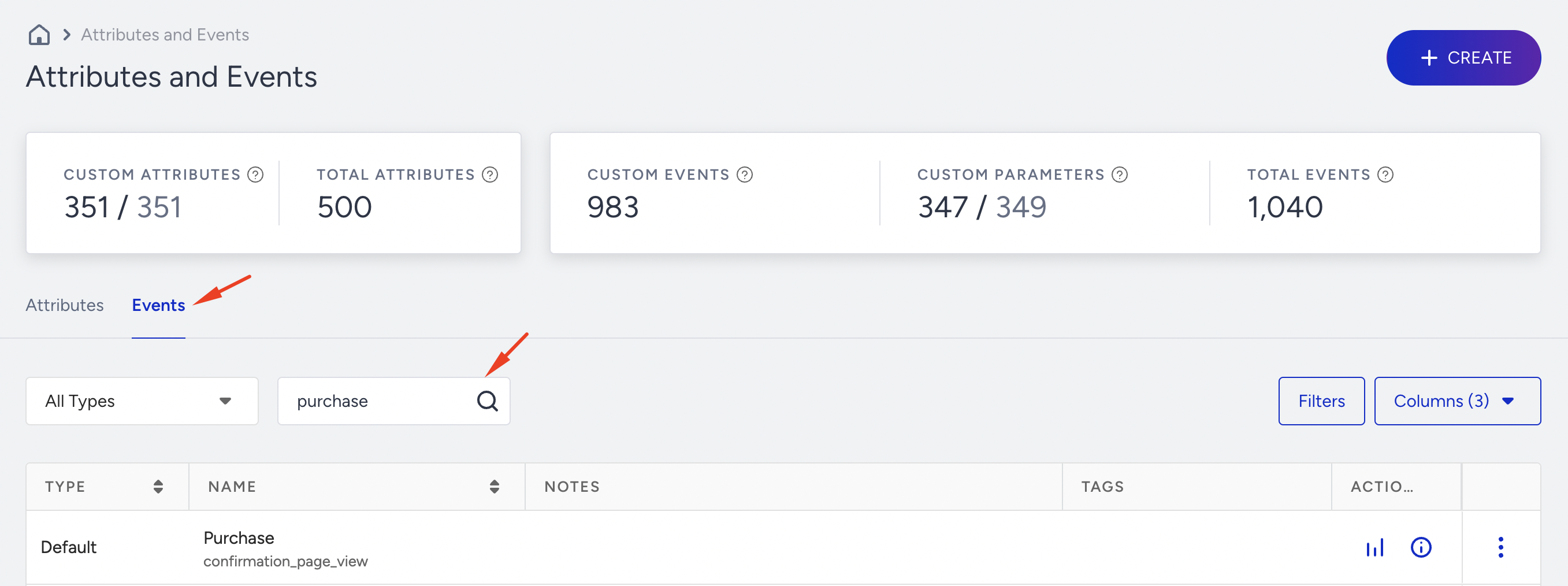
Click the three dots menu against it and select the Edit option.
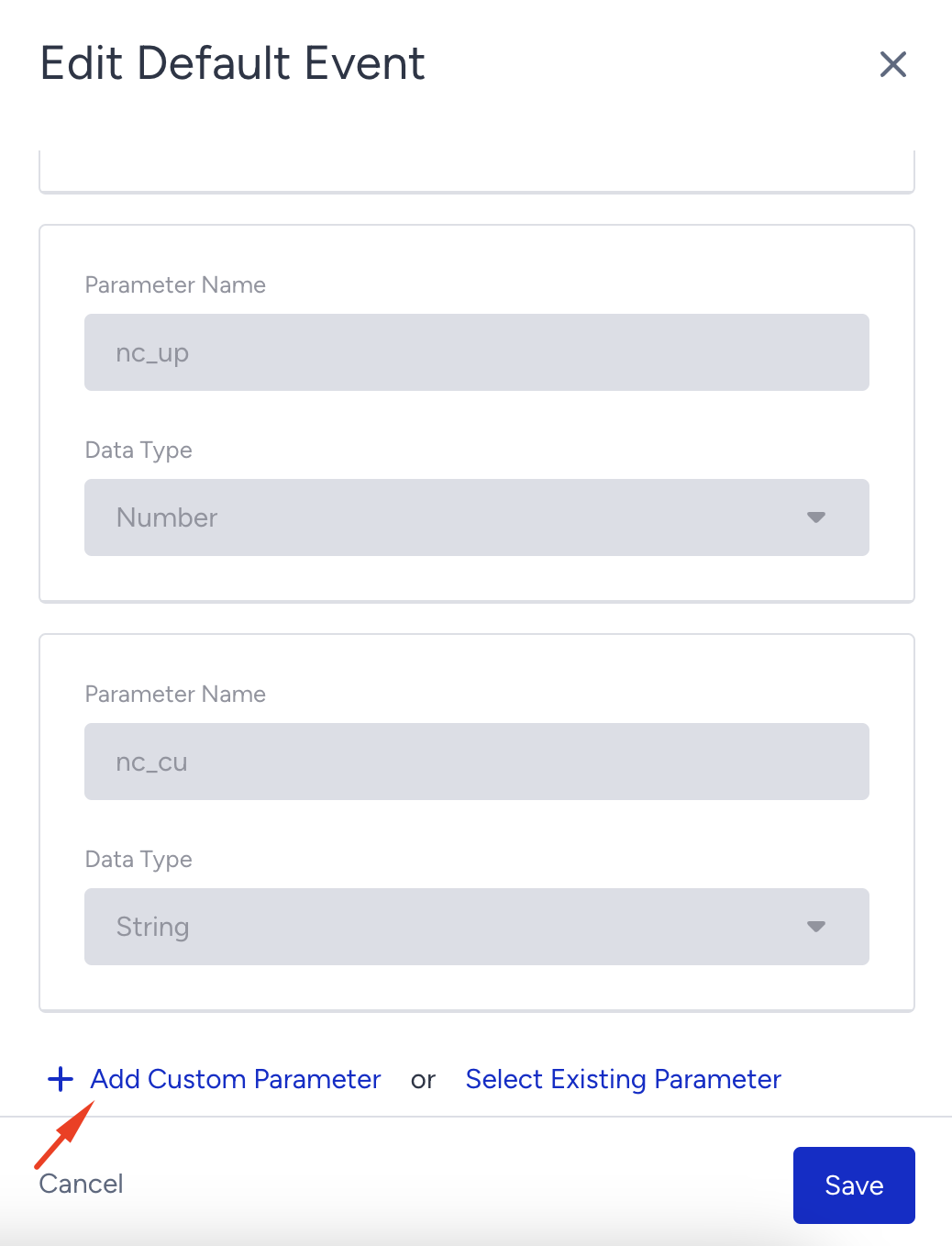
Scroll down to the end of the modal and click on the +Add Custom Parameter option.
Add the parameter and click the Save button.
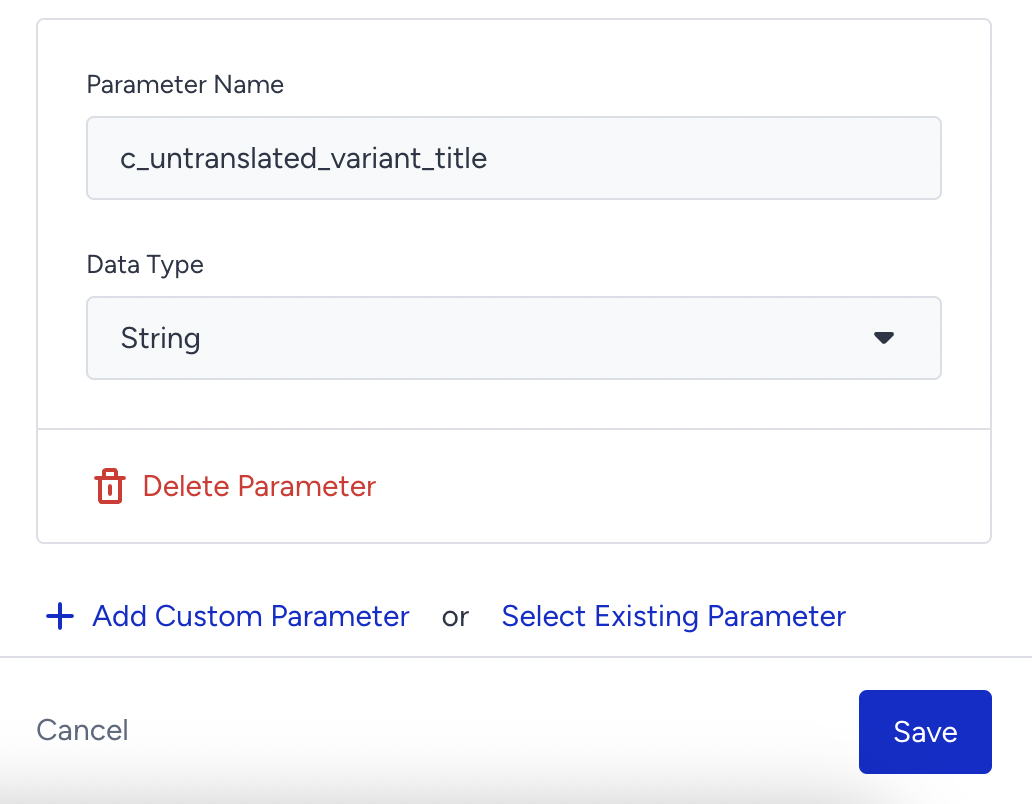
While adding the custom event parameter, select the correct data type for each parameter.
Parameter Name | Data Type |
|---|---|
c_delivery_options_title | Array Strings |
c_delivery_options_type | Array Strings |
c_variant_title | String |
c_untranslated_variant_title | String |
c_product_coupon_codes | Array Strings |
c_cart_coupon_codes | Array Strings |