You cannot make any changes to External Platform Integrations without having either an Administrator or an Editor with PII access in InOne. Refer to User Roles for further information.
Shopify Product Catalog Synchronization allows you to sync your existing Shopify product catalog data with Insider One. This synchronization enables you to view your product catalog on Insider One's InOne platform and utilize the data across various Insider One products, such as Smart Recommender.
Understanding Product Catalog Synchronization
With the Product Catalog Synchronization feature, you can send your existing product Catalog data to Insider One. Once you enable the synchronization, you enable a server-to-server connection between Shopify and Insider One to collect all existing catalog information. Besides, Insider One can collect any catalog change that happens on your Shopify Store.
If you already have configurations to collect Product Catalog information from another source, please contact the Insider One team to change them.
Integrate Product Catalog Synchronization
To integrate Product Catalog Synchronization, check the “Sync Shopify Product Catalog to Insider One via Shopify API” checkbox and activate or update the integration. Insider One starts to collect product information from Shopify via the API.
Migrating product catalog data to Insider One Database might take a while to process.
When the sync starts, it is not possible to stop the syncing process.
You can use the Resync Product Catalog button to sync all of your product base with Insider One again.
Product Catalog Collection from Shopify to Insider One
Below is a list of product catalog details that you can pass from Shopify to Insider One. Once you enable the Product Catalog Synchronization, Insider One collects the following information from Shopify by default. If you add any other option or metafield mapped to an Insider One Product attribute, it will also collect those.
Product Attribute on Shopify | Product Attribute on Insider One |
|---|---|
variant.id | Item ID |
body_html | Description |
product_id | Groupcode |
product_type | Product Type |
language_country | Locale |
title | Name |
default store currency | Currency |
handle | URL |
images.src | Image URL |
Product.hasOutOfStockVariants | In Stock |
variants.price | Price |
variants.price | Original Price |
inventory.quantity | Quantity |
sku | SKU |
inventory_quantity | Stock |
creation_date (for variant) | activation_date |
collections | category |
Important:
Insider One supports syncing up to 100 categories per product from Shopify.
If a product is assigned to more than 100 categories in Shopify, any categories beyond the first 100 will be cropped during synchronization.
Insider One can only collect one locale and one currency, which is the primary locale and primary currency, via the API from Shopify. If you want to populate other locales and currencies, please contact the Insider One team.
Bulk edits to Cost per Item do not trigger product updates.
Changes to Unavailable Count do not trigger product updates.
Removal of a variant metafield value does not trigger product updates.
Products without variants: Variant metafield updates do not trigger product updates.
Deleting a variant metafield definition does not trigger product updates.
Deleting a variant metafield value is not reflected in product updates on Insider One side.
Collections created or updated in Shopify are automatically synced to Insider One’s product catalog in real time live sync via webhooks.
As a fallback, Collections in the product catalog are refreshed daily at 8 AM UTC through the historical sync.
Collections with more than 25K assigned products are excluded from real-time creation and updates in Insider One’s Product Catalog and are instead synced at 8 AM UTC during the daily historical sync.
Synchronize Product Category
By default, Insider One maps Shopify Collections to the category field in Insider One. This allows you to use these categories in Smart Recommender or Eureka campaigns. You can customize this mapping according to your specific needs. In addition to collections, you may choose to map one of the following Shopify fields to Insider One’s category:
Collections
Category
Tags
Product Type
Product / Category Metafields (Variant metafields are not suitable for category usage.)
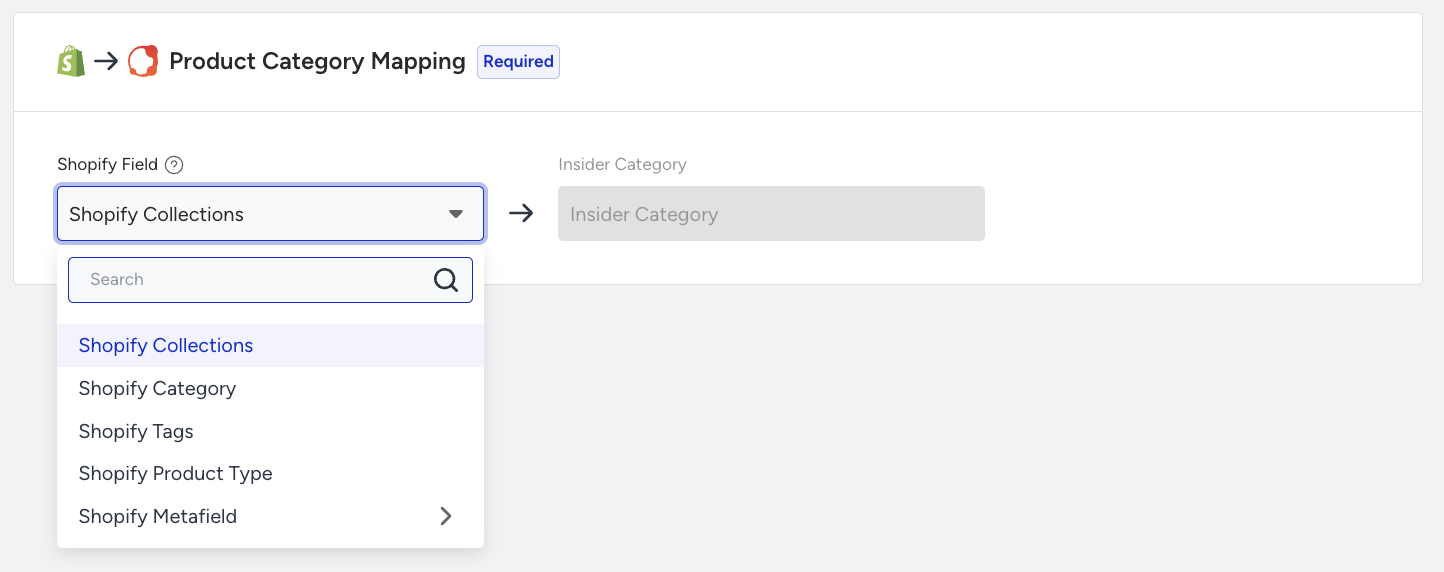
If you choose to change the default category mapping from Collections to another field (e.g., Product Type, Tags, or Metafields), but still want to use Shopify Collections in your campaigns, make sure to map Collections separately. 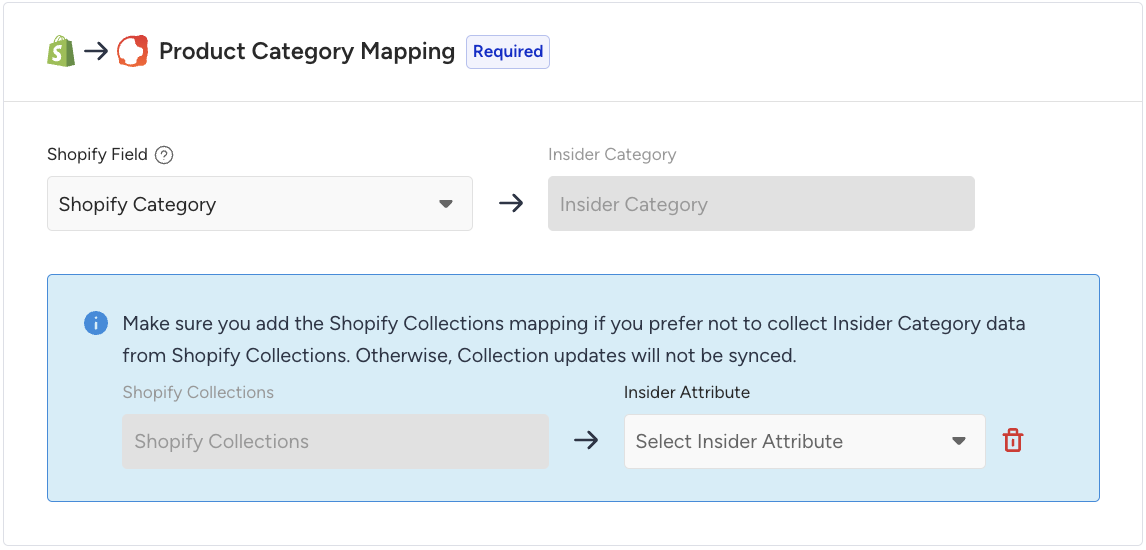
You can update the category mapping at any time. If you are using Insider One’s App Embed, the mapping will be updated automatically. However, if you're using Shopify Hydrogen or a custom storefront where the App Embed cannot be used, you'll need to manually update the taxonomy object in the Insider Object (IO). This ensures that Insider One pulls category values from the correct field. For example, if you choose to map Shopify Tags to Insider One’s Category, you must also update the taxonomy object in the IO to use Shopify’s Tags accordingly.
Synchronize Product Options
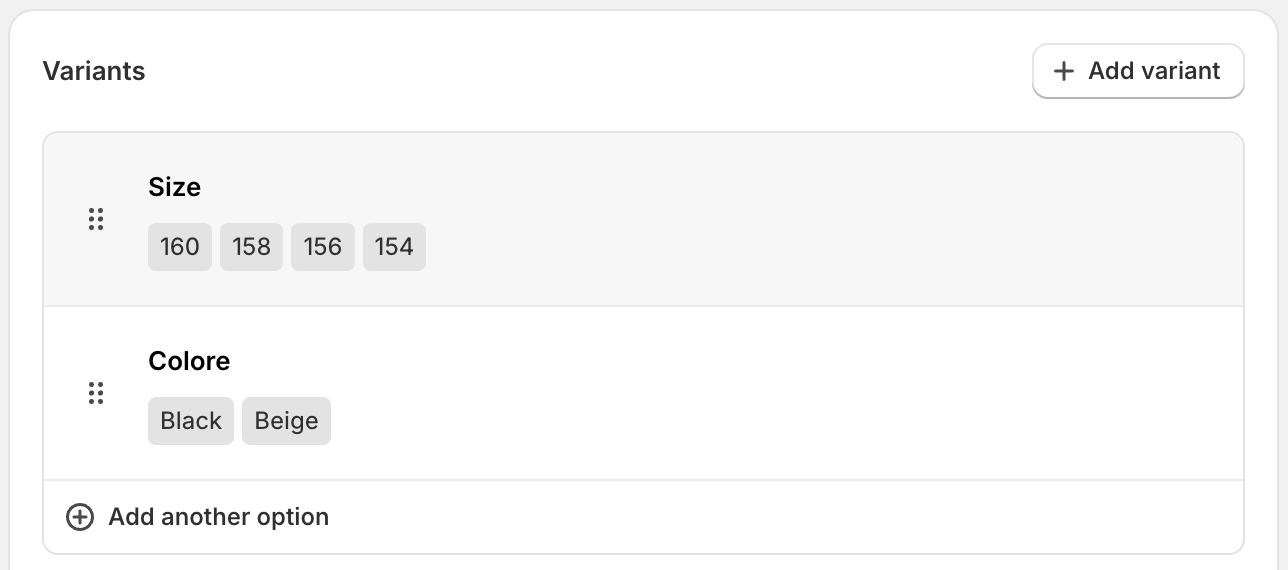
Shopify provides option fields for merchants to manage product variants, which can be mapped accordingly.
For example, assume that you have an option called Size for your product. You need to create a custom product attribute.
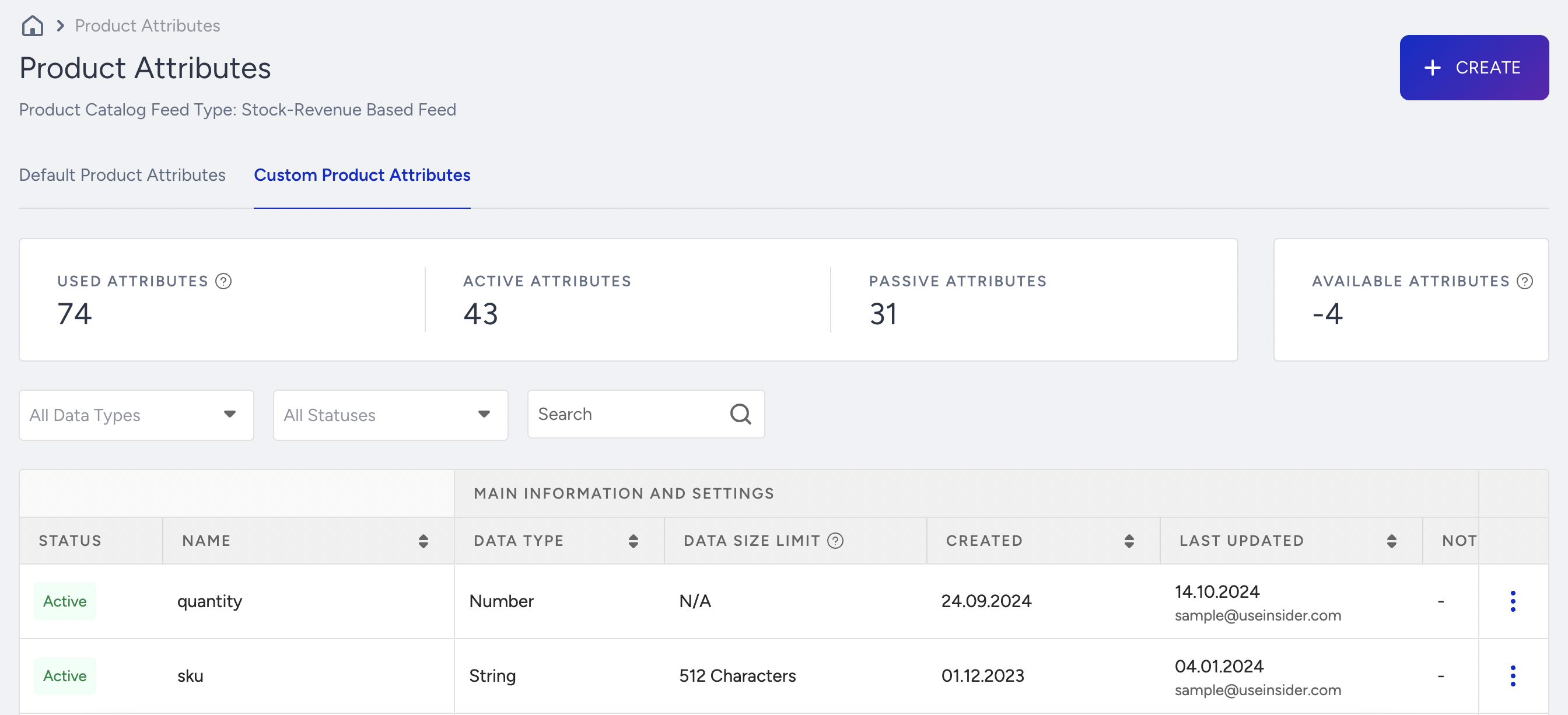
Navigate to Components > Product Catalog Manager > Product Attributes.
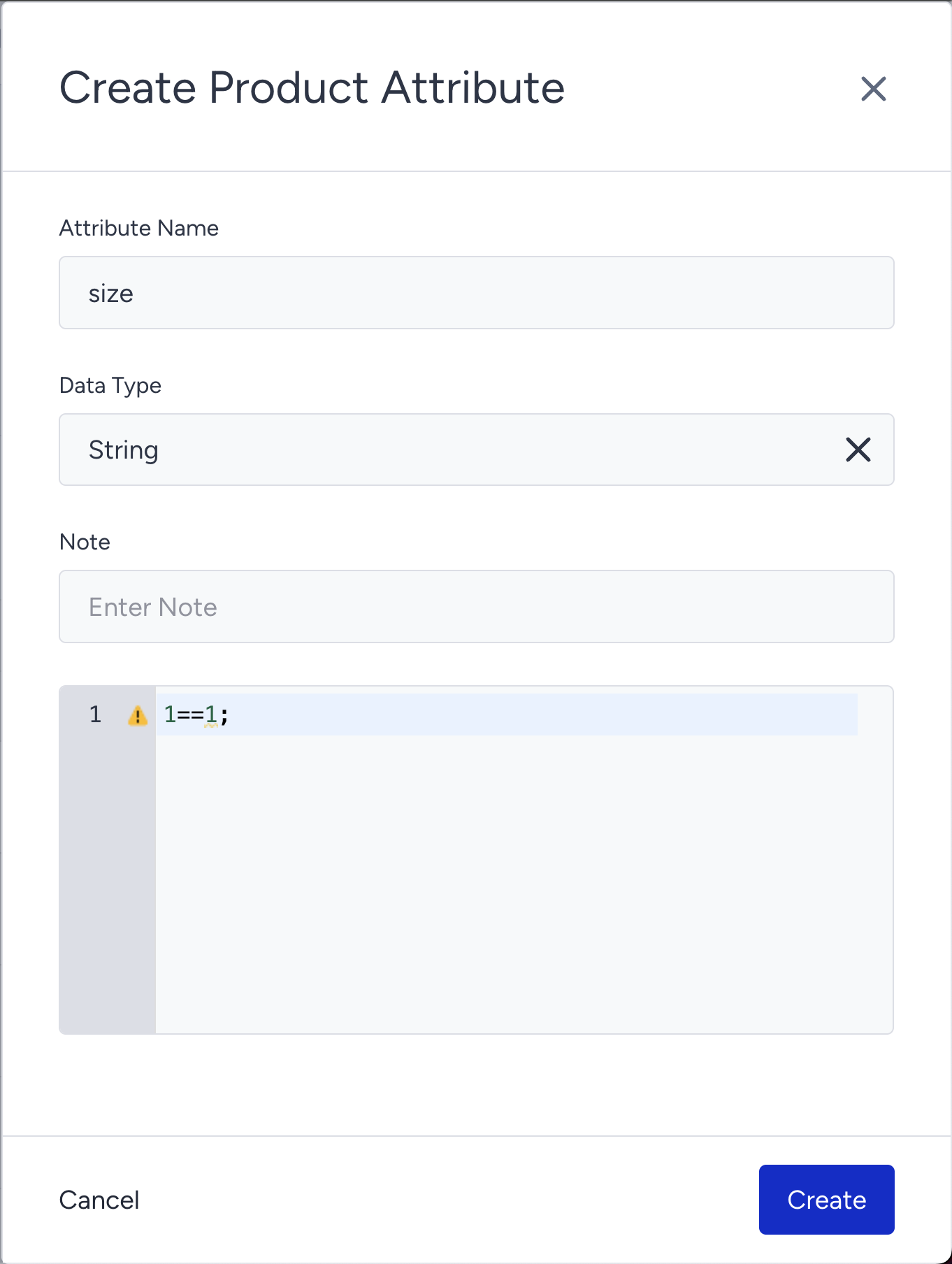
Click the Create button.

For the attribute name, write the name you used for the option, but in snake_case. For example, if your option name is “Size”, create the attribute as “size” and select "string" as the data type.
The Note field is optional; you can enter a note for your attribute.
In the Rule field, insert the text “1==1;” and click the Create button.
You will see that created attributes are listed on the Custom Product Attributes page.
Go to the Shopify Integration page and map the option to the product attribute that you have created.
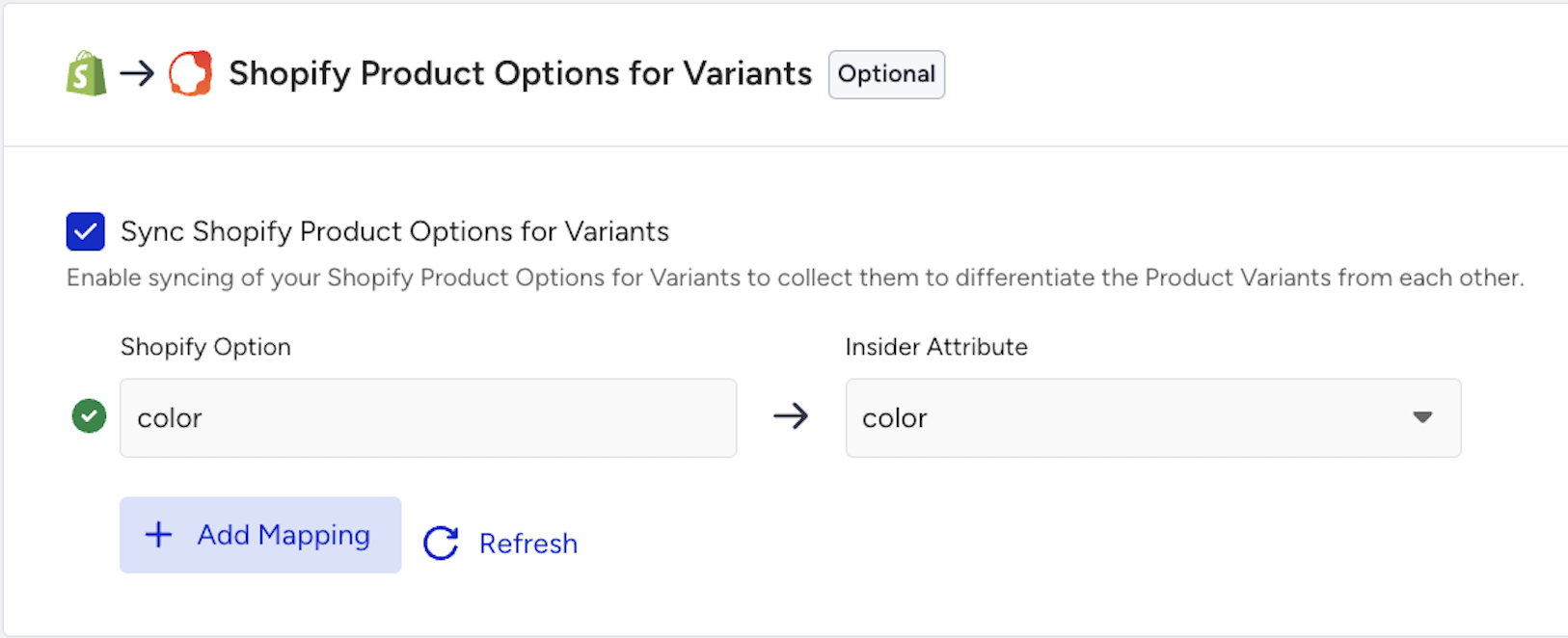
- Before the sync, we are unable to retrieve the option names used in your Shopify store. Therefore, you need to manually enter the option name. If Insider One cannot find the option you’ve entered, a warning will appear next to it, and you will receive an email notification.
- Shopify option input is case-insensitive. For example, inputs like "SiZE", "size", or "SIZE" will all be treated the same and converted to lowercase. As a result, if you use both "Size" and "size" in your Shopify store, they will be mapped to the same Insider One product attribute you selected.
Product Metafields in Shopify
Product metafields in Shopify are custom fields added to product listings to store additional information that is not captured by default. These fields can enhance the shopping experience, improve customer service, and help track product performance.
Utilize Product Metafields
Material and composition
You can specify the materials or ingredients used in the product, which can be helpful for customers interested in product quality or allergies.
Custom labels and badges
You can add custom labels or badges to products, such as "New Arrival," "Best Seller," "On Sale," or any other promotional information.
Ingredients and nutritional facts
You can include ingredient lists, nutritional information, and allergen details for consumable goods or dietary supplements.
Event-specific information
You can highlight products related to specific events or seasons, such as holiday collections, back-to-school offers, or seasonal promotions.
Customer reviews and ratings
You can create metafields to display customer reviews and average ratings, enhancing social proof and influencing purchase decisions.
Event-specific promotions
You can set metafields to promote specific events, flash sales, or time-limited offers related to the product.
Gift messaging and personalization
You can allow customers to include custom gift messages or personal notes when ordering a product.
Send Product Metafields Data from Shopify to Insider One
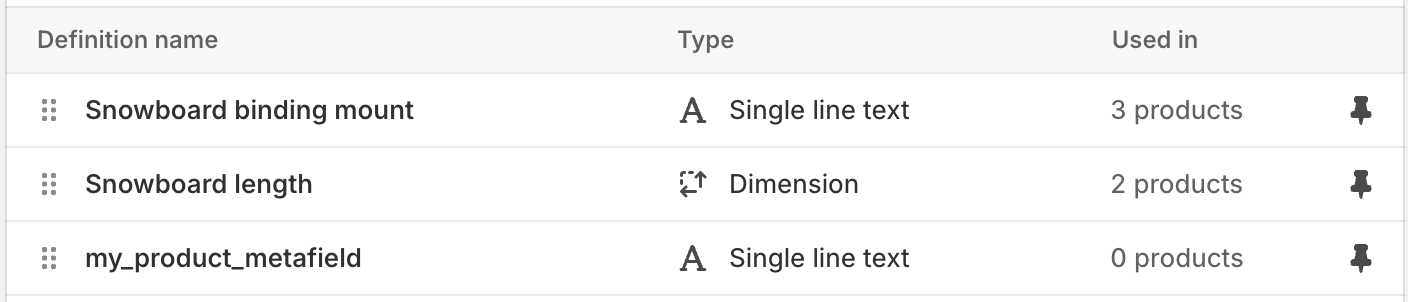
Navigate to the product metafields section via Settings > Custom Data > Products to check your metadata and types on your Shopify store.
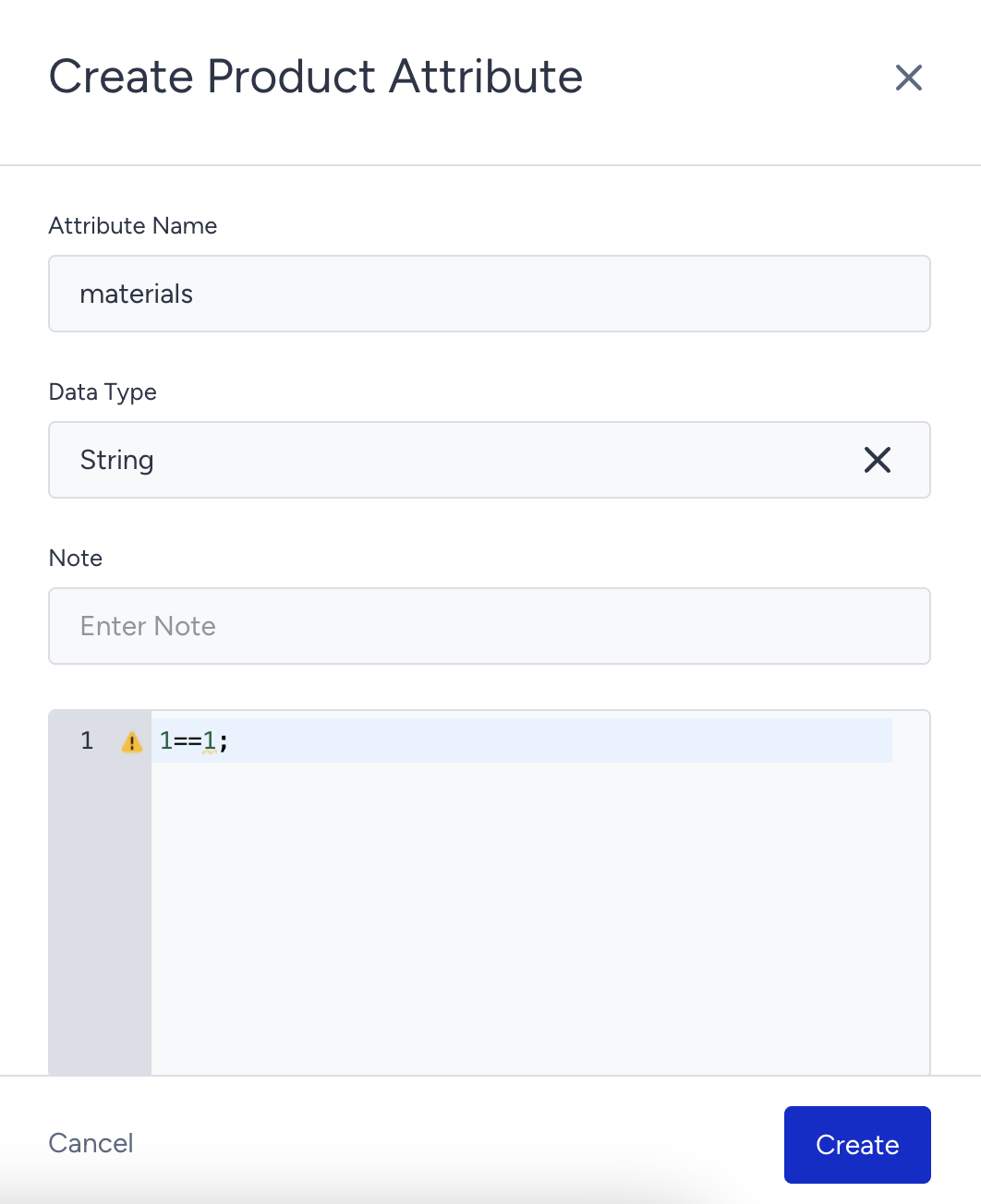
To create the product attributes, navigate to InOne > Components > Product Catalog Manager > Product Attributes. Click the Create button.
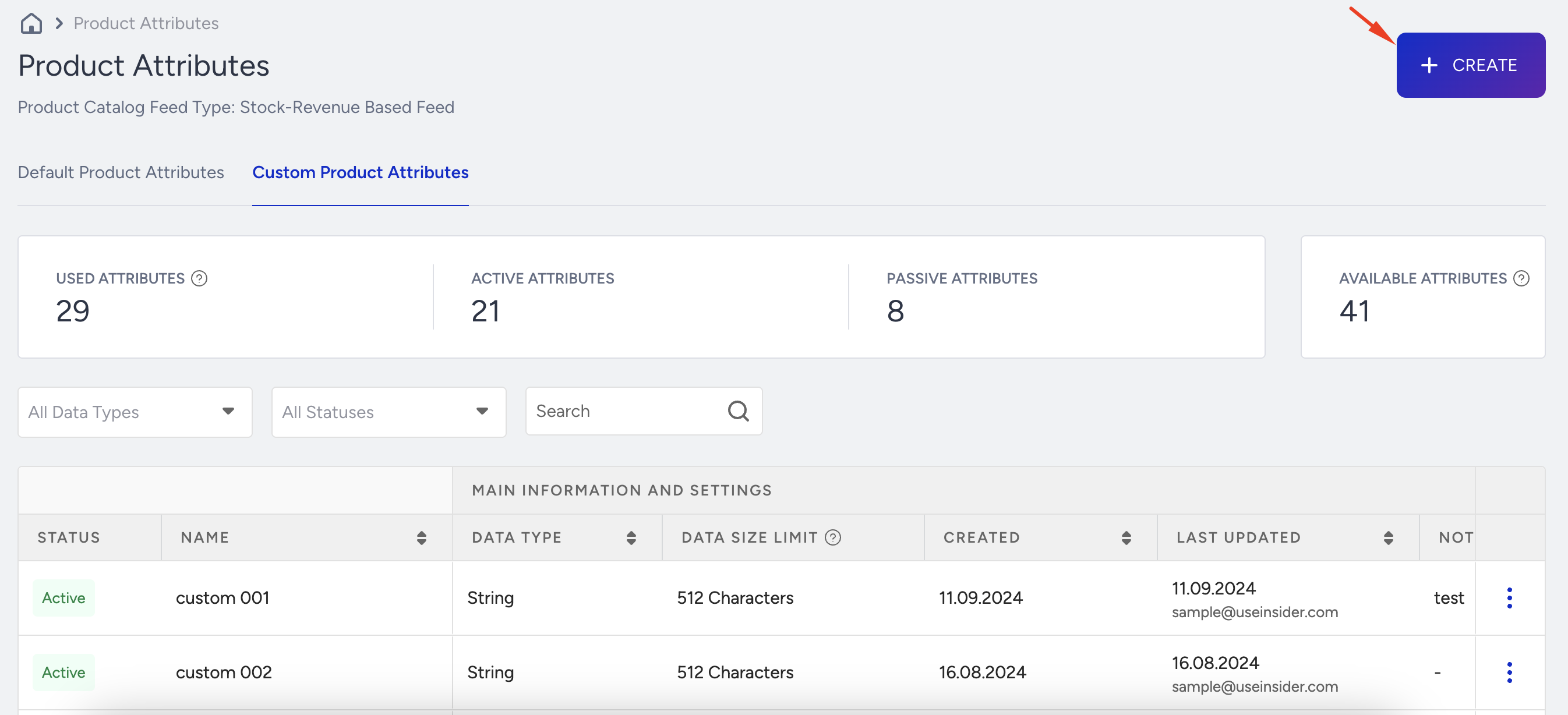
Select the appropriate data type for the product attribute. You can refer to the Product Metafields Data Type Mapping table to see which data types are mapped to each metafield type.
The Note part is optional, so you can enter a note for your attribute as you wish.
In the rule section, insert the text “1==1;” and click the Create button.
You will see that your attributes are created on the listing page.
Go back to Shopify integration and map the metafield to the product attribute that you have created.
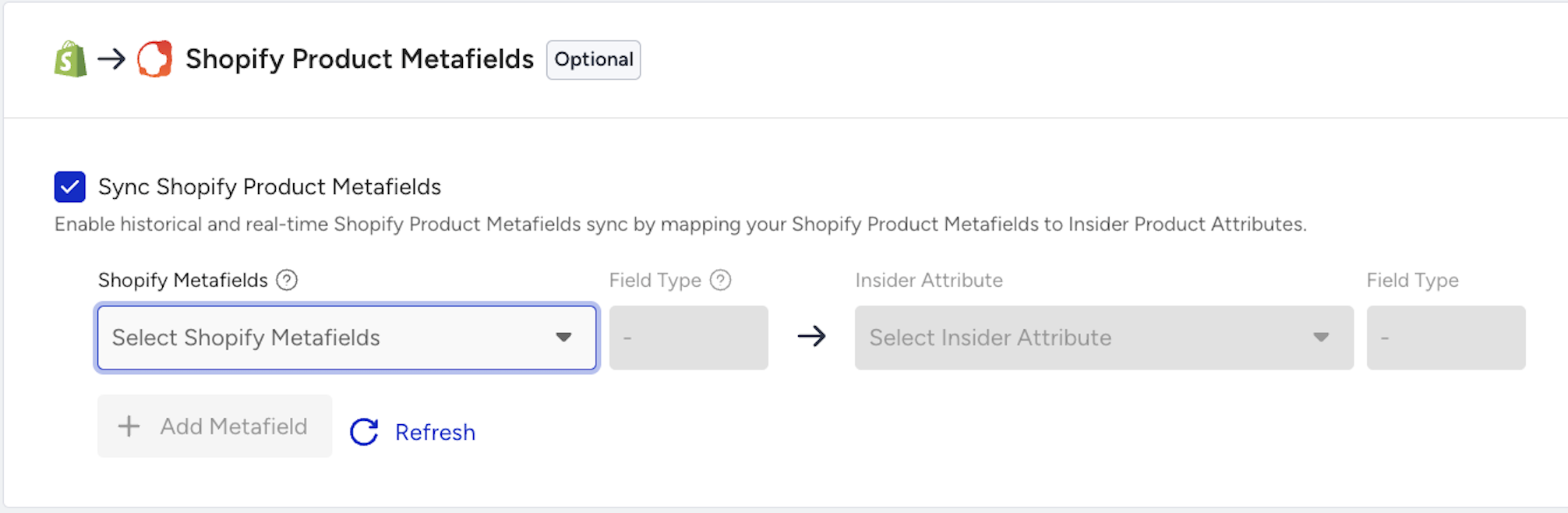
If you cannot see the newly created attribute or metafield in the mapping UI, click the Refresh button.
If you have added a new metafield to the existing Shopify integration and click the Update button, this newly added metafield will be historically synced to the Insider.
Product Metafields Data Type Mapping
Shopify Product Metafield Type | Insider One Attribute Type |
|---|---|
single_line_text_field | string |
boolean | boolean |
color | string |
date | datetime |
date_time | datetime |
decimal | number |
id | number |
json | string |
link | string |
multi_line_text_field | string |
number_integer | number |
rating | string |
rich_text_field | string |
url | url |
list.color | strings |
list.date/ | string array |
list.date_time | string array |
list.id | numbers |
list.link | string array |
list.number_integer | numbers |
list.rating | string array |
list.single_line_text_field | strings |
list.url | strings |
We do not map any Shopify metafield types to Insider One other than those listed in the table above.